How to Make AI Baby Videos: Beginner-Friendly Guide
 RoboNeo TeamJuly 8, 2026
Creating an AI baby video is much easier than traditional video editing, but beginners still need to understand how the process works before choosing a tool or writing a prompt.
What does it actually take to turn a baby photo into a video that looks natural, not uncanny? This guide covers how AI baby videos work, how to make them from text or photos, and the practical details that affect the final result, photo quality, prompt writing, motion settings, and common issues like unnatural facial movement. You'll also get simple tips for making AI baby videos look more natural and ready to share
What Is an AI Baby Video?
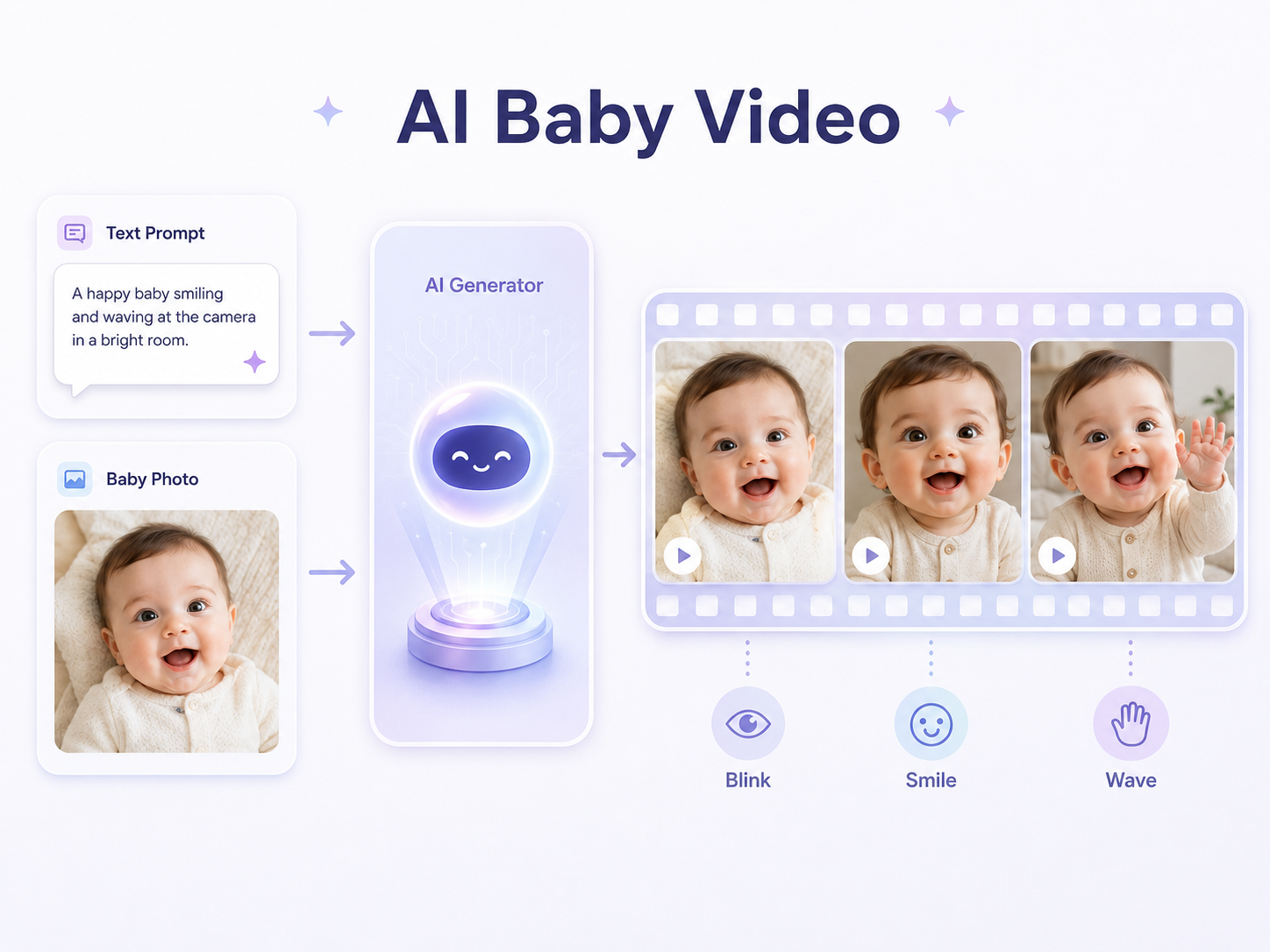
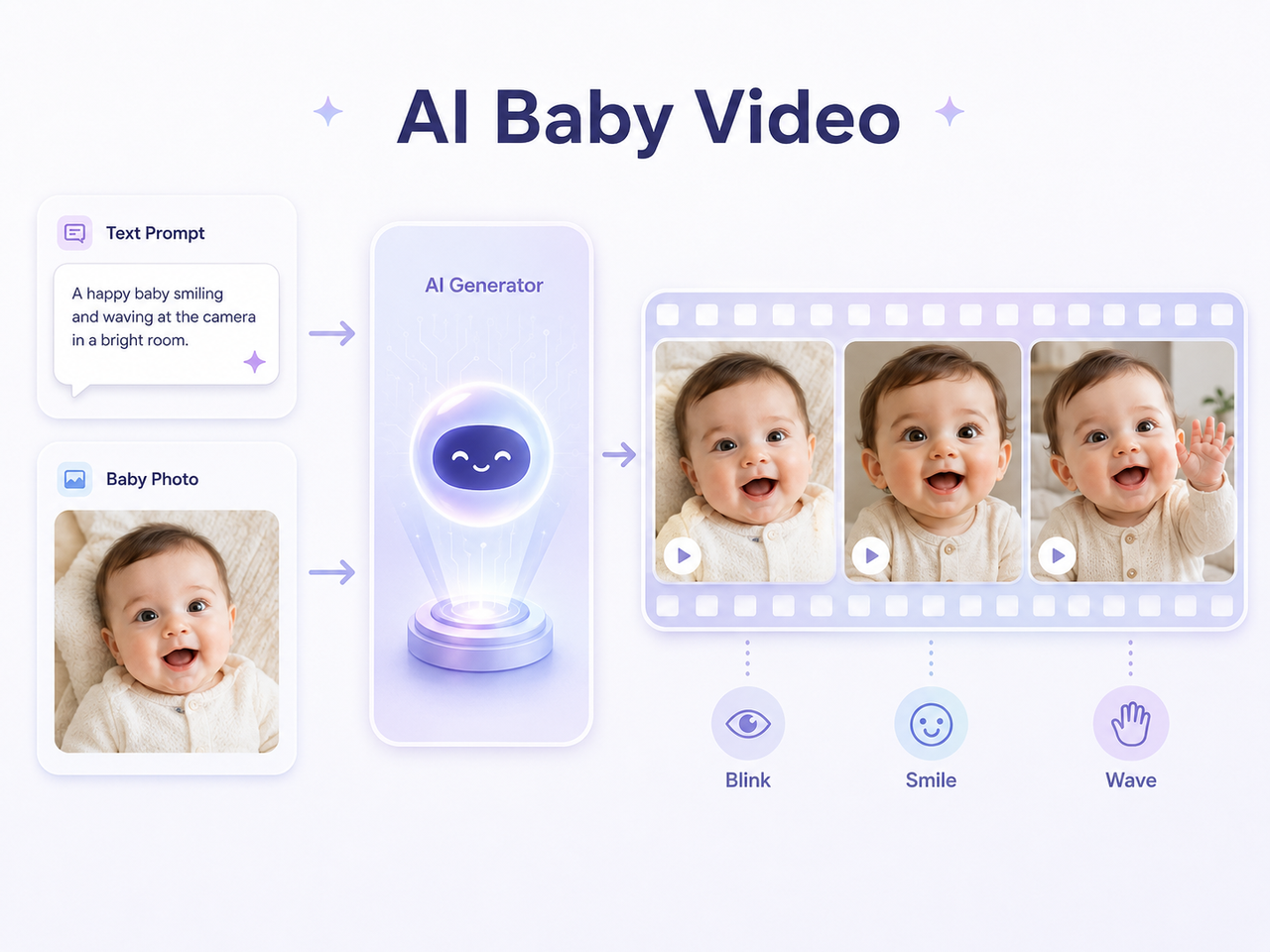
An AI baby video is a short animated clip of a baby created with an AI model. Unlike traditional animation, you do not need to draw frames or use complex editing software. You simply give the AI a text prompt or a still baby photo, and it generates motion, expressions, and a short video.
These videos can look realistic, stylized, or cartoon-like, depending on the tool and prompt you use. They are often used for memes, sweet social posts, and creative digital announcements. The technology makes video creation easier for anyone with a computer or smartphone.
How to Make AI Baby Videos
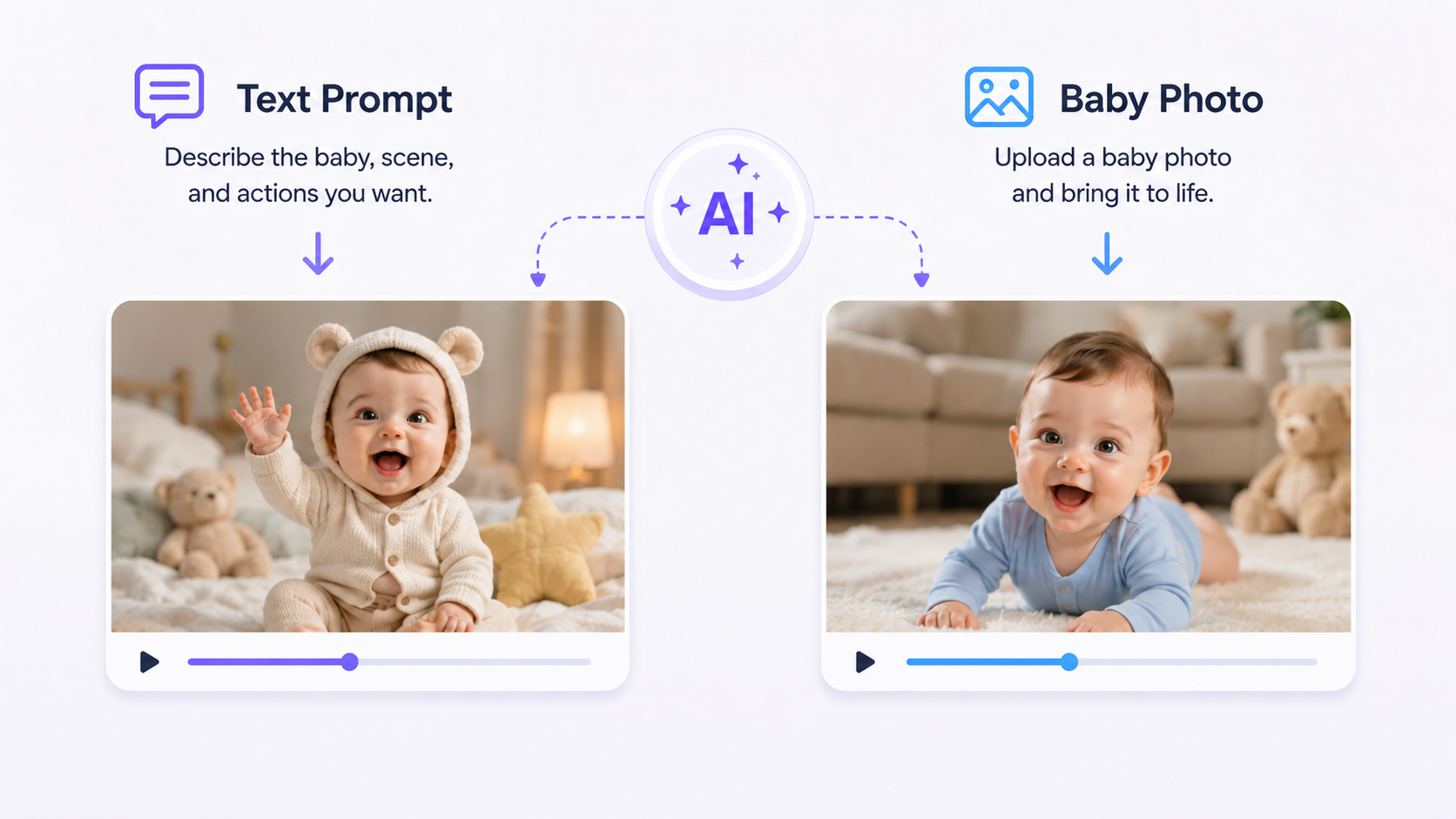
There are two main ways to make AI baby videos: create one from a text prompt or animate an existing photo. The best method depends on whether you want to design a new baby character or bring a specific photo to life. If you want to shape the video around a small story, learning a short script can help you plan the scene, emotion, and motion before generating the final clip.
1. Make Videos from Text Prompts
Text-to-video works well when you have a scene in mind but do not have a photo. You describe what you want to see, and the AI creates the video from scratch. This gives you more control over the baby’s look, expression, and setting.
For this method, tools like RoboNeo can work as an AI baby video maker by turning text ideas into different visual scenes. With a text-to-video workflow, you enter a detailed description, and the platform creates a video based on it. Other platforms, such as Canva, also offer AI video features for making short clips from text. The key is to keep your prompt clear and specific.
2. Make Videos from Photos
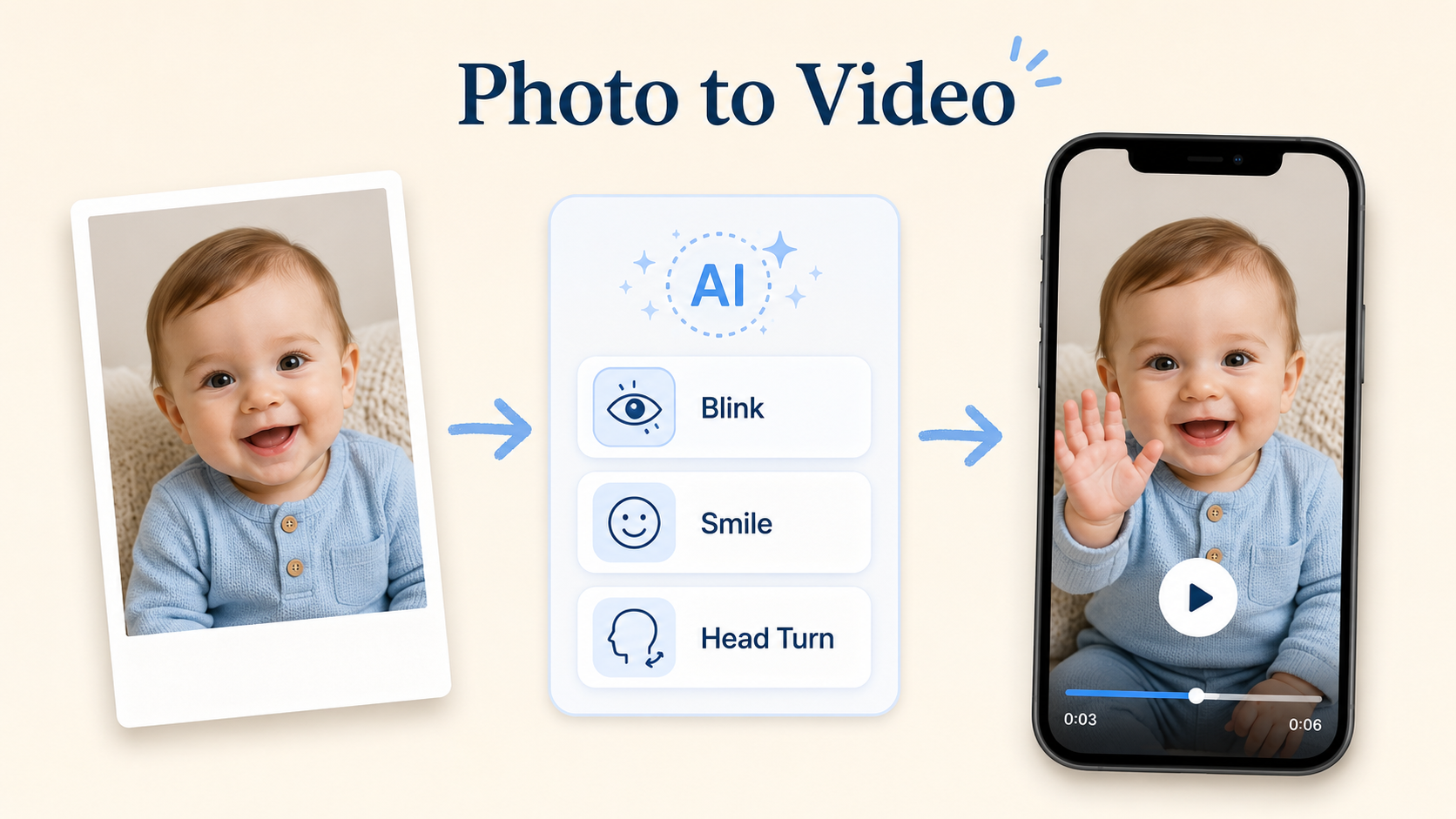
Photo-to-video, also called photo animation, is a good choice when you want to bring a favorite baby picture to life. You upload a clear photo, and the AI adds small movements like blinking, smiling, or a slight head turn. This makes the final video feel more personal and recognizable. Several tools support this workflow. Platforms like Runway and Pika are known for AI video generation, including still-image animation. RoboNeo and similar AI creation tools can also turn photos into animated visuals with consistent style and motion.
Step 1: Upload a Photo or Write a Prompt
Start by giving the AI the source material it needs.
If using a photo: Choose a clear, well-lit image where the baby is facing the camera. Avoid photos where hands, toys, or other objects cover the face, since they can confuse the AI. Then upload the image to your AI video tool.
If using a text prompt: Be specific. Instead of “a cute baby,” try “A close-up of a chubby-cheeked baby with blue eyes, giggling softly in a sunlit room.” Add details about the expression, lighting, and setting.
Step 2: Add Expression and Motion Details
Next, tell the AI how the baby should move. Most tools include a text box or settings where you can describe the action and emotion. Keep the language simple and clear.
For Expressions: Use words like “smiling,” “laughing,” “looking curious,” “pouting,” or “yawning.”
For Motion: Choose gentle movements, such as “slowly blinking,” “turning the head slightly to the left,” “a soft nod,” or “subtle breathing.” Avoid complex actions like crawling or waving, since AI can struggle with them.
Step 3: Generate and Review the Video
After you add your input and instructions, click “generate.” The AI will usually take a few seconds or minutes to create the clip. The best AI video generator will let you compare different versions, so you can pick the one with the most natural expression and motion.
Check for unnatural details, such as distorted facial features, odd eye movement, or a flickering background. This is common with AI video generation, especially when the source photo is blurry or the requested motion is too complex. If the result does not look right, try generating a new version or adjust your prompt and settings.
Step 4: Edit, Export, and Save
Most AI video generators include basic editing tools. You may be able to trim the video, apply a filter, or improve the quality. Once you are happy with the result, export the video.
Choose a social-media-friendly format, such as MP4. Use the highest resolution available, especially if you plan to post on Instagram or TikTok. Then save the video to your device and share it when you are ready.
Prompting Tips for Natural AI Baby Videos
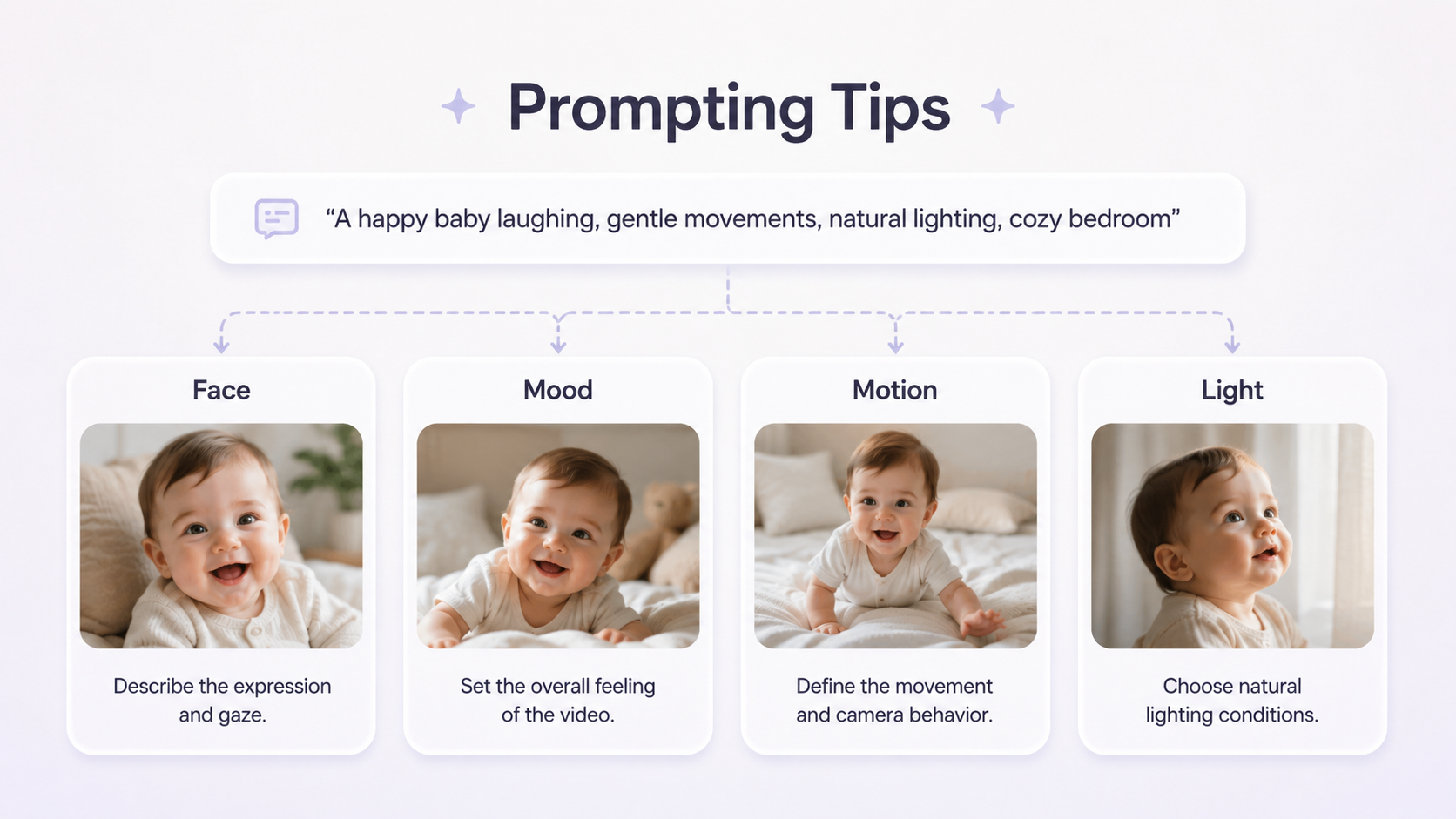
The quality of your AI baby video depends a lot on your instructions. Your prompt needs clear details about the subject, expression, motion, and lighting. A strong prompt can make the difference between a sweet, natural clip and one that feels a little uncanny. These tips can help you get more realistic results.
1. Use Clear Face and Expression Details
Vague prompts usually lead to generic results. Give the AI clear details about the baby’s appearance and facial expression.
Instead of: "A happy baby."
Try: "A baby with a wide, toothless grin, bright sparkling eyes, and rosy cheeks."
Instead of: "A sad baby."
Try: "A baby with a quivering lower lip and large, teary eyes, looking down."
2. Keep Motion Soft and Simple
Current AI video models are better at subtle movements than large or fast actions. Keeping the motion simple usually creates a more believable video.
Good examples: "slowly blinking," "a gentle smile forming," "a slight tilt of the head."
Difficult examples: "crawling across the floor," "clapping hands," "waving goodbye."
3. Add Lighting and Camera Cues
Adding lighting and camera details can make the video feel more realistic and polished. These cues help the AI understand the mood, setting, and visual style.
Lighting examples: “soft morning sunlight through a window,” “warm lamp light,” “bright outdoor lighting.”
Camera examples: "close-up shot," "cinematic," "shallow depth of field," "shot from a low angle."
4. Avoid Complex Hands or Fast Body Movement
Hands and moving limbs are still hard for AI to generate accurately. To avoid distorted fingers or extra fingers, keep the baby’s hands out of focus or out of frame. Fast body movements can also cause blur or unnatural warping, so it is better to keep the action gentle.
FAQ
Is there a free AI baby video maker free to try?
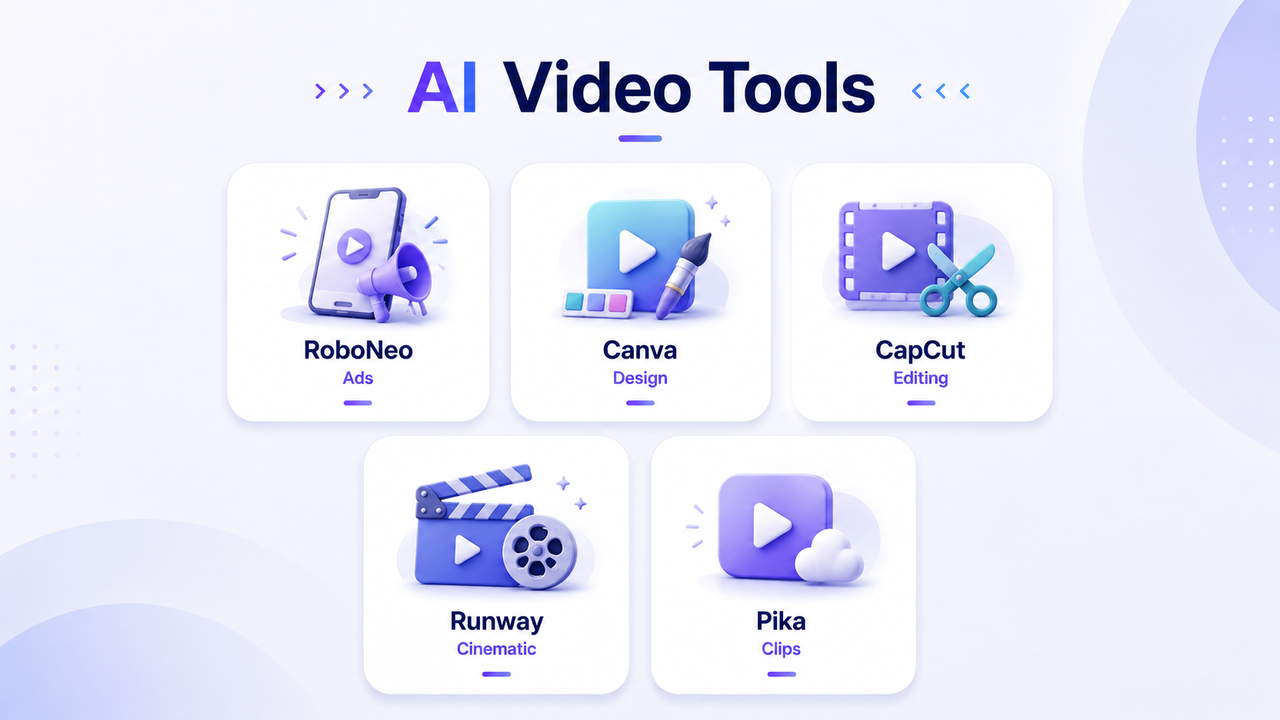
Some tools offer free trials, free credits, or limited free plans. Common options include RoboNeo, Canva, CapCut, Pika, and Runway.
Why does my AI baby video look unnatural?
It may be caused by a blurry photo, unclear face, vague prompt, or too much movement. Use a clear front-facing photo and keep the motion simple, such as blinking, smiling, or a slight head turn.
Can I post AI baby videos on TikTok or Instagram?
Yes, but make sure you follow platform rules. If you use a real baby photo, get permission before posting it publicly.
How are people making AI baby videos?
Most people use either text-to-video or photo-to-video tools. They write a prompt or upload a photo, then let the AI add expressions and gentle motion.
How to Make AI Baby Videos Step by Step?
Character AI Alternative: 7 AI Chat Tools to Try in 2026
AI Video Generation Models: What Works for Video Projects
Beneficial Practices for Training AI Models With Prompts
What Is An AI Model? A Guide to Types, Examples, and Uses
What AI Model Writes Stories Best? 7 Tools Compared
Best AI Video Generators for Anime Style 2026: 7 Picks
Best Free AI Text to Video Generators 2026: 7 Tools
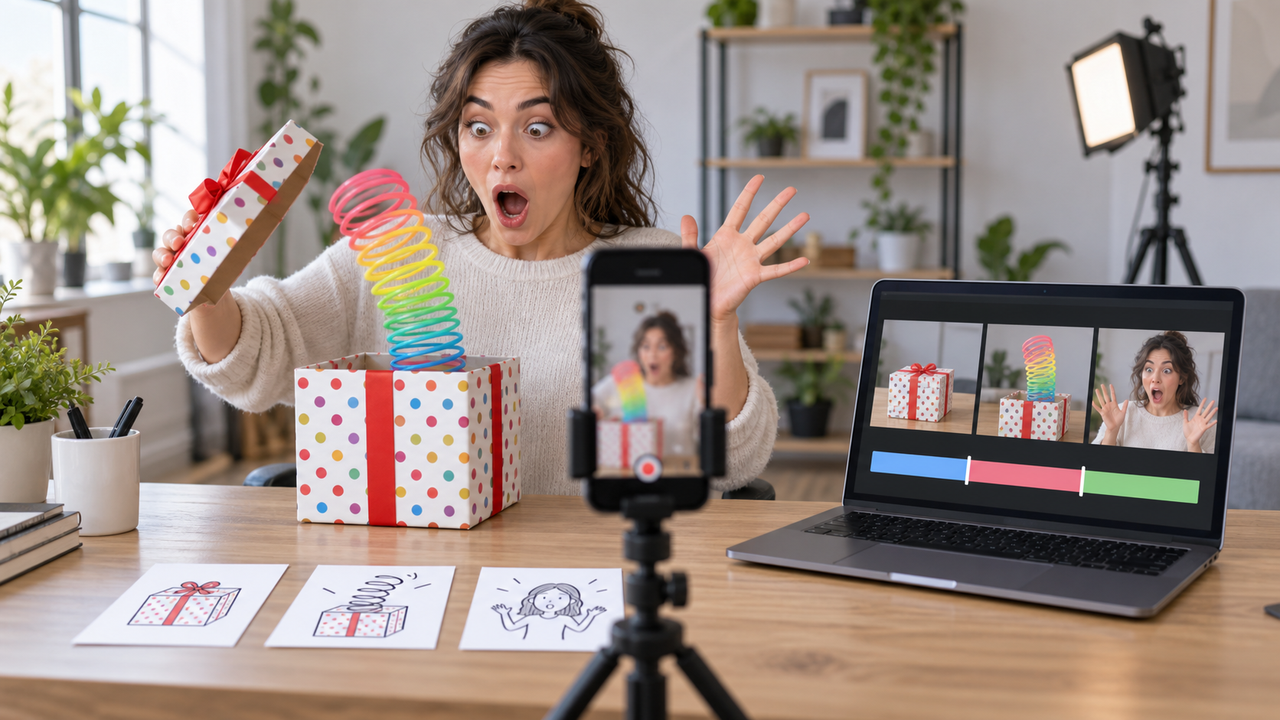
How to Make a Meme Video: Types, Steps, and Simple Tips
Best Setup for AI Video Generation: Benefits, Setup & Tips
What Is AI Video: How It Works and How to Get Started
How to Create Animated Videos: 5 AI Methods to Final Video
Where Can I Use Seedance 2.0: Compare the Best Platforms
Seedance 2.0 vs Sora: What They Are and Which Is Better
What Is Seedance 2.0: Benefits, Workflow, Uses, and Limits
How to Use Seedance 2.0: Inputs, Prompts, and Final Edit
How to Restore Old Photos: Repair Fading and Damage
How to Make Picture Higher Resolution: Upscaling Guide
How to Write Romantic Fiction: Tips for a Better Love Story
How to Fix Overexposed Photos: Better Editing Tips
How to Brighten a Dark Picture Without Washing It Out
How to Remove a Watermark from a Photo: Easy Methods
DPI vs PPI: Key Differences for Print and Screen

1080p vs 1440p: Which Resolution Is Better?
How to Upload HD Video to Facebook: Best Settings
What Is Frame Interpolation? How It Works and Uses
What Is Upscaling? Video Enhancement Explained
Photographic Noise Explained: Causes, Types, and Fixes
How to Fix Grainy Photos: Reduce Noise and Improve Quality
Can You Set Display Quality on YouTube? Settings Guide
1440p vs 4K: Gaming, Display Quality, and Key Differences
How to Make a Video Out of Images: 2 Simple Methods
What to Tell AI to Humanize Text: Prompts That Work
How to Write a Commercial Script: 6 AI-Powered Steps
Is 4K Better Than HD? Key Differences Explained
What Is 1440p Resolution? QHD Size and Comparison
How to Make a YouTube Gaming Video: A Simple Beginner Guide
How to Create a Whiteboard Animation: 6 Easy Steps
Image to Video Girl Dancing Prompts: 20 AI Prompt Ideas
How Can I Make an Image High Resolution? Easy Methods
How to Make a Photo Less Blurry in 2026?
How to Unblur an Image Online Free in 2026?
6 Best Tools to Fix Blurry Videos in 2026
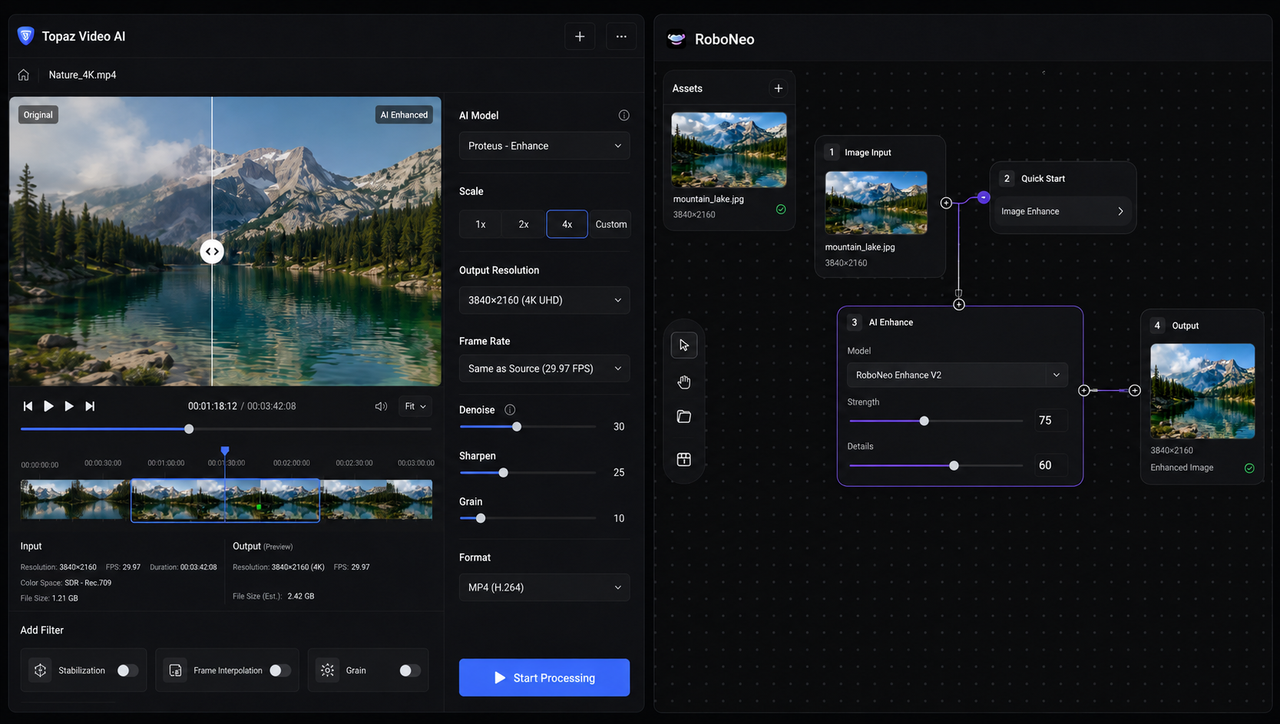
Topaz Video AI vs RoboNeo: Which Video Enhancer Is Better?
How to Make Video Quality Better: 5 Editing Steps
SD vs. HD Video: What Is the Difference and Which Is Better?
4K vs 1080p: Resolution, Quality, and Video Upscaling Guide
How to Make a 480p Video to 1080p: Step-by-Step Guide
480p vs 1080p: Which Resolution Should You Choose?
480p vs. 720p: Which Resolution Should You Choose?
Best Tool to Fix Blurry Videos: 6 AI Tools Compared
How to Repair Video Blocking Artifacts: Causes and Fixes
How to Upload High Quality Videos to TikTok: Easy Guide
What Is Video Bitrate? How to Choose the Right One
Native 4K vs Upscaled 4K: Key Differences Explained
Upscaling 1080p to 4K: Benefits, Limits, and Best Uses
What Is 4K Upscaling? A Complete Beginner’s Guide
Is It Legal to Remove a TikTok Watermark? What to Know
How to Remove Instagram Watermark from Downloaded Video
What Is a Video Watermark? Types, Uses, and Removal
Canva Watermark Remover Review: Features and Limits
3 Best Background Noise Removal Apps for 2026
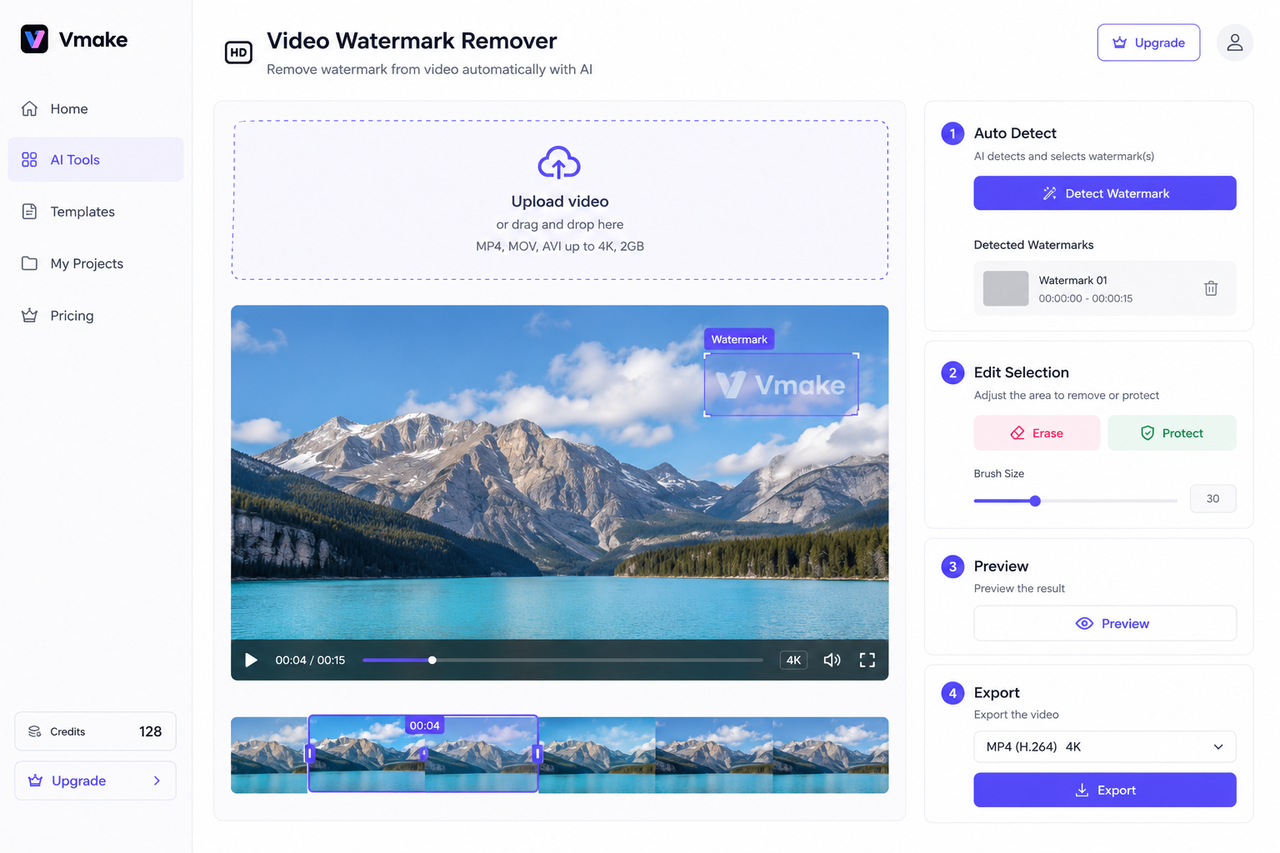
Vmake AI Video Watermark Remover: Tested and Reviewed
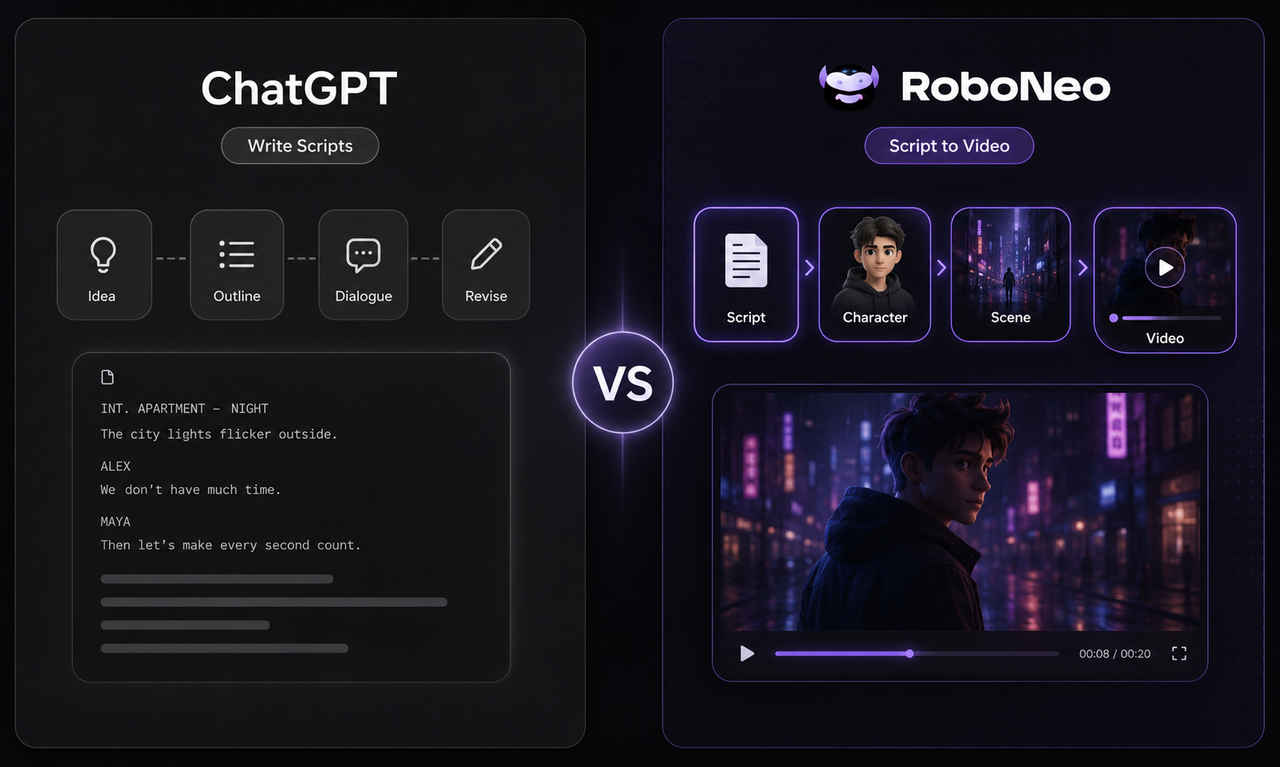
ChatGPT Script vs RoboNeo AI Script Generator
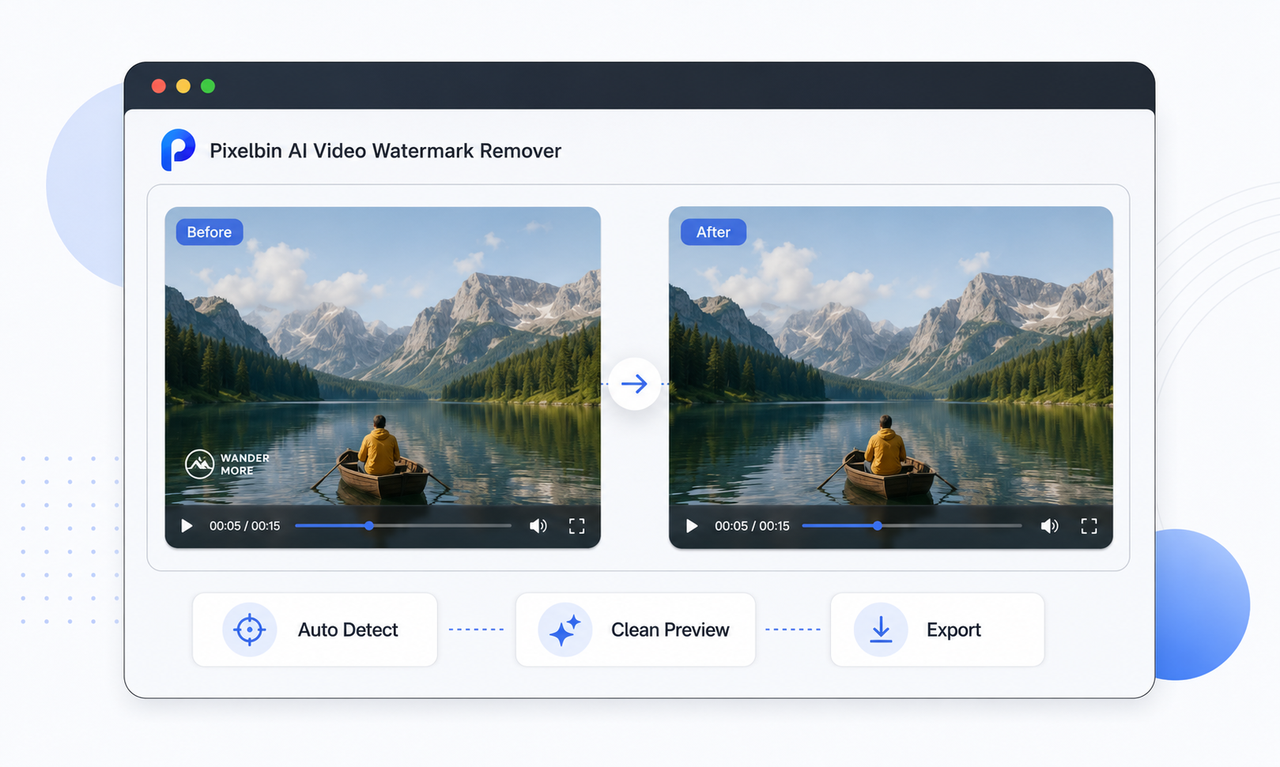
Pixelbin AI Video Watermark Remover: Tested and Reviewed
How to Make a Dark Video Brighter with AI: 5 Easy Steps
Best AI Video Enhancer in 2026: 8 Tools, Pros and Cons
How to Make an AI Dance Video in 2026: Easy Guide
How to Enhance Sora AI Video Quality in 2026?
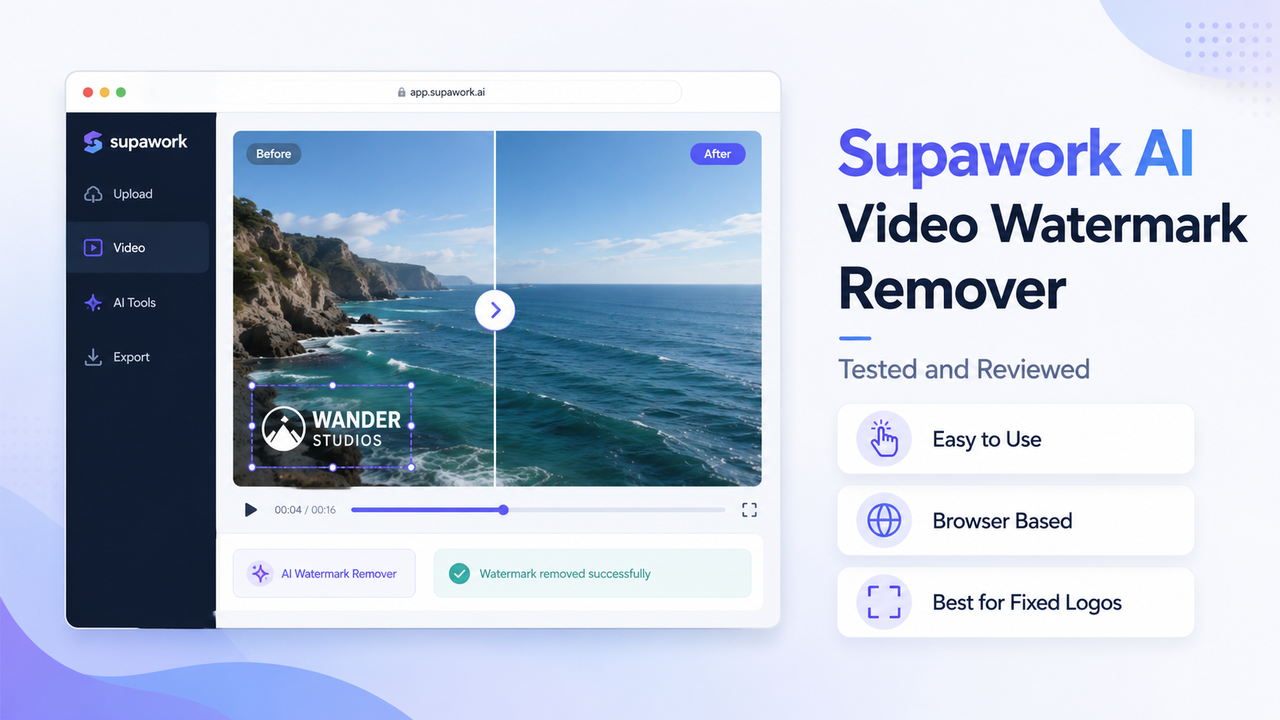
Supawork AI Video Watermark Remover: Tested and Reviewed
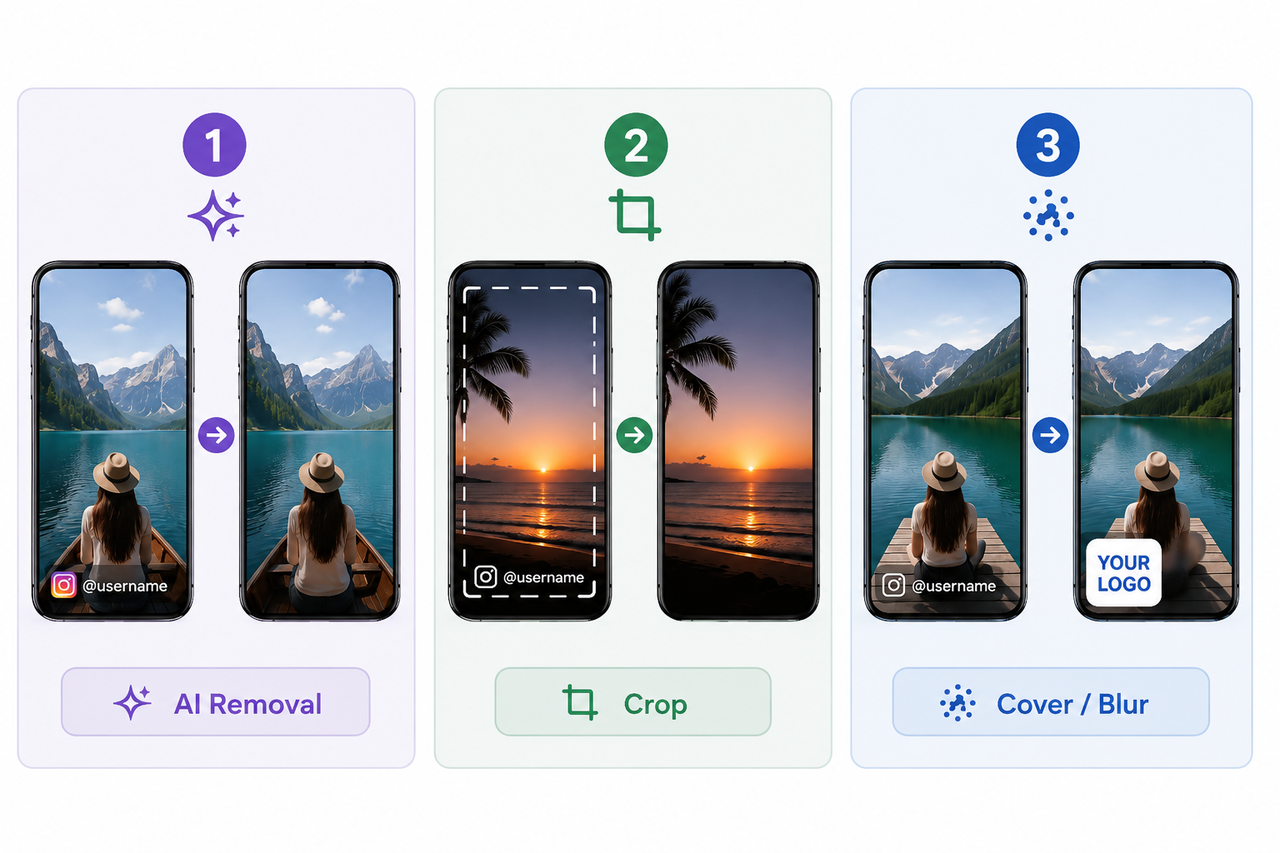
How to Remove Instagram Watermark: 3 Methods in 2026
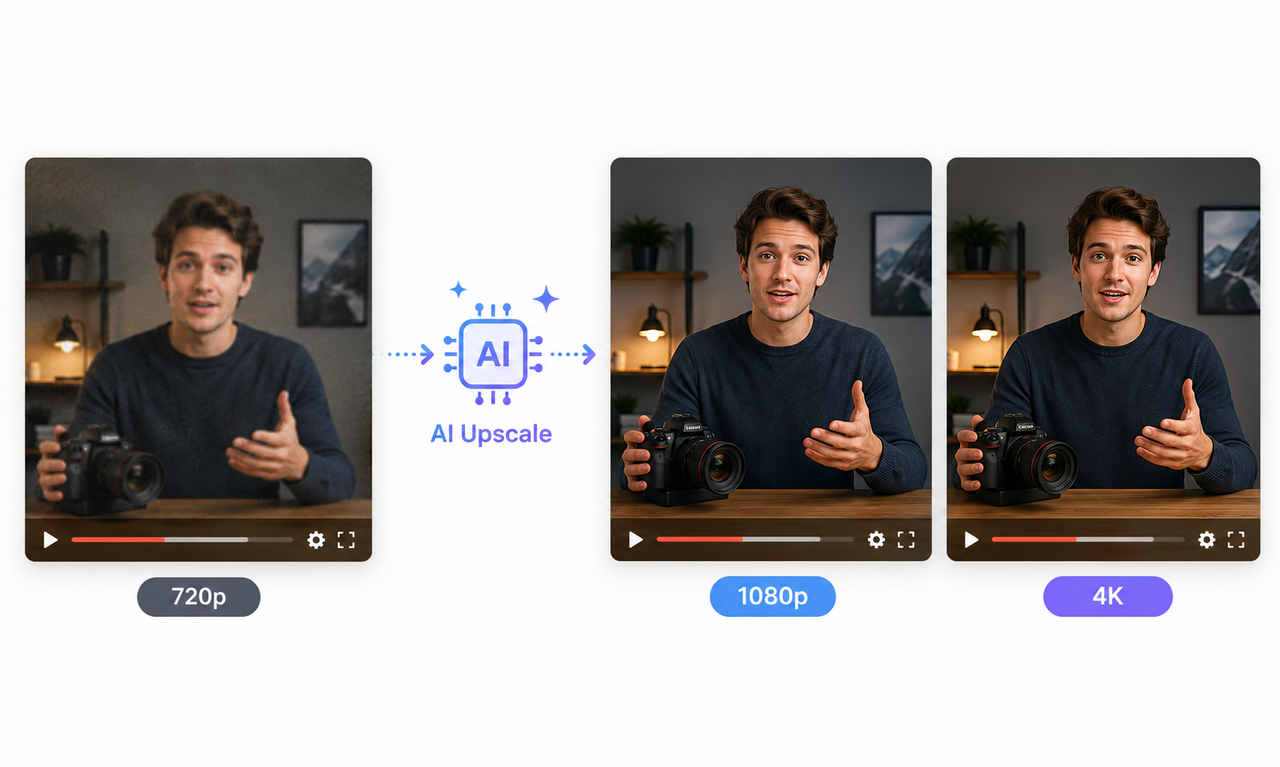
How to AI Upscale Video: 1080p to 4K Guide for Beginners
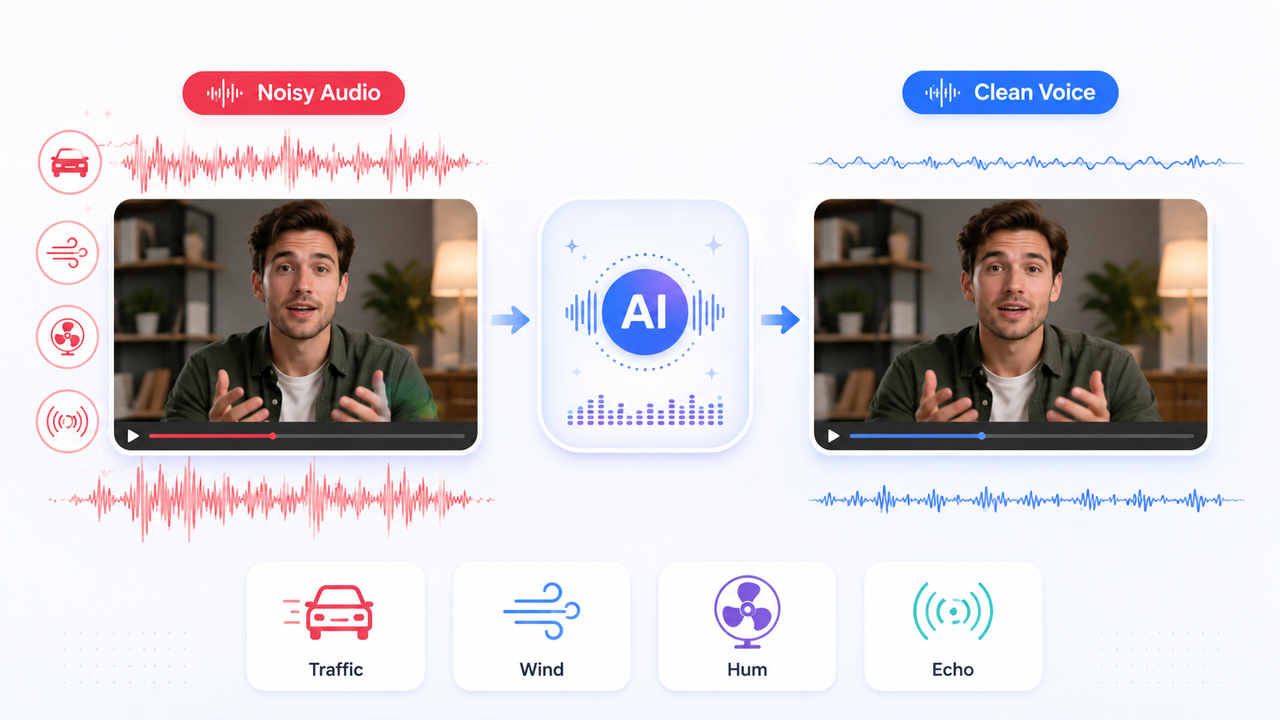
How to Remove Background Noise from Video: Easy Guide
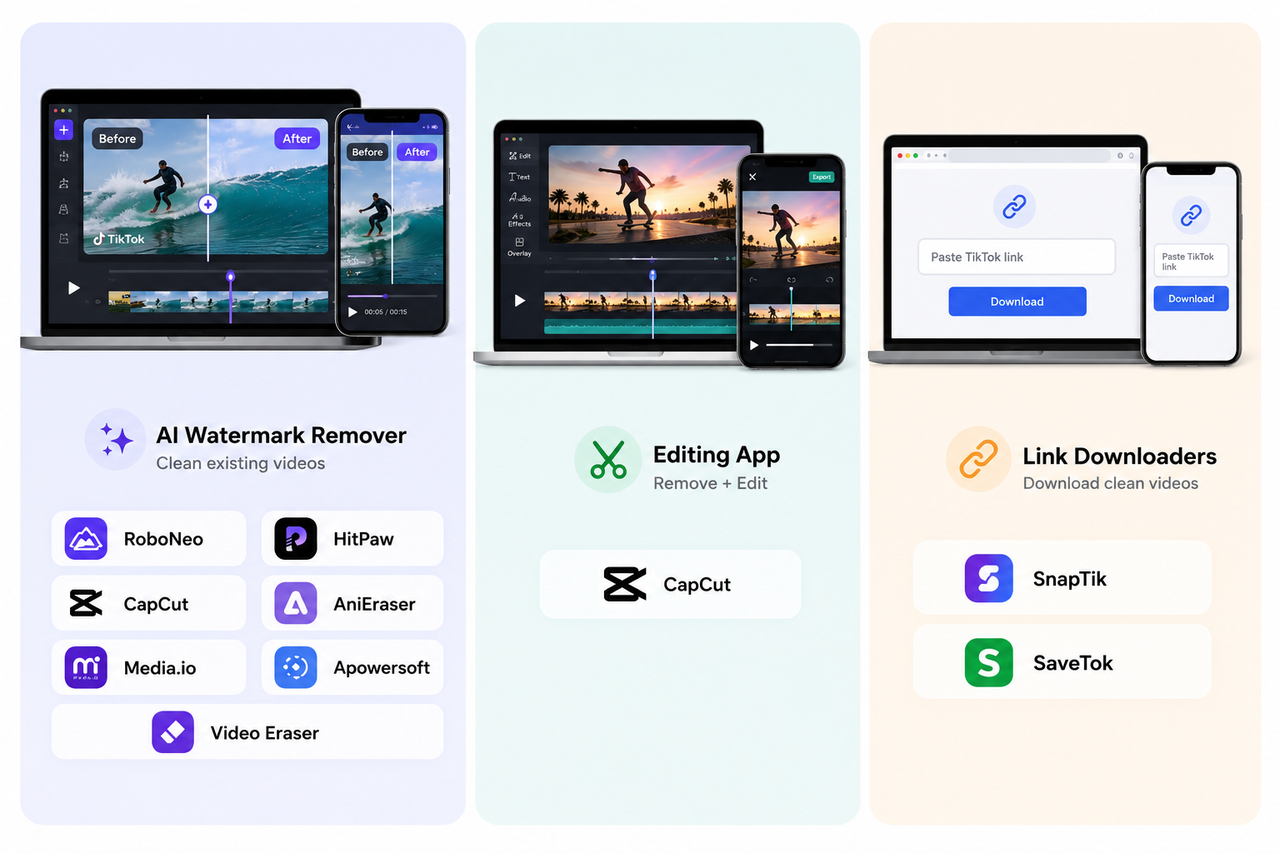
9 Best App to Remove TikTok Watermark: Complete 2026 Guide
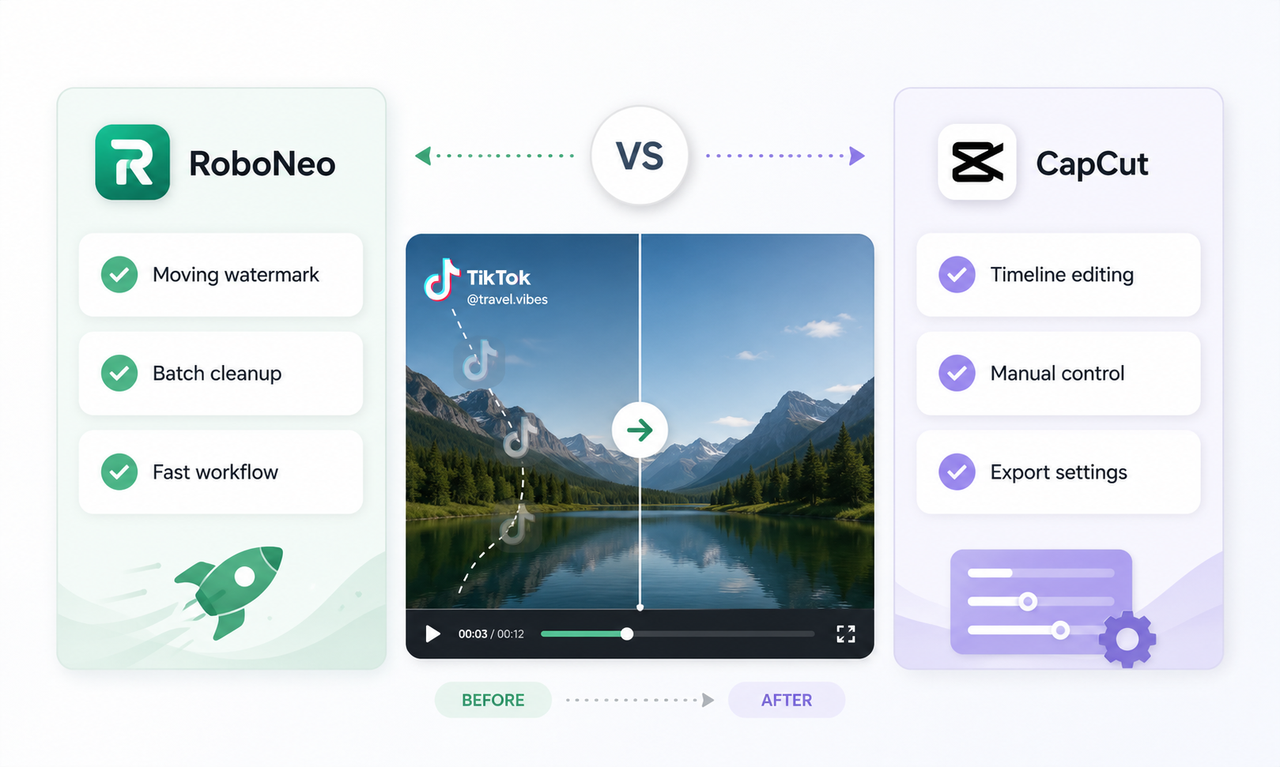
CapCut Watermark Remover vs RoboNeo: Complete Comparison
How to Remove TikTok Watermark: 3 Free Methods
Best AI Features for Enhancing UGC Video Quality in 2026
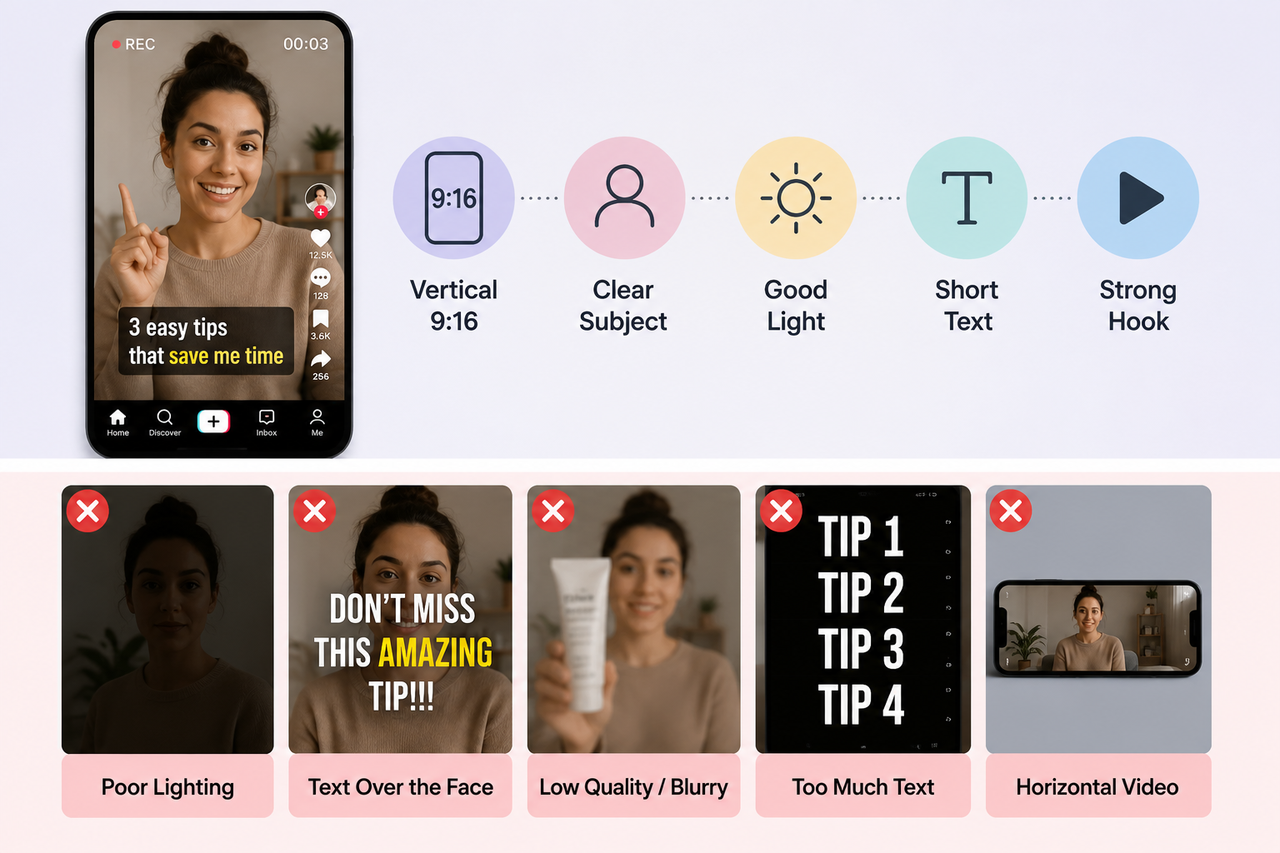
How to Make a TikTok Video in 2026: Easy Guide
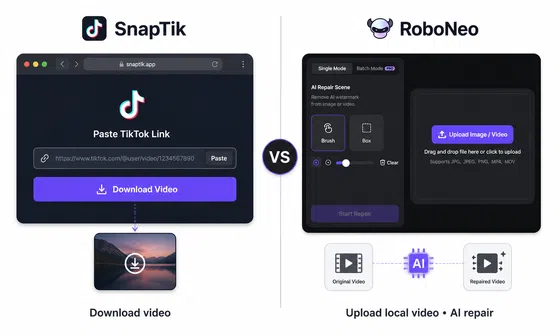
SnapTik TikTok Downloader Review: Pros, Cons and Alternative
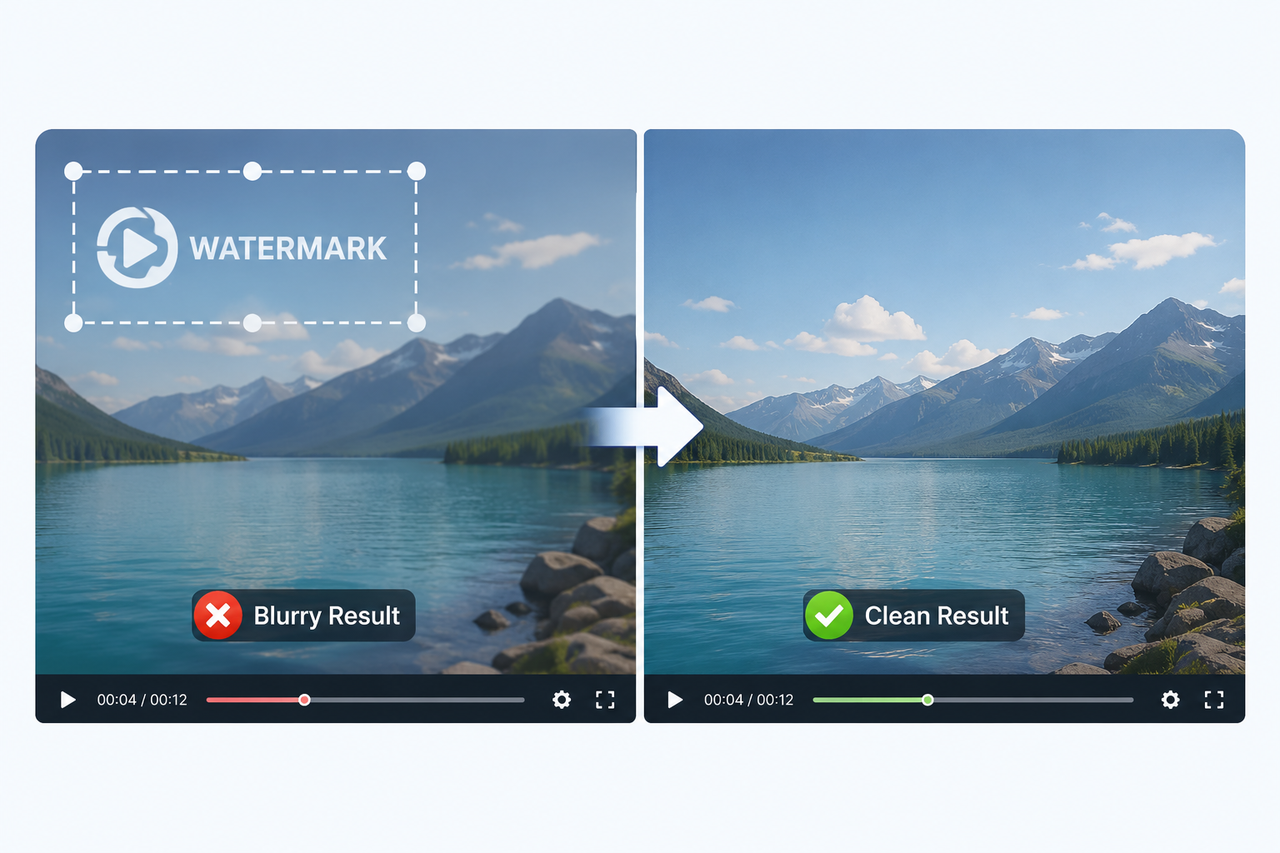
How to Save Video Without Watermarks: 5 Steps and Fixes
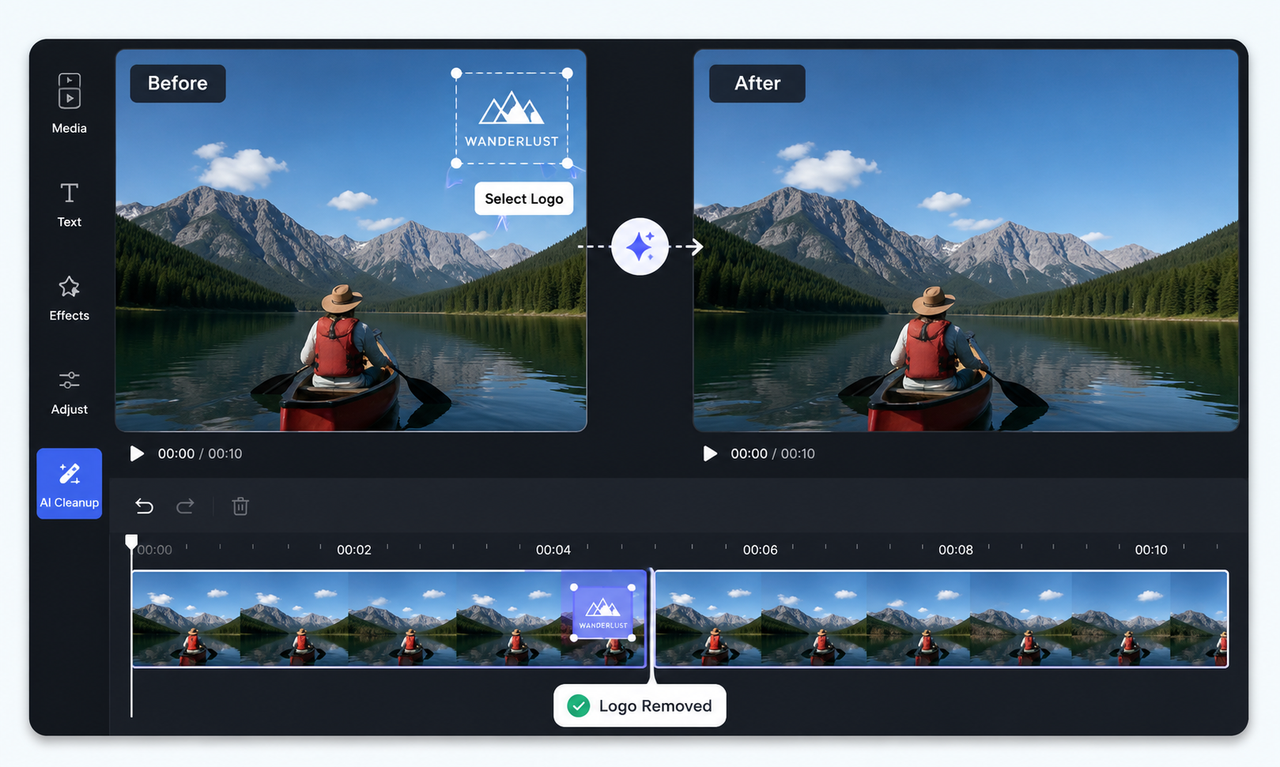
How to Remove Logo from Video: 4 Easy Methods | RoboNeo
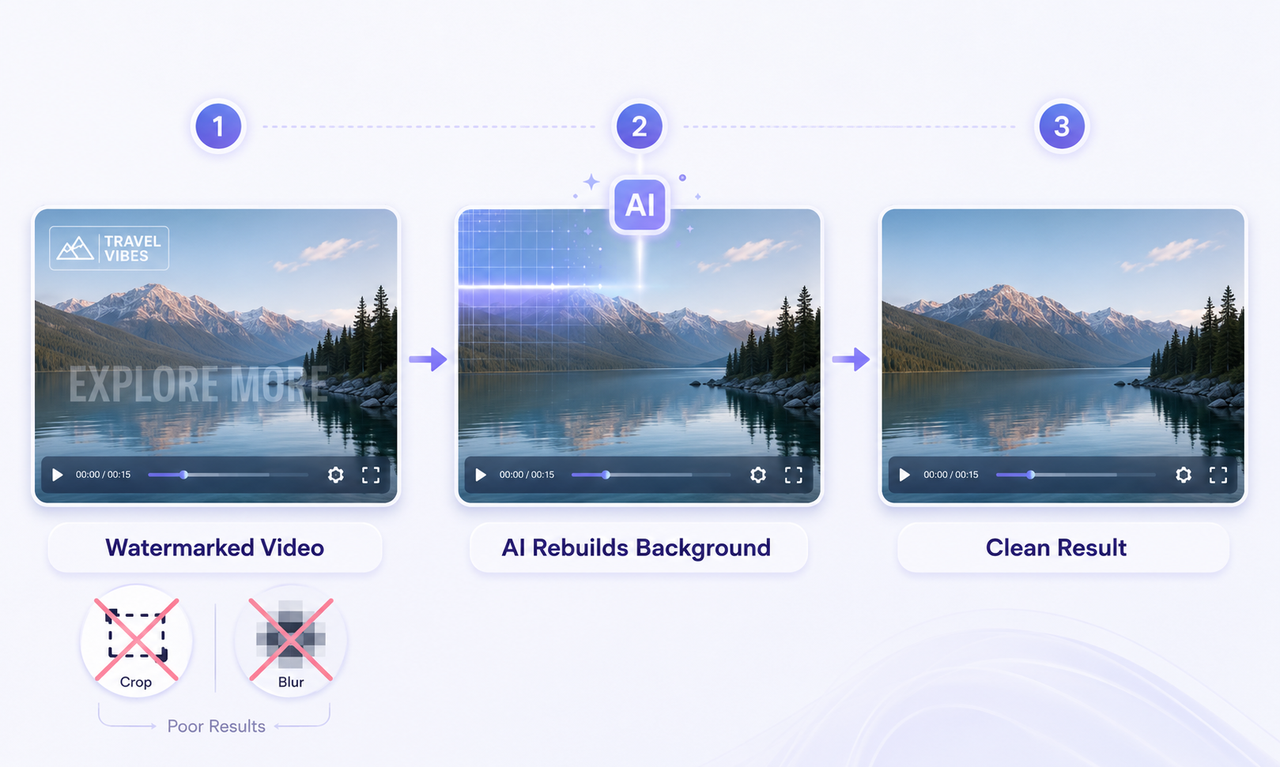
How to Remove Watermark from Video with AI (2026 Guide)
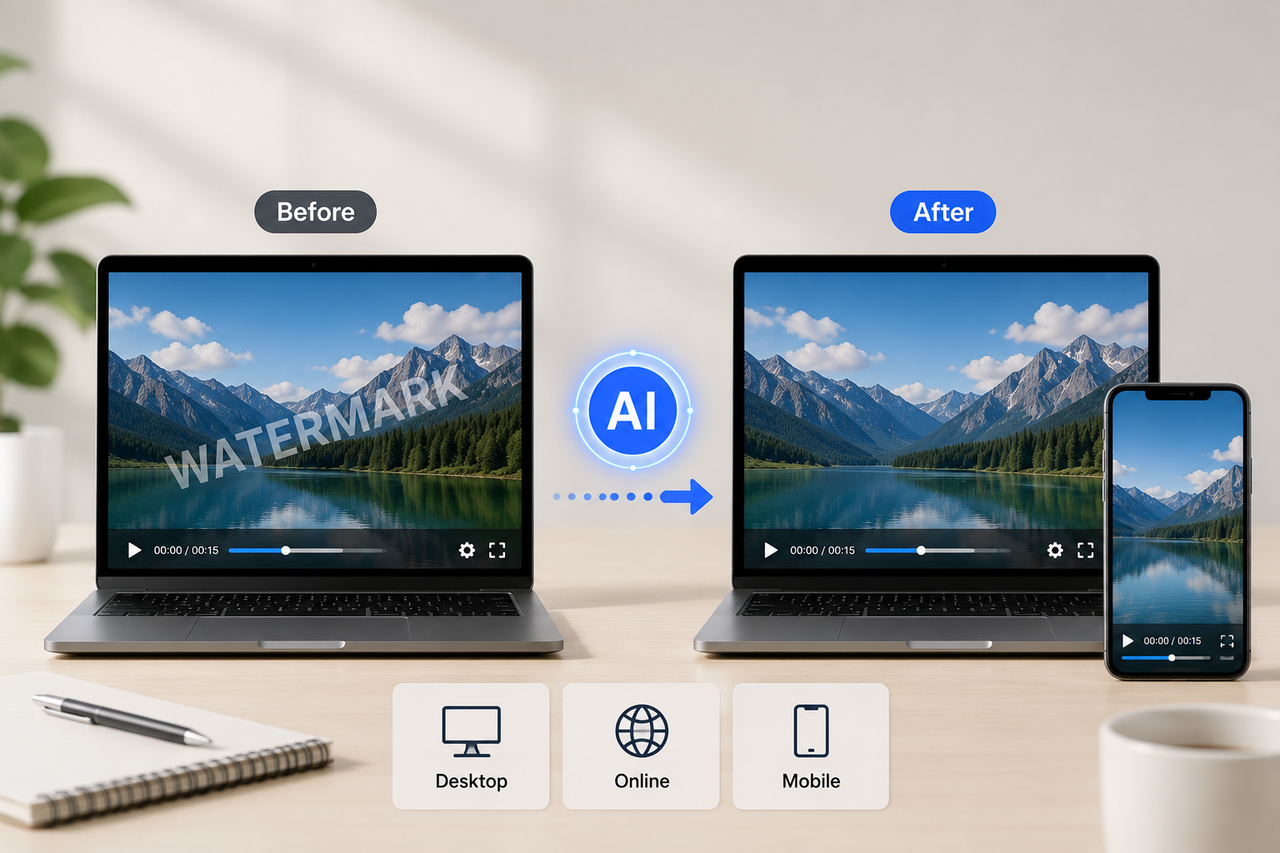
5 Best Free Tools to Remove Watermark from Video in 2026 | RoboNeo
How Long Does It Take to Write a Script? A Practical Guide
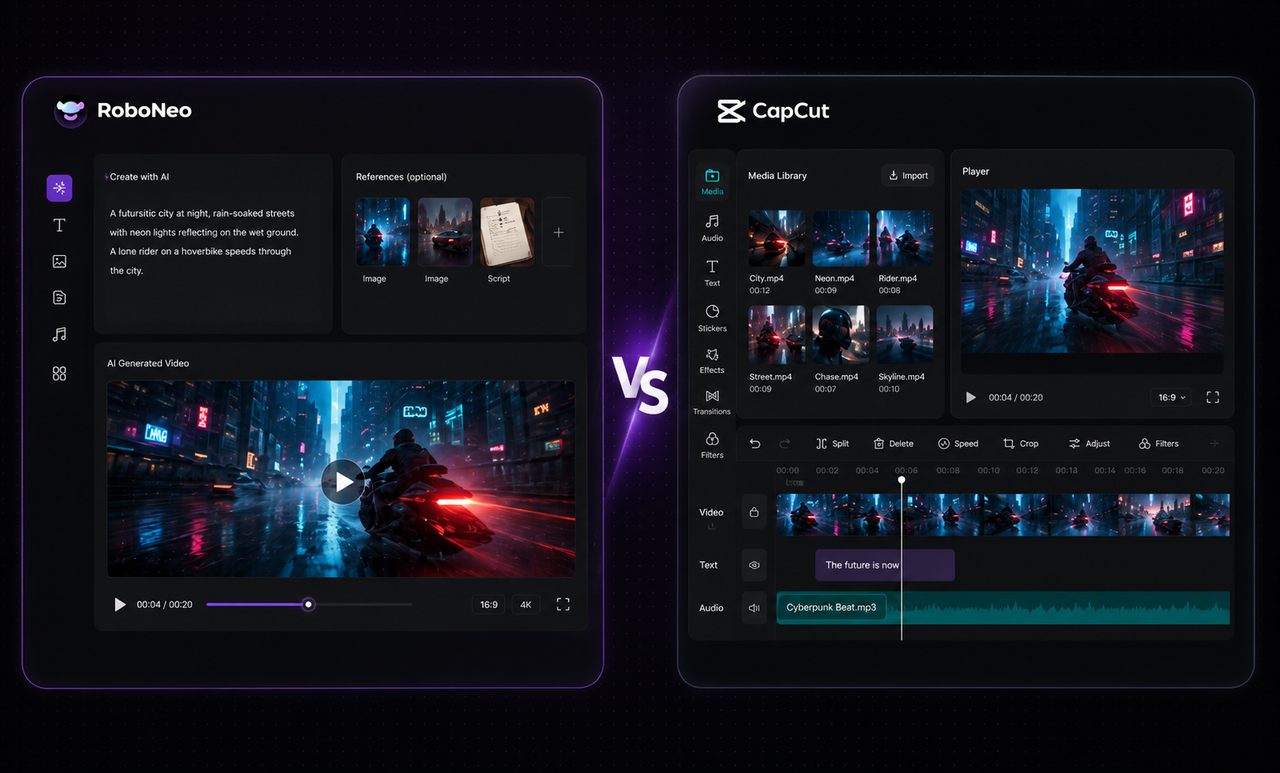
RoboNeo vs CapCut AI Video Generator: Key difference
Limitations of AI Video Generation: What You Need to Know
Canva AI Cartoon Generator vs RoboNeo: Key Differences
How to Make a Short Film in 2026: From Script to Screen
How to Write a TV Commercial Script: Step-by-Step Guide
5 Best Free AI Story Generators in 2026: Tested & Ranked
How to Make AI Videos: Beginner Tips and Best Tools
Best AI Character Generator: 6 Tools Compared in 2026
Best 3D Character Creator: Tools for Custom 3D Characters
Best AI Video Generator 2026: 6 Top Tools Compared
How to Make AI Baby Videos: Beginner-Friendly Guide
AI Advertising Creation

AI Anime Generator - Photos, Text & Videos to Anime | RoboNeo

AI Brand Design - Build Logo, Colors & Brand Identity in Minutes | RoboNeo