How to Create AI Videos from Script: Step-by-Step Guide
 RoboNeo TeamJuly 7, 2026
AI can get you from script to video a lot faster, but only if the script is ready for the tool. When scenes, captions, voiceover, and the CTA are left vague, even a strong concept often comes back as a generic clip.
This guide covers the full process: prepping your script, mapping sections to scenes, generating a first draft, reviewing what comes back, and avoiding common mistakes before you hit publish.
Step 1. Prepare Your Script Before Creating an AI Video

A clean script is the biggest factor in video quality. Before using any AI generator, make sure the goal, audience, platform, and structure are clear. If you already know the basics of writing a video script, this step is about making it easier for AI to understand.
Define the Video Goal
Set one clear goal before writing the script. A product demo may focus on conversion, a tutorial may focus on clarity, and a brand awareness video may focus on recognition. Keeping that goal in mind helps every scene stay focused.
Identify the Target Audience
Decide who the video is for before you start writing. A B2B explainer usually needs clearer proof and a more professional tone, while a consumer UGC-style ad created with an AI advertising generator should feel casual, and easy to understand. It gives the AI clearer direction, for example, wording, and the final CTA.
Choose the Right Video Platform
TikTok, Reels, YouTube Shorts, and YouTube all work better with different lengths, formats, and aspect ratios. Choose the platform first so you can write for the right format, framing, and runtime from the start.
Break the Script Into Short Sections
Split the script into small beats, each carrying one idea. Short sections map cleanly to individual scenes and make later review faster. Long unbroken paragraphs force the tool to guess where scenes should change.
Step 2. Turn Script Sections Into Video Scenes
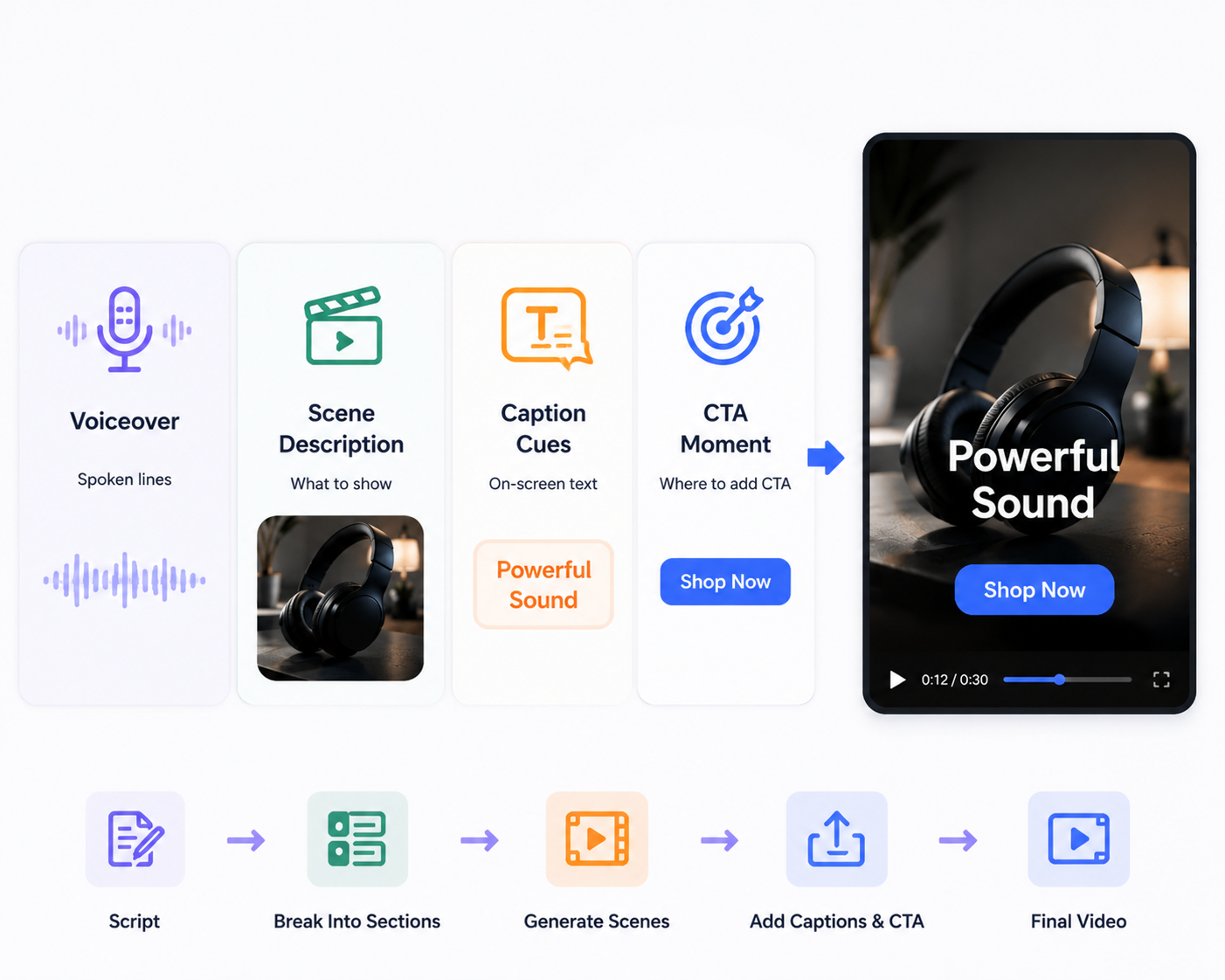
With your script already split into short beats, the next step is to tag each section for production. Each line should have a clear role, such as voiceover, scene direction, caption text, proof point, or CTA. It’s basically a shot list in plain text; the clearer the labels, the less the tool has to guess.
| Script Part | Video Role | Example |
| Spoken line | Voiceover or narration | “This moisturizer absorbs quickly without feeling sticky.” |
| Scene note | Visual direction or B-roll | [Close-up of product texture on skin] |
| Key phrase | On-screen caption | “Lightweight feel” |
| Proof or benefit | Caption with supporting visual | “Visible hydration after use” |
| Final action | CTA moment | “Tap the link to try it today.” |
Separate Voiceover Lines
Mark only the lines that should be spoken aloud. This prevents the script from becoming full narration or repeating the same words in captions.
Add Clear Scene Descriptions
Use short notes to show what should appear on screen, such as the subject, action, setting, or camera angle. For example, “close-up of product texture” is clearer than “show product.” If you need to follow a product image or character reference, reference-image-to-video can help guide the scene.
Plan Caption Cues
Choose a few short phrases for on-screen text. Captions should highlight the main message, product benefit, or key proof point and stay easy to read on mobile.
Mark Key CTA Moments
Decide where the call to action should appear so the video ends with a clear next step.
Once the script is split into voiceover, scene notes, captions, and CTA moments, it becomes easier to turn it into a structured video draft. For RoboNeo workflows, this gives clearer input for visual direction, product scenes, short-form content, and CTA planning.
Step 3. Create the AI Video
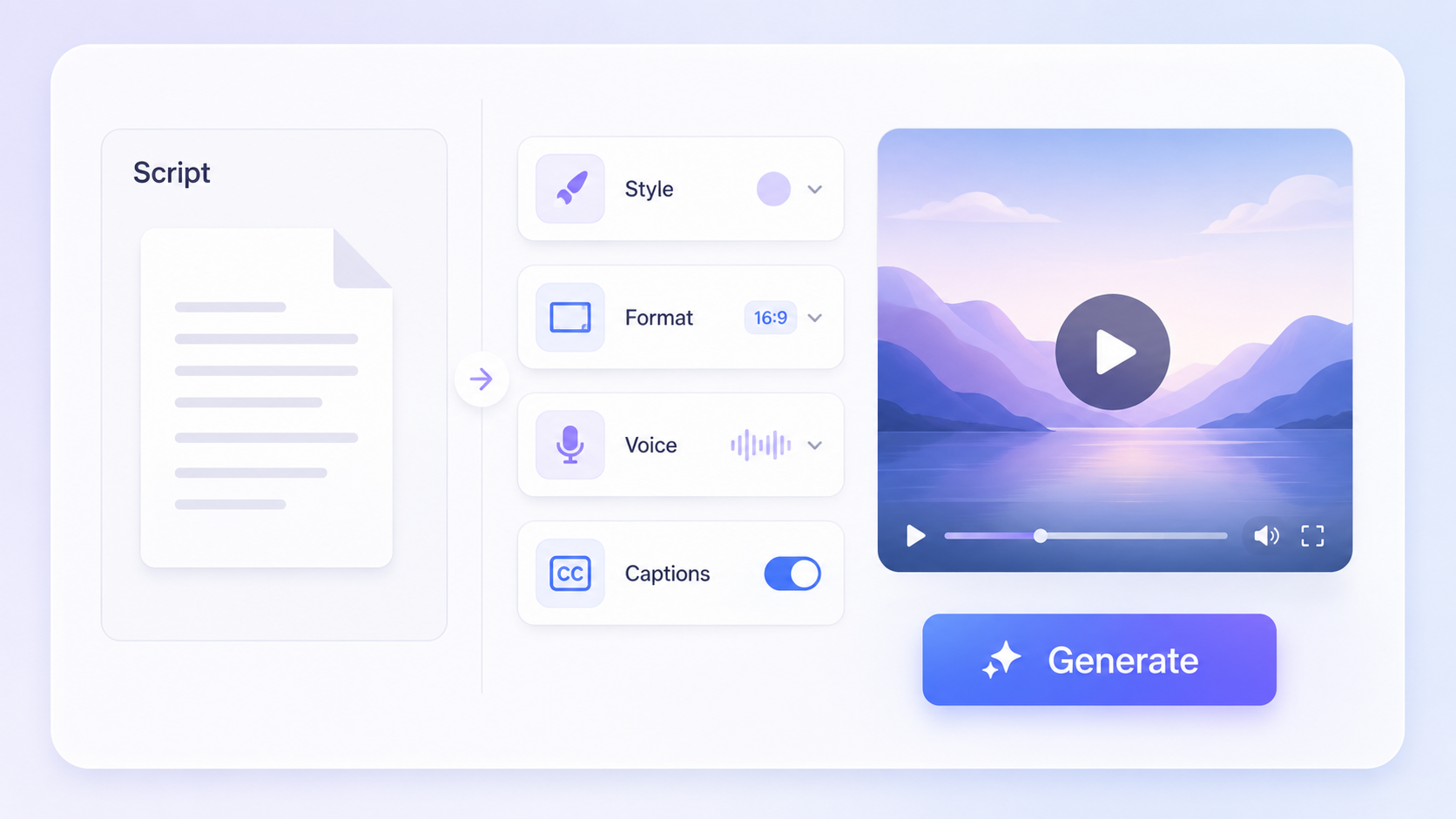
With a tagged script ready, an AI video generator mostly needs clear configuration. Move through these steps in order and treat the first output as a draft, not a final asset.
Upload or paste the script. Bring in the tagged version with voiceover, scene notes, and CTA markers intact so the tool reads your intended structure.
Set video style and format. Choose aspect ratio, visual style, and runtime to match your target platform from Step 1.
Choose voiceover and caption settings. Pick a voice tone, language, and caption style. Confirm that on-screen text matches your caption cues, not the full narration.
Generate the first draft. Run the generation, then review the result against your original goal before making any edits.
Tips: Some tools let you produce additional variations with at little or no extra cost, so generating two or three drafts from the same script supports creative testing without restarting the workflow. Check the current pricing and usage limits on your chosen tool before you plan a large batch.
Step 4. Review and Refine the AI Video
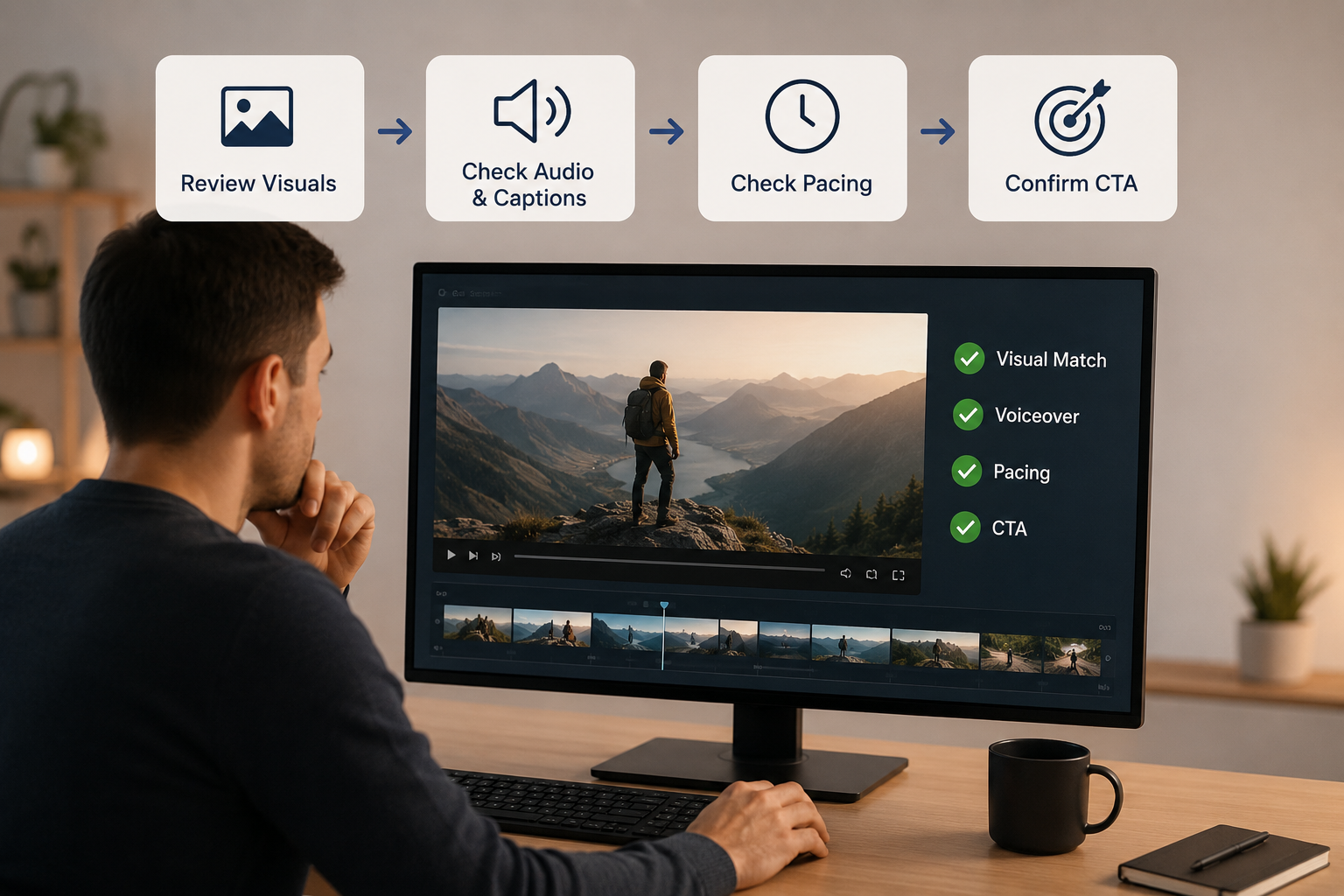
The first draft is rarely ready to publish. Before finalizing the video, review the output for visuals, audio, captions, pacing, and CTA clarity.
During review, focus on these key points:
Fix weak visual matches: Make sure each scene supports the script line. If a product benefit is mentioned, show that benefit clearly instead of using a generic clip. If the source image looks blurry or cluttered, use an AI image editor to clean it up before generating a new draft.
Improve voiceover and captions: Check whether the voiceover sounds natural and whether the captions are easy to read. Fix awkward narration, mispronounced product names, fast captions, or unclear CTA text.
Check pacing and scene flow: Watch the full draft from start to finish. Shorten scenes that feel slow and extend moments that cut too quickly, so the video follows the script’s intended rhythm.
Review the final CTA: Make sure the call to action is clear, visible, and placed at the right moment. A strong video still needs a clear ending that tells viewers what to do next.
Common Mistakes to Avoid in AI Video Creation
Most weak AI videos come from a few predictable issues. Knowing these issues ahead of time helps lower your cost per usable asset and keeps brand consistency stronger across a batch.
Using one long script block. Unbroken text gives the tool no scene boundaries, so cuts land in awkward places.
Skipping visual scene notes. Without direction, the generator picks footage that may not match your message.
Ignoring captions and voiceovers. Many viewers watch without sound, so captions should carry the key message correctly.
Missing the final review. Publishing the raw draft can lead to off-brand visuals, unclear stock usage, and weak pacing.
Treat commercial use and data handling as part of review too. Confirm licensing for any music or footage, and check the current usage limits and privacy terms on your chosen tool's live page before rollout.
FAQ
What types of scripts work best for AI video?
AI video tools work best with scripts that are clear, visual, and easy to divide into scenes. Product demos, social ads, explainers, tutorials, and short educational videos usually work well because each line can connect to a specific visual, caption, or action.
How can I make AI video scenes match my script better?
Add short scene notes next to each script section. Instead of only writing the voiceover, describe what should appear on screen, such as the product angle, background, action, lighting, or camera shot. Clear visual notes help the AI create scenes that better match the message.
What is the best script format for AI video?
A simple table format works well for most AI video workflows. Use columns such as scene number, voiceover, visual directions, on-screen captions, and CTA. This format keeps the script organized and makes the video easier to generate and review.
Can I turn a blog post into an AI video script?
Yes. Start by pulling out the main idea, key points, and strongest examples from the blog post. Then turn them into shorter spoken lines, add scene notes, and choose a clear CTA. Don't copy the full blog into the script, because video needs shorter pacing and stronger visual direction.
How long should an AI video script be?
It depends on the platforms and audiences. A short social video may only need 50 to 90 words, while a 60-second explainer usually needs around 120 to 160 words. Keep the script focused on one main message so the video does not feel crowded.
You May Be Interested
How to Choose the Best AI Text to Video Generator in 2026 (+ Our Top Pick)
6 Best AI Video Generators in 2026
Best Prompt for YouTube Script in 2026
Best YouTube Script Generator: From Script Writing to Video Creation