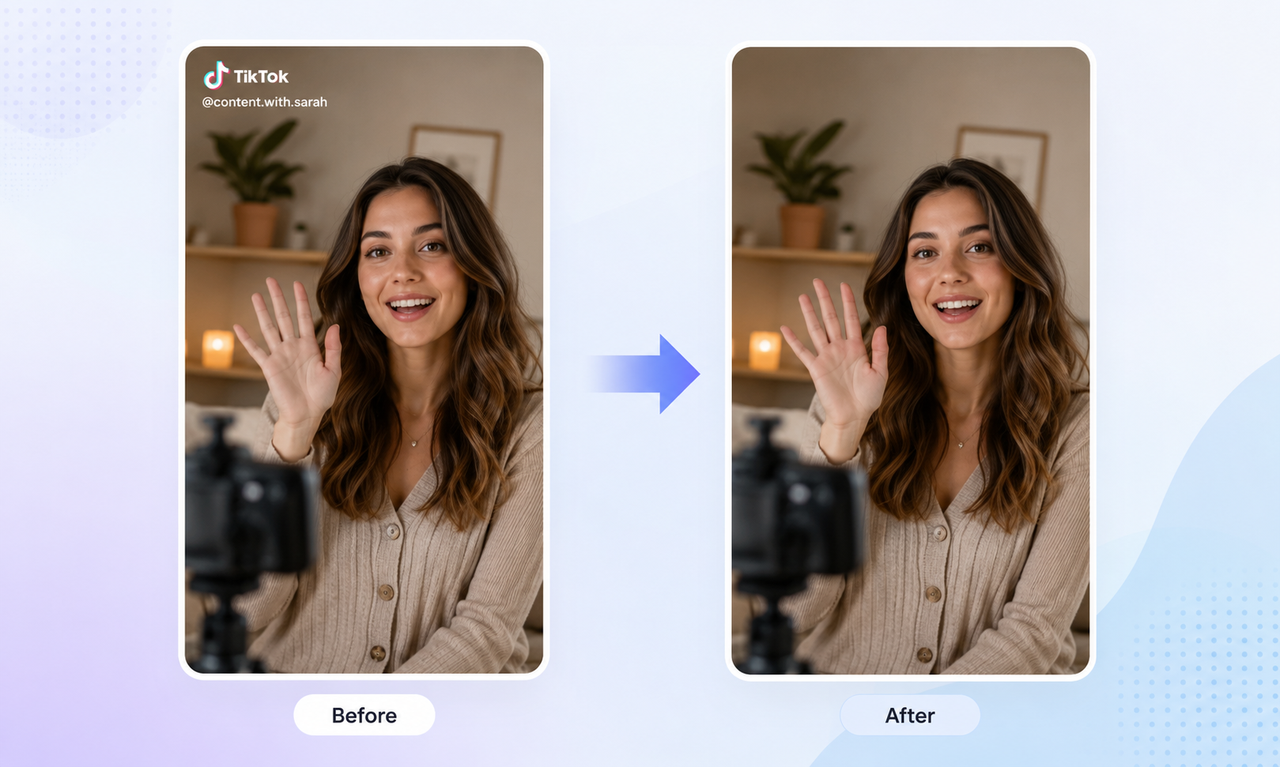
Best App to Remove Tiktok Watermark in 2026
 RoboNeo TeamJuly 21, 2026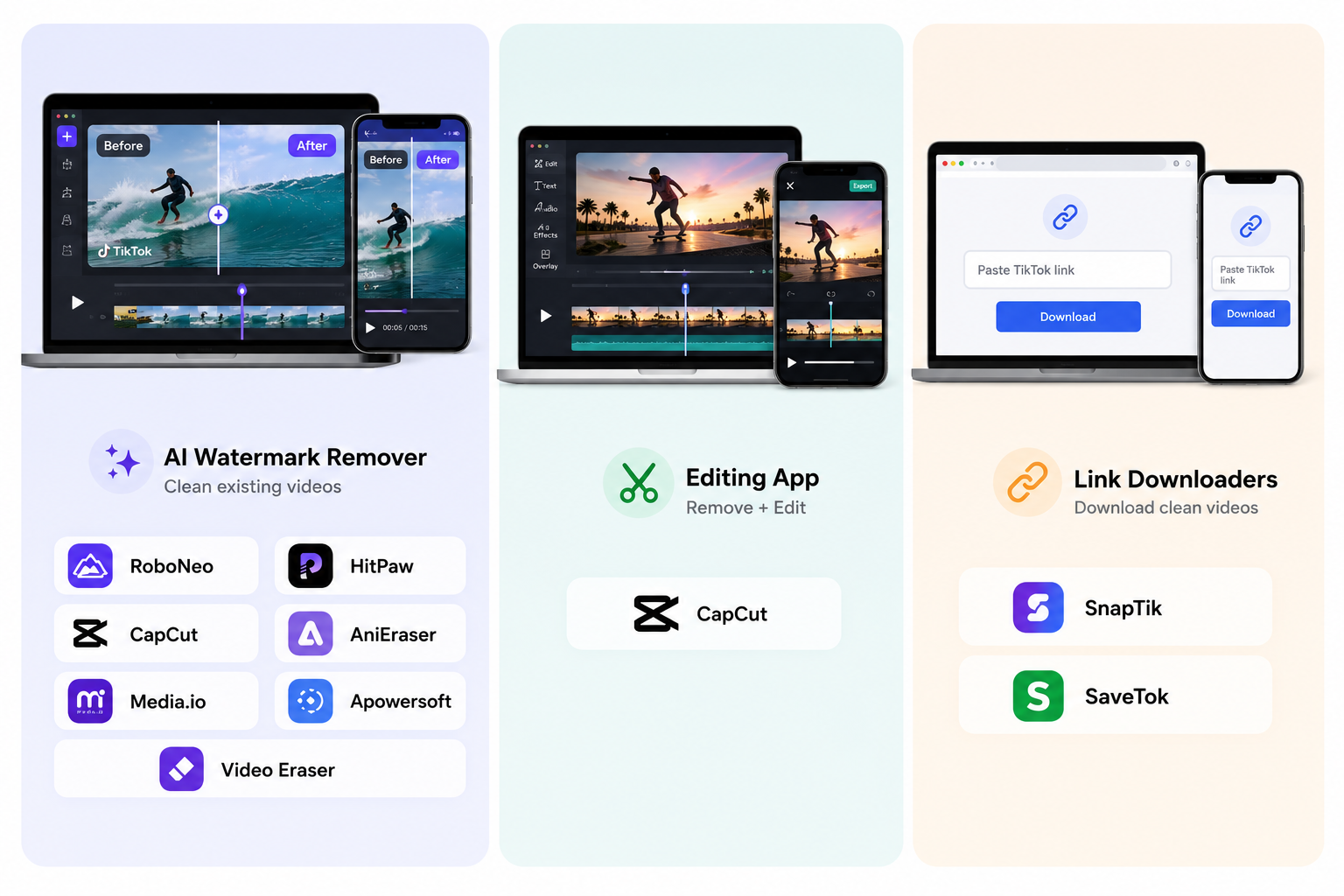
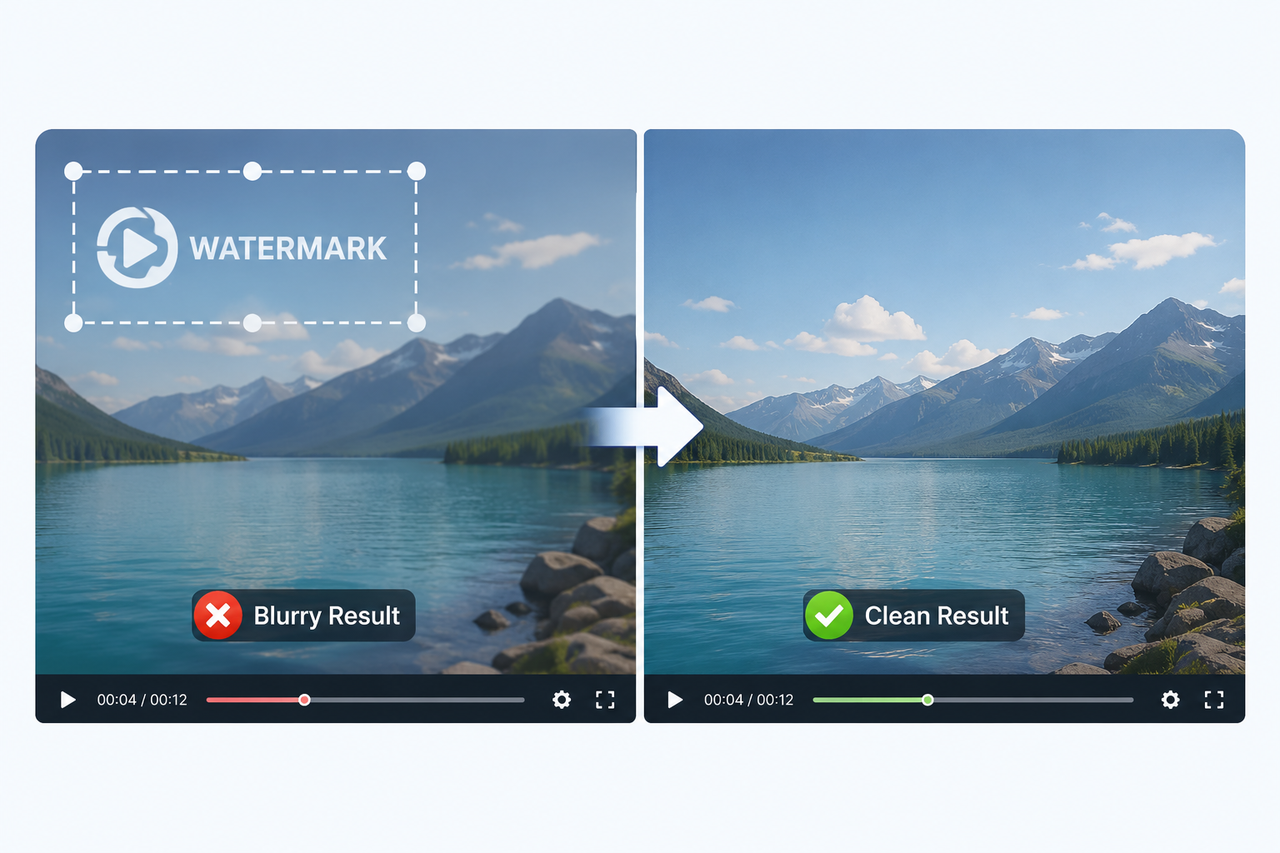
Using an app to remove a TikTok watermark sounds easy — until the export comes out blurry, the edited area flickers, or an obvious smudge is left behind. Some apps simply crop the logo out of frame, others struggle when the watermark jumps between corners, and even "free" tools may charge extra for HD exports or add their own watermark instead. A good TikTok watermark remover should do more than cover the logo — it should rebuild the affected area naturally, preserve video quality, and make it easy to repurpose content for Instagram Reels, YouTube Shorts, and other platforms.
This guide compares the best TikTok watermark removal apps for 2026 based on removal quality, ease of use, export resolution, pricing, device compatibility, and batch-processing support. Use these tools only with videos you created yourself or content you have permission to edit and repost.
Why Remove a TikTok Watermark?
Many people remove TikTok watermarks so they can share their own videos on Instagram Reels, YouTube Shorts, and other platforms. A clean version looks more polished, giving creators a fresh start to pair their footage with engaging captions written by the best TikTok script generator, add brand logos, or include platform-specific graphics.
Just make sure the video is yours or that you have permission to use it. Removing someone else’s watermark and reposting the video without authorization could lead to copyright issues.
Best Apps to Remove TikTok Watermarks in 2026
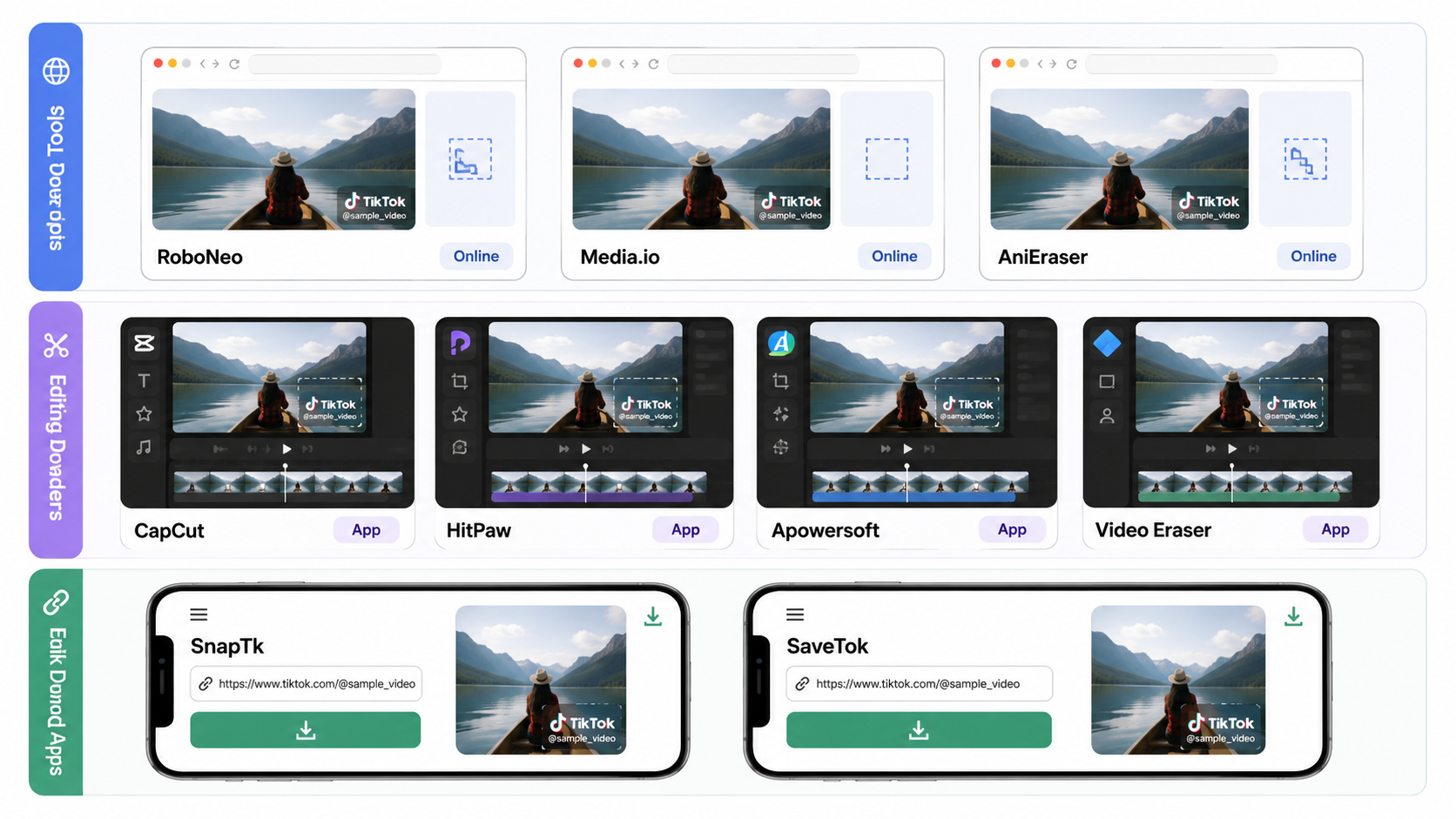
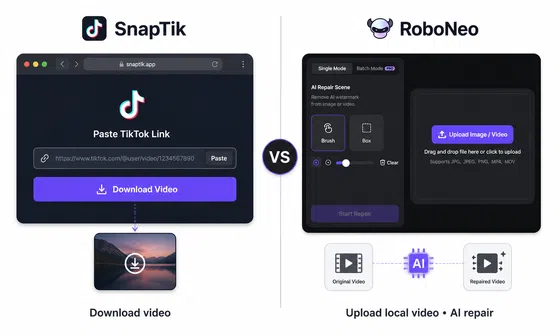
TikTok watermark tools generally fall into two categories. Some are designed to clean up videos that have already been saved to your phone or computer, while others let you paste a TikTok link and download a clean copy without the watermark.
When the original post is still available, a link-based downloader is usually the quicker option. Since it retrieves a clean version of the video, there is no AI-filled area to blur, flicker, or distort. But when all you have is a watermarked file, you will need an AI removal tool to reconstruct the part of the frame hidden behind the logo.
Only use the tools below for videos you created yourself or have permission to edit.
RoboNeo — Best for Moving Watermarks

Best for: TikTok’s bouncing watermark, moving logos, and users who do not want to adjust the selection frame by frame.
How it removes the watermark: After uploading the video, mark the area you want to clean up. RoboNeo's AI watermark remover analyzes movement, texture, and lighting changes across the footage, tracks the watermark as it shifts position, and reconstructs the content hidden underneath. It does not simply crop the frame or blur the logo.
Test result: Of the tools included in this guide, RoboNeo offers the clearest support for moving watermarks. Its frame-to-frame consistency makes it a better fit for TikTok logos that jump between different parts of the screen. Results tend to look more natural when the background is fairly stable. However, if the watermark crosses a face, hand, or fast-moving subject, preview the entire clip carefully before exporting.
Main strengths:
Handles both static and moving watermarks
Reconstructs the background using surrounding frames
No manual keyframing required
Aims to preserve the original resolution and frame rate
Includes additional AI tools for video enhancement and editing
Main limitations: AI reconstruction may still leave visible artifacts in busy or fast-changing scenes, especially when the watermark covers a face, hand, or other important detail. RoboNeo is also not a TikTok link downloader, so you will need to save the video to your device before uploading it.
Free-plan or export restrictions: RoboNeo uses a credit-based system, and free accounts come with a limited number of credits. That is usually enough to test a short clip, but longer videos or multiple files will require additional credits.
CapCut — Best for Video Editing
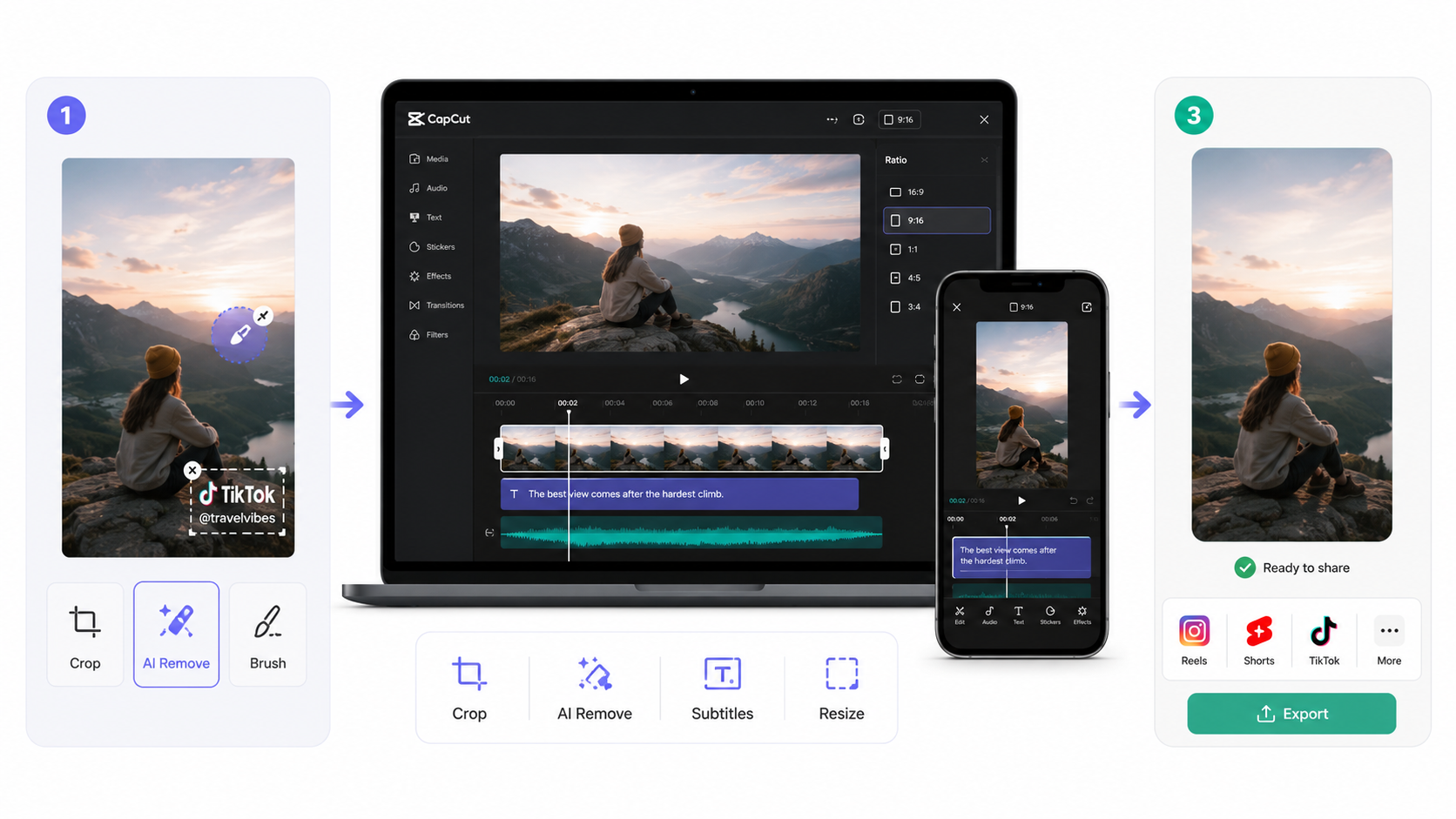
Best for: Users who need to crop, add subtitles, adjust the aspect ratio, or continue editing after removing a watermark. As a versatile CapCut AI video generator and editor, it offers extensive customization after cleanup.
How it removes the watermark: CapCut provides several ways to handle watermarks. Watermarks near the edge of the frame can be cropped out directly. Logos embedded in the footage can be removed with the desktop AI Remove tool by adjusting the brush size and painting over the affected area. Users can also hide certain watermarks with stickers, masks, or the background removal feature.
Test result: CapCut works best for fixed watermarks or logos that appear only during certain parts of a video. Its main advantage lies in letting users clean up, edit, and repackage footage on the same timeline rather than providing a dedicated watermark removal tool. When a TikTok watermark jumps between multiple positions, users may need to split the video and select each area separately, making the process more time-consuming than with automatic tracking tools.
Main strengths:
Combines watermark removal with full video editing tools
Supports cropping, AI Remove, masking, and overlays
Allows users to reset the resolution, aspect ratio, and format
Available on mobile, desktop, and the web
Suitable for creating Reels or YouTube Shorts afterward
Main limitations: Watermark removal is less automated when the watermark moves around the frame. Installing a full-featured video editor may also feel excessive for users who only need to remove a watermark.
Free-plan or export restrictions: CapCut can export videos without a CapCut watermark as long as users avoid Pro assets and paid features. Some AI tools, templates, and media assets require a Pro subscription.
Media.io — Best Online Tool
Best for: People who do not want to install another program and only need to clean up one or two videos from time to time.
How it removes the watermark: Upload your video in a browser, then use the brush tool to mark one or more watermark areas. Media.io uses AI to fill in the covered background, and the finished video can be exported as an MP4. Because it runs online, it works in browsers on Windows, Mac, iPhone, Android, and Linux.
Test result: Media.io has a straightforward workflow and works best with fixed watermarks on relatively simple backgrounds. The company also says it can handle floating text and moving watermarks, although results will vary based on the size of the watermark, how far it moves, and what it covers. Since everything is processed online, upload and export times can slow down with larger files or weaker internet connections.
Main strengths:
No software installation required
Supports several common video formats
Lets you mark multiple watermark areas
Works on both phones and computers
Includes extra tools for cropping, subtitles, and compression
Main limitations: Videos have to be uploaded to an online server, so it may not be the best choice for confidential, client-owned, or unreleased content. Large files can also take longer to process than they would in a desktop program.
Free-plan or export restrictions: Media.io offers a free online entry point and advertises HD exports, but its tool page does not clearly spell out every limit on video length, usage, file size, or resolution. Check the export screen before committing to a longer video.
HitPaw — Best for Desktop
Best for: People who regularly edit videos on Windows or Mac and want more control over how the watermark area is repaired.
How it removes the watermark: HitPaw offers several removal modes, including AI Mode, Matte Filling, Color Filling, Smooth Filling, and Gaussian Blur. Depending on the background, you can use AI reconstruction, copy nearby pixels, fill the area with a solid color, or blur the watermark.
Test result: Compared with tools that rely on a single automatic process, HitPaw gives you more room to fine-tune the result. Color-based filling can work well on plain backgrounds, while AI Mode is usually the better option for more detailed textures. It is a good fit for users who prefer to preview, adjust, and try different settings on a computer, but it is not the fastest one-click solution.
Main strengths:
Offers several watermark removal modes
Available for both Windows and Mac
Can remove logos, text, date stamps, and other unwanted objects
Lets you choose a method based on the background
Comes in both desktop and online versions
Main limitations: Choosing the right mode takes some judgment, and first-time users may need a few attempts to get a clean result. HitPaw is not a TikTok link downloader, so the video must already be saved to your device.
Free-plan or export restrictions: HitPaw offers a free trial, but the website clearly separates its “Try It Free” and “Buy Now” options. The trial does not include full access, and current limits on video length, resolution, or exported watermarks may vary by version. Check the installed app before processing a full project.
AniEraser — Best Cross-Platform Tool
Best for: Users who want to move between a browser, phone, and computer while managing their projects under one account.
How it removes the watermark: Upload the video, then use the adjustable brush to mark the watermark or any other object you want removed. AniEraser uses AI to rebuild the selected area. You can preview the result before exporting the finished video.
Test result: AniEraser stands out more for its cross-platform convenience than for advanced editing on any one device. The workflow is straightforward for simple logos and fixed text, making it useful for someone who wants to start a project on a phone and finish it later on a computer.
Main strengths:
Available on the web, iOS, Android, and desktop
Lets you access projects across devices with one account
Requires only a few steps
Works with both images and videos
Desktop users can batch-process up to five files at a time
Main limitations: Batch processing is mainly available on the desktop version, while the mobile apps are better suited to individual short clips. AniEraser also provides less detail about automatic tracking for moving watermarks than RoboNeo does.
Free-plan or export restrictions: Free users can process one video or one image. Continued use generally requires a subscription, and the paid desktop version is the more practical option for frequent or batch processing.
Apowersoft — Best for Batch Processing
Best for: Windows users who need to process several videos with the same fixed watermark in one batch.
How it removes the watermark: Import multiple videos, mark the area you want removed, preview the result, and convert the files together. Apowersoft Watermark Remover also lets you limit the removal to a specific time range, so the rest of the video remains untouched.
Test result: The batch workflow can save a lot of repetitive work when the same brand logo appears in a fixed spot across several clips. That said, Apowersoft feels more like a traditional desktop watermark tool. It is less convenient for TikTok watermarks that jump between different parts of the screen than newer AI tools with automatic tracking.
Main strengths:
Supports batch importing and conversion
Lets you preview the result before exporting
Works with a range of video and image formats
Allows removal within a selected time range
Well suited to static watermarks that stay in the same position
Main limitations: The current product page still lists Windows 7, 8, 10, and Vista, and the software is also labeled “Watermark Remover: PicWish.” That suggests the product name, positioning, or compatibility details may have changed. Windows 11 users should confirm that the latest version is still supported before purchasing.
Free-plan or export restrictions: Apowersoft offers both download and purchase options, but the website does not clearly explain the current trial limits for batch size, export quality, or file length. It makes sense to test the software on your device first before paying for a license.
Video Eraser — Best for iPhone
Best for: iPhone and iPad users who want to clean up short videos directly on their device without moving the project to a computer.
How it removes the watermark: Import a video from your camera roll, choose the logo, text, or object removal tool, and mark the area you want to erase. The app uses AI to clean up the selected section, then saves the finished video back to your device.
Test result: The mobile workflow is convenient for small, fixed watermarks on simple backgrounds. The app also includes video enhancement and upscaling tools, which can help improve the clarity of a downloaded clip at the same time. However, the App Store listing does not clearly mention automatic tracking for TikTok’s bouncing watermark, so you may need to mark each position separately.
Main strengths:
Built for iPhone and iPad
Removes logos, text, and unwanted objects
Works without a computer
Includes video enhancement and resolution upscaling
Straightforward enough for casual users
Main limitations: It offers less control than desktop software when working with long videos or busy, fast-moving backgrounds. The app may also collect video-related data for functionality and analytics, so review its privacy details before uploading personal or confidential footage.
Free-plan or export restrictions: The app is free to download, but video processing runs on a credit system. The U.S. App Store currently lists packages of 50, 500, and 5,000 credits, so regular use may require additional purchases.
SnapTik — Best TikTok Downloader for iPhone
Best for: iPhone users who still have access to the original TikTok post and want to save a clean copy through the video link.
How it removes the watermark: SnapTik-style tools usually do not use AI to repair the footage. Instead, they read the TikTok URL and try to retrieve a version of the video without the platform watermark. Because no part of the frame is being rebuilt, there is less risk of blur, smudging, or obvious fill marks.
Test result: When the link still works, downloading a clean copy is usually faster than removing the watermark from an existing file. It also keeps the full frame intact. One thing to watch for: the App Store has several similarly named apps, including SnapTik, SnapTk, and SaveTik. They may come from different developers and offer different download features, pricing, and subscription terms. Before installing one, make sure it can actually save videos to your device rather than simply bookmark or organize TikTok links.
Main strengths:
No need to mark the watermark manually
Keeps the original frame instead of cropping it
Convenient for quickly saving videos that are still online
Some versions include HD downloads and basic editing tools
Main limitations: The original TikTok link must still be accessible. The app may not work if the post has been deleted, made private, or placed under download restrictions. It also cannot remove a watermark from a video file that is already saved on your phone.
Free-plan or export restrictions: Pricing varies widely across apps with similar names. Some versions require a subscription for unlimited HD downloads. One current U.S. App Store listing, for example, charges $4.99 per week.
SaveTok — Best TikTok Downloader for Android
Best for: Android users who want to save TikTok videos through a link instead of editing the watermark out manually.
How it removes the watermark: Copy the TikTok video link and paste it into SaveTok. The app then tries to pull a clean version of the video rather than using AI to rebuild the area covered by the watermark. Some versions also include download history, favorites, and audio extraction.
Test result: For videos that are still online, SaveTok is more direct than selecting and removing the watermark by hand. Since it does not reconstruct the frame, you are also less likely to see the flickering or texture distortion that can come with AI removal. The current Google Play listing advertises HD, 2K, and 4K downloads, although the actual resolution will still depend on the source video and the download service.
Main strengths:
Simple workflow on Android
No need to mark the watermark area
Includes download history and saved favorites
Some versions can extract audio from videos
Fast when the original TikTok link is still available
Main limitations: Google Play has several apps with similar SaveTok names, and none of them are official TikTok products. Their reliability may also change if TikTok updates the way its video links work.
Free-plan or export restrictions: The current Google Play listing shows the app as free to download, but it includes ads. The page does not clearly explain every premium feature or whether there are limits on the number of downloads.
TikTok Watermark Remover App Comparison Table
The table below offers a quick side-by-side look at the key differences. Keep in mind that SnapTik and SaveTok are link-based downloaders—they do not use AI to remove watermarks from videos already saved on your device.
| App | Watermark Removal Rating | Ease of Use | Export Quality | Pricing | Processing Speed | Batch Processing |
| RoboNeo | ★★★★★ | Easy | High; generally preserves the original resolution | Free credits + paid credit packs | Not publicly stated | Good support |
| CapCut | ★★★★☆ | Moderate | High; export settings can be customized | Freemium; some AI tools require Pro | Not publicly stated | Limited |
| Media.io | ★★★★☆ | Easy | Medium to high; depends on free-plan limits | Free trial + subscription | Depends on file size and internet speed | Limited |
| HitPaw | ★★★★☆ | Moderate | High; desktop exports are generally stable | Free trial + paid license | Not publicly stated | Supported |
| AniEraser | ★★★★☆ | Easy | Medium to high | Free trial + subscription | Not publicly stated | Supported on desktop |
| Apowersoft | ★★★☆☆ | Moderate | Medium to high | Free trial + paid license | Not publicly stated | Strong |
| Video Eraser | ★★★☆☆ | Easy | Medium | Free download + paid credits | Not publicly stated | Not a key feature |
| SnapTik | ★★★★★ | Very easy | Usually close to the available source quality | Freemium; some versions require a subscription | Usually fast when the link is available | Varies by app version |
| SaveTok | ★★★★★ | Very easy | Usually close to the available source quality | Freemium; typically ad-supported | Usually fast when the link is available | Not a key feature |
If TikTok’s watermark keeps jumping around the screen, RoboNeo is the better fit. CapCut makes more sense when you plan to keep editing after the watermark is gone, while Media.io is a convenient option for the occasional browser-based cleanup.
When the original TikTok post is still available, link-based downloaders such as SnapTik or SaveTok are usually faster. Just check the developer, privacy policy, and subscription terms before installing an app.
Note: Ratings are based on product testing conducted in July 2026. Features and performance may change as these tools are updated.
How to Choose the Best App to Remove a TikTok Watermark
When choosing a TikTok watermark remover app, do not rely on a “one-click removal” label alone. If you want a dedicated solution, trying a professional video watermark removal tool can save hours of manual editing. What matters more is whether the tool can follow a moving watermark, whether the free version actually lets you export the finished video, and whether your footage has to be uploaded to a third-party server.
Check Whether the TikTok Watermark Moves
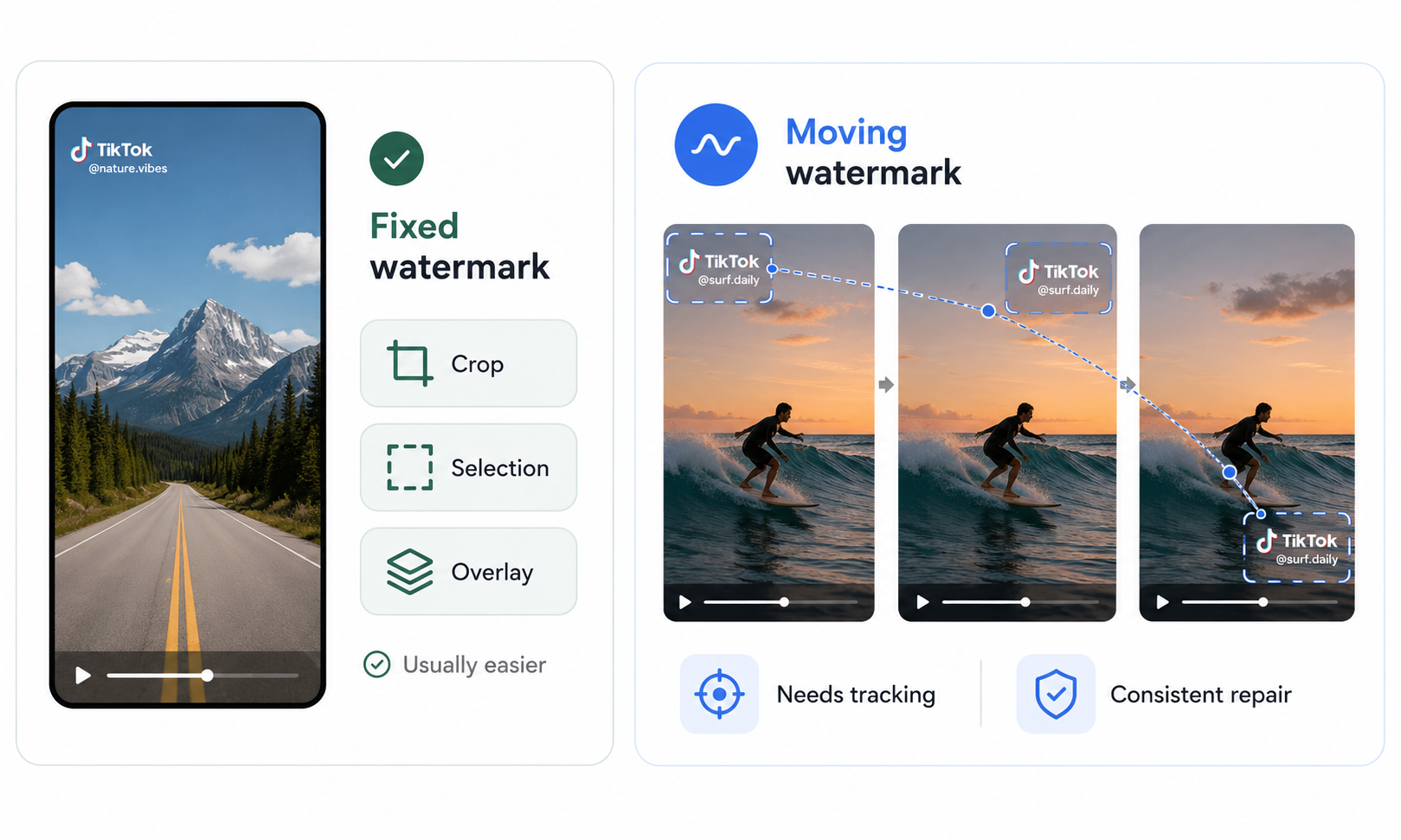
Start by checking whether the watermark stays in one spot or jumps between different parts of the screen.
A fixed watermark is usually easier to deal with. A basic selection tool, crop, or overlay may be all you need. Moving watermarks are trickier because the app has to keep track of the logo as it changes position while making the repaired area look consistent from one frame to the next.
For a moving watermark, look for features such as:
Automatic watermark tracking
Support for multiple removal areas
Time-based selection adjustments
Consistent repairs across frames
Before exporting, watch the full video and check every area the watermark passes through. Look for flickering, soft patches, warped backgrounds, or other visible artifacts—especially around faces, hands, and fast-moving subjects. If the background gets too distorted, a more precise remove watermark tool might be required to ensure clean pixels.
Compare Free Export Limits
“Free to download” does not always mean free from start to finish. Some apps let you upload a video and preview the result, then place limits on export quality, video length, file size, or the number of times you can use the tool.
When comparing free plans, check:
Whether finished videos can be exported for free
Whether 1080p export is included
Whether the app adds its own watermark
Any limits on video length or file size
Whether free usage is measured by exports, minutes, or credits
Whether AI removal requires a paid subscription
A small free allowance may be enough for the occasional short clip. For ongoing content work, pay closer attention to long-term costs, especially HD exports, batch processing, and how quickly credits are used.
Consider Privacy and Upload Requirements
Online tools usually require you to upload the video to a server, wait for it to be processed, and then download the finished file. That workflow is convenient, but it deserves extra caution when you are handling client footage, unreleased content, or commercial projects.
Before uploading, check:
How long the platform stores your video
Whether uploaded content may be used to train AI models
Whether you can delete the file yourself
Whether an account is required
Whether the privacy policy and developer information are easy to find
For ordinary public videos, an online tool is often the most convenient option. For client work, brand campaigns, or unreleased footage, desktop software may be the safer choice because the file can stay on your device instead of being sent to a third-party server.
FAQ
Can We Remove a Watermark for Free?
Yes. Some apps and online tools offer free watermark removal, but they may limit video length, export resolution, daily usage, or add their own watermark. Check the export restrictions before processing the full video.
Can You Remove a Watermark Without an App?
Yes. You can use an online watermark remover in a web browser without installing an app. Another option is to use the original video file or download an authorized video without the TikTok watermark when a clean version is available.
Can I Remove a TikTok Watermark Without Cropping?
Yes. AI watermark removal tools can rebuild the area covered by the watermark, allowing you to keep the original frame size. Results are usually better when the background is simple and the watermark does not cover faces or fast-moving objects.
Can an App Remove a Moving TikTok Watermark?
Yes. Some apps can track a TikTok watermark as it moves between different parts of the screen. However, tools without automatic tracking may require you to mark several areas or process different sections of the video separately.
You May Be Interested
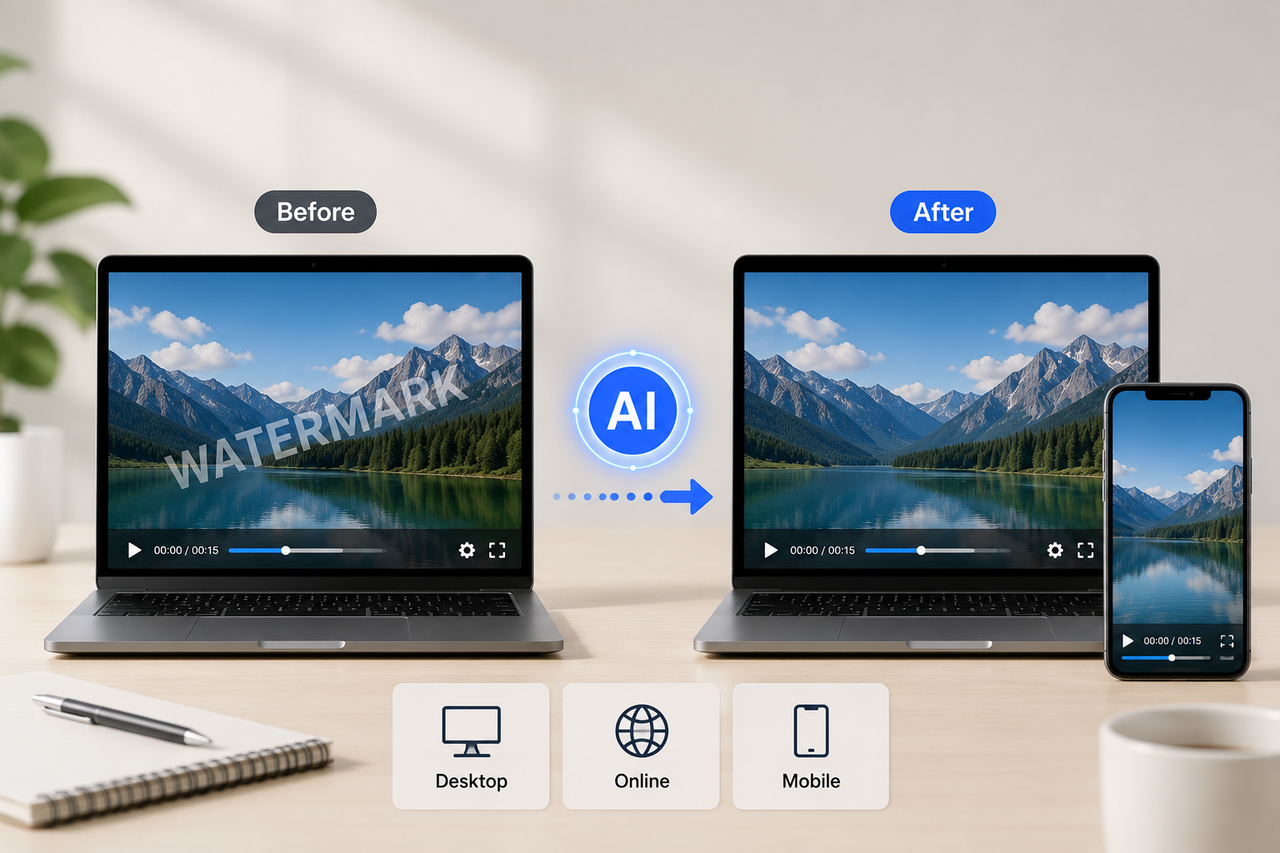
Best Free Tools to Remove Watermark from Video 2026
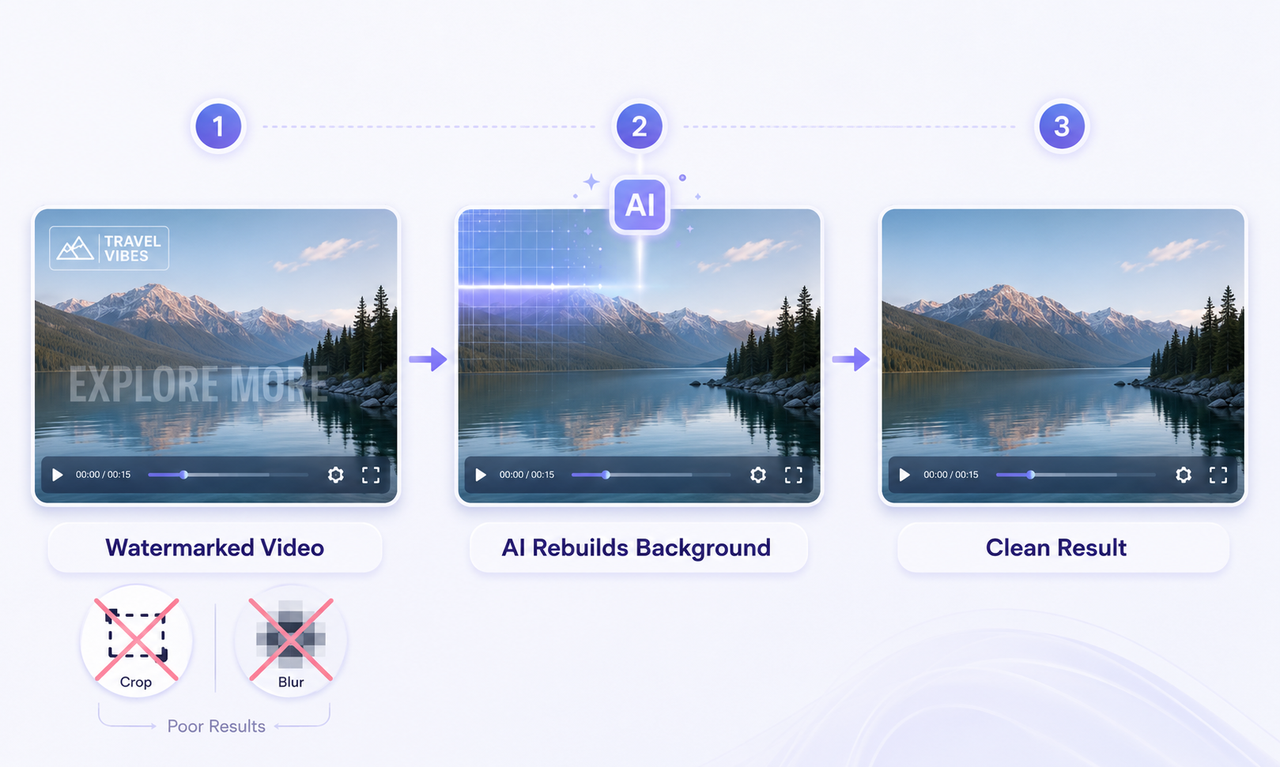
How to Remove Watermark from Video with AI (2026 Guide)
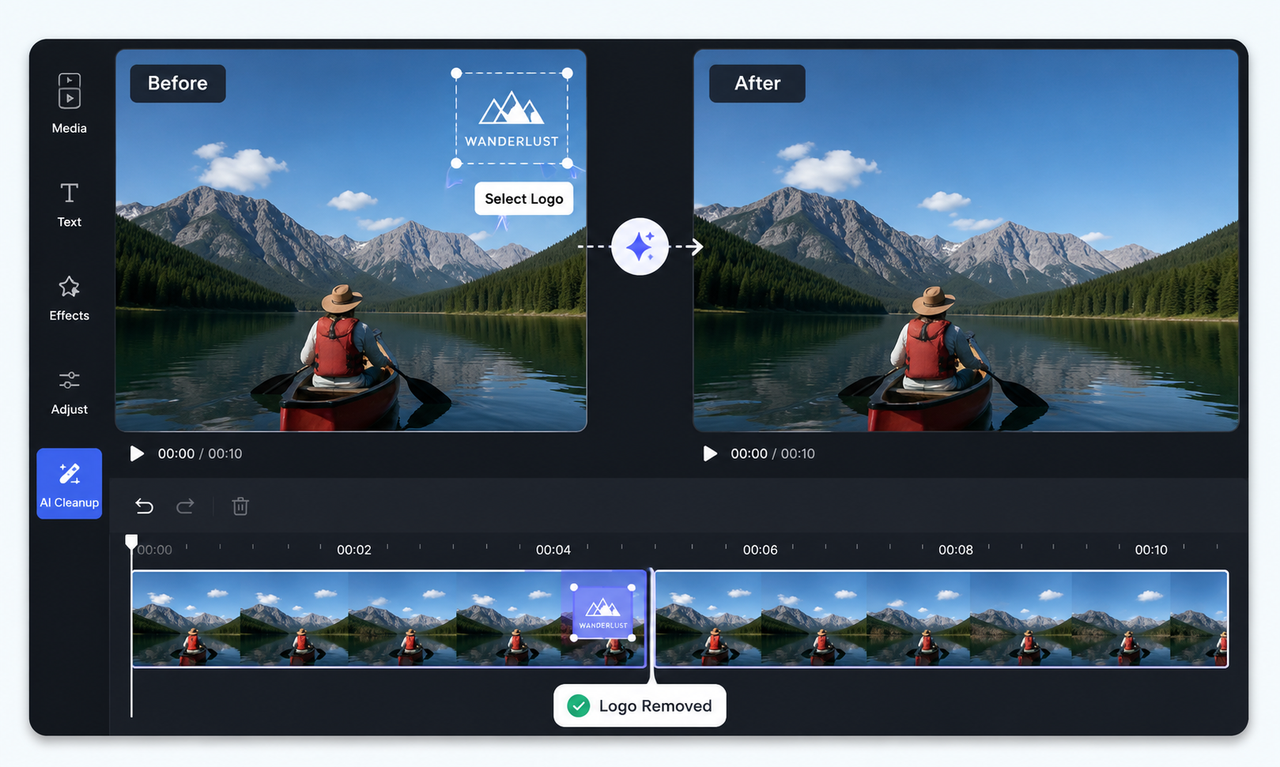
How to Remove Logo from Video: 4 Easy Methods | RoboNeo
How to Save Video Without Watermarks: 5 Steps and Fixes
SnapTik TikTok Downloader Review: Pros, Cons and Alternative

How to Remove TikTok Watermark: 3 Free Methods