AI Features That Can Improve UGC Video Quality
 RoboNeo TeamJuly 21, 2026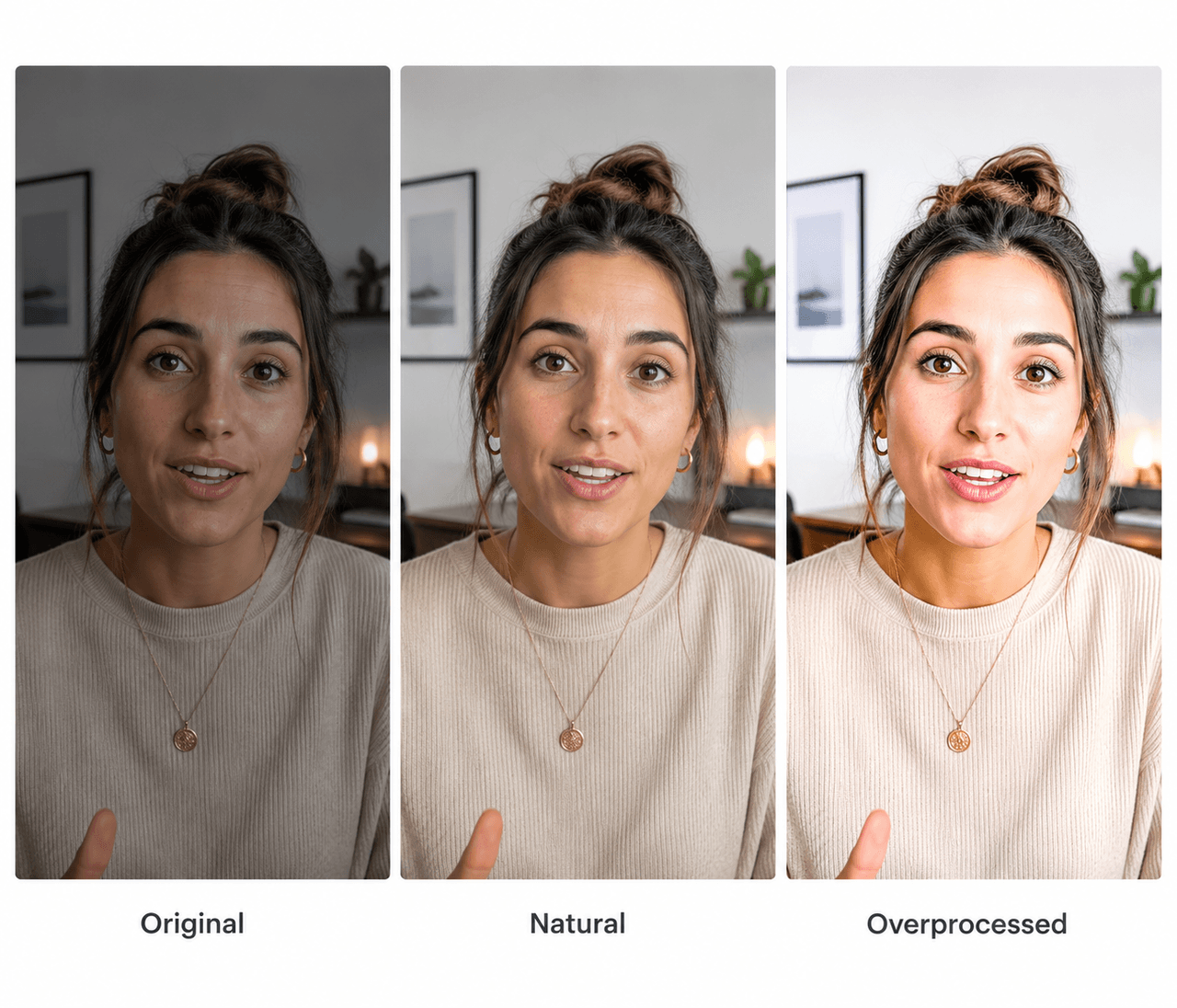
Why UGC Videos Need AI Quality Enhancement
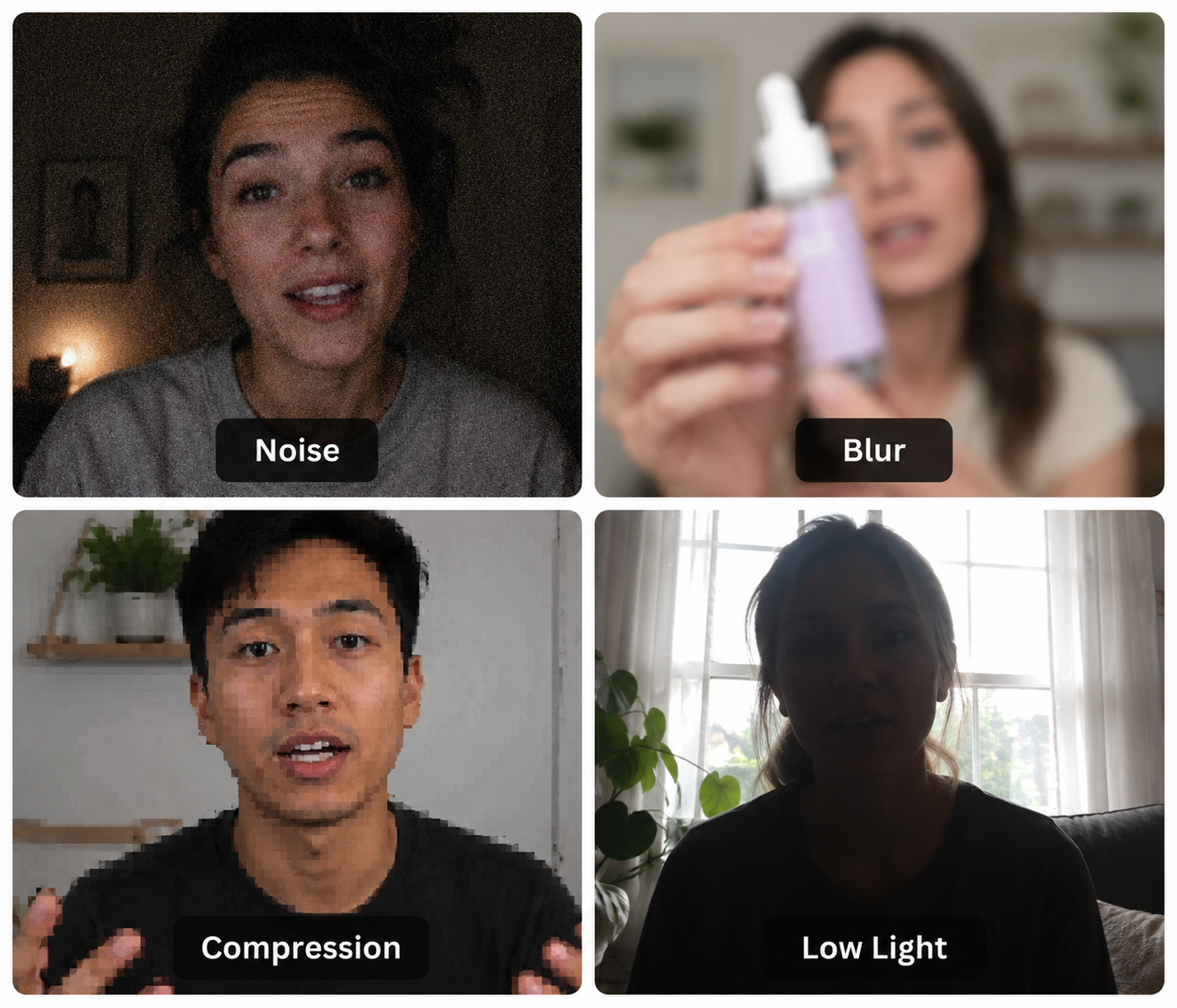
Most UGC is recorded in homes, cafés, stores, cars, or outdoor spaces instead of controlled studios. These familiar settings make the content relatable, although they also create unpredictable lighting, movement, and image quality.
Common problems include:
-
Low-light noise on faces and backgrounds
-
Soft product labels and clothing details
-
Compression blocks after repeated uploads
-
Dark subjects or uneven exposure
-
Choppy motion and poor framing
A skincare review filmed at night may show visible grain around the creator’s face. Beside a bright window, an unboxing video can leave the speaker too dark while the package appears overexposed.
AI enhancement corrects these technical weaknesses while keeping the original setting, natural skin texture, and realistic movement for social channels.
Top AI Features for Enhancing UGC Video Quality in 2026
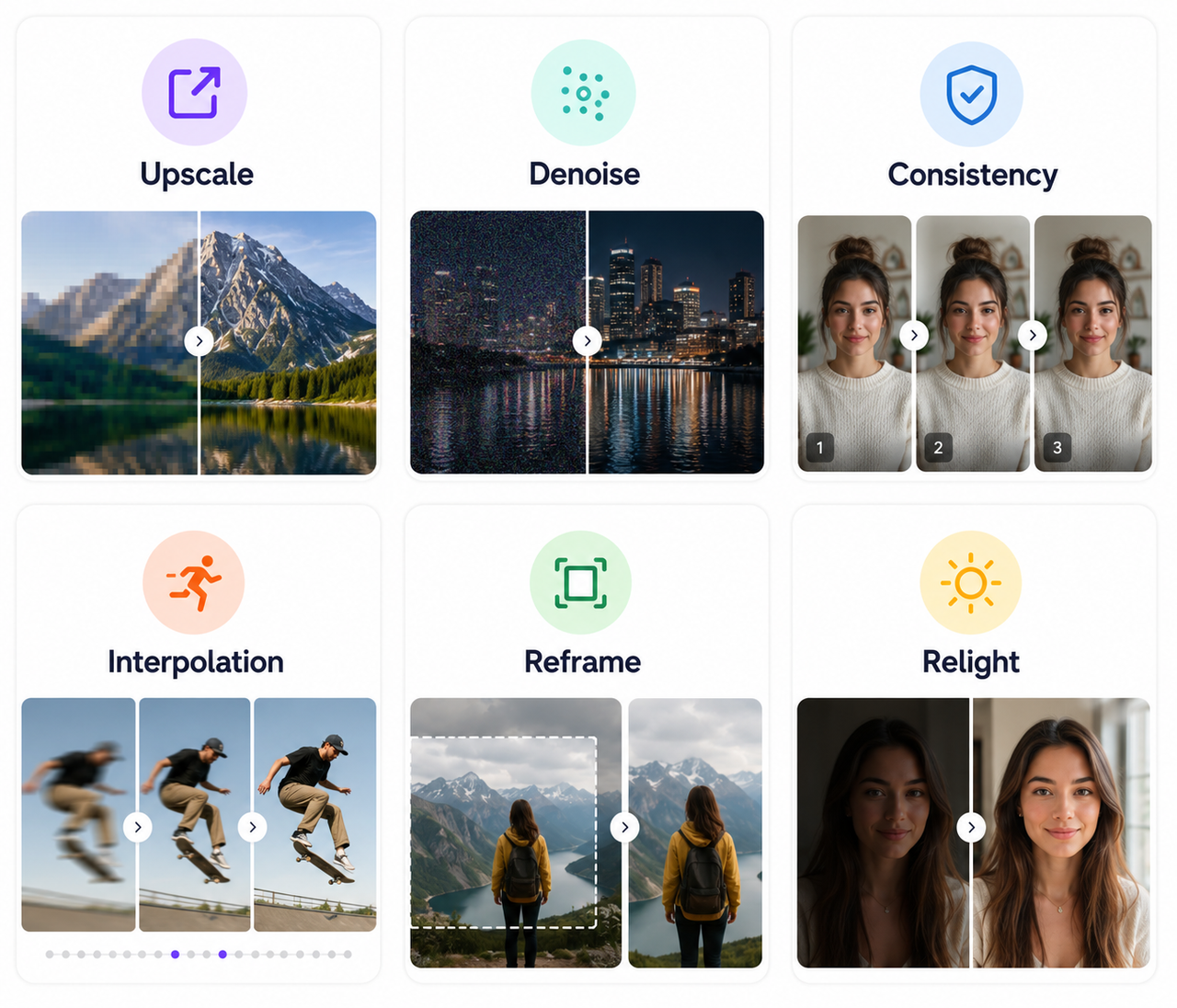
Different quality problems require different AI features. Pick the feature that matches the real problem in the clip is more likely to produce a clean and natural result.
AI Video Upscaling and Detail Recovery
Higher resolution can make faces, labels, and textures easier to recognize. A soft 720p customer testimonial may look clearer at 1080p, although details missing from the source cannot be fully recreated.
AI Noise and Grain Reduction
Colored speckles and rough shadows often appear in videos recorded under weak indoor lighting. AI denoising can clean these areas, while moderate processing prevents skin, hair, fabric, and packaging from looking unnaturally smooth.
Temporal Frame Consistency
Stable details across consecutive frames are essential for believable video enhancement. During a makeup tutorial, temporal consistency can stop facial texture or product lettering from flickering as the creator turns toward the camera.
AI Frame Interpolation for Smoother Motion
Additional frames can make low-frame-rate footage and slow motion appear smoother. A fitness clip showing a jump may benefit from interpolation, though maintaining natural fluidity often requires precise motion control to prevent fast hands, loose hair, and overlapping objects from distorting.
AI Auto Reframing and Face Tracking
The same UGC clip may appear on TikTok, YouTube, a product page, and a paid ad, making tools like a video watermark remover or reframer essential for cross-platform publishing. Auto reframing adjusts the aspect ratio while following the main subject, although captions, products, and additional people may require manual repositioning.
AI Relighting and Natural Face Enhancement
An underexposed face can be brightened without changing the entire scene. Subtle relighting and moderate sharpening preserve natural skin texture more effectively than heavy smoothing, eye brightening, or facial reshaping.
Can One AI Tool Enhance Every Part of a UGC Video?
Many AI platforms powered by an updated AI video generator now place upscaling, denoising, interpolation, relighting, and reframing in one workspace. Access to all these options is convenient, but every clip does not need every feature.
The right treatment depends on the source:
-
Upscaling suits footage with insufficient resolution.
-
Denoising helps when grain affects visibility.
-
Interpolation improves choppy movement.
-
Reframing prepares a clip for another aspect ratio.
-
Relighting corrects dark or uneven exposure.
A dark customer testimonial may need denoising and relighting without any interpolation. Meanwhile, a clear horizontal product review may only require vertical reframing.
How to Enhance UGC Video Quality Step by Step
One focused process usually produces more believable footage than applying several effects at once. The clearest source file should come first, followed by the problem that most affects viewing.
Step 1: Upload Your UGC Video
Start by uploading the clip to RoboNeo AI Enhancer. The original camera file is preferable to a copy downloaded from social media or forwarded through multiple messaging apps.
More visual information remains in the original file, giving the AI better access to faces, text, product details, textures, and movement.
Step 2: Describe the Quality Problems
Clear instructions help the system focus on the right areas. Instead of a general request such as “make the video better”, use a specific a prompt like:
“Reduce low-light noise, brighten the face slightly, improve the product label, and preserve natural skin texture.”
For content moving to another platform, the instruction should also include the target aspect ratio and the subject that needs to stay visible.
Step 3: Preview and Export the Video
Before exporting, watch the entire preview at normal speed. Faces, fingers, product text, reflective packaging, and moving backgrounds are the areas most likely to reveal processing errors.
The final resolution should match the publishing channel. In most social posts, paid ads, and product pages, a clean 1080p export provides enough detail without creating an unnecessarily large file.
Common AI Video Enhancement Mistakes to Avoid
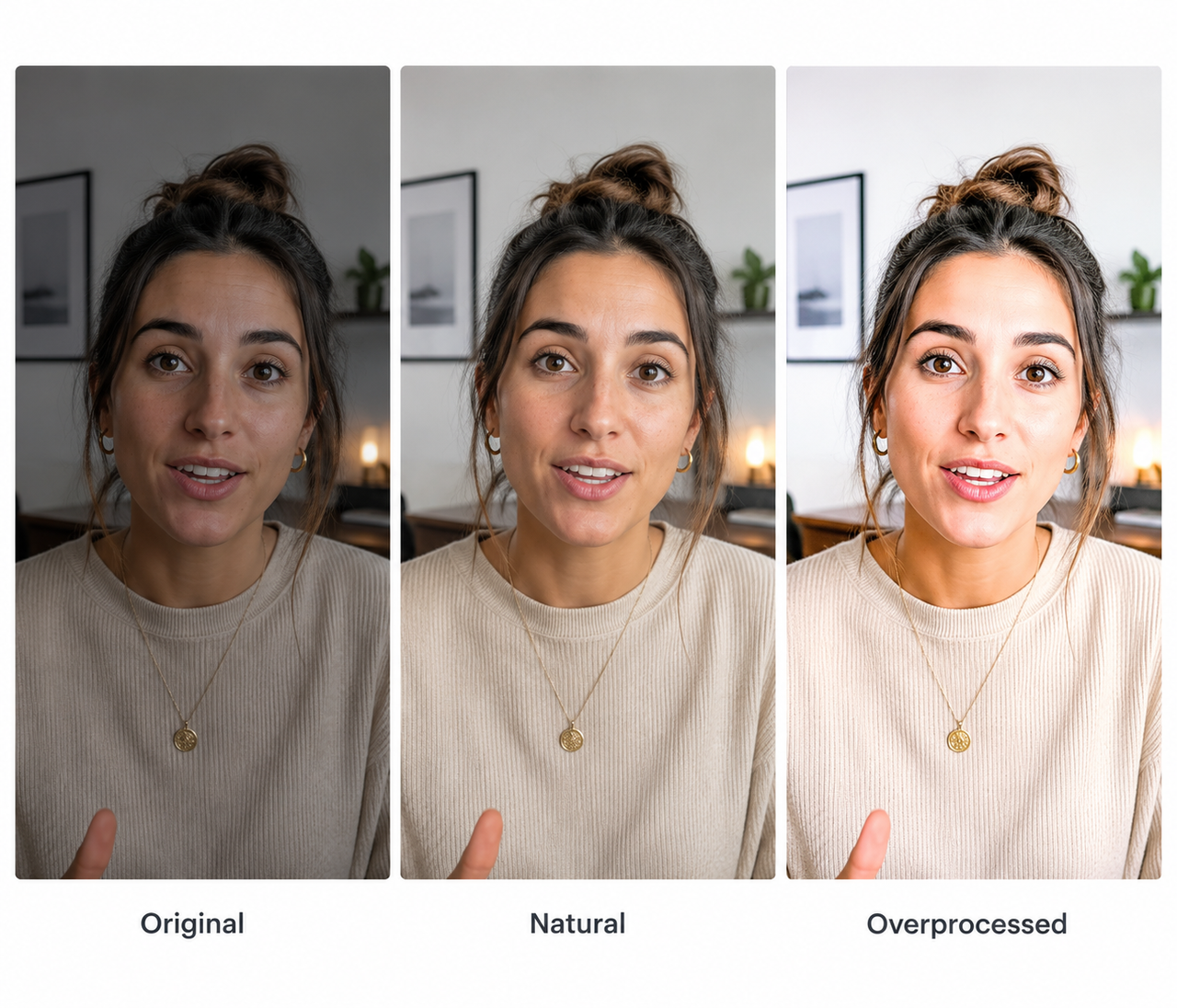
Better results do not always come from stronger processing. Each adjustment should correct a visible weakness while protecting the realistic appearance of the original footage.
Upscaling Every UGC Video to 4K
A 4K export is unnecessary for many testimonials and short-form clips. Enlarging a compressed file can increase processing time and file size without adding convincing detail, while 1080p is often enough for social ads and product pages.
Over-Enhancing Faces and Skin
Heavy smoothing may remove pores, fine lines, and natural shadows. Exposure and clarity usually need attention, but the creator should still look like the person in the original recording.
Applying Every AI Feature
Smooth footage gains little from interpolation, and a well-composed vertical video does not need reframing. Unnecessary effects can introduce flicker, warped edges, and changing details.
Reviewing Only the Beginning
Processing errors sometimes appear after a scene change or during a quick gesture. Product text may look stable in the opening shot but begin flickering when the package moves closer to the camera, so the complete video needs a final review.
FAQ
Is There a Free AI Tool to Upscale Video?
Yes. Many tools offer free credits, trials, or limited previews. Restrictions may apply to video length, file size, output resolution, and watermark-free exports.
Can AI Make a Blurry UGC Video Clear?
Mild blur, low resolution, and compression softness can often be improved. Severe motion blur, missed focus, and unreadable text may show only limited recovery because the original visual information is unavailable.
How Do I Enhance UGC Videos Without Losing Authenticity?
Moderate processing is usually enough. Natural skin texture, background details, lighting differences, and realistic movement should remain visible after enhancement.
What AI features help most with low-light UGC?
Noise reduction and light face/scene brightening usually matter first. Add upscaling only if the clip also looks soft on larger screens.
Can one AI tool fix every UGC quality problem?
One workspace can cover upscaling, denoising, reframing, and more—but apply only what the clip needs. Extra effects can create flicker or an overprocessed look.
You May Be Interested
Best 3D Character Creator to Make Custom Characters
6 Best Ai Character Generator in 2026: Tested & Compared

Best Prompt for YouTube Script in 2026