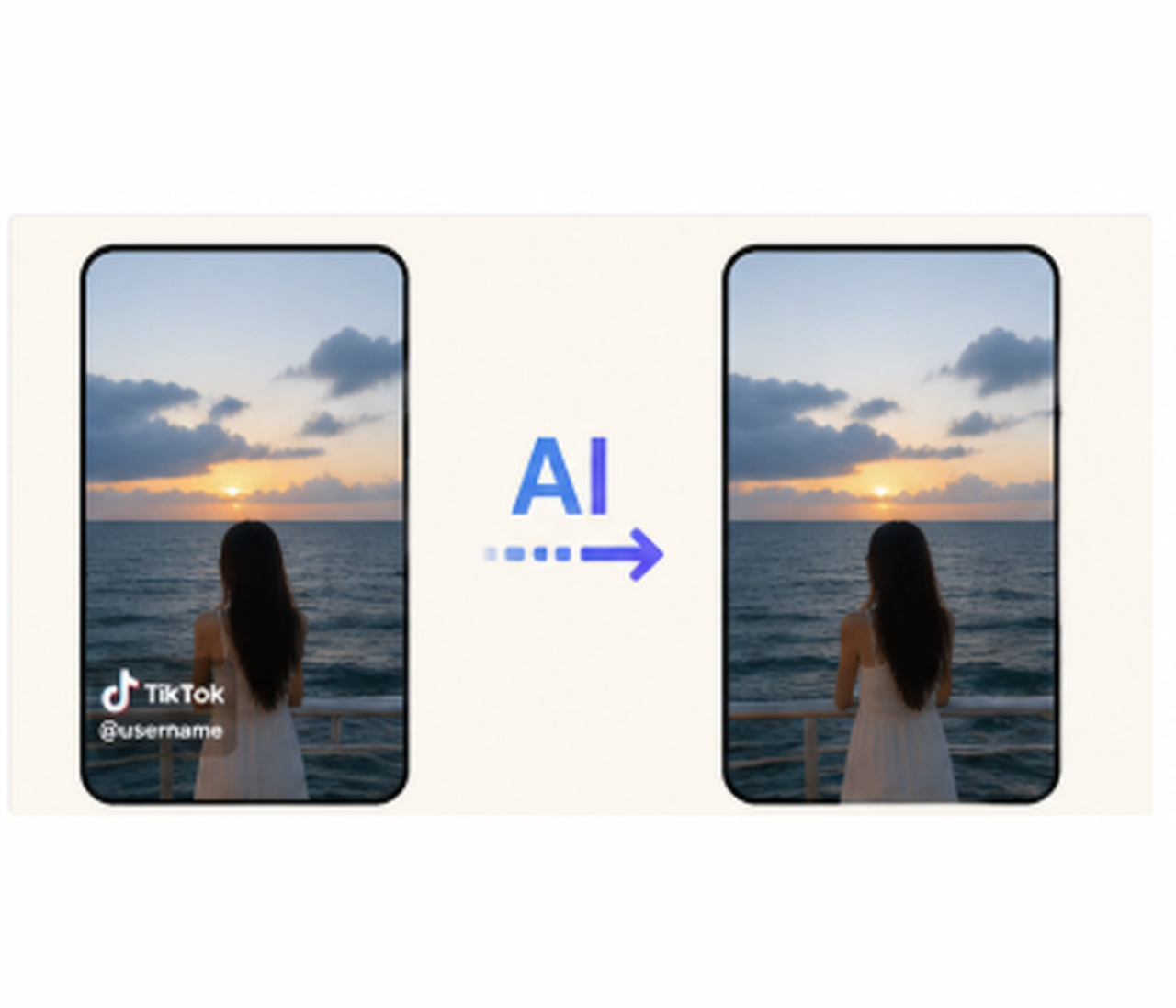
How to Remove an Instagram Watermark From a Downloaded Video
 RoboNeo TeamJuly 22, 2026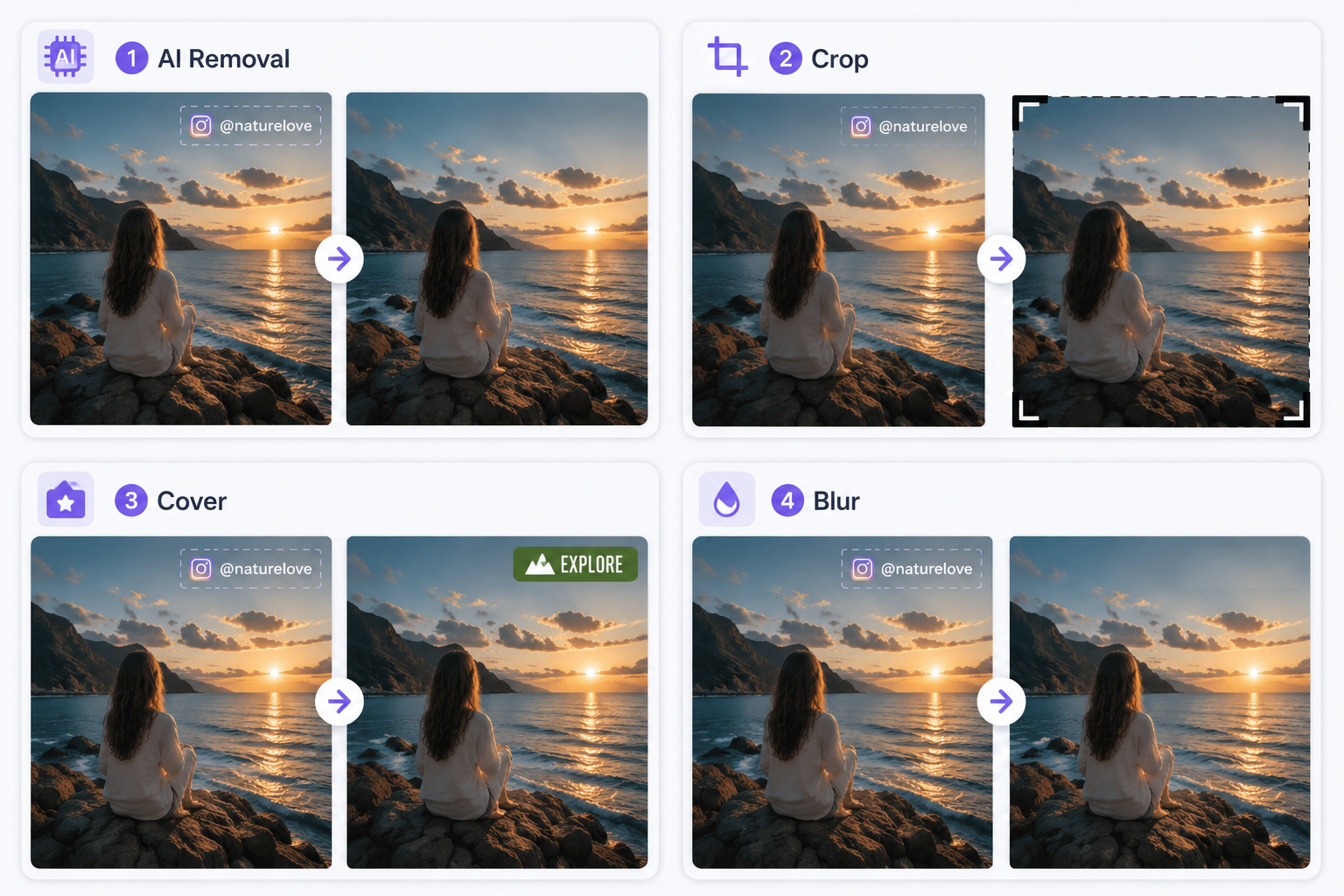
When you download Instagram videos, they usually come with a watermark. That’s great for giving credit, but it looks totally out of place when reposting your own content to TikTok, YouTube Shorts, or your website.
This quick guide will walk you through how to remove instagram watermark from downloaded video using AI, cropping, overlays, or blurring. We’ll also go over a few quick checks to look into before you start editing.
Why Remove an Instagram Watermark from a Downloaded Video?
Removing a watermark can make your video easier to reuse while keeping its appearance consistent across different platforms.
1. Enhance the Visual Experience
An Instagram watermark can pull attention away from the main subject, especially when the video appears in an ad, portfolio, presentation, or branded social post. Removing it gives the frame a cleaner look and keeps viewers focused on the content.
2. Easier to Repurpose and Use Commercially
A clean video is easier to adapt for TikTok, YouTube Shorts, paid ads, product pages, and other channels. If you need a new version rather than a direct repost, an AI video generator can turn your original images or creative idea into a fresh clip for the target platform. It also prevents another platform’s logo from competing with your own branding. It also prevents another platform’s logo from competing with your own branding.
For commercial projects, use the original video whenever possible. A watermark-free source usually delivers better quality than editing a compressed social media download.
3. Protect Personal Privacy and Sensitive Information
Instagram watermarks may display a username or account identity. Removing that information can be useful when delivering client work, separating a business video from a personal account, or sharing a clip without directing viewers to the original profile.
Things to Consider Before Removing an Instagram Watermark
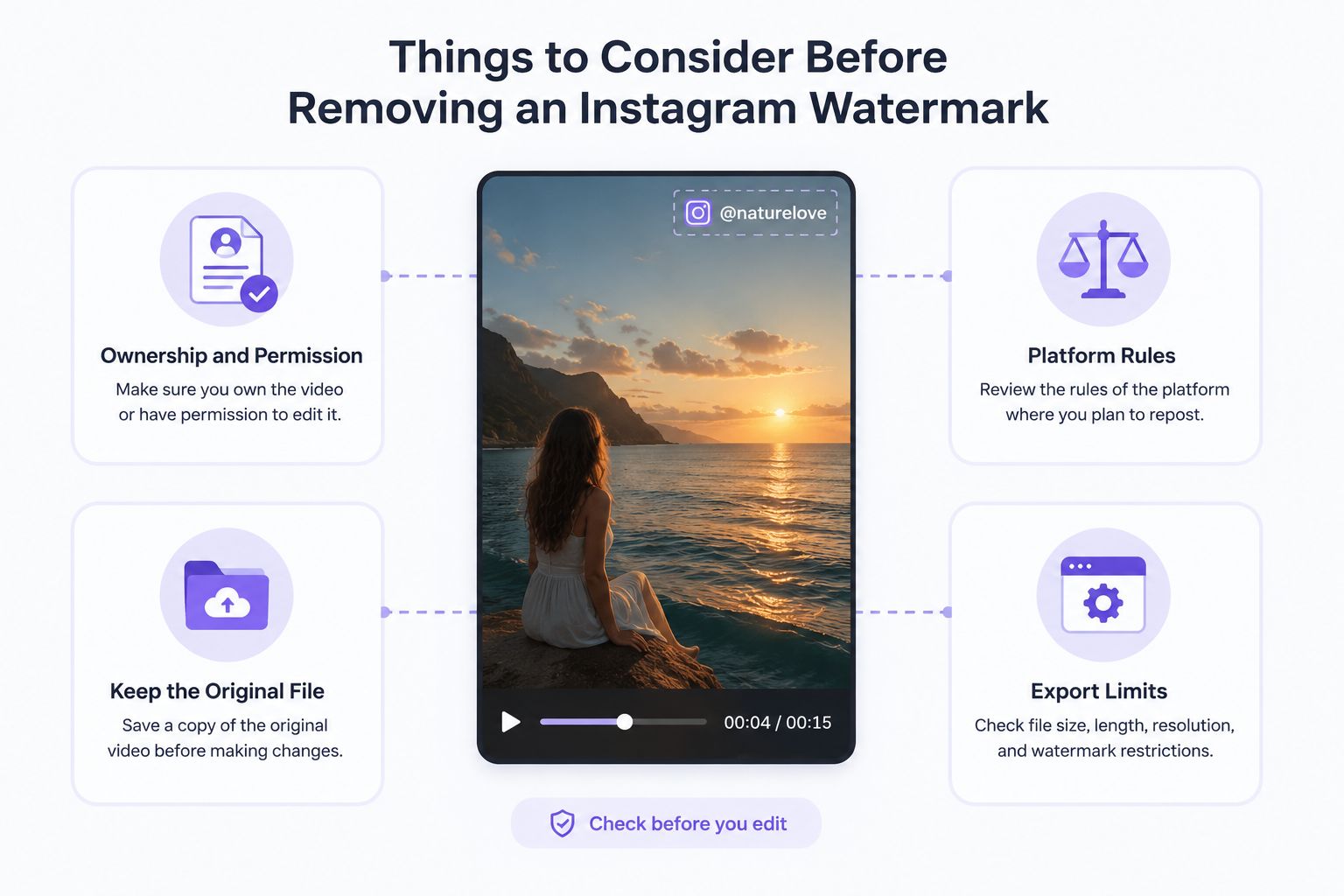
Before you jump into using an Instagram watermark remover, make sure you actually own the clip, go over the platform's rules, hang onto your original file, and watch out for any export limits on the tool you're using.
Make Sure You Own the Video or Have Permission
Only remove watermarks from clips you created or have permission to edit. Removing someone else’s credit may violate copyright law or licensing terms. If you do not own the footage, creating an original clip with a text-to-video tool is a safer alternative to editing and reposting someone else’s work. Remember to back up your original file before making any changes.
Follow Platform Rules and Content Policies
Be sure to look into the guidelines of whatever platform you’re planning to post on—especially when dealing with reposted, sponsored, or licensed content. Whenever you can, just go with the original, watermark-free file instead of messing around with an edited download.
Understand Free Plan and Export Limits
Free tools often limit video length, file size, processing credits, resolution, or format options. Some may even place a new watermark on the exported video. If you decide to create a fresh version instead, best AI video generator free compares tools based on their input methods and free-use limits. In either case, review the export restrictions and privacy policy before uploading your content.
How to Remove Instagram Watermark from Downloaded Video

The right method depends on the watermark’s position, movement, and background. AI tools usually preserve more of the frame, while cropping, covering, and blurring can work for simpler edits.
Method 1: Remove the Watermark with an AI Video Tool
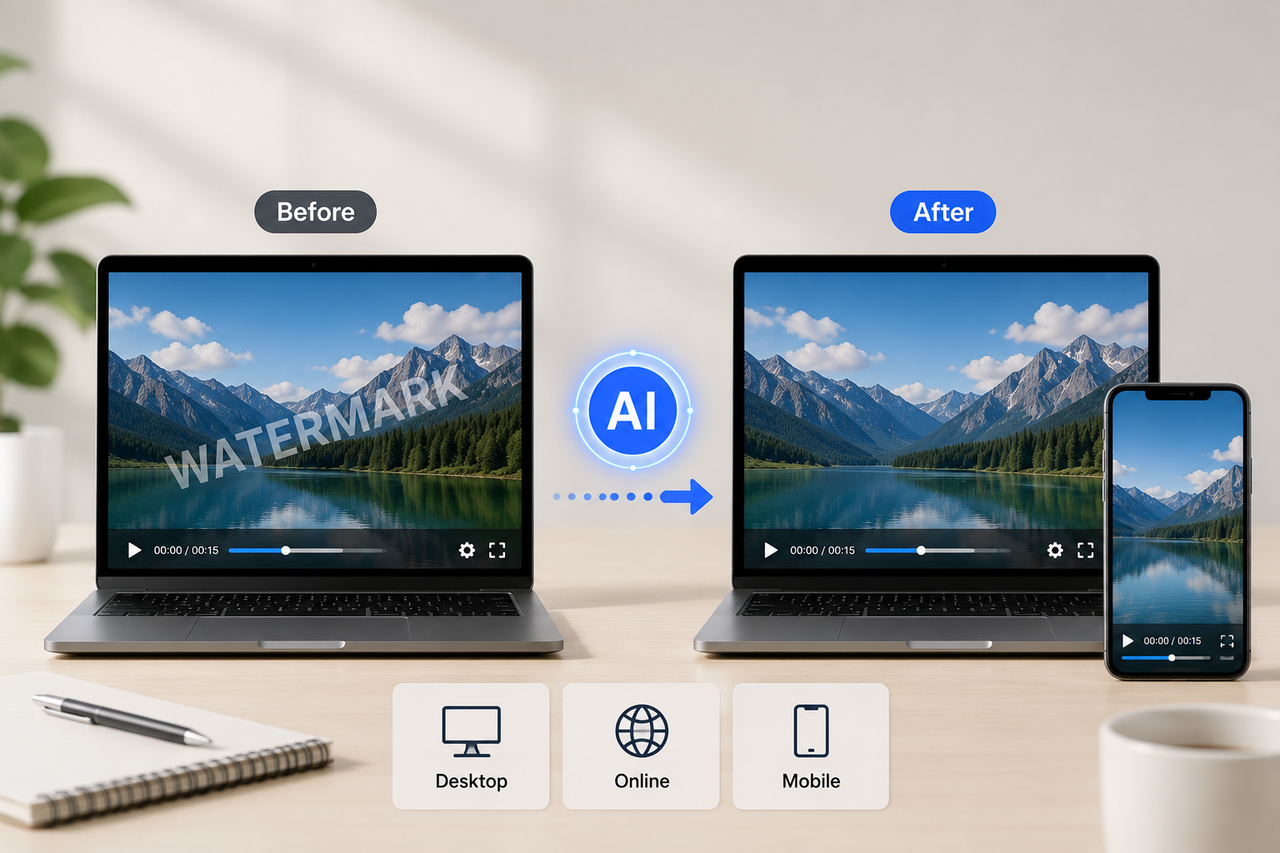
An AI video tool analyzes the pixels around the watermark and may reference nearby frames to rebuild the covered background. Instead of leaving a blurred patch, it attempts to replace the watermark with details that match the surrounding scene.
RoboNeo AI watermark remover identifies distracting overlays and reconstructs the covered area while maintaining consistency across nearby frames. After uploading the downloaded Instagram video and selecting the watermark area, the tool rebuilds the covered section frame by frame. This method can work with both static and moving watermarks, although results depend on the background and video quality.
Method 2: Crop the Watermark Out of the Video
This works great if the watermark is tucked away near the edge and doesn't get in the way of the action. Just chop off that part of the frame and scale up the rest. The catch? You'll lose some of the original shot and might mess with the aspect ratio, so check the preview to make sure key details don't get cut off.
Method 3: Cover the Watermark with Text, Stickers, or a Logo
Just slap your own logo, text, or sticker on top of the watermark to cover it up. It's super fast and works best if the overlay blends right in with your video's style. Just keep it small so it doesn't end up being more distracting than the watermark itself.
Method 4: Blur the Watermark Area
You can throw a quick blur or pixelated effect over the watermark. If it moves, use motion tracking so the blur locks onto it. While this is a quick fix, the blurry spot will still stand out, so it’s best for casual posts where a fuzzy patch won't ruin the vibe.
How to Remove Instagram Watermark Step by Step
To remove an Instagram watermark from a video, the general process includes:
Upload the video: Add the downloaded Instagram video to an AI watermark remover like RoboNeo AI watermark remover. Check file format, duration, resolution, and size requirements before processing. Using the highest-quality source file usually helps achieve better results.
Select the watermark area: Highlight the logo, username, or other watermark you want to remove. Keep the selection area as precise as possible so the AI can focus on the unwanted element without affecting surrounding details.
Process and review the result: Let the AI analyze nearby frames and reconstruct the covered area. Play the full video to check for issues such as flickering, blurry edges, or texture inconsistencies, especially when the watermark overlaps faces or complex backgrounds.
Export the final video: Export the video at the highest available quality and keep the original frame rate and dimensions when possible. Save the edited version separately to preserve the original file.
For a more detailed walkthrough, including the full workflow and additional tips, check the complete guide on how to save video without watermarks.
FAQ
Is it possible to download Instagram videos without a watermark?
Sometimes. Your best bet is usually the original file saved on your phone, camera, or editing app. But if the copy you downloaded already comes with a watermark, you'll need to track down a legit removal tool or editing trick to get rid of it.
Can moving watermarks be removed from a video?
Yes. Some AI tools can scan through a video frame by frame to keep track of a watermark as it moves around. Just keep in mind that the results can be a bit hit-or-miss if the watermark passes over faces, busy textures, fast action, or chaotic backgrounds.
Can I get sued for removing a watermark?
You definitely could run into legal trouble if you strip away a watermark from copyrighted content without permission—especially if you post it again or try to make money off of it. To stay safe, stick to editing videos you actually own, have a license for, or have clear permission to change.
Is AI allowed to remove watermarks?
At the end of the day, AI watermark removal is just another editing trick. Whether you're allowed to use it mostly comes down to who owns the video, what the license says, why you're taking it off, and what you plan to do with the final clip.
You May Be Interested

How to Use an AI Video Generator Online to Create Viral Content
6 Best Ai Character Generator in 2026: Tested & Compared

How to Choose the Best AI Text to Video Generator in 2026 (+ Our Top Pick)
5 Best Free Tools to Remove Watermark from Video in 2026 | RoboNeo