DPI vs PPI: What Is the Difference?
 RoboNeo TeamAugust 25, 2026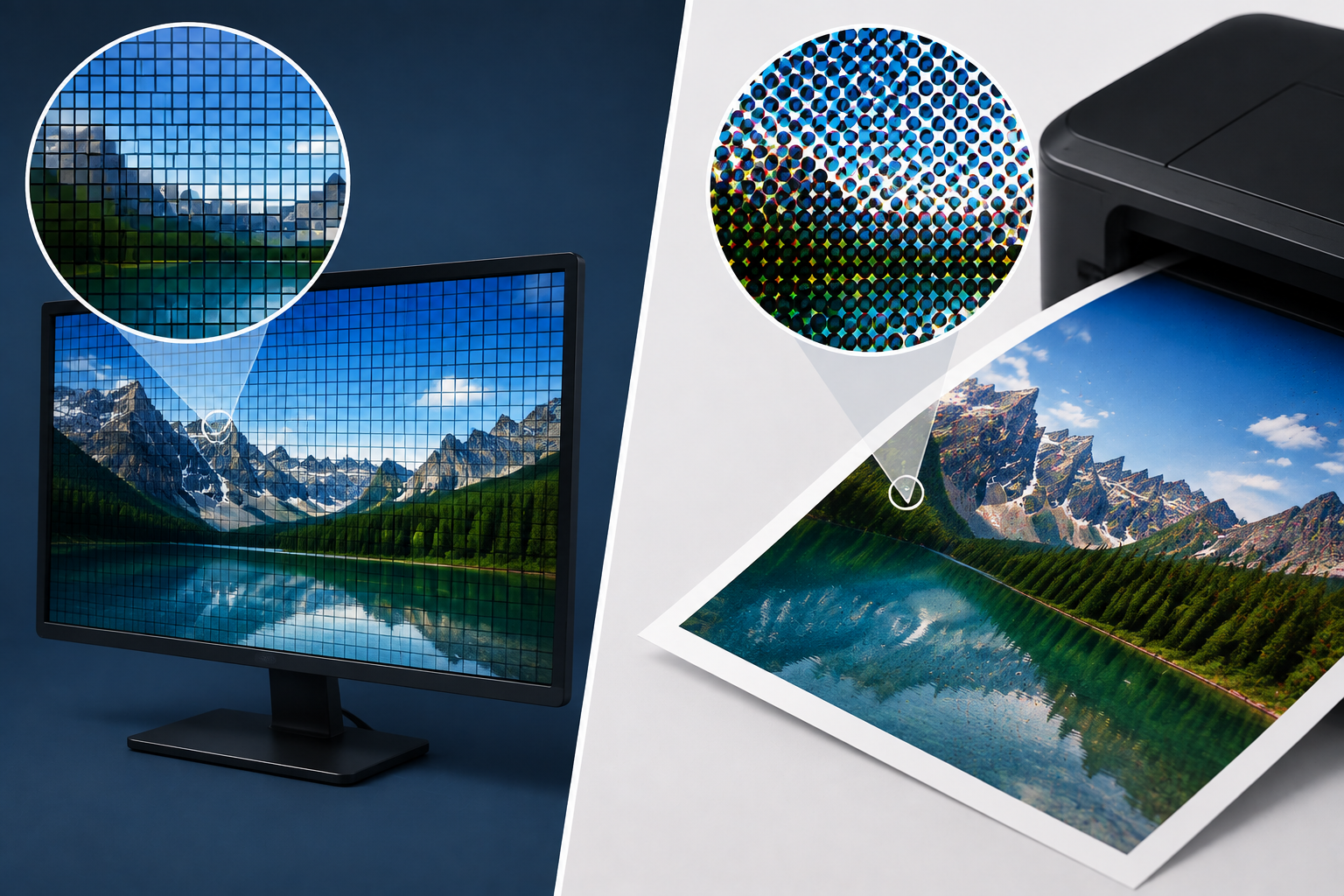
DPI and PPI both describe density, but they apply to different parts of the image production process. PPI relates to pixels in a digital image, while DPI refers to the ink dots produced by a printer. Understanding this distinction helps you prepare sharper photos, choose a suitable print size, and avoid increasing a number that does not improve the underlying image quality.
What Are DPI and PPI?
Although DPI and PPI are often used interchangeably, they measure different elements. Their definitions should be understood before choosing image or printer settings.
What Is PPI?
PPI stands for pixels per inch. It describes how densely the pixels in a digital image are distributed when that image is displayed or printed at a particular physical size.
A PPI value must be considered alongside the image's pixel dimensions and intended output size. Seeing "300 PPI" in an image editor does not prove that the file contains enough pixels or fine detail. A 600 × 600-pixel image can be labeled as 300 PPI, but it will only produce a 2 × 2-inch print at that density.
What Is DPI?
DPI stands for dots per inch. It measures how many individual ink or toner dots a printer can place within one inch of paper.
This value is mainly controlled by the printing equipment, driver settings, and selected print mode. A higher DPI allows the printer to arrange its dots more finely, which may create smoother colors and cleaner edges. However, it cannot replace pixels or restore details missing from the original image.
DPI vs PPI Key Differences
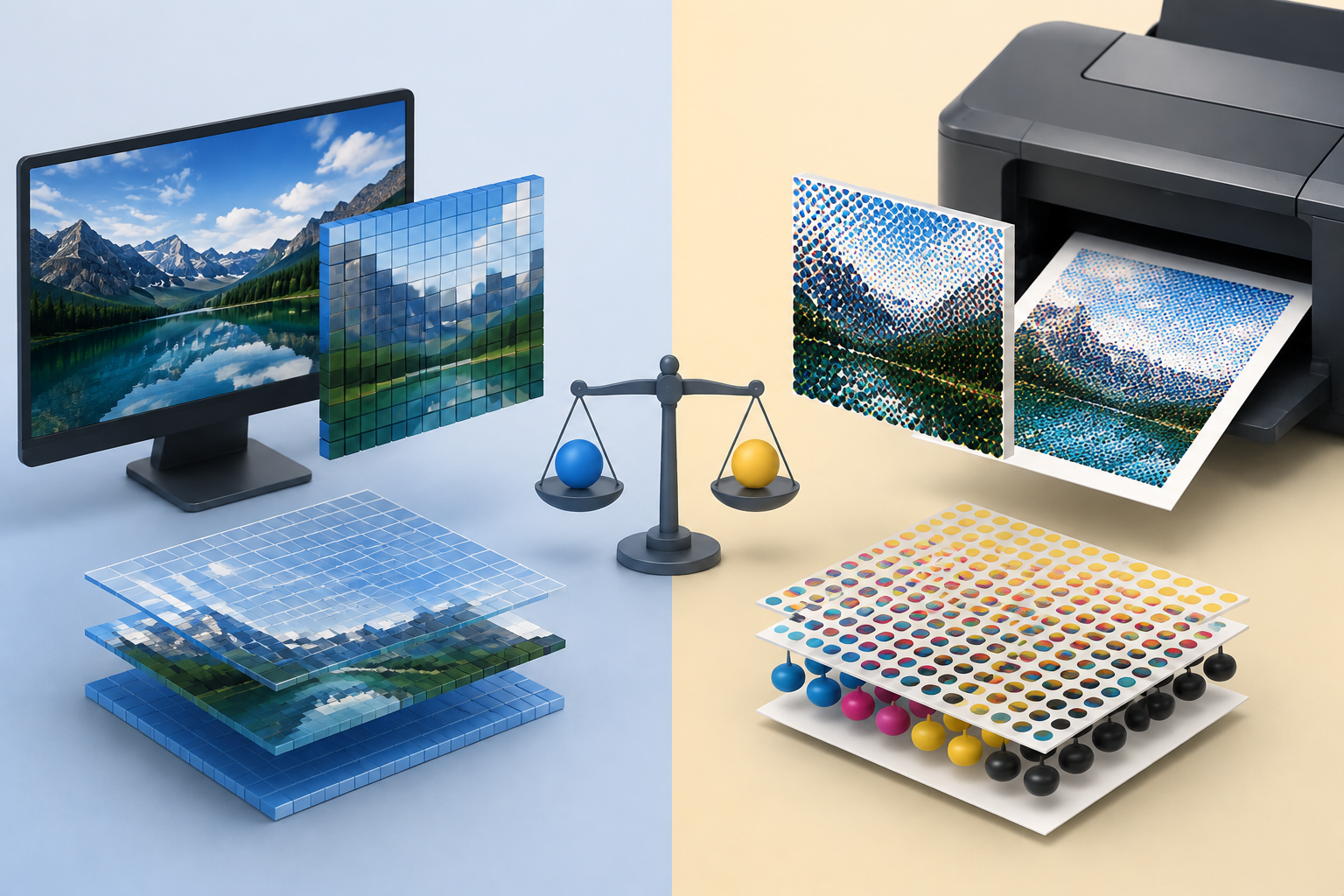
The clearest way to understand the difference between DPI and PPI is to see where each value enters the printing workflow.
| Factor | PPI | DPI |
| Full Name | Pixels per inch | Dots per inch |
| Definition | The density of image pixels at a physical output size | The density of ink or toner dots produced by a printer |
| What It Measures | Digital image information | Printer output |
| Where It Applies | Digital images, editing, layout, and print preparation | Inkjet, laser, and commercial printing |
| What Controls It | Pixel dimensions and output size | Printer hardware, driver, and print mode |
| Common Values | 72, 96, 150, and 300 PPI | 300, 600, 1200, and 2400 DPI |
| Role in Printing | Determines how much image data is available per inch | Determines how the printer places ink or toner on paper |
| Effect on Quality | Influences visible sharpness at the chosen print size | Influences dot placement, tonal smoothness, and edge quality |
| Main Limitation | A higher metadata value cannot create real detail by itself | A high printer DPI cannot repair a low-resolution image |
How DPI and PPI Work Together
PPI and DPI are connected, but they are not interchangeable settings. PPI represents the image input, while DPI describes the printed output. A printer commonly uses several colored ink dots to reproduce the color and brightness of one image pixel. As a result, a 300 PPI photo can be printed normally by a 1200 DPI printer; the two values do not need to match. Some printing services use "DPI" when they are actually referring to image PPI, so the intended meaning should always be checked.
How PPI Works
PPI becomes useful when it is connected to actual pixel dimensions and the final size of the image. Changing the number alone provides little information about quality.
Check Pixel Dimensions
Pixel dimensions show how much digital image data a file contains. A 3000 × 2000-pixel photo contains six million pixels, regardless of whether its metadata says 72 PPI or 300 PPI. Understanding pixel dimensions is also the starting point when deciding how to make an image high resolution for a larger screen or print.
This distinction matters when preparing a family photo for printing. Changing its PPI setting without changing the 3000 × 2000-pixel dimensions does not add facial detail, sharpen clothing textures, or improve objects in the background.
Set the Output Size
The effective PPI changes when the same image is printed at different sizes. Enlarging the output spreads the available pixels across more inches, reducing pixel density. A smaller output concentrates those pixels into less space.
The calculation is:
Effective PPI = Image pixels ÷ Output size in inches
A 3000-pixel-wide image printed at 10 inches has an effective resolution of 300 PPI. At 20 inches wide, the same file provides only 150 PPI. The image has not lost pixels, but each inch of the larger print receives fewer of them.
Understand Resampling
When resampling is turned off, changing the PPI value only adjusts the suggested print size. The number of pixels remains unchanged.
Turning resampling on allows editing software to add or remove pixels. Traditional interpolation estimates new pixel values from nearby areas, while an AI image editor can analyze subjects, edges, and textures before generating additional pixels. These methods may improve the appearance of an enlarged image, but they cannot guarantee an accurate recovery of every detail that was absent from the source.
How DPI Works
Once a digital image reaches the printer, DPI determines how the equipment translates image information into physical dots.
Set the Printer Resolution
Printer DPI is controlled through the hardware, print driver, and selected quality mode. Draft, standard, photo, and high-quality modes may all use different output settings.
The correct choice depends on the printer and the project. A quick office document may not require the highest setting, while a glossy portfolio photograph can benefit from a finer output mode. The image PPI should not simply be changed to 1200 because the printer advertises 1200 DPI.
Convert Pixels into Dots
Printers combine small dots of different colors to represent the tone and color of each image pixel. This process explains why printer DPI values are often much higher than image PPI values.
A 1200 DPI printer processing a 300 PPI image has four printer dots available across the width of each image pixel. In practice, dot placement and color mixing are more complex, but the relationship shows why the two resolution figures serve different purposes.
Check the Final Output
DPI is only one factor in print quality. The effective PPI of the image, paper surface, ink, color profile, and printing technology also affect the result. When the source already looks soft, methods used to make a photo less blurry should address the actual cause, such as limited resolution, noise, missed focus, or camera movement.
A high printer setting may produce smoother gradients, yet it cannot make a small downloaded image look like a high-resolution camera file. Before ordering a large batch of brochures or product packaging, an actual-size proof can reveal soft text, weak edges, color shifts, and missing details.
How to Choose the Right Resolution
The best resolution depends on where the image will appear, how large it will be, and how closely people will view it.
For Screen Use
Websites, social media platforms, and digital interfaces mainly rely on pixel dimensions, display size, and file size. Changing an image from 72 PPI to 300 PPI usually does not make it look sharper on a screen when the pixel dimensions remain the same.
For digital use, focus on:
The required pixel width and height
The dimensions at which the image will appear
A suitable file format and compression level
The platform's upload requirements
A 1080 × 1080-pixel social media image still contains the same number of pixels whether its metadata shows 72 PPI or 300 PPI.
For Photo Printing
Photos, brochures, magazines, and other materials viewed at close range commonly use 300 PPI as a target. This density often provides enough pixel information for clean edges and fine details at normal reading distance.
The effective PPI should be checked at the final print size. A wedding photo may look sharp as a 6 × 4-inch print but become noticeably softer when enlarged to 24 × 16 inches. If the source also contains focus or motion blur, learning how to unblur an image can help determine whether sharpening, noise reduction, rescanning, or AI enhancement is more suitable. Printer DPI does not need to match the image's 300 PPI setting, and the printing provider's file specifications should take priority.
For Large Prints
Posters, exhibition panels, and outdoor advertisements are usually viewed from farther away. Because individual details are less noticeable at a distance, these projects may accept a lower effective PPI.
Applying a 300 PPI photo-printing target to every billboard can create an unnecessarily large and difficult-to-handle file. The appropriate resolution should reflect the finished dimensions, normal viewing distance, image content, and selected printing method.
For Low-Resolution Images
A larger original file is the best starting point when the available image does not contain enough pixels. Checking cloud backups, camera storage, or the original design export may uncover a higher-resolution version.
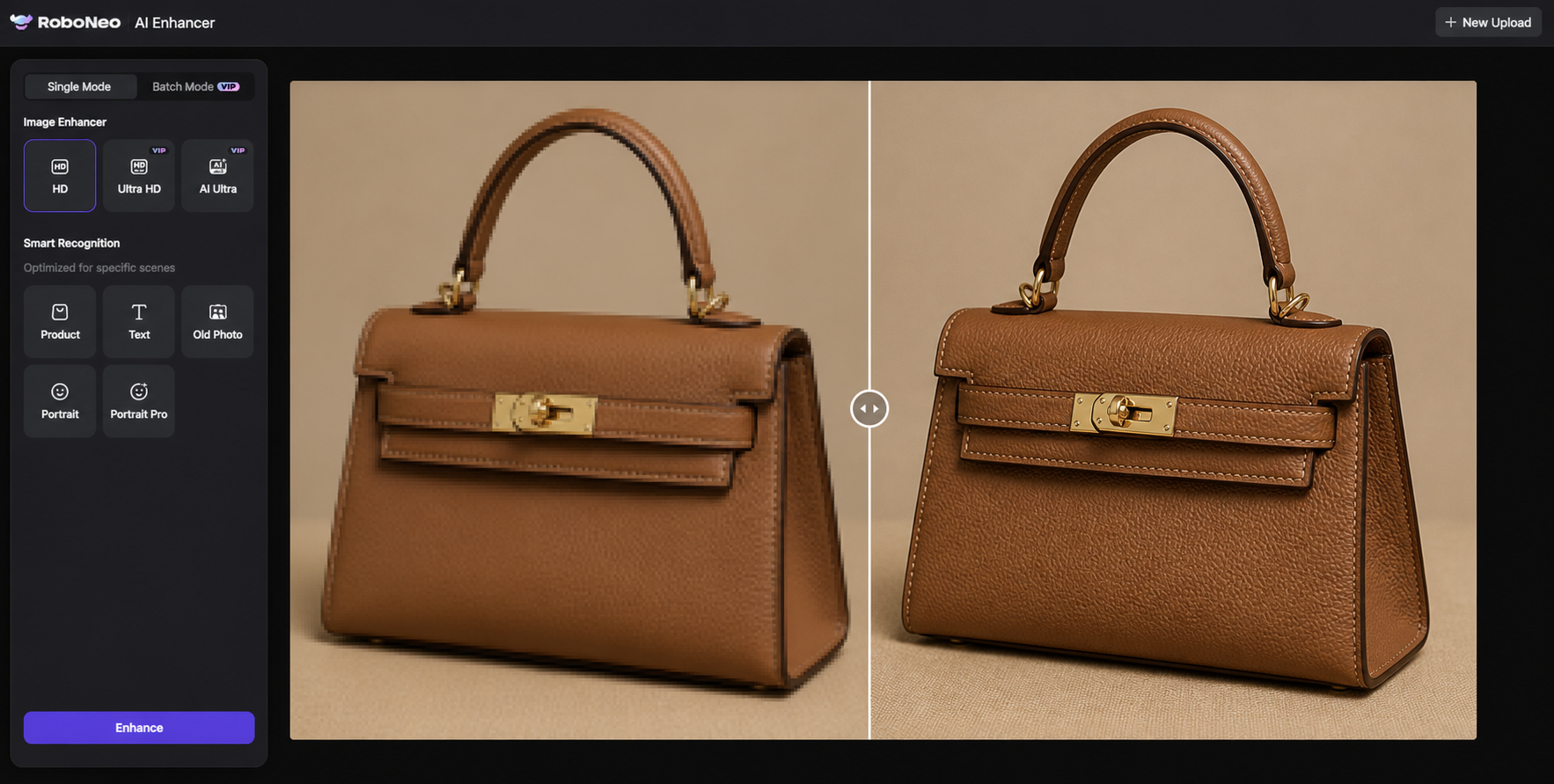
If no larger source exists, RoboNeo AI Enhancer can be used to upscale the image before its effective PPI is checked at the intended output size. A small product photo prepared for a printed catalog may gain cleaner edges and more usable dimensions after enhancement.
The processed result still requires careful inspection. Faces, text, product outlines, hair, and fine patterns can reveal unnatural details or artifacts. Image enhancement increases pixel dimensions rather than printer DPI, and it cannot guarantee that all missing original information will be recovered.
FAQ
Does changing 72 PPI to 300 PPI improve image quality?
Not by itself. If the pixel dimensions remain unchanged, changing 72 PPI to 300 PPI does not automatically improve the image. With resampling disabled, the change only affects the suggested print size. When resampling is enabled, the software generates new pixels, but those pixels are not the same as authentic detail captured in the original image.
How many pixels do I need for an 8 × 10 inch print?
At 300 PPI, an 8 × 10-inch print requires approximately 2400 × 3000 pixels. The calculation is:
Print size in inches × Target PPI = Required pixels
The exact requirement may vary with viewing distance, image content, and the printing provider's standards.
Why do printers advertise 1200 DPI when images use 300 PPI?
A 1200 DPI specification describes the printer's ability to place ink or toner dots, while 300 PPI describes the pixel density of the source image. Printers usually combine multiple dots to reproduce one image pixel, so the two values refer to different stages and do not need to match.
Does PPI affect image file size?
Changing only the PPI metadata usually has little effect on file size. File size can change when resampling adds or removes actual pixels. The file format, compression level, color depth, and image content also influence how much storage the file requires.
Is 300 PPI always necessary for printing?
No. A target of 300 PPI is common for photos and printed materials viewed at close range, but it is not a universal requirement. Large posters and outdoor advertising can often use a lower effective PPI because they are viewed from farther away. Final resolution should be based on print size, viewing distance, production method, and the printer's specifications.
You May Be Interested
4K vs 1080p: Should You Upscale 1080p Video to 4K?
6 Best Ai Character Generator in 2026: Tested & Compared

How to Choose the Best AI Text to Video Generator in 2026 (+ Our Top Pick)
Best App to Remove Tiktok Watermark in 2026
5 Best Free Tools to Remove Watermark from Video in 2026 | RoboNeo