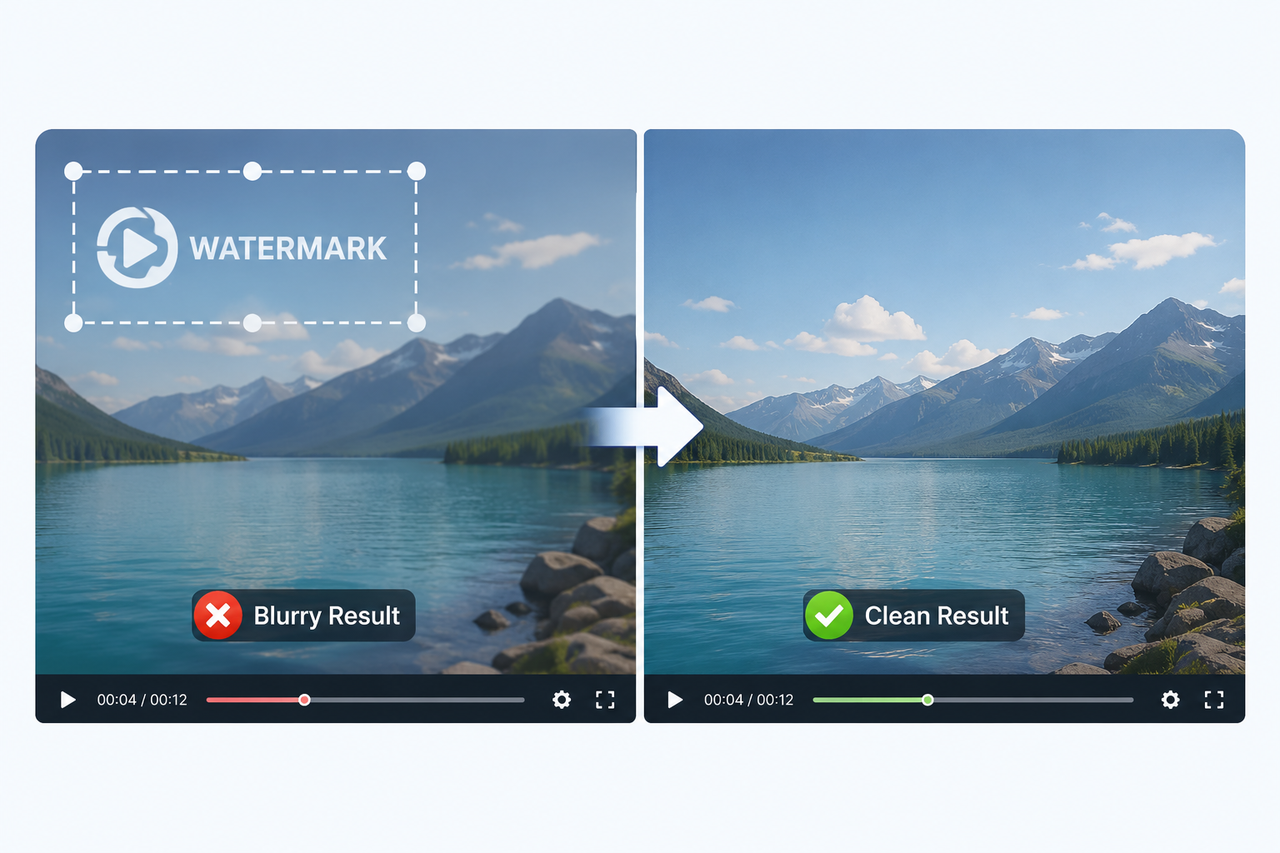
How to Remove Watermark from Video with AI (2026)
 RoboNeo TeamJuly 16, 2026
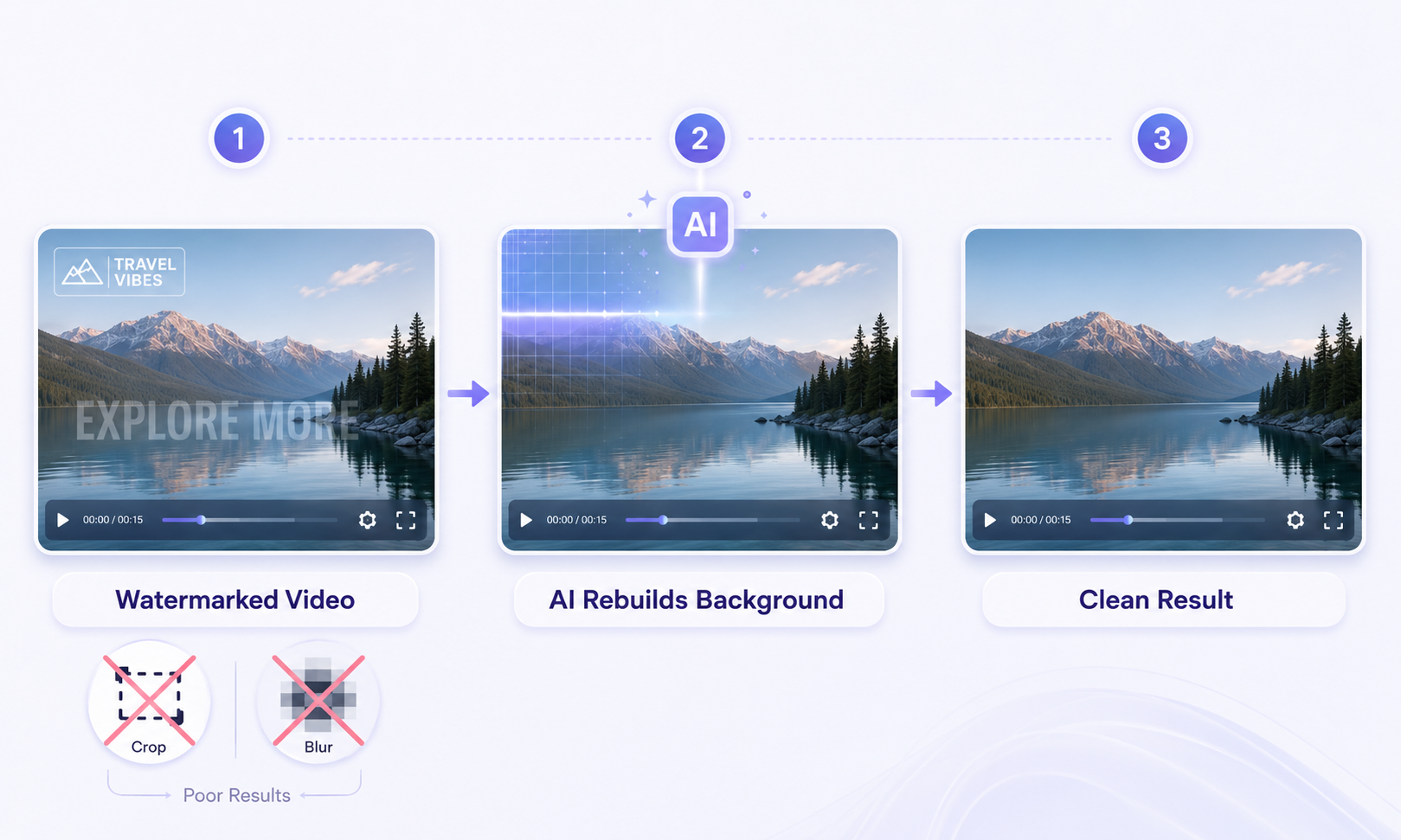 Cropping can remove part of the frame, while blurring often leaves a visible patch. An AI video watermark remover uses surrounding pixels and nearby frames to reconstruct the area covered by a logo, username, or other overlay.
But how do you actually pull this off without wrecking your resolution? It is surprisingly simple. Let’s break down the common watermark styles you will run into and map out the cleanup process step-by-step.
Common Types of Video Watermarks
Before starting, identify the watermark type. Its position, movement, and transparency can directly affect the removal quality.
1. Static Logo Watermarks
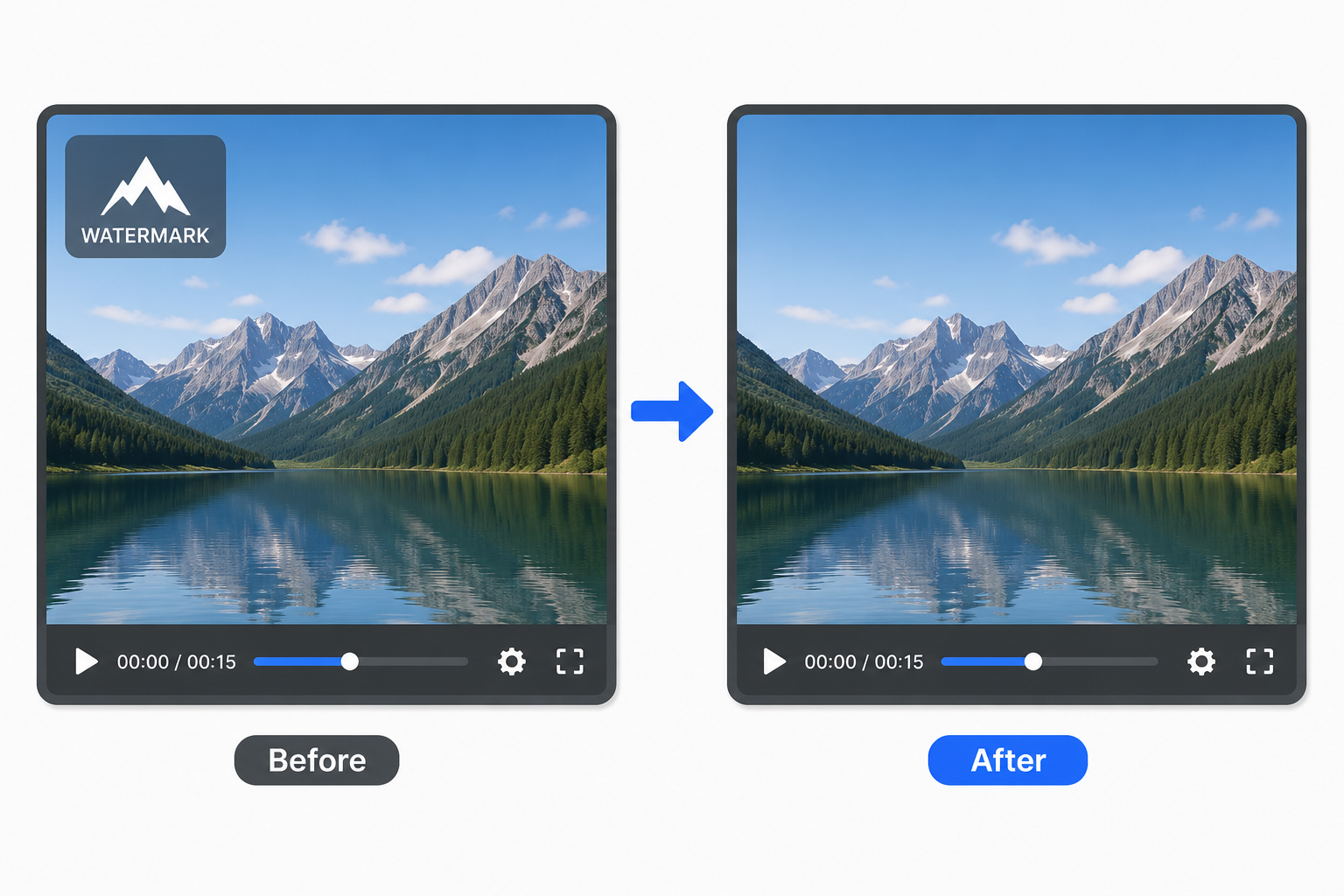
Static logos remain in one place, often in a corner, and are usually the easiest to remove. The AI can use nearby visual details to rebuild the same area across each frame. If the same logo also appears on thumbnails or promotional stills, an AI watermark remover can clean those image assets separately.
2. Text and Username Watermarks
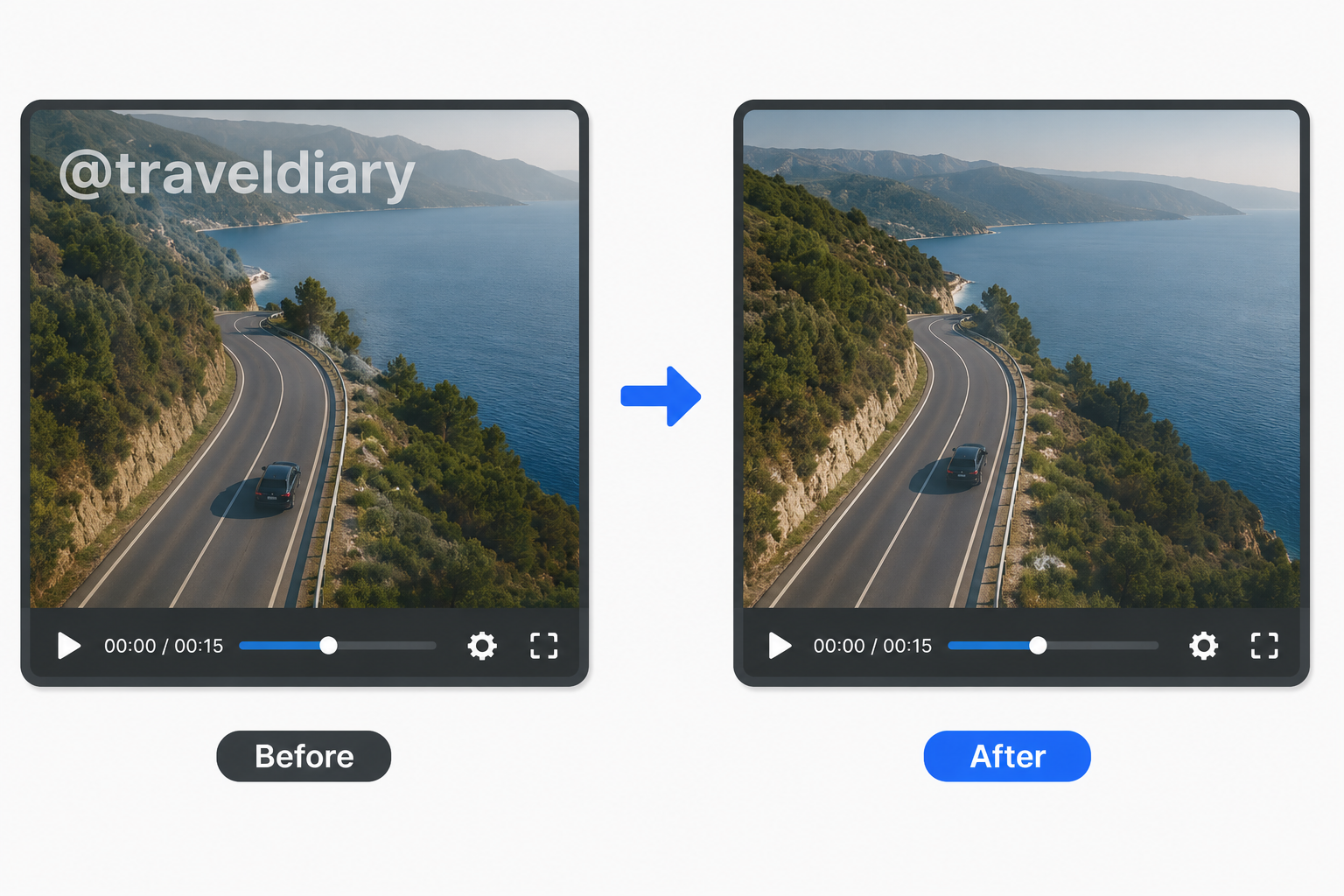
Channel names, usernames, and platform labels are often static or semi-transparent. This category includes users researching how to remove TikTok watermarks or how to remove Sora watermark from video. Results depend on how much detail appears behind the text.
3. Moving Watermarks
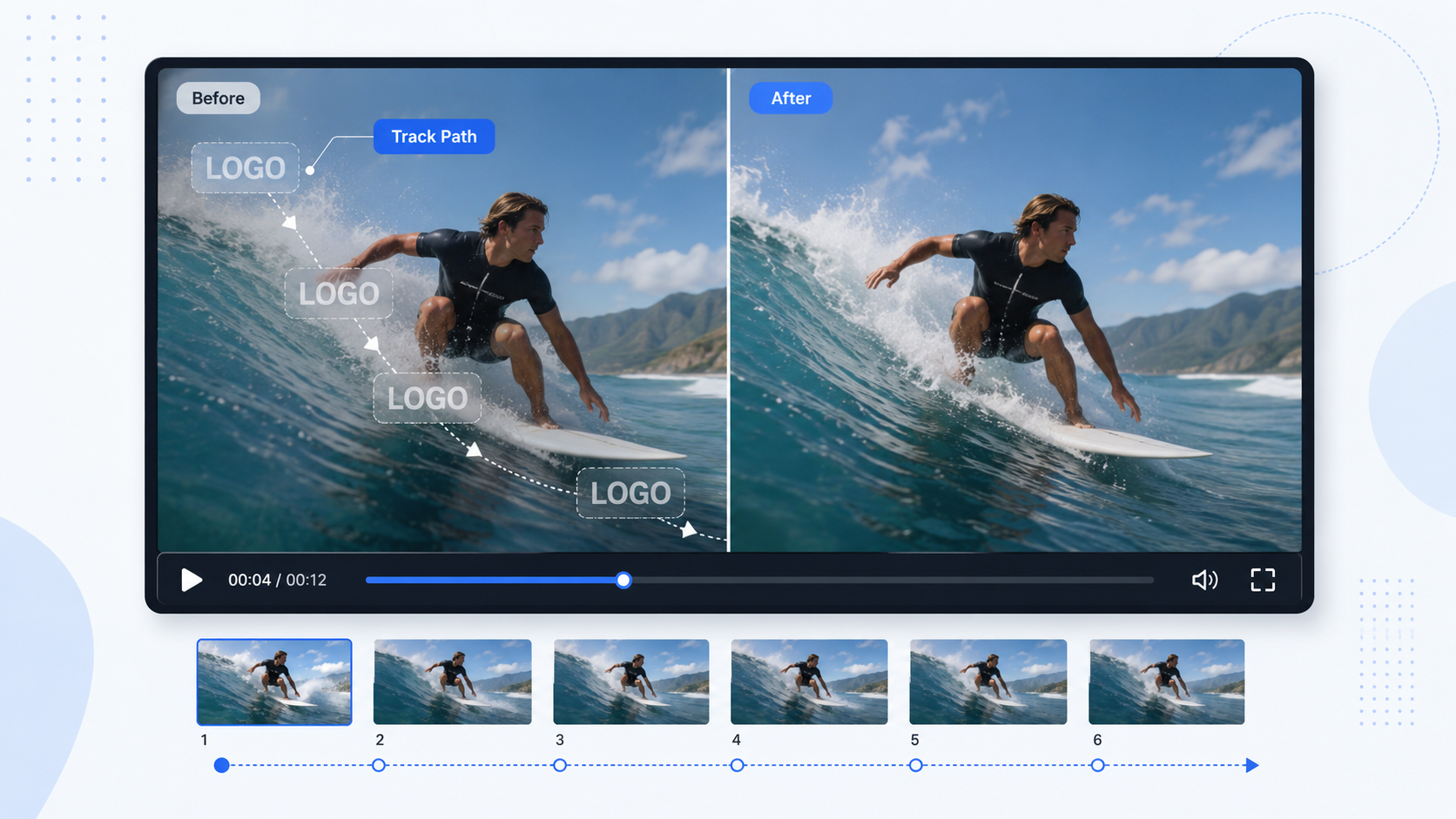 Moving watermarks change position throughout the video. The AI must track their path and reconstruct a different background in each frame, which makes flickering, ghosting, and uneven textures more likely. These are common limitations of current AI video generation technology, especially when the watermark crosses a moving subject or a rapidly changing background.
4. Transparent Watermarks
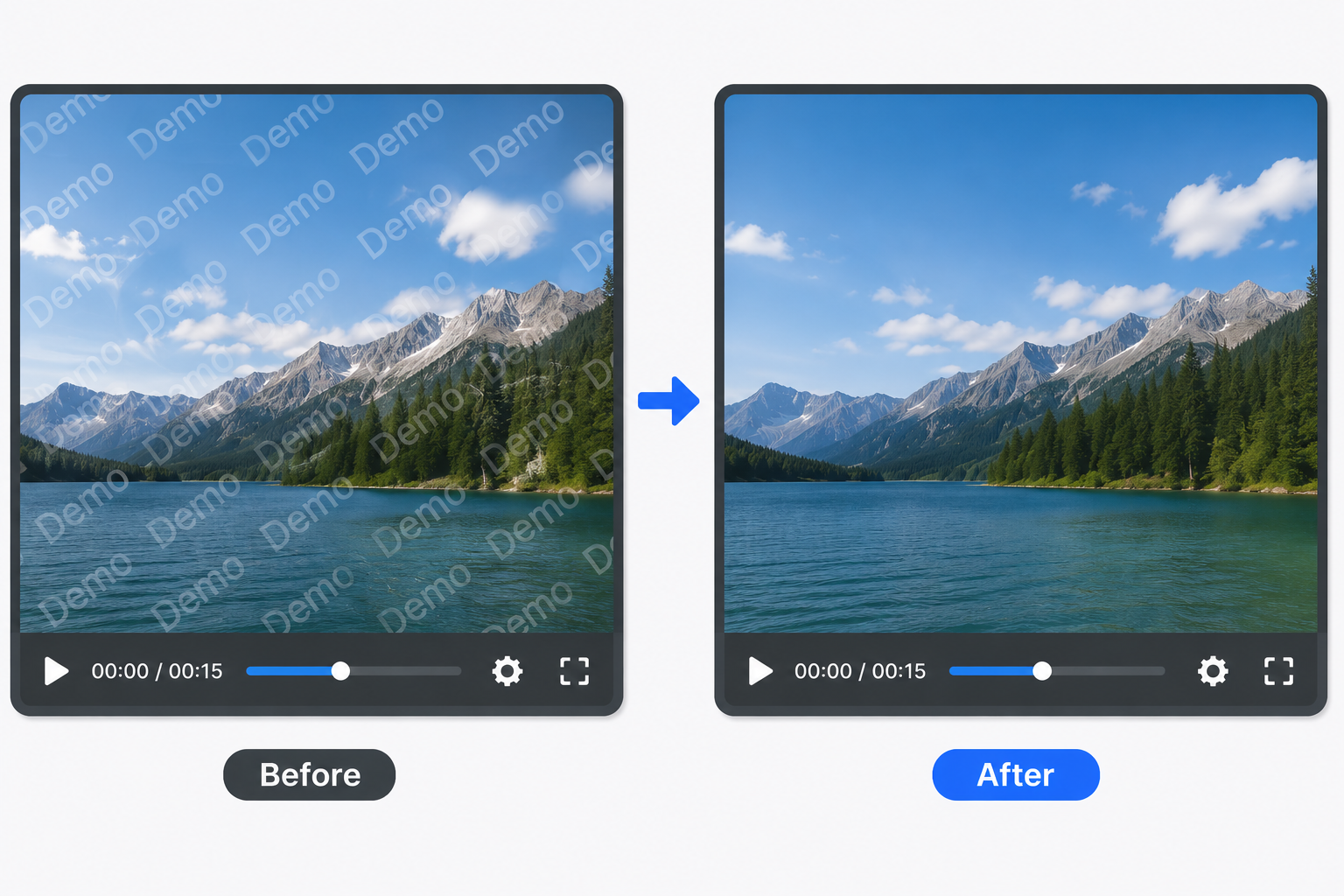
Transparent watermarks may appear as faint logos or repeating patterns across a large area. They are harder to separate from the original footage without softening textures or reducing image clarity.
How to Remove Watermark from Video with AI: Step by Step Guide
An AI tool turns watermark removal into a few manageable steps. It handles much of the tracking, masking, and background reconstruction automatically, allowing you to focus on reviewing the final result.
Step 1: Confirm Permission and Prepare the Video
Before editing, confirm that you own the video or have permission to modify it. Removing a watermark from someone else’s content may raise copyright concerns. If the mark came from a free export, check whether the original project supports a clean export. Otherwise, use the highest-resolution source available, the cleaner the file, the better the AI can reconstruct the covered area.
Step 2: Open an AI Video Watermark Remover

Open RoboNeo’s video watermark remover. It removes the need to work through complex timelines, manual keyframes, and repeated masking adjustments.
The automated workspace lets you handle both frozen logos and moving text loops through a streamlined AI workflow. Instead of just slapping a lazy, distracting blur over the graphics, RoboNeo reads the surrounding pixels to literally reconstruct the blocked-out background. The underlying engine analyzes the footage's textures, motion, and lighting shifts, ensuring the newly patched area blends perfectly with the rest of the clip across changing scenes.
Step 3: Let AI Remove the Watermark
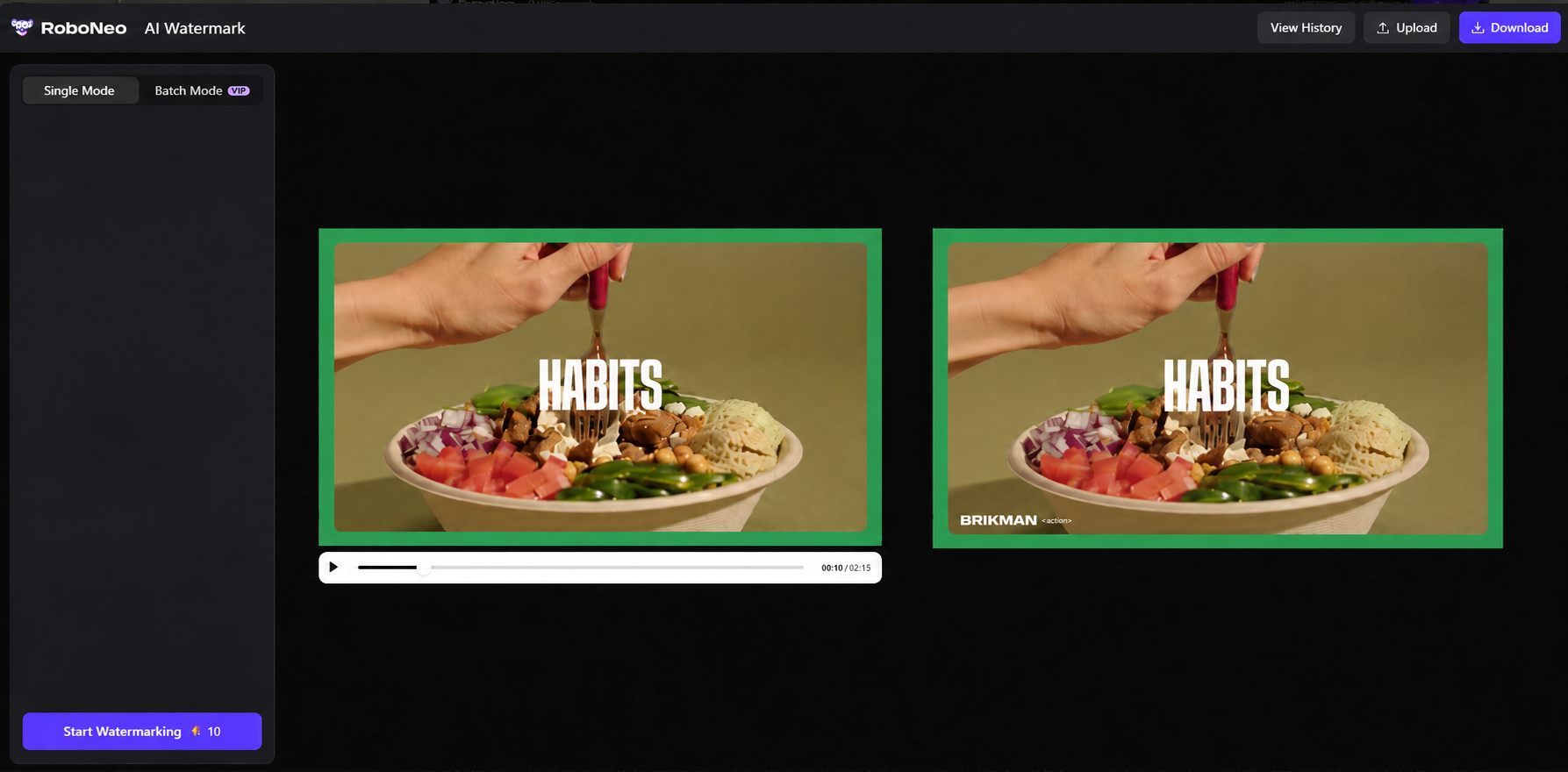
Upload your video and mark the watermark with a precise selection. Static watermarks are usually easier to process because they remain in one area. Moving watermarks require object tracking and frame-by-frame restoration, so results may vary.
AI tools often process uploaded videos on external servers. Before submitting private or commercially sensitive footage, review the provider’s privacy policy and data-retention terms.
During processing, RoboNeo analyzes surrounding textures, adjacent frames, lighting, and motion to reconstruct the covered area. This can help reduce blur, flicker, and ghosting, but always preview the full video before exporting.
Step 4: Preview the Watermark Removal Result
Before export, play the clip all the way through and keep your eyes glued to the patched zone. Do you notice any weird pixel stretching, sudden flickering, or unnatural edge trails? If the watermark moved, follow its entire path. If the patch looks a little rough, just resize your selection boundary and let the AI take another pass.
Step 5: Export the Clean Video
When playback looks clean, export the video using settings that match the original resolution, frame rate, and format as closely as possible. This limits unnecessary compression. You can then reuse the cleaned footage in when creating new scenes or alternate versions.
Important Tips for Using an AI Video Watermark Remover
A few practical checks can improve the final result and help protect your footage when using an online AI removal tool.
1. Test a Short Clip First
For a long video, process a five- to ten-second sample before uploading the full file. Choose a section that clearly shows the watermark. This lets you check the removal quality without wasting processing time or credits.
2. Avoid Repeated Compression
Video quality decreases each time a file is compressed and exported. Start with the original or least-compressed version whenever possible. A heavily compressed video gives the AI fewer clean visual details to use when rebuilding the background.
3. Protect Private and Commercial Footage
Online AI tools usually process uploaded videos on external servers. Before submitting private or commercially sensitive footage, review the service’s privacy policy and terms. Whether you use a dedicated remover or a broader platform such as Canva, check how files are stored, processed, shared, and deleted.
FAQ
Can I use RoboNeo’s watermark remover without signing up and paying?
You can use the tool directly without signup: RoboNeo AI Watermark Remover
Who should avoid using an AI watermark remover?
Do not use one if you do not own the footage or have explicit permission to edit it. You should also avoid uploading highly confidential or sensitive media to web-based tools unless you have reviewed their privacy safeguards and data-handling policies.
What should I check before choosing an AI watermark removal tool?
Look closely at supported file extensions, upload size thresholds, maximum output resolutions, and processing speeds. Investigate its data privacy policies and test how it tackles different overlay styles—whether they are static logos, moving text, or semi-transparent shapes.
Can AI remove a watermark without affecting video quality?
AI removal can preserve quality, but results depend on the watermark’s size, movement, and background. Preview the full video and check for blur, flicker, warped details, or ghosting before exporting.
You May Be Interested
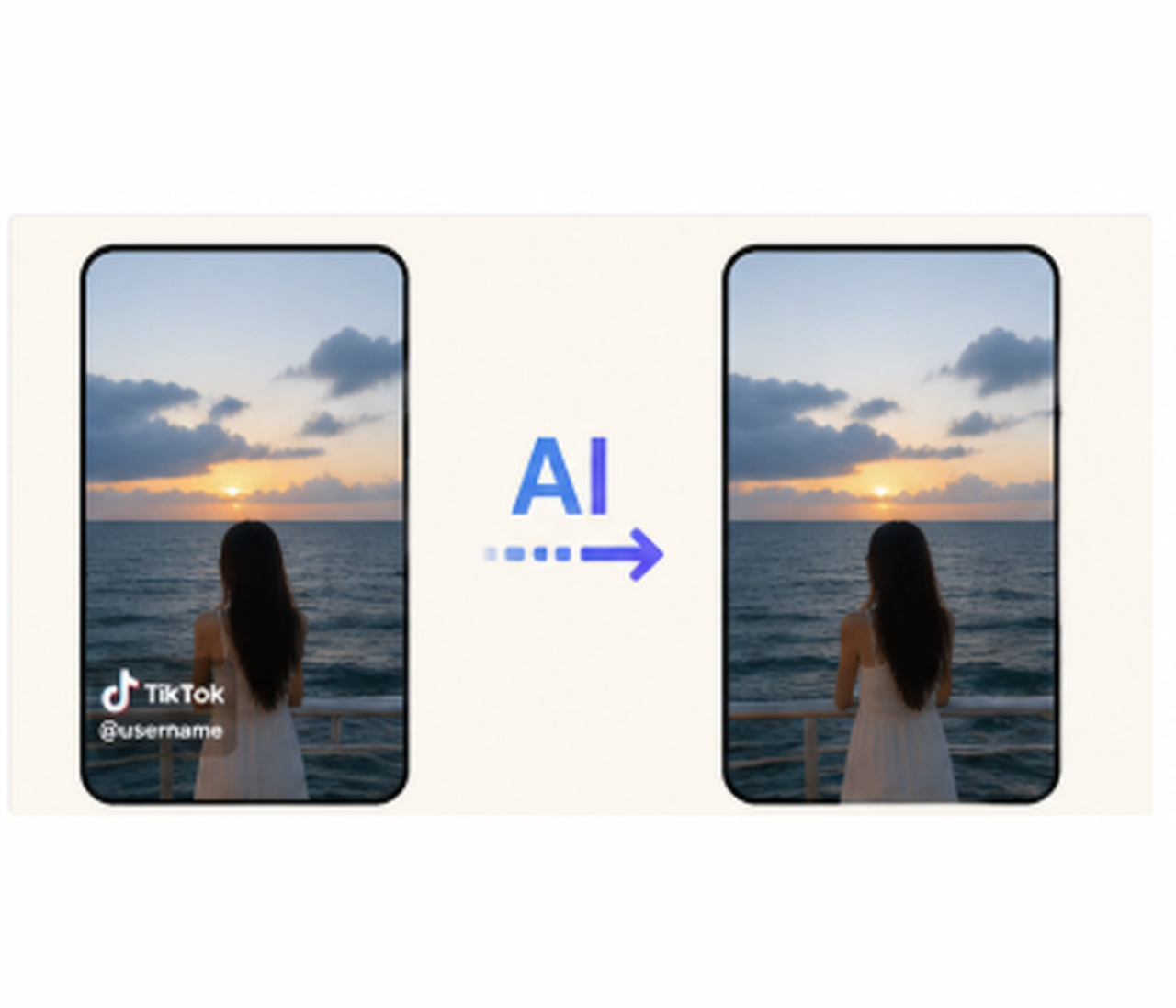
How to Remove TikTok Watermark: 3 Free Methods
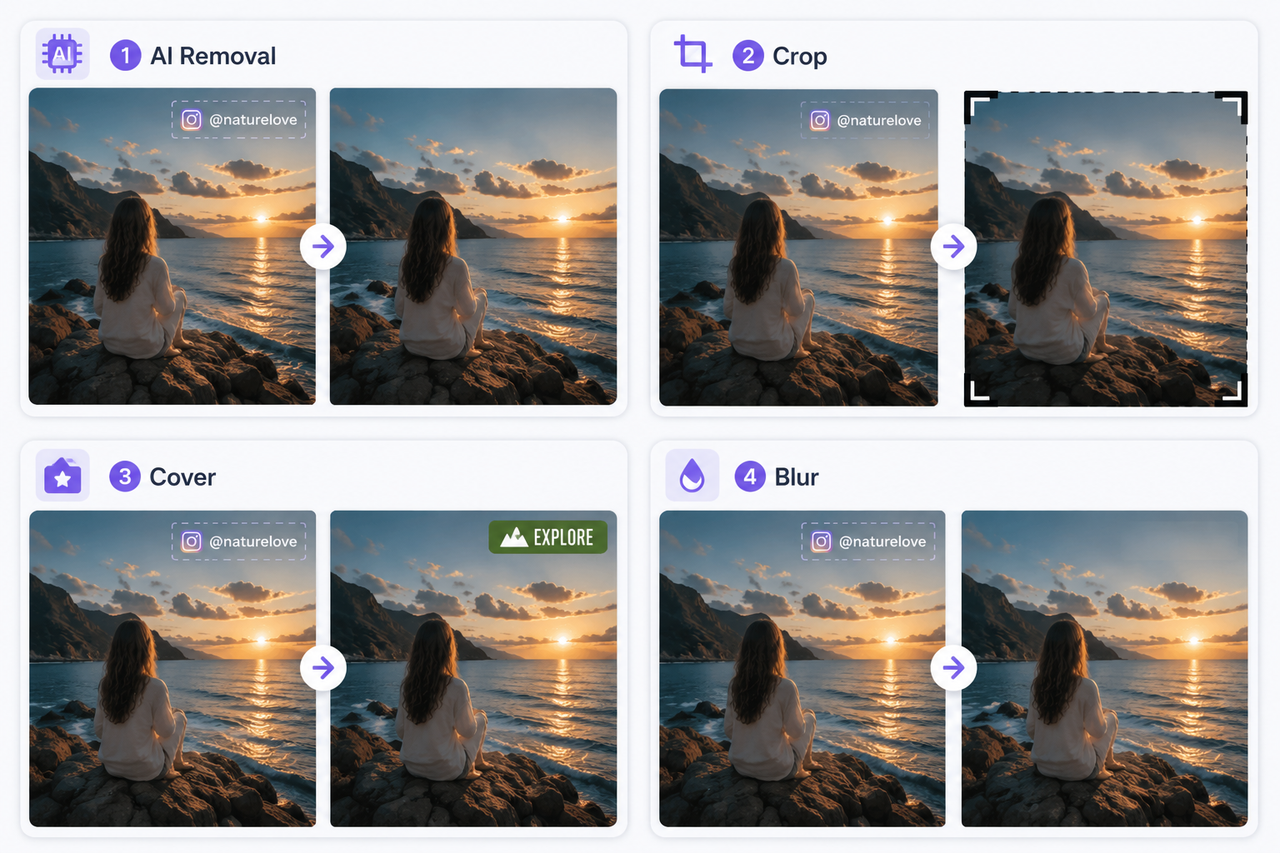
How to Remove Instagram Watermark from Downloaded Video
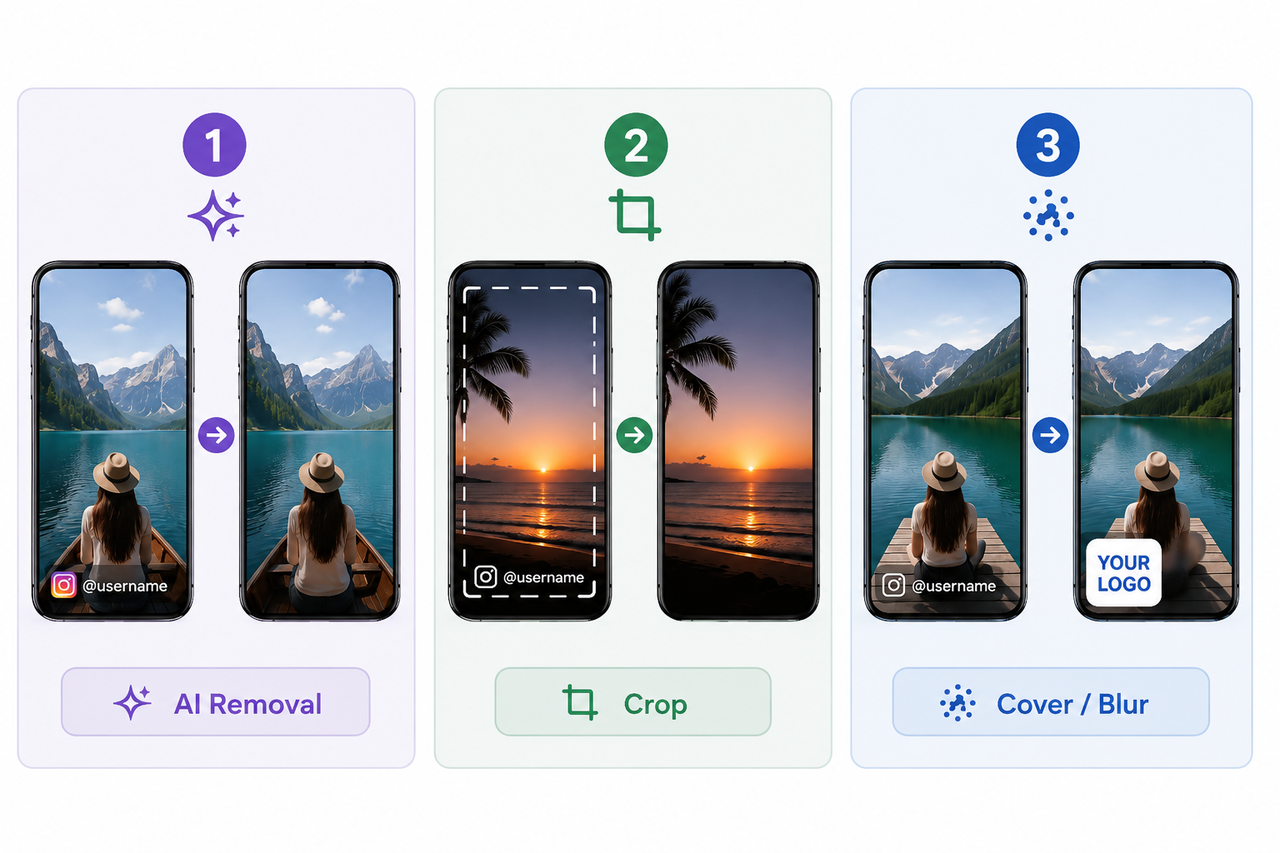
How to Remove Instagram Watermark: 3 Methods in 2026
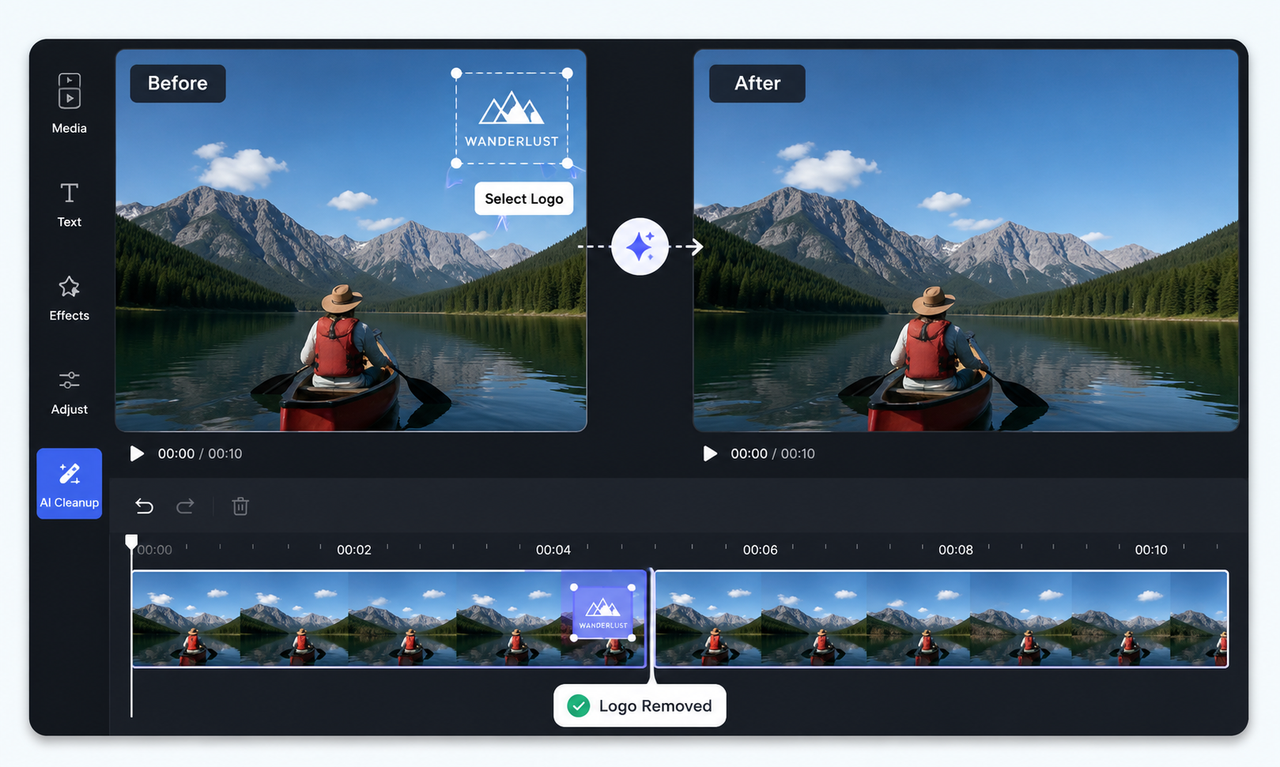
How to Remove Logo from Video: 4 Easy Methods | RoboNeo