4K vs 1080p: Should You Upscale 1080p Video to 4K?
 RoboNeo TeamAugust 11, 2026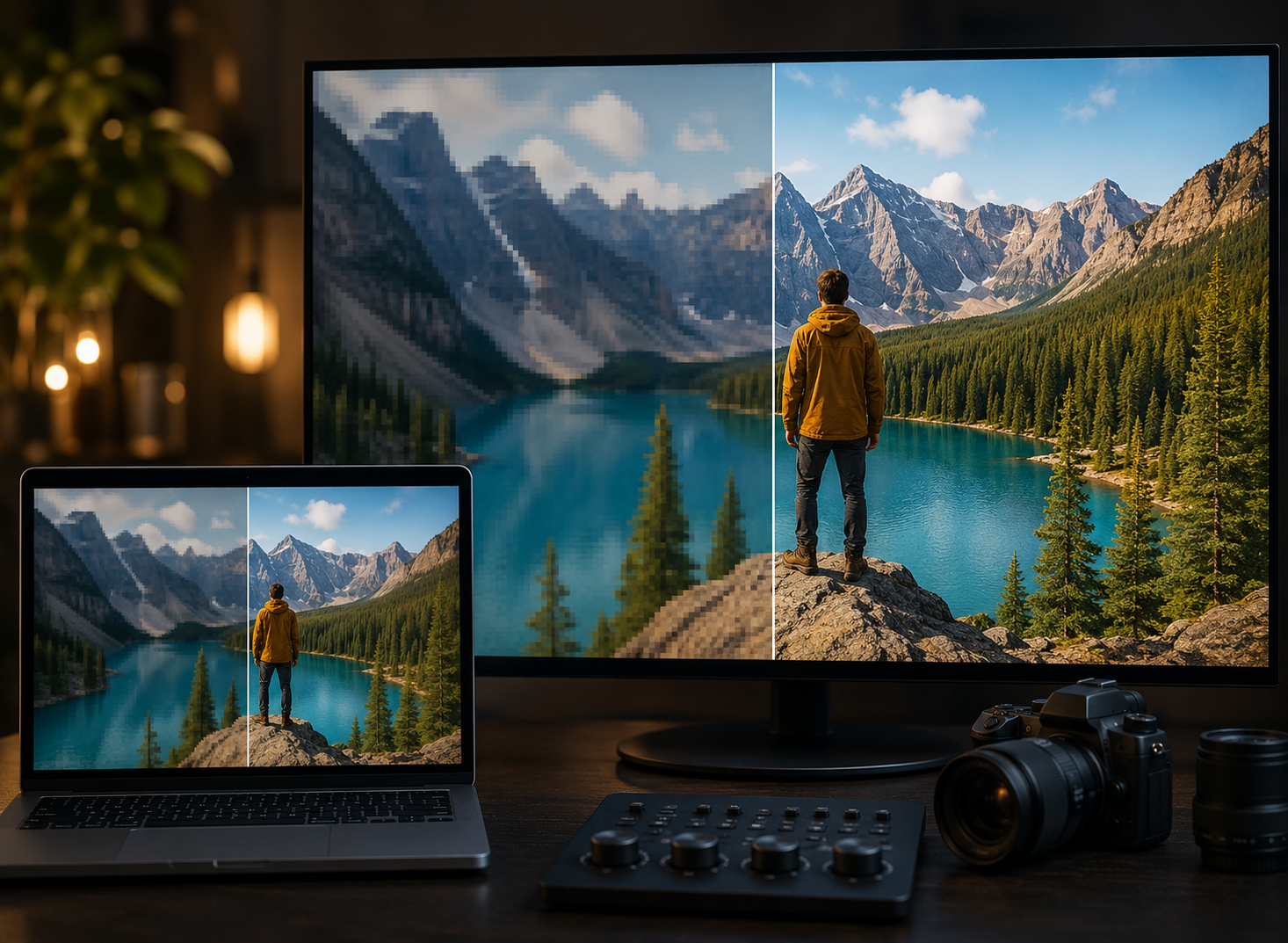
A 1080p video can look sharp on a laptop but noticeably softer on a large 4K TV or after heavy cropping. That is why many creators consider upscaling 1080p footage to 4K.
The catch is that a 4K export does not turn 1080p footage into native 4K. Upscaling increases the pixel count and may improve edges, textures, and large-screen playback, but it cannot restore every detail that was never captured.
So, should you upscale 1080p to 4K? It can make sense for 4K displays, mixed-resolution editing, tighter crops, and certain publishing workflows. Whether the upgrade is worth it depends on the source quality, final use, and how the video is upscaled.
What Is 4K Resolution?
4K resolution generally refers to a display format with about 4,000 horizontal pixels. For most consumer TVs, monitors, and online video, 4K means 3840 x 2160, also known as 4K UHD. Each frame contains about 8.3 million pixels, roughly four times as many as 1080p Full HD.
A few key points help explain what that means in practice:
Resolution: 3840 x 2160 for consumer 4K UHD
Pixel count: About 8.3 million pixels per frame
Aspect ratio: Usually 16:9
Cinema 4K: DCI 4K uses a wider 4096 x 2160 frame
Best suited for: Large screens, detailed footage, and projects that need extra room for cropping.
More pixels can preserve finer details in faces, text, products, and background textures, especially on larger displays. The trade-off is larger files, higher bandwidth needs, and more demanding editing and playback.
However, a video exported at 3840 x 2160 is not necessarily native 4K. A 1080p clip upscaled to 4K has the same frame dimensions, but the added pixels are estimated rather than captured by the camera. That distinction is central when comparing 4K vs 1080p and deciding whether upscaling is worthwhile.
What Is 1080p Resolution?
1080p, commonly called Full HD or FHD, has a resolution of 1920 x 1080 pixels. That gives each frame about 2.07 million pixels, using the 16:9 widescreen format found on most laptops, TVs, monitors, and online video platforms. For everyday video, the basics are straightforward:
Resolution: 1920 x 1080
Pixel count: About 2.07 million pixels per frame
Aspect ratio: 16:9
Common name: Full HD or FHD
Common uses: YouTube videos, tutorials, interviews, product demos, social content, and everyday editing
1080p remains a practical middle ground. It is sharp enough for most laptop and TV viewing, while files are easier to store, upload, and edit than 4K footage. For many videos, especially ones that are not being heavily cropped, Full HD is more than enough.
What Is the Difference Between 4K and 1080p?
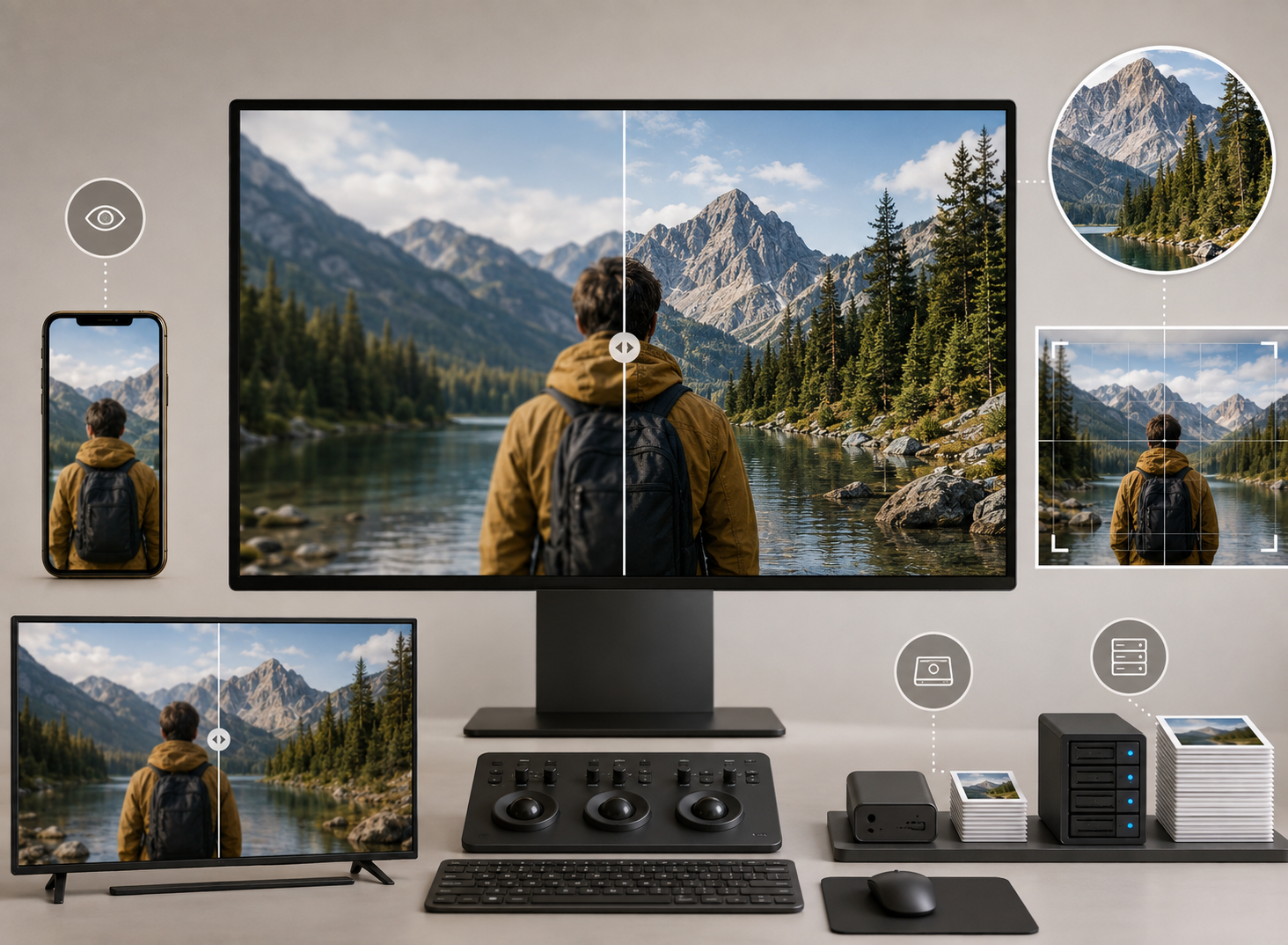
Resolution and pixel count are the most obvious differences. A 1080p frame has about 2.07 million pixels. A 4K frame contains roughly 8.29 million—about four times as many. That sounds dramatic, but it does not mean every 4K video will look four times sharper.
Feature | 1080p | 4K |
Common resolution | 1920 × 1080 | 3840 × 2160 |
Approximate pixel count | 2.07 million | 8.29 million |
Resolution class | Full HD | Ultra HD / 4K |
Large-screen viewing | Usually sufficient from a normal distance | Better suited to large screens and closer viewing |
Fine detail | Clear faces, captions, and subject edges | More room for hair, textures, and distant details |
Cropping flexibility | Quality drops sooner after heavy cropping | Better for reframing or enlarging a subject |
Bandwidth needs | Lower | Higher |
Typical file size | Smaller | Larger |
Editing demands | Easier for most devices | Heavier load on the CPU, GPU, and storage |
Common uses | Courses, interviews, social video, and everyday playback | 4K TVs, commercial projects, reframing, and premium delivery |
The display makes a big difference. On a phone, a well-produced 1080p clip may already look crisp, leaving little room for 4K to impress. Move to a large TV—or sit closer—and finer textures and cleaner edges become easier to notice.
Source quality matters just as much. A properly focused 1080p video with a healthy bitrate can look more natural than a 4K file that has been compressed too aggressively. The 4K file may have the larger frame, yet motion can still break into blocks and shadows may turn into flat, muddy patches.
File size is not fixed at a four-to-one ratio either. Codec, bitrate, frame rate, and running time all influence the result. Under similar export conditions, however, 4K normally requires more storage and consumes more data.
When Should You Upscale 1080p Video to 4K?
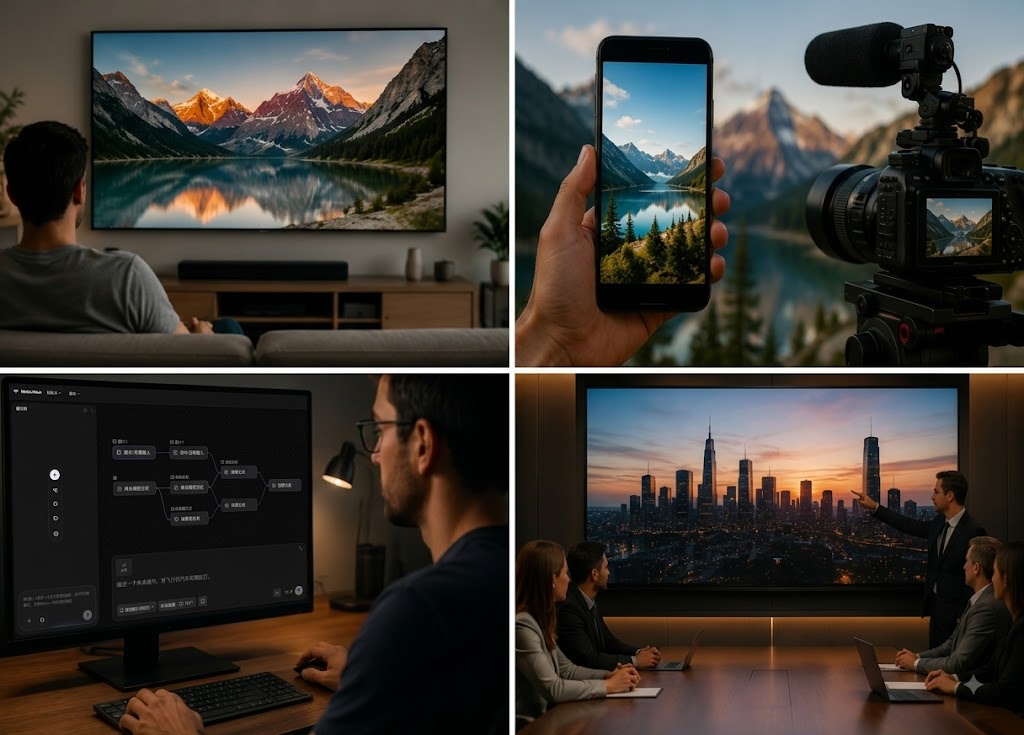
There is no reason to upscale every 1080p video just because 4K is available. A clean Full HD file may already be more than enough for a laptop, phone, or ordinary web player. The upgrade starts to make more sense when the footage has to do something 1080p was not originally meant for.
When Your Video Will Be Viewed on a 4K Display
Screen size changes the equation. A 1080p clip that looks crisp on a laptop can feel noticeably softer once it fills a large 4K TV.
Fine details usually give it away first: hair, small lettering, fabric texture, or the edges of a product. With a good source, upscaling can make that enlargement less obvious and give the picture a cleaner appearance on the bigger screen.
When You Need to Crop or Reframe Your Video
A tight crop can eat through 1080p resolution surprisingly fast.
This happens often with social content, where maintaining UGC video quality gets harder as a 16:9 product video is cropped into a tighter 9:16 version for TikTok or Reels. Once most of the original frame is gone, enlarging what remains can expose soft faces, labels, and edges.
If you already know a shot needs heavy reframing, adding upscaling to the workflow can give the cropped version more room to breathe.
When You Want to Use 1080p Footage in a 4K Project
Not every clip in a 4K edit was necessarily shot in 4K. Older interviews, licensed footage, archived videos, or a phone clip from a few years ago may only exist in 1080p.
You could simply drop them onto the timeline and let the editor scale them automatically. For an important project, though, processing those clips first gives you a chance to see how the enlargement affects faces, texture, noise, and compression.
They still will not become native 4K, but they can sit more comfortably beside higher-resolution footage.
When a Platform or Client Requires 4K Delivery
Then there are cases where image quality is not even the main reason.
Maybe the client wants every final file delivered at 3840 x 2160. Maybe an existing production workflow is already built around 4K. If the source footage is only 1080p, you still need a way to get it into that format.
Doing the upscale yourself gives you control over the result. You can check framing, sharpness, and compression before delivery instead of letting another platform enlarge the file automatically.
How to Upscale 1080p Video to 4K
Turning a 1080p file into 4K is easy on paper. Getting a result that still looks natural takes a little more care. Start with the cleanest source, figure out what the picture actually needs, and test a short section before processing the entire video. The steps below walk through that process.
Step 1: Import Your Source Video
Begin with the cleanest 1080p file available. The original camera recording or first export is usually a better choice than a version downloaded from social media, a messaging app, or an old email attachment.
Check the resolution, frame rate, and aspect ratio before processing. Most horizontal Full HD video uses 1920 × 1080, while vertical footage may be 1080 × 1920. Keep that shape intact. Stretching a horizontal clip into a vertical 4K frame will distort people and objects.
For a long video, save a separate copy of the source and create a 10- to 20-second test segment. A short sample is much easier to rerun when the first settings do not work.
Step 2: Identify What Needs Improvement
Resolution may not be the only issue. Play a representative section and look for:
Soft faces or subject detail
Unclear text and object edges
Heavy noise in darker areas
Compression blocks or visible color banding
Each problem calls for a different response.A bright, properly focused 1080p clip may only need enlargement and a small amount of edge enhancement. Nighttime phone footage is another matter. It may contain grain, blocky shadows, and soft facial detail all at once, so you may need to make a dark video brighter before adding more sharpening. Adding strong sharpening first can make the noise harsher and skin texture unpleasant.
Motion needs attention as well. Sports, dancing, or fast camera movement may look acceptable in a paused screenshot but show flickering edges during playback. Always judge moving footage in motion.
Step 3: Enhance and Upscale Your Video to 4K
When the source needs both upscaling and cleanup, you can use RoboNeo AI Video Enhancer.Upload the 1080p video, set the target output to 4K, and choose an enhancement direction based on the problems you found in the previous step.
Avoid turning every setting up at once. A portrait video that is only slightly soft may end up with waxy skin or flickering hair when reconstruction and sharpening are pushed too far.
Work on the most distracting issue first. For a noisy night scene, reduce the noise before adding more sharpness. If the subject outline is soft, increase clarity gently, then preview a section where the person turns, text moves, or the camera pans.
An AI Video Upscaler estimates the new pixels required for a 4K frame. It may improve edges and bring out some texture, but it cannot recover every real detail missing from the 1080p source. Clean focus and sensible exposure give the tool much more to work with.
Step 4: Export and Review the Upscaled Video
Once the preview looks right, export horizontal footage at 3840 × 2160. Vertical content may use 2160 × 3840, depending on the platform. Keep the original aspect ratio.
The frame rate should generally stay the same. A 30 fps source does not need to become 60 fps just because the number looks more impressive. Without proper frame interpolation, the export may simply repeat frames and create a larger file without smoother motion.
Do not compress the bitrate too aggressively. A 4K frame has far more pixels to preserve, and weak bitrate settings can quickly damage hair, leaves, water, fine patterns, and fast-moving subjects.
Review the finished file on the type of device viewers will actually use. A laptop preview cannot tell you everything about how the video will look on a 4K TV.
Check:
Whether faces and fine textures still look natural
Whether text and subject edges remain stable
Whether darker areas contain new blocks or banding
Whether fast movement shows ghosting or flicker
Whether audio remains in sync
Whether the file meets the platform or client’s size requirements
Once the file is ready for publishing, RoboNeo AI Enhancer can also keep other AI video tasks in the same online workflow.
FAQ
Can the Human Eye Tell the Difference Between 4K and 1080p?
It depends. On a big 4K TV, especially up close, 4K usually looks crisper. Small text and fine texture are where you'll notice it first. On a laptop or from across the room? The gap can be pretty small, and good 1080p still holds up well.
Is 4K Better for Your Eyes Than 1080p?
Not automatically. 4K may make small text and fine detail easier to look at, especially on a bigger screen. But a screen that's too bright, too close, or watched for hours can still tire your eyes, no matter the resolution.
Is 4K Noticeable on a TV?
Usually, yes, especially once the screen gets bigger. Fine detail, text, and texture tend to look cleaner, while the gap can be harder to spot on a smaller TV from across the room.
How Much Sharper Is 4K Than 1080p?
4K packs about four times as many pixels as 1080p, but it will not always look four times sharper. The difference shows up most on larger screens, tight crops, and footage with lots of fine detail.
Does Upscaling to 4K Increase File Size?
Usually, yes. A 4K export has more pixels to store, so the file often ends up larger than the 1080p version. How much larger depends on the bitrate, codec, frame rate, and export settings.
You May Be Interested

How to Use an AI Video Generator Online to Create Viral Content

5 Best Free AI Story Generators in 2026: Tested & Ranked

GPT Image 2 is Coming to RoboNeo: A New Era of AI Image Generation

How to Make AI Videos: Beginner Tips and Best Tools
How to Write Script for Youtube Video