Supawork AI Video Watermark Remover Review
 RoboNeo TeamJuly 21, 2026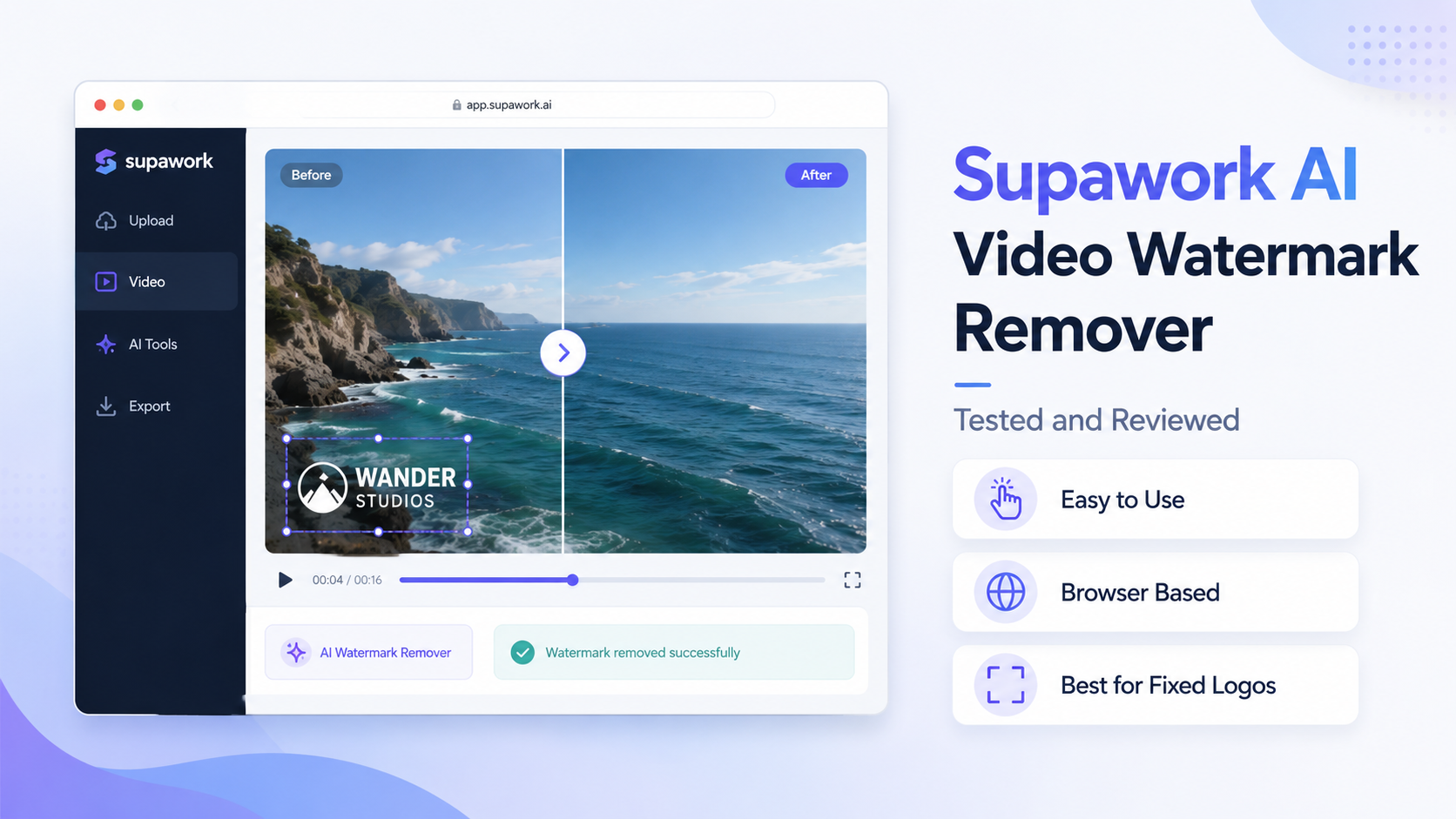
A watermark may look easy to remove, yet the finished clip can tell a different story: blurred edges, flicker, or a patch that stands out from the background. Supawork AI Video Watermark Remover promises a faster, AI-based solution, but the real question is how clean the result looks.
This article tests Supawork across different watermark positions and backgrounds, focusing on its results, usability, limits, and best-fit video types.
What Is Supawork AI Video Watermark Remover?
Supawork AI Video Watermark Remover is part of Supawork’s browser-based AI workspace, which also includes video generation, face swapping, and background removal tools. It offers a quick way for creators exploring how to make ai videos to remove simple elements like corner logos or timestamps without opening a full editing program.
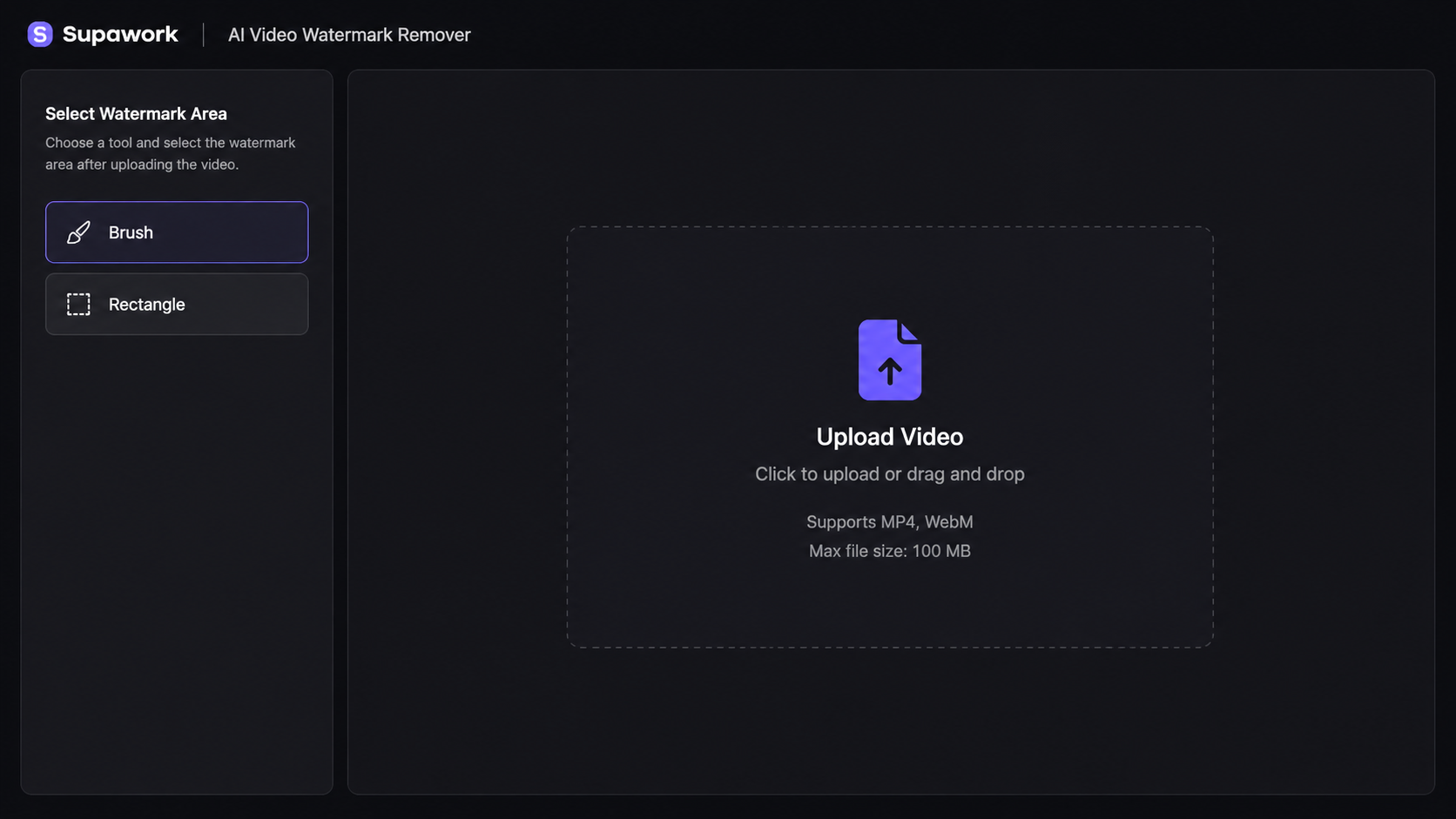
The workflow is straightforward: upload an MP4 or WebM file (up to 100 MB), brush over the watermark area, and let the AI process the selected region. Supawork states that it analyzes video frame by frame while maintaining image quality. The tool requires no installation and is free to try, though higher-quality results may require paid access.
Supawork is easy to access and beginner-friendly, but output quality can vary and editing controls are limited. Testing short clips first is recommended before using it for detailed footage or larger projects.
Supawork AI Video Watermark Remover Pros and Cons
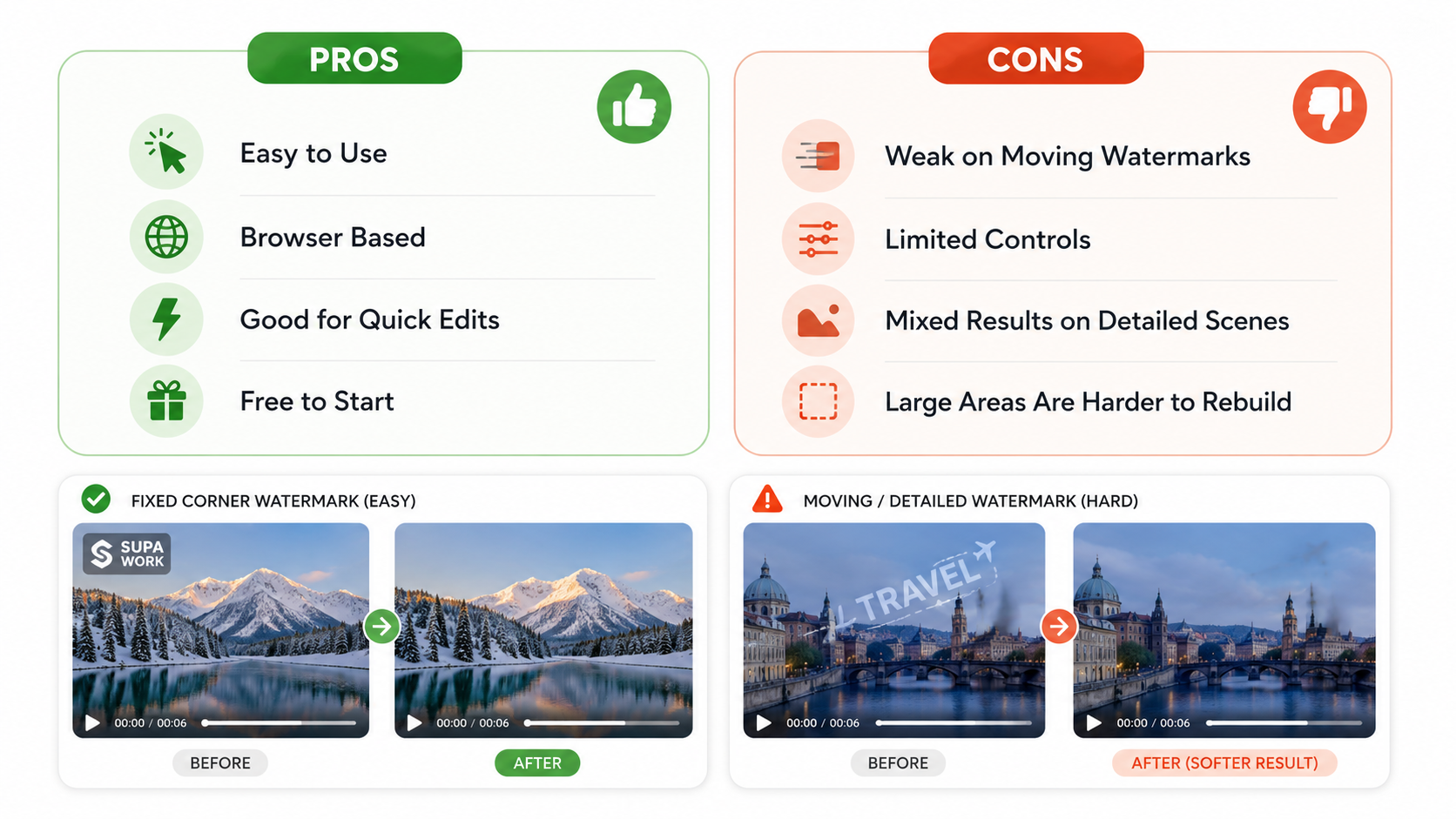
Supawork keeps the removal process simple, which makes it useful for quick edits. That same simplicity can become limiting when a video contains a moving watermark, a detailed background, or a large area that needs rebuilding.
Supawork AI Video Watermark Remover Pros
Easy for beginners: Upload the video, mark the watermark area, and let the AI process it. There is no need to learn masks, keyframes, or a full video-editing timeline.
Works directly in a browser: Supawork does not require software installation, and its public tool page says users can start without creating an account.
Suitable for common overlays: It can remove logos, text, timestamps, and other fixed elements. The AI analyzes the video frame by frame and attempts to rebuild the covered area while preserving the surrounding content.
Free to start: Users can test the tool before committing to a paid workflow, which is helpful for occasional or one-off edits.
Supawork AI Video Watermark Remover Cons
Limited upload support: Supports MP4 and WEBM files up to 100 MB. Larger or unsupported files need compression or conversion.
Inconsistent results: Complex scenes, moving objects, and detailed backgrounds may cause blur or artifacts.
Limited editing control: Lacks advanced controls like motion tracking or keyframes, making moving watermarks harder to remove.
Supawork AI Video Watermark Remover Test Results
To evaluate Supawork fairly, tests should cover different watermark types, backgrounds, and motion scenarios. Static watermarks on simple backgrounds are usually easier to remove, while moving marks and complex details could lead to blur or inconsistencies.
Test 1: Static Logo on a Simple Background
This was the easiest case. Small logos over plain walls, skies, or blurred backgrounds provided enough surrounding information for AI reconstruction. Static corner logos usually produced the cleanest results, although slight softness could still appear on close inspection.
Test 2: Transparent Text Watermark
Transparent text can be harder to remove because AI must separate the overlay from the details underneath. Results were more reliable when the watermark stayed still over simple backgrounds, while low contrast, gradients, or changing colors could leave soft or uneven areas.
Test 3: Watermark Over a Detailed Background
Results became less consistent when watermarks covered patterns, foliage, architecture, or small details. The AI had to rebuild complex textures and shapes, which could cause pattern misalignment, distorted edges, or softer details even after the watermark disappeared.
Test 4: Watermark Over a Moving Subject
Removing watermarks over moving people, products, or vehicles is more challenging because each frame contains different visual information. Faces, hands, clothing, and product edges may become blurry, making results less reliable for important footage.
Test 5: Moving or Changing Watermark
Watermarks that change position, size, or appearance produced the weakest results. Supawork relies on manually selected areas and does not publicly mention keyframe masks or dedicated motion tracking. If the watermark moves outside the selection, remaining marks or artifacts such as ghosting and color bleeding may appear.
Test 6: Processing Speed and Export Quality
Supawork provides a simple workflow: upload a video, select the watermark area, process, and export. It supports MP4 and WEBM files up to 100 MB, with processing usually taking around one to three minutes. Users should still review the final video for flicker, soft areas, or distorted details.
Overall, Supawork works best for small, static watermarks on simple backgrounds. Results become less predictable with moving marks, complex textures, or important subjects behind the watermark.
How to Remove a Video Watermark With Supawork AI
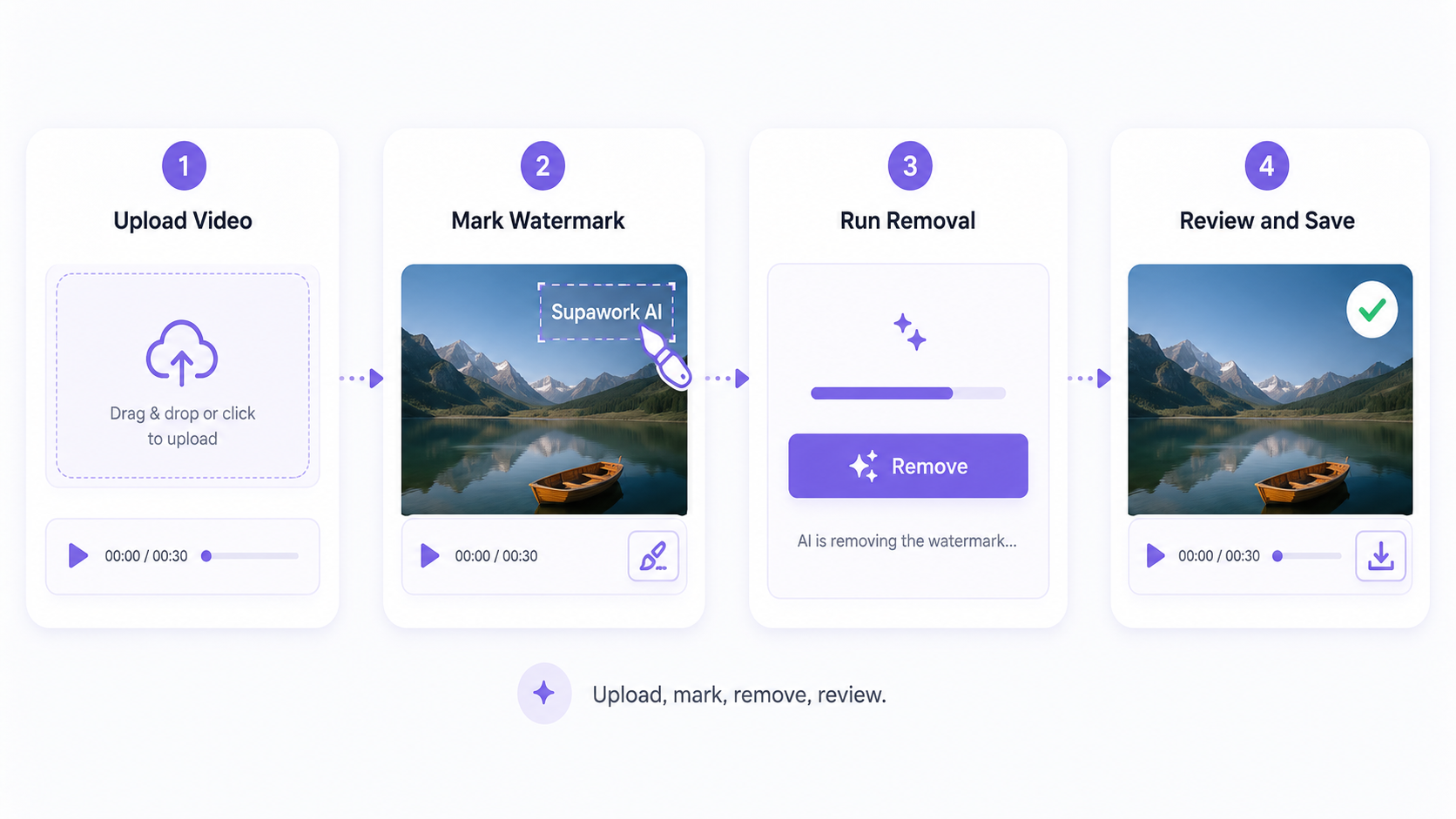
Supawork keeps the process fairly short: add the video, mark the unwanted area, run the removal, and review the finished clip before saving it. Only use footage you own or have permission to edit.
Step 1: Upload Your Video
Start on the Supawork AI Video Watermark Remover page. The file can be added through the Upload button or dragged directly into the upload area.
MP4 and WebM files are supported, with a maximum size of 100 MB. Whenever the original video is still available, use it instead of a heavily compressed copy; cleaner source footage gives the tool more detail to work with. This is especially true if you are editing commercial assets after learning how to write a TV commercial script and generating original drafts.
Step 2: Select the Watermark Area
After the video loads, mark the logo, text, timestamp, or other overlay with the brush tool. The selection should follow the watermark closely rather than covering a large part of the frame.
For a small logo in the lower-right corner, a tight brush area is usually enough. Extra space around the mark may cause Supawork to rebuild more of the background than necessary.
Step 3: Start the AI Removal Process
Satisfied with the marked area? Click Remove to begin processing. Supawork applies the edit across the video and fills the selected region using visual information from the surrounding frames.
Larger files may take longer, so keep the browser window open until processing is complete.
Step 4: Preview the Full Video
A clean-looking still frame does not always mean the entire clip is fixed. Play the preview from beginning to end, especially if a person, product, or background moves behind the watermark.
Watch for flicker, soft patches, repeated patterns, or sudden changes in texture. These issues are often easier to notice during motion than when the video is paused.
Step 5: Download and Check the Export
When the preview looks acceptable, download the processed video. The exported file deserves one final check outside the browser: confirm that it opens normally, keeps the expected length and quality, and no longer shows the unwanted mark.
For footage intended for another round of editing, avoid repeatedly compressing and exporting the file, since each pass may reduce the image quality further.
A More Focused Alternative for Complex Watermark Removal
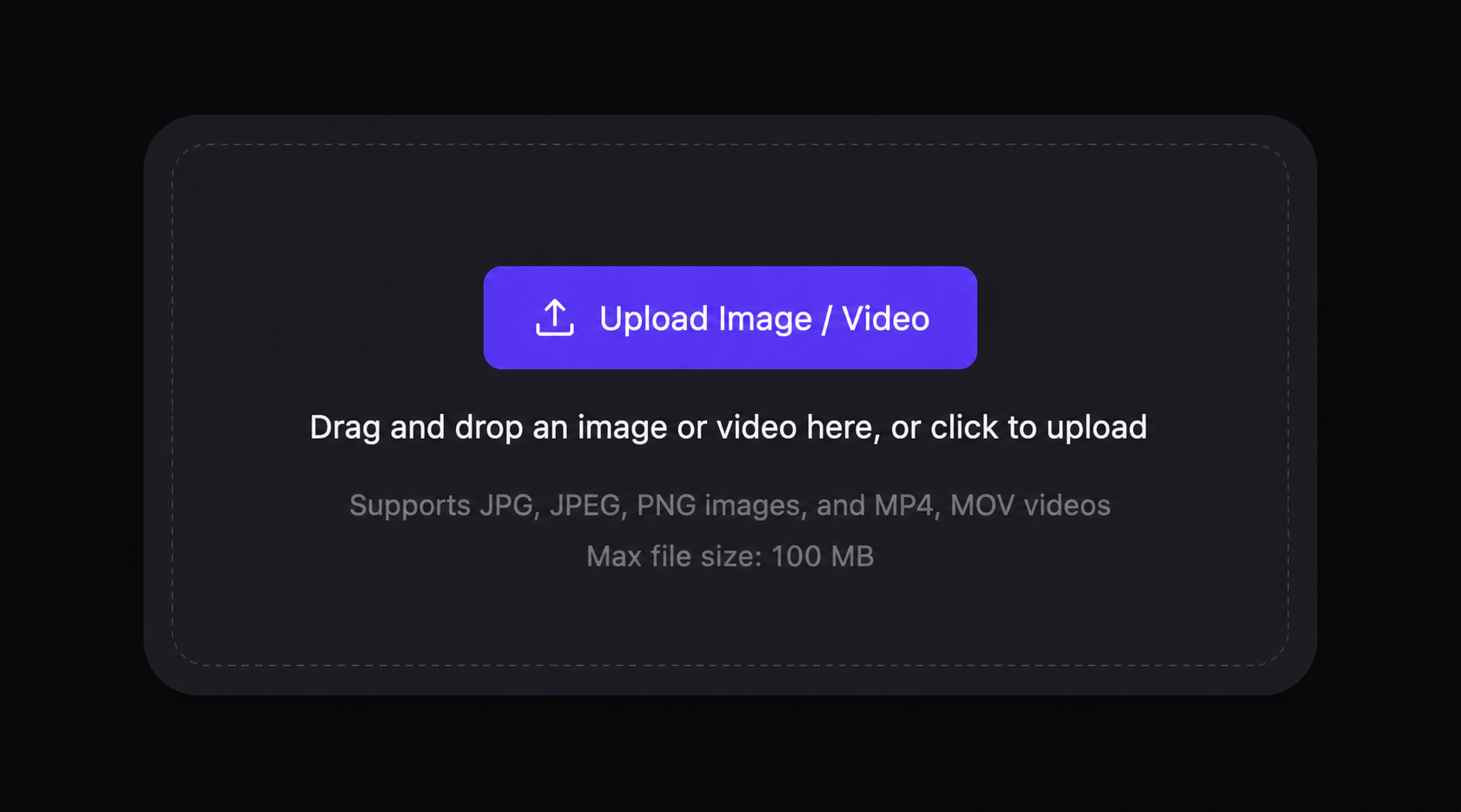
Supawork works well for quick, basic watermark cleanup within a broader AI tool platform. When the main challenge is a moving watermark, a detailed background, or an overlay that crosses the subject, a tool built more specifically around visual cleanup may offer a better workflow. RoboNeo is one option for these more demanding cases.
What Is RoboNeo AI Watermark Remover?
RoboNeo AI watermark remover is designed to remove logos, text, watermarks, and other unwanted overlays from both images and videos. Rather than simply covering or blurring the selected area, it uses surrounding textures, colors, motion, and scene details to reconstruct the content behind it. For video, RoboNeo states that its system processes frames with temporal consistency and supports both static and moving watermarks.
The upload tool currently accepts JPG, JPEG, and PNG images via its advanced ai image editor, along with MP4 and MOV videos. A Batch Upload option is also available for users working with multiple files.
RoboNeo is not positioned here as a direct replacement. Its advantage is a more concentrated approach to tasks such as watermark removal, unwanted-object cleanup, and reconstruction of areas hidden by overlays. This makes it especially relevant when the edit involves more than deleting a small, stationary logo from a plain background.
Conclusion
Supawork AI Video Watermark Remover is easy to access and simple to operate, making it useful for quick edits such as removing a fixed corner logo, timestamp, or small text overlay from a short video. The browser-based workflow also avoids the setup required by a full video editor.
FAQ
Is supawork a video watermark remover free?
Yes. Supawork offers its AI video watermark remover free to start. However, free use may come with upload or processing limits, so it may not be unlimited for every video
Is it legal to remove a watermark from a video?
It is generally fine when the video is yours or you have the owner’s permission. Removing a watermark from someone else’s content—especially to repost it or hide the creator’s identity—may violate copyright law and platform rules. In the U.S., intentionally removing copyright ownership information can also create legal risk under the DMCA.
Does supawork remove moving watermarks?
Supawork processes the video frame by frame, but it does not clearly advertise automatic tracking for watermarks that move across the screen. It works best when the mark stays in one area; moving watermarks may produce less consistent results.
What video formats does supawork support?
Supawork supports MP4 and WEBM videos up to 100 MB. Videos saved as MOV, AVI, or another format will need to be converted first, while larger files may need to be compressed before uploading.
You May Be Interested

How to Use an AI Video Generator Online to Create Viral Content

How to Create Stunning Visuals with the Best AI Music Video Generator
Best App to Remove Tiktok Watermark in 2026
Best Free Tools to Remove Watermark from Video 2026

How to Choose the Right Free AI Music Video Generator in 2026