How to Make AI Videos Step by Step
 RoboNeo TeamJuly 8, 2026
Not long ago, creating compelling videos required editing skills and complex software. Today, AI video generators make it easier for beginners to create short videos from simple text prompts, images, music, or short scripts.
This guide explains how to choose the right AI video tools, how to make your first AI video step by step, and how to make AI videos for free using beginner-friendly workflows. You will also learn how to make AI video of photo without looking strange, how to make AI videos for TikTok, and how to make a music video with AI.
Useful Tools for AI Video Creation
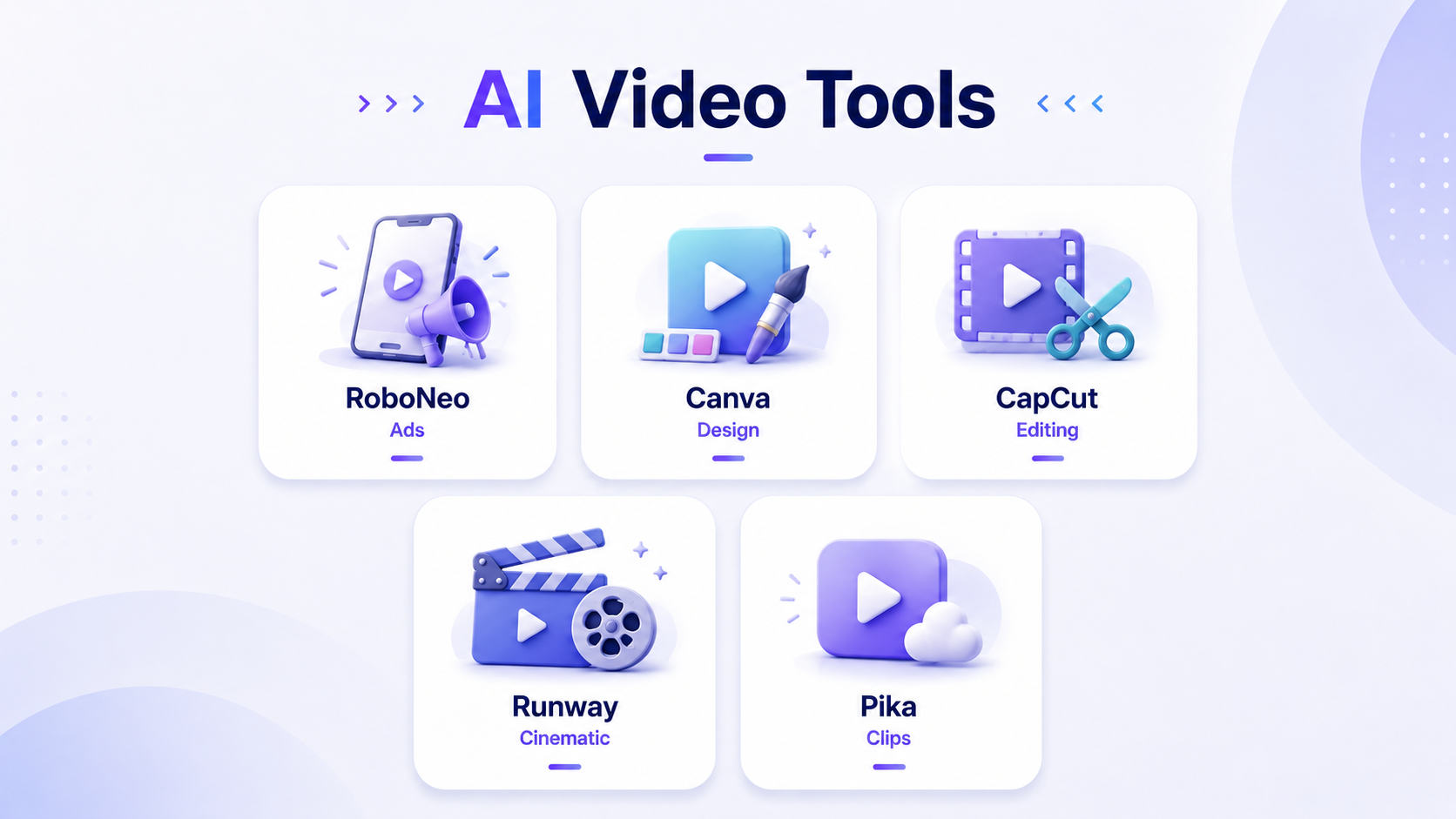
Choosing the right tool is the first step, and the best option depends on your goal — whether you're starting from a script, a product photo, or just a rough idea. Instead of using a simple list, this section breaks down popular tools by the type of video you want to create.
1. Tools for Text-to-Video Creation
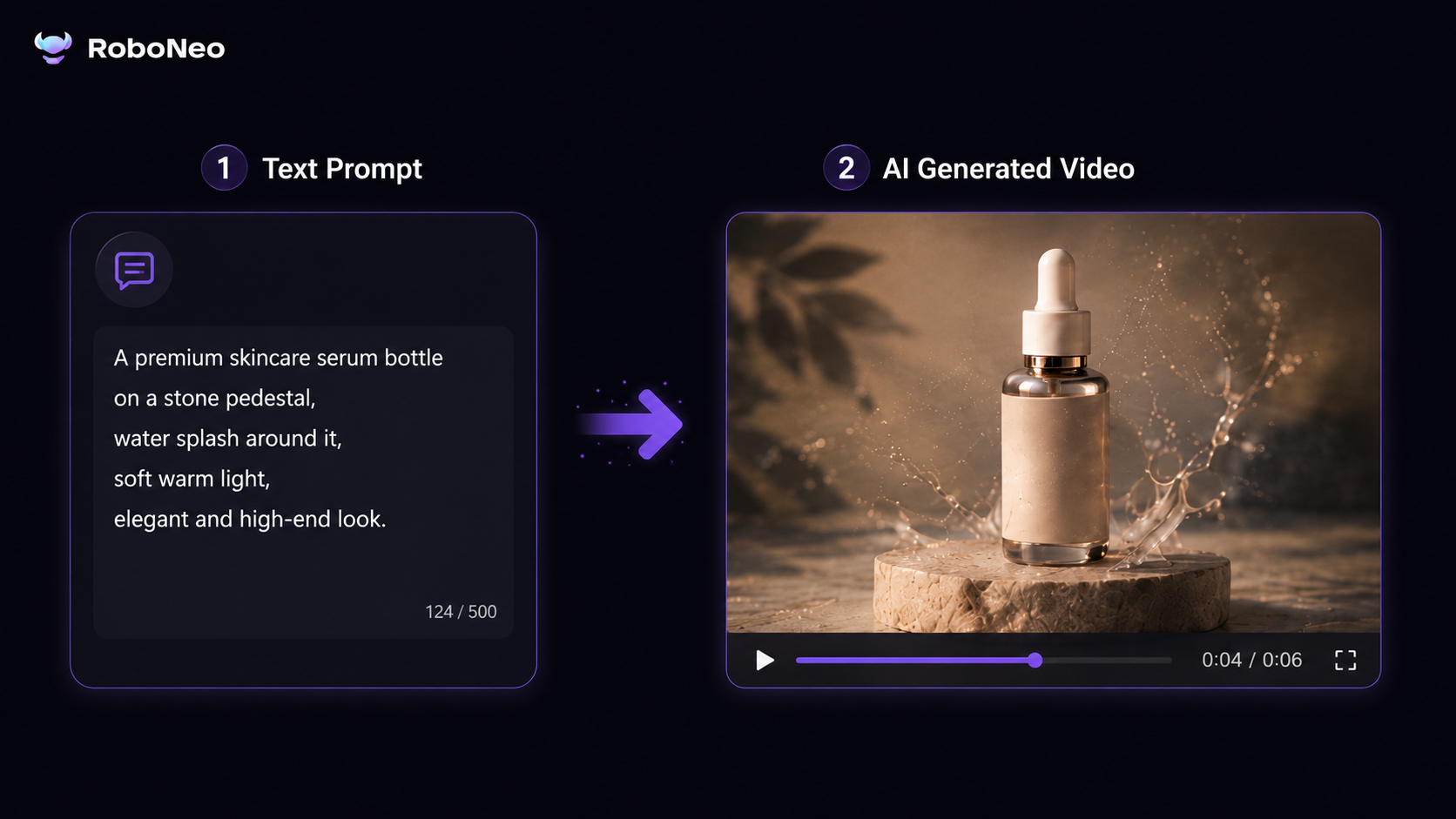
Text-to-video tools are helpful when you have a concept, script, or scene idea and want to turn it into a visual clip. You provide a text prompt, and the AI generates a short video based on your description.
RoboNeo: RoboNeo is designed for social media and advertising workflows. It can turn a short idea, product brief, or campaign concept into video creatives, which is useful for teams that need TikTok, Meta, or short-form ad variations.
Canva: Canva is known for its beginner-friendly design interface. Its AI video features are useful for users who already work with templates, graphics, and branded designs and want to add simple video elements to social media content.
2. Tools for Photo-to-Video Creation
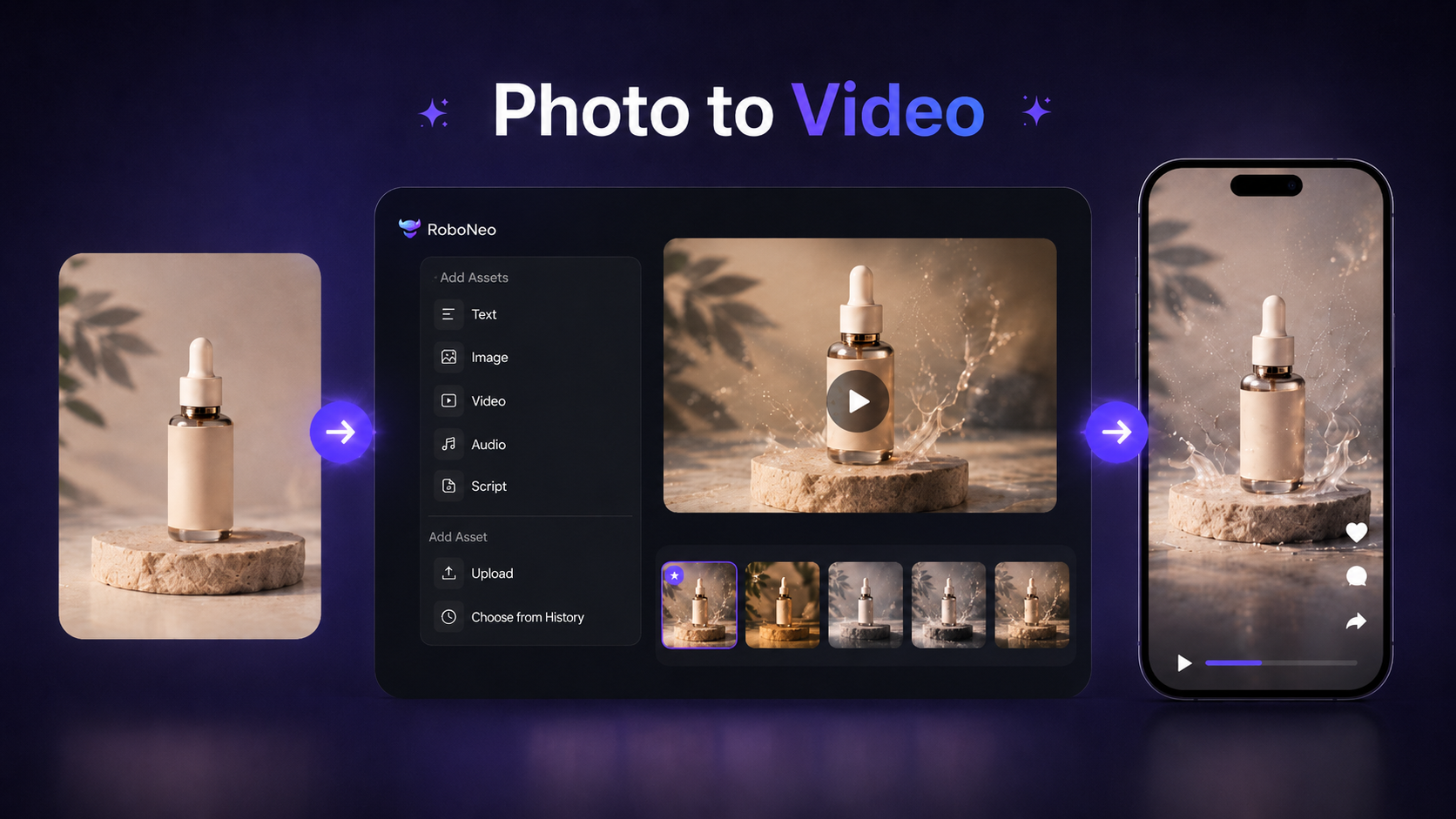
Photo-to-video tools help turn still images into moving clips. They are useful for product photos, lifestyle images, portraits, or UGC-style visuals.
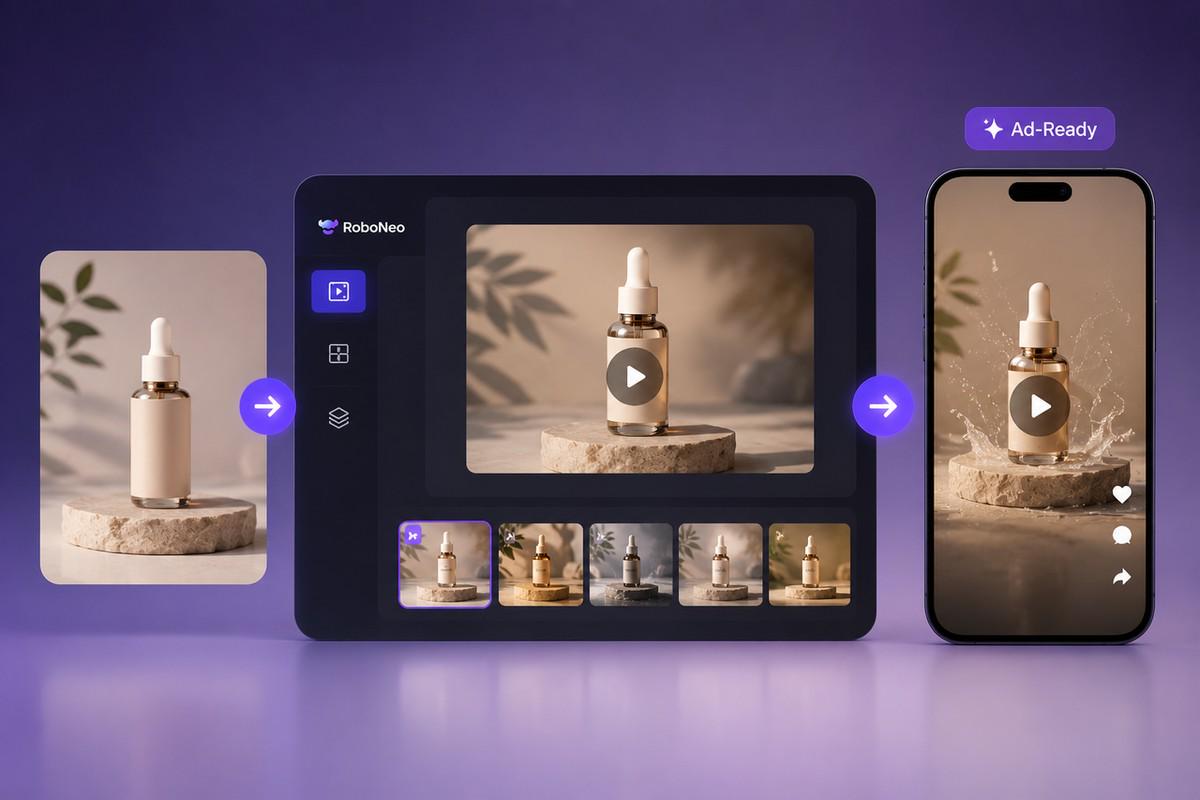
RoboNeo: RoboNeo can help turn product images or lifestyle photos into short video creatives. This is useful when you want to create social ads or product videos from existing images instead of shooting new footage.
CapCut: CapCut is popular for quick photo animation effects, including zooms, parallax motion, transitions, and TikTok-style edits. It is a practical choice for creators who want fast mobile editing.
3. Tools for TikTok and Short Videos
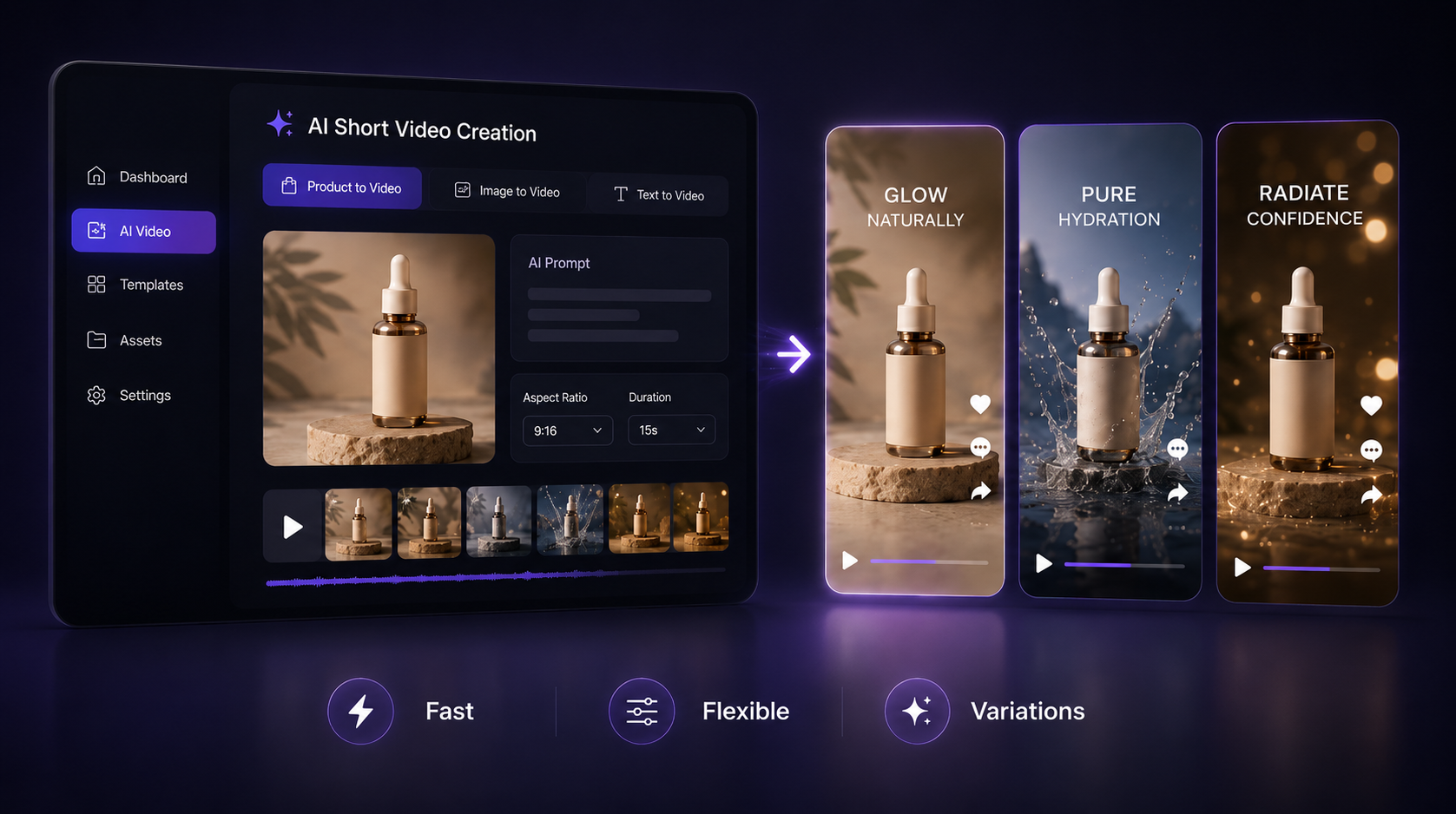
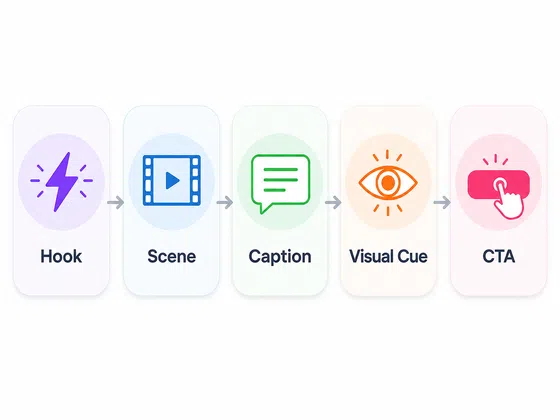
TikTok, Instagram Reels, and YouTube Shorts need vertical formatting, quick pacing, captions, and a clear visual hook.
CapCut: CapCut is strong for TikTok-style editing because it offers templates, sounds, effects, captions, and mobile-friendly editing tools.
Canva: Canva is useful for branded vertical videos, social posts, and template-based content. It is a good option when you want to combine AI clips with text, graphics, and brand assets.
Tools for AI Music Videos
AI music videos work best when the visuals match the song’s mood, rhythm, and lyrics. A simple way to start is to use ChatGPT to brainstorm scene ideas, then use a tool like RoboNeo to turn those ideas into short video clips. Before you edit everything together, a clear video script can help you map out the scenes, pacing, and visual transitions, so the final video feels more cohesive.
Step-by-Step Guide to Make AI Videos
Getting started with AI video is simple. You only need a clear idea, a short prompt, and a few final edits.
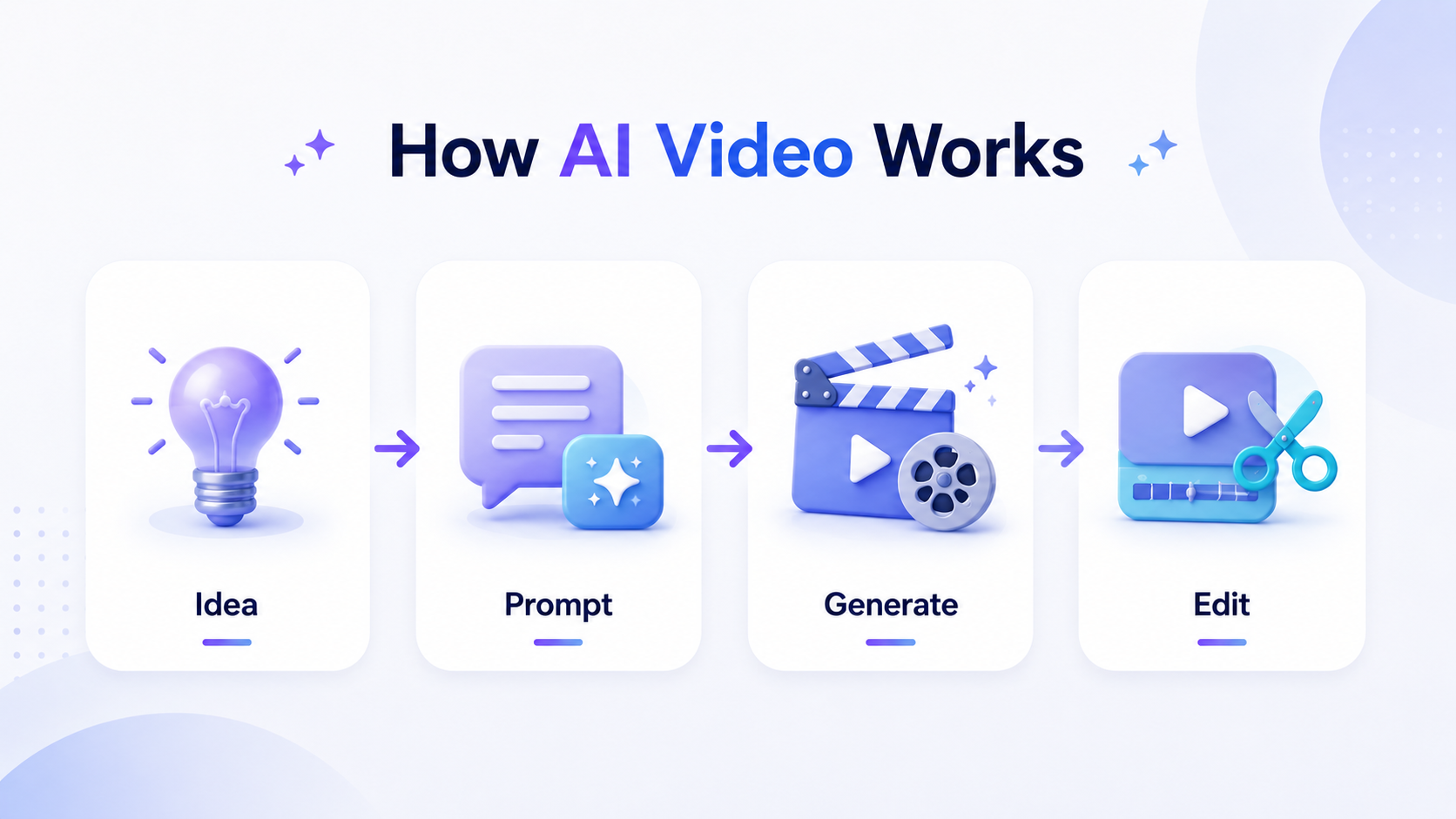
Step 1: Start with a Simple Video Idea
Do not try to create a complex story on your first attempt. Start with a clear, simple idea that can be shown in 10 to 15 seconds. For example, instead of “a summary of my company’s history,” try “a dynamic shot of our flagship product in a futuristic setting.” A focused idea is easier for the AI to understand and generate accurately.
Step 2: Write a Short Script or Scene Prompt
Your prompt is the most important input. Keep it clear and descriptive. Include the subject, action, setting, and visual style.
Simple prompt: “A cat on a sofa.”
Detailed prompt: “A cinematic slow-motion video of a fluffy ginger cat yawning on a sunlit velvet sofa, with dust particles floating in the air and a warm, cozy mood.”
The more specific your prompt is, the closer the AI-generated video will be to your idea.
Step 3: Generate Video Clips from Text or Photos
Once you have your prompt or image, add it to your chosen AI tool. AI will generate one or more video clips based on your input. Many tools also let you create variations, so you can choose the version that works best. This is the step where your idea becomes a moving image.
Step 4: Add Music, Captions, and Final Edits
The raw AI output is rarely the final video. Import your clips into an editor, or use the built-in editor if your AI tool has one, to finish the video.
Music: Add a background track to set the mood. Use a royalty-free music library or an AI music generator.
Captions: Add text overlays or captions. This is important for social media because many people watch videos without sound.
Editing: Trim the clips, arrange them in order, and add transitions if needed to make the final video feel smooth.
Tips to Make AI Videos Look Better
AI videos can sometimes look blurry, distorted, or unnatural. This often happens when the scene has too much movement, too many subjects, or very detailed faces and hands. Some tools also offer enhancement features, such as AI Enhancer tools, to help improve clarity before final editing.
1. Keep the Subject and Motion Simple
AI models can struggle with complex scenes that include multiple moving subjects. For better results, focus your prompt on one main subject and one clear motion. For example, “a car driving down a straight road” will usually be more stable than “a crowd of people running in different directions.” Slow movements, such as a camera pan or gentle zoom, also tend to look cleaner.
2. Avoid Strange Faces, Hands, and Body Movement
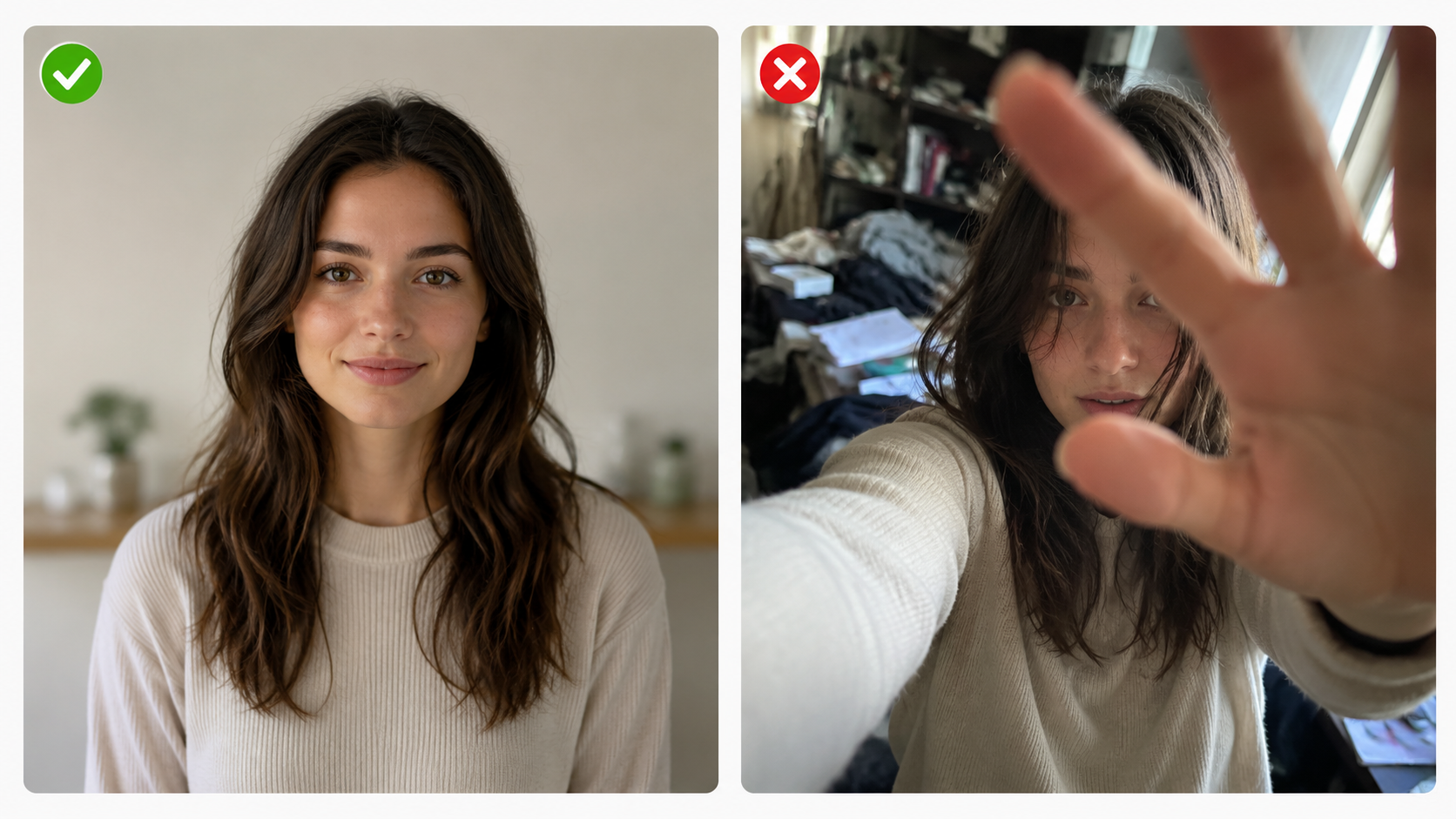
AI video tools often have trouble with small details like faces, hands, and realistic body movement. To avoid strange results, do not make these details the main focus of the prompt. Try showing the subject from a distance, from behind, or in silhouette. For character videos, focus on bigger movements instead of subtle facial expressions.
3. Match the Video Format to TikTok or Shorts
Always create your video in the right aspect ratio for where you plan to post it. For TikTok, Instagram Reels, and YouTube Shorts, use a vertical 9:16 format. You can also include this in your prompt, such as “shot in 9:16 aspect ratio,” so you do not need to crop the video awkwardly later.
AI Video Prompt Examples
To help you get started, here are a few prompt templates you can adapt for your own projects. Even the best AI tools can still miss the mark if the prompt is too vague, so each example shows how to describe the subject, motion, mood, and format clearly. Use them as starting points, then adjust the details for your own video.
Example 1: TikTok AI Video Prompt
“Create a trendy, satisfying video of a mechanical keyboard with pastel-colored keys being typed on. Use a close-up top-down shot, soft lighting, ASMR-style movement, and a 9:16 aspect ratio.”
Example 2: Photo-to-Video Prompt
“Animate this photo of a cityscape at night. Make the building lights twinkle, add subtle motion to the traffic light trails, and create a slow zoom-out effect to reveal the skyline.”
Example 3: AI Music Video Prompt
“Create an ethereal abstract animation for a chillwave song. Show floating geometric shapes in pastel colors drifting slowly through a nebula. The shapes should pulse gently with a slow 90 BPM beat. Use a dreamy looping video style.”
Example 4: AI Short Drama Prompt
“Create a tense 10-second short drama scene. A single drop of water falls from a leaky pipe into a puddle in a dark abandoned warehouse. The camera slowly pushes in on the ripple effect. Use moody cinematic lighting and a film noir style.”
FAQ
How to make AI video of photo without looking strange?
To make AI video of photo without looking strange, keep the motion simple. Use a slow zoom, gentle camera movement, subtle background motion, or light animation instead of asking the AI to make a person walk, turn, talk, or change facial expressions too much.
How to make AI videos for TikTok?
To make AI videos for TikTok, create a vertical 9:16 video with a clear hook, simple movement, captions, and quick pacing. You can generate the main clip with an AI video tool, then polish it with a short-form editor like CapCut or Canva.
How to make a music video with AI?
You can make a music video with AI by planning visual scenes around the song’s mood, rhythm, or lyrics. One simple method is to use ChatGPT to brainstorm scene ideas, then use an AI video generator like RoboNeo to create short clips for editing.
Can I use AI videos for ads or social media?
AI videos can be used for ads and social media, but you should check the tool’s usage rights first. For ads, also review the final video for brand accuracy, product accuracy, and platform requirements before publishing.
You May Be Interested
6 Best AI Video Generators in 2026
Character AI Alternative: Better AI Chat Tools
How to Create Anime Character: From Prompt to Art
Best YouTube Script Generator: From Script Writing to Video Creation