RoboNeo vs CapCut Watermark Remover: Key Differences
 RoboNeo TeamJuly 21, 2026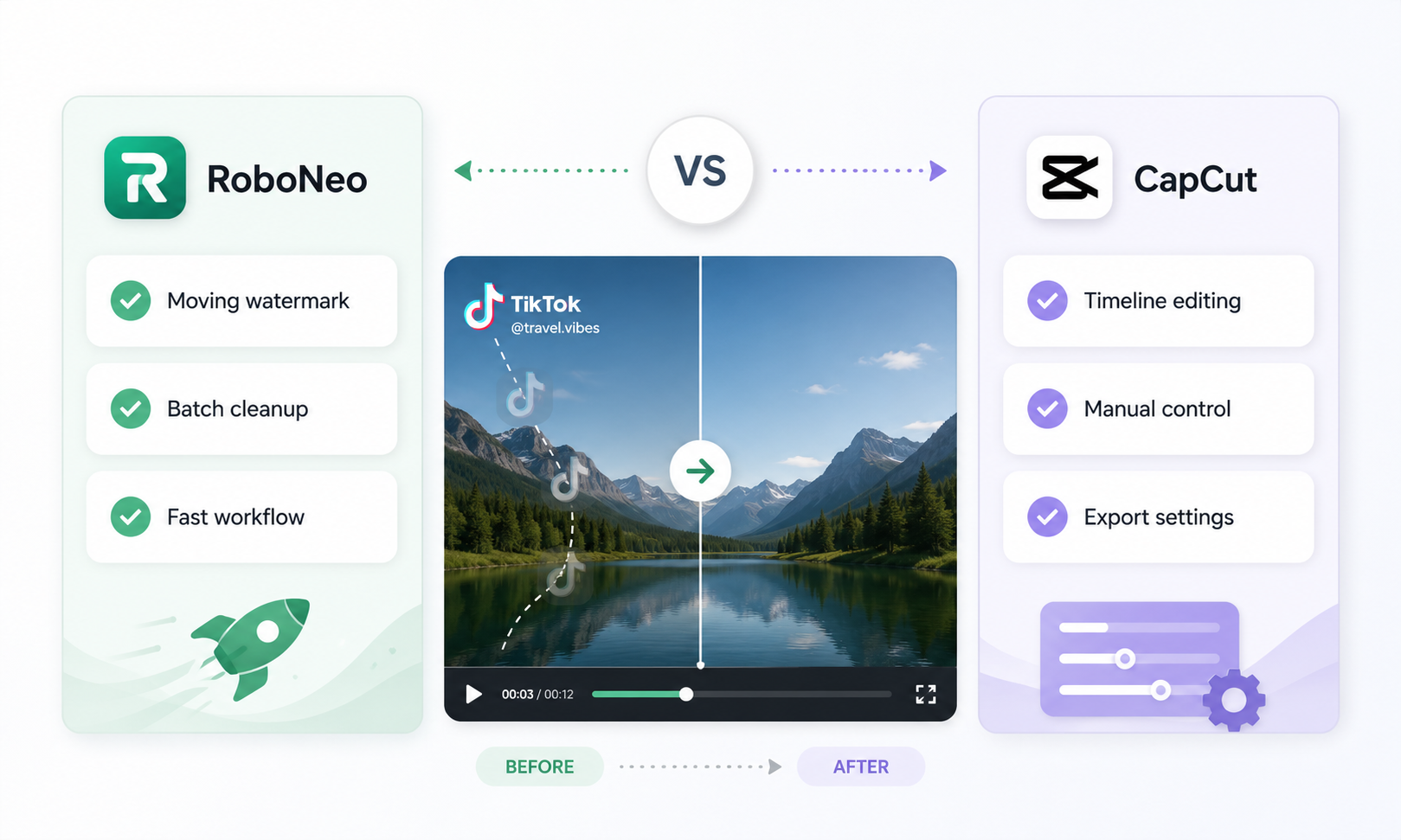
Removing a watermark is one thing; keeping the repaired area clean as the logo moves across the screen is much harder. RoboNeo focuses on AI reconstruction and frame-to-frame consistency, while CapCut pairs watermark removal with a full editing timeline, so the better choice depends on whether you want faster cleanup or more control over the rest of the edit. This article compares how the two handle watermark removal, their performance, pros and drawbacks, free-use limits, and best-fit use cases to help you decide which fits your workflow
Quick note: Only remove watermarks from content you own, have permission to edit, or are otherwise authorized to modify.
What Is RoboNeo Watermark Remover?
RoboNeo is an AI watermark designed for both fixed logos and watermarks that move around the screen. Unlike tools that simply crop the frame, blur the logo, or cover it with another graphic, RoboNeo works to rebuild the part of the video hidden behind the watermark.
It is built for users who want a cleaner result without learning a full video editor or manually adjusting masks and keyframes across the timeline.
What Makes RoboNeo Stand Out?
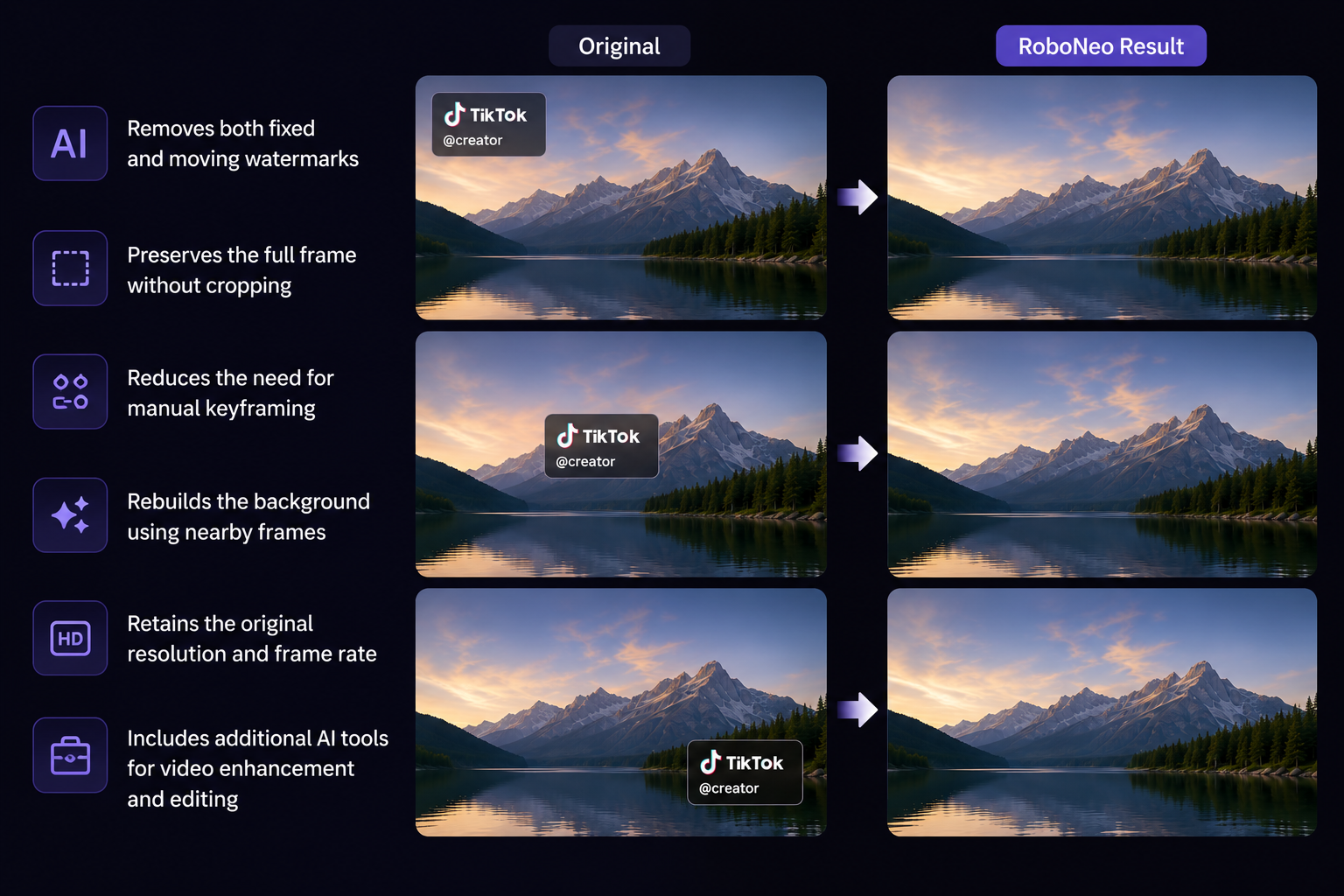
RoboNeo’s main advantage is its ability to handle moving watermarks, including TikTok’s bouncing logo. It analyzes motion, lighting, and surrounding textures across nearby frames, then uses that information to reconstruct the covered area as the watermark changes position.
Key benefits include:
Removes both fixed and moving watermarks
Preserves the full frame without cropping
Reduces the need for manual keyframing
Rebuilds the background using nearby video frames
Aims to retain the original resolution and frame rate
Includes additional AI tools for video enhancement and editing
This makes RoboNeo especially useful when a basic crop or blur would either cut off important content or leave an obvious edited patch.
Who Is RoboNeo Best For?
RoboNeo is a practical choice for:
TikTok creators repurposing their own videos for Reels or Shorts
Social media teams working with authorized brand content
Users who only have a downloaded, watermarked video file
Beginners who do not want to learn timeline-based editing
Anyone dealing with a logo that moves between different parts of the screen
Users who want to remove a watermark and improve video quality in the same workflow
It is less suitable when the original clean TikTok post is still available and can be downloaded directly without a watermark.
How to Remove a Watermark with RoboNeo
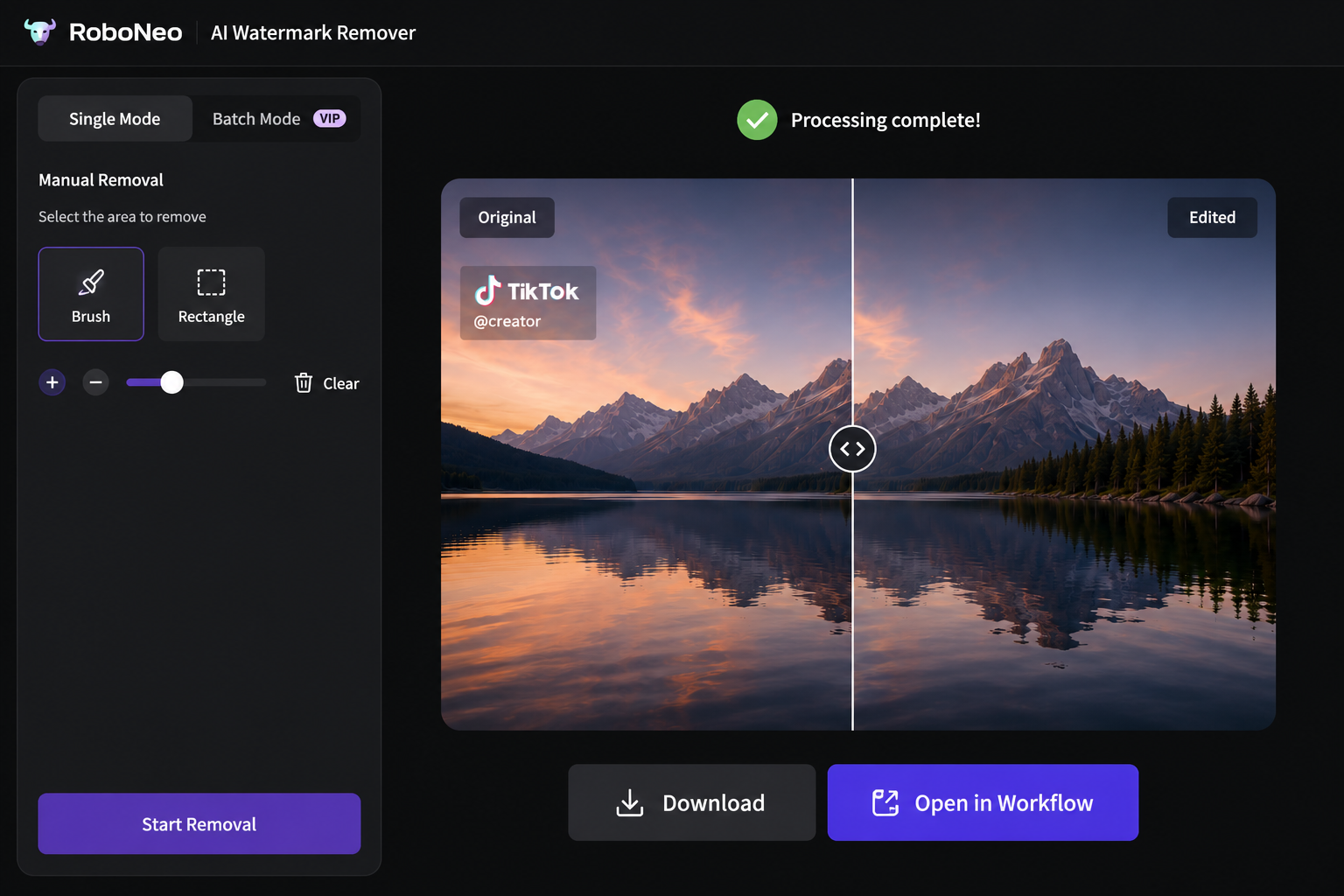
Step1: Open AI Watermark Removal Select AI Watermark Removal from the main ai video generator platform inside RoboNeo.
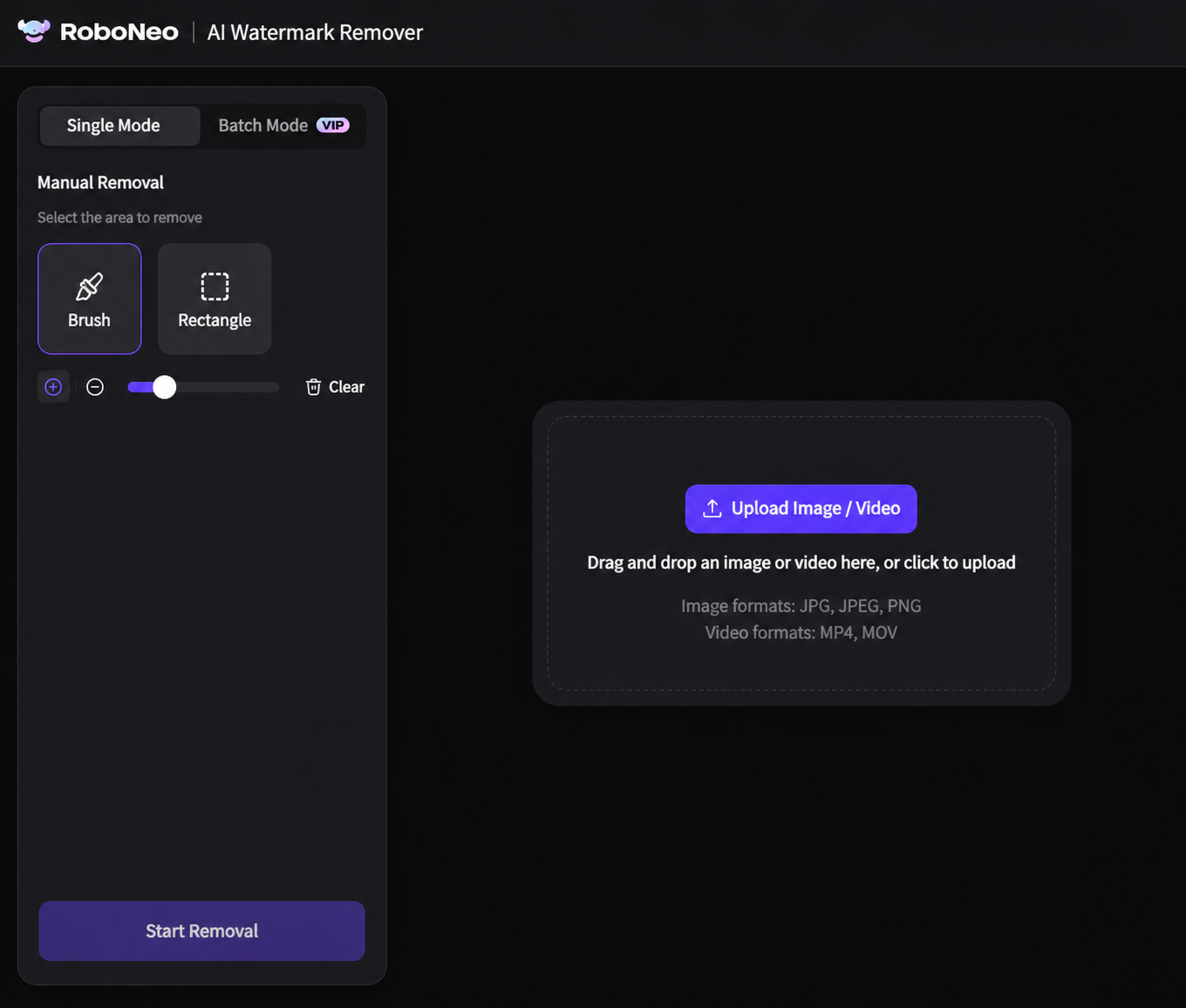
Step2: Upload your video Click Upload an image or video and add the watermarked file from your device.
Step3: Choose One or Batch Select One to process a single video or Batch when working with multiple files.
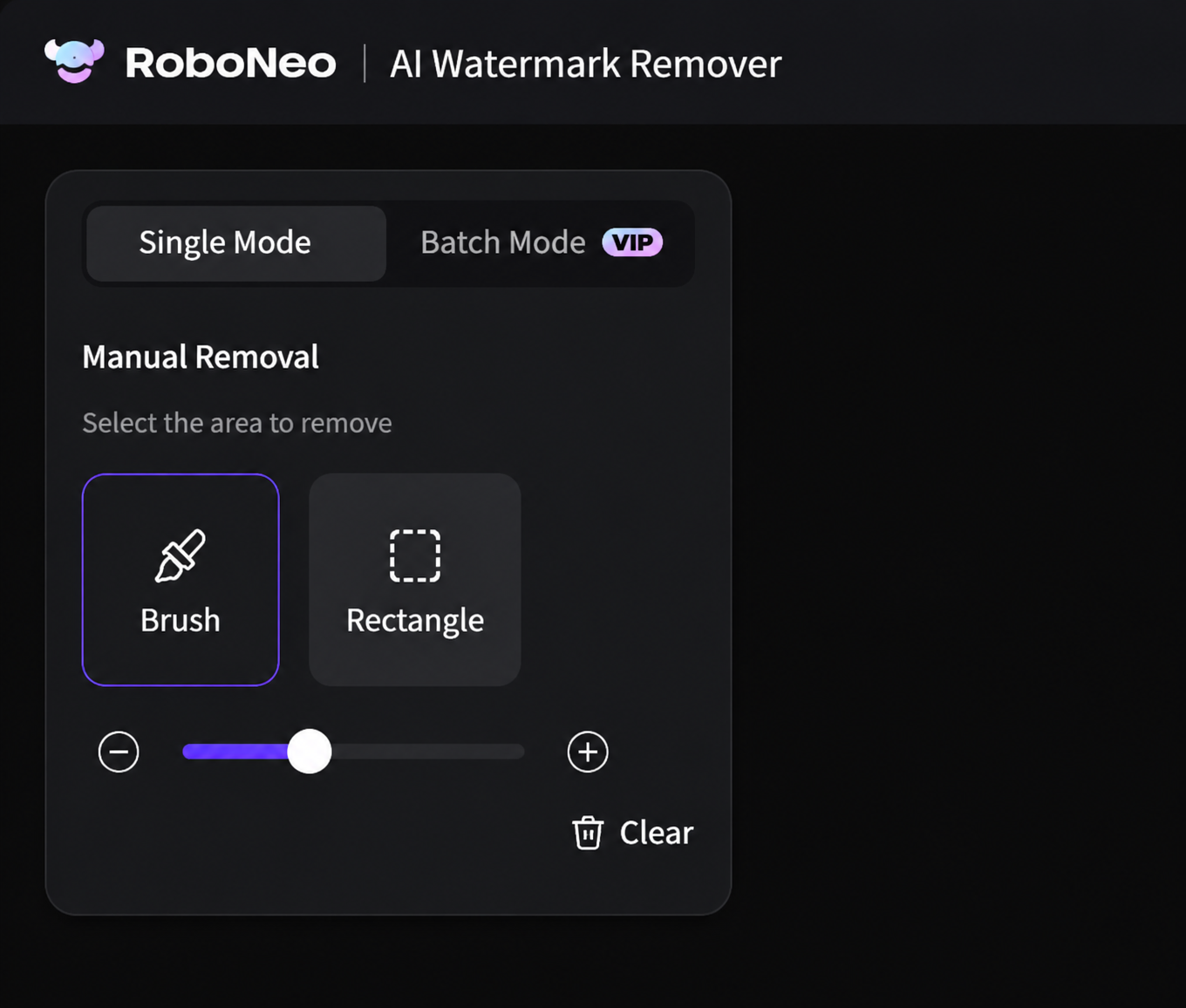
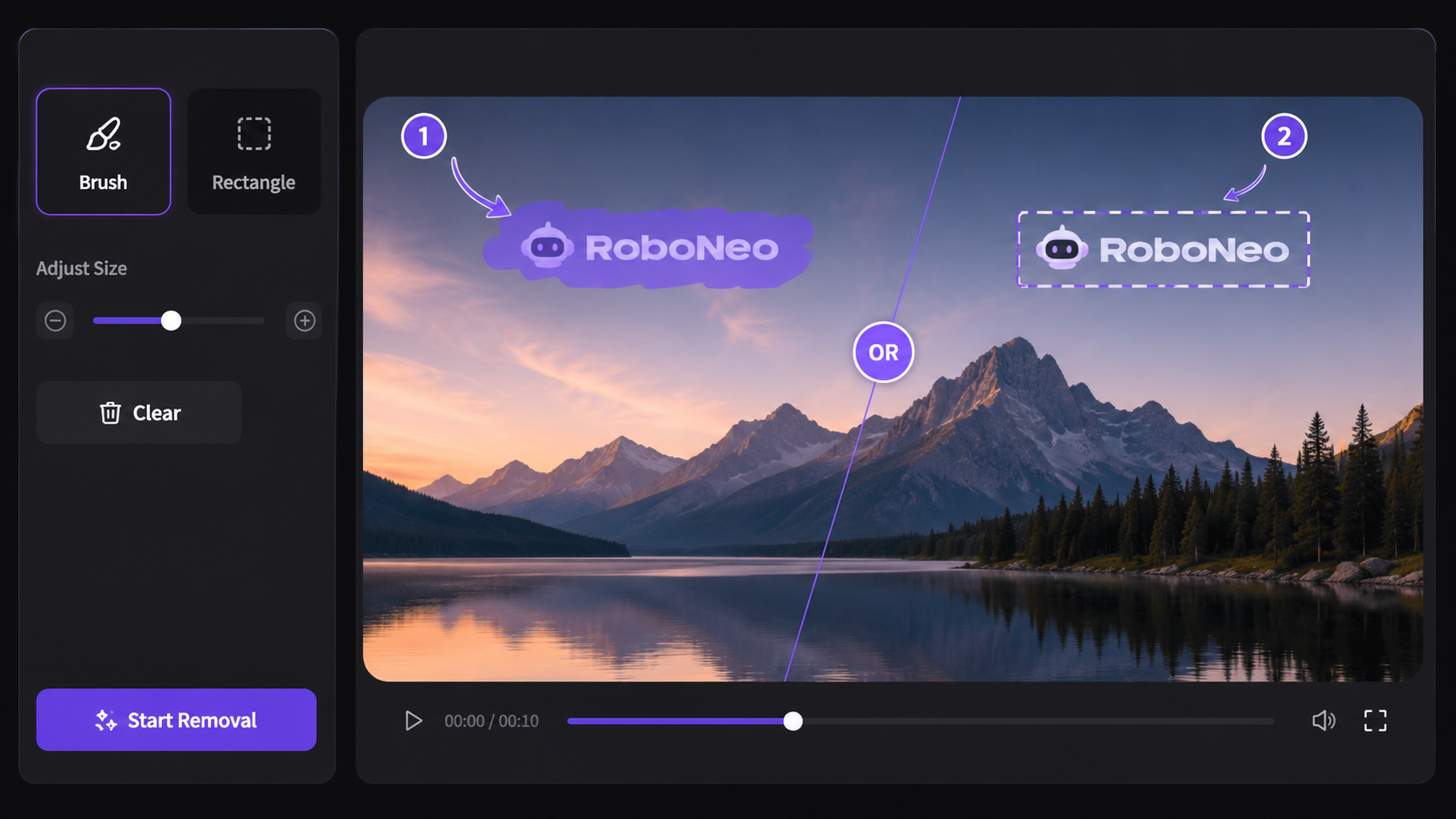
Step4: Mark the watermark Use Swipe to brush over the watermark, or choose Select to draw a box around it. Adjust the brush size when needed. Click Clear to remove the selection and start again.
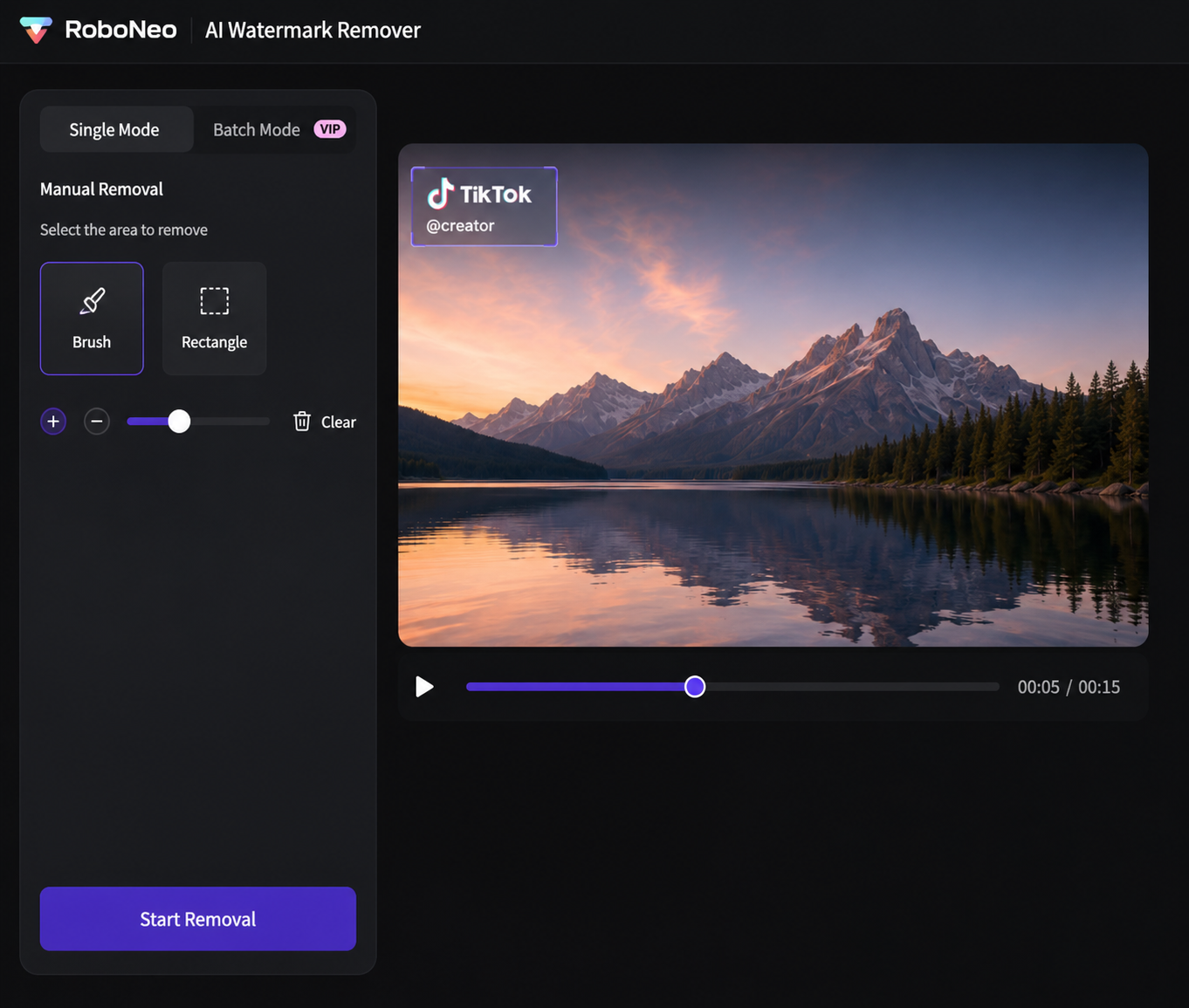
Step5: Review the full video Move through the clip and check every position where the watermark appears. This is especially important for TikTok watermarks that move between different parts of the screen.
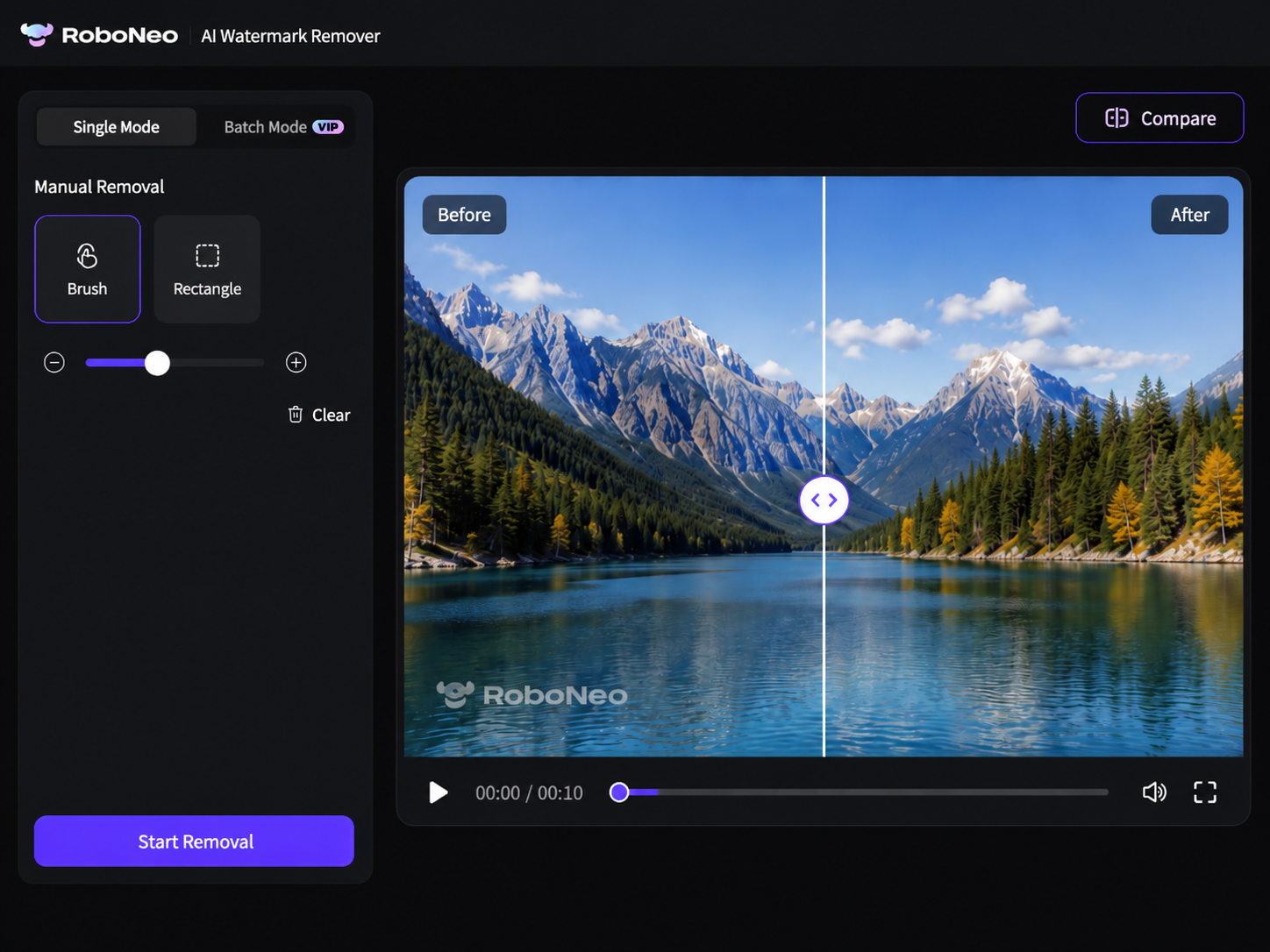
Step6: Process and compare the result Start the removal process, then use Compare to review the original and edited versions.
Step7: Download or continue editing Download the finished video, or choose Open in Workflow to continue enhancing or editing it in RoboNeo.
What Is CapCut Watermark Remover?
CapCut Watermark Remover is not a separate, stand-alone app. It is part of CapCut’s broader video editing platform. On CapCut Desktop, users can remove embedded logos, text, and other unwanted marks with AI Remove, then continue editing the same project on the timeline.
Unlike a dedicated watermark remover, CapCut is built for the full editing process. Serving as a popular capcut Ai video generator and timeline editor, it allows you to clean up footage, trim clips, change the aspect ratio, add captions, insert music, apply effects, and prepare the video for TikTok, Reels, or YouTube Shorts.
What Makes CapCut Stand Out?
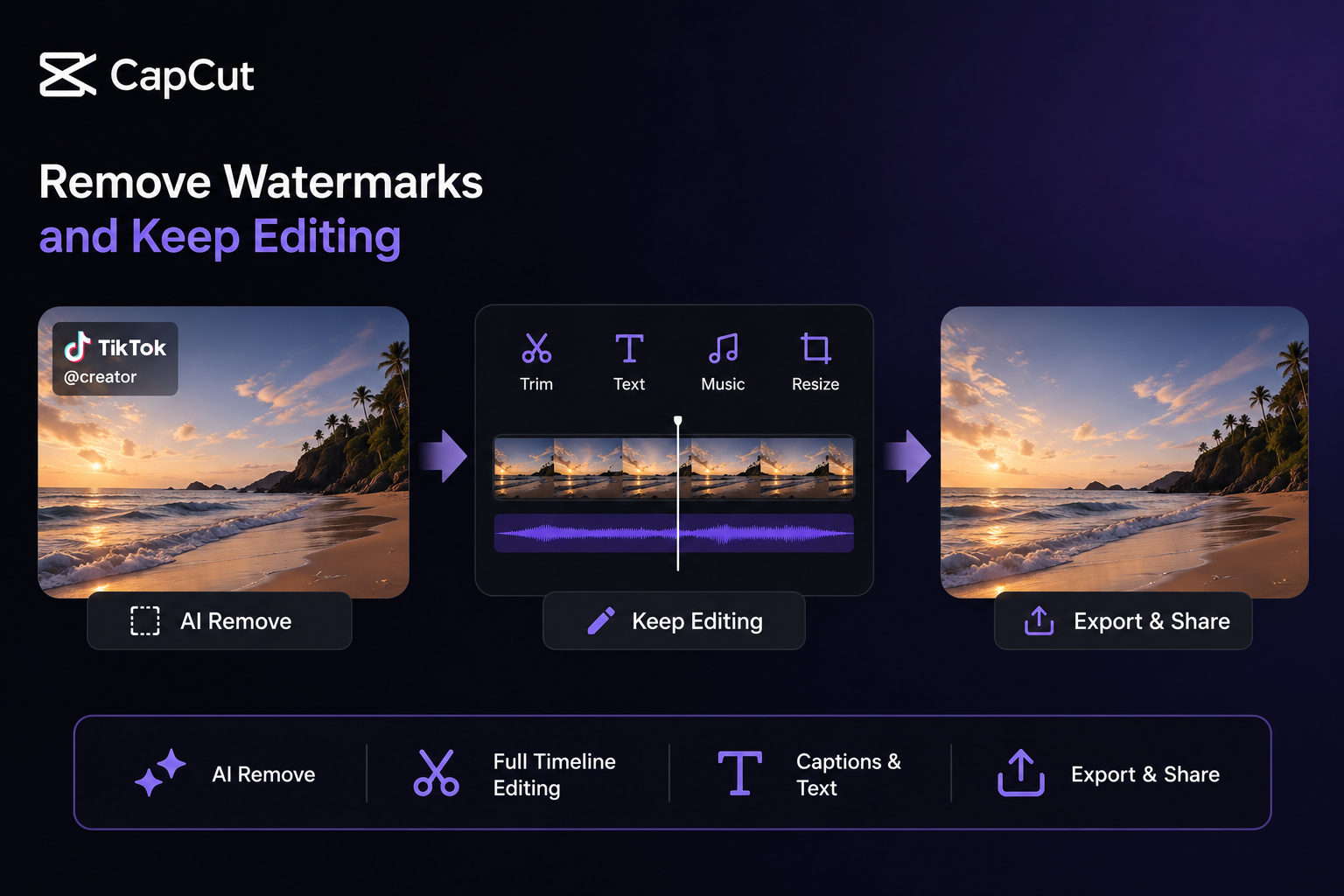
CapCut’s biggest advantage is convenience. You do not need to remove the watermark in one tool and move the file into another editor afterward.
Its main benefits include:
AI removal for logos, text, and other embedded marks
Adjustable brush and erase tools for more precise selections
Alternative options such as cropping, overlays, and background removal
A full video timeline for trimming and rearranging clips
Custom export settings for resolution, frame rate, bitrate, codec, and format
Direct sharing options for platforms such as TikTok and YouTube
CapCut is especially useful when watermark removal is only one part of a larger editing job.
Who Is CapCut Best For?
CapCut is a strong fit for:
Creators who already use CapCut for short-form video editing
Users who want to keep editing after removing the watermark
Social media teams looking to integrate newly edited footage with high-quality assets generated from the best Ai video generator free
Anyone who needs to resize the same video for several platforms
Users who prefer more manual control over the selected area
People working primarily on Windows or Mac
For someone who only wants to remove a moving watermark with as little manual work as possible, a more specialized tool may offer a simpler workflow.
How to Remove a Watermark with CapCut
Import and set up: Open CapCut Desktop, start a new project, import the watermarked video, and drag it onto the timeline.
Mark the watermark: Select the clip, go to Video > Basic > AI Remove, then adjust the brush size and paint over the logo or text (use the erase tool to correct as needed).
Remove and review: Click Remove and preview the result, checking for soft patches, distorted textures, or visible changes between frames.
Finish editing: Trim the clip, add captions, adjust aspect ratio, apply effects, or make other adjustments as needed.
Export: Click Export, choose resolution, frame rate, bitrate, codec, and format, then save the file. Note that clean exports are generally supported, but Pro-only effects, templates, assets, or certain advanced settings may require a CapCut Pro subscription.
RoboNeo vs CapCut Watermark Remover: Key Difference
RoboNeo and CapCut can both remove video watermarks, but they are built around different workflows. RoboNeo focuses on AI-powered cleanup, while CapCut treats watermark removal as one step within a full video-editing project.
| Comparison | RoboNeo | CapCut |
| Product Type | An AI creative tool with watermark-removal only workflow | A full video editor that includes watermark removal among many other features |
| Moving Watermark Support | Designed to handle both fixed and moving watermarks, including logos that change position | Works well with fixed marks, but moving watermarks may require repeated selections, clip splitting, or additional review |
| Manual Work Required | Focused workflow with less timeline editing and no manual keyframing in the standard process | Offers more hands-on control, but complex removals may involve several timeline adjustments |
| Main Advantages | Best for moving watermarks, preserves the full frame, supports batch processing, and can continue into other AI workflows | Combines removal, trimming, captions, music, effects, resizing, and export controls in one editor |
| Editing After Removal | Users can continue with AI enhancement, upscaling, or other RoboNeo editing tools | Users can continue editing on a full timeline with captions, transitions, audio, effects, and platform-specific resizing |
| Platform and Workflow | Availableon web and Android; One and Batch processing options | Available on the web, Windows, Mac, iOS, and Android; |
| Main Limits | May leave artifacts when a watermark covers faces, hands, or fast-moving details. The video must already be saved locally. | The interface may feel excessive for a simple removal job, and moving watermarks can require more manual adjustment |
| Free Plan | Free credits may cover a short test, while longer or repeated processing requires more credits. | Many basic tools are free, but some AI features, effects, templates, assets, and export options may require CapCut Pro. |
| Best For | Users whose main priority is removing fixed or moving watermarks with less timeline-based work | Creators who want to remove a watermark and then continue with a complete social video edit |
RoboNeo is the stronger fit when your primary goal is to remove watermark overlays—especially moving TikTok logos—with minimal effort. CapCut makes more sense when removal is only one part of a larger editing workflow.
Conclusion
RoboNeo and CapCut are built for different kinds of users. Choose RoboNeo when watermark removal is the main task, especially if the logo moves around the screen or you want to avoid splitting clips and making repeated timeline adjustments. Its focused workflow and batch option also make more sense when you need to clean up several authorized videos.
Choose CapCut when removing the watermark is only one part of the project. It is the better fit if you also need to trim the footage, add captions or music, change the aspect ratio, apply effects, and prepare the video for TikTok, Reels, or YouTube Shorts.
For a simple fixed watermark, either tool may work. The deciding factor is what comes next: RoboNeo for faster, dedicated cleanup; CapCut for a complete video-editing workflow. Before processing a full project, test a short clip and check the repaired area for flickering, blur, or distortion.
FAQ
Can I Remove a Watermark With RoboNeo Before Editing in CapCut?
Yes. Remove the watermark in RoboNeo, export the cleaned video, and then import it into CapCut for trimming, captions, music, effects, or resizing. This works well when you want RoboNeo to handle the cleanup and CapCut to handle the final edit.
Can CapCut remove a moving watermark?
Yes, but moving watermarks may require more manual work. CapCut’s AI Remove lets you brush over a watermark and rebuild the covered area, but CapCut does not clearly state that it automatically tracks a logo as it moves around the screen. You may need to split the clip or repeat the selection for different sections
Can RoboNeo remove watermarks from both images and videos?
Yes. RoboNeo works with both images and videos. You can remove logos, text, and other unwanted marks from photos, while its video tool supports both fixed and moving watermarks. It also offers One and Batch modes for single or multiple files.
Which watermark remover is easier for beginners?
RoboNeo is generally easier for beginners when the main goal is simply removing a watermark, thanks to its focused workflow and fewer timeline controls. CapCut is still beginner-friendly, but its full editing interface may feel busier; it makes more sense when you also want to trim, add captions, resize, or continue editing the video.
You May Be Interested

How to Turn Long YouTube Videos into TikToks with an AI Video Clip Generator
Best Free Tools to Remove Watermark from Video 2026

How Long Does It Take to Write a Script for Short Drama?

How to Make a Realistic Avatar in Roboneo: Easy Guide
How to Turn Cool Photos Into a Video: The Ultimate Guide