
What Is Bitrate in Video and How Do You Choose the Right One?
 RoboNeo TeamAugust 6, 2026

Ever exported a video and wondered why it looked softer than the original—or why the file suddenly became huge? Bitrate is often part of the reason.
It controls how much data is used for each second of video. Too little, and motion starts to break apart. Text may lose its sharp edges, while detailed areas such as hair, grass, or water can turn muddy. Push the setting too far, though, and the file gets larger without looking noticeably better.
So there is no benefit in choosing the highest number available. A useful bitrate depends on the footage itself, the codec you use, and where the video will be played or uploaded.
What Is Bitrate in Video?
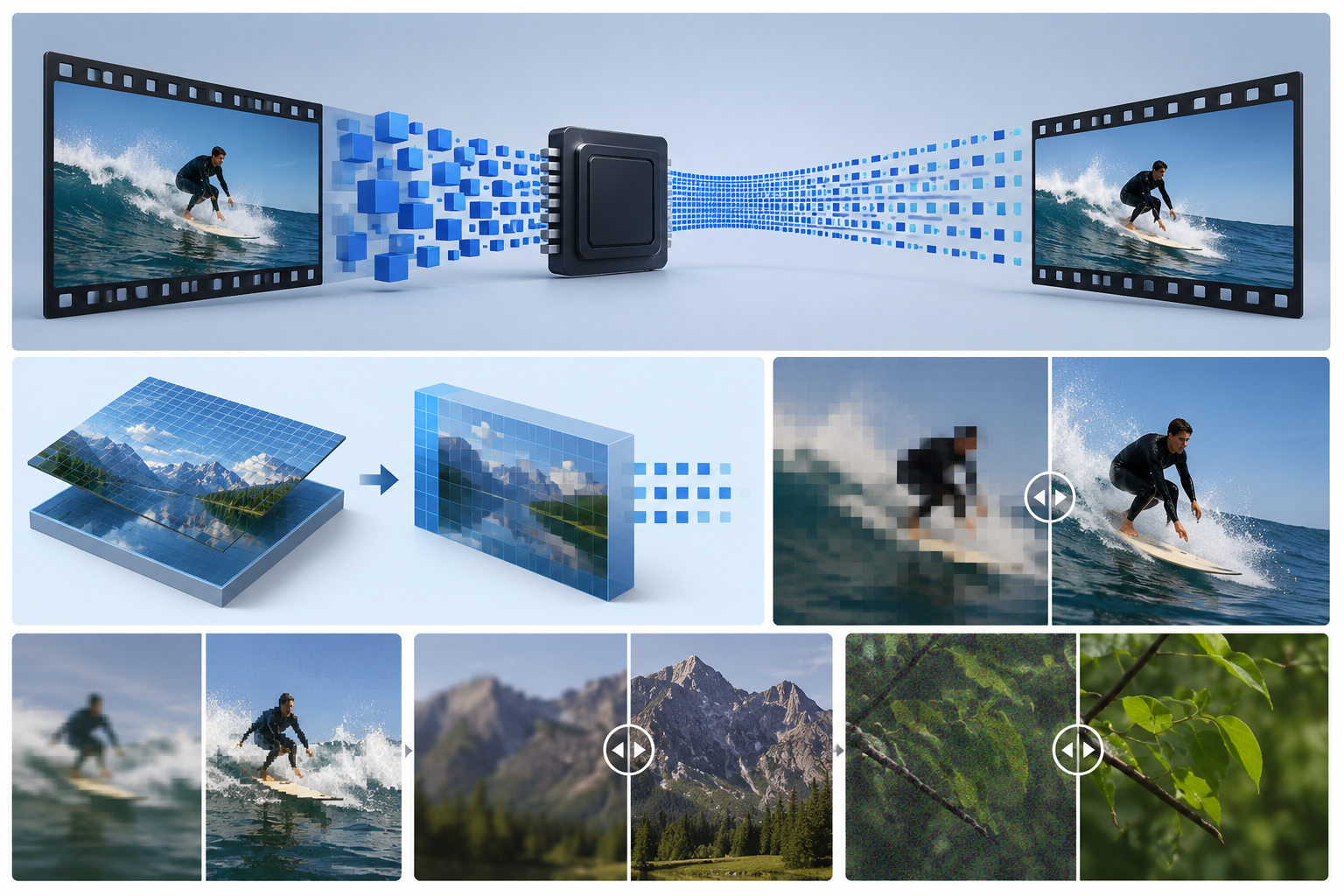
Think of bitrate as the amount of data an encoder has available to describe each second of footage. It is usually shown in kilobits per second (Kbps) or megabits per second (Mbps).
An 8 Mbps video, for instance, uses roughly 8 megabits of video data every second.
Bitrate is not the same as resolution. Resolution tells you how many pixels are in each frame. Bitrate affects how much information is used to preserve those pixels after compression.
That difference explains why two 1080p clips may look nothing alike. One can remain sharp during movement, while another loses texture and shows visible blocks.
There is also a limit to what a higher setting can do. If the original clip is already blurry or heavily compressed, exporting it at 50 Mbps will preserve the existing image in a larger file. It will not recreate the missing detail.
What Are the Different Types of Video Bitrate?
How the encoder distributes that data matters too. Most export tools offer three common options: CBR, VBR, and ABR.
Constant Bitrate
CBR keeps the data rate fairly steady from beginning to end.
That predictability makes it useful for livestreaming, where sudden bitrate spikes can cause buffering or connection problems. The downside is that it does not adapt very well. A simple shot may receive more data than it needs, while a busy action scene may not receive enough.
Variable Bitrate
VBR adjusts the data rate as the video changes.
A static interview can use less data, while gameplay, sports, moving water, or visual effects receive more. This usually makes VBR a better fit for regular exports and uploaded videos.
Some programs also include two-pass VBR. The first pass analyzes the footage, and the second uses that information to distribute data more carefully. It takes longer, but it can produce a better balance between quality and file size.
Average Bitrate
ABR lets the bitrate move up and down while aiming for a chosen average across the full video.
It is useful when file size matters. For example, you may need to stay under an upload limit for a website, email service, or client delivery system.
Do not confuse it with adaptive bitrate streaming. They share the same abbreviation, but adaptive streaming switches between several video versions based on the viewer’s internet connection.
How Does Video Bitrate Affect Video Quality?
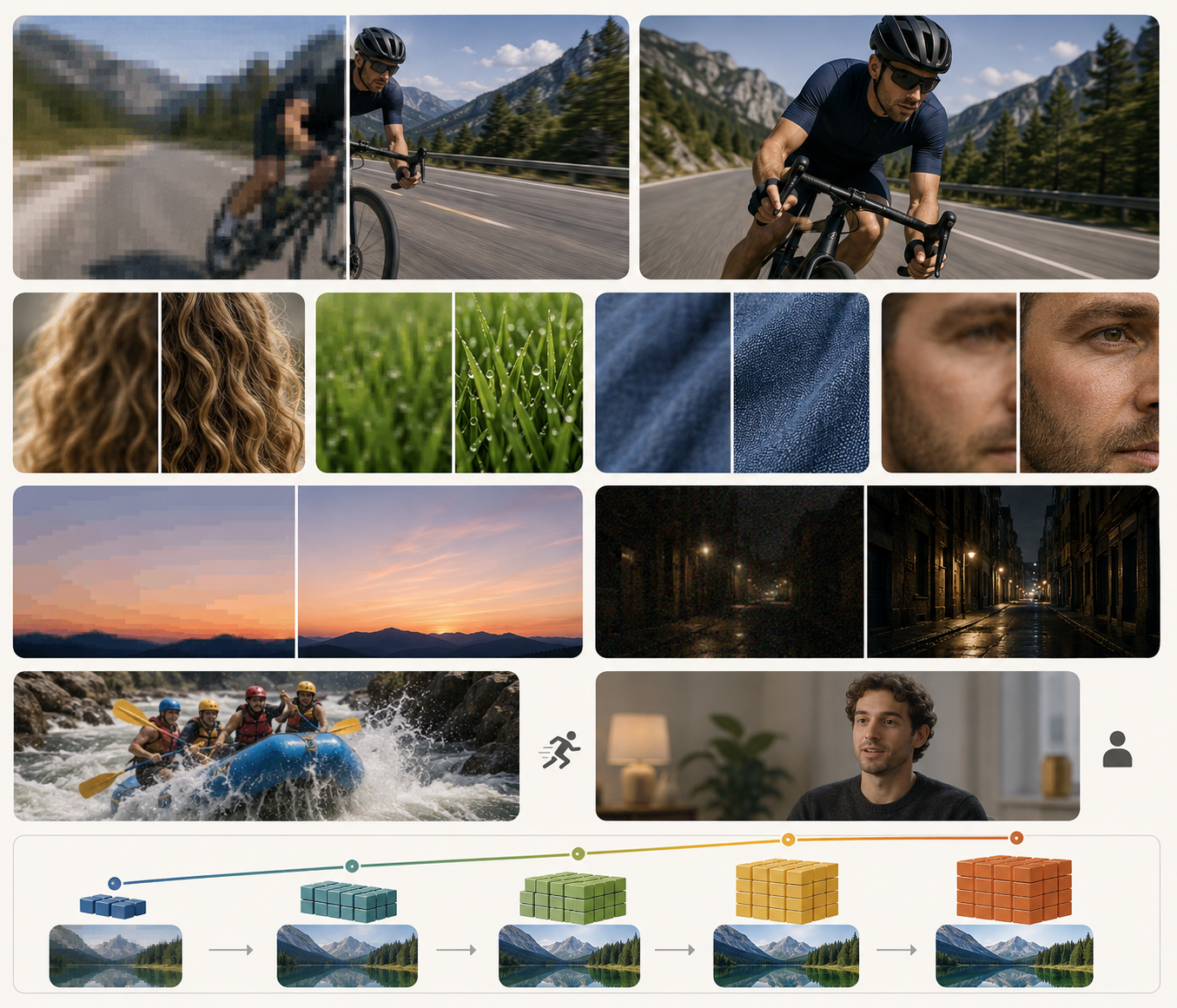
Bitrate works like a data budget. The encoder has to decide which visual information to preserve and which details it can remove.
When there is not enough data available, you may notice:
Blocky or blurry motion
Loss of detail in hair, grass, fabric, or skin
Banding in skies, shadows, and gradients
Soft text and interface elements
Smearing around moving subjects
Muddy details in dark scenes
Fast-moving footage usually needs more bitrate because a larger portion of the image changes from frame to frame. Sports, action scenes, gameplay, water, leaves, smoke, and visual effects can all be difficult to compress.
A fixed-camera interview is much easier. Since large parts of the frame remain unchanged, the encoder can often maintain good quality with less data.
Noise also matters. Digital grain changes constantly between frames, forcing the encoder to spend data on details that may not add anything useful to the image.
Once the bitrate is high enough, however, the benefits begin to level off. Doubling the bitrate does not automatically make the video look twice as good. At some point, the only obvious difference will be the larger file.
What Is a Good Bitrate for Video?
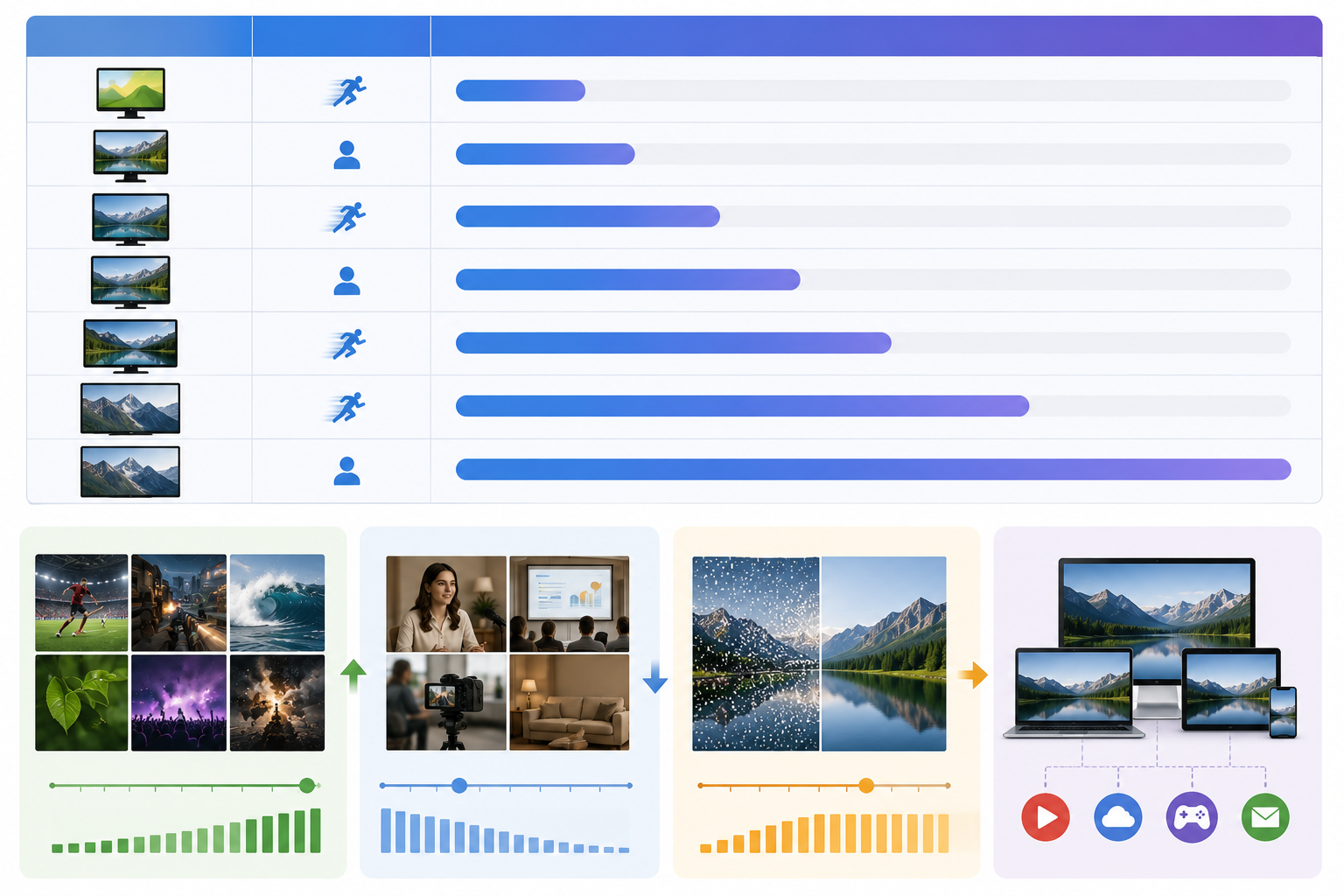
The following ranges are useful starting points for H.264 video intended for online viewing.
Resolution | Frame Rate | Suggested Video Bitrate |
480p | 24–30 fps | 1–2.5 Mbps |
720p | 24–30 fps | 2.5–5 Mbps |
1080p | 24–30 fps | 5–10 Mbps |
1080p | 50–60 fps | 8–15 Mbps |
1440p | 24–30 fps | 10–20 Mbps |
1440p | 50–60 fps | 15–30 Mbps |
4K | 24–30 fps | 35–55 Mbps |
4K | 50–60 fps | 50–85 Mbps |
Treat these numbers as a starting point, not a strict rule.
Sports, gaming, moving water, foliage, crowds, smoke, and particle-heavy footage may need settings near the upper end of the range. Interviews, presentations, tutorials, and fixed-camera recordings can often use a lower bitrate without a visible drop in quality.
The codec makes a difference as well. These ranges are mainly intended for H.264. H.265 and AV1 can often maintain similar quality at a lower bitrate, so the same numbers should not be applied to every codec.
Platform requirements can also change. Before the final export, check the latest recommendations for the site or service where the video will be published.
How to Choose the Right Bitrate for Your Video
The ranges above are only starting points. Use the steps below to adjust the bitrate for your footage and final use.
Step 1: Check the Source Video
Start with the original file. Review its resolution, frame rate, bitrate, codec, and compression history.
A higher export bitrate can reduce additional quality loss, but it cannot recover details that were removed during an earlier export. Re-encoding the same file several times may also introduce more blur, banding, and compression artifacts.
Whenever possible, work from the highest-quality source available.
Step 2: Choose the Output Resolution and Frame Rate
Your output settings should match the way the video will be viewed.There is little benefit in exporting a 1080p source as 4K unless the project has a clear delivery need. This AI video upscaling guide explains when 1080p or 4K is the more practical target without treating larger dimensions as genuine camera detail.
Frame rate should usually stay close to the source as well. Exporting a 30 fps video at 60 fps does not necessarily make it smoother. In many cases, the software simply duplicates frames or generates additional ones.
As resolution and frame rate increase, the video generally needs more bitrate to maintain the same level of quality.
Step 3: Consider What Is Happening on Screen
Not every video is equally difficult to compress.
Gameplay, sports, handheld footage, flashing lights, water, smoke, and detailed environments tend to need more data. Interviews, webinars, and slide presentations are usually less demanding.
Screen recordings fall somewhere in between. They may not contain much motion, but small text, icons, and interface edges need to stay sharp. A bitrate that looks fine for a person’s face may still make on-screen text difficult to read.
Use the content itself to decide whether your video belongs near the lower, middle, or upper end of the recommended range.
Step 4: Choose the Codec and Bitrate Mode
H.264 remains a reliable option when broad compatibility matters.
H.265, also called HEVC, offers better compression efficiency but may not work as smoothly on every device, browser, or editing platform. AV1 can also reduce bandwidth and file size, although encoding may take longer and older devices may not support it well.
For rate control:
Use CBR when a live-streaming platform needs a stable data rate.
Choose VBR for most regular exports and uploads.
Use two-pass VBR or ABR when file size needs closer control.
Consider a constant-quality setting when visual quality matters more than hitting a specific file size.
The same bitrate can look different depending on the codec, encoder, and quality preset. Always judge the exported video, not just the number in the settings panel.
Step 5: Adjust for the Final Use
A YouTube upload, livestream, game recording, and archive file do not have the same requirements. Social platforms often recompress uploads, so anyone preparing a video for TikTok should start with the cleanest file available rather than another compressed copy.
For livestreaming, the bitrate must stay below your connection’s stable upload speed. Leave some headroom for normal network fluctuations.
Game footage usually needs more data to handle rapid movement, detailed backgrounds, shadows, explosions, and effects.
For archiving or future editing, keep a higher-quality master file. Even in a connected workspace such as RoboNeo, a compressed social media export may not hold up if it later needs resizing, color grading, or another export.
Step 6: Export a Short Test Clip
There is no need to export an entire long video every time you adjust the settings.
Choose a short section that includes demanding details such as faces, small text, shadows, gradients, fine textures, or fast movement. Export it at a few different bitrates, then compare:
Motion clarity
Compression blocks
Text readability
Fine detail
File size
Export and upload time
The goal is to find the lowest bitrate that still delivers the quality you need.
How to Improve Video Quality Without Using an Excessively High Bitrate
Increasing bitrate is not the only way to improve a video. A cleaner source often compresses more efficiently. Before the final export, consider reducing noise, blur, block artifacts, banding, or excessive sharpening. This guide to enhancing UGC video quality shows why compression, low-light noise, soft details, and repeated uploads require different corrections rather than a higher bitrate alone. Noise is particularly demanding because it changes from one frame to the next and uses data that could otherwise preserve faces, edges, and important textures.
Avoid repeatedly resizing or exporting the same video. Complete the necessary corrections first, resize once, and create the delivery file at the end of the workflow.
For low-resolution footage or clips with noticeable compression damage, RoboNeo AI Video Enhancer can help improve faces, subject edges, textures, and visible artifacts. The process does not require frame-by-frame work on a complicated editing timeline.
Enhancement is still only one part of the workflow. After processing the footage, choose the resolution, codec, frame rate, and bitrate that fit the final platform. AI can improve perceived clarity, but it cannot perfectly recover every detail from the original recording.
FAQ
Does higher bitrate mean better quality?
It can, especially when the current bitrate is too low. Once the video has enough data to preserve the available detail, further increases may only make the file larger.
Is 6000 bitrate too high for 720p?
For standard 720p video at 24–30 fps, 6 Mbps is on the high side. It may still be reasonable for 60 fps footage, gaming, sports, or other high-motion content.
What bitrate should I use for 4K video?
For H.264 video, start around 35–55 Mbps for 4K at 24–30 fps and 50–85 Mbps for 4K at 50–60 fps.
What bitrate is good for 1080p video?
A practical range is 5–10 Mbps for 1080p at 24–30 fps and 8–15 Mbps for 1080p at 50–60 fps.
Is 20,000 bitrate good for 1080p?
A bitrate of 20,000 Kbps, or 20 Mbps, can work well for high-motion footage, high frame rates, or videos that will be edited again. For a typical 1080p online upload, it may be more than necessary.
You May Be Interested
Best 3D Character Creator to Make Custom Characters
6 Best AI Video Generators in 2026
5 Best Free Tools to Remove Watermark from Video in 2026 | RoboNeo