
How to Enhance Sora AI Video Quality: Step-by-Step Guide
 RoboNeo TeamJuly 21, 2026
A Sora video may look ready in the preview but still fall short once it is exported. Product labels can appear soft on a larger screen, facial details may change between frames, and slow camera movement can reveal flicker in the background. These issues are easy to overlook during generation, yet they become much more noticeable in ads, client presentations, YouTube videos, or social media posts. This guide explains how to enhance Sora AI video quality step by step and turn a promising draft into a cleaner, more publishable video.
Why Do You Need to Enhance Sora AI Video Quality?
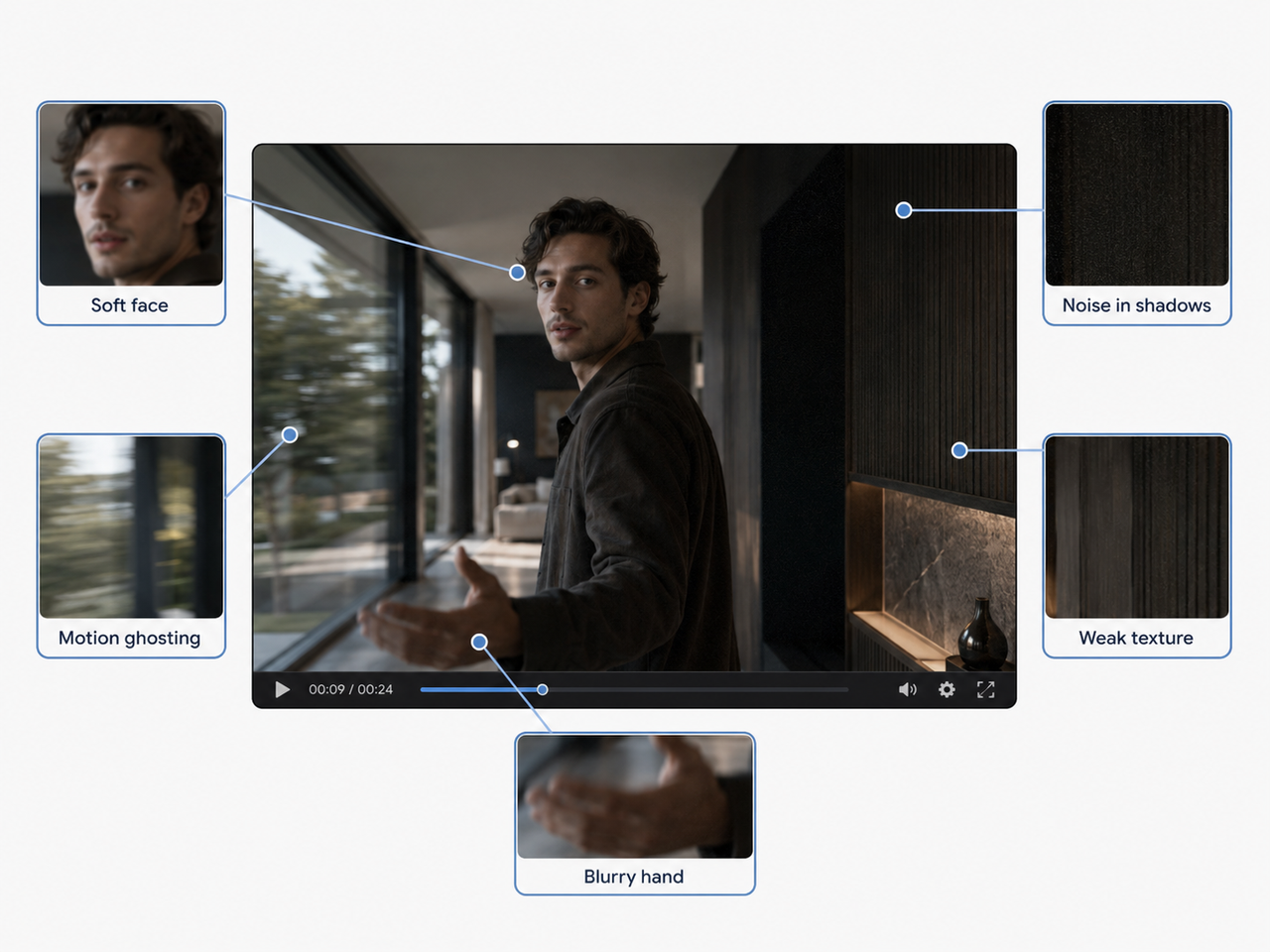
A strong concept is not always the same as a finished video. Sora may deliver the right composition, lighting, and camera movement, yet small visual flaws can keep the clip from feeling ready for publication. However, many of those problems only become obvious after export. Fine textures may look soft, product labels can lose readability, and facial details sometimes change slightly as a person turns.
Minor softness might go unnoticed in a short mobile post, but it can stand out in a YouTube upload, client presentation, ecommerce ad, or 4K editing timeline. Better resolution and steadier frame-to-frame detail help the same clip hold up across different screens and formats.
How to Enhance Sora AI Video Quality Step by Step
A video enhancer can improve clarity, texture, and overall polish, but it works best with a usable source clip. Review the Sora video first, remove weak sections, and avoid pushing every setting to its maximum.
Step 1: Review and Trim the Original Video
Watch the full clip and check for distorted faces, changing textures, duplicated objects, or unnatural motion.
A warped hand or a product that briefly changes shape is usually better removed than enhanced. Keep an untouched copy before editing.
Step 2: Upload to an AI Video Enhancer
Upload the trimmed clip to an AI video enhancement tool. Those learning how to enhance Sora AI video quality for free can start with a browser-based option offering free upscaling or preview credits.
RoboNeo AI video enhancer can improve resolution, sharpness, noise, and texture. This helps when a clip looks clear on a phone but appears soft on a laptop or presentation screen. Always use the highest-quality source file available.
Step 3: Apply Moderate Detail Enhancement
Moderate enhancement often looks more natural than aggressive sharpening. Strong settings may create harsh edges, artificial skin, or flickering hair.
A close-up portrait usually needs less sharpening than a wide product video. Adjust one setting at a time to see whether the improvement comes from upscaling, noise reduction, or added sharpness.
Step 4: Preview Faces, Motion, and Fine Details
A paused frame cannot show whether details remain stable during movement. Play the full video and check faces, fingers, hair, jewelry, text, and patterned clothing.
In a fashion clip, a jacket may look sharper while its pattern shifts as the model walks. Reducing the enhancement strength can make the footage more consistent.
Step 5: Export and Compare the Final Video
Export the video at a resolution suited to the final platform. Social media clips may only need 1080p, while presentation screens can benefit from 4K.
Open the exported file outside the editor and compare it with the original. When wider frame boundaries are needed, the frames can first be processed with an AI image extender. Check:
-
Facial and product details
-
Texture consistency during movement
-
Noise in shadows and flat backgrounds
-
Edge sharpness
-
Flicker or artificial-looking patches
-
Overall file size and playback quality
The sharpest result is not always the best one. For Reels, Shorts, ads, or presentations, a slightly softer but stable video often looks more professional.
Tips for Repurposing Enhanced Sora Videos
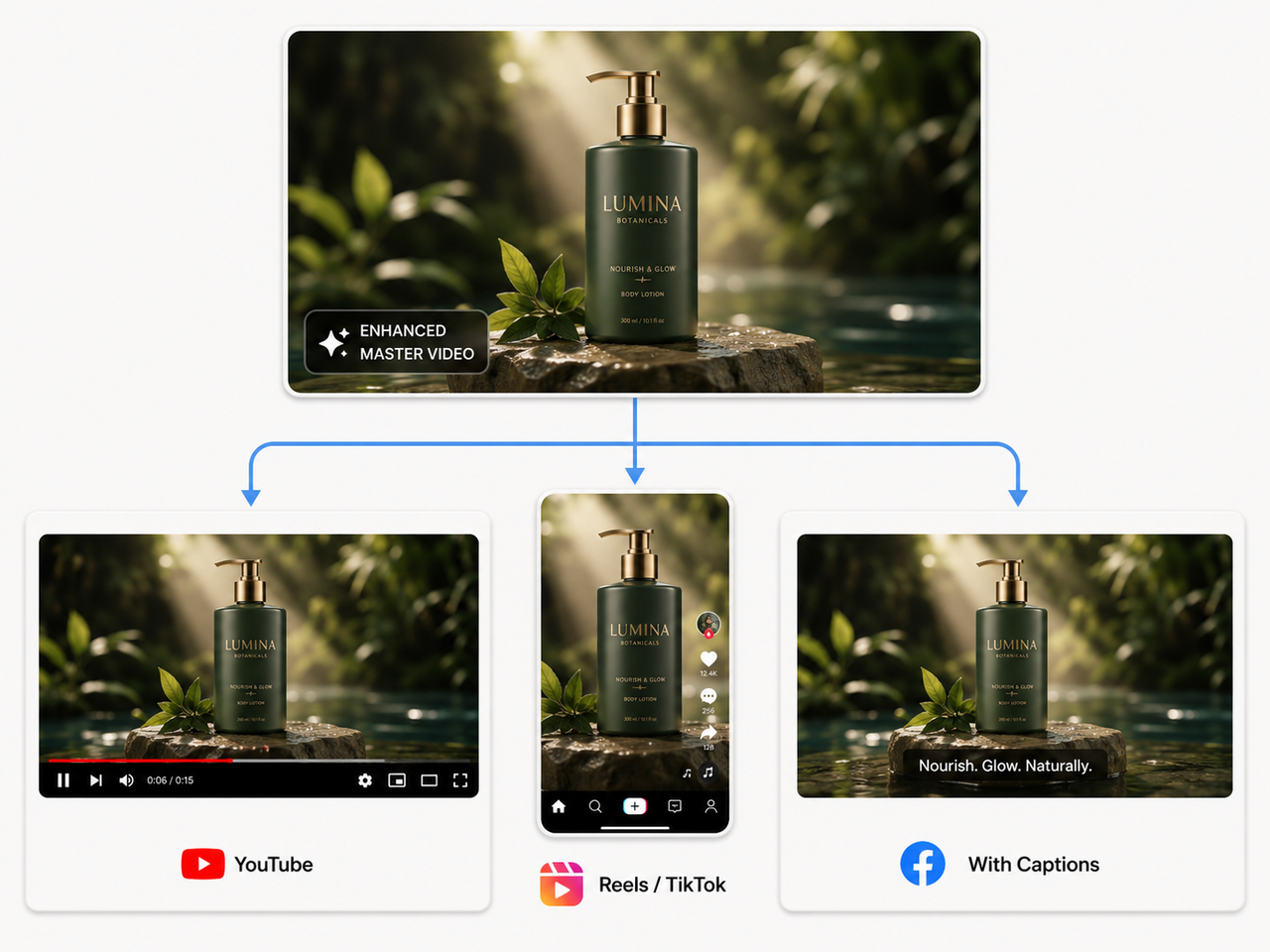
Adapt Videos for Each Platform
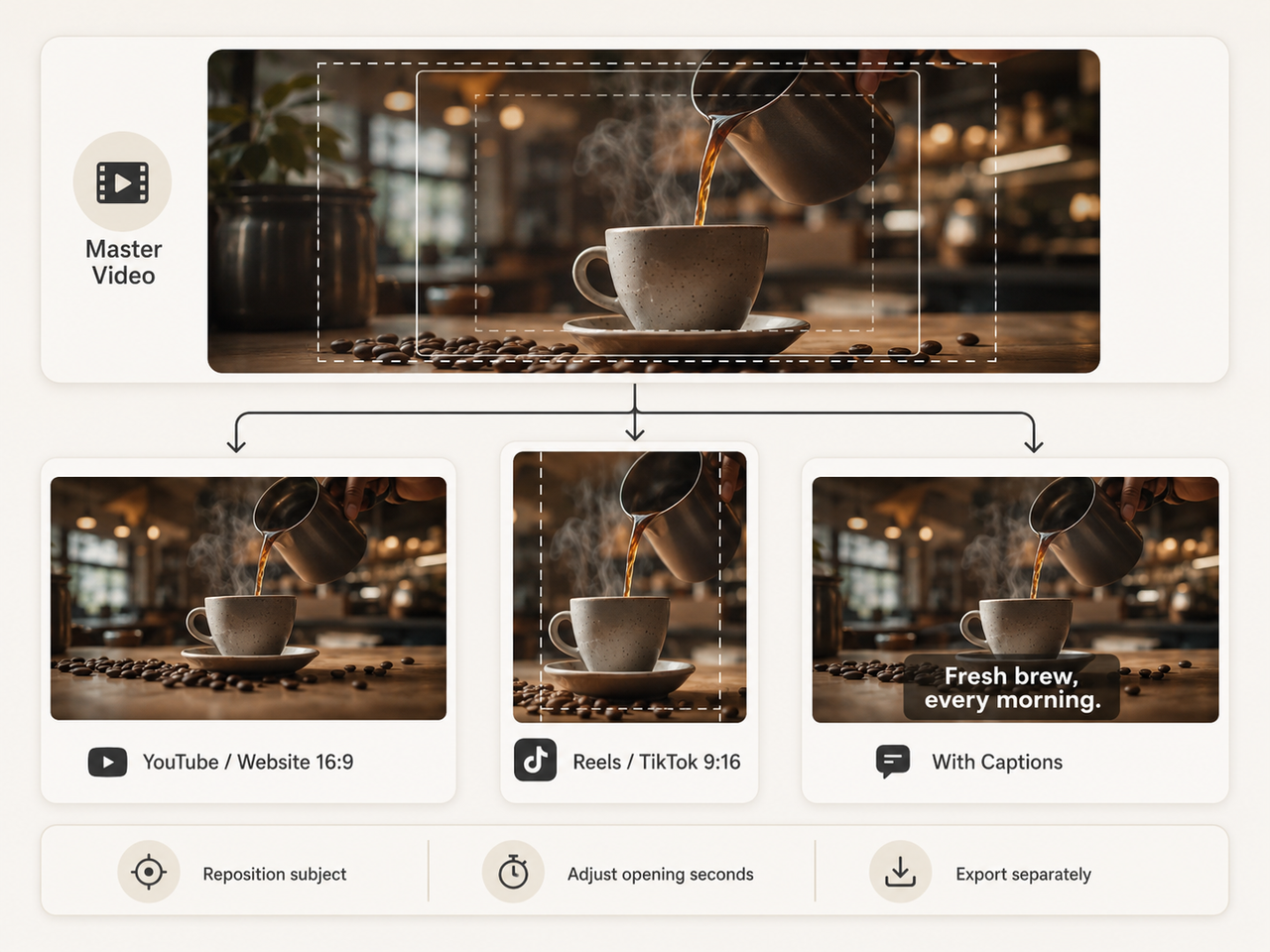
A wide video that works on YouTube may crop out the main subject when forced into a vertical social format. Before resizing, check where the product, person, or important action appears in the frame.
For example, a cinematic coffee ad could keep its full composition on a website while the Instagram version focuses on the cup and pouring shot. Keep a high-quality master file, then create separate exports for each channel. This prevents repeated compression and makes future edits easier.
Add Clear Captions
Many viewers encounter short videos without immediately turning on the sound. Captions make the message understandable from the first frame and can also clarify details that the visuals do not explain on their own.
Captions should also be reviewed manually. Automatic transcription may misread brand names, technical terms, or product models.
Organize Video Files
Repurposing becomes difficult when every export is named something like
final-video-2-new.mp4. A simple file structure keeps the original generation, enhanced master, platform edits, captions, and published versions from getting mixed together.A product campaign might be organized like this:
Sora_Product_Launch / Original / Enhanced_Master / Instagram / YouTube / WebsiteUseful filenames can include the project, format, version, and date, such as
coffee-ad_vertical_v03_2026-07.mp4. Keep the original Sora file as well; later edits may require a clean source without captions, music, or platform-specific cropping.Check Usage Rights
Before using the video in an ad, client project, or commercial campaign, review every asset involved—not only the generated footage. Uploaded reference images, music, logos, recognizable characters, and third-party video clips may carry separate restrictions.
For example, owning the Sora output does not automatically grant permission to use a copyrighted song added during editing or a customer’s photo uploaded without consent. A final rights check before publishing can prevent an enhanced video from becoming unusable later.
FAQ
Can I enhance a blurry video?
Yes. An AI video enhancer can sharpen details, reduce noise, and improve the overall clarity of a blurry video. Results depend on the source, though—mild blur can often be improved, while severe motion blur or missing detail cannot be fully restored.
How Do You Make Sora Videos High Quality?
Describe the subject, setting, lighting, camera movement, and action clearly, while avoiding too many simultaneous movements in one short scene. For API projects, OpenAI recommends Sora 2 Pro for production-quality output, with supported resolutions up to 1080p.
Can you enhance Sora's video to 4k?
Yes. A Sora video can be upscaled to 4K with an AI video enhancer such as RoboNeo, since Sora’s current high-resolution exports top out at 1080p. The result will have a 4K frame size, but severe blur, missing detail, or motion errors may not be fully restored.
Does upscaling add real detail to an AI video?
Not exactly. AI upscaling can sharpen edges, reduce blur, and generate plausible texture, but it cannot recover detail that was never present in the source. The result may look clearer, though some added features are estimates rather than original visual information.
Can AI fix flickering in a Sora video?
Yes, AI tools can reduce frame-to-frame flicker by smoothing changes in color, texture, lighting, and motion. The best results usually come from mild flicker; heavy shape changes, warped faces, or disappearing objects may still require regeneration or manual editing.
You May Be Interested
6 Best AI Video Generators in 2026
Compare the best AI video generator tools for social ads, product videos, YouTube, and brand content. See workflows, strengths, limits, and tips.
How to Choose the Best AI Text to Video Generator in 2026 (+ Our Top Pick)
Trying to find the best AI text to video generator in 2026? Learn the five key criteria every marketer and creator should evaluate, and discover why RoboNeo is the top pick for producing high-quality video content at scale.
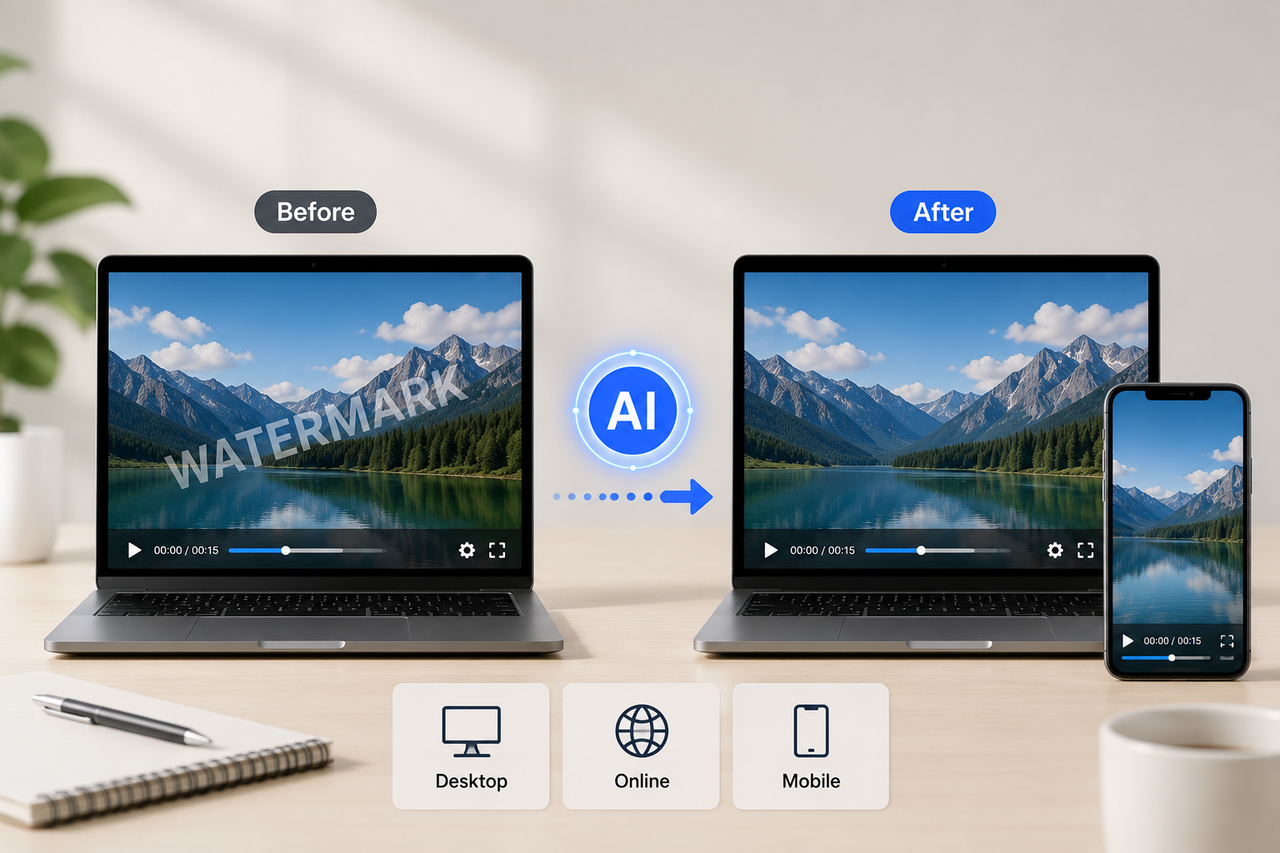
Best Free Tools to Remove Watermark from Video 2026
Compare the best free tools to remove watermark from video in 2026, including AI, online, desktop, and mobile options for logos, text, and moving marks.
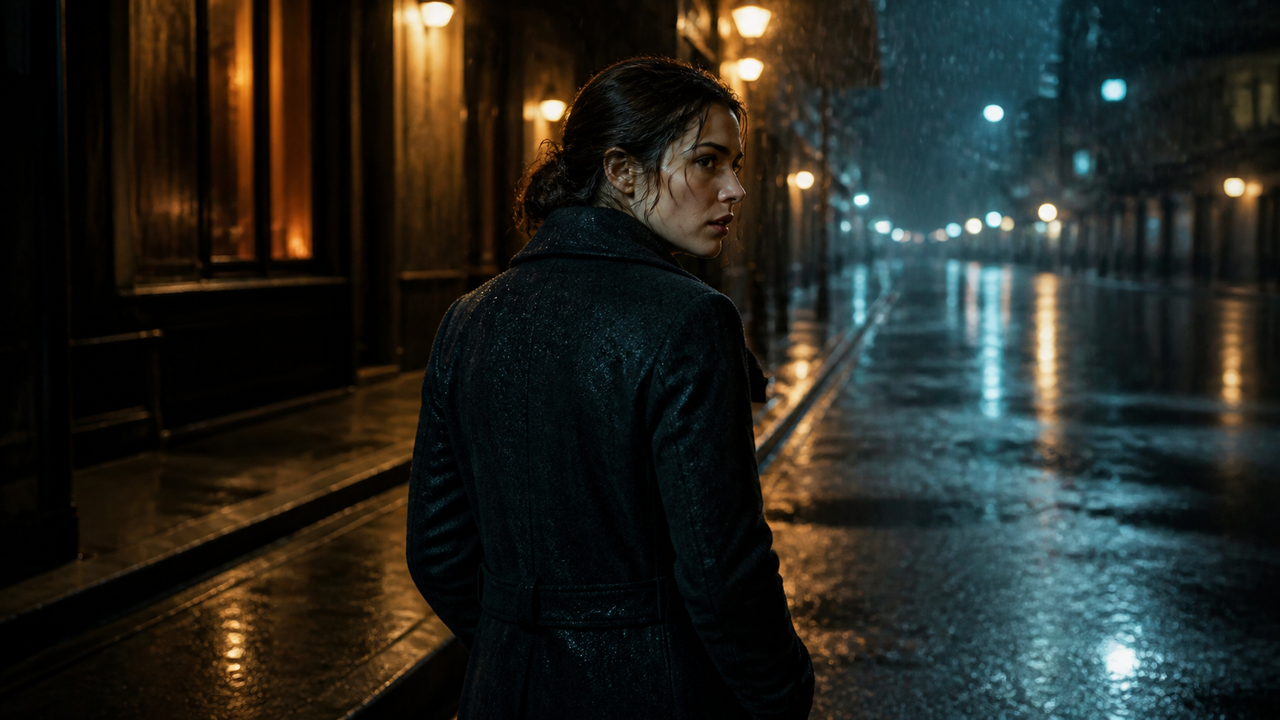
Movie-Quality AI Video Prompts: Complete Guide
Learn how to write AI video prompts for movie-quality results. Improve scenes with better structure, motion, camera, lighting, and realism.