8 Best AI Video Enhancers for Different Use Cases
 RoboNeo TeamJuly 21, 2026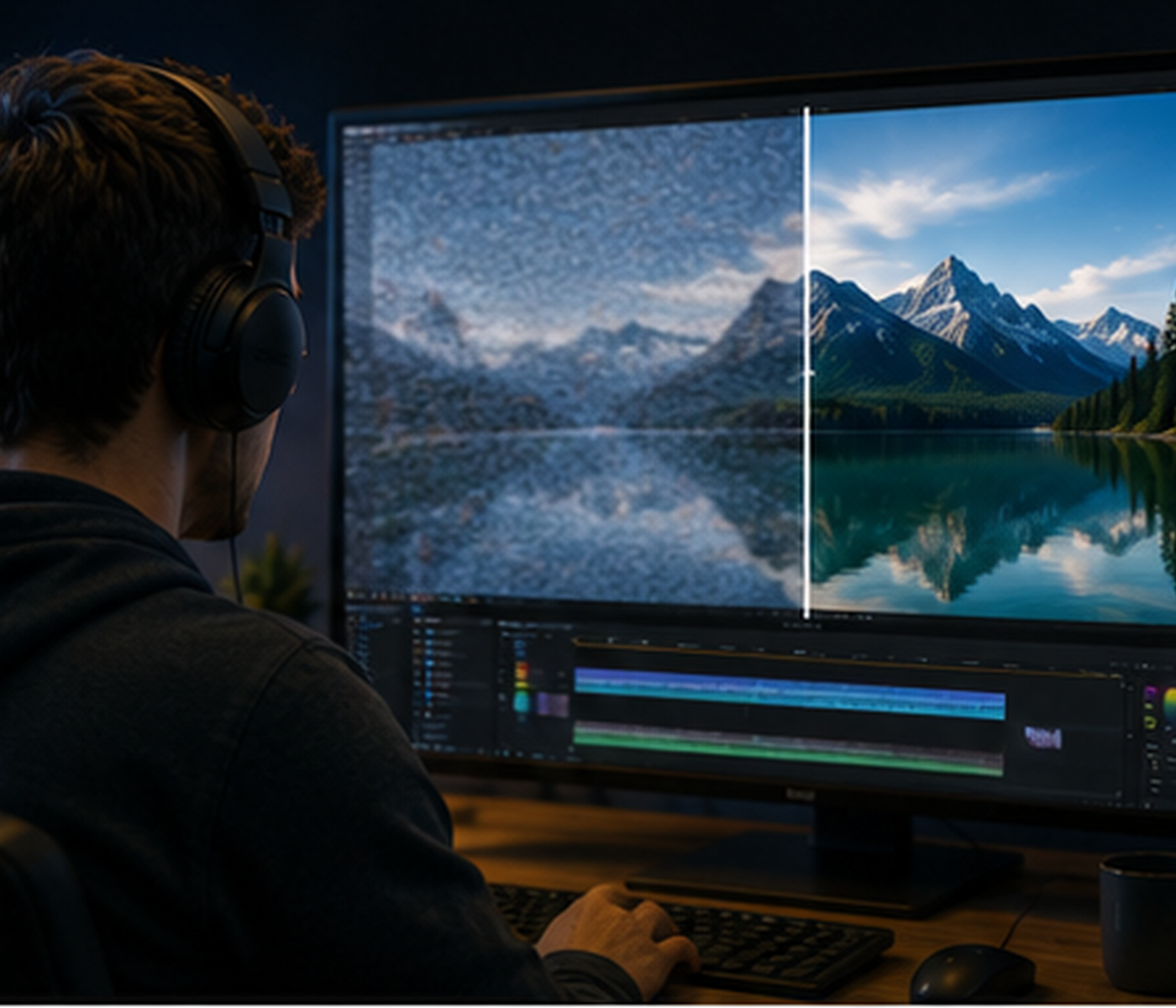
AI video enhancers can increase resolution, reduce noise, repair compression artifacts, improve facial details, and make motion look smoother. However, different tools vary in processing quality, speed, ease of use, and suitable workflows. This guide compares eight tools for professional restoration, social media, AI-generated videos, and quick online editing.
Standards for Choosing the Best AI Video Enhancer
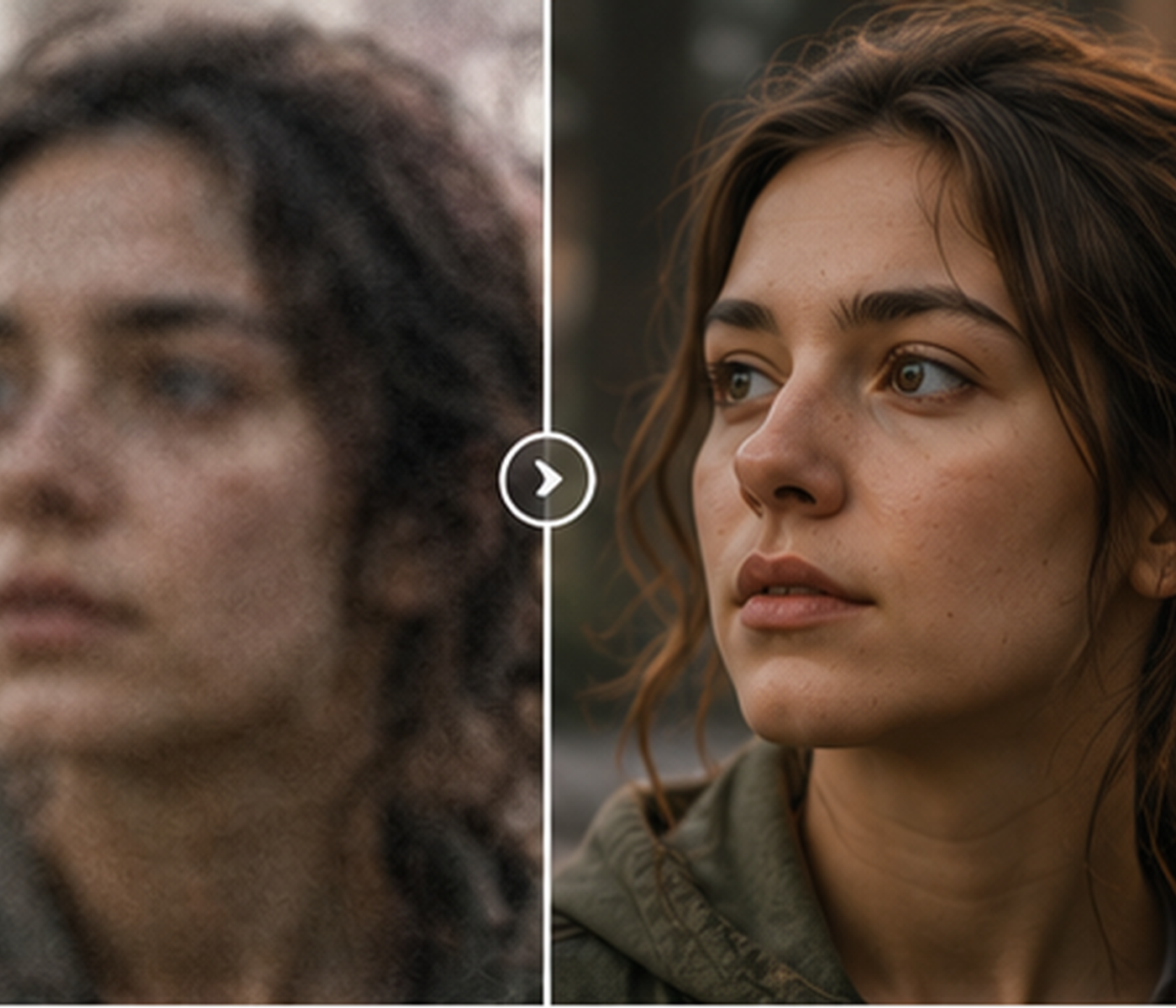
Upscaling and Restoration Quality
Look for clear results without plastic-looking faces, halos, flickering textures, or excessive sharpening. Test a short clip first, especially when it contains movement, faces, or text.
Automatic and Manual Controls
Automatic tools suit quick social videos and simple fixes. Manual controls are more useful for motion blur, film grain, unstable focus, or AI-generated clips with flickering textures and inconsistent movement. These issues are among the common limitations of AI video generation.
Pricing and Export Restrictions
Check limits on resolution, video length, watermarks, storage, credits, and device access. Prices may also differ across desktop, mobile, web, and regional stores.
8 Best AI Video Enhancers in 2026
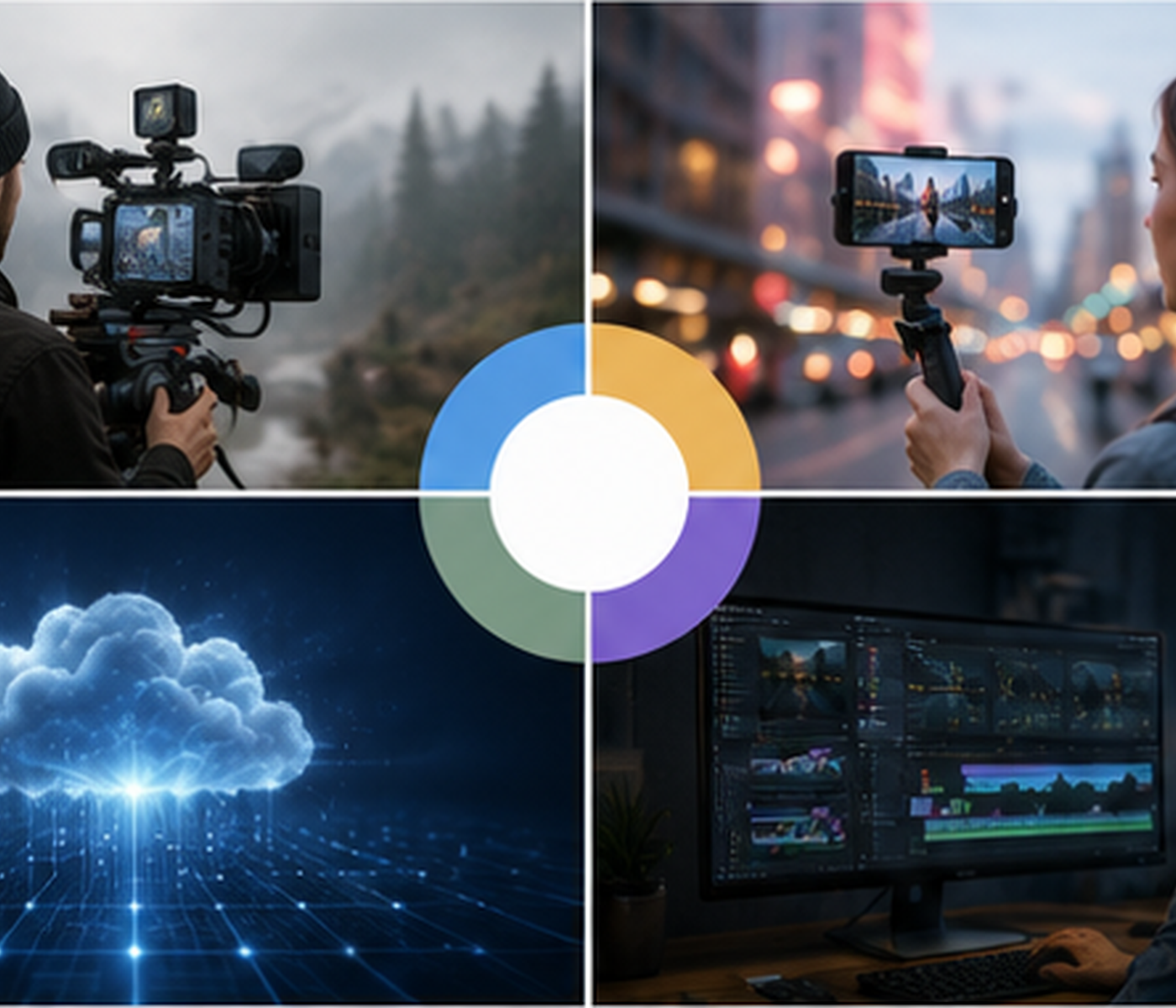
No single enhancer works equally well for every type of video. A filmmaker restoring archive footage needs different controls from a creator improving a short TikTok clip. The tools below are compared by use case, advantages, limitations, free access, and current pricing.
Topaz Video — Best for Professional Restoration
Best for: Professionals restoring low-resolution footage, old recordings, motion blur, and complex moving scenes.
Pros: Topaz Video provides upscaling, denoising, frame interpolation, stabilization, and motion deblur models. Detailed settings make it suitable for footage containing hair, water, crowds, camera movement, or fast action.
Cons: The software requires capable hardware, especially for 4K projects. Long videos can take considerable time to process, and beginners may need to test several models before finding the right settings.
Plans and Current Offers (2026.7)
Personal Monthly costs $59 per month. Personal Annual costs $299 per year, or about $25 per month. Pro Annual costs $699 per year.
Topaz Studio costs $399 per year and includes Topaz Video, Topaz Photo, Topaz Gigapixel, unlimited local rendering, and monthly video cloud credits.
AVCLabs — Best for Restoring Old Videos
Best for: Family recordings, black-and-white footage, heavily compressed clips, and older videos with blurry faces.
Pros: AVCLabs combines upscaling, denoising, face enhancement, colorization, stabilization, and frame-rate improvement. A faded camcorder recording can be sharpened, stabilized, and colorized within one program.
Cons: Running several enhancement models together can increase processing time. Face recovery and automatic colorization may also produce unnatural skin tones or facial details, so results should be checked scene by scene.
Plans and Current Offers (2026.7)
The monthly plan costs $39.95. The annual plan is currently $95.96, reduced from $119.95. The perpetual license is currently $149.90, reduced from $299.90.
Bundle discounts may be available when Video Enhancer AI and Photo Enhancer AI are purchased together. Monthly and annual plans include a five-day refund period, while perpetual licenses include a 30-day refund period.
HitPaw VikPea — Best for Beginners
Best for: Beginners who want ready-made enhancement models for faces, animation, low-light footage, or general video problems.
Pros: The model categories are easy to understand, and most projects require only a few settings. It works well for quickly improving a dark vlog, a noisy indoor recording, or an animated clip with soft edges.
Cons: Automatic models offer less manual control than professional restoration tools. Some face models may smooth skin too heavily, while rapid movement can create unstable edges or inconsistent details between frames.
Plans and Current Offers (2026.7)
The free license mainly allows users to preview enhancement results. Full export usually requires payment, although some users may receive a seven-day trial.
The monthly plan is currently $42.99, reduced from $85.99. The annual plan is $99.99, reduced from $199.99. The perpetual plan is $349.99, reduced from $699.99.
TensorPix — Best Online Video Enhancer
Best for: Users who want cloud processing, do not have a powerful GPU, or need to enhance multiple videos online.
Pros: TensorPix handles upscaling, denoising, stabilization, and frame interpolation in a browser. Processing takes place on cloud hardware, allowing users with lightweight laptops to work on demanding videos.
Cons: Upload speed, internet stability, and server queues affect processing time. Free users also face stricter limits on input resolution, file size, credits, storage, and video length.
Plans and Current Offers (2026.7)
The Free plan provides weekly login credits, up to 720p input, 1GB of storage, and basic models.
Standard costs $5.50 per month when billed annually and includes 10 monthly credits. Premium costs $12.42 per month with 35 credits, 100GB of storage, more filters, and API access. Elite costs $30.25 per month with 110 credits and 500GB of storage.
RoboNeo — Best for Easy Video Enhancement
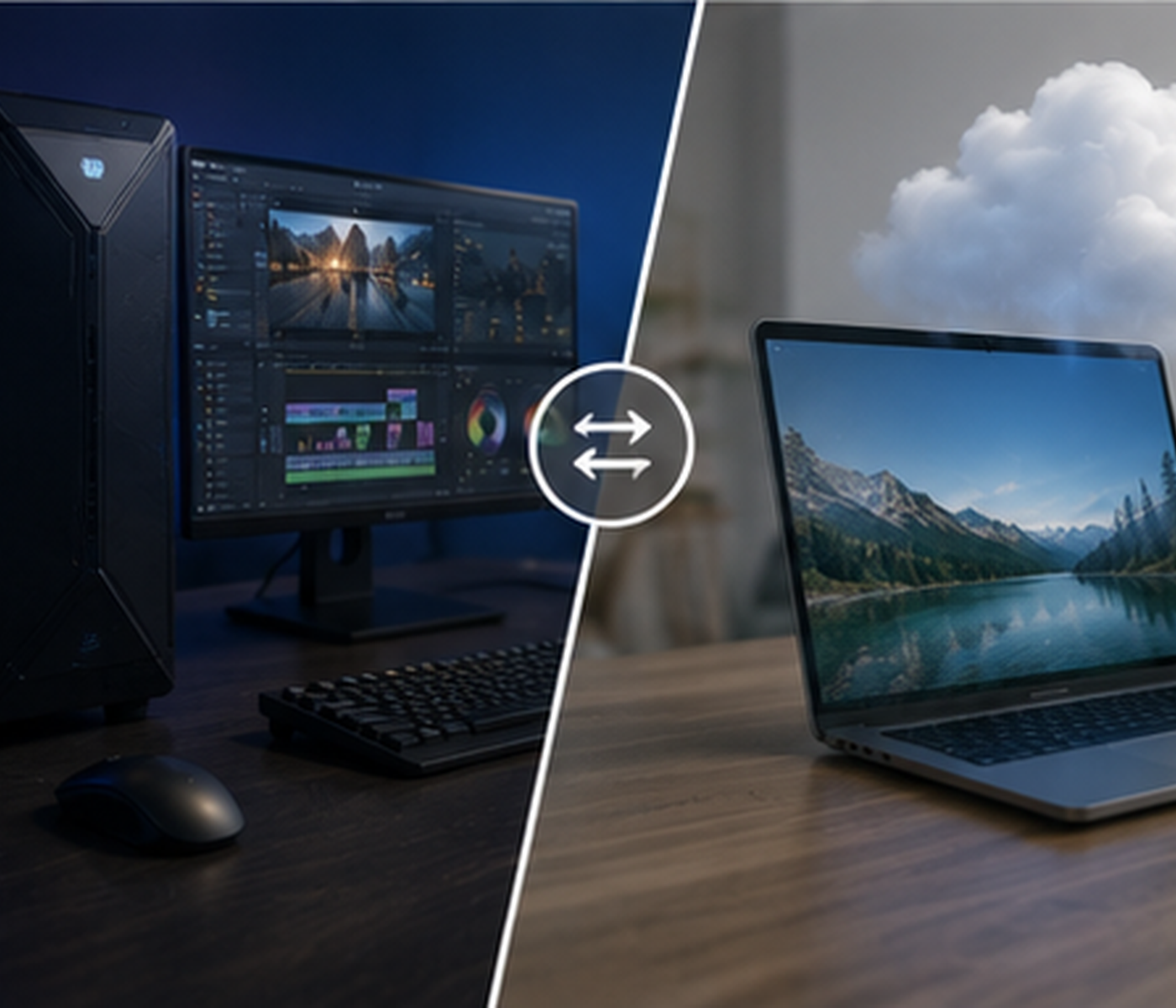
Best for: Content creators improving AI-generated videos, UGC clips, product footage, and social media assets.
Pros: RoboNeo video enhancer provides a simple workflow for increasing clarity, reducing noise, and improving overall video quality. Users can continue with video upscaling, generation, and other visual tasks on the same platform.
This connected workflow is useful for creators producing ads, product videos, short-form content, or AI-generated clips without professional post-production experience.
Cons: Advanced parameter control is more limited than in specialist desktop software. Processing long videos may also depend on internet speed, cloud demand, and available task capacity.
Plans and Current Offers
The Free Plan provides daily credits for testing image editing, video generation, and video enhancement.
The mobile store currently shows Starter Monthly at about $4.99, although mobile and web plans may offer different credits and benefits. Pro Monthly costs $59.99 and includes more credits, higher task concurrency, and earlier access to selected features.
Additional Cyber Carrots can also be purchased for video generation and other credit-intensive tasks.
DaVinci Resolve Studio — Best for Full Post-Production
Best for: Professional creators who want to combine enhancement, editing, color correction, audio, visual effects, and final export.
Pros: DaVinci Resolve Studio includes Super Scale, noise reduction, Speed Warp, intelligent reframing, and professional color tools. An editor can improve a soft interview, correct skin tones, clean the audio, add titles, and export the project without changing software.
Cons: Its large toolset creates a steeper learning curve than one-click enhancers. Several AI features are limited to the Studio edition, and strong hardware is recommended for noise reduction and high-resolution projects.
Plans and Current Offers
DaVinci Resolve is free and supports most 8-bit video formats up to Ultra HD 3840 × 2160 at 60fps.
DaVinci Resolve Studio costs $295 as a one-time purchase. It adds the DaVinci AI Neural Engine, temporal and spatial noise reduction, Magic Mask, additional Resolve FX, resolutions above 4K, and up to 120fps 10-bit video.
CapCut — Best for Social Media Videos
Best for: TikTok, Instagram Reels, YouTube Shorts, and other short-form social media content.
Pros: CapCut combines video enhancement with trimming, captions, music, templates, effects, and platform-specific aspect ratios. A creator can clean up a phone recording, add subtitles, resize it to 9:16, and prepare it for posting in one workflow. Creators comparing RoboNeo vs CapCut for AI video generation should consider whether they prefer CapCut’s timeline-based editing or RoboNeo’s more automated workflow.
Cons: Automatic enhancement offers limited manual control. Some AI tools, premium effects, 4K exports, and cloud features require CapCut Pro. Watermark rules and feature availability may also differ across devices and regions.
Plans and Current Offers
The Free Plan includes basic editing, captions, filters, and selected templates.
CapCut Pro Monthly costs $19.99, while Pro Annual costs $179.99. CapCut Teams starts at approximately $24.99 per month, depending on the number of users and region.
Some new users may receive a seven-day CapCut Pro trial.
YouCam — Best for Quick Online Enhancement
Best for: Short videos with low light, mild blur, visible noise, or basic portrait issues.
Pros: YouCam offers simple sharpening, brightness correction, denoising, and video beautification tools. It is suitable for improving a selfie video, indoor clip, or casual social post without learning professional software.
Cons: The tool is better suited to light enhancement than complex restoration. Video length, output resolution, free usage, and AI credits may be limited. Some cloud-based AI features require additional credits even with a Premium subscription.
Plans and Current Offers
The free version includes selected editing and portrait tools.
Premium Monthly starts at $5.99. Annual prices generally range from about $23.99 to $49.99, depending on the region, promotion, or subscription type.
Trial eligibility varies, and some AI features require separately purchased credits.
Which AI Video Enhancer Is Best for Your Needs?
Best AI for Upscaling to 4K
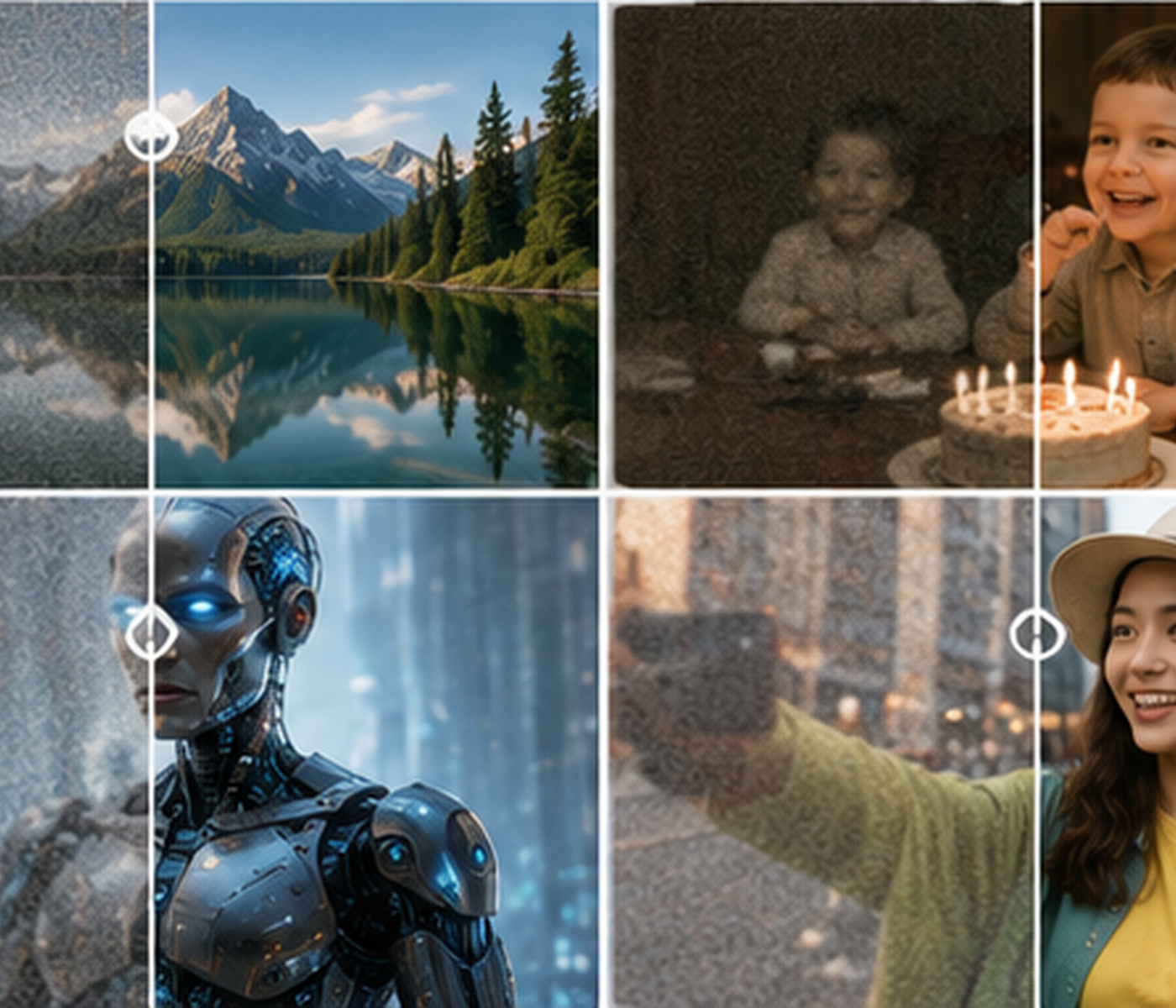
For anyone learning how to AI upscale video to 4K, testing a short section first can reveal problems with faces, motion, text, or unstable textures.
Topaz Video is a strong option when footage needs detailed restoration before 4K export. Its models provide more control over noise, blur, motion, and fine textures.
DaVinci Resolve Studio is better suited to projects that combine upscaling with editing, color correction, and final delivery. RoboNeo offers AI video upscaling for creators who want to improve resolution, reduce noise, and sharpen footage through a browser-based workflow.
Best for Old and Damaged Videos
AVCLabs works well for family recordings that need colorization, face enhancement, stabilization, and denoising.
Topaz Video offers more control for damaged textures, difficult movement, and inconsistent detail. Different sections of the same recording can also be processed with separate models.
Best for AI-Generated Videos
RoboNeo suits creators who want to create clips with an AI video generator, enhance the results, and prepare them for publishing within the same platform. It can reduce noise, sharpen soft details, and produce cleaner clips for social media or marketing.
Topaz Video is more suitable when generated footage contains flickering textures, unstable movement, or complex details that require model testing.
Best for Faces and UGC Videos
RoboNeo works well for talking-head videos, product reviews, and UGC clips that need clearer faces and less noise without a complicated setup.
HitPaw VikPea is another beginner-friendly choice because its face enhancement models require little manual adjustment. Results should still be checked for excessive skin smoothing.
FAQ
Can AI make my video clearer?
Yes. AI can sharpen edges, reduce noise, improve contrast, repair compression artifacts, and enhance faces. It cannot fully restore details that were never captured in the original recording.
What is the best free AI video enhancer without a watermark?
DaVinci Resolve provides one of the most complete free workflows without a standard export watermark. Free online enhancers may also work, but they often restrict resolution, duration, file size, or processing credits.
Are online AI video enhancers safe for private videos?
Safety depends on how the provider stores, processes, and deletes uploaded files. Review its privacy policy before uploading client projects, family recordings, unreleased campaigns, or videos containing personal information.
Does AI video enhancement create real details?
AI may reconstruct likely textures and edges using nearby pixels and frames. These details are generated estimates. Enhanced faces, text, license plates, or evidence footage should not be treated as exact records of the original scene.
You May Be Interested
How to Turn Long YouTube Videos into TikToks with an AI Video Clip Generator
How to Create Stunning Visuals with the Best AI Music Video Generator
Best Free AI Video Generator: Top Tools to Try
Best YouTube Script Generator: From Script Writing to Video Creation

How to Choose the Right Free AI Music Video Generator in 2026