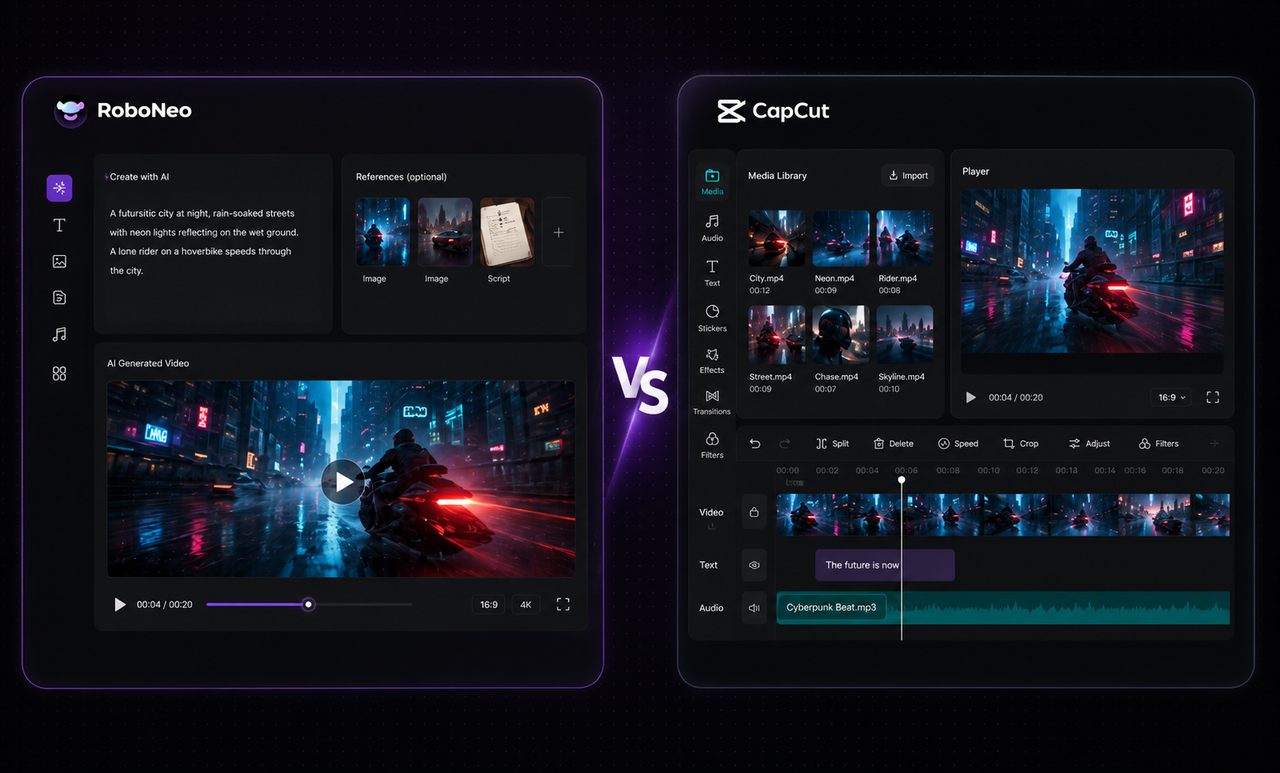
Topaz Video AI vs RoboNeo: AI Video Enhancement Compared
 RoboNeo TeamAugust 13, 2026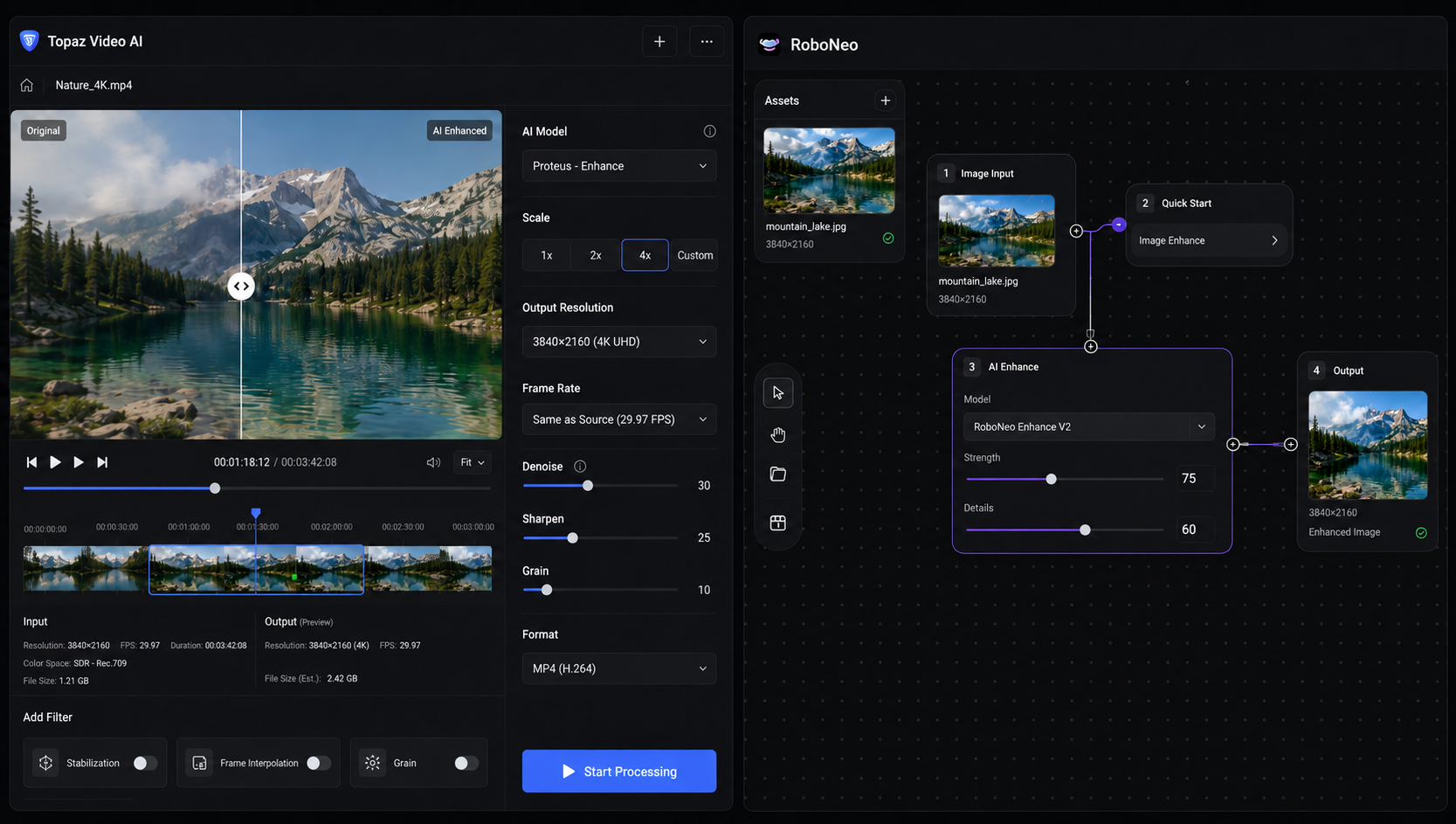
Fixing a blurry or low-resolution video is not always a matter of choosing the tool with the longest feature list.
Some users want a desktop app they can fine-tune for hours. They are comfortable testing several AI models, adjusting denoise strength, changing codecs, and waiting through long local renders. Others have a much simpler goal: upload a short clip, make it cleaner, and get it ready for YouTube, TikTok, an ad campaign, or a product page.
Topaz Video AI and RoboNeo fit those two workflows in different ways. Topaz focuses on desktop processing, detailed controls, and multi-step restoration. RoboNeo runs in the browser and keeps the enhancement process shorter, which is useful when speed and convenience matter more than access to every technical setting.
Both can improve low-resolution footage. The better choice depends on the video itself, how much control you need, where the file can be processed, and what you plan to do with it afterward.
What Is Topaz Video AI?
Topaz Video AI is a desktop video enhancement program for Windows and macOS. The current product is marketed as Topaz Video, although many users still search for it by the older Topaz Video AI name.
The software goes beyond basic upscaling. It can reduce noise, sharpen soft footage, stabilize shaky video, create additional frames, reduce motion blur, deinterlace older recordings, and prepare standard-definition clips for larger outputs.
Its main advantage is control. A user can choose different AI models for different problems, adjust enhancement strength, test previews, change export settings, and combine several restoration steps in one project. That level of control can be useful with difficult footage.
Consider an old camcorder tape. The image shakes, moving subjects show interlaced lines, and the darker areas are full of grain. A project like that may need stabilization, deinterlacing, denoising, and upscaling rather than a single enhancement pass. Topaz gives the editor room to build that kind of workflow.
The trade-off is time and complexity. Results can change noticeably depending on the model and settings. A poor choice may leave skin looking too smooth, edges surrounded by halos, or fine texture flickering from frame to frame.
Local rendering also depends on the computer. Larger models, long videos, and high-resolution exports can place a heavy load on the GPU, memory, and storage.
What Is RoboNeo AI Video Enhancer?
RoboNeo AI Video Enhancer works directly in a browser. There is no desktop application to install, no model package to download, and no need to configure a local GPU before processing a clip.
The workflow starts with the problem in the video rather than a list of technical model names. Users can upload a clip, improve clarity, reduce visible noise, address weak lighting or compression damage, and prepare the result for a higher-resolution output.
That approach is easier to pick up when video restoration is not your main job.
Imagine a marketing coordinator working with a phone-shot product demo. The edit is already finished, but the image looks slightly soft and the shadows are noisy. The team does not need deinterlacing, frame interpolation, or a custom multi-model restoration pipeline. It needs a cleaner file for an upcoming campaign.
RoboNeo is built for that kind of task: upload, enhance, review, and continue with publishing or editing.
Because the processing happens online, users do need to upload the file. Network speed matters, particularly with larger videos. Sensitive client footage, confidential campaigns, or private family recordings should also be handled according to the organization's privacy requirements.
Topaz Video AI vs RoboNeo: Key Differences
The main difference is not whether either tool can upscale a video. Both can.
What changes is the workflow around that enhancement.
Feature | Topaz Video AI / Topaz Video | RoboNeo AI Video Enhancer |
Access | Installed on Windows or macOS | Used in a web browser |
Processing | Primarily local, with cloud options available | Cloud-based |
Hardware dependence | Performance depends heavily on the computer | Lower local hardware demand |
Controls | Multiple models, filters, and manual settings | More streamlined and automated |
Learning curve | Higher | Lower |
Best fit | Long videos, batch jobs, complex restoration | Short videos, marketing clips, and quick enhancement |
File handling | Can remain local | Must be uploaded |
Main value | Detailed control | Speed and accessibility |
Desktop Software vs Browser-Based Tool
Topaz Video AI has to be installed before use. Models, cache files, previews, and exports all take up local storage. Rendering speed will vary depending on the computer and the selected enhancement model.
That can be a good fit for long projects. A one-hour interview, for example, may be easier to process locally than upload through a browser. The same is true for files that cannot leave the user's device.
RoboNeo removes that setup. Open the tool, upload the video, and start working. Switching to another laptop does not mean reinstalling the app or checking whether the GPU meets the requirements.
For a team moving between office computers, home devices, and client workstations, that flexibility can be useful. The trade-off is reliance on upload speed and cloud processing.
Video Quality and Detail Enhancement
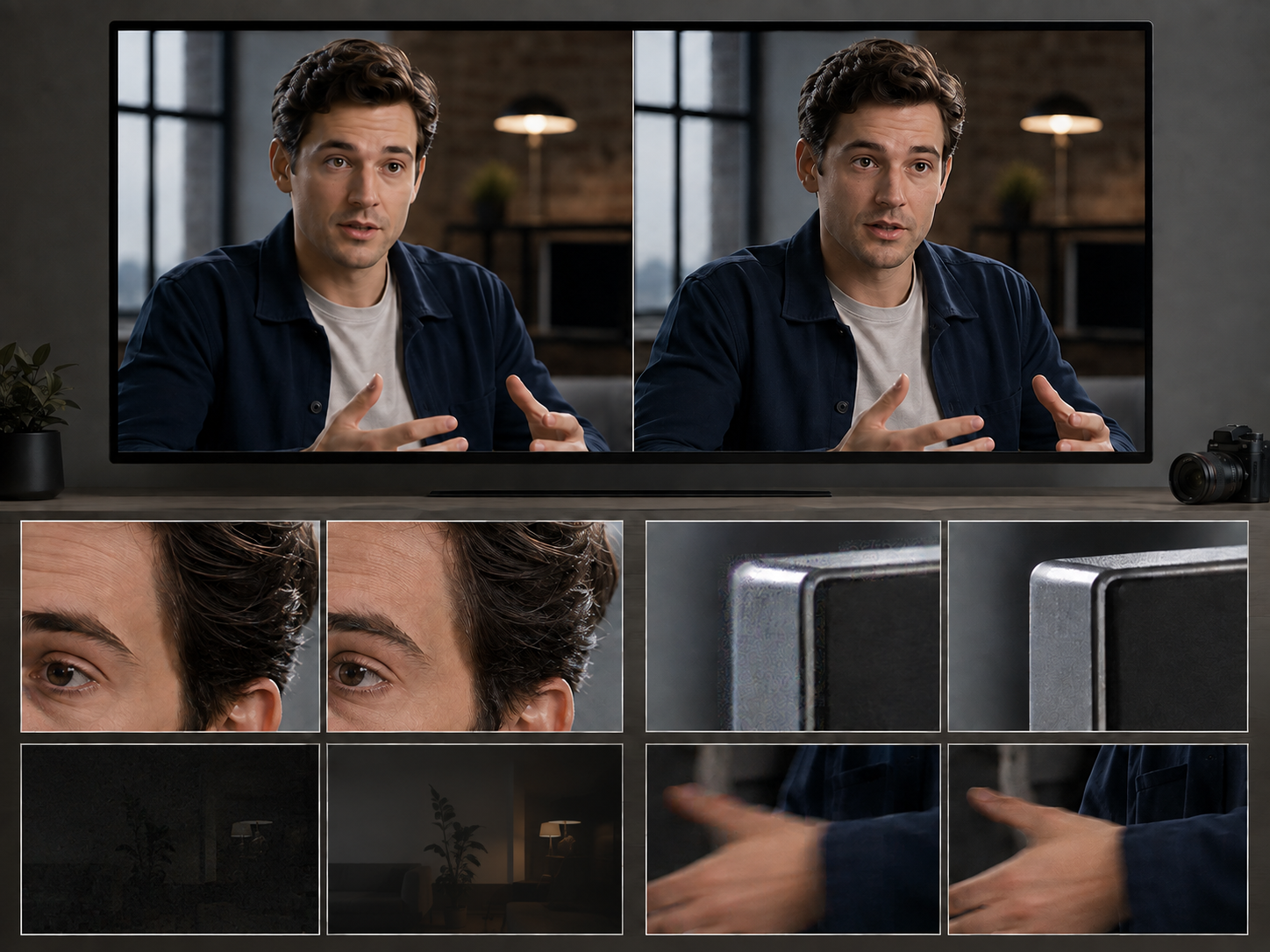
A fair quality comparison requires more than placing two screenshots side by side.
The same source clip should be tested in both tools using the same target resolution, frame rate, and similar export settings. Then watch the entire sample. A single frame may look sharp while the moving video shows flickering hair, unstable skin texture, or halos around the subject.
Several areas deserve attention:
Faces, hair, and skin texture
Text and product edges
Noise and compression blocks in shadows
Ghosting or flicker during fast movement
Detail stability from one frame to the next
Topaz gives experienced users more ways to target individual problems. Different models and filters can be tested for noise, motion blur, interlaced footage, or weak facial detail.
RoboNeo takes a more direct route. It reduces the number of technical decisions and keeps common enhancement tasks inside one workflow. That can help users avoid overprocessing a clip simply because they selected the wrong model or pushed too many settings at once.
Neither tool can ignore the source quality.
A slightly soft interview with a recognizable face may improve well. A license plate reduced to four blurry pixels will not suddenly become accurate text. AI can estimate missing patterns, but it cannot verify details the camera never captured.
Ease of Use and Learning Curve
Topaz Video AI asks the user to make more decisions.
Which model fits the footage? Should stabilization be applied before enhancement? How much detail recovery is too much? Which codec, bitrate, and container should be used for export?
That freedom is valuable when the user understands the settings. It can also slow down a simple job.
RoboNeo keeps the path shorter. Users can focus on what looks wrong in the video, choose the enhancement direction, review the result, and export it.
For a restoration specialist, fewer controls may feel limiting. For a social media manager trying to improve a 20-second ad before launch, the shorter process may be exactly the point.
Video Length and Use Cases
Topaz is better suited to projects that involve long footage, repeated testing, batch processing, or several restoration steps.
Digitizing old tapes is a good example. One recording may need deinterlacing. Another has camera shake. A third needs heavy denoising before it can be enlarged. Saving presets and running files through a local queue makes sense in that environment.
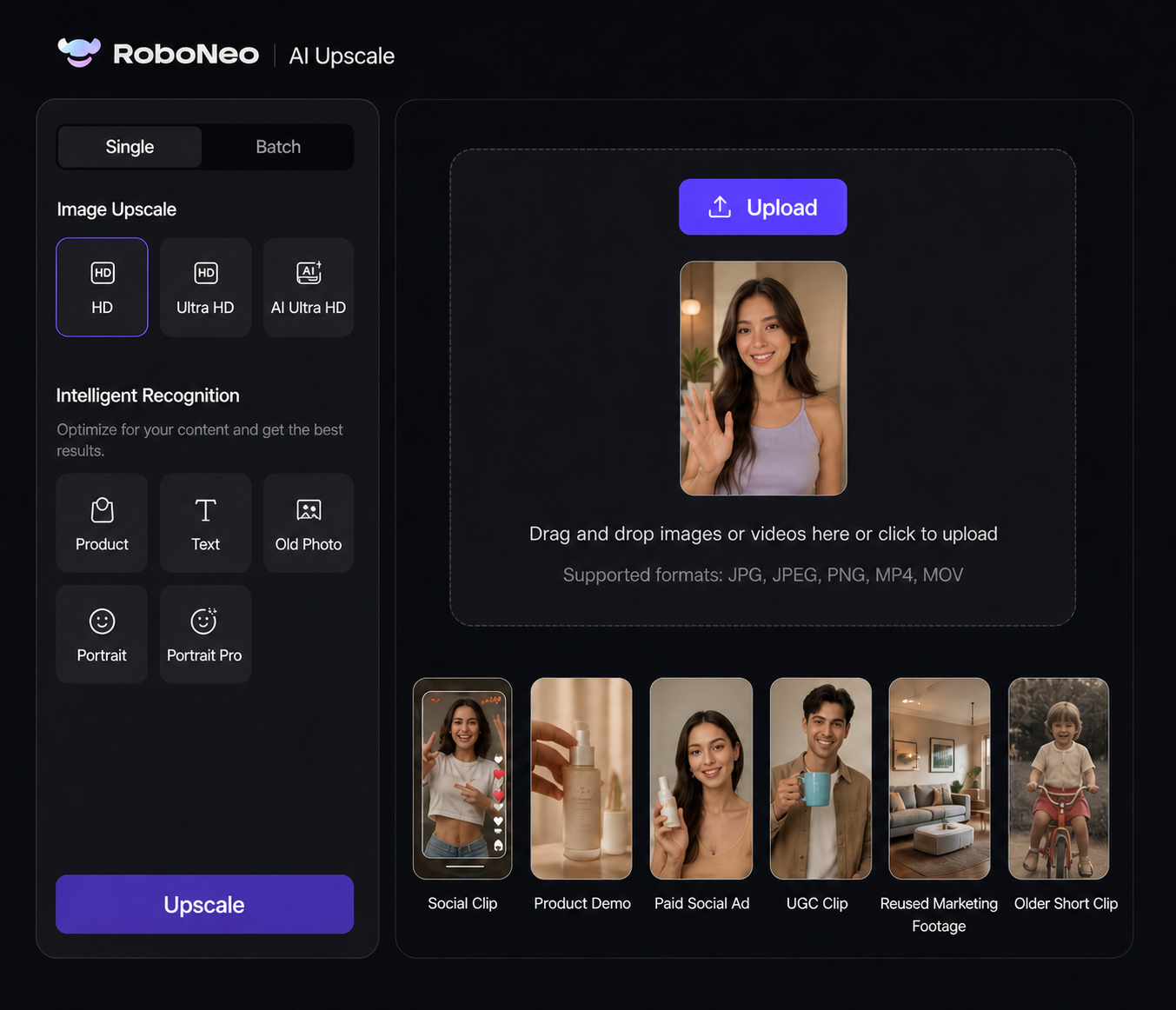
RoboNeo is a stronger fit for shorter, finished, or nearly finished content. For phone-shot creator footage, the right AI features for enhancing UGC video quality depend on whether the clip mainly suffers from blur, noise, weak lighting, compression, or unstable motion.
TikTok, Instagram, and YouTube clips
Product demonstrations
Paid social ads
UGC videos
Marketing footage reused across several channels
Older short clips that need quick cleanup before publishing
These projects usually have a tighter turnaround. The user is less interested in building a restoration pipeline and more interested in getting the footage ready for the next step.
Pricing and Overall Value
Pricing can change, so a monthly fee alone is not a reliable way to compare value.
Topaz users may need to account for more than the software subscription. Local rendering depends on the computer, and heavier projects may require a stronger GPU, more memory, or additional storage. There is also the time spent learning models, testing settings, and waiting for renders.
For someone who processes large volumes of footage and already owns a capable workstation, that investment can make sense.
RoboNeo lowers the local setup cost. Users do not need to purchase a high-end editing computer just to run an enhancement tool. It may offer better practical value for people who process videos occasionally, work mostly with short-form content, or use other RoboNeo tools in the same content workflow.
A useful comparison should include:
Average video length
Number of videos processed each month
Local hardware costs
Time spent testing settings
Need for advanced restoration controls
Whether cloud uploads are acceptable
Topaz Video AI vs RoboNeo: Which Tool Should You Choose?
The right answer starts with the project, not the brand name.
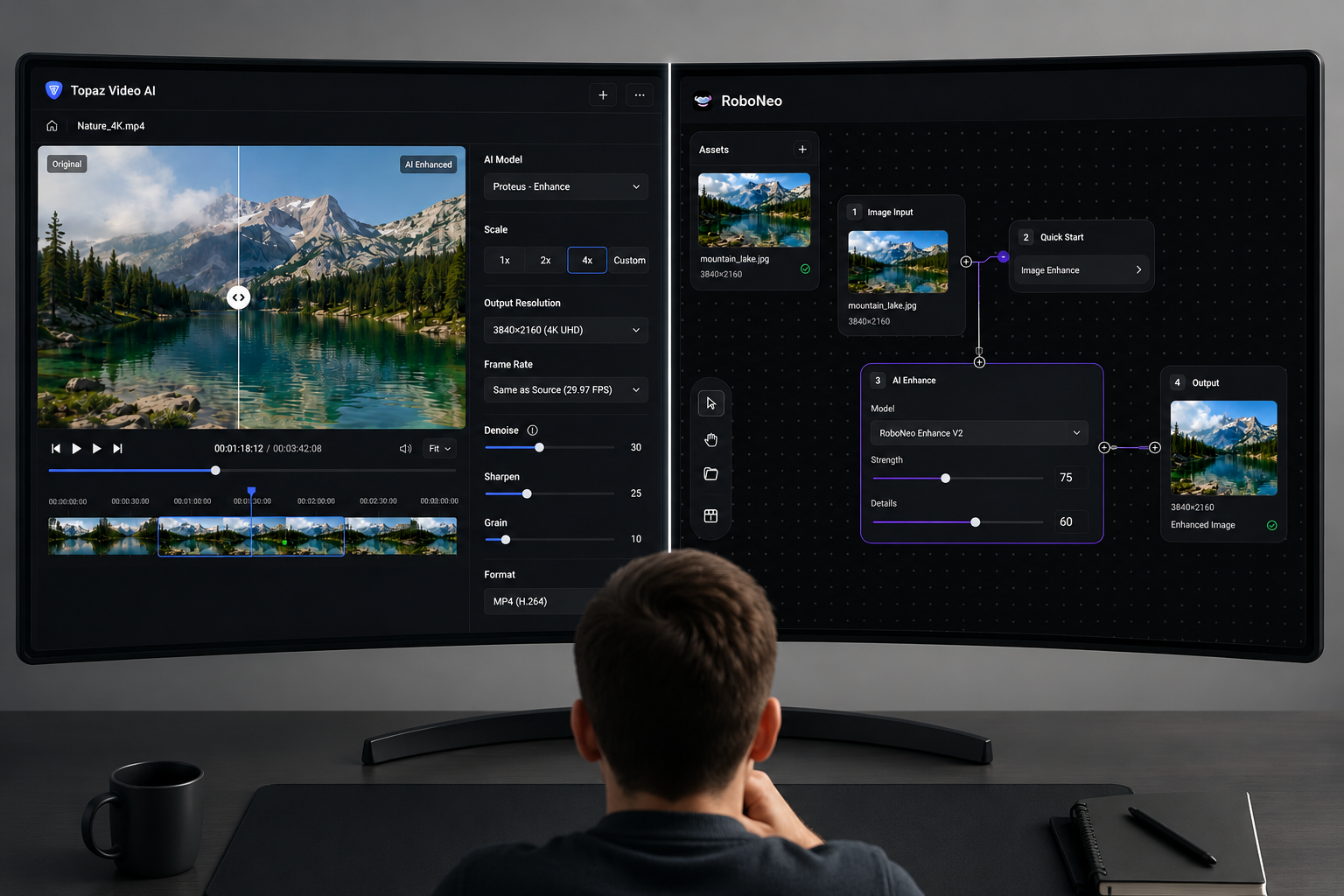
Choose Topaz Video AI for Advanced Video Restoration
Topaz makes more sense when the footage has several technical problems at once.
A low-resolution home movie may also be interlaced, shaky, noisy, and full of motion blur. Fixing that clip properly could require several passes and different settings for different scenes.
Topaz provides more room for that level of work. The learning curve is higher, but so is the amount of manual control.
Choose Topaz Video AI for Long or Sensitive Videos
Uploading a large file can take time. With a two-hour interview or a folder of archival recordings, that delay adds up quickly.
Local processing can also be important for confidential client work, unreleased campaigns, legal material, or private family footage. If the file should not be uploaded to a third-party service, a desktop workflow is the safer fit.
The computer still needs enough power to handle the job. A demanding model on underpowered hardware may turn a long project into an even longer render.
Choose RoboNeo for Fast, Browser-Based Enhancement
Not every blurry video needs a professional restoration setup. A short product clip may only need cleaner edges, a higher output resolution, and some video denoising to reduce visible grain without building a full restoration workflow. In that situation, installing desktop software and testing several AI models adds work without necessarily improving the final result.
RoboNeo keeps the process focused:
1. Upload the video.
2. Choose the enhancement goal.
3. Review the result.
4. Export the improved version.
For creators and teams that value speed, this can be a more practical workflow.
Choose RoboNeo for Social Media and Marketing Videos
Marketing content rarely stays in one place.
A single product demo might be used in a YouTube video, cut into an Instagram Reel, cropped for TikTok, and turned into a paid ad. If the original clip is soft or noisy, improving it before those edits gives every channel a better starting point.
RoboNeo is well suited to this kind of reuse. Short clips can be enhanced without building a complex desktop project, then passed into the next stage of production.
That matters when deadlines are measured in hours rather than days.
Compare Both Tools with a Representative Video Clip
For an important project, testing both tools is more useful than reading another feature list. The same approach also helps when comparing workflows such as RoboNeo vs Canva AI Video Generator, where ease of use and social content production may matter as much as the feature count.
Choose a 10- to 20-second section that includes a face, hair, text, darker areas, fine texture, and some movement. Use the same output resolution and similar export settings in both tools.
Then watch the clip at normal speed.
Look for natural faces, readable text, stable edges, clean shadows, and textures that do not flicker. Processing time matters too. So does the amount of effort required to reach the result.
Topaz may be worth the extra setup when its controls solve difficult problems that appear throughout the project. When RoboNeo already produces a clean, stable result with fewer steps, a more complicated workflow may not add much value.
FAQ
Can Topaz Fix Blurry Videos?
Topaz can improve mild blur, motion softness, and weak edges. Severe missed focus or detail that has already disappeared cannot be fully recovered.
What Is the Best Version of Topaz AI?
There is no single best version for every video. The current product is Topaz Video, while older users may still refer to Topaz Video AI. Results depend more on the source, model, and settings than the product name alone.
What Is the Difference Between Topaz AI and Topaz Video?
"Topaz AI" is often used as a general name for Topaz Labs' AI products. Topaz Video is the product made specifically for video upscaling, denoising, stabilization, interpolation, and restoration.
Which Tool Is Better for Upscaling Videos to 4K?
Topaz is better suited to long footage, complex restoration, and projects that need detailed manual control. RoboNeo is more convenient for quickly enhancing shorter clips in a browser.
A 4K export does not guarantee native 4K detail. Test the same source in both tools before deciding.
Which Tool Is Better for Enhancing Old Home Videos?
Topaz is the stronger option when the footage is long, interlaced, shaky, or must remain on the local computer.
For a shorter family clip that mainly needs less noise, better clarity, and a higher resolution, RoboNeo offers a simpler online workflow. In either case, start with the cleanest original file available.
You May Be Interested
How to Turn Long YouTube Videos into TikToks with an AI Video Clip Generator
Best Free AI Video Generator: Top Tools to Try

How to Choose the Right Free AI Music Video Generator in 2026
How to Enhance Sora AI Video Quality: Step-by-Step Guide
How to Remove Background Noise from Video: Easy Guide