What Is Seedance 2.0? Features, Uses, and How It Works
 RoboNeo TeamSeptember 9, 2026
Seedance 2.0 is an AI video generation model built by ByteDance. Give it text, images, video, or audio, and it produces a short clip with visuals, movement, camera work, and sound—all based on what you ask for.
It's a video generation model, not a standalone video editor. What you can actually do with it—which inputs work, how long clips are, how good the output looks, and what it costs—depends on the platform you use to access it.
This article walks through what Seedance 2.0 is, what it can do, how it works under the hood, and where it's most useful. We'll also cover its limitations, how to try it for the first time, and common questions about pricing, access, and commercial use.
What Is Seedance 2.0?

Seedance 2.0—what is it, exactly? Two things are worth getting straight: what you can feed into the model, and how the model itself differs from the platforms you use to access it.
You can start with just a text prompt—describe a person, an action, a setting, and the model generates a scene from that. But you can also add reference media to steer the result: an image of a character or product, a video clip showing the movement or camera angle you want, or an audio track for dialogue, rhythm, or mood. The more specific your references, the less the model has to guess. For example, a fashion brand could upload a photo of a new handbag and describe a model carrying it through a sunlit studio. The model keeps the bag accurate while generating the model, studio, and walking motion around it.
Seedance 2.0 itself is just the AI engine that generates video—you don't interact with it directly. Instead, you access Seedance 2.0 on RoboNeo or another platform like Dreamina through an interface built on top of the model. This matters because a platform might not expose every feature the model is capable of. One platform might let you upload audio references; another might only support text and images. It's also worth double-checking which version you're using—Seedance 2.0 is different from 1.0, 1.5 Pro, or any other model in the same menu.
Key Features and Benefits of Seedance 2.0
Now that we've covered the basics, here's what Seedance 2.0 actually brings to the table. The table below summarizes its five core features, and each one is explained in more detail right after.
| Feature | Supported Inputs | What It Does | Creator Benefit | Main Consideration |
| Multimodal Inputs | Text, image, video, audio | Interprets multiple forms of creative information | Build from existing assets | Platform support may vary |
| Reference-Based Control | Image, video, audio | Guides appearance, movement, and sound | Reduces creative guesswork | Results won't exactly match references |
| Native Audio and Video | Text, audio | Handles sound and visuals together | Produces a fuller draft faster | Sync needs review |
| Multi-Shot Generation | Text and references | Creates several connected shots | Develops short narratives quicker | Continuity can vary |
| Video Extension and Editing | Existing video | Continues or modifies footage | New ideas without restarting | Longer clips may drift |
Multimodal Inputs
Seedance 2.0 can work with text, images, video, and audio—either one at a time or several together. This matters because some things are hard to put into words. Instead of describing exactly what a product looks like, you can upload a photo and let the model start from there. A furniture company, for example, could upload a picture of a new chair and write a prompt for a modern living room with a slow camera push-in. The photo keeps the chair on-brand while the model fills in the room, lighting, and movement. Just know that not every platform supports all four input types.
Reference-Based Control
In a reference image-to-video workflow, an image might control what a character looks like or how a product is designed. A video clip can show how a person should move, how fast the action should happen, or how the camera should behave. Audio sets the tone—dialogue, music rhythm, or the overall mood of a scene. This makes it faster to test different ideas while keeping the core visual consistent. But references are guides, not templates. The model won't copy your source material exactly; it interprets it and generates something new, so small details will almost always shift.
Native Audio and Video
Most video tools treat visuals and sound as separate jobs. Seedance 2.0 can handle both in the same generation. Depending on the platform, a scene might come with dialogue, background noise, sound effects, or music timed to the action. A cafe scene could include overlapping conversation, room tone, and a barista steaming milk—all generated alongside the visuals. This gets you to a rough cut with sound much faster than generating silent footage and adding audio later. Just plan to review carefully: dialogue timing, lip movement, and sound sync can still be off.
Multi-Shot Generation
You're not stuck with a single camera angle. Seedance 2.0 can generate several connected shots in one pass. A coffee ad might open on a wide kitchen shot, cut to a close-up of beans dropping into a grinder, and finish on steam rising from a cup. This is much faster than generating each shot separately and trying to make them feel cohesive. It's not perfect, though—faces, clothing, props, and lighting can change between shots, so check continuity carefully.
Video Extension and Editing
If you already have a clip you like, Seedance 2.0 can use it as a starting point. It can extend the clip by generating what happens next, or create a variation based on the original movement, composition, and style. A five-second shot of someone riding a bike could become a longer side-tracking sequence without rebuilding the opening from scratch. This is great for trying out different endings or camera moves. The tradeoff: the longer you extend, the more likely the subject and background are to drift in noticeable ways.
How Seedance 2.0 Works

Understanding what the features do is helpful, but seeing how the model actually turns your inputs into a video explains why some approaches work better than others. The process happens in three stages, though you won't see them as separate steps in the interface.
Interpret the Inputs
First, the model reads your prompt and picks out the key details: who or what is in the scene, what's happening, where it takes place, what it should look like, and how the camera should move. Any media you upload adds more specific information. A portrait tells the model what a character looks like. A product photo defines shape, color, and materials. A video reference shows movement that would take paragraphs to describe. An audio clip sets rhythm, dialogue, or mood.
Connect the References
When you upload more than one reference, the model has to figure out how they all fit together. This is where your instructions matter most. If you say one image is the character, another is the location, and a video clip is the camera movement, the model has a clear map to follow. If your references conflict—say, a front-facing character photo paired with a movement video shot from the side, or two images with completely different lighting—the model may ignore some inputs or produce inconsistent results. More references don't always mean more control. Clear, compatible references do.
Generate the Video
Finally, the model puts it all together and generates a sequence of frames showing the action and camera movement you described. If sound is involved, it also generates or matches audio to what's happening on screen. Multi-shot generations are harder because the model has to keep the subject and environment consistent as the camera changes. Even with the exact same prompt, two generations can come out noticeably different—that's normal, and comparing a few versions is usually part of the process.
Best Uses for Seedance 2.0
What Seedance 2.0 is useful for becomes clearer when you look at how it fits into a real creative workflow. These are the project types where it tends to be most useful.
Product and Ad Videos
Seedance 2.0 is strong for product showcases, social ads, and early campaign concepts. When planning how to make a product video, upload a product photo to keep the item accurate, then use text to describe the setting, action, and camera. A skincare brand could test a bottle in half a dozen environments—reflective glass with water, a softly lit bathroom, a minimalist counter—before booking a real photographer. The generated clips help teams compare directions quickly. Just remember that packaging text, logos, and fine details should be added or corrected in post.
Short Story Scenes
If you're working on a short narrative, Seedance 2.0 can help you visualize scenes quickly. Use a character image and an environment reference to keep the basic look consistent, then describe the action and camera changes. A filmmaker developing a sci-fi sequence could generate someone walking into a futuristic station, noticing another person, and starting toward them. For longer stories, generate each scene separately and edit them together rather than trying to produce one long continuous clip.
Music and Social Videos
Music teasers, social shorts, and any content that lives or dies by rhythm are a natural fit. Upload an audio clip to set the pace and mood, then test different visual styles against it. A musician could compare a neon-lit performance concept with a quieter, cinematic treatment without building either set in real life. The clips are rough, but enough to decide which direction is worth developing. Always review the final version for natural movement, smooth transitions, and solid audio-visual sync.
Storyboards and Previews
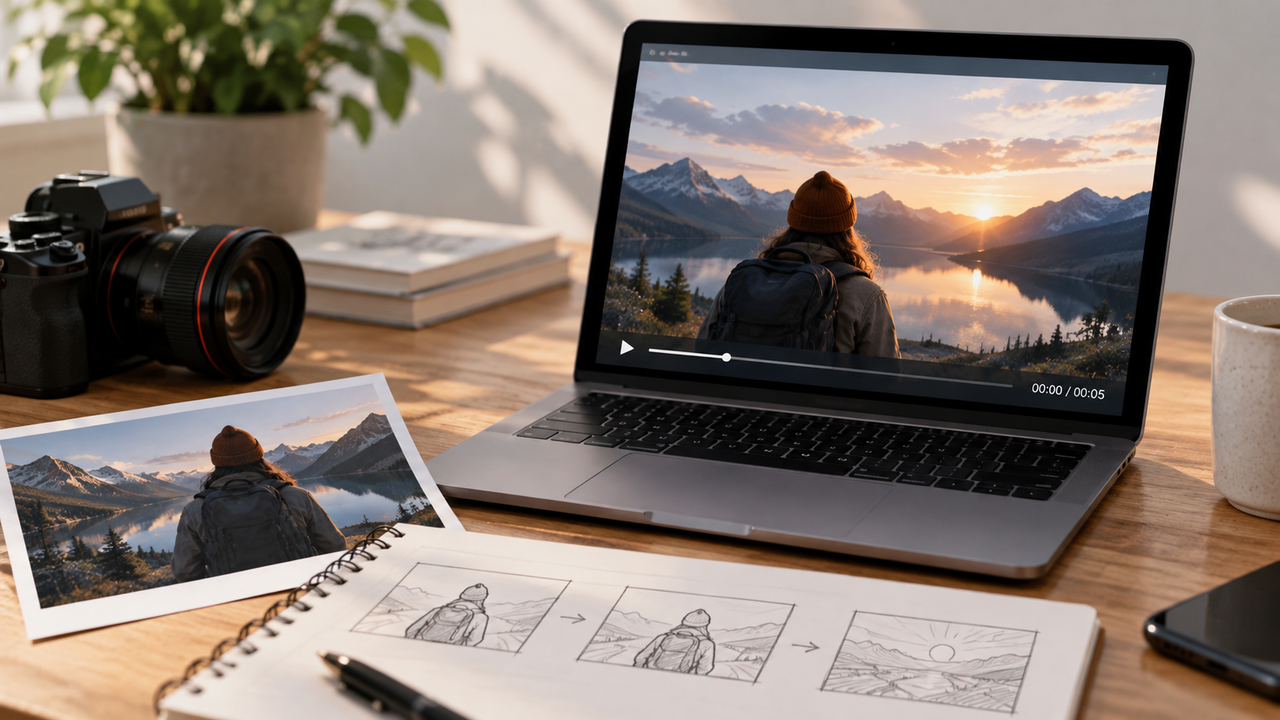
Seedance 2.0 isn't just for finished content—it's also useful during planning. An agency could turn storyboard frames into a short moving preview, showing clients the intended pacing, shot order, and camera direction in motion rather than as static images. This makes it easier to align on a concept before production starts. These previews are communication tools, though—not precise blueprints for camera placement, actor blocking, or final shot design.
Where Seedance 2.0 Falls Short
Every AI tool has limits, and knowing them upfront saves time and frustration. These areas overlap with common limitations of current AI video generation and are where Seedance 2.0's shortcomings are most likely to show up.
Long-Form Continuity
Seedance 2.0 is built for short clips, not for generating an entire long-form video in one go. When you generate separate scenes, a character's face, clothing, props, or surroundings can shift slightly from one clip to the next. Those small differences become obvious when you cut clips together. For longer projects, break the story into individual scenes, generate each one separately, and assemble them in editing. Maintaining consistent performance and narrative across a long piece still requires human control.
Precise Visual Details
Small details are where AI video generation still struggles. Text, logos, labels, and small graphics can come out garbled or wrong. Hands, object interactions, and complex multi-person action may look fine at a glance but fall apart on closer inspection—a bottle might have realistic lighting while the label text is unreadable. Anything that needs to be accurate—subtitles, branding, product info, legal disclaimers—should be added in post rather than trusted to the model.
Conflicting References
Piling on references doesn't give you more control; it often gives you less. If you upload a character portrait, a movement video, a lighting reference, and a style image, they may each pull the output in a different direction. The model will prioritize some cues and weaken or ignore others, and you won't always know which until you see the result. If a generation feels off, try removing references before adding more. For complex scenes, break them into simpler shots with a clearer, more focused set of inputs.
How to Try Seedance 2.0
You don't need a big project to get a feel for Seedance 2.0. A short scene with one clear action is enough to see how the model responds to different inputs. Here's a simple four-step process for your first test.
Step 1: Open the Video Generator
Pick a platform that offers Seedance 2.0 and make sure you've selected that specific version in the model menu—not an older model. If you want to test different video models in one place, the RoboNeo video generator lets you check what's currently available. Before spending credits, review the platform's supported inputs, maximum clip length, output resolution, credit costs, and export rules—these can vary quite a bit from one platform to another.

Explore Seedance 2.0 on RoboNeo
Step 2: Add the Input
If you're learning how to make AI videos, start with just a text prompt if you don't have existing materials. If you have a specific person, product, or location in mind, upload a clear reference image—it gives the model much more to work with than text alone. Add a video reference if you need to control action or camera movement specifically. Only add audio if the platform supports it and if the sound serves a clear purpose. And only upload materials you own or have permission to use.
Step 3: Describe the Video
Your prompt should cover the subject, main action, environment, visual style, and camera movement. Something like "A woman opens an umbrella on a rainy street while the camera slowly circles to the left" gives the model a clear action and one camera direction. Try to keep one main action per short shot. Cramming in multiple characters, several actions, changing weather, and three camera moves at once makes the output much harder to control. If you're using multiple references, say what each one is for.
Step 4: Generate and Review
Start with a short clip and review it carefully. Check the subject, movement, sound, background, and whether everything stays consistent from start to finish. If something needs fixing, change only one major element at a time—if the character looks right but the movement feels off, adjust the action description or movement reference instead of replacing everything at once. Once you have a version you're happy with, take it into editing to add subtitles, precise logos, music, and other finishing touches.
FAQ
Who created Seedance 2.0?
Seedance 2.0 was developed by ByteDance's Seed team. It's a generative AI video model, not traditional editing software, and most people access it through third-party platforms that have integrated the model.
Is Seedance 2.0 free to use?
It depends on the platform and your account plan. Some services offer signup credits or a limited number of free generations. Free plans typically cap how much you can generate, clip length, resolution, or export rights. Always check the platform's current pricing page before committing to a larger project.
Where can I access Seedance 2.0?
You can use it through AI video platforms that have integrated Seedance 2.0. Regional availability, supported inputs, and model versions differ from one platform to the next. Confirm that the platform explicitly lists Seedance 2.0—not just "Seedance" or another version number.
Does Seedance 2.0 generate sound?
Yes. Seedance 2.0 supports combined audio and video generation, including dialogue, ambient sound, music timing, and other audio elements. The specific features depend on the platform. Any important dialogue or sound effects should be reviewed manually before export.
Can Seedance 2.0 videos be used commercially?
Commercial use depends on the platform's terms, your account plan, and its licensing rules. You also need to make sure you have rights to any images, video, music, people, characters, or branded materials you upload. Don't use protected characters, film clips, or real person likenesses without permission. A platform allowing commercial use doesn't automatically mean every generated element is free of third-party rights issues.
You May Be Interested
Seedance 2.0: The Best Cinematic AI Video Generator for Social Media Ads?
How to Use Seedance 2.0: Inputs, Prompts, and Final Edit
Seedance 2.0 vs Sora: What They Are and Which Is Better
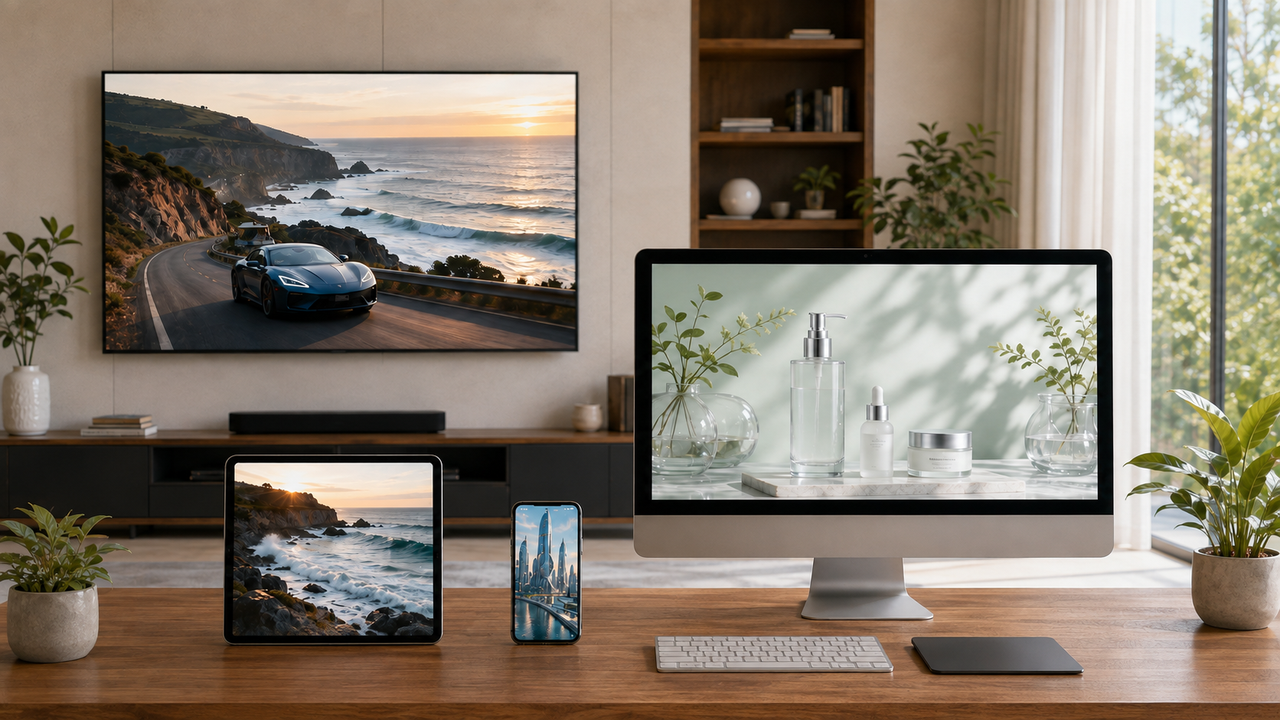
Where Can I Use Seedance 2.0: Compare the Best Platforms
Best AI Text to Video Generator: Tools Compared for 2026
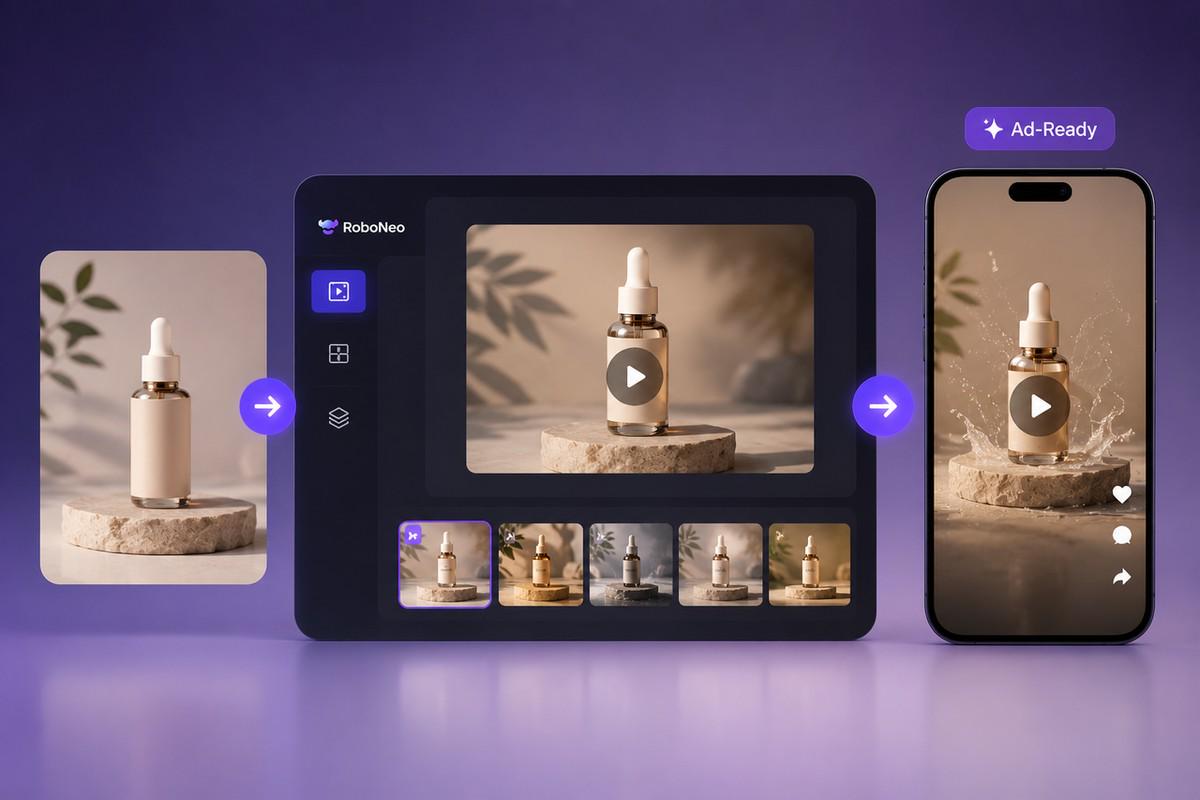
Best AI Video Generator 2026: 6 Top Tools Compared
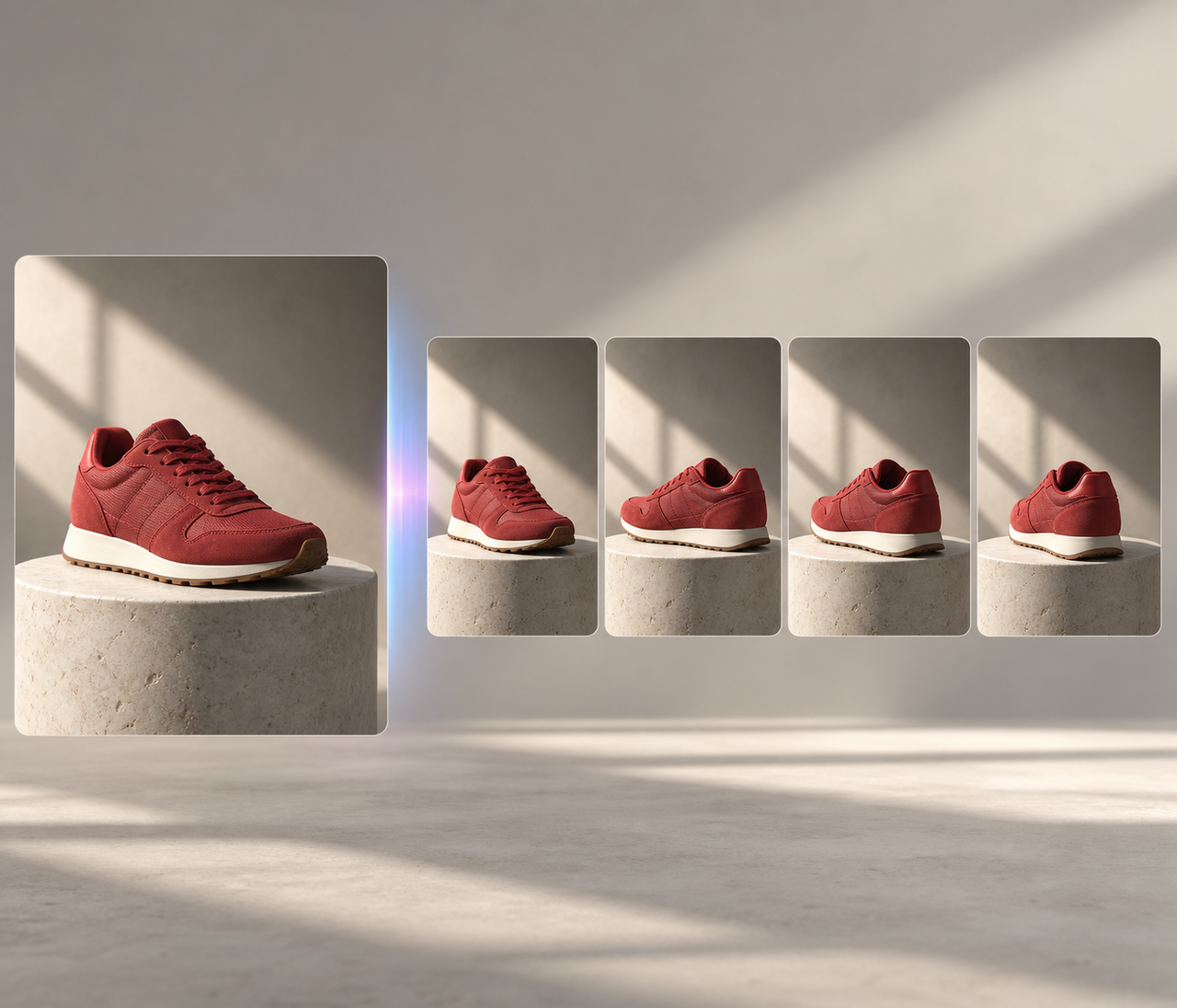
What Is AI Video: How It Works and How to Get Started