How to Upscale 1080p to 4K in 2026?
 RoboNeo TeamAugust 6, 2026

You finish a 1080p edit and it looks fine on your laptop. Then it reaches a 65-inch TV and feels softer than you remember. Is a 4K export worth the extra processing and storage?
Often, yes. Clean 1080p footage can benefit when headed for a 4K screen, editing timeline, or supported platform. Upscaling improves presentation, but cannot replace detail that was never captured.
What Are the Benefits of Upscaling 1080p to 4K?
The strongest reason to upscale is not bragging rights. It is compatibility. A larger output can help older footage sit more comfortably inside the screens and projects people use today.
Better Playback on 4K Displays
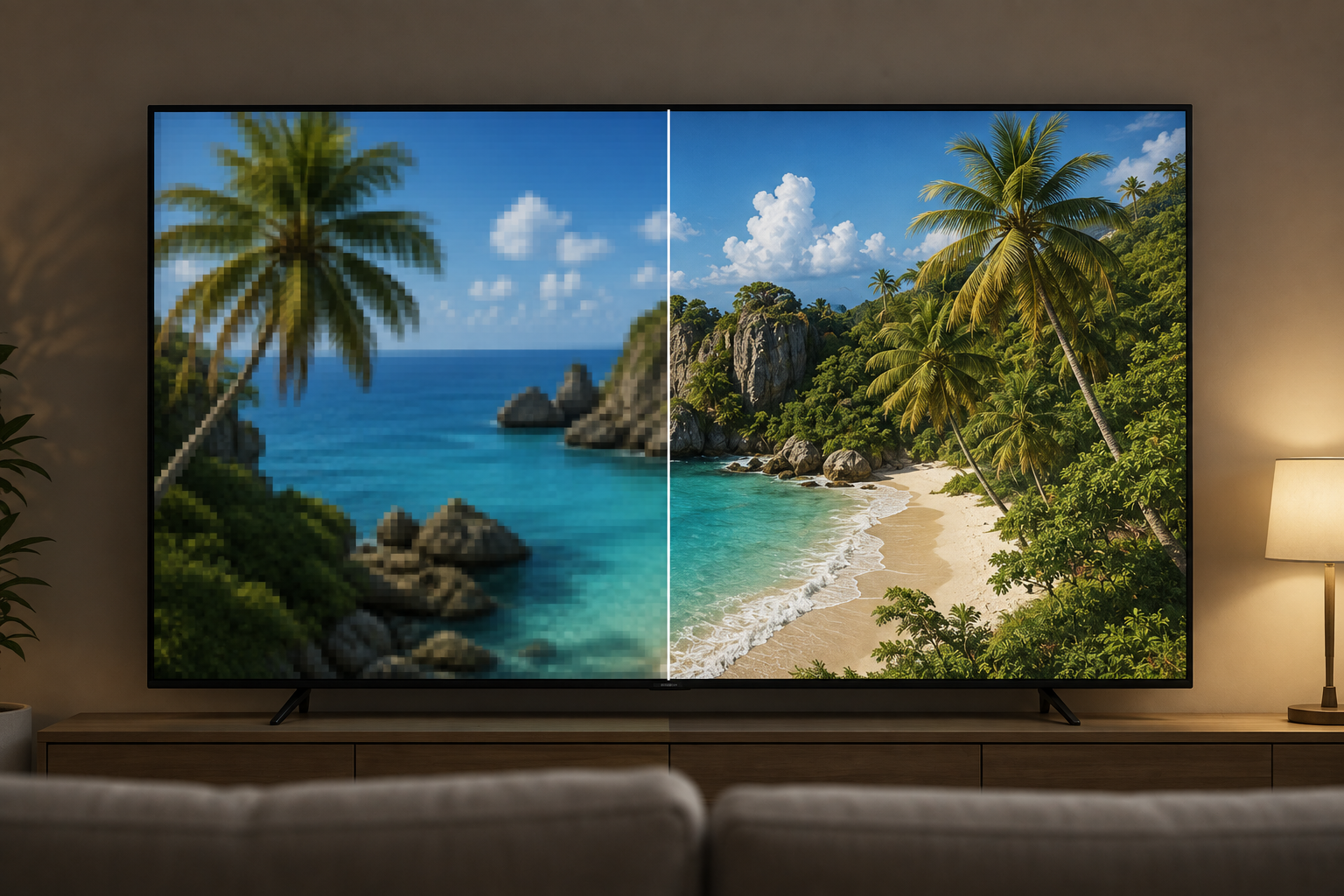
Full HD video contains 1920 × 1080 pixels. A consumer 4K UHD screen contains 3840 × 2160. When a 1080p movie fills that screen, either the TV, the playback device, or the software has to generate enough pixels to bridge the difference.
A capable upscaler can smooth diagonal lines and reduce the stretched look on a large panel. It works best with clean camera files and high-bitrate exports. From the couch, a strong 1080p source can look surprisingly close to native 4K.
Improved Detail and Perceived Sharpness
Basic resizing makes the frame larger. AI upscaling can go a step further by recognizing faces, product edges, hair, lettering, or fabric and estimating how those features might appear at a higher resolution.
The change is easiest to see around soft edges. It is perceived sharpness, not recovered detail: if a tiny label was never clear, no enhancer can guarantee the correct letters. This guide explains how 4K upscaling works in more detail.
4K Playback Options on Video Platforms
A 3840 × 2160 upload lets supported platforms offer 4K playback. That matters for smart-TV channels, trade-show demos, and campaign footage meant for reuse.
It is not a guaranteed quality hack. Platforms recompress uploads, and a 4K label says nothing about the source resolution. A badly compressed 1080p download can turn into a much larger file with the same muddy details.
What Are the Limits of Upscaling 1080p to 4K?
Upscaling is most convincing when the source already contains useful information. Once focus, exposure, or compression has removed that information, software has to guess.
Upscaled 4K Is Different From Native 4K
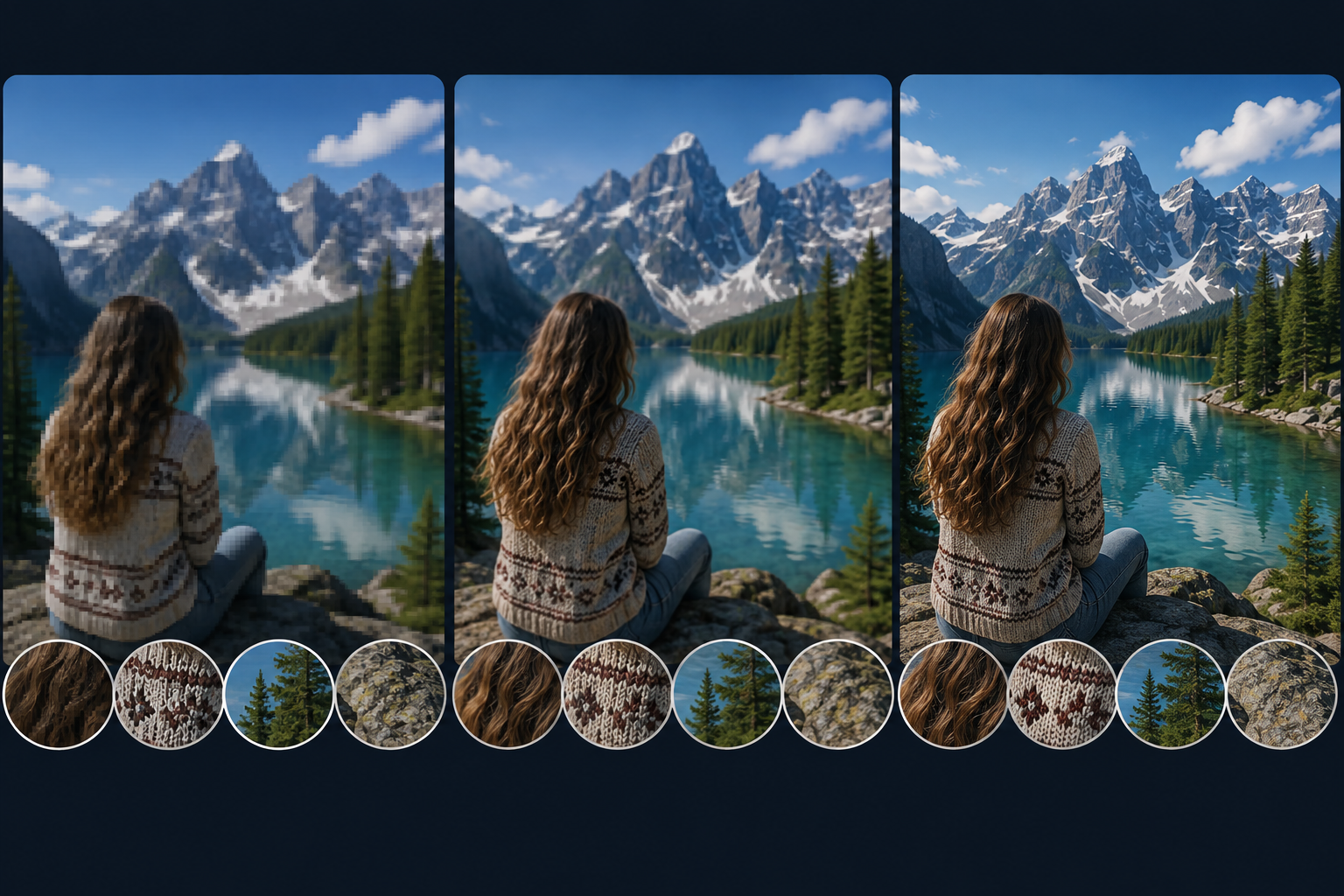
Native 4K was recorded or rendered at 4K from the beginning. Upscaled 4K starts with a smaller frame and builds the missing pixels through interpolation or AI prediction. Both files may measure 3840 × 2160, but they did not arrive there the same way.
Look at hair, patterned clothing, tree branches, distant signs, and fast movement. Native footage generally keeps those areas more stable and specific. Upscaled footage may look smooth, vague, or oddly crisp in places where the algorithm guessed wrong.
Severe Blur and Missed Focus Are Difficult to Repair
A touch of softness can respond well to restrained sharpening. Severe missed focus is another story. When an edge never appeared clearly in the source, AI may invent a plausible edge rather than recover the original one.
The same caution applies to motion blur. Tools may make a moving subject easier to see, but they cannot promise a faithful reconstruction of every frame. Poor exposure also needs separate correction rather than more output pixels, so a workflow for making a dark video brighter should come before upscaling when the shadows still contain usable detail.
Compression Artifacts May Become More Visible
Low-bitrate video often carries block patterns, ringing around text, banding in skies, and smeared texture. Enlargement makes those flaws larger too. Moderate cleanup can help; heavy denoising may wipe out pores, hair, and fabric until the image looks plastic.
When Should You Upscale 1080p to 4K?
The honest answer is not “always.” Upscale when the larger version solves a real delivery problem and the source is good enough to support the work.
The Video Will Be Watched on a Large 4K Screen
A living-room TV, digital sign, conference display, or large desktop monitor can expose softness that goes unnoticed on a phone. That makes a strong 1080p master a reasonable candidate. If viewers will mainly watch a vertical clip on a six-inch screen, the payoff may be hard to see.
The Footage Must Fit a 4K Editing Timeline
Editors frequently mix a new 4K interview with older 1080p B-roll. A careful upscale can make the change in sharpness less distracting and keep delivery specifications consistent. It still will not make both shots identical, so a natural blend matters more than maximum crispness.
The Video Cannot Be Reshot
Family recordings, licensed archives, and completed client footage may deserve extra work because there is no second take. RoboNeo supports connected AI workflows, but safe archiving remains old-fashioned: keep the untouched original.
The Gain Is Worth the Larger File
Run a short test before processing an entire folder. Sometimes the upgraded version looks cleaner on a TV and earns its extra storage. Other times, the only obvious change is the file size. In that case, the 1080p original is already doing its job.
AI Upscaling vs. Traditional Upscaling for 1080p Video
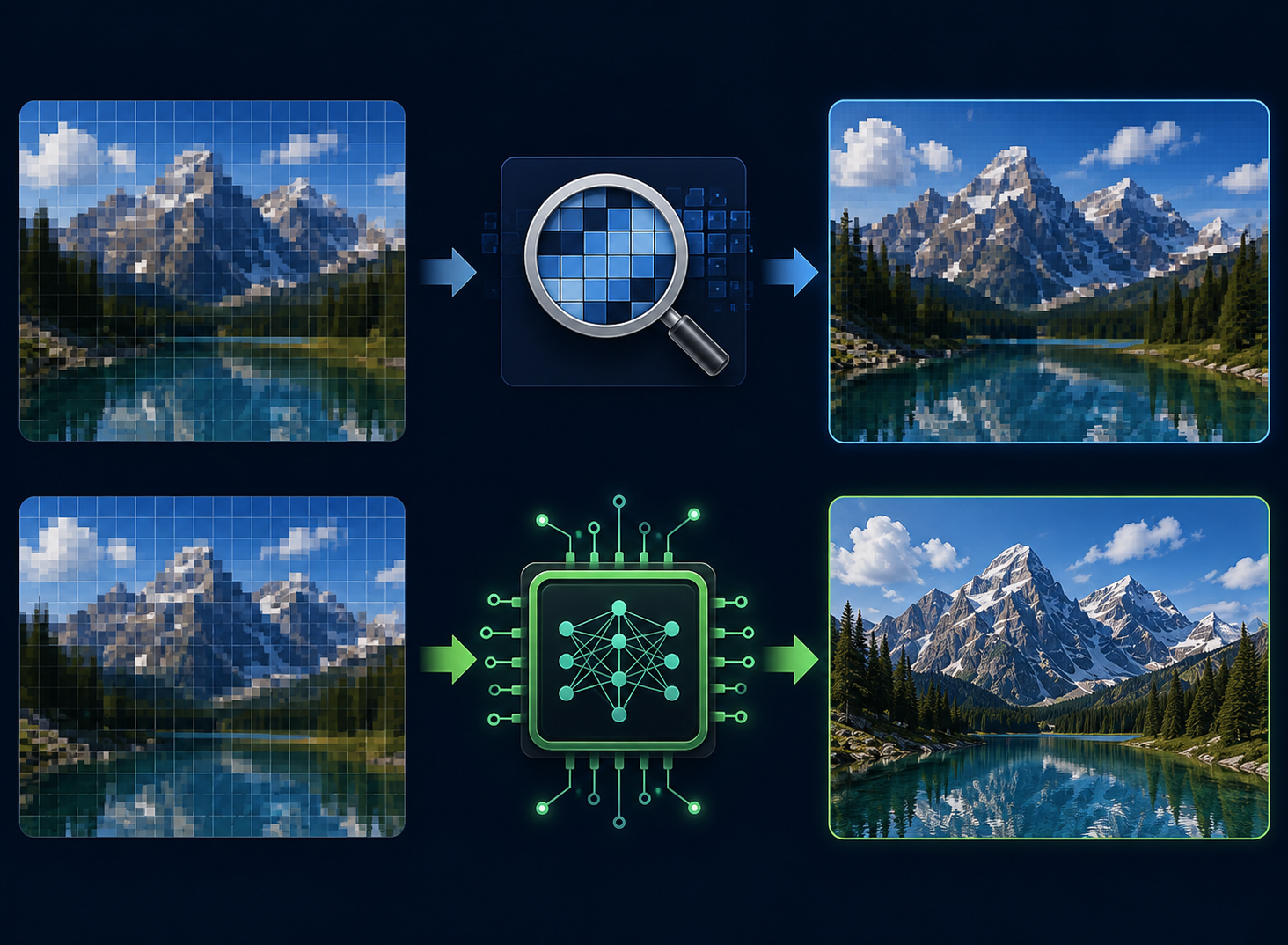
Traditional and AI methods can both create a 4K-size frame. They differ in speed, control, and how much they attempt to change the picture along the way.
| Comparison | Traditional Upscaling | AI Upscaling |
| Method | Pixel interpolation | Content-aware prediction |
| Speed | Usually faster | Usually slower |
| Detail enhancement | Limited | More noticeable |
| Noise cleanup | Usually separate | May be included |
| Best for | Clean footage and quick resizing | Soft, noisy, or compressed footage |
| Main risk | Soft output | Artificial detail |
Traditional interpolation may be enough for a clean camera file. AI offers more when noise, compression, or soft edges need attention. A dedicated AI video upscaling tool can handle the resolution change, but the moving preview ultimately shows whether the result still looks natural.
How Can You Upscale 1080p to 4K?
Do not begin with the strongest settings. Begin with the cleanest file you can find and a thirty-second section that includes a face, some text, fine texture, and movement.
Step 1: Import Your Original 1080p Video
Use the camera original or first high-quality export, not a copy saved from Instagram or a messaging app. Check the aspect ratio, frame rate, exposure, focus, and visible compression. Save a backup before making changes. For the complete process, from choosing a source file to checking motion artifacts, follow this AI video upscaling guide.
Step 2: Use an AI Video Enhancer for 4K Upscaling
Consider format support, clip length, batch needs, and control. This comparison of the best AI video enhancers shows why a social clip and damaged archive rarely need the same tool.
RoboNeo AI Video Enhancer offers 2K, 4K, and AI 4K+ output. Auto-Detect matches Portrait, Product, Night View, Natural, Game, or Animation footage without moving the clip through several apps.
Step 3: Enhance Other Video Details With AI
Start with automatic or moderate settings. Reduce distracting noise without wiping away skin and fabric texture, then add clarity slowly. Keep the source frame rate and aspect ratio unless the project calls for a change. Severe motion blur should be treated as a limitation, not something a resolution setting will magically repair.
Step 4: Preview and Export Your Video in 4K
Compare the source and result at 100% scale. Watch faces, hair, product labels, patterned clothing, foliage, and camera movement. Flicker, glowing edges, plastic skin, or letters that change between frames are signs to reduce the enhancement.
Export consumer 4K UHD at 3840 × 2160 and match the original frame rate. YouTube currently recommends 35–45 Mbps for standard-frame-rate 4K SDR uploads and 53–68 Mbps for high-frame-rate 4K SDR. Those numbers are specific to that upload workflow; another platform, codec, or HDR project may need different settings.
FAQs About Upscaling 1080p to 4K
Does Upscaling 1080p to 4K Improve Video Quality?
It can improve playback and perceived sharpness on a 4K screen. A clean, well-lit source benefits more than a blurry or heavily compressed clip.
Can 1080p Video Be Converted to True 4K?
It can become a 3840 × 2160 file, but it was not captured in native 4K. “Upscaled 4K” is the accurate description.
Does Upscaling Increase Video File Size?
Usually. Codec, bitrate, frame rate, duration, and compression settings also affect the final size.
What Bitrate Should I Use for Upscaled 4K Video?
Use the current guidance for the destination platform and match its codec, frame rate, and SDR or HDR requirements. There is no single bitrate for every 4K export.
Is AI Upscaling Suitable for Old Videos?
Yes, when the subject is recognizable and the exposure is usable. Keep the untouched transfer because AI cannot reliably recreate information that was destroyed or never recorded.
Conclusion
Upscaling 1080p to 4K makes sense for large screens, mixed-resolution edits, and footage that cannot be reshot. A good result can look smoother and more at home in a modern workflow, but it is still an interpretation of the 1080p source—not a replacement for native capture.
Test first. If the 4K version looks more natural at the intended viewing distance, keep it. If it only adds storage and artificial texture, the clean 1080p master is the better file.
You May Be Interested
Best 3D Character Creator to Make Custom Characters
5 Best Free Tools to Remove Watermark from Video in 2026 | RoboNeo

Why Your AI-Generated Image Sequences Look Choppy as Video (And How We Fixed It)