How to Save Video Without Watermarks: 5 Steps and Fixes
 RoboNeo TeamJuly 16, 2026
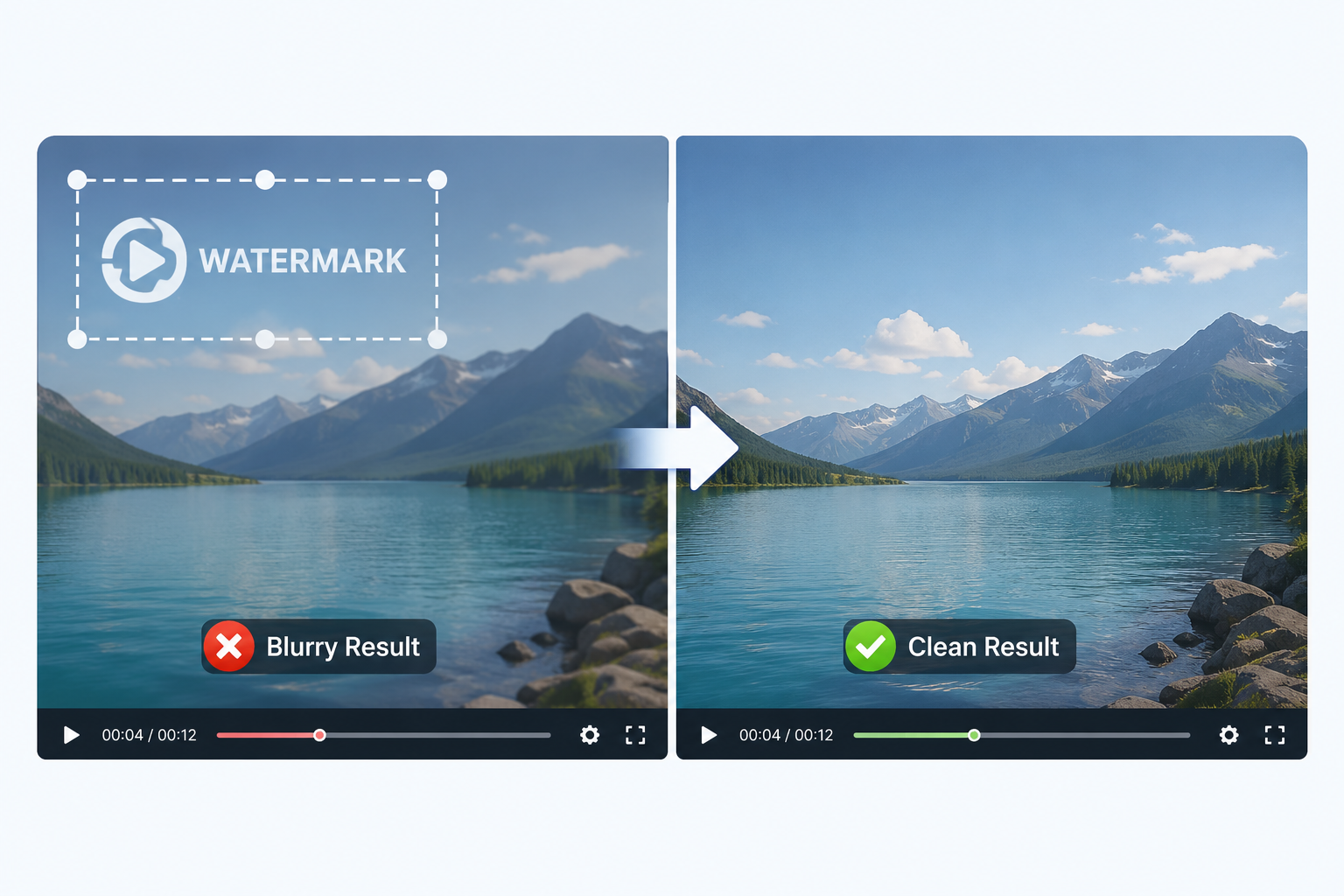 If your watermark remover isn't working, you might notice blurry edges, flickering backgrounds, or files that refuse to process at all. Usually, the software itself isn't broken. Instead, the issue stems from the video's quality, the watermark type, a complex background, or an incompatible file format.Find your specific issue below to jump straight to the fix.
Quick Diagnostic Checklist
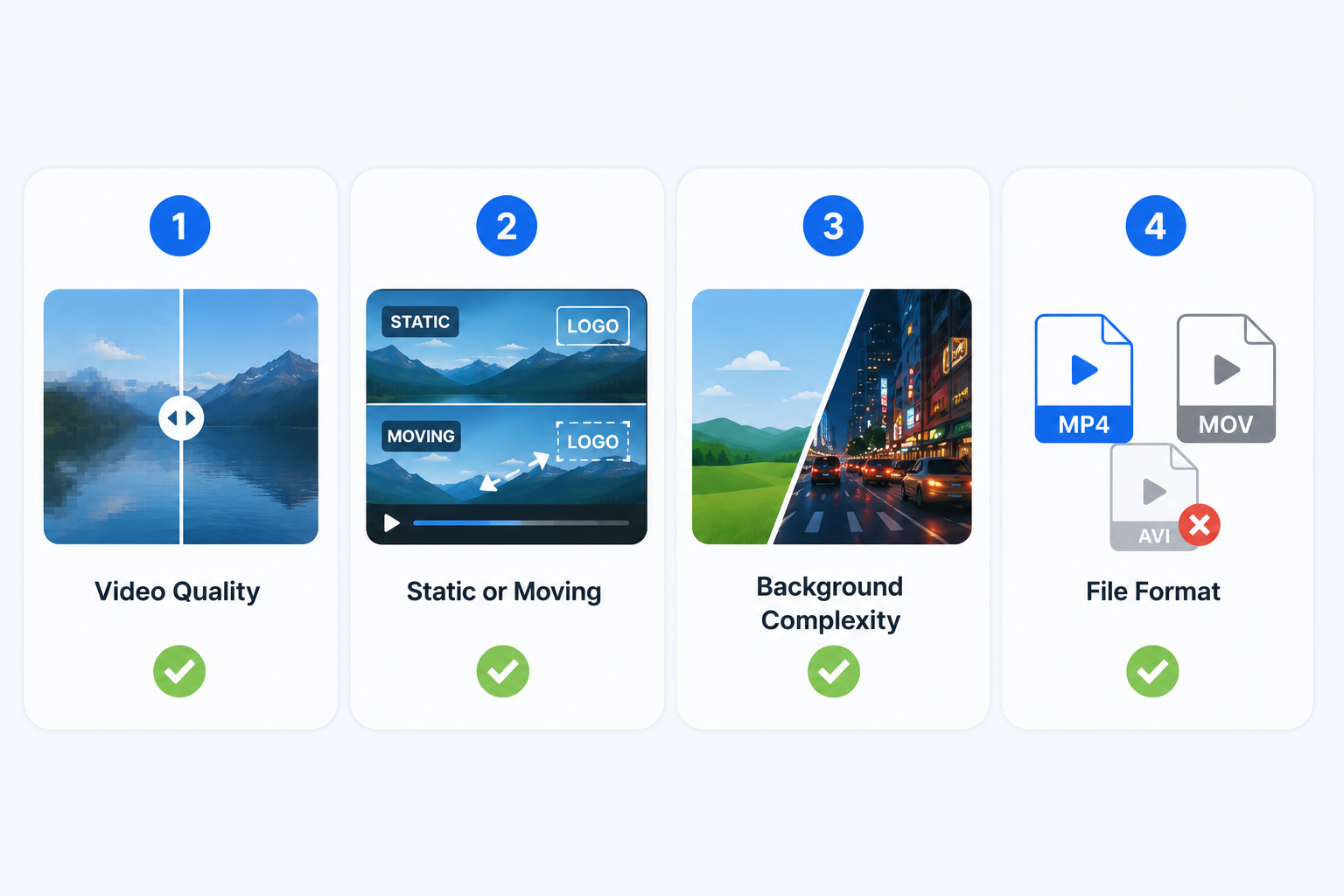
1. Is Your Source Video High Enough Quality?
AI tools rebuild the covered area using nearby pixels and frames. When your video is low-resolution or heavily compressed, the tool lacks the fine detail needed to patch the area cleanly, which often leaves a blurry smudge behind. Always work with the highest-quality source file you can find.
2. Is the Watermark Static or Moving?
A fixed corner logo is easier to remove because it stays in one place. A moving watermark needs frame-by-frame tracking. If your tool only supports a fixed selection, it may leave parts of the watermark behind.
3. Does the Watermark Overlap a Complex Background?
Watermarks over plain backgrounds are easier to remove. AI struggles to cleanly rebuild areas featuring faces, intricate patterns, rapid movement, or shifting light. These issues highlight the limitations of current AI video generation technology, especially when trying to keep motion and visuals consistent from frame to frame.Test a short snippet first if the watermark sits over a complex background.
4. Are You Using a Supported File Format?
Many online tools work best with MP4 and MOV files. AVI, MKV, unusual codecs, or very large files may fail to upload or process correctly. Converting the video to MP4 with H.264 encoding often fixes the issue.
5 Steps to Save Video Without Watermarks
Use the cleanest source available, then choose the saving method that fits the files and tools you have.
Step 1: Confirm That You Can Edit the Video
Only remove a watermark from content you own or have permission to edit. This may include your own footage, licensed assets, client files, or approved project content.
Step 2: Find the Original Video
Start by checking your camera roll, cloud storage, editing timelines, exported files, app drafts, or creator dashboards. If you want to save TikTok, Sora, or Instagram videos without watermarks, the best approach is to locate the original draft or raw footage.
Step 3: Choose the Right Saving Method
 If you have the original project: Delete the watermark layer or turn off automatic branding, then export the video again.If the platform offers a clean download: Check the creator dashboard, draft folder, media library, or editing page.If you only have the watermarked video: After confirming you can edit it, use cropping, masking, or AI content reconstruction. Users who are not familiar with timelines, masks, or frame-by-frame editing can process MP4 and MOV files with RoboNeo’s video watermark remover.
Step 4: Remove the Watermarked Area (if you only have the watermarked video)
Upload the video and mark the logo, text, or watermark.RoboNeo analyzes nearby textures, motion, and lighting, then rebuilds the covered area instead of simply blurring it.For a fixed watermark, keep the selection close to its edges. For a moving watermark, the tool uses consecutive frames to follow its position.When the watermark covers a face, moving object, or detailed background, process a short clip first and check the result.
Step 5: Preview and Export the Video
Before you hit export, double-check your resolution, bitrate, frame rate, and format settings so you don't lose any quality. It is worth checking out how the best free AI video generators handle watermarks, clean downloads, export limits, and usage rules before you start rebuilding your project.
Common Watermark Removal Problems and How to Fix Them
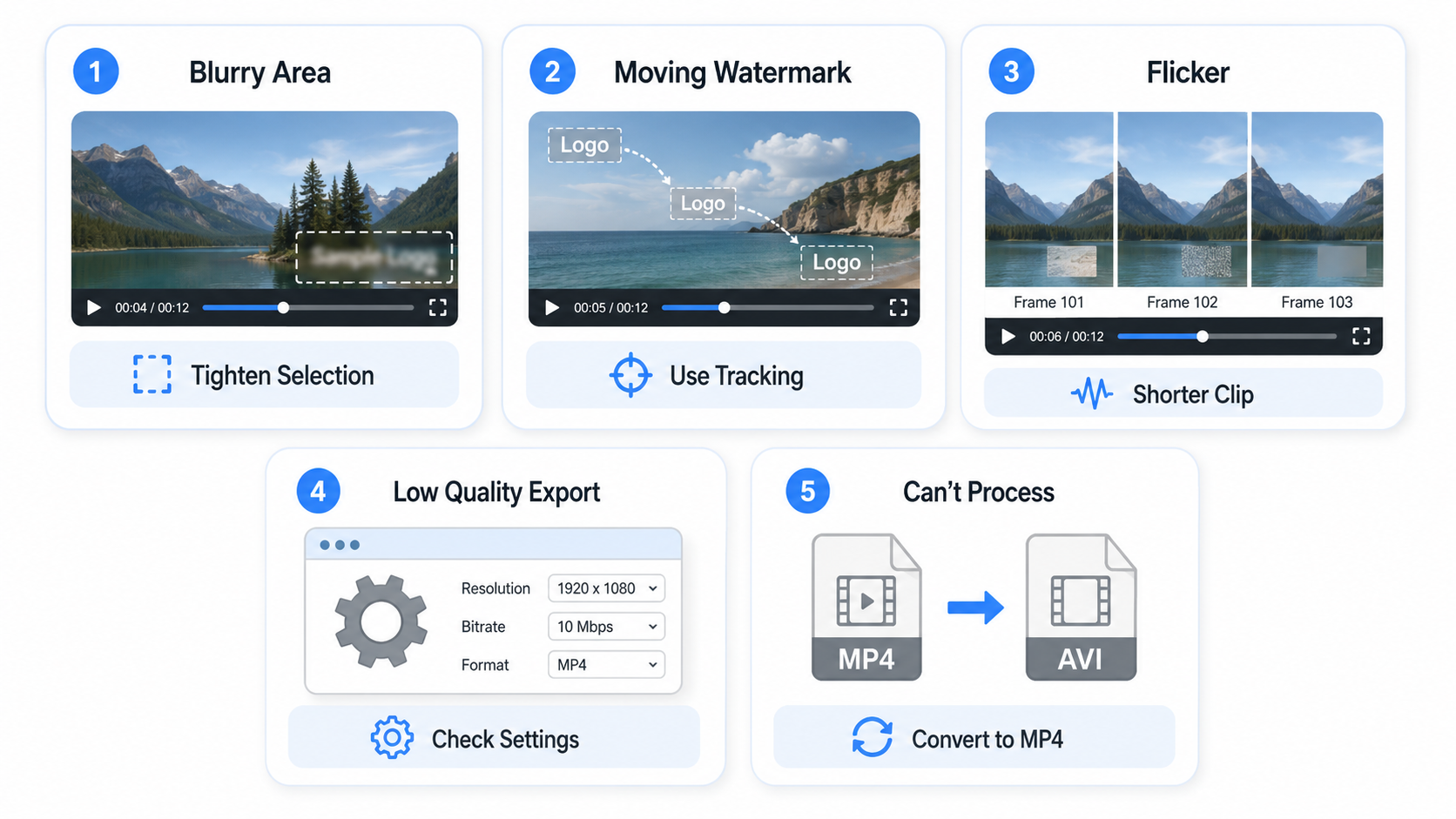 Match the problem you see in the finished video with the fix below.
1. The Removed Area Looks Blurry
The selection may be too large, or the background may be too detailed. Tighten the selection around the watermark and process the clip again using the nearby frames as a reference.
2. The Watermark Moves Across the Screen
A still mask won't cut it once the watermark starts moving. Try using motion tracking or setting up different masks for different spots. You can also break a long video down into shorter clips to help the tracker keep track of things better.
3. The Background Changes Between Frames
You might get some flickering if the light shifts, the camera moves, or something passes through the area you're trying to fix. To keep the patch looking smooth, go with an AI method that looks at earlier and later frames to blend everything together.
4. The Exported Video Has Lower Quality
Double-check your resolution, bitrate, codec, and compression settings to see what’s affecting the quality. Make sure you are not exporting a high-resolution source at a lower setting, and keep the frame rate consistent with the original. If the video already looked soft before watermark removal, the issue may come from the platform that created it, since the best AI video generators differ in their supported resolution, compression, and export options.
5. The Tool Cannot Process the Video
You might have run into a limit with the file’s format, size, length, or encoding. Try converting the file to a standard MP4 or splitting the video into smaller parts before processing it again. If conversion still fails but you still have the original script, rebuilding the clip with a text-to-video tool may produce a cleaner result than continuing to process a damaged or incompatible export.
FAQ
Why did my watermark removal work on one video but not another?
It mostly comes down to video quality, watermark movement, background detail, lighting, and compression. A still logo sitting on a plain background is way easier to wipe out than one covering moving people or busy details.
Can AI remove a watermark from a low-quality video?
It can give it a shot, but the patched-up spot might still look blurry since there isn't much detail to work with. Your best bet is to start with the cleanest copy you have and keep your selection as tight as possible.
Why does the background flicker after removing a watermark?
The reconstructed area may change slightly between frames because of camera movement, lighting shifts, or moving objects. Shorter clips and frame-aware AI processing can reduce the flicker.
Is there a watermark that AI can never fully remove?
Watermarks covering faces, fast motion, fine text, or unique details may be impossible to remove cleanly. When the missing image data does not appear elsewhere in the video, the original source file is the best option.
Video Watermark Remover


You May Be Interested

Why Your AI-Generated Image Sequences Look Choppy as Video (And How We Fixed It)

GPT Image 2 is Coming to RoboNeo: A New Era of AI Image Generation

RoboNeo x Happy Horse 1.0: The Epic Combo Is Here
Character AI Alternative: Better AI Chat Tools