Vmake AI Video Watermark Remover Review
 RoboNeo TeamJuly 22, 2026
Vmake AI Video Watermark Remover is an online tool designed to remove logos, text, AI-generation marks, and other overlays from videos without cropping or blurring the frame. It uses automatic detection to identify watermarks, track moving marks, and reconstruct covered areas, while also allowing manual adjustments when needed.
In this review, we test Vmake’s watermark removal performance across static logos, transparent text, detailed backgrounds, moving subjects, and changing watermarks. Results can vary depending on factors such as watermark size, opacity, background complexity, motion, and source video quality.
Vmake AI Video Watermark Remover Pros and Cons
Vmake offers more control than fully automatic tools, but account limits and inconsistent AI results in complex scenes remain its main drawbacks.
Vmake Video Watermark Remover Pros
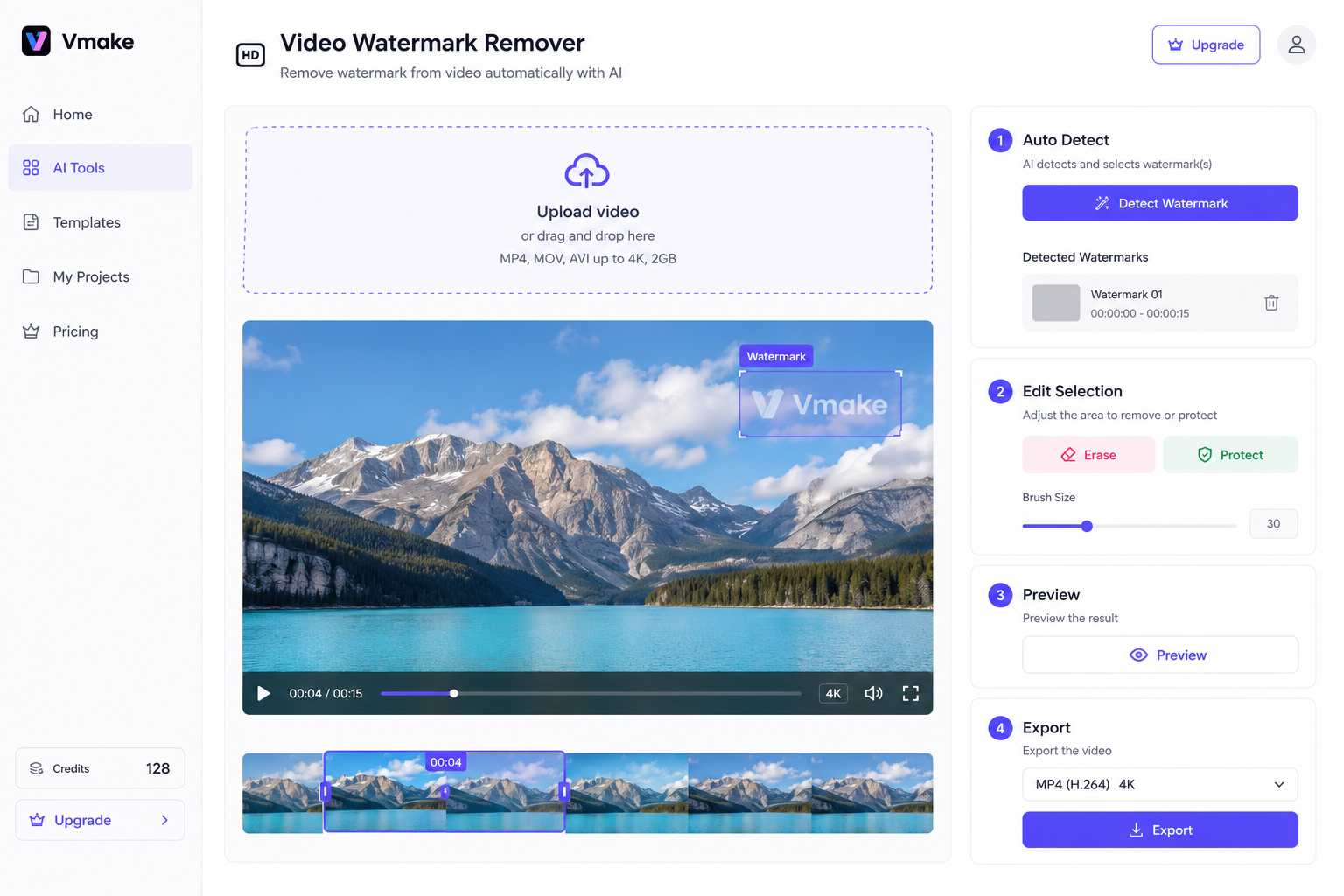
Automatic removal with manual control: Vmake detects moving and static watermarks while allowing users to adjust erase areas or protect important details.
Efficient batch processing: Supports up to 30 videos per batch and common formats like MP4, MOV, and AVI, making it suitable for teams and sellers handling multiple clips.
Removes more than logos: The tool can handle subtitles, timestamps, text overlays, and unwanted objects, with a free preview available before export.
Vmake Video Watermark Remover Cons
Limited free access: Free users have restricted features and 720p exports, while higher resolutions and larger usage limits require paid plans.
AI reconstruction can be inconsistent: Watermarks over hair, reflections, patterns, or fast-moving scenes may leave visible artifacts.
Not a full video editor replacement: Vmake provides basic erase and protection controls, but users needing keyframes, frame-level masks, or detailed adjustments may still need professional editing software.
Vmake AI Video Watermark Remover Test Results
Across six test clips, Vmake performed best with static watermarks on simple backgrounds. Results became less consistent when dealing with detailed textures, moving subjects, or changing watermark positions.
Test 1: Static Logo on a Simple Background
This was the easiest scenario. Vmake removed fixed logos on plain backgrounds with minimal impact on the original composition. Slight softness could appear in the repaired area, but it was usually less noticeable during normal playback.
Test 2: Transparent Text Watermark
Transparent text was harder because the watermark blended with the original scene. Results were better on simple backgrounds, while changing colors, faces, or patterns underneath could leave faint traces or uneven areas.
Test 3: Watermark Over a Detailed Background
Detailed textures such as grass, fabric, or shelves increased reconstruction difficulty. The watermark could disappear, but softened details or repeated-looking textures might remain, especially during pauses or slow camera movement.
Test 4: Watermark Over a Moving Subject
Watermarks over faces, hands, clothing, or moving products required more frame-by-frame reconstruction. Vmake handled slower movement better, but fast motion could cause brief distortion around the subject.
Test 5: Moving or Changing Watermark
Moving watermarks were the most challenging case. Vmake’s automatic detection reduces manual work, but sudden position changes, size changes, or different backgrounds may still cause traces, flicker, or temporary patches.
Test 6: Processing Speed and Export Quality
Vmake works well for short social clips, while longer or more complex videos may require more processing time. Quality issues were mainly limited to the repaired area, so the exported video should be reviewed in full-screen before publishing.
How to Remove a Video Watermark With Vmake AI
Vmake starts with automatic watermark detection, while its erase and protect controls provide extra help when the overlay crosses an important part of the scene.
Step 1: Open Vmake Video Watermark Remover
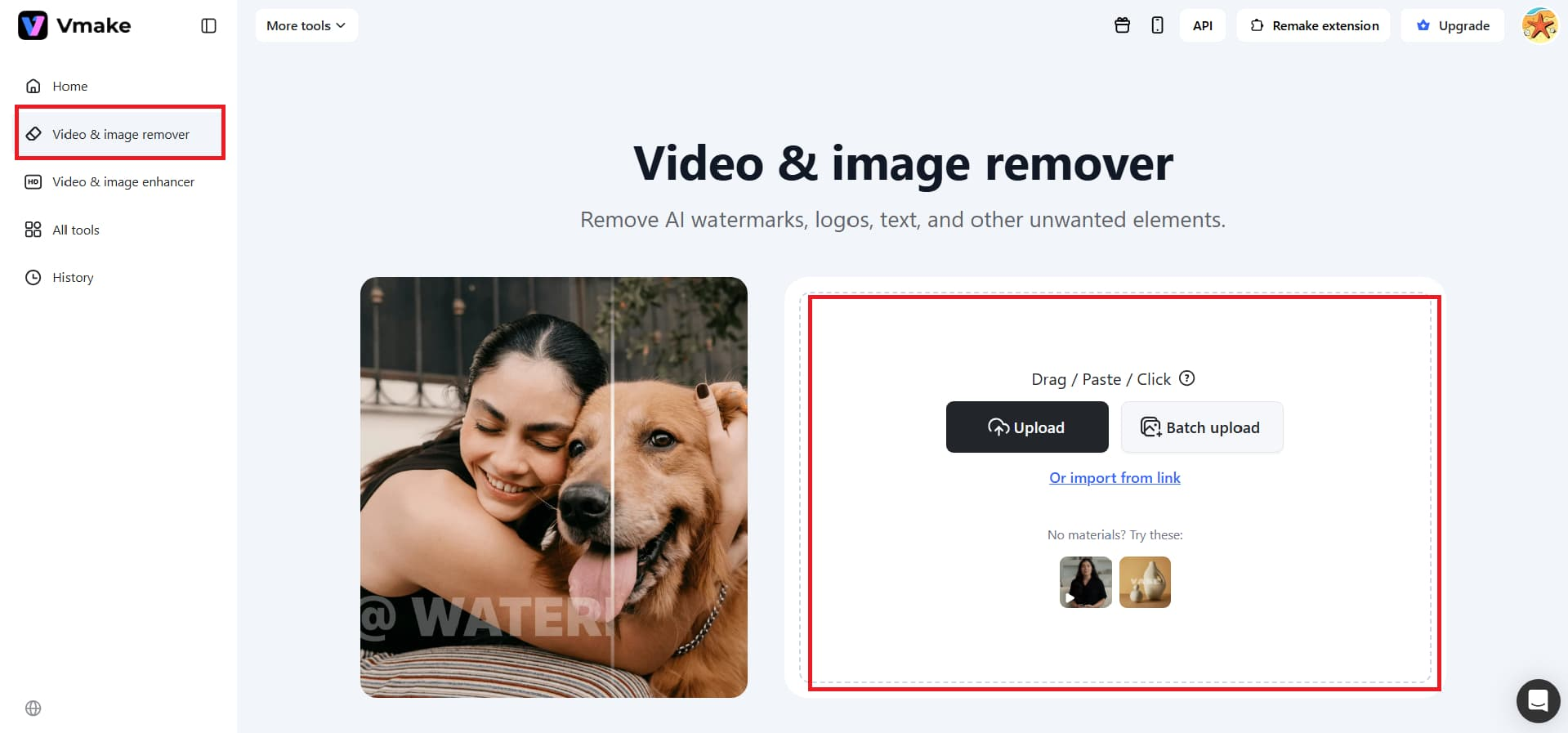
Go to the Vmake video watermark removal workspace and select Upload video. You can click to choose a file, drag it onto the page, or paste it into the upload area. Batch processing is also available for up to 30 videos, with each clip displayed separately for review.
Step 2: Let Vmake Detect the Watermark
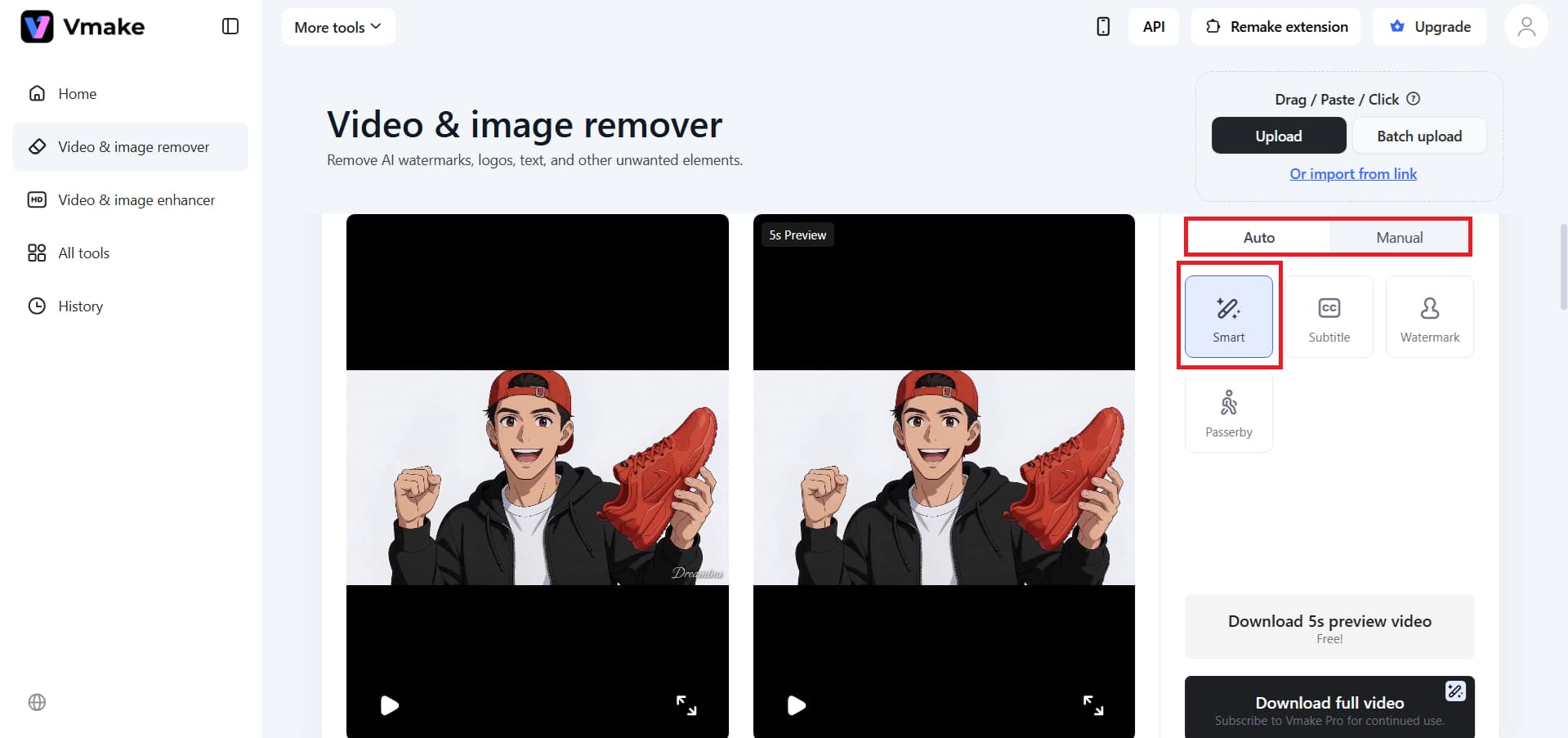
Once the video is uploaded, Vmake analyzes the footage and removes the detected watermark automatically. Its tracking system is designed to follow both fixed logos and overlays that move between frames, so users do not need to create a separate mask for every position.
Step 3: Refine the Erase and Protect Areas
Automatic detection may need adjustment when the watermark overlaps a face, product label, subtitle, or detailed object. Use an erase zone to include any part of the watermark that remains. A protect zone tells Vmake which areas should stay untouched.
Keep the erase selection close to the unwanted element where possible. Covering a larger area than necessary gives the AI more of the frame to reconstruct and may make differences in texture or detail easier to notice.
Step 4: Preview the Removal Result
Watch the preview before exporting. Do not check only the opening frame—scrub through the section where the watermark moves or where a person passes behind it.
Look for leftover letters, ghost outlines, flickering edges, or patches that appear softer than the surrounding background. Vmake provides an in-editor preview, and its current watermark-removal page offers a free preview of the first five seconds before the full HD export.
Step 5: Export and Check the Full Video
When the preview looks clean, download the processed video. Play the complete exported file once more, paying particular attention to scene changes, fast movement, and moments where the watermark covered an important subject. These are the areas where brief artifacts are easiest to miss during a quick preview.
An Alternative for Moving and Complex Watermarks
Vmake performs well for basic watermark removal, especially when the mark stays fixed and the background is stable. However, moving watermarks, changing backgrounds, or subjects crossing the removal area may require more precise control.
The key difference comes down to workflow. Vmake focuses on automatic detection and a simple online process, while RoboNeo gives users more control over the removal area for complex footage.
What Is RoboNeo AI Watermark Remover?
RoboNeo video watermark remover is designed to clean logos, text, watermarks, and other unwanted elements from both images and videos. Rather than forcing the video into a tighter crop, it attempts to repair the selected area using visual information from the surrounding frames.
This approach is worth considering when the original composition needs to stay intact or the watermark sits too close to the subject to be cropped away. It may also suit footage where the mark shifts between different parts of the screen, crosses a detailed background, or appears over moving people and objects.
Another practical difference is area selection. Users can specify what should be removed instead of relying only on automatic detection. That added control can be useful for a username moving between corners, scrolling text over a product demo, or a logo passing across hair, clothing, and other changing textures.
Vmake vs RoboNeo: Which One Should You Choose?
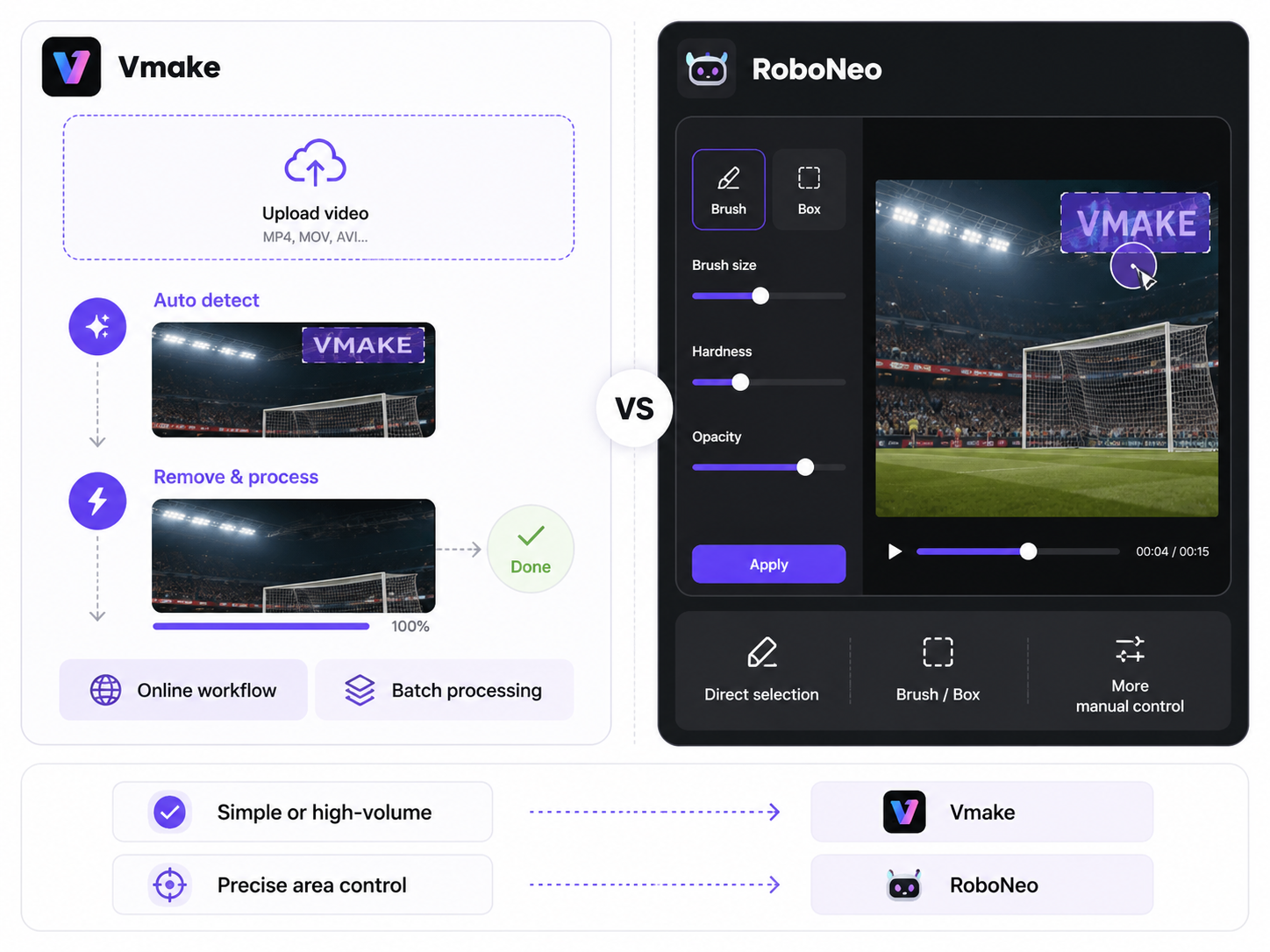
Vmake and RoboNeo both use AI to reconstruct the area hidden behind a watermark rather than simply cropping or blurring it. The main difference is the workflow: Vmake puts more emphasis on automatic detection and high-volume online processing, while RoboNeo gives users a more direct way to mark the area that needs attention.
| Comparison | Vmake | RoboNeo |
| Removal Method | Automatic detection, motion tracking, and optional manual erase or protect controls | User-guided area selection followed by AI frame-by-frame reconstruction |
| Static Watermarks | Well suited to fixed logos, timestamps, and text overlays | Handles fixed logos, text, and other selected elements |
| Moving Watermarks | Automatically tracks marks that shift across frames | Supports moving marks and reconstructs the selected area with temporal consistency |
| Free Usage Limits | Free to start; free accounts support files up to 200 MB and batches of up to 30 clips | Free access is available, but the public watermark-removal page does not list an exact allowance |
| Best For | Automatic cleanup, browser-based editing, and repeated or batch tasks | Moving or complex marks that require more deliberate area selection |
Vmake is a practical option for creators and teams that need automatic detection, manual adjustments, and batch processing. It supports moving watermarks, files up to 200 MB, and batches of up to 30 videos.
RoboNeo is better suited for footage requiring more precise removal around moving subjects, products, or detailed backgrounds. It supports static and moving watermarks with a more focused AI reconstruction workflow.
Choose Vmake for faster batch workflows, or RoboNeo for more specialized watermark removal needs.
Conclusion
Vmake AI Video Watermark Remover is a practical, browser-based option for quick cleanups without masks or keyframes. It performs best on small, stationary logos over simple backgrounds, and its erase and protect tools offer some control when auto-detection needs adjustment.
Results get less predictable with moving watermarks, watermarks over key subjects, or detailed textures — these clips may show softness, flicker, or visible reconstruction, so always review the full export.
Vmake works well for occasional social clips and simple overlays. For tougher footage, a tool like RoboNeo — built for moving watermarks and complex scene reconstruction — may be a better fit. Either way, only remove watermarks from videos you own or have permission to edit.
FAQ
Can Vmake AI remove objects from videos?
Yes. Vmake’s AI Object Remover can erase unwanted people, logos, text, watermarks, and moving objects from videos, then rebuild the covered background. Results are usually more reliable when the object is clearly visible and the surrounding scene is not overly complex.
Is it illegal to remove watermarks?
Not always. Removing a watermark from your own video or content you have permission to edit is generally acceptable. Removing ownership information from someone else’s copyrighted work—especially before reposting it—may violate copyright law; in the U.S., it can also raise issues under DMCA Section 1202.
Is VMake AI free to use?
Vmake is free to try, but access is limited. The Video Watermark Remover provides a free preview of the first five seconds; full-length HD exports and heavier use require credits or a paid plan.
What are the features of Vmake Pro?
Vmake Pro includes 4,500 monthly credits, access to core tools such as the Video and Image Enhancer, Watermark Remover, Video Upscaler, and AI Thumbnail Generator, with usage limits of up to 50 times per day. It also unlocks Vmake’s full selection of image and video generation models, exports up to 2K or 4K for supported tools, and commercial-use rights.
You May Be Interested
5 Best Free Tools to Remove Watermark from Video in 2026 | RoboNeo

How to Remove TikTok Watermark: 3 Free Methods

Pixelbin AI Video Watermark Remover: Tested and Reviewed
How to Remove Watermark from Video with AI (2026 Guide)