Can You Set Display Quality on YouTube?
 RoboNeo TeamAugust 24, 2026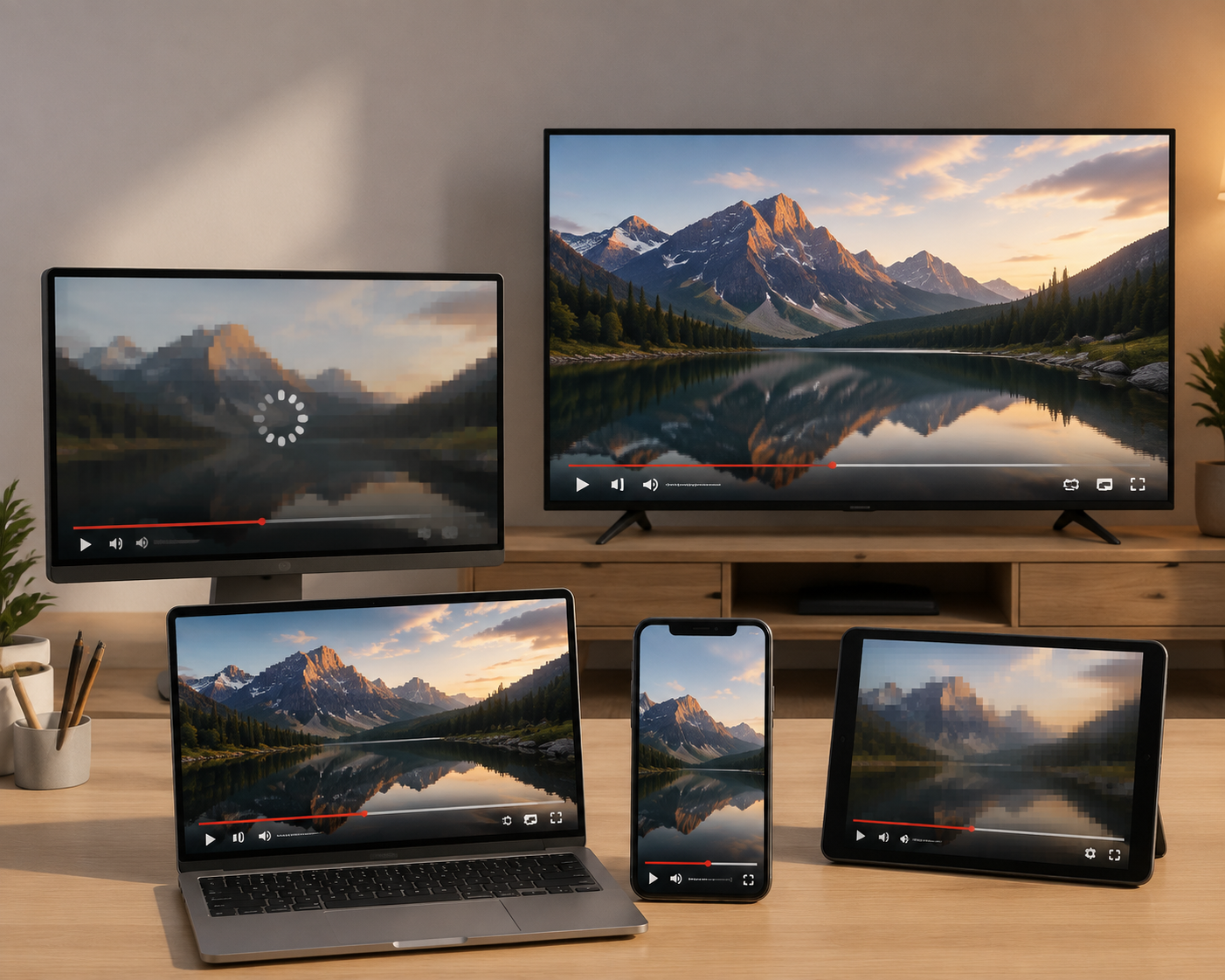
You can change the display quality of a YouTube video on a computer, mobile device, smart TV, or streaming device. However, changing the quality only selects from the playback versions currently available for that video and device. It does not improve the original uploaded file or create a higher-resolution version that YouTube does not already provide.
This guide explains what YouTube quality settings control, how to adjust them across devices, why quality may change automatically, and what to do when a video still looks blurry at its highest available resolution.
What YouTube Quality Settings Actually Control
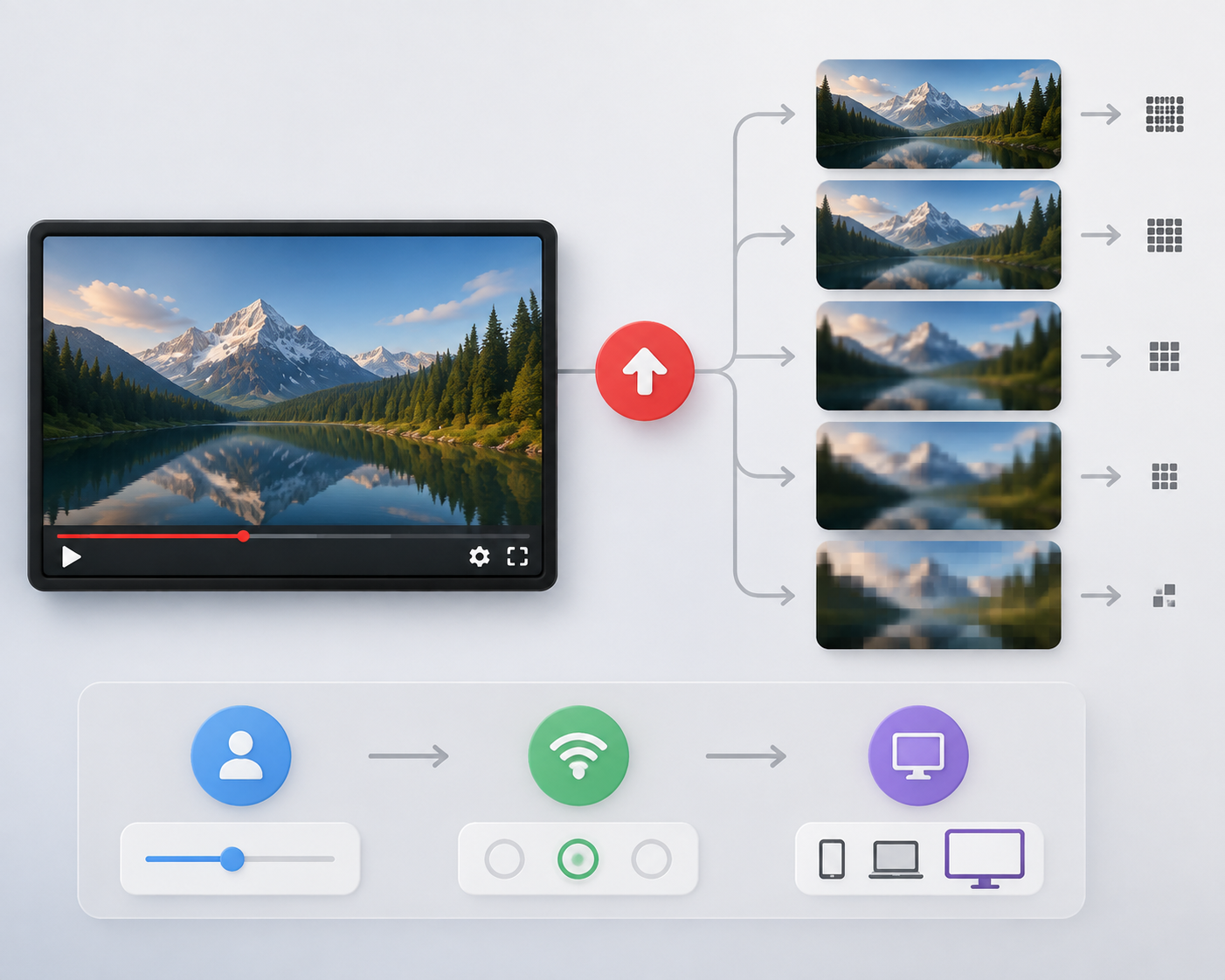
Changing YouTube quality does not alter the video stored on YouTube. Instead, the platform creates several playback versions after a video is uploaded. Your quality selection tells YouTube which available version you want to watch.
Three related settings are often confused.
Playback resolution: This is the current viewing resolution, such as 144p, 360p, 720p, 1080p, 1440p, or 2160p. A higher number usually provides more visible detail, although resolution alone does not determine overall image quality. Understanding what 2K resolution means can also help distinguish 1440p playback from Full HD and 4K.
Quality preference: Auto, Higher picture quality, and Data saver tell YouTube whether to prioritize visual clarity, smooth playback, or lower data use. These options allow the platform to choose a suitable resolution as viewing conditions change.
Available maximum quality: The highest option depends on the versions YouTube can provide for that video and device. A quality setting cannot turn a 720p upload into native 4K. The difference between native 4K and upscaled 4K is important here because a larger pixel count does not necessarily mean the source contains native 4K detail.
YouTube also notes that certain high-quality formats may be unavailable on devices that do not support the required video compression technology. Consequently, the same video might offer 4K on a laptop but stop at 1080p on an older smart TV.
How to Change YouTube Video Quality on Different Devices
YouTube allows quality adjustments across its major platforms, but the menus are not identical. Device-specific instructions are more useful than one general set of steps.
On a Desktop or Laptop
The desktop player provides a direct way to select the resolution of the video currently playing:
Play a YouTube video.
Click the Settings gear in the player.
Select Quality.
Choose one of the available resolutions.
The menu may show options ranging from 144p to 4K, depending on the upload and your device. If 1080p is the highest entry, selecting 2160p is impossible because that playback version is not currently available.
YouTube’s official computer instructions focus on changing the quality of the current video. The desktop site does not provide the same global Video quality preferences menu found in the mobile app.
On Android, iPhone, or iPad
While watching a video in the YouTube app, open Settings, select Quality, and choose one of the following options:
Auto: Adjusts playback according to the current viewing conditions.
Higher picture quality: Uses more data and favors clearer playback.
Data saver: Reduces data consumption by favoring lower quality.
Advanced: Lets you select a specific available resolution, such as 720p or 1080p.
Higher picture quality does not mean that YouTube will permanently lock every video to its highest resolution. It remains a playback preference, so the actual quality can vary with the connection, video, and device.
Advanced offers more direct control, but YouTube states that it may not be available for every video. Menu wording may also differ slightly across app versions.
On a Smart TV or Streaming Device
For most supported televisions and streaming devices, start the video, open Settings, choose Quality, and select an available option.
The large screen can make a lower-resolution stream more noticeable. A 720p cooking tutorial that looks reasonably sharp on a phone may appear soft when enlarged on a 65-inch television. This difference is also why 4K upscaling is commonly used by televisions and streaming devices to fit lower-resolution content onto 4K displays.
Not every TV can access the same formats as a computer. An older device may lack support for newer codecs, causing 1080p or 4K options to disappear even when the video provides them elsewhere.
Can You Set a Default Video Quality on YouTube?
The mobile app allows you to set general viewing preferences for different connections. Go to Profile picture > Settings > Video quality preferences, then choose separate settings for mobile networks and Wi-Fi.
Someone with a limited mobile plan could select Data saver for cellular viewing and Higher picture quality for home Wi-Fi. This arrangement reduces unnecessary data use during a commute while preserving clearer playback at home.
Current YouTube mobile guidance also shows Advanced as a possible preference for selecting a resolution. However, Advanced may not apply to every video.
On a desktop or laptop, YouTube primarily provides quality controls for the video currently being watched. Its official computer interface does not offer a global menu that directly matches the mobile Video quality preferences settings.
Why Does YouTube Keep Changing or Lowering Video Quality?
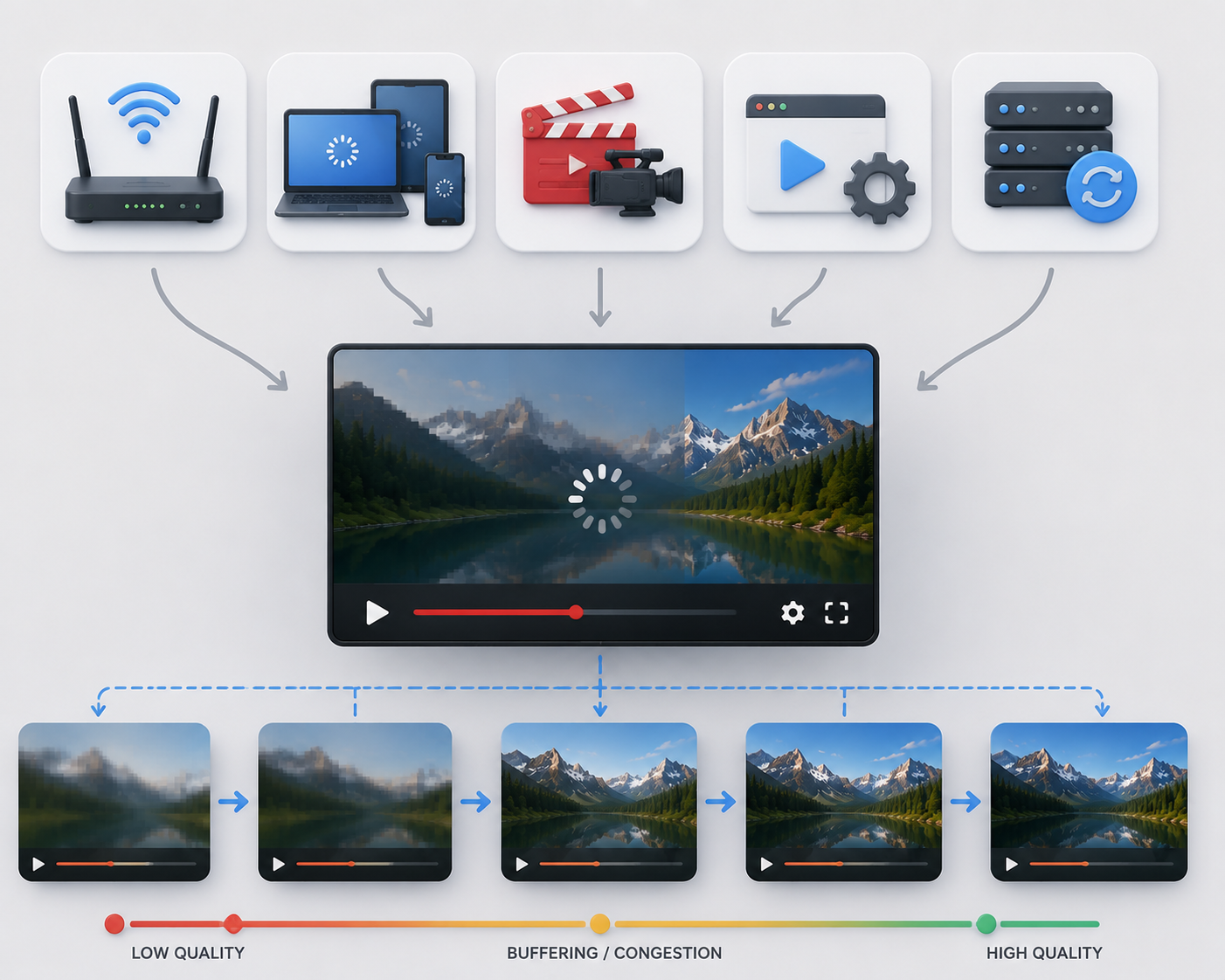
YouTube’s Auto setting continuously evaluates playback conditions. A video can therefore begin at 1080p, fall to 480p during congestion, and return to a higher resolution once the connection stabilizes.
Several factors influence this behavior:
Changes in internet connection speed
The dimensions of the player or screen
The quality of the original upload
Browser and device support for video formats
The playback versions YouTube has finished processing
A fast internet plan does not guarantee that every moment of a connection will deliver the same speed. Wi-Fi interference, other household devices, network congestion, or distance from the router can affect actual performance.
The original upload establishes another firm limit. When a creator uploads a standard-definition recording, viewers cannot create a genuine HD version through the Quality menu. Newly uploaded 4K videos may also show only lower resolutions while YouTube finishes high-resolution processing.
Manually selecting 4K or choosing Higher picture quality does not guarantee buffer-free playback. These options request a more demanding stream, which may take longer to load or pause when the connection cannot keep up.
What to Do If YouTube Still Looks Blurry
Begin by opening the Quality menu. When a higher resolution is available but the picture remains soft, confirm that the player has switched to the selected option. Auto may have chosen a lower stream, particularly after a network slowdown.
It can also help to compare the video on another browser or device. If 4K appears on a recent laptop but not on an older television, format compatibility is a more likely cause than the upload itself. Creators should also allow enough time for HD or 4K processing after publishing a new video.
A different solution is needed when the highest available version still looks blurry. YouTube display quality settings cannot repair low-detail, out-of-focus, or heavily compressed source footage. Creators researching how to make a YouTube video higher quality should improve the original material before uploading it again.
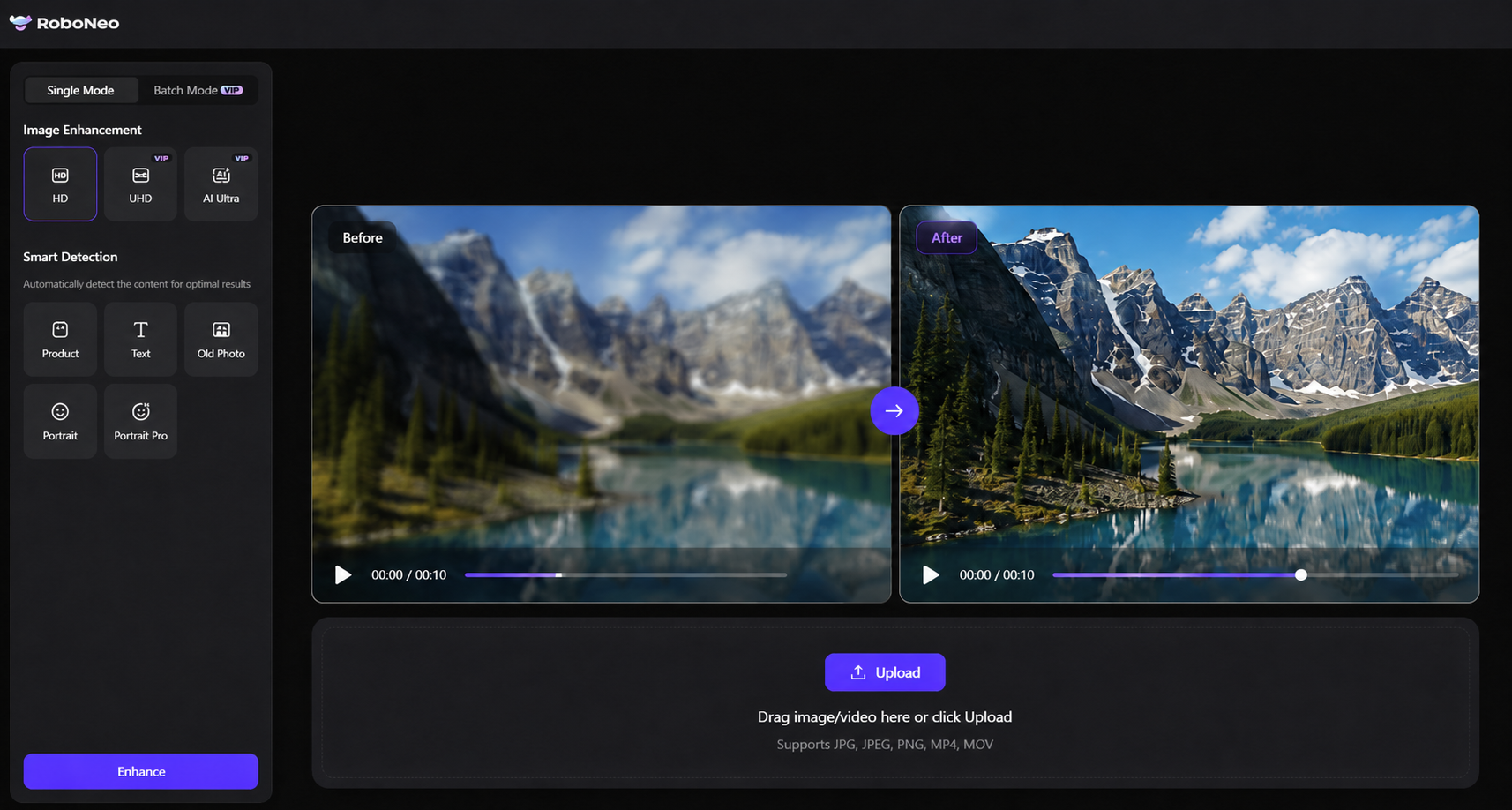
Lower-resolution footage can be prepared for larger displays with RoboNeo AI video upscaling, which analyzes frames, motion, and visual details to produce a clearer, higher-resolution output.
RoboNeo AI Enhancer can also improve the clarity of images and videos before publication, including video files in MP4 and MOV formats. Enhancement can be useful when the source contains visible quality loss, although the final result will still depend on how much usable detail exists in the original footage.
The resolution of a YouTube video should therefore be considered at both stages: the source file created by the uploader and the playback version selected by the viewer. Increasing only the playback setting cannot compensate for weak source material.
Enhance YouTube Videos with RoboNeo
FAQ
Why does YouTube default to 360p or 480p?
Auto selects quality dynamically according to the current viewing environment. Network performance is one factor, but screen size, device support, the original upload, and available playback formats can also influence the decision. Check the current video’s Quality menu and, on mobile, review Video quality preferences.
Why is 1080p or 4K not showing on YouTube?
The video may not have been uploaded at that resolution, or YouTube may still be processing its higher-quality versions. Device, browser, and codec compatibility can also limit the options shown. YouTube specifically notes that some devices cannot provide certain 1080p or 4K formats.
Does YouTube Premium give you better video quality?
Eligible YouTube Premium users can access 1080p Premium, an enhanced-bitrate version of 1080p. It provides more information per pixel for better viewing quality. It does not automatically convert every video to 4K, and it is unavailable for some content, including Shorts, live streams, and videos not uploaded at 1080p.
Does higher YouTube quality use more data?
Yes. Higher picture quality generally consumes more data and may increase loading or buffering time. Data saver favors lower quality to reduce consumption. Mobile users should choose between them according to their data allowance and need for clarity.
Why does YouTube look blurry even at 1080p?
Resolution is only one part of perceived quality. The source footage, compression, bitrate, motion, fine detail, and selected playback version all affect the result. A highly compressed action video can look less detailed than a well-produced interview even when both are labeled 1080p.
You May Be Interested
480p vs. 720p: Which Resolution Should You Choose?
How to Turn Long YouTube Videos into TikToks with an AI Video Clip Generator
Best AI Features for Enhancing UGC Video Quality in 2026
6 Best AI Video Generators in 2026
5 Best Free Tools to Remove Watermark from Video in 2026 | RoboNeo