How to Remove Background Noise from Video With AI
 RoboNeo TeamJuly 21, 2026
A sharp video can still feel difficult to watch when traffic, wind, fans, or room echo compete with the speaker. Background noise is any unwanted sound recorded alongside the main dialogue or target audio. Some sounds remain steady, while others appear suddenly and interrupt only part of the clip.
This guide explains how to remove background noise from a video with AI tools, desktop editors, mobile apps, and manual audio software. It focuses on sound. Grain, pixelation, and low-light image noise need video denoising or an AI video enhancer instead.

What Is Background Noise in a Video?
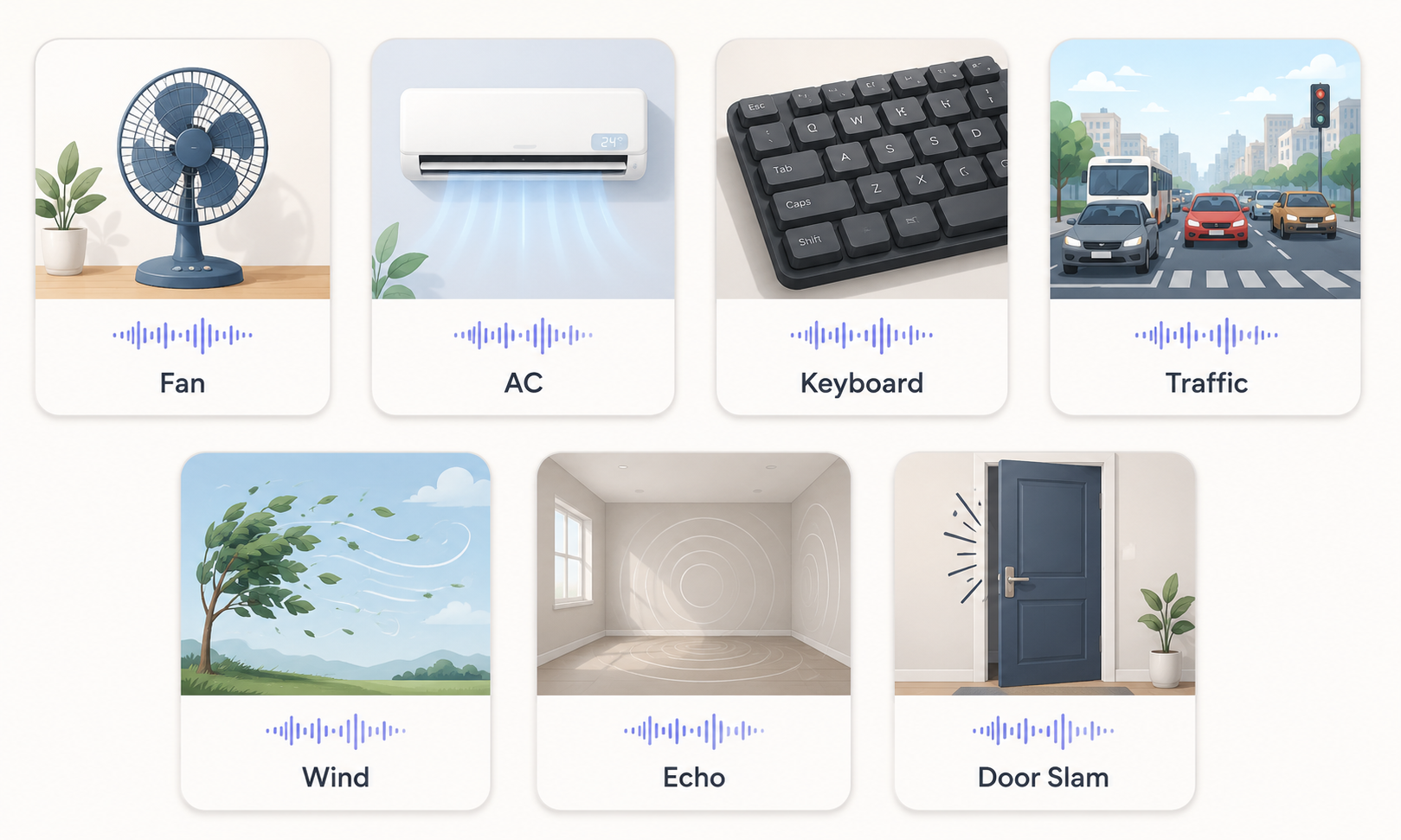
Background noise comes from the recording space, nearby equipment, microphone movement, or poor room acoustics. Even quiet sounds can become noticeable once the microphone captures them at close range.
A cooking tutorial filmed beside an extractor fan may carry a low hum under every sentence. During a street interview, one passing truck can cover several words. Both recordings need audio cleanup, though the settings may differ.
Common Types of Video Background Noise
Constant noise: Fans, air conditioners, refrigerators, electrical hum, and computers.
Environmental noise: Traffic, crowds, keyboard clicks, nearby conversations, and construction.
Wind and microphone noise: Outdoor gusts, clothing friction, cable movement, and microphone handling.
Echo and room reverb: Sound reflections in empty rooms, tiled kitchens, halls, and large offices.
Sudden sounds: Coughing, closing doors, dropped objects, or passing vehicles.
Steady noise is often easier to detect because it follows a repeated pattern. A door slam or loud cough is harder to remove when it overlaps directly with speech.
Background Noise vs. Video Noise
Background noise and video noise affect different parts of a recording. The correct treatment depends on whether the problem can be heard or seen.
| Comparison | Background Noise | Video Noise |
| Affects | Audio | Image |
| Common signs | Hum, wind, traffic, echo, microphone friction | Grain, flickering pixels, color blocks, muddy shadows |
| Common causes | Fans, room acoustics, outdoor recording, poor microphone placement | Low light, high ISO, compression, low-resolution footage |
| Suitable solution | Audio noise reduction or voice enhancement | Video denoising or AI video enhancement |
| Real-life case | Traffic covers part of an outdoor interview | A nighttime vlog looks grainy and soft |
Some clips need both treatments. A nighttime travel vlog may contain road noise in the audio and visible grain in the darker parts of the frame.
Which Background Noise Removal Method Should You Use?

The right choice depends on the project, device, available time, and level of control you need. A short social clip rarely requires the same process as a podcast interview or online course.
Option 1: AI Background Noise Removal
AI video tools identify unwanted sound patterns and reduce them automatically. After you upload a clip, you can ask for clearer speech, lower traffic noise, or less air-conditioner hum—no deep audio experience needed. For quick cleanup across interviews, tutorials, product videos, and phone recordings, this is often the easiest route.
Option 2: Desktop Video Editing Software
Desktop editors place audio cleanup, trimming, captions, music, and visual editing in one timeline. They suit creators who want to finish the full project without moving files between programs.
During a YouTube edit, computer fan noise can be reduced before subtitles, music, and transitions are added. More advanced software may also include equalizers, noise gates, and voice isolation.
Option 3: Mobile Video Editing Apps
Mobile apps such as CapCut, InShot, and Adobe Premiere Rush work well for TikTok, Instagram Reels, YouTube Shorts, travel clips, and quick work updates. Many provide basic noise reduction or audio enhancement controls for fast edits on a phone.
The best app for removing background noise from video should match your clip length, export quality, operating system, and editing needs. Free versions may limit resolution, video duration, export settings, or access to advanced audio tools.
Option 4: Manual Audio Editing
Professional tools such as Adobe Audition give editors detailed control over noise profiles, frequencies, reverb, compression, and volume. The process takes longer, but difficult recordings can be handled more carefully.
An online course recorded in an empty meeting room may need hum removal, echo reduction, voice equalization, and level balancing. Treating each task separately often sounds more natural than applying one strong effect.
How to Remove Background Noise from Video With AI in 3 Steps
For users who want clearer speech without learning detailed audio controls, AI noise removal offers a practical workflow. Common hum, wind, room sound, and light environmental noise can often be reduced in a few steps.
Step 1. Upload the Existing Video
Start by uploading the video to RoboNeo, The prompt should describe both the unwanted sound and the intended result.
“Reduce the air conditioner hum, bring the speaker forward, and keep the voice natural” gives the system clear direction. An outdoor recording may need a request focused on wind, traffic, or crowd noise.
Better source audio usually leads to cleaner results. When a quiet voice sits underneath loud music or traffic, some words may remain difficult to recover.
Step 2. Apply Noise Reduction and Voice Enhancement
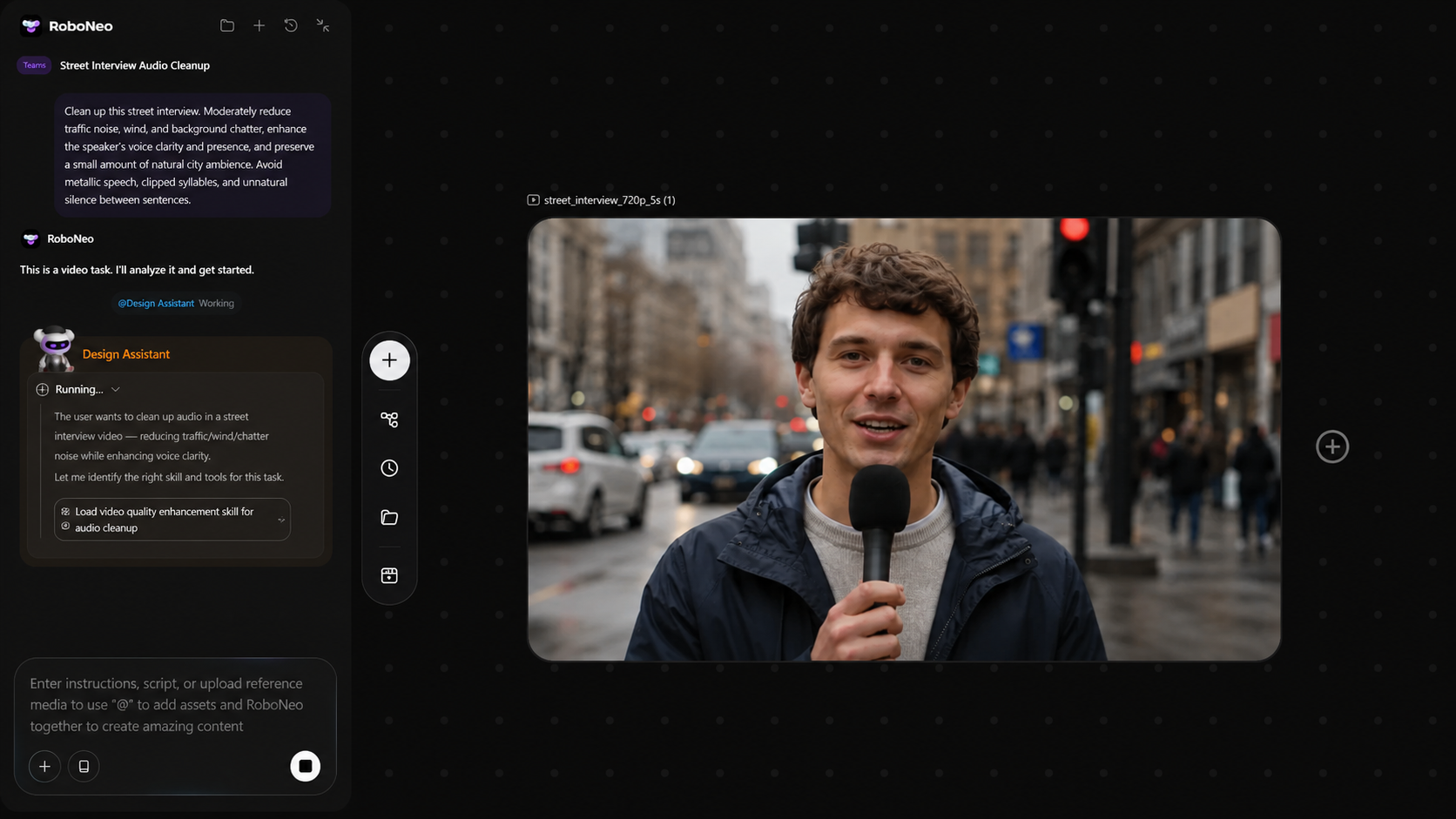
RoboNeo can carry out noise reduction and voice enhancement within the same task. One process lowers distracting sound, while the other improves speech presence.
Moderate settings are usually safer than maximum strength. Too much processing may create metallic speech, clipped syllables, or unnatural silence between sentences. This is especially common when the noise shares similar frequencies with the voice.
A street interview does not need complete silence. A small amount of city sound keeps the scene believable while the dialogue remains easy to follow.
Step 3. Review and Export the Cleaned Video
Listen on headphones before you export. Quiet sentences, word endings, pauses, and louder background sections deserve close attention.
The cleaned version should sound clearer without making the speaker thin or robotic. When speech feels overprocessed, lower the reduction strength and run the task again.
Once the balance sounds right, export the video in the resolution and format required by the target platform. Even the best background noise removal result benefits from one final listen.
How to Prevent Background Noise When Recording Video
Cleaner source audio gives editing tools more useful information to work with. A few recording changes can reduce repair work later.
Use an External Microphone
A microphone placed close to the speaker captures more voice and less room sound. Lavalier microphones suit interviews and presentations, while directional microphones work well with cameras.
Placement often matters more than price. A basic microphone clipped near the speaker may sound clearer than an expensive camera microphone positioned several feet away.
Control Wind and Room Echo
Outdoor recordings benefit from a foam windscreen or furry wind cover. A sheltered position beside a wall can also reduce direct gusts.
Indoors, curtains, carpets, sofas, and other soft surfaces absorb reflections. An empty conference room usually produces more echo than a furnished office, even when both rooms are the same size.
Monitor Audio During Recording
Headphones reveal problems that camera speakers may hide. Hum, clipping, loose cables, wind, and fabric rubbing can then be fixed before the full recording begins.
A 20-second test may reveal that a nearby refrigerator sounds far louder through the microphone than it does in the room. Moving to another corner can save an hour of cleanup later.
Record a Short Room Tone Sample
Room tone is a short recording of the environment without speech. Ten to thirty seconds is usually enough.
Editors can use it to identify steady noise and smooth out gaps between dialogue cuts. Fans, lights, and other equipment should remain in the same state as during the main recording.
FAQ
How to remove background noise from video online free?
An online AI tool can reduce background noise after the video is uploaded. Free plans often work for short clips, though file size, duration, watermark, and export limits may apply.
Should I remove noise before or after editing?
Noise reduction usually works best before final audio mixing, music balancing, and export. Trimming unused footage first can save processing time on longer projects.
Does noise reduction lower video or audio quality?
Video resolution stays unchanged, but strong noise removal may affect the audio. Metallic voices, clipped words, and thin speech often signal that the setting is too high.
How much noise reduction should I apply?
The lowest setting that makes speech comfortable to understand is usually enough. Natural background sound can remain when it does not distract from the main voice.
Can AI remove background noise without affecting voices?
Many common noises can be reduced while keeping speech clear. Results become less reliable when music, traffic, or another speaker overlaps heavily with the main dialogue.
How do I remove wind noise from a video?
Low-frequency noise reduction can lower wind rumble, followed by moderate voice enhancement. Words fully covered by strong gusts may not be recoverable, so a windscreen and closer microphone placement help during future recordings.
You May Be Interested

How to Use an AI Video Generator Online to Create Viral Content

How to Choose the Best AI Text to Video Generator in 2026 (+ Our Top Pick)

6 Best AI Video Generators in 2026

How to Choose the Right Free AI Music Video Generator in 2026

How to Make AI Videos: Beginner Tips and Best Tools
How to Create AI Video from Script: A Complete Guide