
Best AI Tools to Fix Blurry Videos in 2026
 RoboNeo TeamAugust 6, 2026
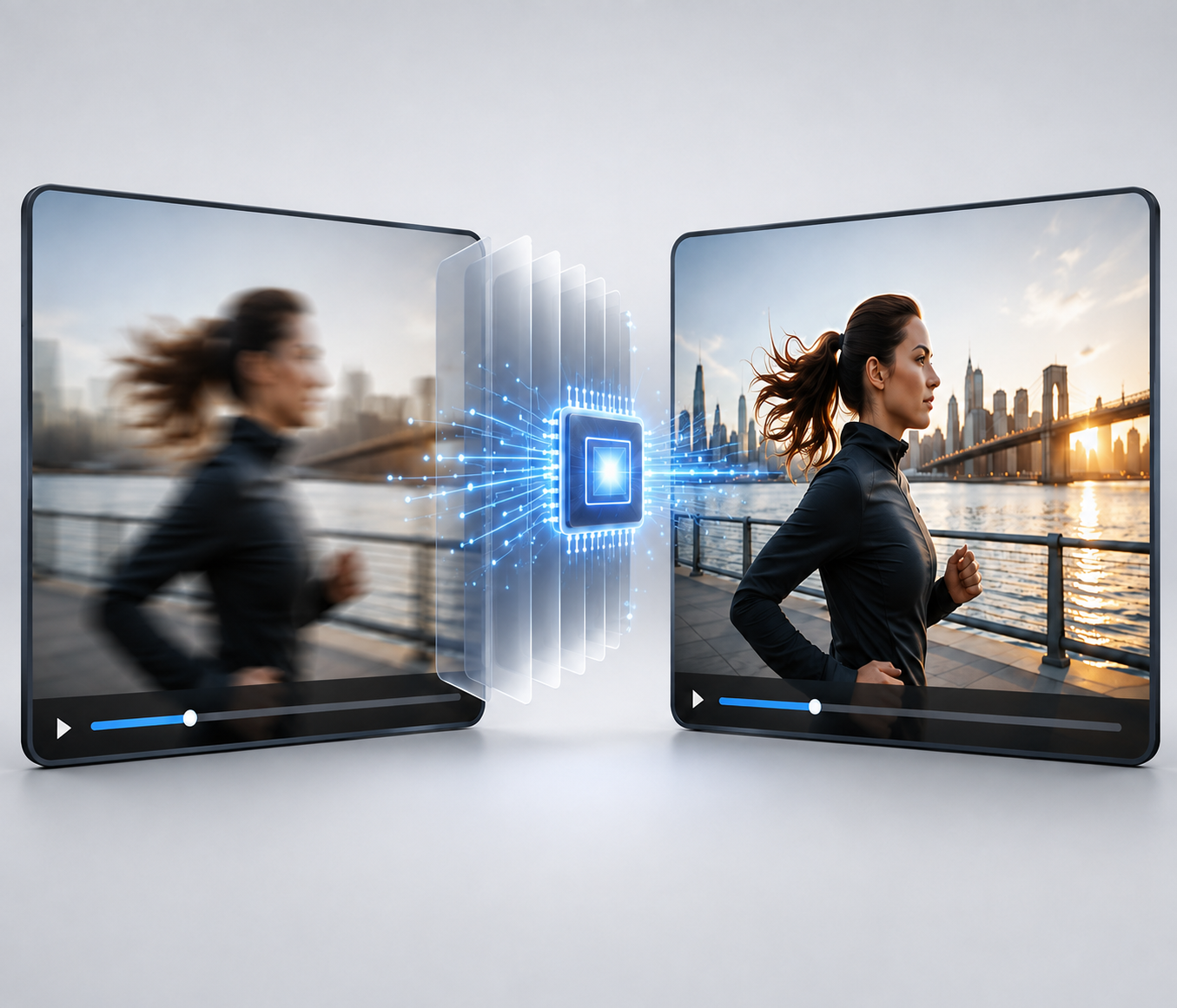
A blurry video does not always have a simple cause. The camera may have missed focus, movement may have created smearing, or compression may have erased fine details. Low resolution and heavy noise can make the footage look soft as well.
Because the causes differ, one enhancement tool will not suit every clip. Face restoration matters more for an old family recording, while game footage may need stronger denoising and motion handling. A short social post also calls for a very different workflow than a film restoration project.
The six tools below were compared by the problems they handle, the level of control they provide, their processing requirements, and how easily they fit into everyday editing.
6 Best AI Tools to Fix Blurry Videos in 2026
Some tools favor speed, while others give editors more control over models and settings. The best choice depends on your footage, workflow, and expected output quality.
1. RoboNeo AI Video Enhancer — Best for Fast Online Video Enhancement
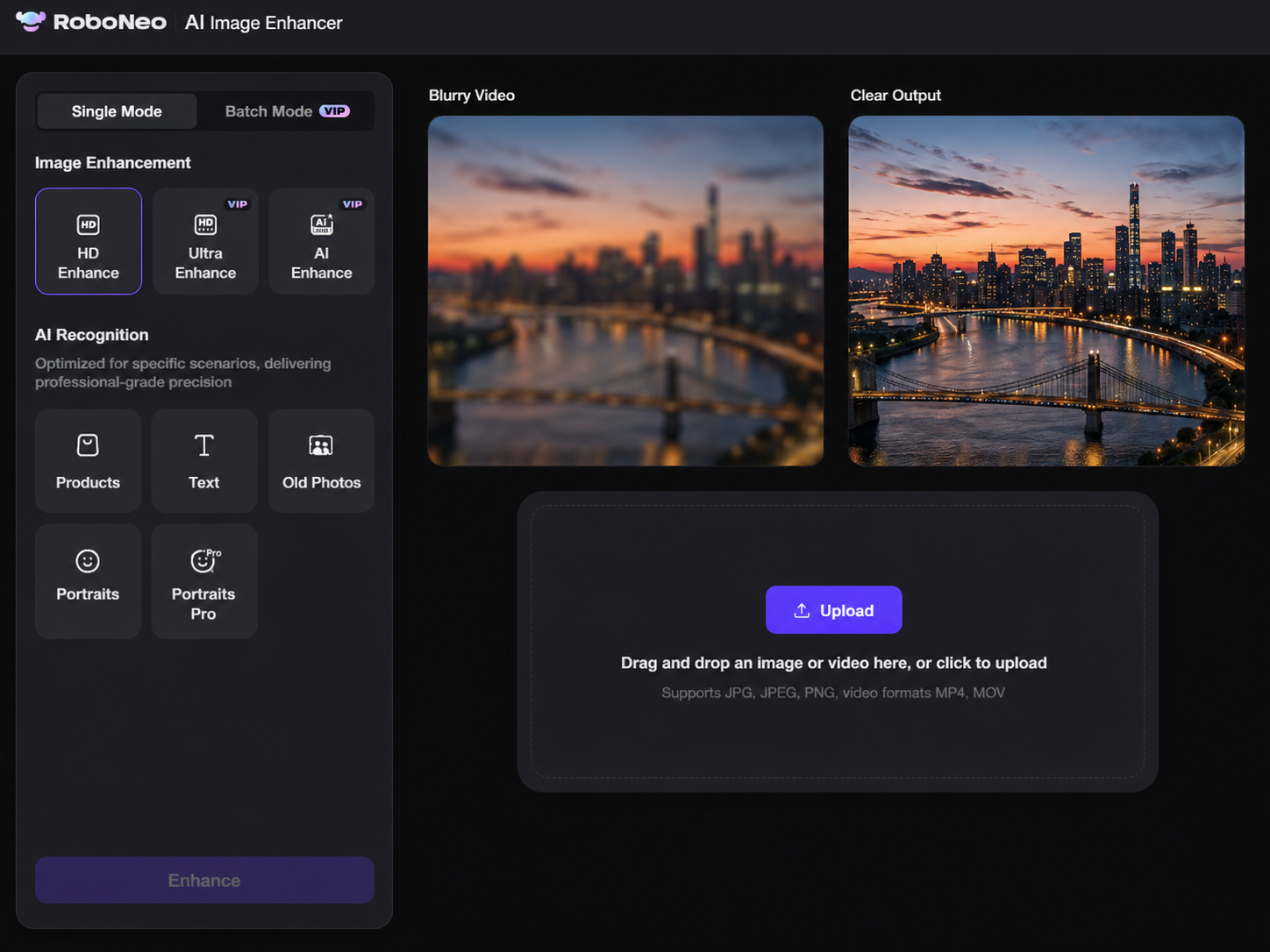
For creators who want to clean up a clip without installing heavy desktop software, RoboNeo AI Video Enhancer offers a straightforward browser-based workflow.
The tool analyzes the footage and works on soft edges, weak textures, noise, and damage caused by low resolution or compression. Start with the best copy of the video you have, select the target clarity, then generate and review the enhanced result.
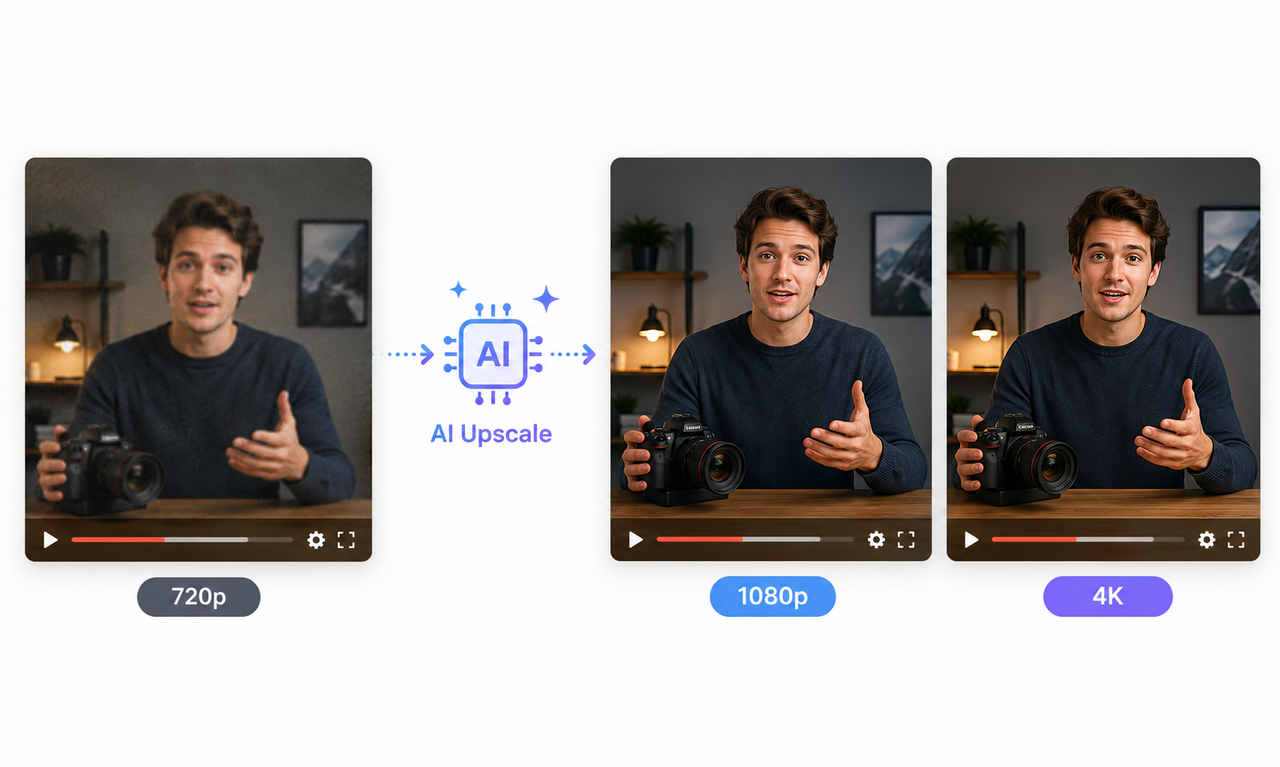
RoboNeo’s AI video upscaler supports 720p, 1080p, 2K, and 4K output. Its online workflow can also sharpen textures and reduce visible noise without requiring a traditional editing timeline.
That makes it practical for short social clips, old recordings, product footage, and routine content work. Before processing a long video, test a section containing faces, text, and movement to make sure the result still looks natural.
Best for: Social media clips, old videos, product footage, and everyday content creation.
2. Topaz Video — Best for Professional Detail Recovery
Topaz Video is aimed at editors who want more control over how footage is restored. Rather than applying one general enhancement to every file, it provides more than 20 AI models covering upscaling, denoising, sharpening, focus recovery, stabilization, slow motion, and frame interpolation.
The broader model selection is useful when switching between archival footage, animation, live action, or difficult low-light material. Settings can be adjusted more carefully than with a basic one-click enhancer, which helps when a strong automatic result looks oversharpened or artificial.
That flexibility requires capable hardware. Topaz recommends substantial memory, internal storage, and a recent dedicated GPU for smoother processing. Some of its more demanding models require considerably more VRAM, while cloud rendering is available for supported workflows.
Long videos and high-resolution exports may also take time. For professional work, however, the added control can be worth the slower workflow.
Best for: Film footage, archival restoration, and high-quality 4K output.
3. AVCLabs Video Enhancer AI — Best for Restoring Faces and Old Videos
Old recordings often suffer from several problems at once. A family video may be blurry, noisy, faded, shaky, and too small for a modern display.
AVCLabs Video Enhancer AI combines these restoration tasks in one desktop application. It can improve facial details, reduce noise, stabilize footage, repair blurry video, colorize black-and-white material, and upscale the output to 4K or 8K.
Its face-focused processing makes it a strong option for weddings, interviews, home movies, and older clips built around people. Still, facial enhancement needs a careful review. When the source contains very little information, the software may generate eyes, skin texture, or hair that looks cleaner but does not fully match the original person.
Check several frames instead of judging one paused image. Facial details should remain consistent as the person moves or turns.
Best for: Family recordings, old films, and videos centered on people.
4. CapCut AI Video Enhancer — Best for Social Media Creators
CapCut is useful when enhancement is only one step in a larger social media workflow.
Low-resolution or pixelated footage can be upscaled and cleaned up inside the editor. CapCut also offers automatic adjustments for lighting, color, and contrast, allowing creators to continue trimming, adding captions, changing the aspect ratio, and preparing the video for publication in the same project.
That all-in-one setup works well for TikTok, Instagram Reels, and YouTube Shorts, where speed often matters more than detailed model selection. There is no need to enhance the file in one program and rebuild the edit somewhere else.
The exact feature set may differ across CapCut’s browser, desktop, and mobile versions. Export resolution, free usage, and AI access can also vary by device, account, region, or software version, so check the available options before beginning a large project.
Best for: TikTok, Instagram Reels, YouTube Shorts, and mobile-first creators.
5. HitPaw VikPea — Best for Beginners Using Desktop Software
HitPaw VikPea sits between a simple online enhancer and a more technical restoration program.
Instead of making users configure every detail manually, it provides tailored models for blurry footage, portraits, sharpening, general quality repair, and high-resolution restoration. The software can reduce noise, repair low-quality video, stabilize shaky footage, smooth motion, and upscale clips to 4K or 8K.
The preset-based process keeps the learning curve manageable: import the video, choose the model that best matches the problem, preview the result, and export once it looks right.
Convenience does not remove the need for testing. A portrait model may make skin too smooth, while sharpening can create artificial lines around hair, animation, or detailed surfaces. Run a short representative section before processing a full video or batch.
Best for: Beginners, family videos, and batch desktop enhancement.
6. Adobe Premiere Pro — Best for Manual Editing Control
Adobe Premiere Pro is not primarily a one-click AI deblurring tool. Its advantage is control.
Editors can combine sharpening, masks, stabilization, exposure correction, contrast adjustments, and color work inside the same timeline. Sharpening may be applied only to the subject, while a tracked mask protects the background or isolates a face. Adobe’s current editing tools include blur and sharpen effects, object masking, and detailed Lumetri color controls.
This approach works well when the blur is mild or limited to part of the frame. It also makes sense when the footage already belongs to a larger project involving cuts, audio, titles, and color grading.
Severely defocused or very low-resolution footage may need a dedicated AI enhancer first. The improved file can then return to Premiere Pro for final editing and targeted corrections.
Best for: Professional editors already working in the Adobe ecosystem.
Best AI Video Deblurring Tools Compared
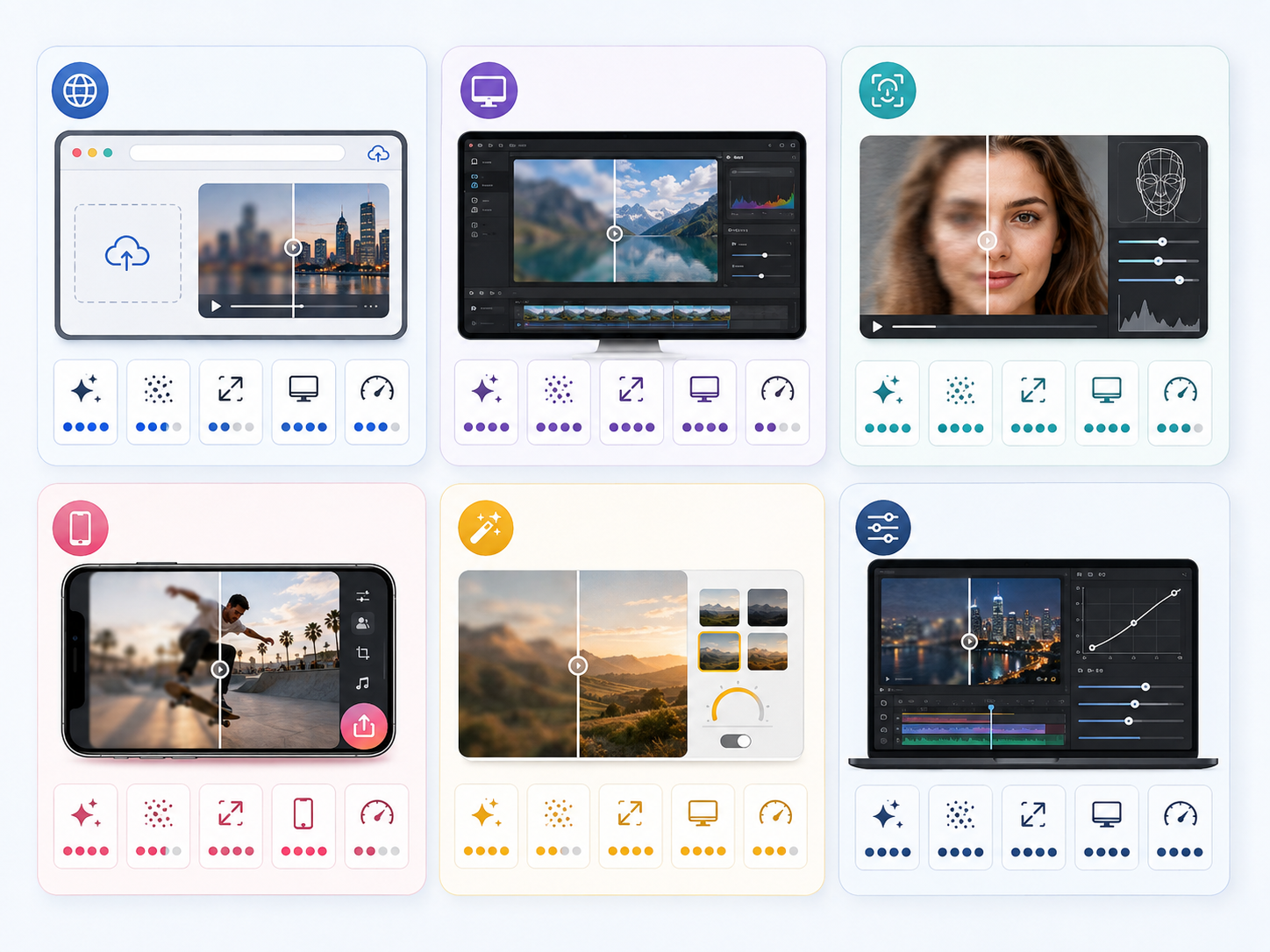
Each tool takes a different approach to video enhancement. This table gives you a quick look at their main features, output options, and learning curve.
AI Tool | Platform | Deblur | Denoise | Upscaling | Ease of Use |
RoboNeo | Online | Yes | Yes | Up to 4K | Easy |
Topaz Video | Desktop/Cloud | Yes | Yes | Up to 4K | Advanced |
AVCLabs | Desktop | Yes | Yes | Up to 8K | Moderate |
CapCut | Web/Desktop/Mobile | Yes | Yes | Varies by version | Easy |
HitPaw VikPea | Desktop/Online/Mobile | Yes | Yes | Up to 8K | Easy |
Adobe Premiere Pro | Desktop | Manual | Manual/plug-in | Native scaling workflow | Advanced |
The table reflects publicly available product information as of August 2026. Output resolution, enhancement models, usage allowances, and export options may vary by plan, device, region, or software version.
How to Choose the Best AI Tool for Your Blurry Video
Features alone do not determine the best choice. Consider the type of blur, actual output quality, usage limits, and how much control you need.
Check Usage Limits
A free trial does not always include full-resolution, watermark-free exports.
Before uploading a long clip, check the maximum file size, supported duration, output resolution, preview allowance, and credit requirements. Online tools avoid local hardware demands, but large uploads may take time. Desktop software removes the upload step while placing more pressure on your GPU, memory, and storage.
Privacy may also affect the decision. Local processing can be preferable for confidential client footage, unreleased products, or personal family recordings.
Compare Enhancement Results
Product demos rarely contain the same problems as your video. Make a short test clip instead.
Include difficult details such as a face, small text, shadows, movement, fine hair, fabric, or a busy background. Process the same section with the tools you are considering.
Watch each result at normal speed first. Then pause and look for:
Flickering or unstable edges
Plastic-looking skin
Warped text
Halos around subjects
Invented or inconsistent textures
Facial features that change between frames
The sharpest frame is not always the best result. A slightly softer image that stays stable during playback will often look more believable.
Review Available Features
Begin with the reason the footage looks blurry.
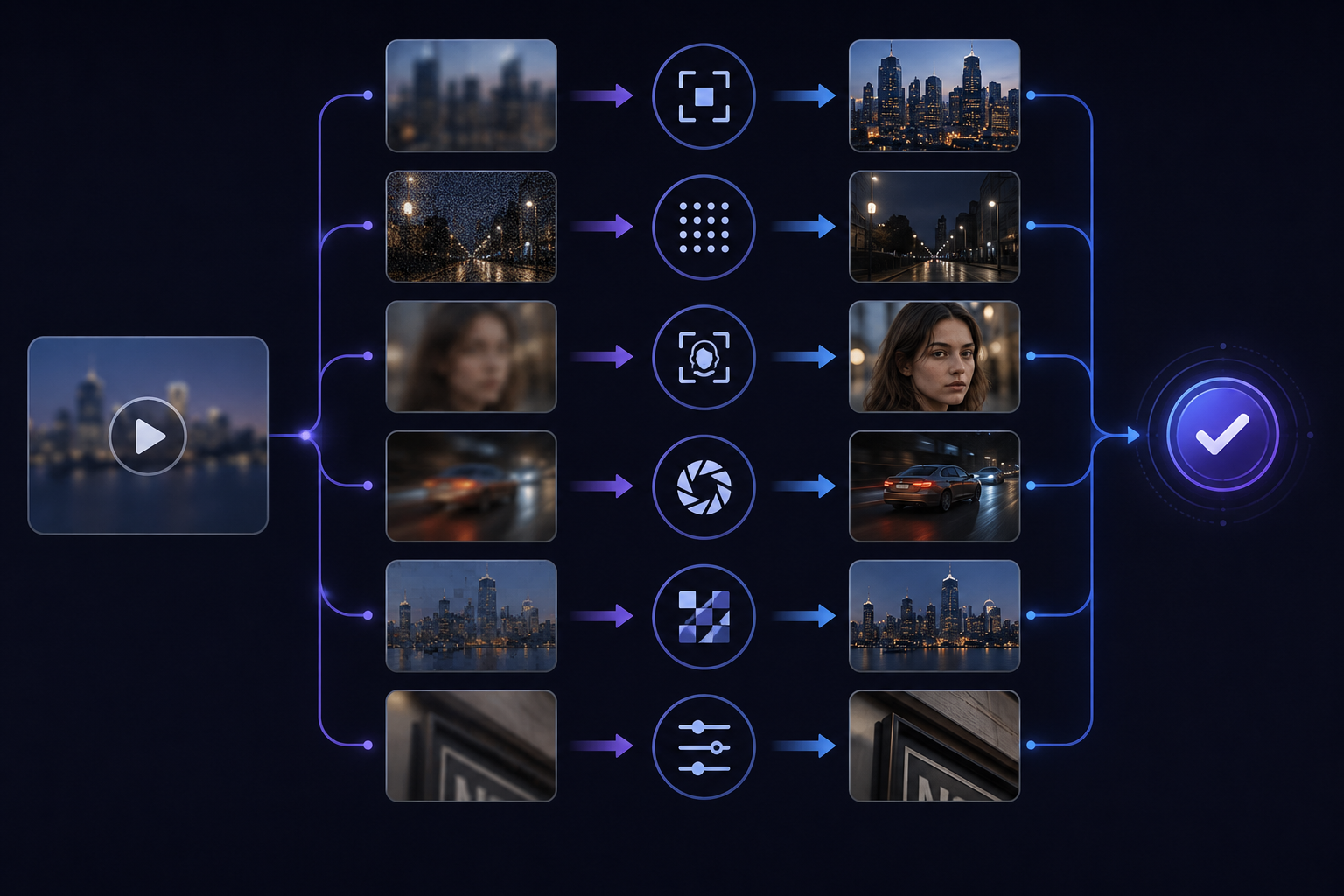
Low-resolution video needs upscaling. Grainy night footage benefits more from a dedicated AI video denoising tool, which can reduce grain while preserving useful edges and textures.
Handheld footage may need stabilization before sharpening. A file that has been compressed several times might require deblocking, denoising, and detail enhancement together.
Social and user-generated videos often contain several of these problems at once. RoboNeo’s guide to AI features for improving UGC video quality explains how enhancement, upscaling, denoising, reframing, and lighting correction can fit into one content workflow.
A longer feature list is not automatically better. What matters is whether the tool addresses the main weakness in your source video.
Consider Ease of Use
An online enhancer is often enough for one short clip. Preset-based desktop software makes more sense for repeated work or batch processing without a steep technical learning curve.
Professional applications provide better control over faces, text, and selected parts of the frame, but they take longer to learn and test.
Match the workflow to the project. A 15-second Reel does not need the same setup as a feature-film restoration.
FAQ
Can AI fix a pixelated video?
AI can soften harsh pixel boundaries, reduce compression blocks, and generate more plausible textures. It cannot recover every original detail after that information has been removed from the file.
Can AI unblur videos effectively?
AI often improves mild defocus, low resolution, compression softness, and blur caused by noise. Results become less reliable when the subject is severely out of focus or has no clear edges in the source.
Can AI fix out-of-focus videos?
Slight focus errors may respond well to edge refinement and detail reconstruction. With severe defocus, the software must estimate much of the missing information, so the result is not an exact recovery of what the camera failed to capture.
Can AI remove motion blur from a video?
Some tools can shorten visible motion trails and make the moving subject appear clearer. Heavy blur caused by fast movement or a slow shutter speed is unlikely to disappear completely.
What resolution should I choose for an enhanced video?
Choose a resolution that matches the final screen or publishing platform. For social media and standard web playback, 1080p is often enough. Use 2K or 4K for larger displays or higher-resolution projects. Turning a poor 480p source into an 8K file usually adds far more data than real detail.
You May Be Interested
How to AI Upscale Video: 1080p to 4K Guide for Beginners
Best AI Video Enhancer in 2026: 8 Tools, Pros and Cons

What Is 4K Upscaling? A Complete Beginner’s Guide
How to Repair Video Blocking Artifacts: Causes and Fixes
Topaz Video AI vs RoboNeo: Which Video Enhancer Is Better?

6 Best Tools to Fix Blurry Videos in 2026