Canva Background Remover Review: What You Should Know
 RoboNeo TeamJuly 22, 2026
This review covers where Canva performs well, where it falls short, and whether a faster AI alternative would better suit your workflow.
How Canva Background Remover Works
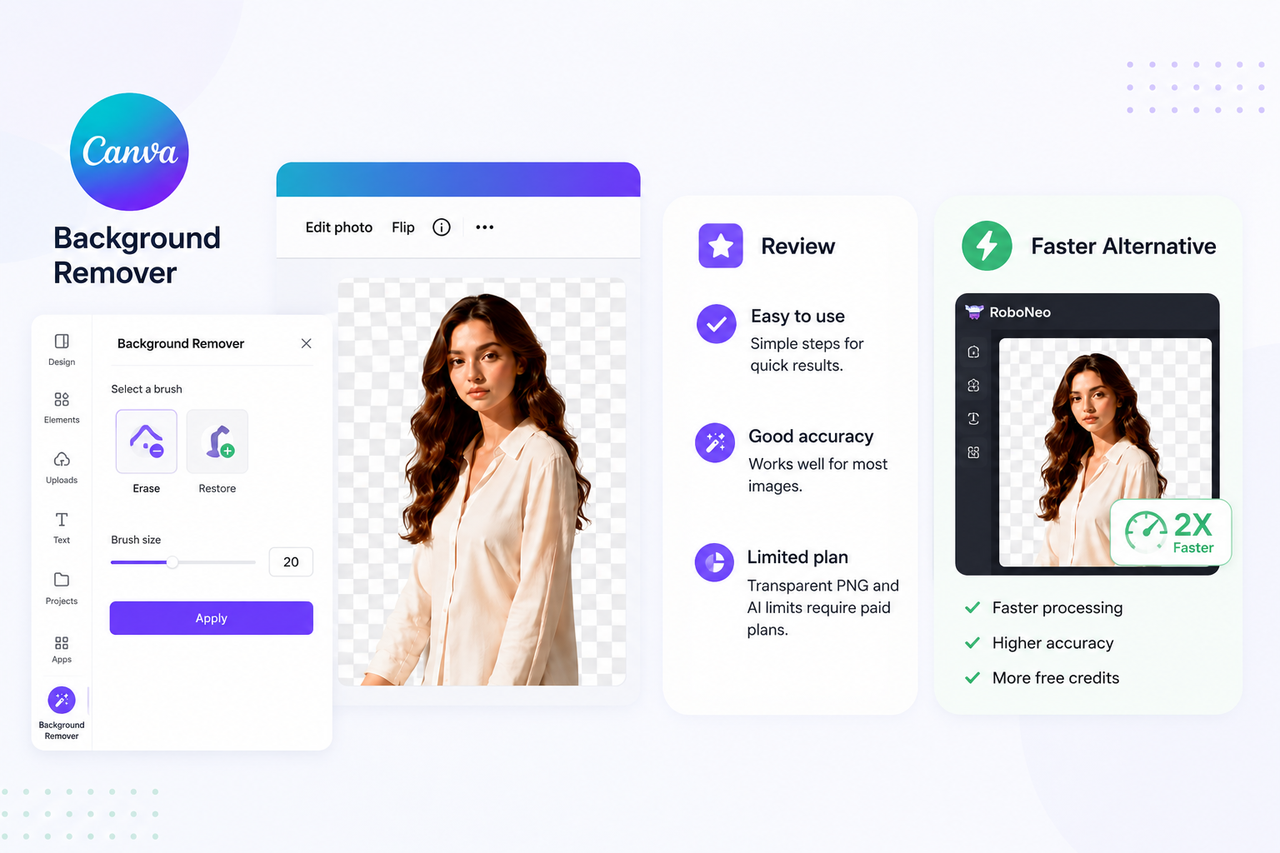
Canva Background Remover uses AI to isolate the subject automatically, with built-in brushes available for quick edge cleanup.
Step 1: Upload or Select an Image
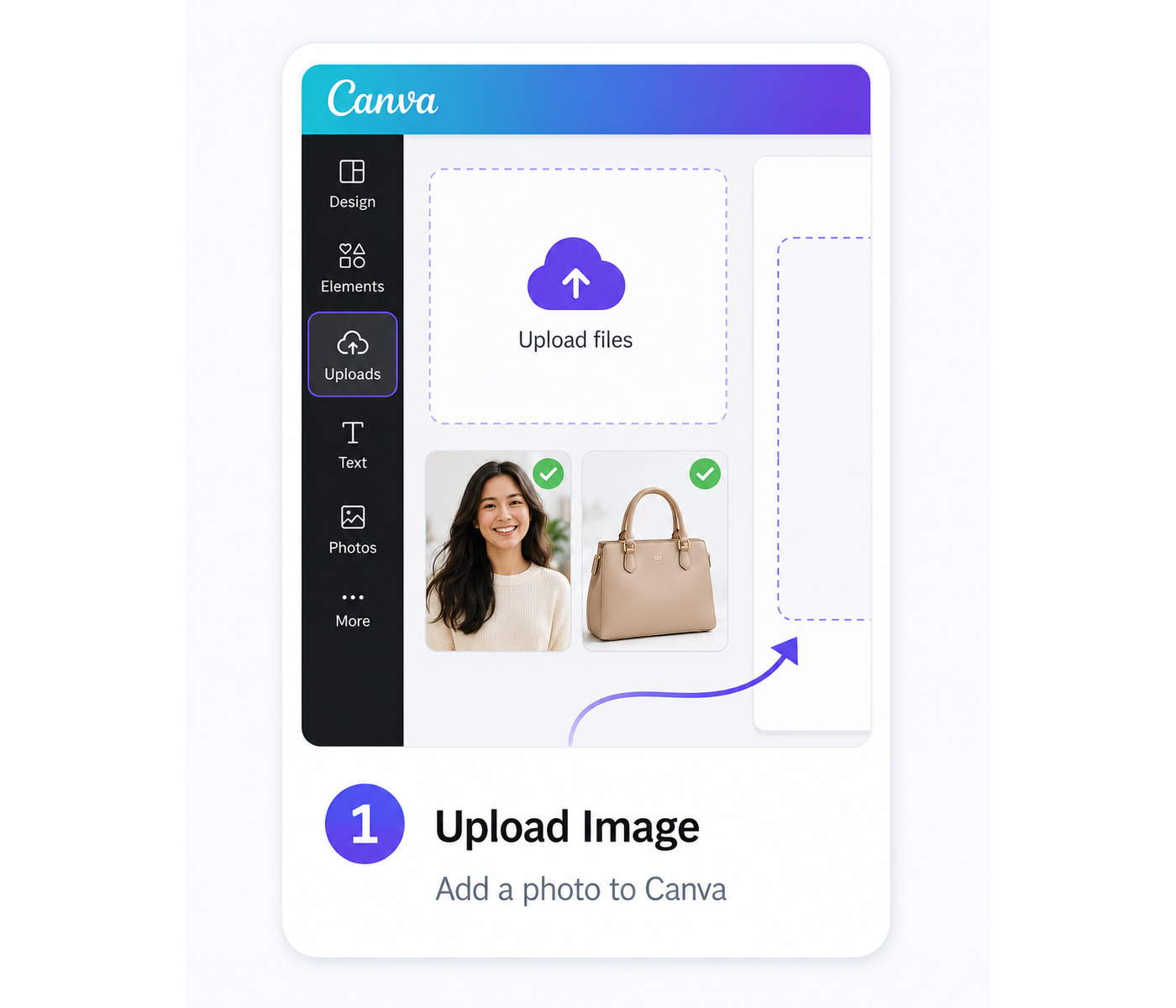
Begin with a new Canva project or open an existing design. Images can be added through the Uploads panel, dragged directly into the editor, or selected from Canva’s media library.
After placing the photo on the canvas, select it to access the editing tools. Clear subject edges and strong contrast generally produce a more accurate cutout. Images containing loose hair, transparent materials, soft shadows, or similar foreground and background colors may need some manual refinement.
Step 2: Select BG Remover
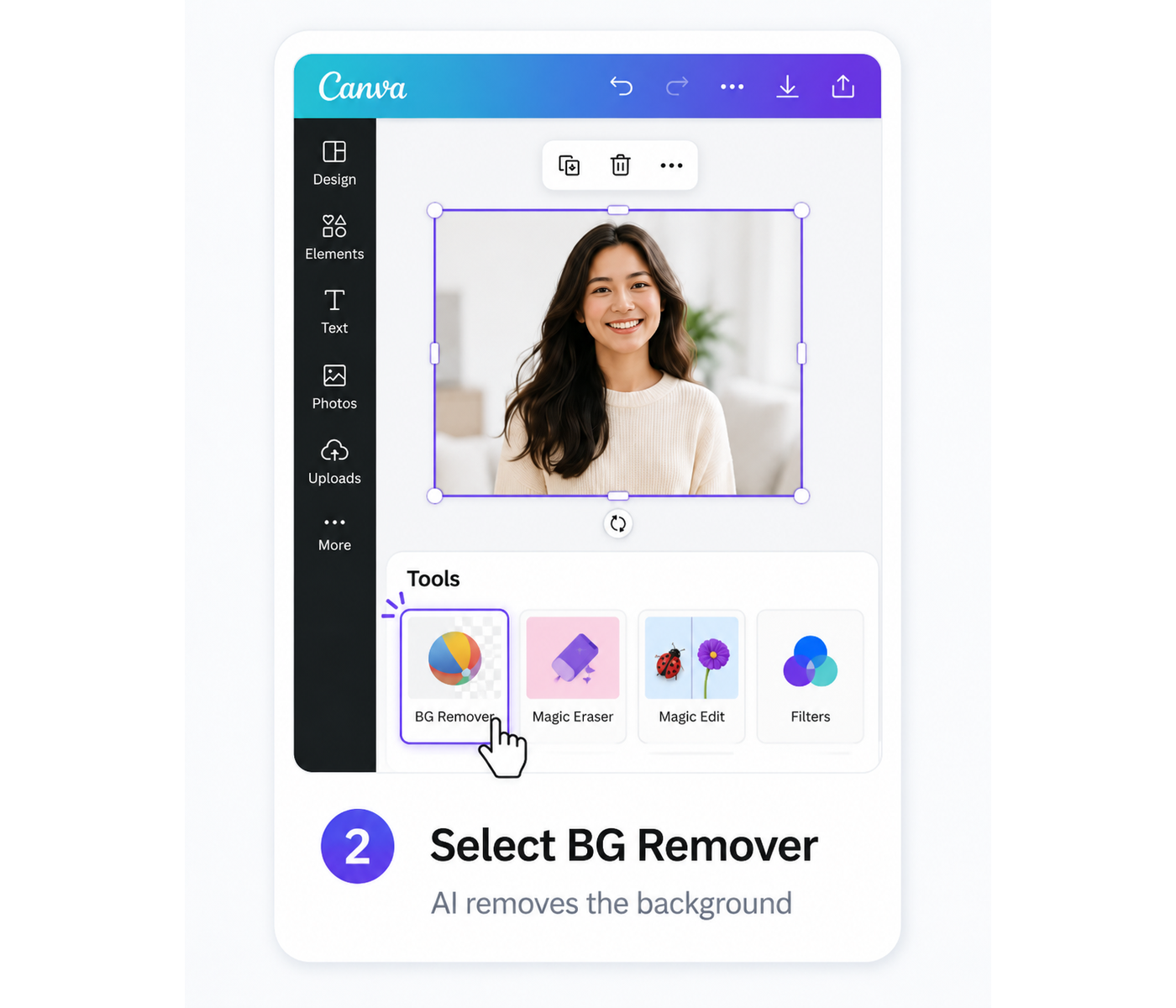
Keep the image selected, then choose Edit photo or Edit image. The exact label may vary depending on the Canva interface. From the available editing tools, select BG Remover. The tool scans the photo, identifies the likely foreground subject, and removes everything around it. This usually takes only a few moments.
Step 3: Refine the Cutout
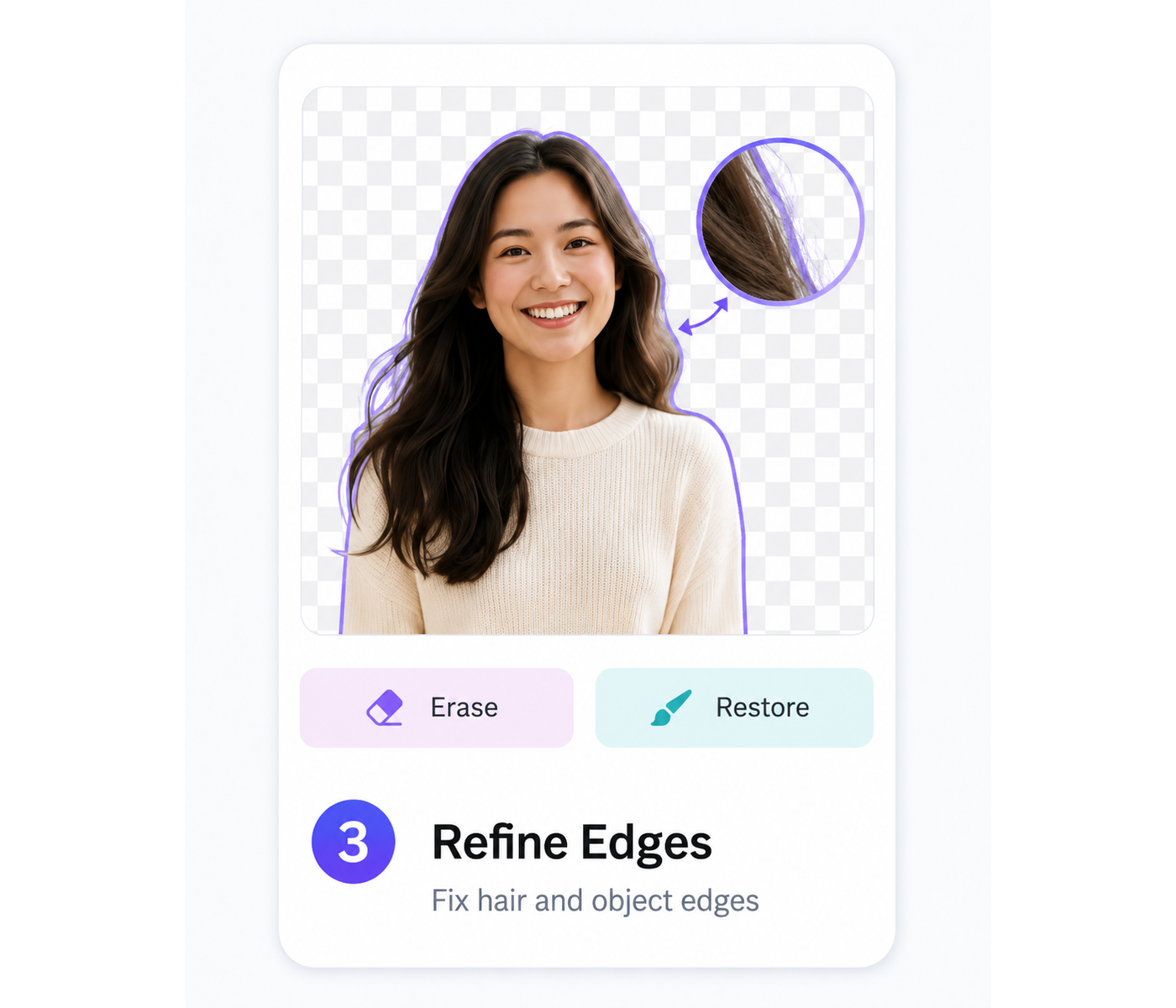
Canva may miss small background areas or remove parts of the subject. Reopen BG Remover, then use Erase to remove leftovers and Restore to recover missing details. Adjust the brush size, compare with Show original image, and select Done when finished. These brushes are mainly available on Canva’s website and desktop app.
Step 4: Replace or Export the Background
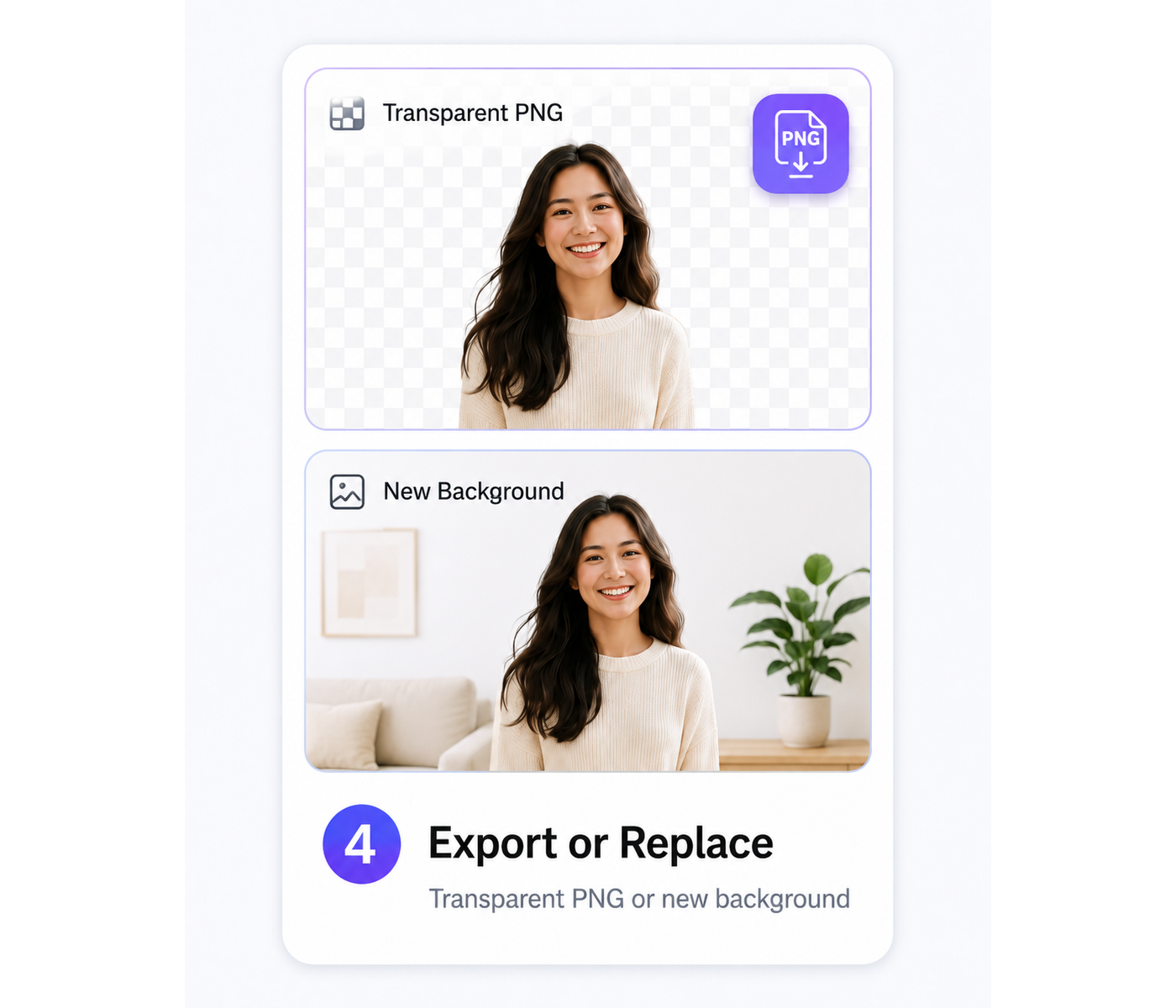
After the original background has been removed, the subject can remain transparent or be placed over a new design.
To replace the background, add a solid color, gradient, uploaded photo, or Canva library image to the page. Move the new element behind the cutout using the layer or Position controls. You can then resize and reposition the subject so that it fits the new scene. Filters, brightness adjustments, shadows, and other effects can also help the foreground blend more naturally with the replacement background. Furthermore, if you want to turn your standard cutout into a creative illustration, integrating it with a canva Ai cartoon generator can expand your design possibilities.
For a finished image with a new background, download the design as a JPG or PNG. To preserve a transparent background, choose PNG and enable transparent background in the download settings where available. Canva lists transparent-background downloading as a premium feature, although access can vary by account type and workflow.
Canva Background Remover Plans and Pricing
Canva Background Remover features vary by plan, with differences in AI usage, brand tools, collaboration, and admin features across tiers.
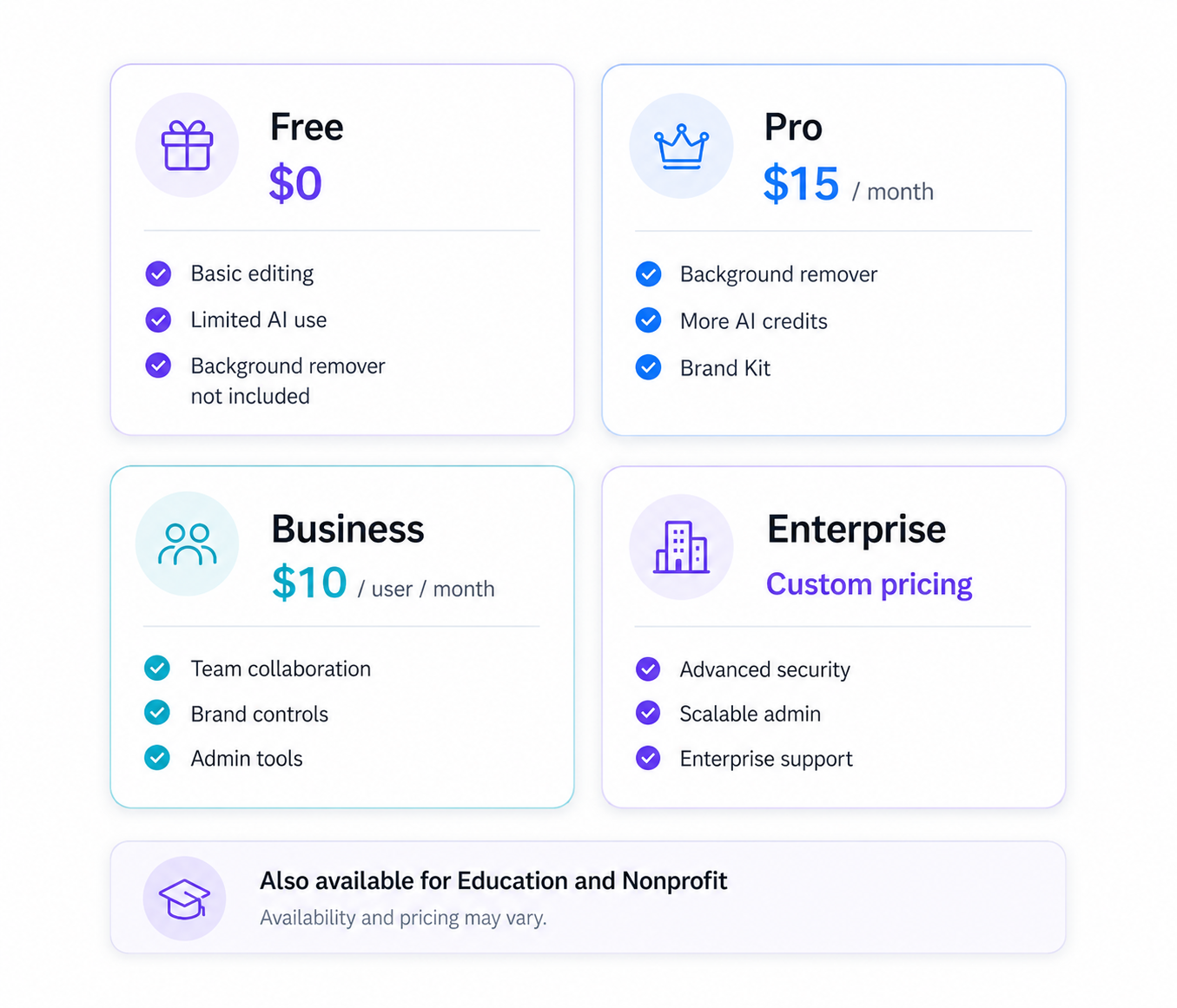
Canva Free
Canva Free includes basic design tools for occasional projects. Background Remover is available for limited use, while unlimited access requires a paid plan, making it better suited for testing rather than regular content production.
Canva Pro
For individuals who regularly edit product images, headshots, or social media content, Canva Pro is the most straightforward upgrade. Along with unlimited image background removal, the plan includes Video Background Remover, Brand Kit, Resize and Magic Switch, premium assets, and additional AI tools. However, creators dealing with high-end video production may often ponder what are the limitations of current ai video generation technology before completely shifting their workflows to cloud-based editors. Current U.S. pricing is listed at $15 per month or $120 per year per person.
Canva Business
Canva Business is built for teams managing multiple brands or larger content workflows. It adds more AI access, advanced brand controls, and collaboration features. Pricing starts at $10/month or $100/year per person in the U.S.
Canva Enterprise
Canva Enterprise focuses on large organizations that need advanced security, admin controls, SSO, integrations, and centralized management. Pricing is customized based on team size and business needs.
Canva Education and Nonprofit Plans
Eligible schools, educators, students, and nonprofits can access many premium Canva features for free, including Background Remover and collaboration tools, subject to eligibility requirements.
Comparision Table
| Plan | Price | Background Remover Access | Main Features | Best For |
| Canva Free | $0 | One free use; ongoing access is limited | Free templates, basic editing tools, limited AI usage | Occasional users testing the tool |
| Canva Pro | Varies by region and billing cycle | Unlimited image background removal; video background removal included | Premium content, Brand Kit, Magic Resize, transparent exports, additional AI tools | Solo creators, marketers, and frequent content production |
| Canva Business | US$20 per user/month | Included with all Pro features | Higher AI limits, advanced brand controls, shared workspaces, ad insights, and business integrations | Small businesses, marketers, and growing teams |
| Canva Enterprise | Custom quote | Included | Centralized administration, advanced security, SSO, SCIM, custom integrations, and organization-wide controls | Large companies and multi-department organizations |
| Canva Education | Free for eligible K–12 users | Most premium features included | Classroom templates, LMS integrations, assignments, collaboration, and education-focused AI tools | Eligible K–12 teachers, students, schools, and districts |
| Canva Nonprofits | Free for eligible organizations | All Canva Pro features included | Pro tools and team collaboration for up to 50 users | Registered nonprofits, NGOs, and eligible social-impact organizations |
For occasional background removal, Canva Free may be enough for a quick test. Regular users will usually need Canva Pro, while Business and Enterprise are aimed at teams that also need stronger brand, collaboration, and administrative controls.
Limitations of Canva Background Remover
Canva makes background removal fast and simple, but it focuses more on convenience than advanced masking. Limitations mainly appear in free access, complex edges, and detailed refinement control.
Limited Free Access
Canva allows users to try Background Remover once for free, while regular access is mainly available through Canva Pro and eligible paid plans. The free option works for occasional edits, but users handling frequent product photos, social graphics, or batch processing may need a subscription.
Complex Edges Still Need Manual Cleanup
Canva can create clean cutouts when subjects have clear boundaries, but results may be less consistent with hair, fur, transparent areas, or complex backgrounds. Its Erase and Restore brushes help fix missed or removed areas, though detailed images may still require extra adjustments.
Limited Control Compared With Professional Masking Tools
Canva’s refinement options are designed for quick edits rather than pixel-level masking. Professional masking tools and a more flexible ai image editor offer more control over edges, hair details, feathering, and mask adjustments.
For simple marketing graphics and everyday images, Canva works well. However, high-resolution advertising, product catalogs, or complex composites may still require professional editing tools for precise results.
A Faster Alternative for Watermarks and Unwanted Elements
Canva’s Background Remover works well for simple cutouts, but users working with product images, portraits, or complex backgrounds may need a more specialized solution. RoboNeo AI Background Remover provides an AI-powered workflow for creating cleaner cutouts with less manual adjustment.
What Is RoboNeo AI Background Remover?
RoboNeo AI Background Remover is an AI-powered cutout tool that automatically separates the main subject from its background. Users can upload an image and let AI identify the subject, remove the background, and create a clean cutout without manually selecting edges or adjusting complicated masks.
Compared with Canva Background Remover, RoboNeo focuses more on dedicated background removal rather than combining cutout features with a broader design workflow. It analyzes the subject’s outline, edges, and visual details to help maintain a more natural appearance, especially for product photos, portraits, and images with complex backgrounds.
The tool can be useful for creating:
Product images with clean or transparent backgrounds
Portrait cutouts with detailed areas such as hair and clothing
E-commerce visuals with consistent image styles
Marketing assets for websites, ads, and social media
RoboNeo AI Background Remover is designed for users who want a faster way to create polished cutouts without spending time on manual selection and edge refinement. However, Canva still offers advantages for users who need templates, layouts, and complete graphic design workflows.
Conclusion
Canva Background Remover delivers fast, convenient results for straightforward editing jobs. Product photos, profile images, social graphics, and portraits with a clear subject can usually be handled without leaving the Canva editor, which makes the workflow especially useful for creators, marketers, and small teams already building designs there.
Its limits become more noticeable around fine hair, glass, transparent materials, and crowded backgrounds. Automatic cutouts may still require manual cleanup, while free access and masking controls remain more limited than dedicated professional editing software. For quick, everyday background removal inside an existing Canva workflow, however, it remains a practical choice.
FAQ
Is Canva Background Remover Free?
Canva lets you try its image Background Remover once for free. Continued use requires Canva Pro or another eligible premium plan; video background removal is also a Pro feature
Which Canva Plan Includes Background Remover?
Canva Pro includes unlimited use of the image Background Remover, along with access to Video Background Remover. Canva Free users can generally try the image tool once, but ongoing use requires an eligible premium plan. For most individual users, that means upgrading to Canva Pro.
Canva safe to use for background removal?
Canva is generally safe for background removal. Designs are encrypted in transit and at rest, but uploaded images are still handled under Canva’s privacy policy, so avoid using highly sensitive files or photos you do not have permission to edit.
How many free background removals do you get in Canva?
Canva Free users get one free image background removal. After that, continued use of Background Remover requires Canva Pro or another eligible paid plan.
You May Be Interested

AI Anime Generator - Photos, Text & Videos to Anime | RoboNeo

Roboneo makes Gemini 3.0 easy for everyone

Kling 2.5 Turbo