How to Remove Watermark from Photo: Easy Ways to Clean Images
 RoboNeo TeamAugust 25, 2026
For a photo you own or have permission to edit, you can remove a watermark by re-exporting the original file, cropping the image, using retouching tools, or applying AI inpainting. The right method depends on the watermark's position, size, opacity, and the complexity of the background.
Keep in mind that a watermark may replace or obscure the original pixels beneath it. Editing software can reconstruct the area from nearby visual information, but it cannot guarantee an exact recovery of details that are no longer present.
When Can You Remove a Watermark?
Before editing an image, confirm that you have the right to modify it. You can generally clean up photographs you took yourself, images to which you added your own watermark, and files whose owner has clearly granted editing permission.
A different situation applies to stock photo previews, photography proofs, and artwork created by someone else. The visible mark often indicates that the image has not been licensed or purchased. In that case, obtaining the authorized, unmarked file from the photographer, agency, or creator is the appropriate solution.
Removing a visible watermark does not transfer copyright ownership or change the license attached to an image. Even when a tool can technically erase the mark, the original usage restrictions still apply.
It is also worth checking your available files before beginning any restoration work. A wedding photographer editing their own portfolio may still have the RAW photographs, while a small business owner may have an original product image stored in a cloud folder. Turning off the logo or text layer and exporting the project again will usually produce a more accurate result than repairing a flattened JPEG. The PicWish Watermark Remover review also explains why automatic tools generate replacement content instead of uncovering the original pixels.
The methods below are intended only for images you own or have authorization to edit.
What Watermark Removal Can and Cannot Fix

The difficulty of watermark removal varies considerably. A small logo in an empty corner presents a very different editing problem from repeated text placed across a person's face and clothing.
Easier Watermarks
Small watermarks on plain backgrounds are generally easier to clean. Open sky, a painted wall, an out-of-focus surface, or a lightly textured tabletop gives an editing tool enough consistent visual information to fill the selected area.
Marks positioned along an outer edge may not require any reconstruction at all. A slight crop can remove the affected section while leaving the main subject untouched. Semi-transparent watermarks can also be more manageable because some underlying color, shading, and structure remain visible.
Consider a restaurant owner updating a menu photo taken in-house. If an old logo sits in the lower corner against a plain table, cropping or a few careful healing strokes may be sufficient.
Harder Watermarks
Watermarks become more difficult to remove when they cross details that viewers immediately notice. Faces, fingers, printed text, product outlines, patterned clothing, and architectural lines all require precise reconstruction.
A tiled watermark covering the entire frame introduces another problem: the editor must rebuild many separate areas while preserving consistent color and texture. Differences between those repaired sections may become visible at full size.
Image quality matters as well. A low-resolution photo downloaded from a messaging app already contains limited detail and compression artifacts. After a large watermark is removed, the repaired area may look noticeably softer than the rest of the picture.
Missing Details
An opaque watermark covers the original pixels completely. No editing tool can inspect information that is absent from the file.
Healing and cloning tools borrow pixels from nearby areas. AI inpainting analyzes the surrounding scene and generates content that appears visually plausible. Neither approach can confirm what was originally behind the mark.
This limitation is especially important when accuracy matters. A reconstructed face may subtly change a person's features, while generated content on a product could alter a label, button, or seam. Historical photographs, identification images, and commercial product records should therefore be restored from the original file whenever possible.
Choose the Right Watermark Removal Method

People searching for how to remove watermarks from photos often encounter tools that promise an automatic solution. In practice, choosing a method that matches the image produces a cleaner and more predictable result.
| Method | Best For | How It Works | Skill Level | Main Advantage | Main Limitation |
| Re-export | Original or layered files | Disables the watermark layer before creating a new copy | Beginner | Preserves the original image information | Requires access to the source file |
| Crop | Marks near an edge or corner | Removes the affected outer area | Beginner | Fast and reliable | Reduces the frame and pixel dimensions |
| Healing Brush | Small marks on simple backgrounds | Blends nearby texture into the selected area | Beginner to intermediate | Produces natural transitions | Can soften edges and detailed patterns |
| Clone Stamp | Repeated textures and defined edges | Copies pixels from a chosen source area | Intermediate | Offers precise manual control | Repetition can become visible |
| AI Inpainting | Larger marks and irregular backgrounds | Generates replacement content based on the surroundings | Beginner | Rebuilds areas that basic retouching cannot cover | Generated details may not match the original |
The method should also reflect how the final picture will be used. If cropping leaves too few pixels for a print or large website banner, the methods covered in how can i make an image high resolution can help determine whether careful resampling or AI upscaling is suitable after the watermark has been removed.
How to Apply Each Removal Method
A sensible workflow begins with the source file and progresses toward more reconstructive methods. Once the watermark is gone, a final inspection helps catch repeated textures, distorted edges, or unwanted changes.
Re-Export the Original
Access to the original photograph, RAW file, or layered project gives you the cleanest option. Open the project and locate the watermark, logo, or text layer. After hiding or deleting that layer, export a new copy using the required dimensions and format.
Some camera apps automatically add a device name or date stamp. The unmarked version may still exist in the camera roll, an online backup, or the app's original-media folder. Certain editing apps also offer a revert function that restores the image to its state before the watermark was applied.
A handmade jewelry seller who added a seasonal logo to product photographs can return to the layered design file and export clean versions for a new catalog. No pixels need to be guessed or rebuilt.
Crop an Edge Watermark
Cropping works well when the watermark appears close to the image boundary. Position the crop frame just inside the mark, then check whether the subject, important background elements, or necessary visual space will be removed.
The final aspect ratio should match where the picture will appear. A landscape website banner, a square product thumbnail, and a vertical social post require different frames. Also inspect the remaining pixel dimensions. A crop that looks acceptable on a phone may leave too little resolution for a printed brochure.
This approach suits a travel photo with a small date stamp at the bottom, provided that removing the lower edge does not cut off a person's feet or an important part of the landscape.
Retouch a Small Watermark
A healing brush can blend a small watermark into a uniform or softly textured background. Set the brush slightly wider than each letter or line, then work in short strokes instead of painting over the entire mark at once.
The Clone Stamp provides more control around straight lines and recognizable textures. Select a clean source area with similar lighting, copy it over a small section, and choose a new source frequently. Reusing one sample across a large area can create obvious repeated patterns.
A watermark crossing wooden floorboards needs special attention. Random healing may break the direction of the boards, while carefully aligned cloning can preserve their edges and grain. When the photo needs several edits beyond watermark removal, an AI image editor can also help remove distractions and refine surrounding areas within the same workflow.
Rebuild a Larger Area
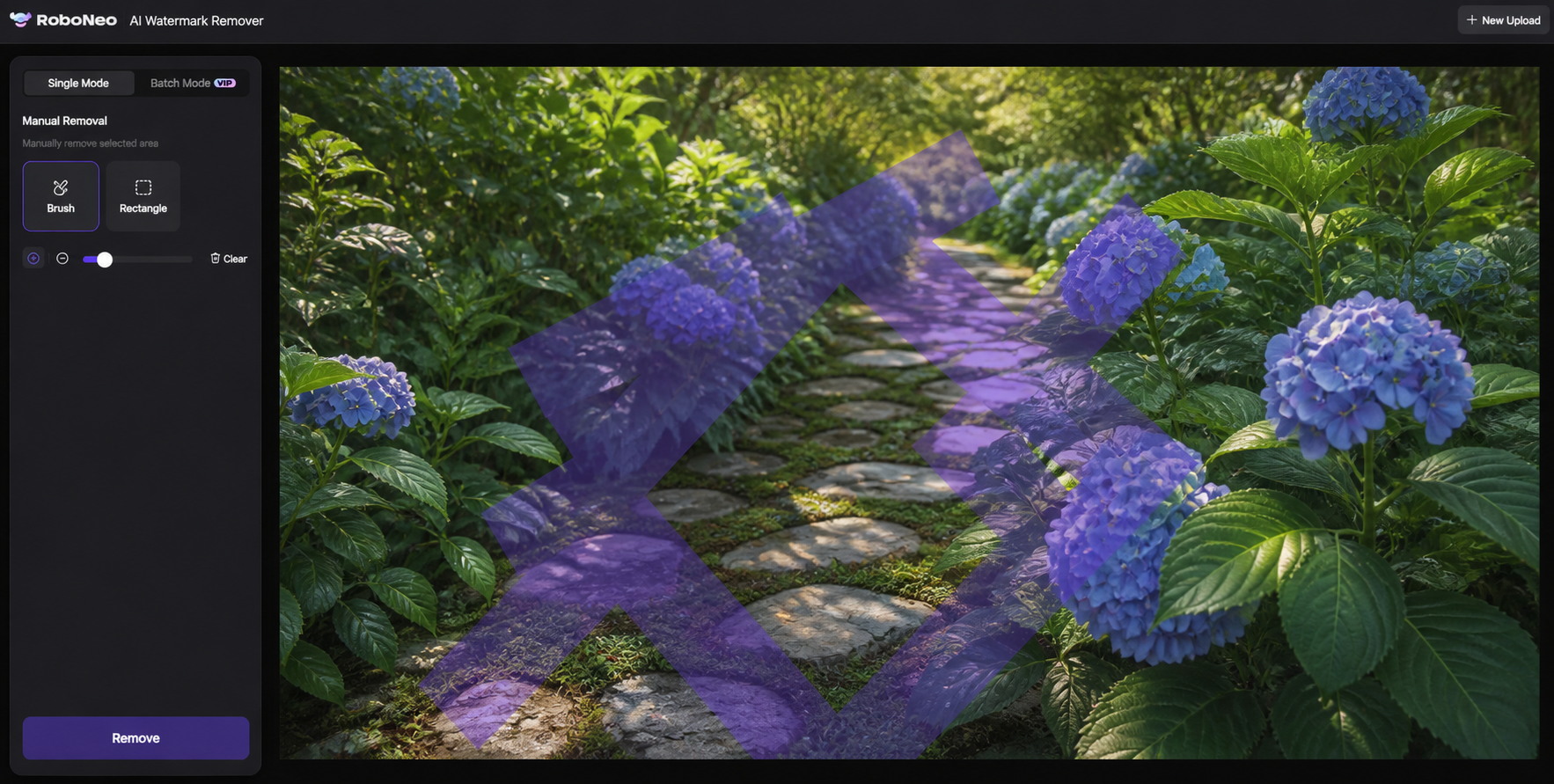
When cropping would damage the composition and manual retouching cannot reproduce an irregular background, AI inpainting may be more practical. For an image you own or are authorized to modify, upload it to RoboNeo AI Watermark Removal, mark the complete watermark area, and allow the tool to rebuild it using the surrounding content.
Anyone investigating how to remove watermark from photo free should still begin with a small test area. The selection needs to cover every visible edge of the watermark without extending far into unaffected parts of the image. An oversized mask forces the tool to replace more genuine content than necessary.
Large or separated marks are often easier to process in sections. One pass might clean text from the sky, while another handles a mark over grass or fabric. This gives the system a more consistent background for each repair.
The generated result represents a visual estimate rather than a recovery of the hidden pixels. A reconstructed patch of clouds may look convincing, but generated facial features or product lettering should not be treated as historically or commercially accurate.
Review and Export
A repaired image may look clean when fitted to the screen but reveal problems at 100% zoom. Review the result at both viewing sizes and pay close attention to:
Straight lines, product edges, facial features, hair, and text.
Repeated patterns, blurred patches, color shifts, and leftover watermark outlines.
Changes to the main subject that were not part of the intended edit.
A soft repaired patch does not always mean that the whole image needs aggressive sharpening. The techniques in how to make a photo less blurry can help distinguish mild softness from low resolution, noise, compression, or missing detail before further editing.
Compare the finished picture with the original to confirm that important content remains unchanged. Export the result as a new file instead of overwriting the source. JPEG works well for most web photographs, while PNG may suit graphics that require sharper edges or transparency. Printing generally demands larger pixel dimensions than social media or website use.
FAQ
Can I remove a watermark without losing image quality?
Re-exporting the original file without its watermark usually preserves the most quality. Cropping reduces the image dimensions, while repeatedly saving a JPEG can add compression artifacts. Manual retouching and AI editing mainly change the selected region, although poor processing may introduce blur or unnatural texture.
Can I remove a watermark on an iPhone or Android phone?
Yes. Mobile photo editors may include cropping, healing, or object-removal features, and online AI tools can be accessed through a phone browser. A computer is often more convenient for complex backgrounds because its larger display makes precise selections and 100% inspection easier.
Can Photoshop remove every type of watermark?
Photoshop includes the Remove Tool, Healing Brush, Clone Stamp, and Content-Aware Fill. These features can handle many simple watermarks, but they cannot guarantee accurate recovery beneath a large or opaque mark. Having more editing tools does not restore information that was never preserved in the file.
Why does the edited area look blurry?
The selected region may be too large, causing the tool to replace unaffected details along with the watermark. Soft results also occur when the surrounding area contains too little usable texture. A smaller selection, several separate passes, or careful Clone Stamp work can restore sharper local detail.
Can a transparent watermark be removed?
A transparent watermark often retains some of the underlying image information, so removal may be possible. The outcome depends on its color, opacity, coverage, and the complexity of the background. After editing, check for color differences, faint outlines, and uneven contrast around the repaired area.
You May Be Interested

4K vs 1080p: Should You Upscale 1080p Video to 4K?

How to Turn Long YouTube Videos into TikToks with an AI Video Clip Generator

6 Best Ai Character Generator in 2026: Tested & Compared

How to Create Stunning Visuals with the Best AI Music Video Generator
Best AI Video Enhancer in 2026: 8 Tools, Pros and Cons