How to Repair Video Blocking Artifacts: Causes and Effective Fixes
 RoboNeo TeamAugust 6, 2026
A video can look fine in a small preview and fall apart as soon as the action speeds up. Faces turn into patches, dark areas break into squares, and water or grass starts to resemble a shifting mosaic. Those boxy patterns are known as blocking artifacts.
They usually come from aggressive compression, but the best fix depends on what files you still have. An original recording can often be exported again. A clip that has already been downloaded, edited, and compressed several times may need filtering or AI-assisted cleanup.
What Are Video Blocking Artifacts?
Blocking artifacts are visible square or rectangular patches in a compressed video. They may stay faint in still scenes, then become obvious during camera movement, fast action, or changes in lighting.
Most modern codecs divide frames into blocks so they can process and compress the image efficiently. When too much information is removed, neighboring blocks no longer blend together cleanly. Their boundaries begin to show, creating a tiled or pixelated look. Research on block-based compression links this effect to coarse quantization and visible discontinuities along block edges.
Common signs include:
Square patches in shadows, skies, walls, or skin
Blocky motion around people and objects
Muddy grass, hair, water, smoke, or confetti
Large color patches where smooth gradients should appear
Blocking is not the same as low resolution. A low-resolution clip may look soft overall, while blocking creates visible boundaries and uneven patches within the image.

What Causes Blocking Artifacts in Videos?
Blockiness usually appears when the encoder has too little data to describe a changing frame.
A low bitrate is the most common cause. When the encoder cannot preserve every detail, it simplifies textures and motion to keep the file within the selected data rate. Fine patterns, fast movement, digital noise, and low-light footage are especially difficult to compress.
Repeated encoding can make the problem worse. A video may be compressed when recorded, again during editing, and once more after upload. This guide to enhancing UGC video quality looks at how compression, blur, noise, and weak lighting can build up within the same clip.
Other causes include:
Using a downloaded copy instead of the original
Sending video through apps that reduce file size
Choosing an aggressive export preset
Upscaling a small clip before export
Recording fast action at a bitrate meant for static footage
Uploading with settings that do not suit the platform
If the blocks appear only during online playback but disappear after the file fully loads, the source may be fine. The problem could be temporary streaming quality rather than permanent damage.
How to Repair Video Blocking Artifacts

The right fix depends on whether you still have a cleaner copy and how severe the damage is.
Method 1: Replace the Video with a Higher-Quality Source
Start by locating the best version of the clip.
Check the camera card, phone storage, cloud backup, editing project, or original transfer folder. Avoid copies downloaded from social platforms or messaging apps, since those services often compress uploads.
Replacing the file is usually more effective than repairing a damaged copy. The original may contain texture and motion information that no filter can accurately rebuild.
Once you find it, reconnect the source in your editing project and export a short test. Watch the same area where the blocking was most visible.
Method 2: Re-Export the Video at a Higher Bitrate
Re-exporting can help when the timeline or source footage is still clean but the previous export setting was too aggressive.
Increase the bitrate gradually rather than jumping to the highest value. A detailed 1080p action clip may need more data than a fixed-camera interview at the same resolution. Frame rate matters too; 60 fps footage contains twice as many frames per second as 30 fps video.
Use variable bitrate for a standard upload when your software offers it. This gives complex scenes more data while keeping simple sections efficient. Export a short section with motion, shadows, and fine texture, then compare it with the earlier file. HandBrake also recommends testing short previews when adjusting video quality instead of encoding the entire project each time.
A higher bitrate only helps if better information still exists in the source or timeline. Re-encoding an already blocky file at 50 Mbps will preserve the blocks inside a larger file; it will not restore missing detail. If the video also needs a larger output, follow an AI video upscaling workflow only after the compression problem has been reduced.
Method 3: Apply a Deblocking Filter
When the original is unavailable, a deblocking filter can soften the hard boundaries between compressed blocks.
The filter looks for sudden changes along block edges and blends them with nearby pixels. FFmpeg, for example, includes a deblock filter with weak and strong modes, adjustable block size, and threshold controls.
Use the lightest setting that makes a visible difference. Strong filtering can hide the grid, but it may also soften text, faces, fabric, and other real edges.
A practical workflow is:
1. Apply a mild deblocking setting.
2. Preview a difficult section at full size.
3. Check both moving areas and fine edges.
4. Increase the strength only if the blocks remain distracting.
Deblocking works best on moderate, regular block patterns. It is less effective when the video also has heavy blur, noise, banding, and missing detail.
Method 4: Use AI to Reduce Blocking Artifacts
A single filter may not be enough for a clip that has gone through several rounds of compression. The same file may contain large color blocks, noise, soft edges, and low resolution at once.
For that situation, RoboNeo AI Video Enhancer offers a more streamlined option. Upload the highest-quality copy you have, choose an enhancement approach based on the visible problems, set the target clarity, and generate an improved version.
This works well when the original editing project is gone or manual frame-by-frame cleanup would take too long. When the clip also contains blur, noise, or unstable details, this comparison of the best AI video enhancers can help match the tool to the damage rather than treating every artifact as the same problem.
Severe compression removes real information, so no tool can guarantee a perfect reconstruction. Review the result around eyes, hair, text, hands, and moving edges, where overprocessing is easiest to spot. Then export with a sensible codec and bitrate so the cleaned version is not damaged again.
How to Prevent Blocking Artifacts in Future Videos
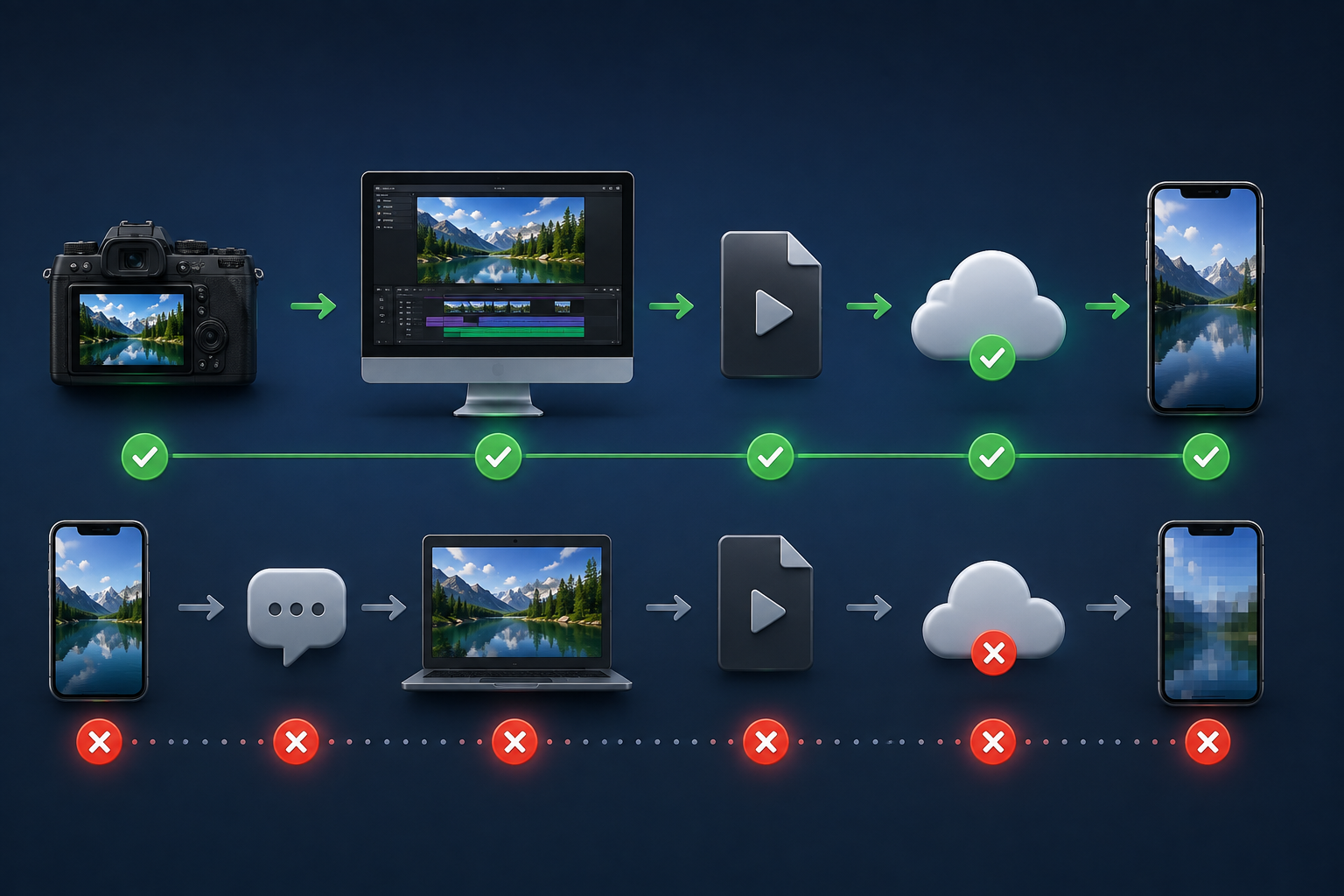
A few changes to the workflow can keep the same problem from returning.
Record at a Sufficient Bitrate
Give the camera enough data for the scene.
Interviews and presentations are relatively easy to compress. Sports, gameplay, handheld movement, foliage, water, crowds, smoke, and low-light footage need more room. Use a higher recording quality for these scenes, especially at 4K or 60 fps.
Do not choose settings based on resolution alone. Motion and visual complexity matter just as much.
Limit Repeated Compression
Keep one clean master and create delivery copies from it.
Do not download a social media upload and use that file for the next edit. Return to the original footage or a high-quality master. When several people are working on a project, transfer the actual file instead of sending it through an app that reduces quality.
Complete edits, resizing, color adjustments, and cleanup before the final delivery export. A connected workspace such as RoboNeo can reduce unnecessary file handoffs, but the clean master should always remain untouched. Fewer lossy passes mean fewer chances for artifacts to build up.
Use Platform-Recommended Upload Settings
Each platform processes incoming video differently. Match its preferred codec, frame rate, resolution, and bitrate instead of relying on one preset for every destination.
YouTube currently recommends H.264, variable bitrate, and the same frame rate used during recording. Its reference upload rates also change by resolution and frame rate, so 1080p60 needs more data than 1080p30.
Check the latest guidance before exporting. Platform specifications can change.
FAQ
What do video artifacts look like?
Video artifacts may appear as square blocks, blurred motion, ringing around edges, color banding, flicker, or smeared texture. Blocking artifacts are the grid-like squares most noticeable in movement, dark areas, and smooth backgrounds.
Is artifacting permanent?
It is permanent in that compressed file because some original data has already been removed. A cleaner source can solve the problem, while filters or AI tools may reduce how visible the damage is.
What are the three types of artifacts?
There is no universal three-part classification. Three common compression artifacts are blocking, ringing, and banding. Blocking creates square patches, ringing produces halos near sharp edges, and banding turns smooth color gradients into visible steps.
Can blocking artifacts be completely removed?
Minor blocking can sometimes be reduced until it is hard to notice. Heavy artifacts are more difficult because the missing texture and motion data may no longer exist. A higher-quality source gives the best chance of a clean result.
Why does my video become blocky during movement?
Fast motion changes more of the frame from one moment to the next. If the bitrate is too low, the encoder cannot describe those changes cleanly and simplifies the image into larger patches. Noise, detailed backgrounds, and repeated compression can make the effect stronger.
You May Be Interested

How to Turn Long YouTube Videos into TikToks with an AI Video Clip Generator
Best AI Features for Enhancing UGC Video Quality in 2026
Best App to Remove Tiktok Watermark in 2026