SD vs. HD Video: What's the Real Difference?
 RoboNeo TeamAugust 11, 2026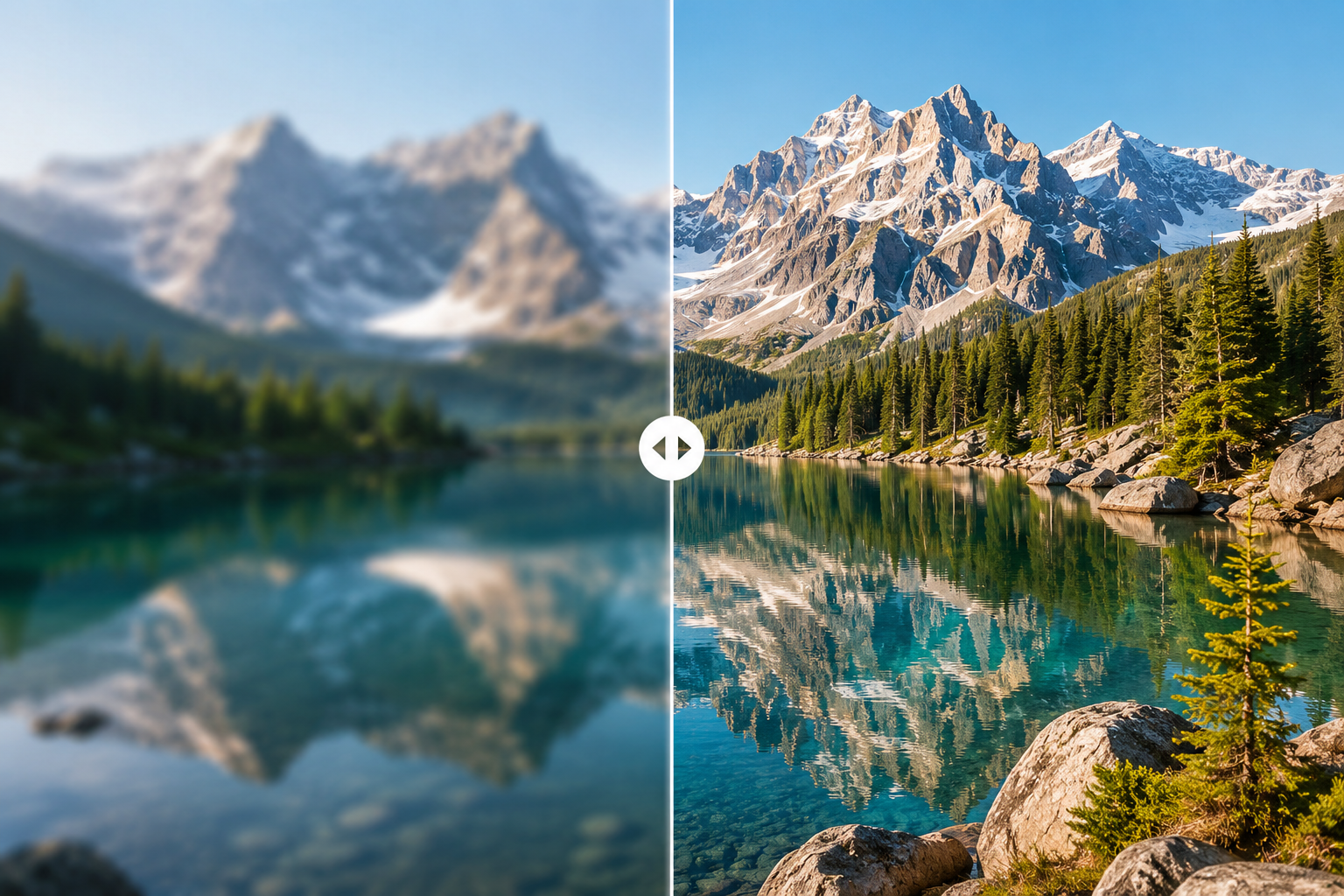
A video can look perfectly fine in a small phone window, then seem noticeably softer once you open it full screen on a laptop. Switch to the HD version and the difference is easier to spot, especially around faces, subtitles, and other small details. The trade-off is a larger file, which can matter when you're streaming over hotel Wi-Fi or using a mobile hotspot.
That's really where the SD vs. HD choice becomes practical. It's not just about resolution. You're also balancing image detail, file size, data use, and the type of screen the video will be viewed on.
HD is not automatically the better option in every situation. SD can still make sense for security footage, slower internet connections, quick previews, or videos that stay inside a small player. If viewers need to read subtitles, see product details, or watch the video full screen on a computer or TV, HD is usually the better fit.
What Is SD (Standard Definition) Video?
Short for Standard Definition, SD covers a few different display formats rather than a single fixed resolution.
On web platforms, 480p serves as the standard baseline-typically running at 854 x 480 pixels for widescreen media or 640 x 480 for classic 4:3 footage. Legacy formats from the DVD era even spanned 720 x 480 and 720 x 576. The unifying factor across all of them? A relatively sparse pixel count.
While SD once dominated broadcast television, physical DVDs, and early online video, modern platforms treat HD as the default setting. Yet SD remains surprisingly practical. Because smaller files transfer quickly, they place minimal strain on limited bandwidth.
Consider pulling up a porch security camera feed on a mobile hotspot to see whether a delivery showed up. A quick 480p stream conveys that info immediately without burning gigabytes on brick textures or background leaves.
Problems arise when you force an SD video onto a larger screen. Stretching those limited pixels softens hard edges, turns fine print unreadable, and mushes hair or clothing into blurry compression blocks-a problem made worse if the clip was re-uploaded multiple times.
What Is HD (High Definition) Video?
High Definition (HD) starts at 720p (1280 x 720) and extends up to 1080p (1920 x 1080), widely referred to as Full HD. By packing significantly more pixels into every frame, HD leaves ample room for sharp text, detailed facial features, and crisp background elements.
This added canvas becomes glaringly obvious during detail-heavy watching.
During a software tutorial, for example, a 480p render might keep the speaker recognizable while turning menu text into unreadable smudges. Bumping the stream up to 720p or 1080p immediately sharpens every UI element, button, and subtitle.
Given how large modern laptops, monitors, and smart TVs have grown, HD caters far better to current displays. Where enlarged SD video breaks down into obvious grids, HD maintains clean, natural visuals.
All that said, slapping an "HD" tag on a video doesn't guarantee great quality. A heavily compressed, low-bitrate 1080p clip shot out of focus will still look messy. Honestly, a crisp, well-lit 480p recording often looks more appealing than a poorly encoded HD file. Resolution dictates potential detail, but lighting, focus, and compression dictate the final result. When weak lighting is the main issue, it may make more sense to make a dark video brighter before focusing on resolution.
SD vs. HD Video: Key Differences
The most obvious gap lies in raw numbers, though screen dimensions, buffering times, and storage demands dictate what viewers actually experience.
SD vs. HD Resolution and Pixel Count
Standard definition keeps video frame dimensions tight-widescreen 480p hovers around 854 x 480, whereas HD starts at 1280 x 720 and Full HD scales up to 1920 x 1080.
The mathematical jump is massive. A typical 480p frame contains roughly 410,000 pixels. Move up to 720p, and that number climbs to 920,000; 1080p tops out at over 2.07 million. Packing in those extra pixels gives the camera far more canvas to capture intricate elements-small fonts, subtle facial expressions, product tags, and background scenery.
Just don't assume doubling the pixel count automatically doubles perceived sharpness. If a file uses an overly aggressive compression setting or was shot slightly out of focus, those extra pixels won't magically invent missing detail.
SD vs. HD Picture Quality on Phones, Laptops, and TVs
Screen real estate completely reshapes how clear a video looks.
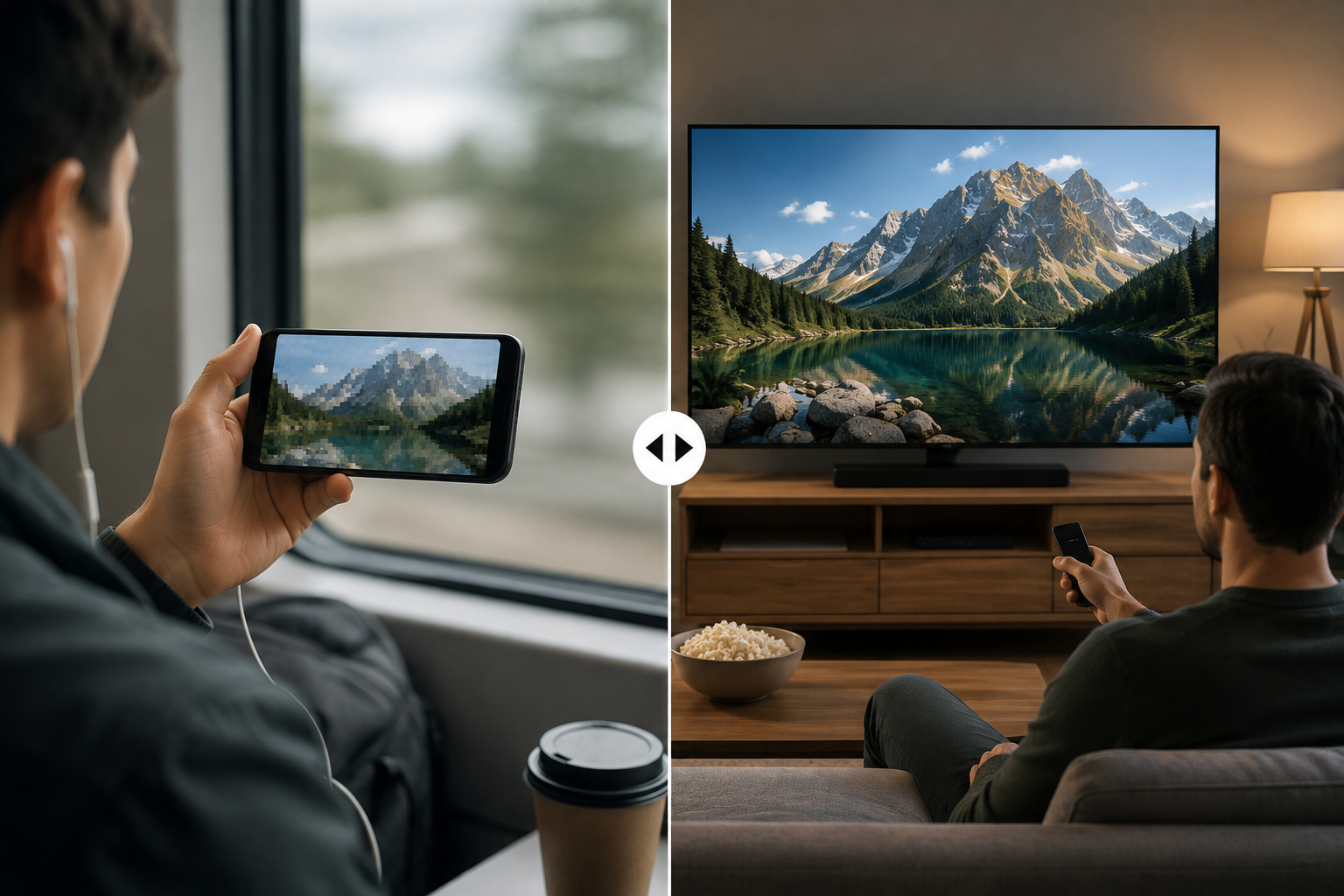
Viewed inside a small phone player, a 480p clip often feels perfectly fine, especially when the main subject fills most of the frame against a simple backdrop. Most viewers won't even notice the lower resolution.
Expand that same video to fill a laptop display, though, and the visual compromises surface immediately. Lines soften, text becomes hazy, and fine textures disappear. HD preserves those structural lines.
Big-screen TVs amplify these flaws even further. A vintage home video might look totally acceptable on a phone, but throwing it onto a 65-inch living room TV reveals obvious pixelation and blocky compression artifacts. HD handles large-format displays far better.
SD vs. HD File Size, Streaming Data, and Upload Time
Where SD wins out is sheer data efficiency.
Assuming identical runtimes, frame rates, and codecs, HD demands higher bitrates-translating directly into larger file footprints, slower upload times, increased storage needs, and heavier data consumption.
Picture trying to stream content on clogged hotel Wi-Fi during peak evening hours. An HD stream might stutter endlessly, whereas an SD stream keeps playing smoothly without interruption. For anyone relying on mobile hotspots or living in regions with limited broadband infrastructure, that reliability is a huge deal.
File size isn't determined by resolution alone, however. Codec efficiency, bitrate caps, frame rate, and total duration all shape the final output. A smartly compressed HD video can occasionally end up smaller than an uncompressed, high-bitrate SD source.
SD vs. HD Video Comparison at a Glance
Feature | SD Video | HD Video |
Typical resolution | Commonly 480p; older SD formats vary | 720p and above; 1080p is Full HD |
Detail | Limited when enlarged | Better faces, text, and fine edges |
Screen suitability | Phones, previews, small players | Laptops, monitors, TVs, full-screen viewing |
Storage | Usually lower | Usually higher |
Streaming data | Lower in similar conditions | Higher in similar conditions |
Common uses | Older footage, security feeds, weak connections, previews | Streaming, tutorials, product videos, social content, TV viewing |
Ultimately, SD prioritizes raw efficiency, while HD prioritizes viewing experience. If fast loading matters more than visual precision, SD's light footprint wins out. But whenever full-screen playback, sharp typography, or product details matter, HD is worth the extra file weight.
Can You Convert SD Video to HD?

Yes, you can. Export a 480p clip out of any basic video editor at 1920 x 1080, and technically it's now an HD file.
Here's the problem: changing canvas settings won't invent visual detail that was never shot. Standard upscaling stretches existing pixels and fills gaps with educated guesses. If the original 480p video looks fuzzy or pixelated, enlarging it just makes those flaws bigger.
If you want to upscale footage while cleaning up noise, blur, and compression artifacts, tools like RoboNeo AI Video Enhancer take a different approach.
Instead of plain pixel stretching, AI analyzes facial features, object edges, and textures, generating realistic details to fit the larger frame. Converting an old 480p phone clip to 1080p this way can tighten subject outlines, while video denoising can help reduce dark noise before additional enhancement is applied.
The source footage still matters, though.
Sharp, well-focused clips scale up surprisingly well. But if your footage is completely out of focus or text is smashed into compression blocks, no algorithm can guess details that were never recorded.
The realistic goal isn't creating true native HD-it's making legacy SD clips look decent on modern high-res screens.
Upscale with RoboNeo AI Video Enhancer
Should You Choose SD or HD Video?
No single resolution works universally. Making the right pick comes down to available connection speeds, display sizes, and what the video needs to accomplish.
Choose SD for Weak Wi-Fi, Data Caps, or Small Screens
SD remains a lifesaver when bandwidth drops.
Hotel Wi-Fi often bogs down during peak hours. Switching to 480p won't look as sharp as 1080p, but playback won't freeze every five seconds. Hotspots run into the same issue. Stream in HD with a strict monthly data cap, and you'll burn through your allowance in no time.
Rural connections often face similar stability issues. In those situations, smooth playback beats fine texture every time.
Security feeds are another classic use case. Checking a front door feed usually means confirming whether a box arrived or a car pulled up. 480p does the job while keeping cloud and drive storage footprint low.
SD also suits small embedded web players and quick video previews. If a player window is only 400 pixels wide anyway, higher resolution adds zero visual value.
Choose HD for Everyday Streaming and Larger Screens
When people are actually sitting down to watch your video, HD is the way to go.YouTube uploads, video courses, product demos, interviews, and family clips usually play full-screen on laptops, monitors, or TVs. For creator-shot content, the right AI features for enhancing UGC video quality can also help address common issues before publishing. Captions, UI menus, faces, and scenery all need clean detail.
HD also leaves room for editing down the line. If you need to crop a shot, add text overlays, or re-export for different aspect ratios later on, starting with 720p or 1080p source files keeps your video looking crisp.
For most daily content, HD hits the sweet spot: far sharper than SD without forcing huge files or heavy hardware playback demands. If the source also needs enhancement before publishing, RoboNeo can keep the workflow online.
Keep the Original Format for Archives and Future Editing
Never overwrite raw source files with converted copies, no matter what format you publish in. If an old video was shot in 480p, keep that original 480p master. You can stream or share an upscaled 1080p version on a TV, but that original file remains your cleanest base for future projects.
Likewise, don't downscale native HD footage to SD just to free up hard drive space. Re-compressing to lower resolution permanently throws away details you can't get back. For personal archives, client assets, and long-term projects, stick to one simple rule: Keep your original master files intact, and run compression or upscaling on working copies.
That way, when better video codecs or AI tools arrive down the road, you can always go back to the cleanest source.
FAQ
Are SD Movies Good Quality?
They're watchable, but picture quality depends on screen size and source mastering. On smartphones or small players, a well-encoded SD film looks fine. On a big TV, though, the picture turns soft and hazy.
Which Is Better for Older Devices, SD or HD?
SD runs much smoother on older hardware with limited processing power or lower screen resolutions. HD files demand more decoding performance and storage capacity.
What Is the Difference Between SD and HD Streaming on a Phone?
HD offers sharper text and clearer detail, but burns far more data. On small phone screens, the visual difference between SD and HD is much less noticeable than on a computer or TV.
Is 720p HD or SD?
720p counts as HD. Standard 1280 x 720 is entry-level High Definition, while 480p is Standard Definition (SD).
Does HD Use More Internet Data Than SD?
Almost always. Assuming similar length and compression settings, HD requires a higher bitrate and consumes significantly more data.
You May Be Interested
How to Remove TikTok Watermark: 3 Free Methods

How to Use a Logo Video Creator to Make Stunning Intro Animations (Step-by-Step)
2026 Meta AI Image to Video vs RoboNeo: Which Is Best for You? In-Depth Comparison
How to Upload High Quality Videos to TikTok-copy

Seedance 2.0: The Best Cinematic AI Video Generator for Social Media Ads?