How to Upscale a Video to 1080p or 4K with AI
 RoboNeo TeamJuly 21, 2026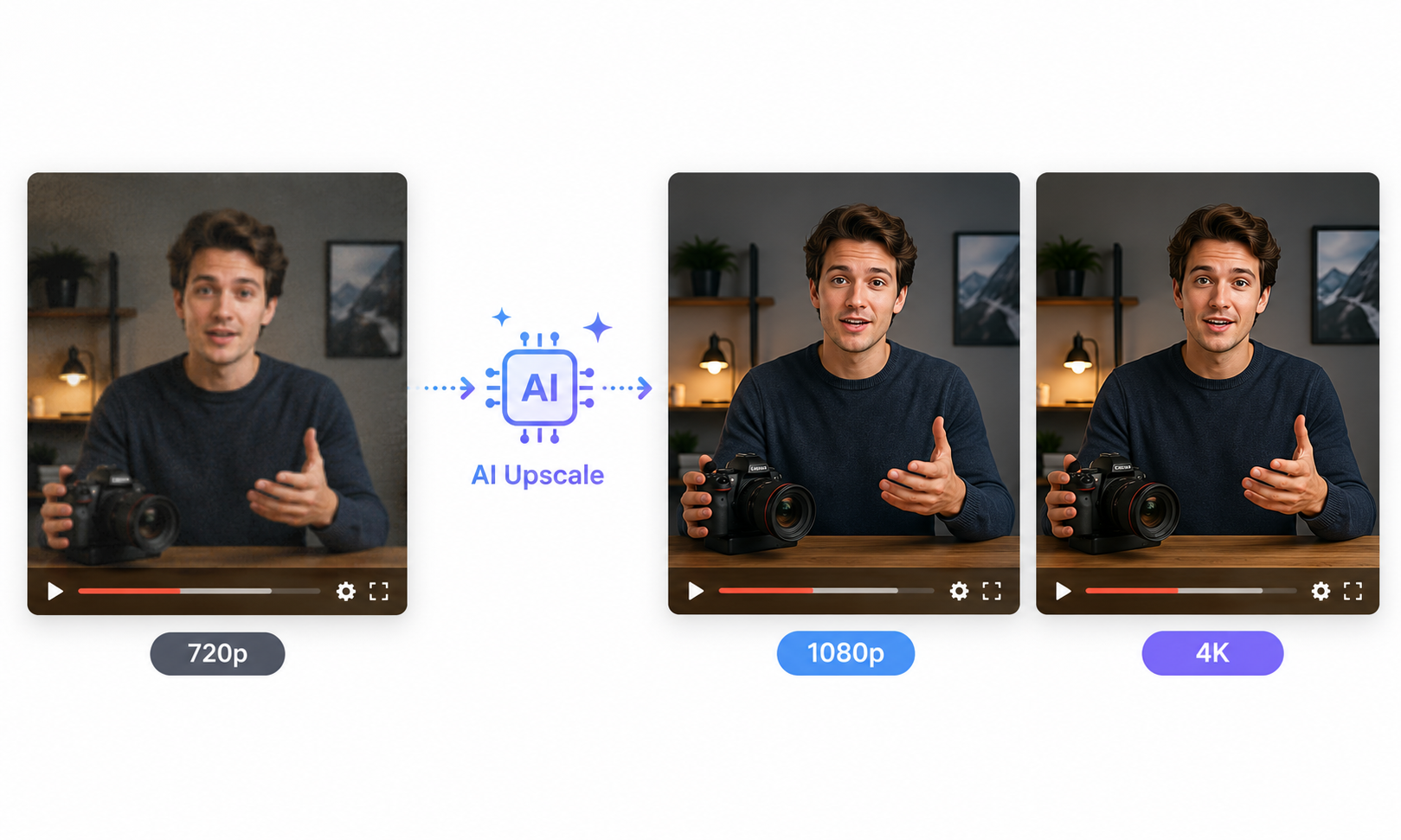
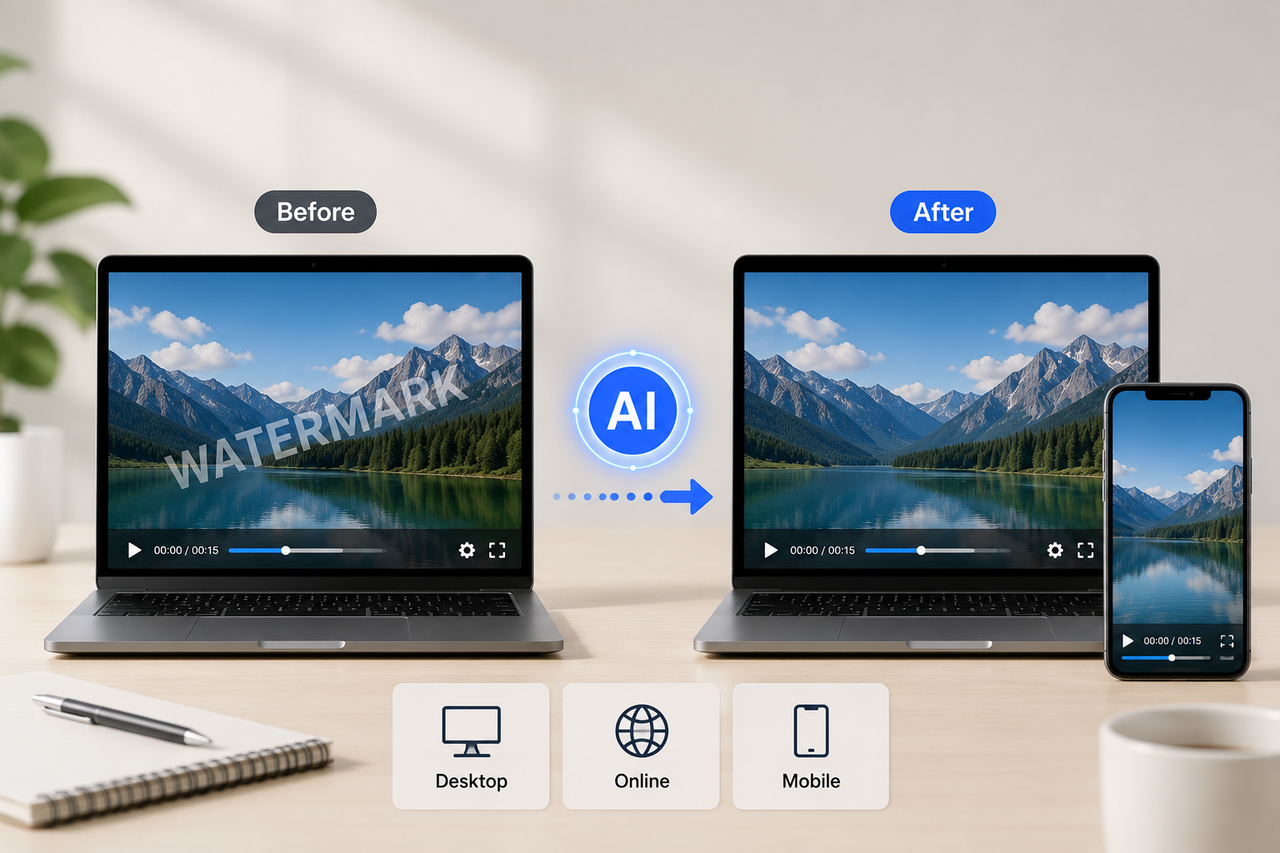
Low-res clips might look totally fine on your phone, but they usually turn out blurry once they go up on YouTube, a TV, or a big presentation screen. That’s where AI video upscaling comes in—it bumps up the resolution while cleaning up noise, soft edges, and nasty compression artifacts.
This guide shows you how to AI upscale videos to 1080p or 4K with RoboNeo. We’ll also break down when to use each resolution and what to check out before you hit export.
What Is AI Video Upscaling?
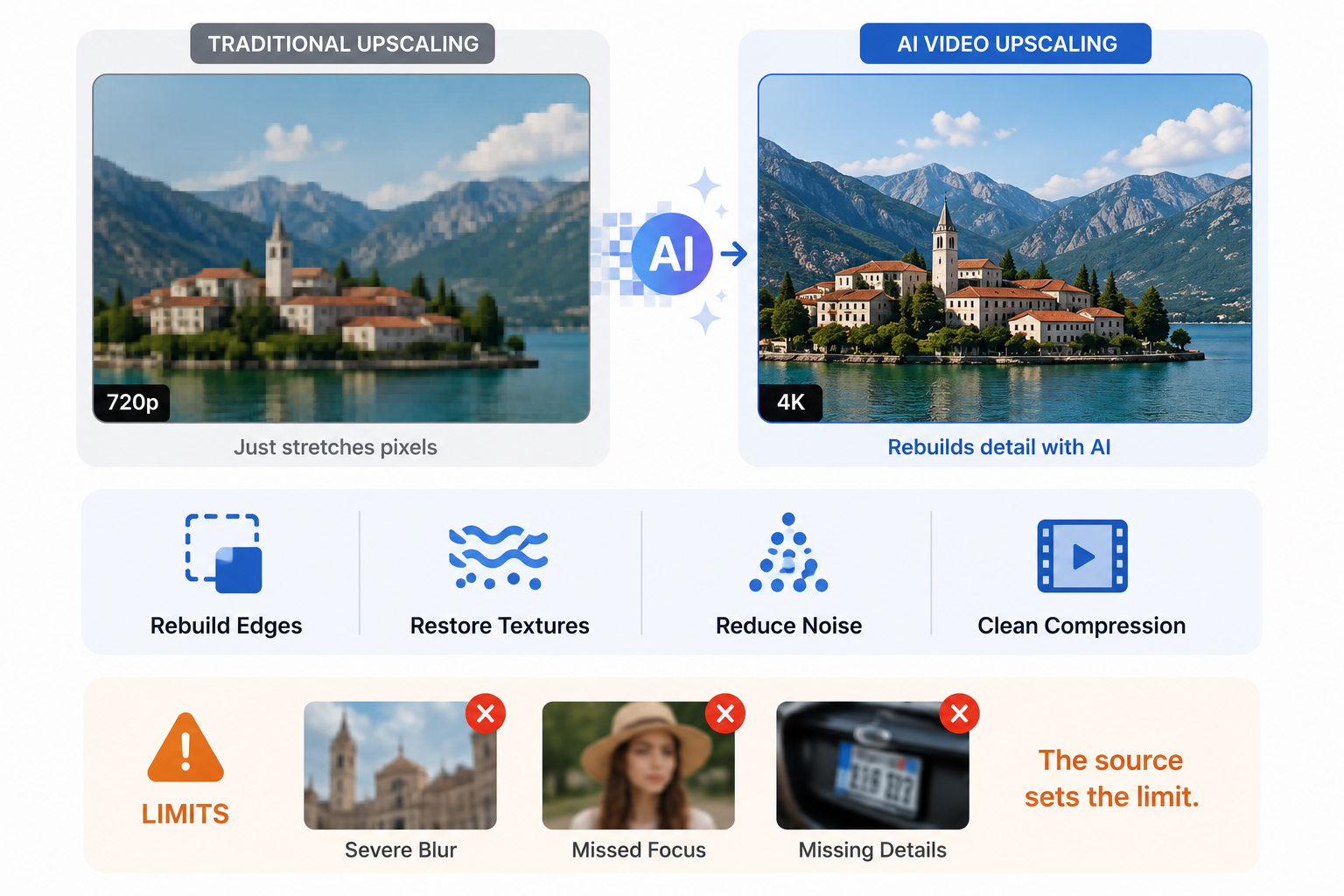
AI video upscaling rebuilds edges, textures, and missing visual information instead of stretching the original pixels. Noise reduction and compression cleanup handled by an AI video generator may also be applied, helping faces, objects, and backgrounds look clearer.
The source still sets the limit. Severe blur, missed focus, and details never recorded by the camera cannot always be restored accurately.
Should You Upscale a Video to 1080p or 4K?
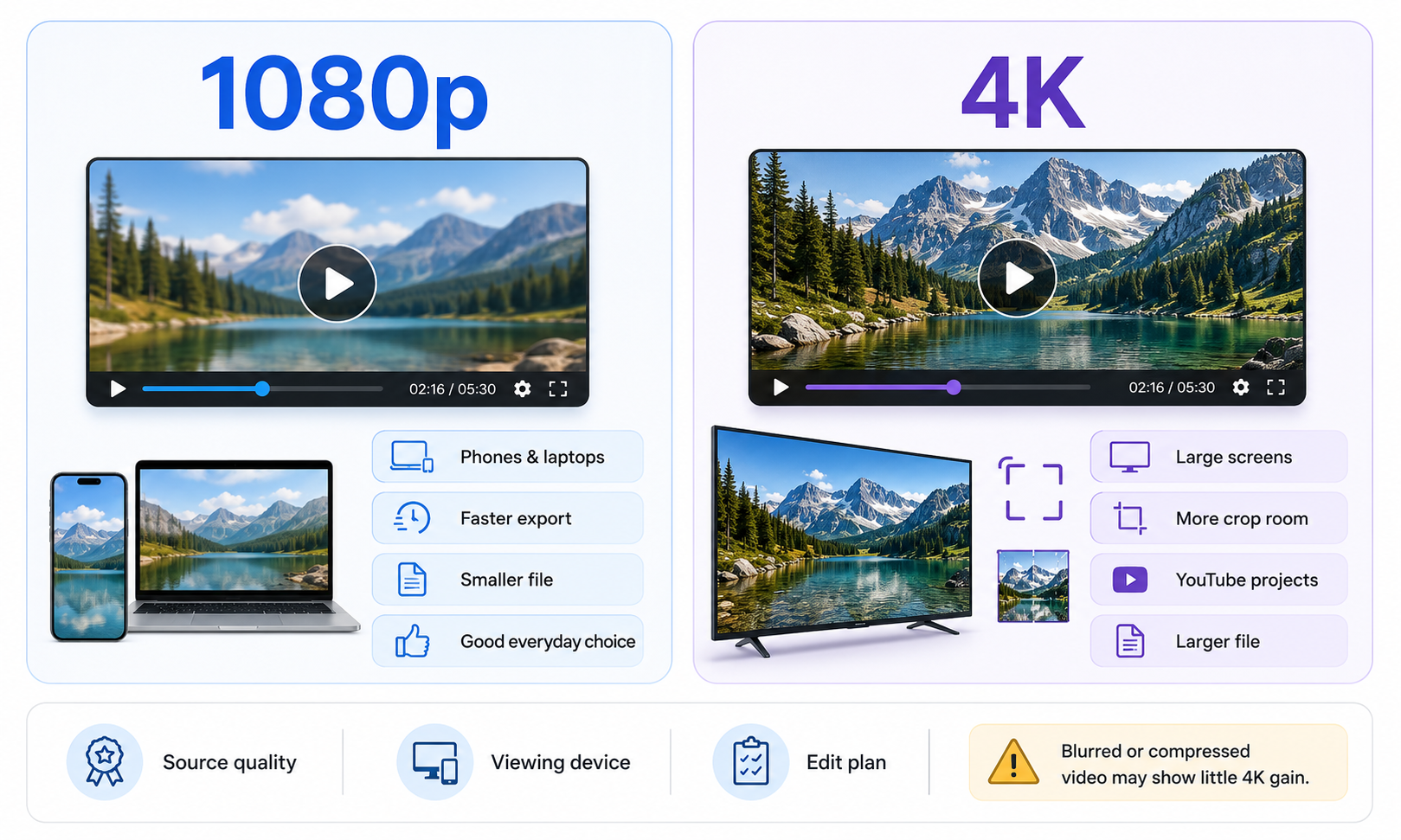
The best output depends on the original quality, viewing device, and editing plan. Although 4K contains more pixels, heavily blurred or compressed footage may show little visible improvement.
When to Upscale a Video to 1080p
For social media, online courses, product pages, and presentations, 1080p usually offers a good balance between clarity and file size. It works especially well when the source is 480p or 720p.
An old 720p software tutorial may look soft on a modern laptop. After upscaling, the presenter, interface buttons, and on-screen instructions become easier to see without creating an oversized file.
1080p is generally suitable when:
Viewers mainly use phones or laptops
Faster processing and uploading matter
Little cropping is required
The source contains limited detail
When to Upscale a Video to 4K
Large displays, YouTube projects, digital signage, and later editing may benefit from 4K. Extra resolution also leaves more room for cropping and reframing.
A horizontal product demonstration may later become several vertical clips for TikTok or Instagram Reels. Starting with a 4K version helps the presenter and product remain clear after the sides are cropped.
Low-quality 480p footage rarely gains enough real detail to justify a large 4K export. In that case, an enhanced 1080p file may deliver nearly the same viewing result.
How to Upscale Video to 1080p or 4K with AI: Step-by-Step Guide
Upscaling video with AI involves more than choosing an output resolution. Noise, motion, texture stability, and export quality all affect the final result. With RoboNeo, users can upload footage and describe the changes they need. Its agent can then handle video upscaling, detail recovery, and noise reduction in one workflow.
Step 1: Upload the Original Video
Better source footage gives AI more usable information, especially when preparing files after watermark removal or editing. A file stored directly on a phone or camera usually retains more detail than one downloaded from WhatsApp, Instagram, or another compressed platform.
Once the file is uploaded to a video upscaler, state whether the output should be 1080p or 4K. Try this instruction:
Upscale this 720p product video to 1080p, reduce compression noise, and keep the packaging text natural.
Step 2: Apply Detail and Noise Enhancement
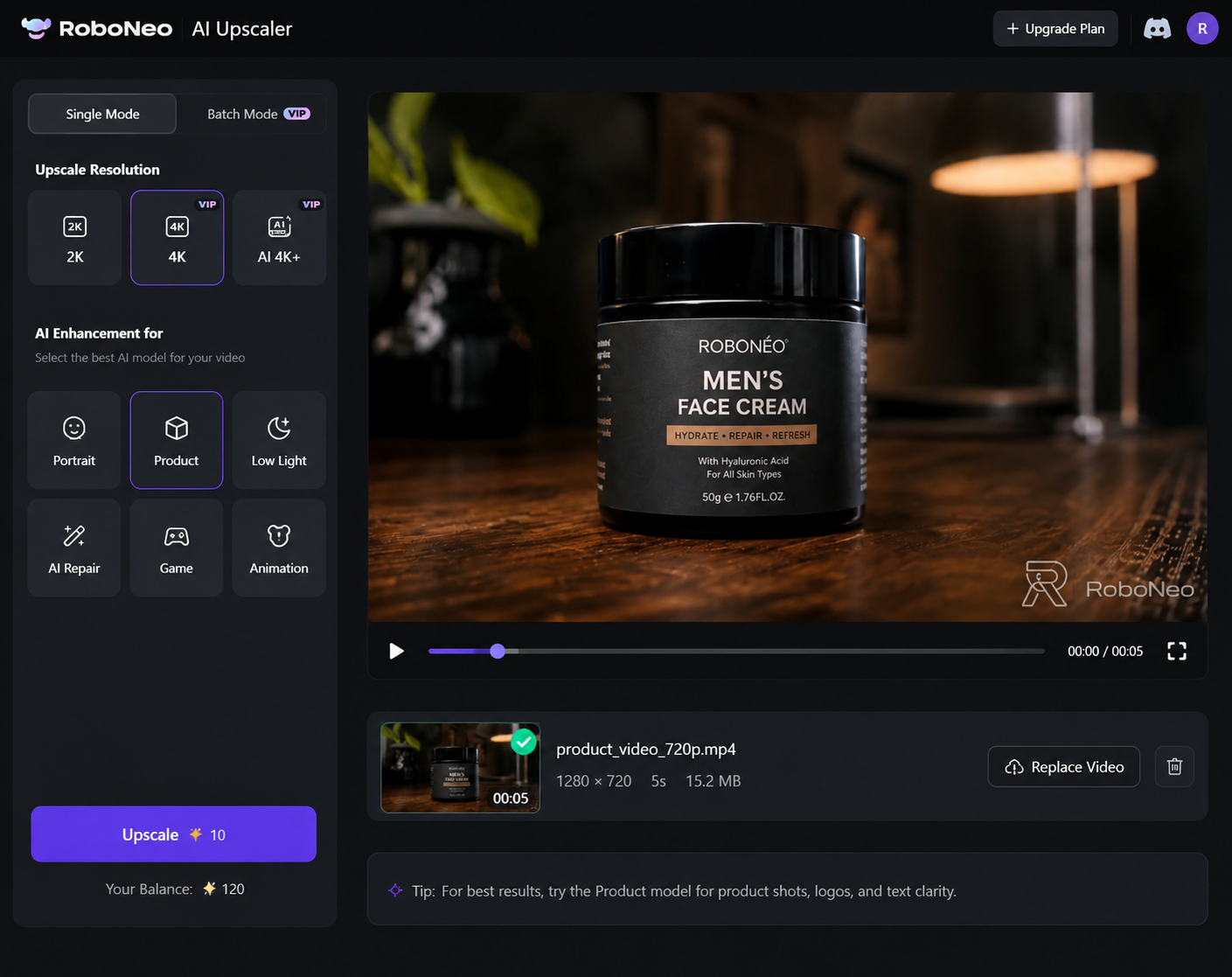
After uploading the video, choose the target resolution, such as 2K or 4K, and select an AI enhancement model that matches the footage. In the example above, Product mode is used to clarify packaging edges, labels, and surface textures while reducing visible grain and compression artifacts.
For other footage, choose Portrait for faces, Low Light for dark scenes, or Animation for stylized videos. Using the right model helps recover detail without making skin, hair, fabric, or product surfaces look overly sharp or artificial.
Step 3: Preview Faces and Moving Frames
A paused frame may look sharp even when the moving video contains flicker, ghosting, or unstable textures. Several continuous sections should be watched before export.
Pay close attention to:
Faces, hands, hair, and teeth
Subtitles and product labels
Patterned clothing and object edges
Camera pans and fast movement
Shadows and low-light backgrounds
Step 4: Export and Compare the Upscaled Video
After the preview looks stable, export the video at the selected resolution. Bitrate also affects the result because strong export compression can remove much of the recovered detail.
When 1080p and 4K look almost identical during normal viewing, the smaller 1080p file is usually the more practical choice.
Common Problems When Upscaling Video to 4K
AI upscaling has clear limits. Weak source footage, aggressive enhancement, and unsuitable export settings cause most disappointing results.
Over-Sharpened Faces and Textures
Rough skin, glowing outlines, and unusually crisp backgrounds often point to excessive sharpening. Noise may also be mistaken for real texture and become more visible.
Interviews, beauty content, and close-up UGC videos usually look more natural with softer settings. Stable skin texture matters more than maximum edge sharpness in these scenes.
Larger Files Without Visible Improvement
A 4K export contains far more pixels than a 1080p file, though those pixels may carry little extra detail.
Security footage recorded through a dirty lens may remain unclear after 4K upscaling. The file becomes much larger, while distant faces and vehicle details show little improvement.
Blurry Text After Upscaling
Small text is hard to rebuild when the original letters are blurred, compressed, or moving. The area around a label may become cleaner even though individual characters remain inaccurate.
Product packaging, street signs, captions, and interface text deserve a close review. When the wording must be exact, recreating it in a video editor is often more reliable.
FAQ
Can a 1080p video be upscaled to 4K?
Yes. AI can bump 1080p video up to 4K while smoothing out edges, cutting down noise, and cleaning up compression artifacts. You'll usually get much better results if your footage is clean and well-lit.
Is upscaling from 1080p to 4K worth it?
It's definitely worth it for large displays, YouTube uploads, digital signage, or when you need to crop into your footage. That said, you'll barely notice the difference on a phone screen.
Does AI upscaling damage video quality?
Your original file stays exactly the same. However, issues can pop up in the exported version if you push the sharpening, denoising, or detail recovery a bit too far.
Can I upscale a 720p video to 1080p?
Yes. Stepping up from 720p to 1080p works great for tutorials, social videos, presentations, and old home movies. It makes everything look sharper without blowing up the file size.
Why does my upscaled video still look blurry?
If your original shot missed focus, has motion blur, heavy compression, or just lacks detail, those issues will stick around after processing. AI is great at bringing out what's already there, but it can't magically bring back details that were never captured in the first place.
You May Be Interested
How to Use an AI Video Generator Online to Create Viral Content
How to Create Stunning Visuals with the Best AI Music Video Generator
6 Best AI Video Generators in 2026
How to Choose the Best AI Text to Video Generator in 2026 (+ Our Top Pick)
Best Free AI Video Generator: Top Tools to Try