Pixelbin AI Video Watermark Remover Review in 2026
 RoboNeo TeamJuly 21, 2026
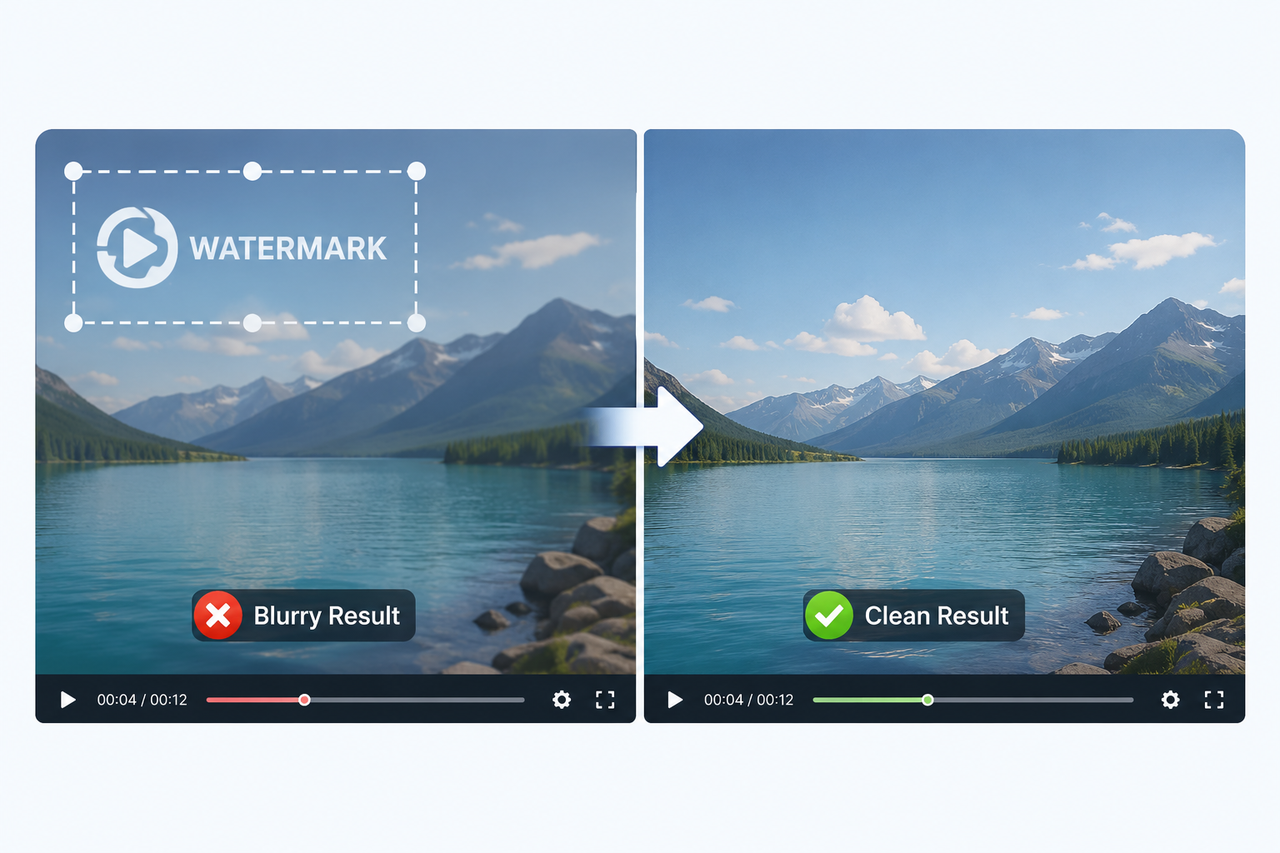
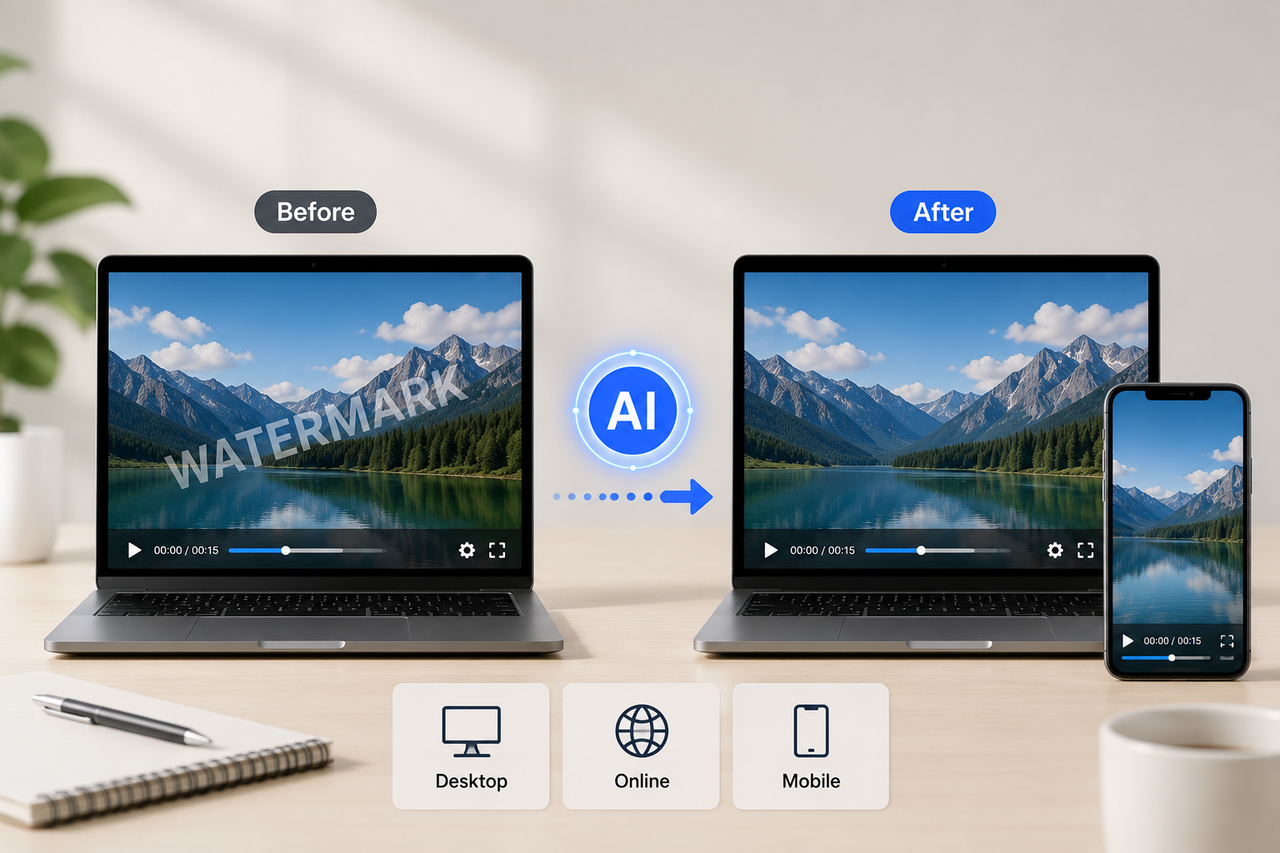
A small logo in the corner can become much harder to remove once the camera moves, the background changes, or a subject passes behind it. Pixelbin AI Video Watermark Remover provides an online solution for removing logos, text, timestamps, and other overlays without manual editing. In this review, we test Pixelbin’s performance acros s different watermark types, backgrounds, and motion scenarios, while also covering the full workflow from uploading a clip to checking the exported result.

Pixelbin Video Watermark Remover Features
Pixelbin uses a mostly automated workflow. Instead of adjusting masks frame by frame, users upload a video, let the AI detect overlays, and preview the processed result. Performance still depends on the footage being edited.
Automatic Watermark Detection
Pixelbin can detect logos, text, timestamps, and moving overlays after upload, removing the need to manually track the watermark across frames. However, clear source footage is still important, as compression or inconsistent overlays may affect detection accuracy.
Frame-by-Frame Background Reconstruction
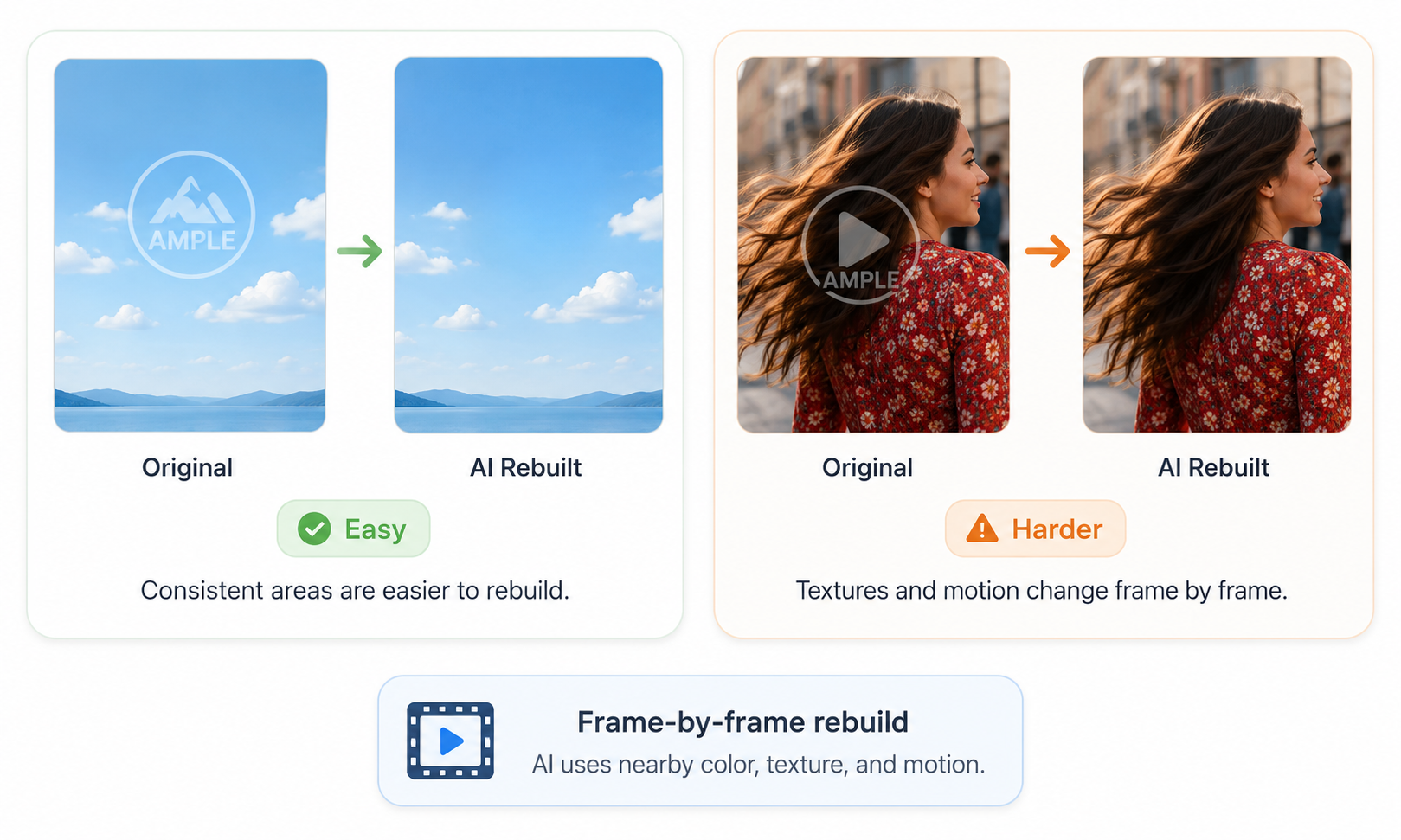
After detecting the watermark, Pixelbin attempts to rebuild the hidden area using nearby colors, textures, motion, and background details. Simple backgrounds are easier to restore, while moving subjects, patterns, or fine details may produce less consistent results. Reviewing the full video is recommended.
Browser-Based Video Processing
Pixelbin works directly in a browser without desktop software. Users can upload local files or use a video URL, making it suitable for quick edits without switching between multiple applications.
Supported Video Formats and File Limits
The video watermark removal tool supports MP4, WebM, and MOV files under 50 MB. Pixelbin does not list clear duration or resolution limits, so file size remains the main restriction. Larger or high-resolution videos may need compression, which can affect reconstruction quality.
Batch Processing and API Integration
Pixelbin supports batch workflows and API integration for teams handling multiple videos. Batch processing can help manage repeated watermark-removal tasks, such as cleaning product demos or social clips generated with a best ai video generator. Availability may depend on the account, while the API allows watermark removal to connect with content pipelines or internal media systems.
Pixelbin Watermark Remover Test Results
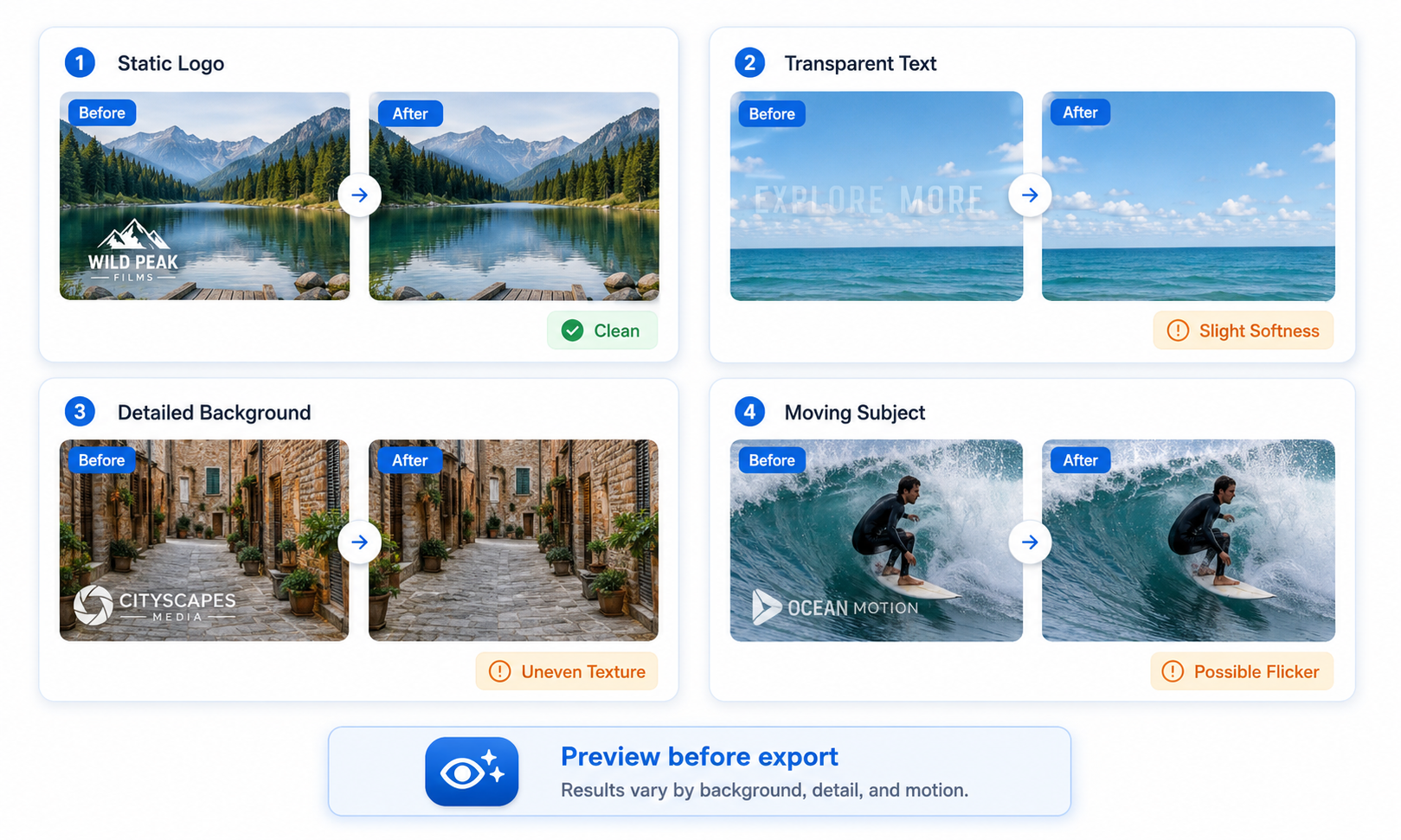
Pixelbin automatically scans video frames instead of requiring manual masks. Results still depend on watermark position, background complexity, and movement, so reviewing the final video is recommended.
Test 1: Static Logo on a Simple Background
This is the easiest scenario. Simple backgrounds provide enough information for AI reconstruction, usually producing clean results with only minor softness.
Test 2: Transparent Text Watermark
Transparent text is harder because the AI must separate the overlay from the details underneath. Stationary text on simple backgrounds works better, while gradients or moving scenes may leave uneven areas.
Test 3: Watermark Over a Detailed Background
Detailed textures such as foliage, patterns, or product labels increase reconstruction difficulty. The watermark may disappear, but softened details or slight misalignment can remain.
Test 4: Watermark Over a Moving Subject
Moving subjects require continuous reconstruction across frames. Faces, hands, and product edges may show blur, distortion, or flicker, especially when they pass through the watermark area.
Test 5: Moving or Changing Watermark
Pixelbin can process moving overlays without manual position tracking, saving time compared with traditional editing. However, changing watermarks may still leave ghosting, remaining marks, or temporary artifacts.
Test 6: Processing Speed and Export Quality
Pixelbin supports MP4, WebM, and MOV files under 50 MB through a browser-based workflow. It is convenient for short clips, but larger files may require compression. Users should check exports for softness, flicker, and distorted details.
Overall, Pixelbin performs best with visible watermarks on simple backgrounds. Complex textures, moving subjects, and important details require closer review.
Pros and Cons
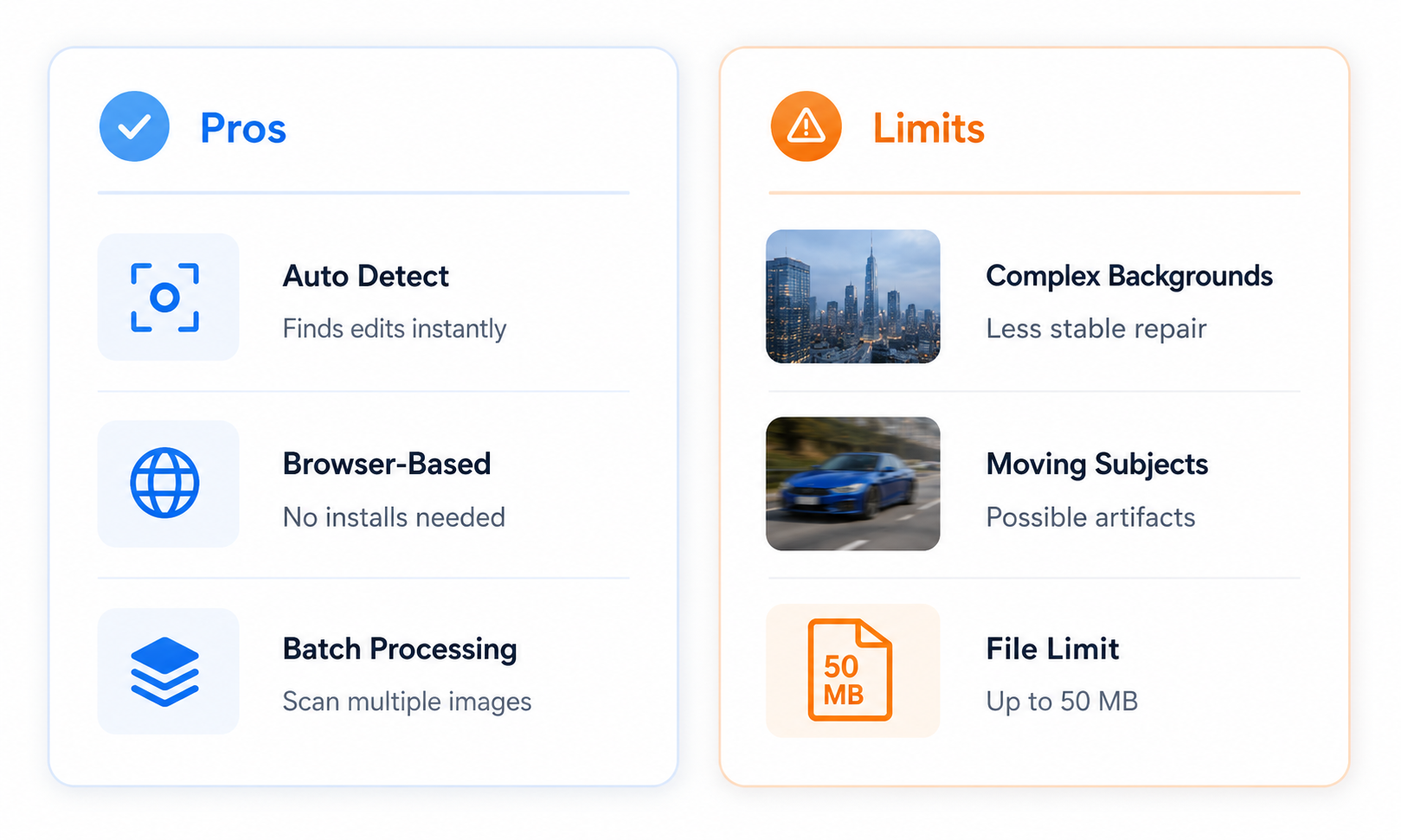
Pixelbin removes much of the setup normally associated with video cleanup. Its automatic approach is convenient for short clips and recurring content work, although the upload rules and limited manual controls may not suit every project.
Pixelbin Video Watermark Remover Pros
Easy for beginners: Pixelbin automatically scans footage and handles moving overlays without requiring manual masks or advanced editing skills.
Browser-based workflow: Supports MP4, WebM, and MOV uploads, plus direct video URLs, without requiring desktop software installation.
Supports larger workflows: Batch processing and API integration make it suitable for agencies, teams, and developers managing multiple authorized videos.
Pixelbin Video Watermark Remover Cons
50 MB upload limit: Larger or high-resolution videos may need trimming or compression before upload, which can affect source quality.
Limited free use: The free plan includes up to three watermark removals, while full downloads require an account. Regular use may require paid access.
Limited manual control: The workflow focuses on automatic processing without advanced tools like masks, keyframes, or frame-level corrections.
An Alternative for Moving and Complex Watermarks
Pixelbin is well suited to fast browser-based cleanup, especially when the watermark is easy to detect and the workflow needs batch processing or API access. Its limits become more noticeable when the overlay moves, scrolls across the frame, or sits close to a person or object in motion. In those cases, testing a second AI removal method may give you a more useful comparison.
What Is RoboNeo AI Watermark Remover?
RoboNeo video watermark remover is another option for images and videos, with support for JPG, JPEG, PNG, MP4, and MOV files. It can be worth considering when automatic detection struggles with a moving logo, scrolling text, or a watermark crossing detailed backgrounds.
The two tools are not aimed at exactly the same workflow. Pixelbin places more emphasis on automated web processing, batch tasks, and API integration. RoboNeo is better viewed as a backup option for more complex dynamic watermarks or for users who want to test a different AI reconstruction approach.
Pixelbin vs RoboNeo
The main difference becomes clearer once the footage gets harder to repair. Pixelbin favors a largely automatic browser workflow, while RoboNeo is positioned around more targeted cleanup using an AI video generator approach for complex reconstruction. The table below compares where each tool fits best, from basic logo removal to moving overlays and detailed backgrounds.
| Comparison | Pixelbin Video Watermark Remover | RoboNeo Video Watermark Remover |
| Supported Video Formats | Supports MP4, WebM, and MOV uploads. | Supports MP4 and MOV videos. The same upload interface also accepts JPG, JPEG, and PNG images. |
| Static Logos | Support | Support |
| Moving Watermarks | Scans every frame and can detect moving overlays or animated text without requiring users to mark every new position. | Supports moving watermarks, floating logos, and scrolling text. Its temporal processing is designed to follow changes in position while maintaining motion and lighting consistency. |
| Batch Processing | Support | Support |
| File and Export Limits | Uploaded files must be under 50 MB. | Image: 30 MB Video: 300 MB |
| Best For | Short browser-based edits, edit with API. | Moving watermarks, overlays crossing important subjects, detailed backgrounds. |
Comparison is based on the public data on website (2026.7)
Conclusion
Pixelbin AI Video Watermark Remover is most useful for quick, browser-based cleanup. Fixed logos, timestamps, and other clearly visible overlays on relatively simple backgrounds are the easiest cases, while automatic detection, batch processing, and API access make the tool practical for teams handling repeated video tasks.
More demanding footage can produce less consistent results. Moving watermarks, scrolling text, detailed backgrounds, or subjects passing behind the marked area may leave flicker, soft patches, or uneven textures. Pixelbin is therefore a good fit for straightforward removals and automated workflows, but complex scenes still require a careful full-video preview before export.
FAQ
How do I remove the watermark from Pixelbin video?
A: Upload an MP4, WebM, or MOV video to Pixelbin’s Video Watermark Remover. The tool scans the clip automatically, removes the detected watermark, and lets you preview the result before downloading the full video.
Is Pixelbin video watermark remover free?
A:Pixelbin is free to try, and new accounts receive 10 free credits. Once those credits are used, additional watermark removals may require purchasing credits or choosing a paid plan.
Is Pixelbin safe for uploaded videos?
A: Pixelbin uses security measures including encryption and states that it is SOC 2 Type 2 certified and GDPR compliant. Uploaded media can be deleted from the platform, but sensitive or confidential footage is still best kept offline because no online service is completely risk-free.
Does Pixelbin reduce video quality?
A: Pixelbin is designed to preserve the video’s motion, colors, and frame quality during processing. However, areas around the removed watermark may look slightly softer when it overlaps detailed backgrounds or moving subjects.
You May Be Interested
How to Remove Watermark from Video with AI (2026)
How to Create AI Video from Script: A Complete Guide
Best Free Tools to Remove Watermark from Video 2026

How to Create Stunning Visuals with the Best AI Music Video Generator

6 Best AI Video Generators in 2026