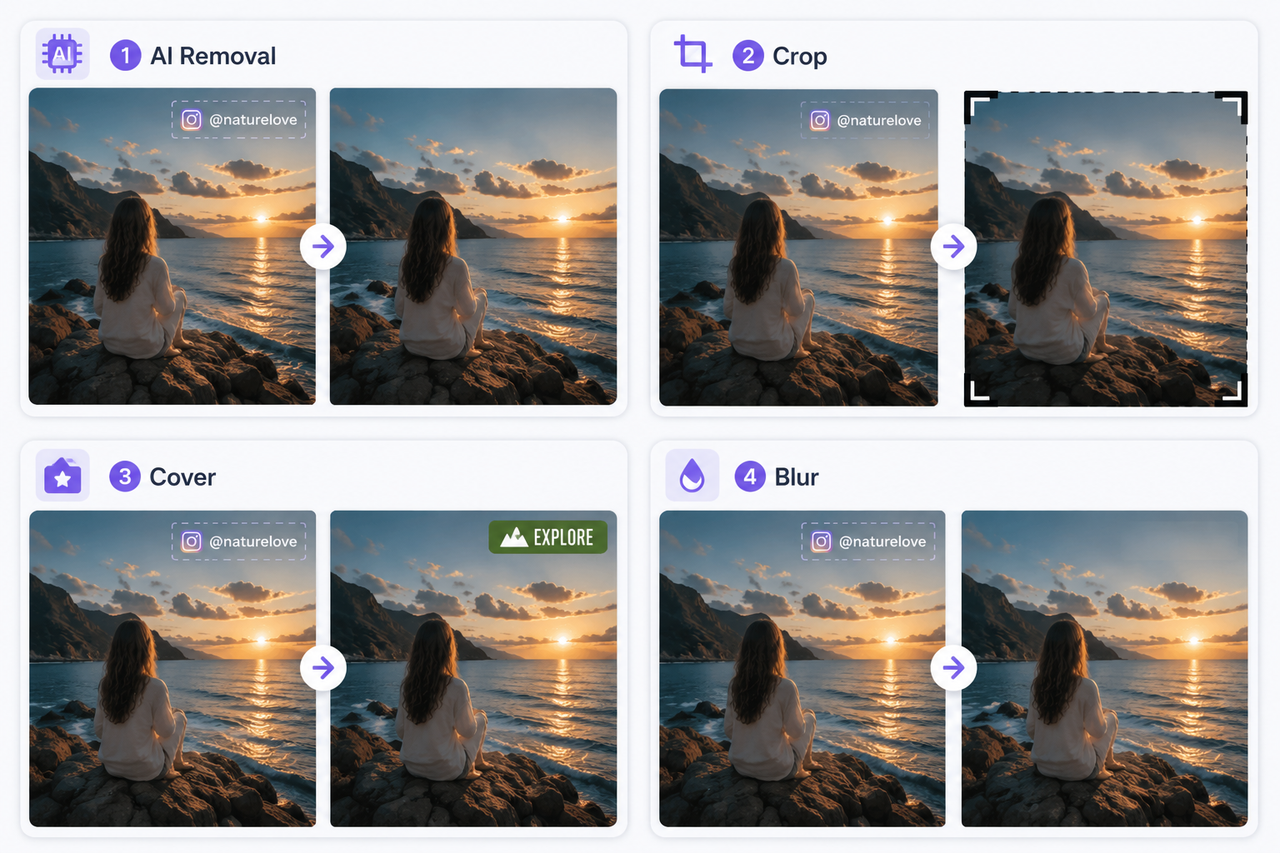
3 Ways to Remove an Instagram Watermark
 RoboNeo TeamJuly 21, 2026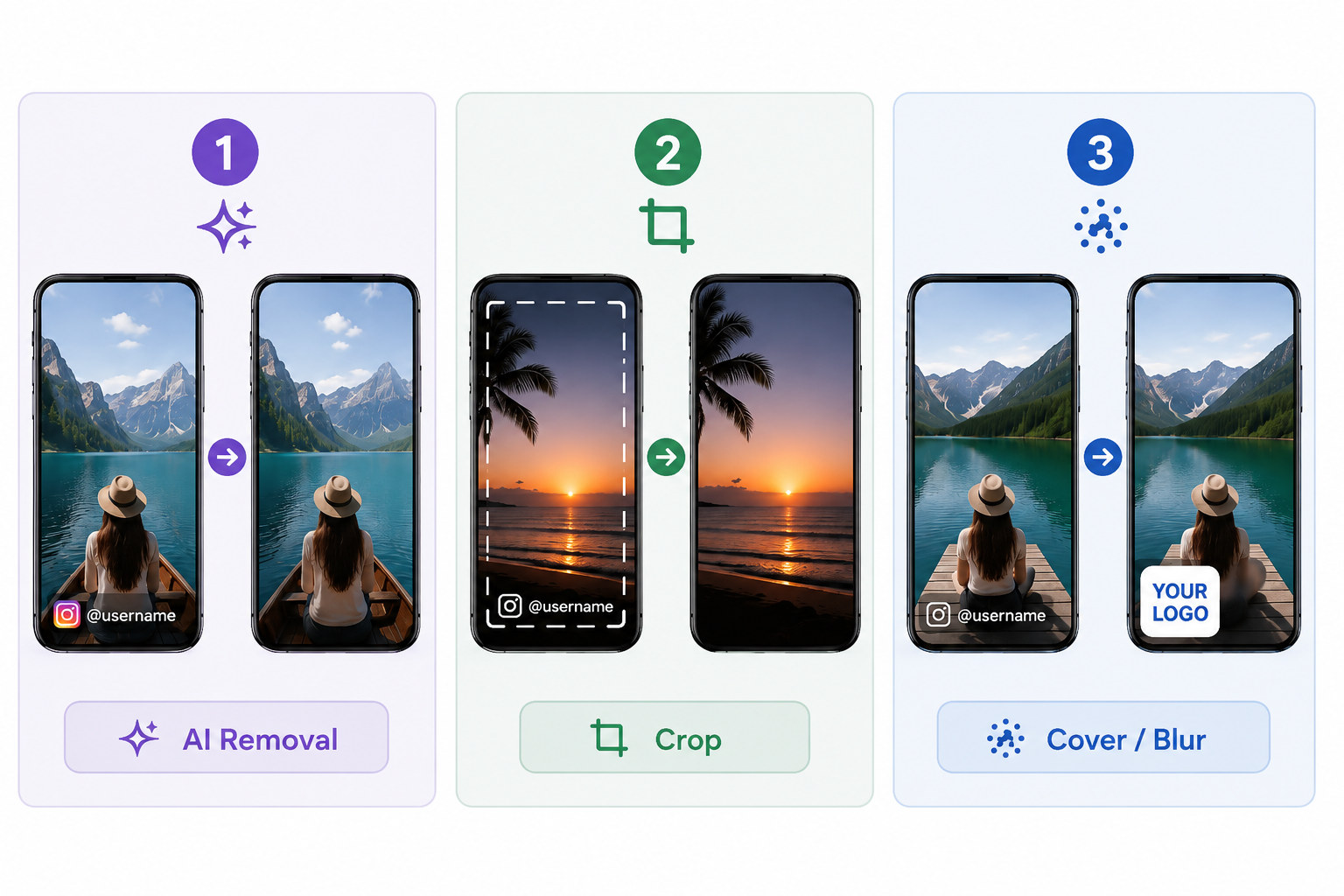
You download an Instagram Reel and notice a username, Instagram logo, or another watermark on the video. Cropping may seem like the obvious fix. In some cases, it works—but it can also cut away an important part of the frame or lower the video quality.
Where the watermark appears matters. So does whether it stays in one place or moves during playback. The methods below cover several practical ways to remove it from videos you own or have permission to edit.
What to Know Before Removing an Instagram Watermark
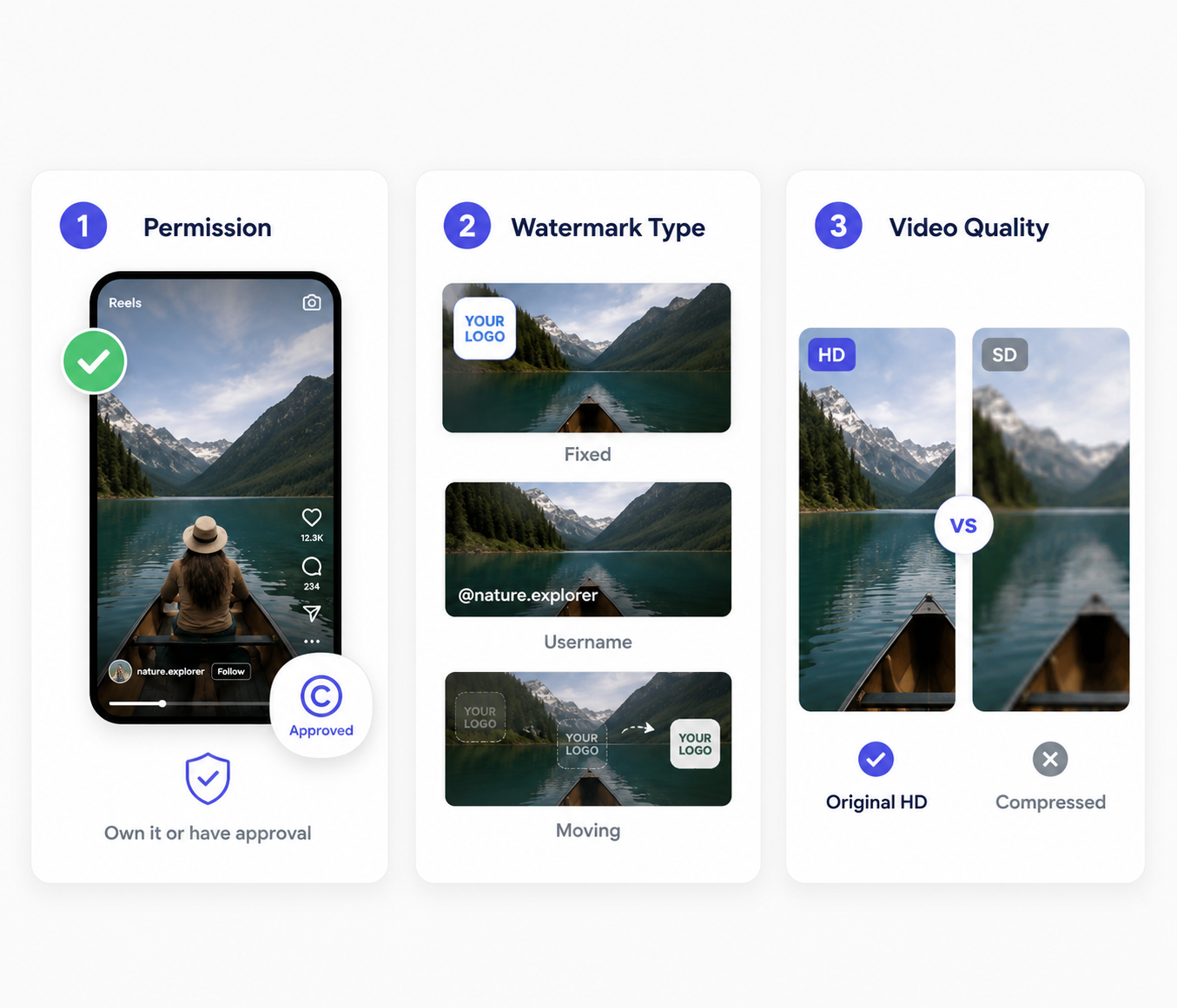
Before any editing begins, three details are worth checking: your permission to use the video, the type of watermark on screen, and the quality of the source file.
Confirm You Have Permission to Edit the Video
Watermark removal should be limited to videos you created, purchased, licensed, or have clear permission to edit. Taking out another creator’s username or Instagram branding does not automatically give you the right to repost their work.
Credit alone may not be enough. The creator’s approval could still be required before the video is edited or published on another platform. This is especially important for client projects, brand collaborations, and licensed footage, where the usage agreement should be reviewed before any changes are made.
Identify What Type of Instagram Watermark You Have
An “Instagram watermark” can take several forms, and the best removal method depends on what is actually covering the video. Common examples include:
A fixed Instagram logo or username
A moving username that changes position
Interface elements left behind by screen recording
A watermark added by a third-party downloader
Text, stickers, or account tags placed over the video
Start With the Highest-Quality Video Available
Use the original export whenever you can. A video downloaded from Instagram has already been compressed, so editing and saving it again may soften fine details or leave visible artifacts.
Check your camera roll, editing app, cloud backup, or project folder for the clean copy. If the watermarked version is all you have, use the highest-resolution file you can find, finish every edit first, then export once—each extra compression pass costs a bit more quality.
3 Ways to Remove an Instagram Watermark

Remove an Instagram Watermark With AI
Cropping or blurring can help, but neither is ideal in every case. Cropping a small corner watermark risks cutting off part of a face, product, or caption. Blurring keeps the full frame, but the softened area often stays noticeable.
That's where AI removal helps more. Powered by advanced technology, it draws on nearby colors, textures, and visual details to recreate the hidden area. For watermarks near the main subject, this can preserve the original composition with fewer visible compromises. RoboNeo' s video watermark remover supports images and videos, including common Instagram formats like MP4 and MOV. One mode handles a single Reel, while Batch handles multiple files and may vary by account plan.
Step 1: Upload the Instagram Video
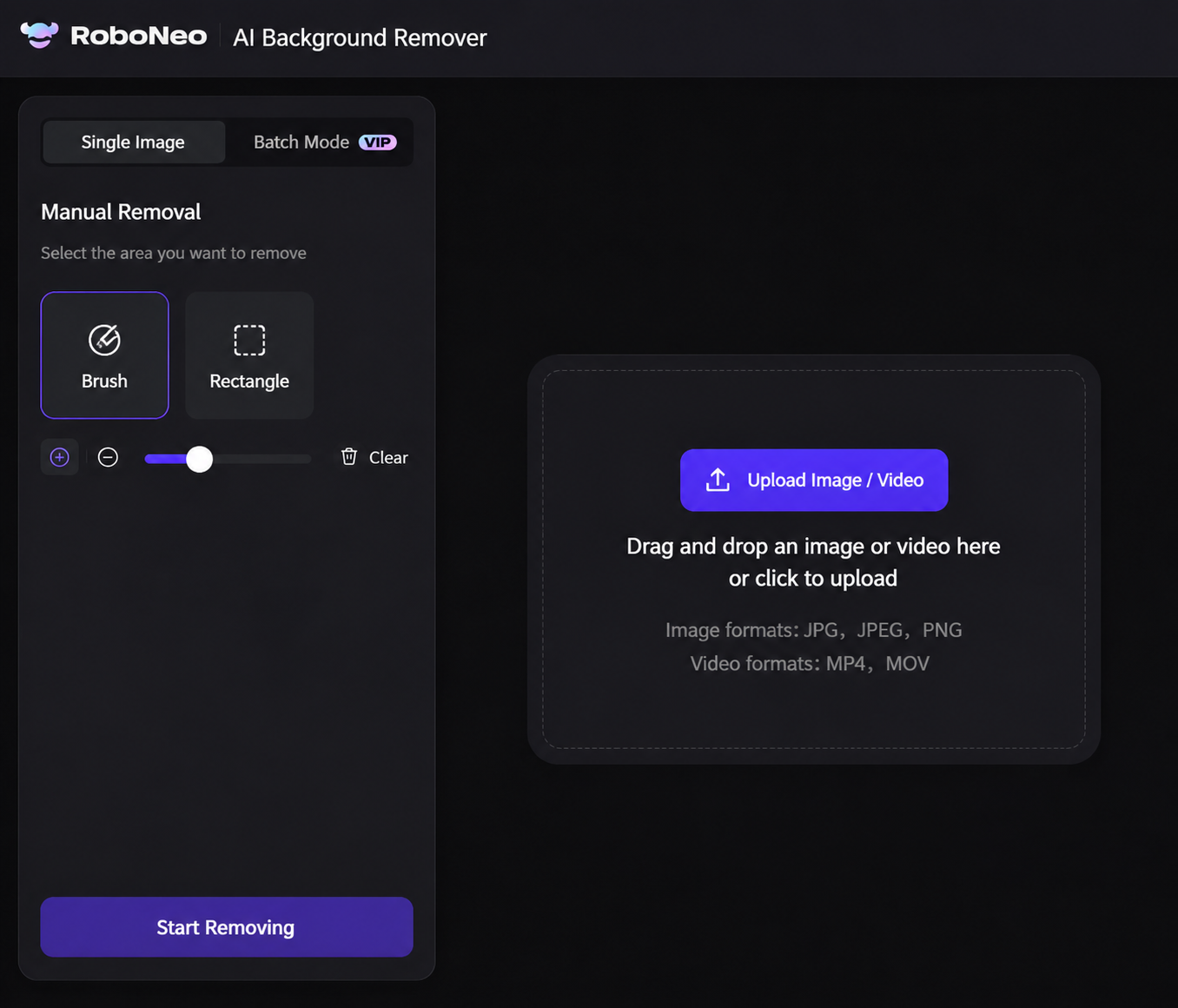
From AI Tools, open AI Watermark Removal and add the video from your device. A high-resolution source will give the tool more detail to work with, so the original file from your camera roll or editing project is preferable to a heavily compressed download.
Most users working on a single Instagram Reel can stay in One mode. The batch option is intended for several videos that need similar processing.
Step 2: Select the Watermark Area
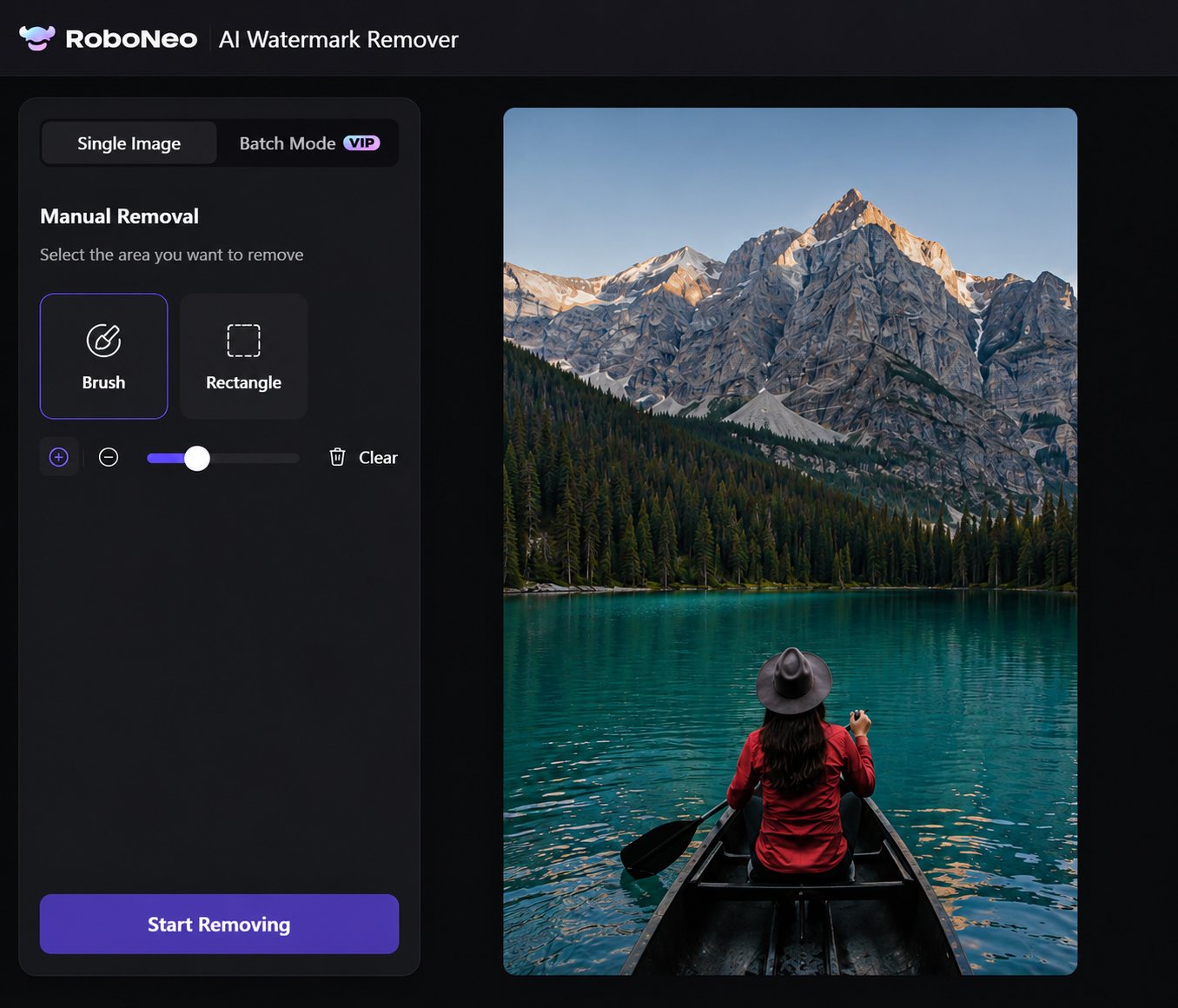
Two selection options appear in the RoboNeo editor: Swipe and Select.
With Swipe, you can brush directly over the watermark. The plus and minus controls, along with the size slider, help adjust the brush when the mark is small or has an irregular shape. Select draws a box around the area and is usually faster for a fixed username or logo sitting in one corner.
Step 3: Preview and Export the Cleaned Video
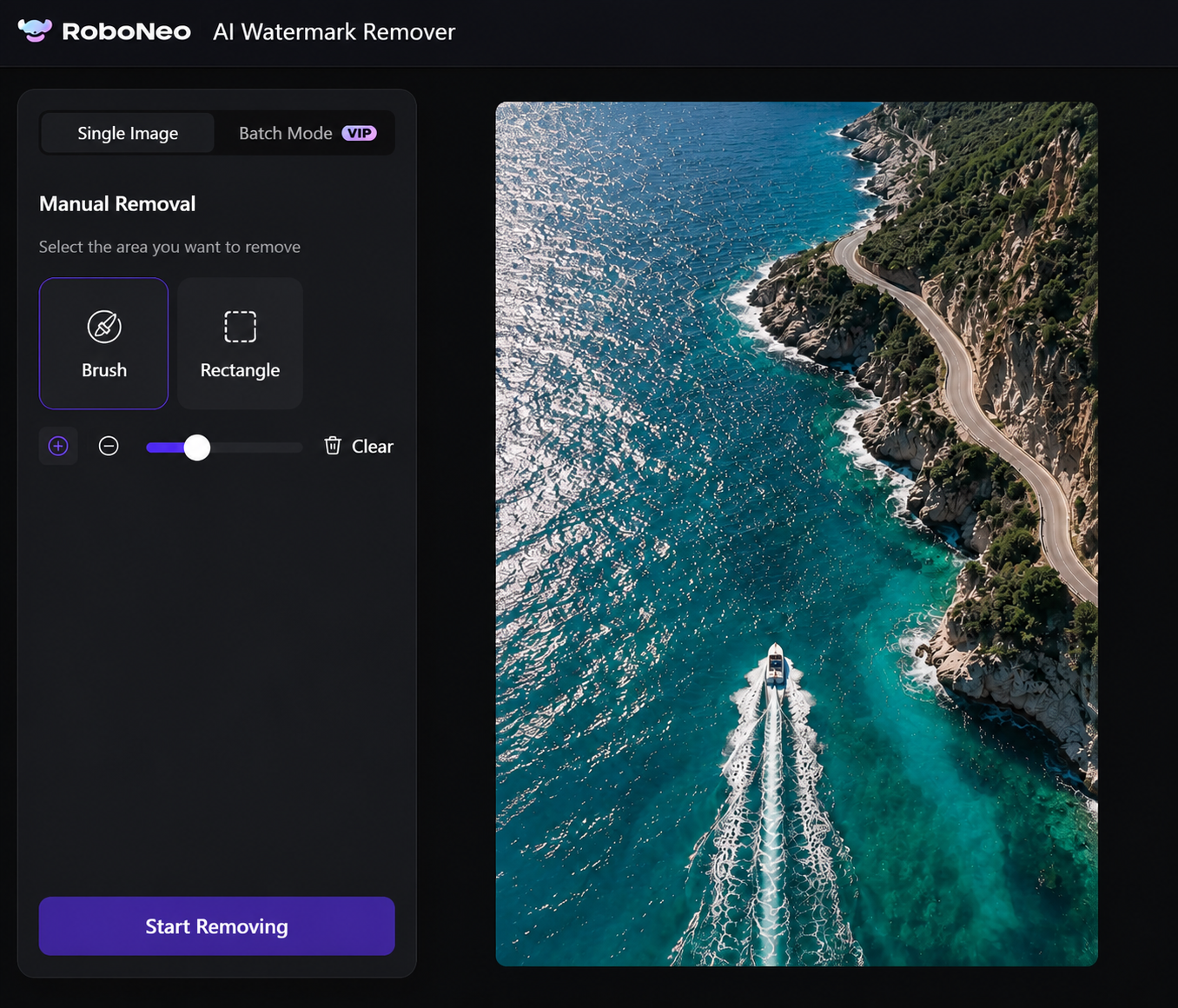
Once processing is complete, Compare lets you check the cleaned result against the original. Do not look at only one paused frame. Play through the full video and watch the repaired area for flicker, soft patches, repeated textures, or distortion around moving people and objects.
A finished result can be saved with Download. When more editing is needed, Open in Workflow keeps the video available for the next stage instead.
Crop the Instagram Watermark From the Video
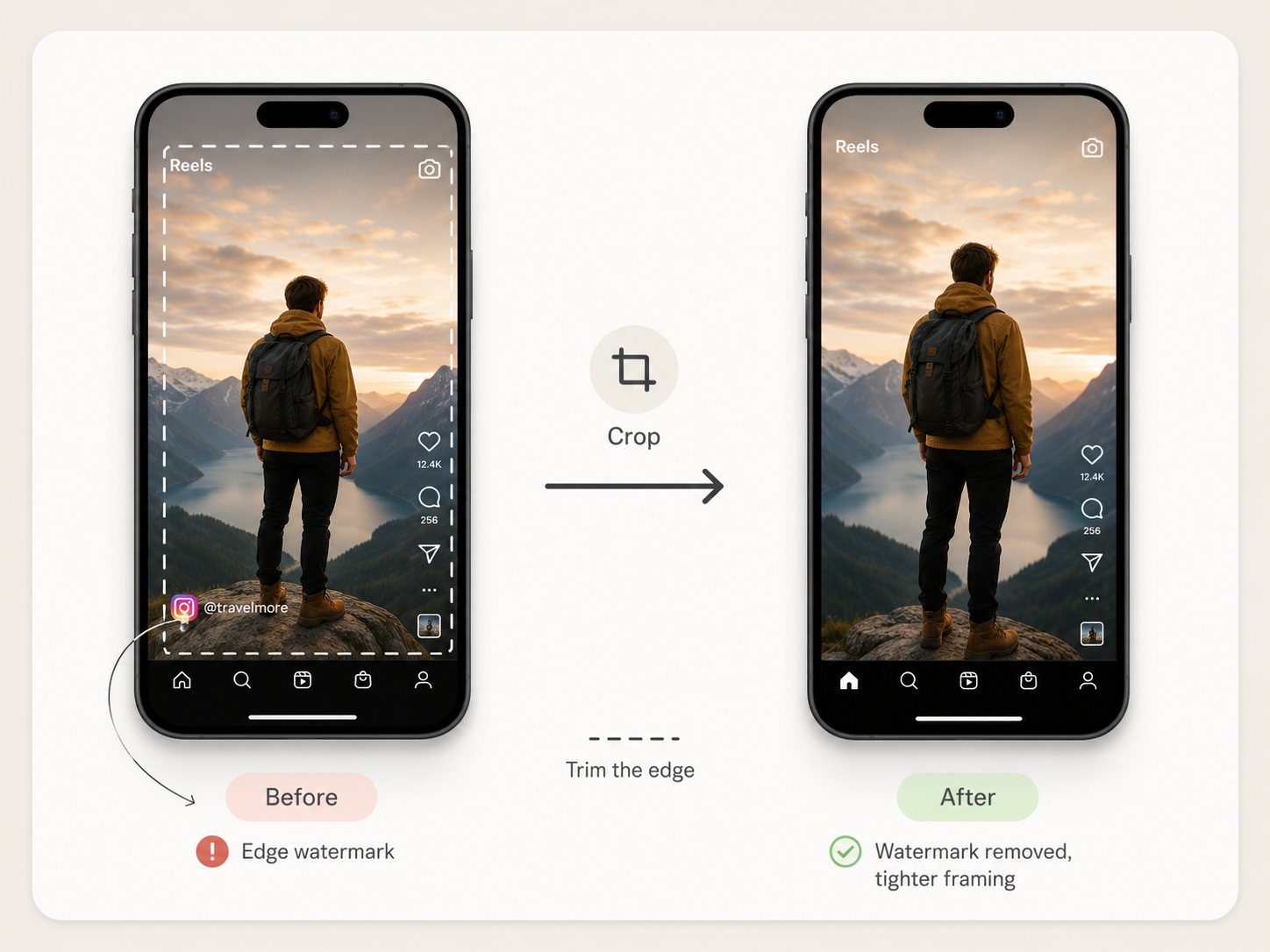
Cropping is often the fastest option when the watermark sits near the edge of the frame and removing it will not cut out anything important. It does not require the software to rebuild any missing details, but it does change the original composition and may affect the video’s aspect ratio.
Step 1: Crop the Watermarked Edge
Open the video in an editing app and crop the edge where the watermark appears. This method works best when the watermark only takes up a small area in a corner or along the top or bottom of the frame.
Be careful not to crop out faces, captions, products, or other important visual details.
Step 2: Resize the Video for Reels, Shorts, or TikTok
Cropping may change the size or shape of the video, so you may need to resize the canvas before posting it on another platform.
Instagram Reels, YouTube Shorts, and TikTok generally use a 9:16 vertical format, if cropping makes the frame too narrow or pushes the subject off-center, adjust the scale, reposition the video, or add a background to fill the empty space.
Step 3: When Cropping Works Best
Cropping is usually a good choice when:
The watermark stays near an edge or corner
The marked area is relatively small
Removing it will not affect the main subject
You need a quick solution without detailed restoration
If the watermark overlaps with a person, product, caption, or other key part of the frame, cropping may not be the best option.
Cover or Blur the Instagram Watermark
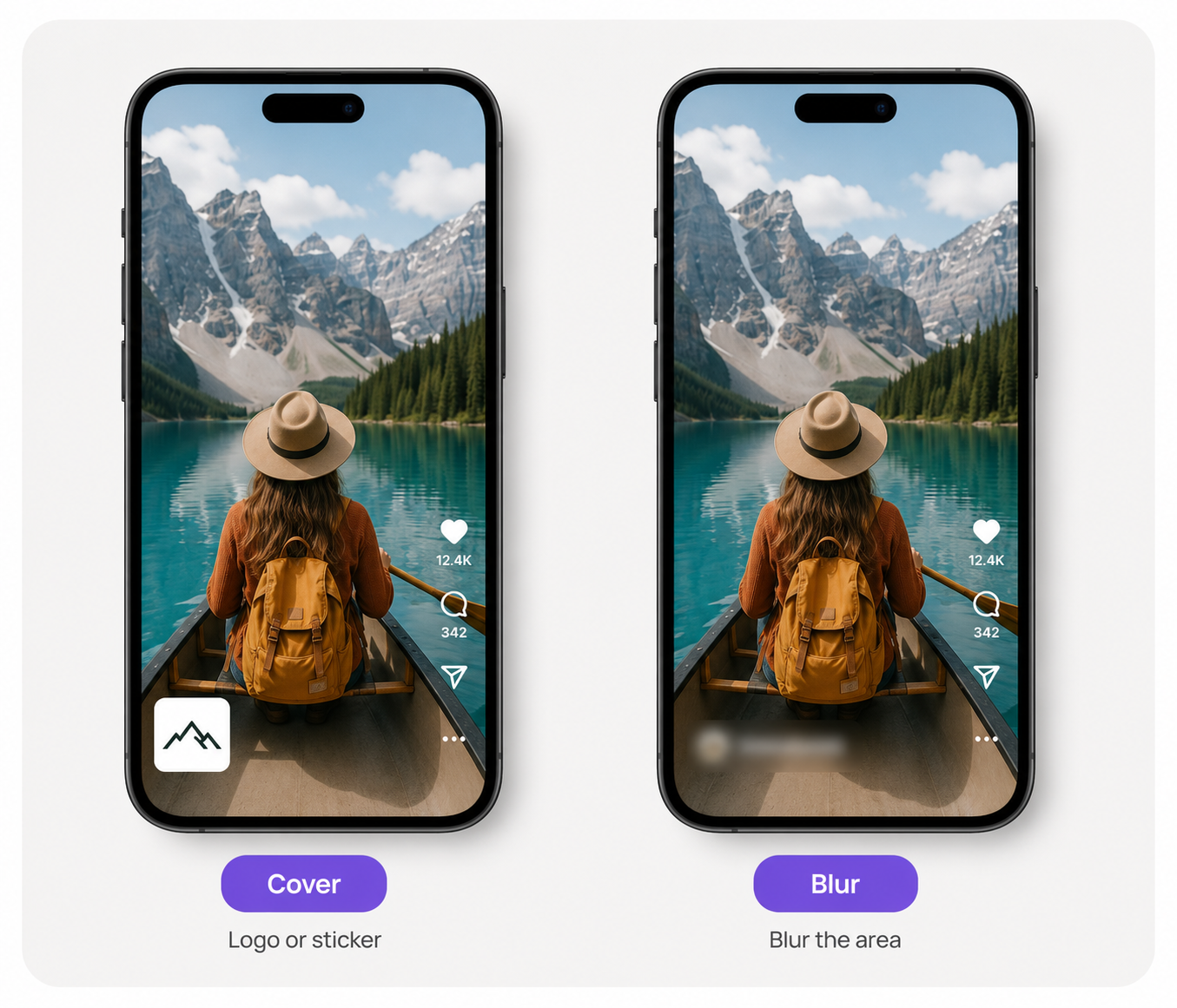
When cropping is not practical and you do not need to restore the hidden part of the video, covering or blurring the watermark can be a simple alternative. This approach is commonly used for social media posts, branded content, and videos that do not require seamless restoration.
Step 1: Cover the Watermark With a Logo or Graphic
Place your own logo, sticker, text box, or graphic over the watermark. For branded content, this can also help keep the video consistent with your visual identity.
Keep the overlay proportional to the original watermark. A large or poorly placed graphic may be more distracting than the watermark itself.
Step 2: Blur or Pixelate the Watermark Area
You can also apply a blur or pixelation effect to make the watermark less visible. This method is quick and works best when the watermark is small and located away from important details. If the watermark covers a face, product detail, or important text, AI removal will usually produce a more natural result.
Step 3: Track a Moving Instagram Watermark
If the watermark changes position during the video, a single overlay or blur will not be enough. Use an editor with keyframe animation or motion tracking so the covered or blurred area follows the watermark throughout the clip.
This method can handle moving watermarks, but it requires more manual work. When preserving the original composition matters, using a dedicated tool to remove watermark elements with AI may be a faster option.
Conclusion
AI removal works best when a person, product, caption, or other key detail can't be cropped out, using surrounding colors and textures to reconstruct the hidden area; cropping is the simplest fix for a small corner watermark, though the tighter frame should be checked against Reels, TikTok, or Shorts specs; covering or blurring offers a quick, if visibly edited, workaround when seamless restoration isn't essential; and trickier cases — watermarks that move across detailed backgrounds like hair, clothing, or crowds — may require keyframes, motion tracking, or AI processing, with a final playback check before export to catch any flicker, repeated textures, or soft patches.
FAQ
What apps remove Instagram watermarks?
RoboNeo works with both photos and videos. Its AI Watermark Remover fills in the marked area using details from the surrounding frame, rather than relying on a crop or visible blur. MP4 and MOV files are supported, including most downloaded Reels and short clips.
Is removing an Instagram watermark legal?
For your own videos or content you are authorized to edit, watermark removal is generally allowed. Copyright issues can arise, however, if another creator’s mark is removed and their work is reposted without permission.
Can I save other people’s Instagram photos?
Instagram’s Save feature lets you bookmark another person’s photo inside the app. Taking the image off Instagram, changing it, or publishing it elsewhere is different—credit does not replace the creator’s permission.
How do I remove an Instagram watermark on an iPhone?
There are three common options on an iPhone: crop the edge in Photos, hide the mark with an overlay in a video editor, or remove it with RoboNeo. A watermark placed over someone’s face or a product is better suited to AI removal because cropping would alter the frame.
You May Be Interested
5 Best Free Tools to Remove Watermark from Video in 2026 | RoboNeo
How to Remove Watermark from Video with AI (2026 Guide)
How to Remove Logo from Video: 4 Easy Methods | RoboNeo
How to Save Video Without Watermarks: 5 Steps and Fixes