How to Make a Realistic Avatar in Roboneo?
 RoboNeo TeamJuly 7, 2026
A realistic avatar gives your brand the same face across ads, posts, and short video—no model booking, no shoot. The hard part is keeping it natural, not plastic, and the same face from one generation to the next. For creators, growth marketers, and e-commerce teams, this guide starts with what you need on screen, then works back through prompts, references, and review.
What Is a Realistic Avatar?
A realistic avatar is a synthetic human face or figure designed to look like a photographed person, not a cartoon or illustration. For most marketing content, it should look believable on a phone screen at normal viewing size.
In marketing, “realistic” usually means three things: believable skin and lighting, a consistent identity across shots, and a look that fits your audience. If one of those breaks, viewers may feel something is off even if they cannot explain why.
Start by checking whether photorealism is really the right fit. In some campaigns, a clean illustrated avatar is lower risk and easier to keep on-brand.
How to Use RoboNeo to Create a Realistic Avatar?
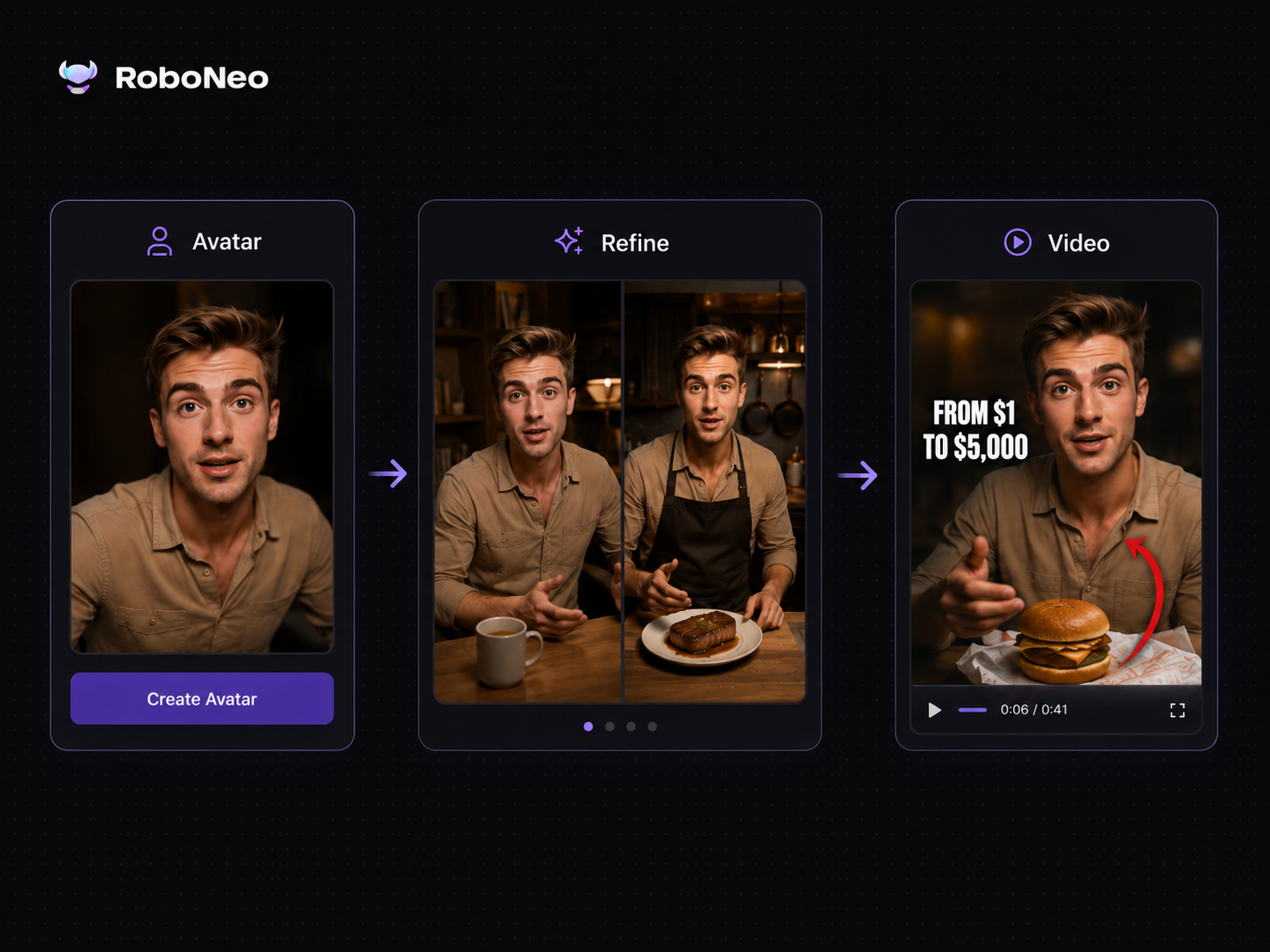
RoboNeo works well as a realistic avatar creator for social videos and ads because the avatar does not have to stay as a one-off image. As an AI video generator, it can support a broader workflow, from character visuals to edited scenes and short-form video content.
For marketing teams, this makes production more practical. You can generate a reference avatar, refine the look, place it into different scenes without constantly switching tools. Its image editor also supports text-based edits, which can reduce manual layer work. Still, AI-generated faces need human review. Before publishing, teams should check identity consistency, brand fit, and commercial-use requirements. RoboNeo can speed up production, but final approval should still come from a human reviewer.
Things to Prepare Before Making a Realistic Avatar
Most fake-looking avatars come from vague inputs, not just the tool itself. Spend a few minutes tightening the brief so the first generation lands closer to something usable.
Define the Avatar's Purpose
Write down where the avatar will appear and what it needs to do. A paid social spokesperson needs clear framing and expression, especially if the avatar will later be used in an AI advertising workflow. A background lifestyle figure can usually be simpler and faster to iterate.
Choose a Realistic Visual Style
Choose a clear visual direction before writing the prompt. If you want to create a realistic avatar from a photo, use a reference image with natural lighting and visible facial details. Then define the age range, styling, and photo style, such as natural daylight or studio portrait.
Avoid mixing competing styles in one brief. A prompt like “cinematic, anime, candid, and corporate headshot” pulls the model in too many directions and often creates an uncanny result.
Prepare Key Character Details Before Generating
List the fixed traits that must stay identical across future generations. These become your reusable prompt block.
Face: age, hair color and length, eye color, distinguishing features
Build and wardrobe: clothing style, colors, accessories
Tone: friendly, authoritative, energetic, calm
Output specs: aspect ratio and where the asset will be published
Make a Realistic Avatar in RoboNeo
Step 1: Start Your Avatar in RoboNeo
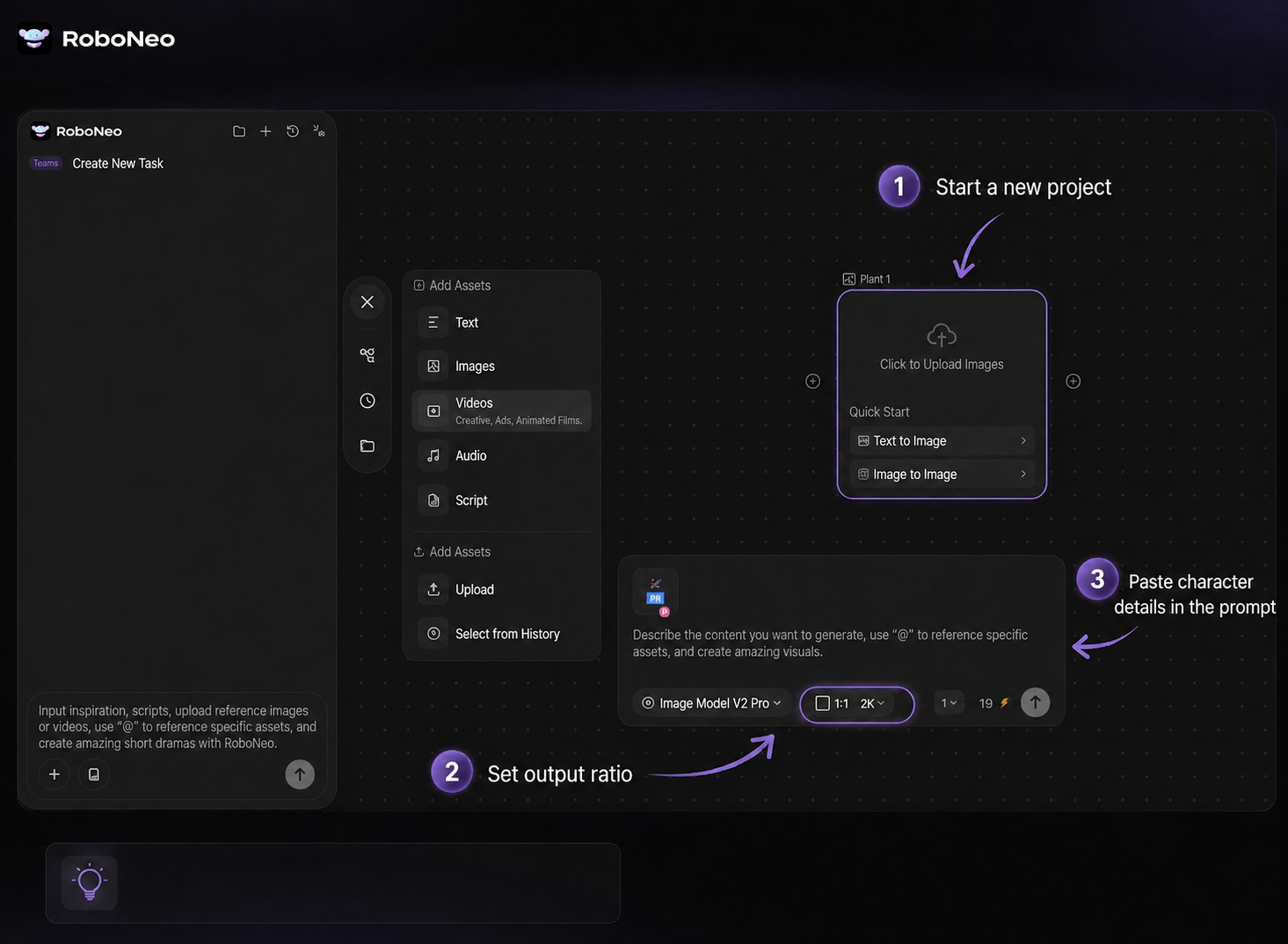
Open the RoboNeo AI image editor and start a new project.
Set your output aspect ratio to match the destination, such as 9:16 for short video or 1:1 for profile use.
Keep your prepared character details open so you can paste them into the prompt.
Assign one person to own the prompt and another to review brand fit. Even on a small team, separating those roles helps catch issues faster.
Step 2: Write a Realistic Avatar Prompt
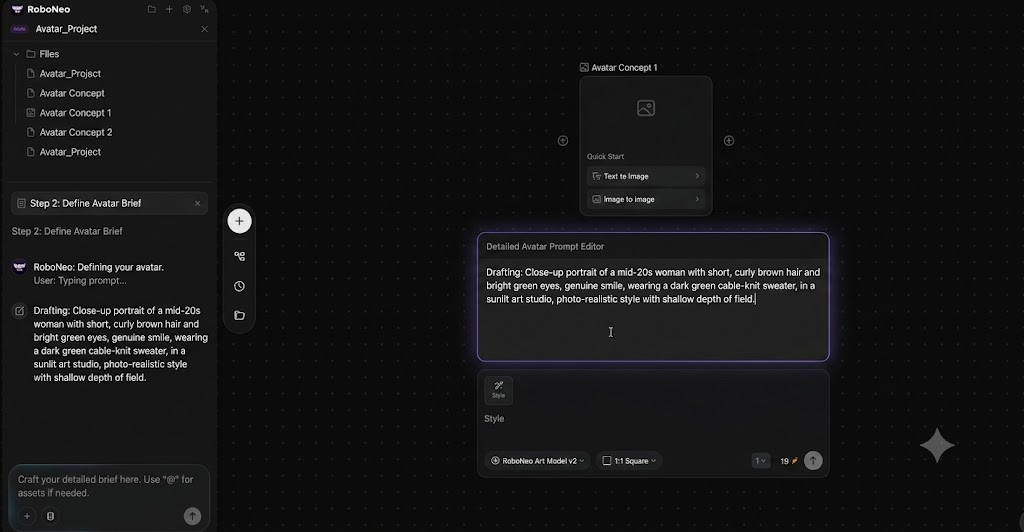
Describe the avatar as if you were briefing a photographer. Include the subject, appearance, expression, wardrobe, setting, and photo style in plain language.
RoboNeo can read composition, lighting, style, and intent from natural language, so specific descriptions work better than vague adjectives like “beautiful” or “perfect.”
Step 3: Generate a Reference Avatar Image
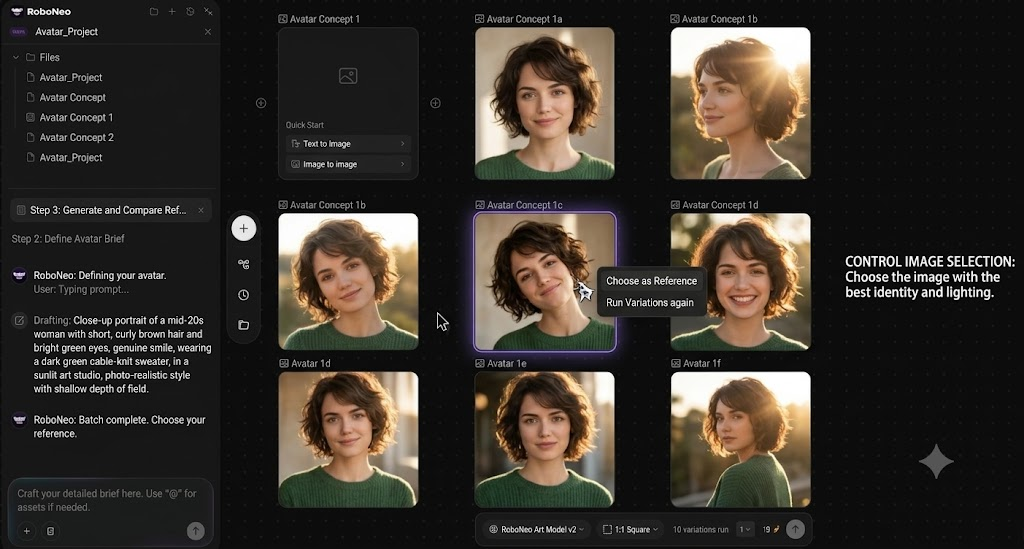
Run the first batch and create several variations from the same prompt. Comparing options side by side is usually the fastest way to find a strong base.
Choose one reference image with the best identity and lighting. This becomes the control image for the rest of the workflow.
Step 4: Adjust Details for a More Natural Look
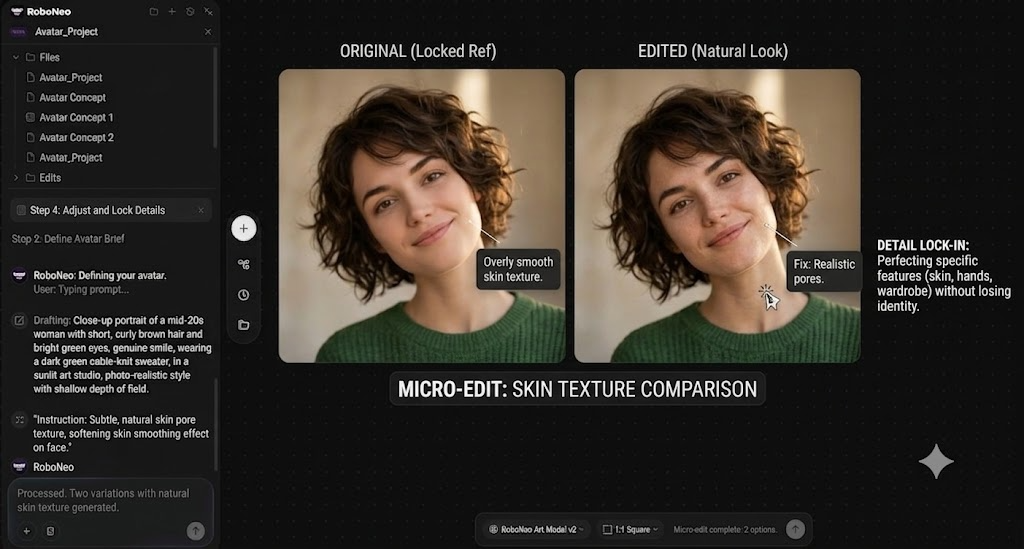
Use the AI image generator to fix specific details with text prompts instead of starting over. Common fixes include softening overly smooth skin, correcting awkward hands, or changing wardrobe color.
Change one thing at a time so you can see what improved. If an edit makes the face worse, return to the locked reference and try a more specific instruction.
Step 5: Refine and Save Your Final Avatar
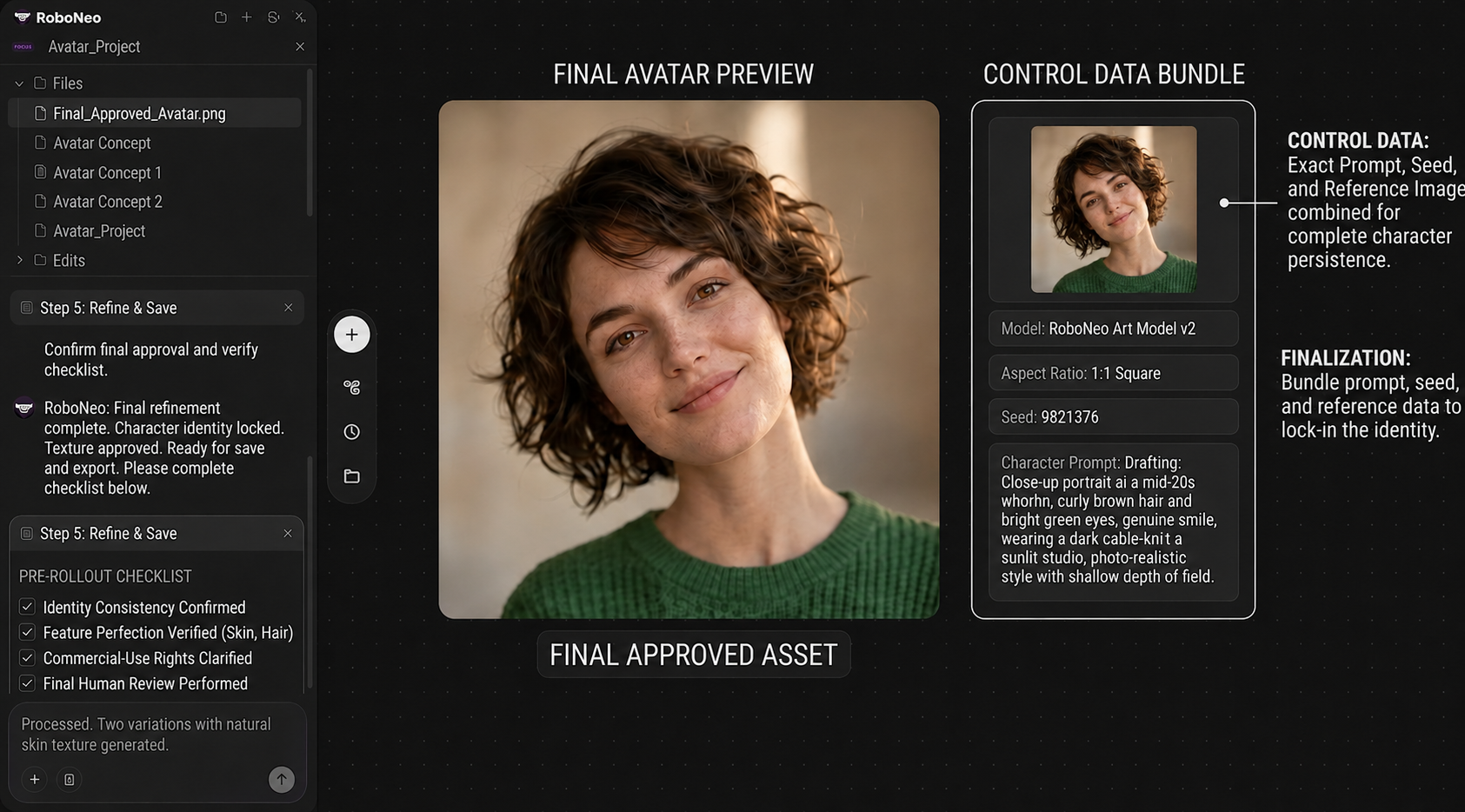
Export the approved avatar at full resolution. Save the exact prompt, seed or settings, and reference image together so you can recreate the same character later.
Before rollout, use the checklist below. Do not publish an avatar if the identity drifts or if commercial-use rights are unclear.
Check | What to confirm | Stop condition |
Identity match | Face matches your reference across new shots | Features drift noticeably between generations |
Realism | Skin, eyes, hands, and lighting look natural at full size | Plastic skin, melted hands, or mismatched shadows |
Brand fit | Tone, wardrobe, and styling match the campaign | Look conflicts with audience or brand guidelines |
Output spec | Correct aspect ratio and resolution for the platform | Asset needs heavy cropping to fit |
Usage comfort | You are comfortable with commercial use and data handling | Unresolved rights or privacy questions |
Human review | A second person signed off on the final asset | No reviewer has checked it |
Prompt Tips for Realistic Avatar Results
Prompt quality has the biggest impact on realism. These habits can reduce reruns and keep the cost per usable asset lower.
Write Clear Character Details. Use concrete traits, such as “woman, late 30s, shoulder-length dark brown hair, light freckles, navy blazer.” Specific details give the model fewer chances to invent a different person in each run.
Use Realistic Photo Keywords. Add photography terms that signal realism, such as “natural skin texture,” “shallow depth of field,” or “candid portrait.” These cues help move the output away from an illustrated look.
Add Lighting and Camera Cues. Describe the light source and framing, such as “soft window light from the left, eye-level, upper-body framing.” Consistent lighting often makes the difference between a believable avatar and an obvious AI image.
Avoid Vague Prompt Words. Cut empty modifiers like “stunning,” “amazing,” or “hyper-detailed.” They add noise without giving the model useful direction and can lead to over-processed faces.
Match Prompts to Use Cases. Tune the prompt to the channel. A TikTok spokesperson should feel approachable and casual, while a finance ad avatar should feel composed and professional. You can keep the same character while adjusting the styling.
FAQ
Can I make a realistic avatar without design experience?
Yes. RoboNeo’s image tools work from text prompts and plain-language edits, so you do not need Photoshop or design skills. Your main job is to write a clear brief, review the output, and make focused adjustments.
What should I include in prompt?
Include the subject, expression, wardrobe, setting, photo style, lighting, and framing. Skip vague praise words. The clearer your character and camera description, the more consistent and natural the result will be.
Can I use the same avatar in multiple videos?
You can if you keep your reference image, exact prompt, and settings saved. Reuse that bundle as your control so the face stays consistent. Always re-check identity match on each new generation, since small drift can creep in.
Why does my AI avatar look fake?
Common causes include overly smooth skin, mismatched lighting, distorted hands, or a prompt filled with vague adjectives. Add realistic photo and lighting cues, fix one problem area at a time, and compare the result with a real-photo reference.
Is a realistic avatar better than a cartoon avatar?
Neither is always better. Realistic avatars work well for spokesperson and lifestyle content, while cartoon or stylized avatars are often easier to keep consistent and may reduce uncanny-valley risk. Choose based on your audience, brand tone, and review needs.
You May Be Interest
Best 3D Character Creator to Make Custom Characters
6 Best AI Video Generators in 2026