480p vs 720p: Which Resolution Should You Choose?
 RoboNeo TeamAugust 11, 2026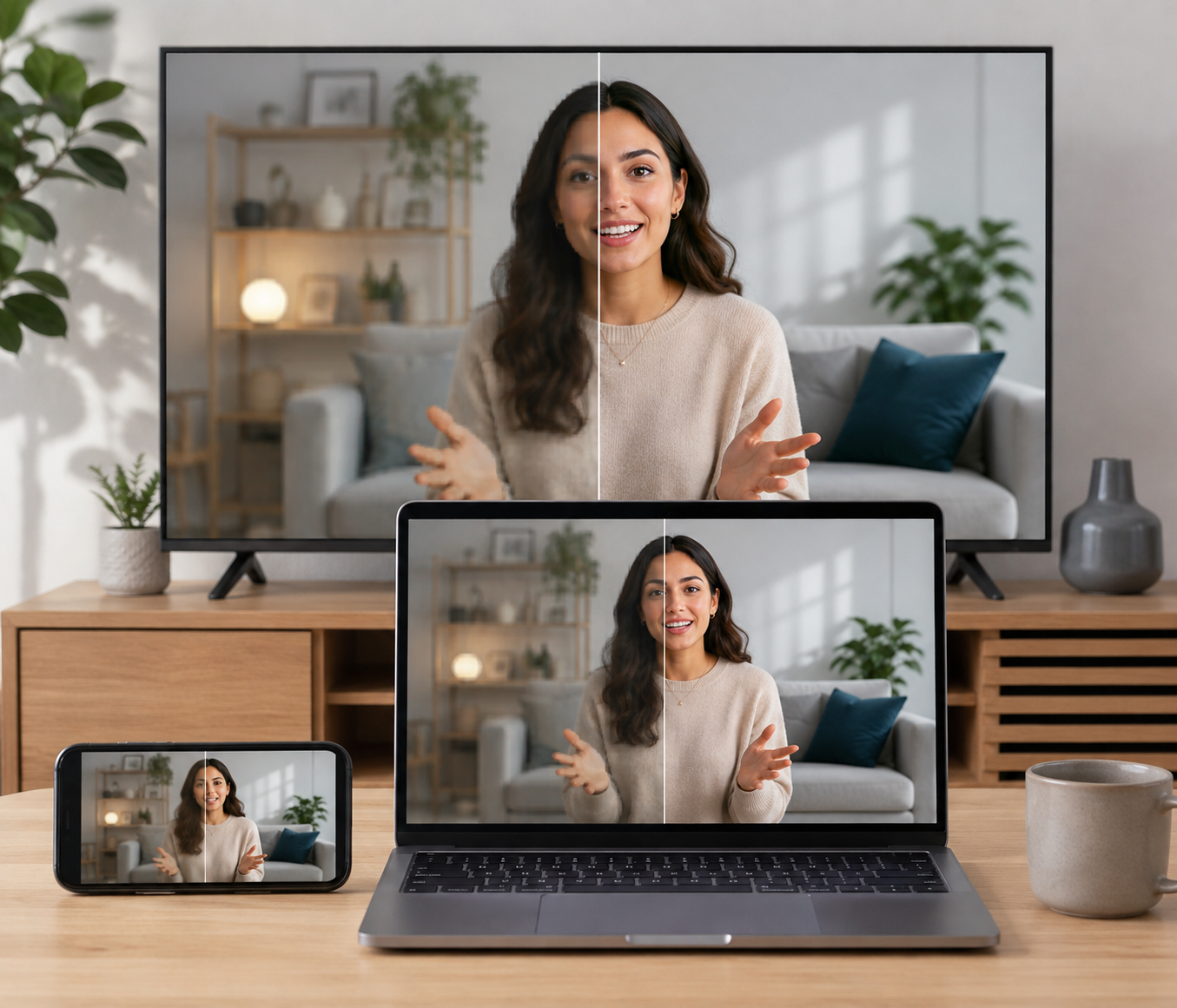
480p and 720p are both video resolutions, but pixel count is rarely the only thing people care about. The practical questions are the video still looks clear on a laptop, will it buffer on a slower connection?
A clean 480p clip may look fine on a phone, yet appear soft once it fills a laptop or TV screen. 720p usually holds up better, although low bitrate or repeated compression can still make it look blurry. Upscaling older 480p footage may improve playback on modern devices, but it cannot fully restore detail that was never captured.
The better option between 480p and 720p depends on screen size, internet speed, storage space, and the condition of the source video. So, this article will tell you the main difference between them and how to choose.
What Is 480p Resolution?
480p is a standard-definition video format. It falls under SD, not HD.
For widescreen video, the usual frame size is 854 × 480 pixels. Older footage shot in a 4:3 aspect ratio may use 640 × 480 instead. The "480" refers to the number of vertical pixel rows in the frame, while the "p" stands for progressive scan. In simple terms, every frame displays the full image rather than alternating between different sets of lines.
The format was everywhere during the DVD era and the early days of online video. It also became common on older phones. Higher resolutions have largely taken over, but 480p has not disappeared. The files are relatively small, uploads finish faster, and playback tends to hold up better when the connection is slow.
It can still work well in the right setting. Picture a short family clip shared through a group chat: one person fills most of the screen, the background is simple, and nobody needs to read tiny text. On a phone, 480p may look perfectly acceptable. It is also practical for video previews, small embedded players, and content where fine detail is not especially important.
The weaknesses show up once the image is stretched. In full-screen playback, edges may look jagged, lettering can become soft, and textures start to disappear. Heavy compression makes matters worse. Dark areas may break into visible blocks, while faces and moving objects can take on a smeared or blurry appearance, which is where video denoising may help before upscaling.
What Is 720p Resolution?
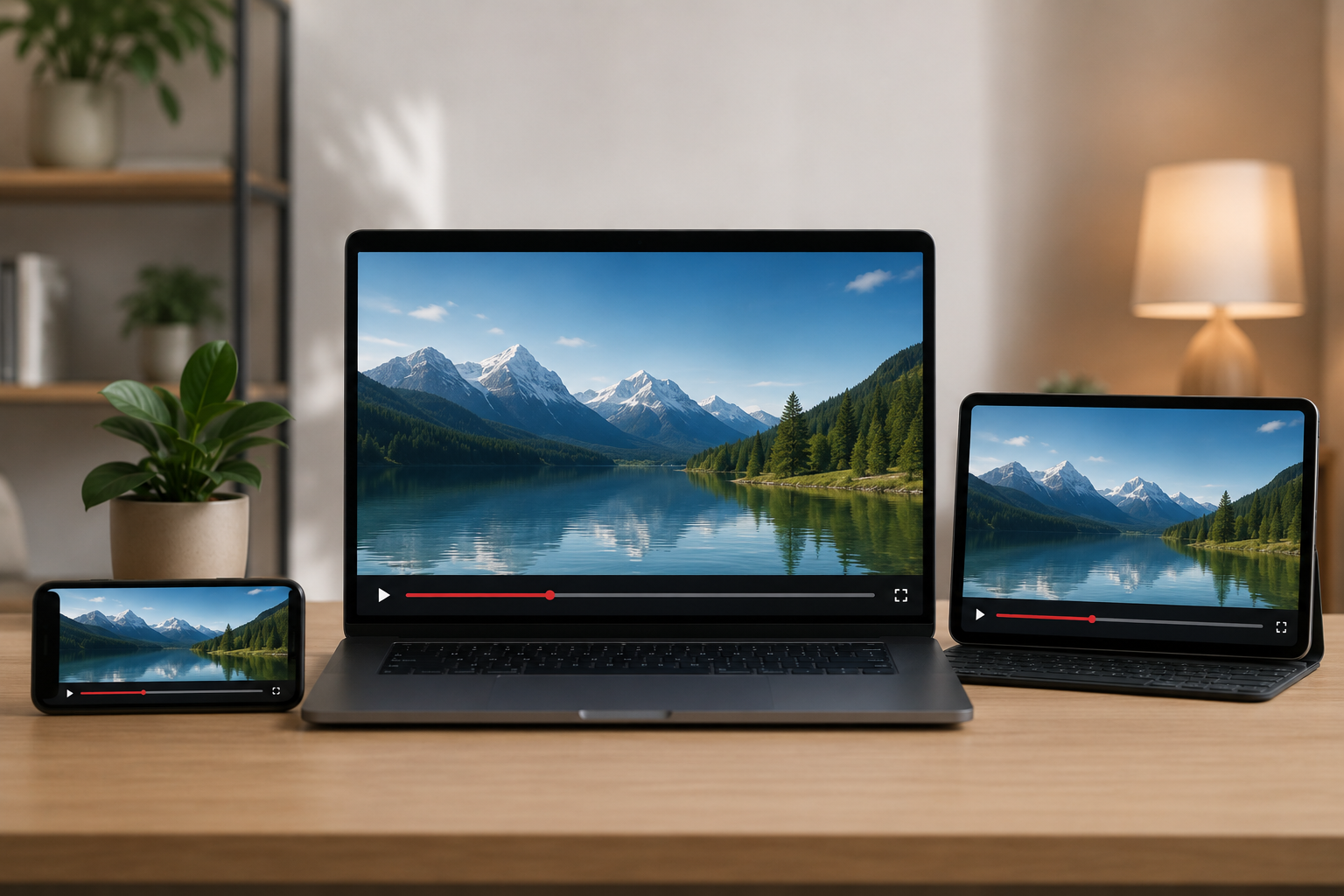
You have probably seen 720p on older YouTube videos, webinar recordings, and clips saved from video calls. The frame is usually 1280 × 720 pixels with a 16:9 shape. It is considered HD, though it sits at the lower end of the high-definition range.
For everyday viewing, that is often enough. Faces keep more definition than they do at 480p, subtitles are easier to read, and product edges do not turn soft as quickly. Most phones, tablets, and laptops can display 720p comfortably.
It is also fairly easy to stream. That helps explain why 720p is still common for online classes, recorded meetings, and mobile-first content such as TikTok videos. You get a clearer image than 480p without the larger files and heavier bandwidth demands often associated with 1080p.
A screen-recorded tutorial is a simple example. At 480p, small menu labels may become hard to read in full-screen mode. The 720p version usually holds up better.
But the HD label can be misleading. Low bitrate may leave motion looking blocky, while repeated exports can smear fine detail. Poor focus remains poor focus. More pixels will not fix that. A clean, well-lit 480p clip can sometimes look better than a badly compressed 720p file.
So, 720p tells you the size of the video frame, not how well the video was shot or exported.
480p vs 720p: What Actually Changes?
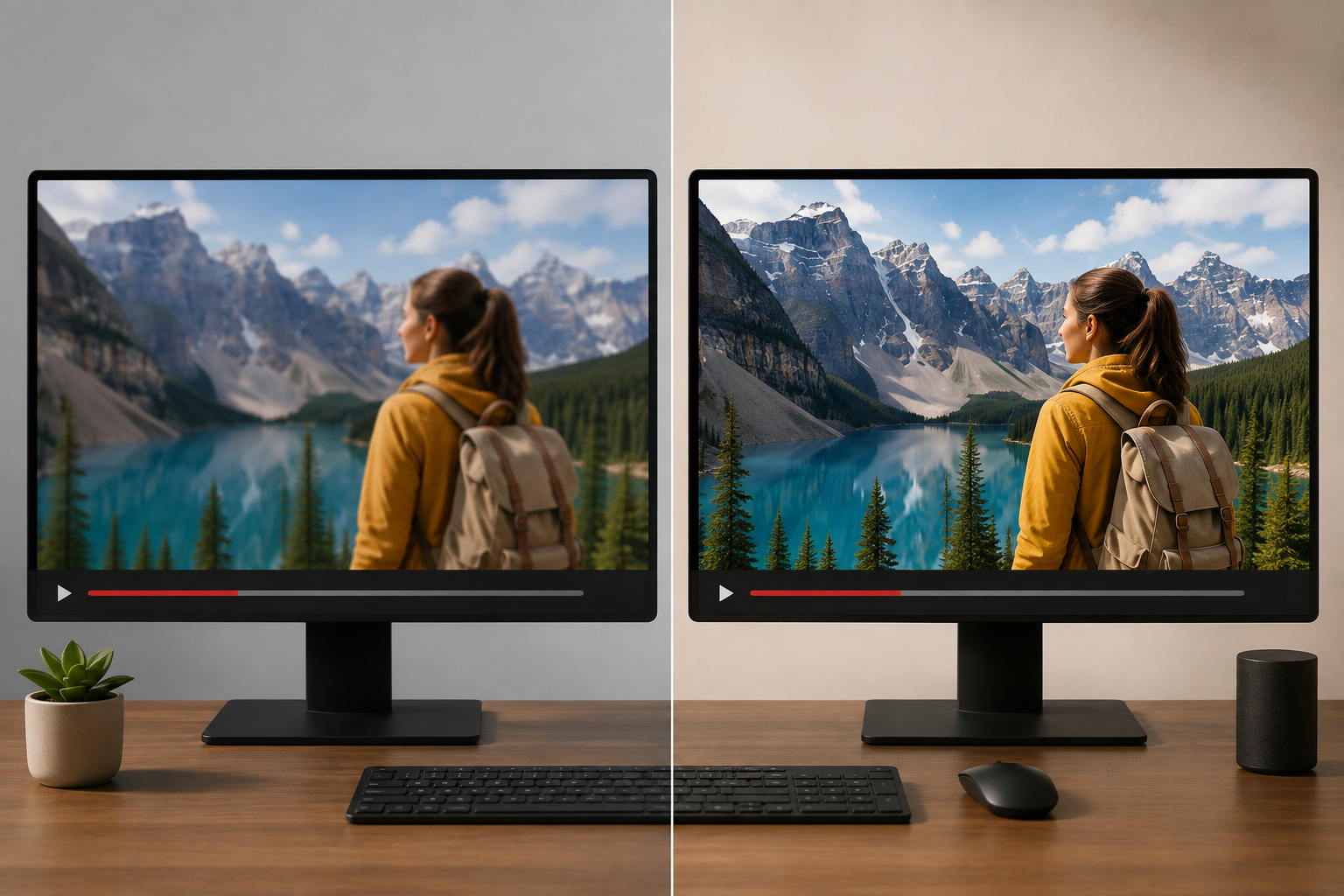
Pixel count is the headline difference, but it is not the only one viewers notice. Moving from 480p to 720p can make text easier to read and keep faces from looking soft on a larger screen. It also means more video data, which may lead to a bigger file or slower playback on a weak connection.
Feature | 480p | 720p |
Typical widescreen size | 854 × 480 | 1280 × 720 |
Total pixels | About 410,000 | About 920,000 |
Resolution class | Standard definition (SD) | High definition (HD) |
What the picture looks like | Fine in a small window, but detail fades when enlarged | Cleaner text, faces, and object edges |
Internet demand | Easier on slow connections | Needs a little more bandwidth |
File size | Usually smaller | Often larger |
On a phone | Good enough for casual clips | Sharper, though the gap may be subtle |
On a laptop | Can look soft in full screen | More comfortable for everyday viewing |
On a large TV | Blur and compression are easier to spot | Holds up better, but does not match 1080p or 4K |
Where it still makes sense | Previews, older footage, limited data | Tutorials, social video, classes, and regular streaming |
The difference may be easy to miss in a group-chat video. Say someone sends a short birthday clip, and most of the frame is taken up by one person standing close to the camera. On a phone, 480p can look completely acceptable.
A screen recording is less forgiving. Small menu labels that seem readable in the editing window may turn fuzzy once the video goes full screen. Here, 720p has a clear advantage because it has more room to hold those details.
That does not mean every 720p file will look better. A low-bitrate export can still appear blocky, and footage that has been downloaded and reposted several times may already have lost much of its detail. Resolution helps, but the condition of the source still matters.
Can You Convert 480p to 720p?
Yes, but the result depends heavily on the original file. Most video editors can resize a 480p clip to 1280 × 720 pixels. AI enhancement tools can do it as well. Once exported, the video will fit a 720p timeline, player, or upload requirement.
What changes first is the frame size. The original detail does not automatically come back.
A clean 480p recording often scales reasonably well. A blurry clip pulled from an old group chat is another story. Making that file larger can expose every compression block and soft edge that was already there.
Traditional Video Upscaling
Regular editing software usually relies on interpolation. It studies nearby pixels and fills the new space with estimated colors and shapes.
For basic resizing, this is often enough. Say you have a 480p interview with an older camcorder. The speaker is in focus, the lighting is decent, and you only need the clip to match a 720p project. A standard upscale should work without causing much trouble.
The software does not understand the scene, though. It cannot tell whether a fuzzy patch is hair, fabric, or a shadow behind the subject. It only sees pixel values.
That is where problems start. Noise gets larger. Jagged edges remain jagged. Compression blocks that were easy to miss on a phone may stand out once the clip fills a laptop screen.
Footage that has already been shared and saved several times usually fares worse. Think of a video recorded on an old phone, sent through a messaging app, downloaded, trimmed, and exported again. By that point, much of the original information may already be gone.
AI Video Upscaling
AI video upscaling works differently. It still enlarges the frame, but it also looks for faces, object boundaries, textures, and movement across nearby frames.
RoboNeo AI Video Enhancer is designed for low-resolution and compressed footage. Suppose an old family video has a recognizable face, but the hair looks muddy and the darker parts of the room break into blocks. AI processing may reduce some of that noise, clean up the outline around the person, and make the clip feel less rough on a modern screen.
The improvement is usually practical rather than dramatic. The video may become easier to watch. It will not suddenly look as though it came from a newer camera.
AI still has to work with whatever remains in the file. It can estimate a missing texture, but it cannot know exactly what the camera failed to capture. A badly out-of-focus face stays limited, and tiny text that has already collapsed into a blur may never become readable.
So the realistic goal is not "true native 720p." It is a cleaner version of the 480p source, with fewer distractions from noise, soft edges, and compression damage.
480p or 720p: Which One Makes More Sense?
The answer often comes down to where the video will be watched.
A short clip opened on a phone during a commute does not need the same treatment as a tutorial shown full screen on a laptop. In the first case, 480p may be plenty. For the second, 720p is usually easier on the eyes.
Stick With 480p When Data or Speed Is Limited
Picture someone checking a security camera from a parking lot with only one or two bars of service. A sharper image sounds nice, but constant buffering is not. Dropping to 480p may keep the feed moving well enough to see who is at the door or whether a package has arrived.
The same logic applies to group-chat videos, quick calls, and simple talking-head clips. When one person fills most of the frame, viewers can usually follow the content without needing every strand of hair to look crisp.
480p also keeps file sizes down. That matters when clips need to be uploaded quickly, stored in large numbers, or watched over mobile data.
Use 720p When Details Matter
720p is a better fit for most videos meant to be watched rather than merely checked.
Take an online class. The instructor may be easy to see at 480p, but a chart in the corner or a line of small text can become difficult to read. At 720p, those details have more room to hold together. Product demonstrations, software walkthroughs, captioned videos, and social posts tend to benefit for the same reason, especially when improving UGC video quality.
It is not an especially heavy format, either. Most current phones, tablets, and laptops handle 720p without trouble, and the files remain much lighter than typical 1080p or 4K exports.
For ordinary viewing, that balance is hard to beat.
Look at the Original File Before Upscaling
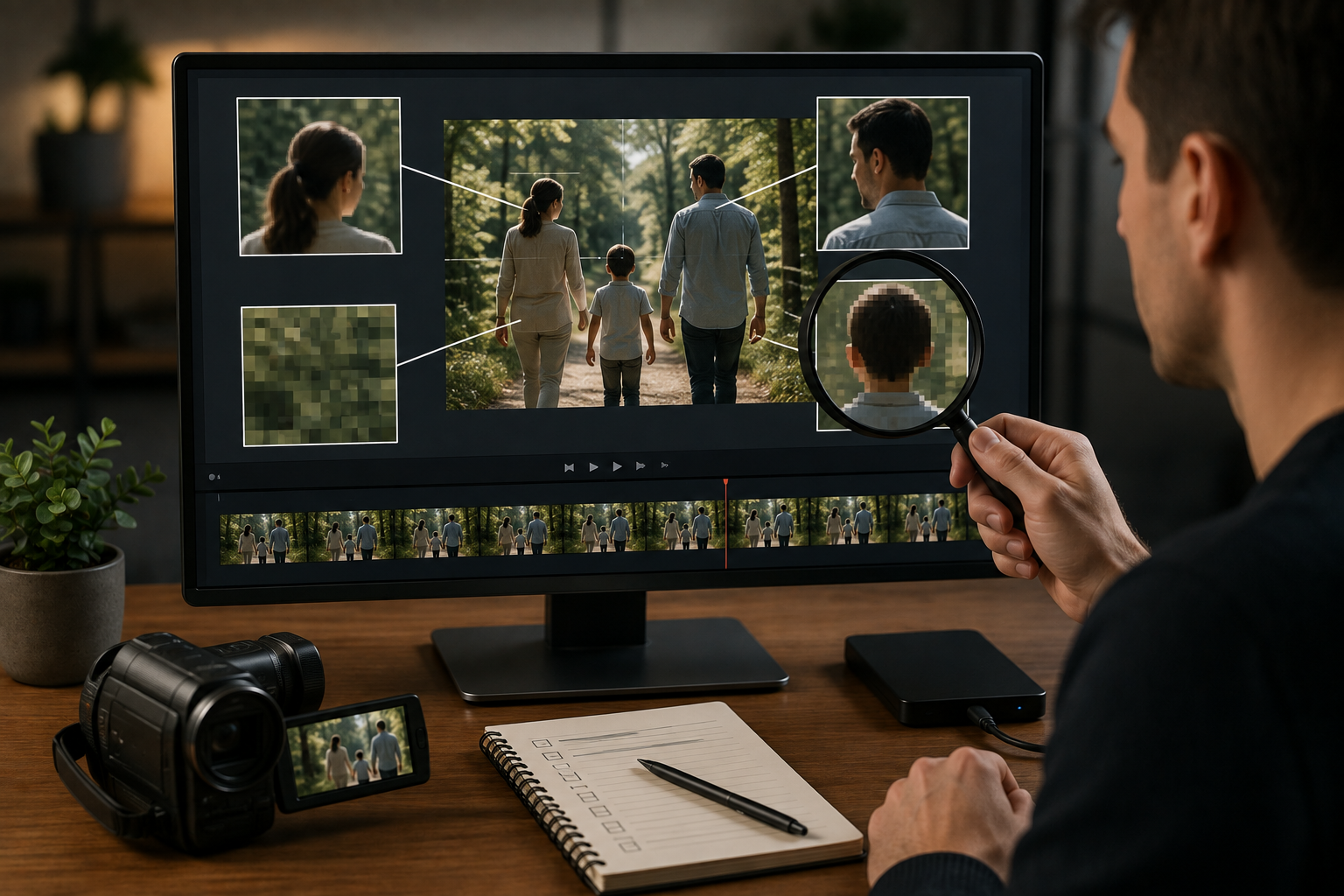
A 480p label alone does not tell you whether the footage is worth converting.
Open the file and watch a moving section. Are faces in focus? Does the background break into blocks? Can you read the existing text? A clean recording from an older camcorder may upscale fairly well. A clip that has been copied from one chat app to another may not.
Consider an old family video downloaded years ago from Facebook. It may already have gone through several rounds of compression. Exporting it at 720p will make the frame larger, but the missing detail is still missing. In some cases, the blur becomes easier to notice.
Final use matters too. A small video embedded in a blog post can stay at 480p without causing problems. Full-screen playback, added subtitles, or a timeline built around 720p footage gives upscaling a clearer purpose.
When the original recording is available, start there. A first-generation file almost always gives the editor, or an AI enhancement tool, more to work with than a copy saved from social media.
FAQ
Is 480p Considered HD?
480p is still standard definition, or SD. HD generally starts at 720p.
You may occasionally see 480p described as "high-quality SD," especially on older platforms or devices. That does not make it an HD resolution.
Is 480p Good Enough for a TV?
On a smaller TV? Usually. It can also look acceptable when you are sitting several feet away.
The picture starts to struggle on larger screens. Play an old 480p home video on a 55-inch 4K TV, for example, and faces may look soft while text and background details lose definition. Dark scenes often reveal compression blocks as well.
It will play. Whether it looks good is another question.
Is 480p Good Enough for a Laptop?
That depends on how much of the screen the video uses.
A 480p interview playing in a browser window may look fine. Switch to full screen and the image often feels softer, though. Screen recordings are especially unforgiving because small menus and labels can become difficult to read.
For tutorials, presentations, or videos with captions, 720p is usually the more comfortable option.
Why Does My 720p Video Still Look Blurry?
Because 720p only describes the frame size. It says nothing about how well the video was recorded or compressed.
Missed focus can make a 720p clip look soft from the start. A low bitrate may cause blockiness during movement, while repeated uploads and downloads can strip away even more detail. This often happens to videos that have been shared through several messaging or social media apps.
A large 4K screen may expose those flaws even further.
Is 480p Half of 720p?
Not by height. Since 480 is two-thirds of 720, the vertical resolution is closer than the names might suggest.
Total pixels tell a different story. A widescreen 480p frame contains about 410,000 pixels. At 720p, that number rises to roughly 920,000. So in terms of overall pixel count, 480p has slightly less than half as many pixels as 720p.
You May Be Interested
6 Best Ai Character Generator in 2026: Tested & Compared
5 Best Free Tools to Remove Watermark from Video in 2026 | RoboNeo
How to Create AI Video from Script: A Complete Guide
How to Remove TikTok Watermark: 3 Free Methods
Native 4K vs. Upscaled 4K: What Is the Difference?