Best Tools to Fix Blurry Videos: 6 Top Picks for Clearer Footage
 RoboNeo TeamAugust 13, 2026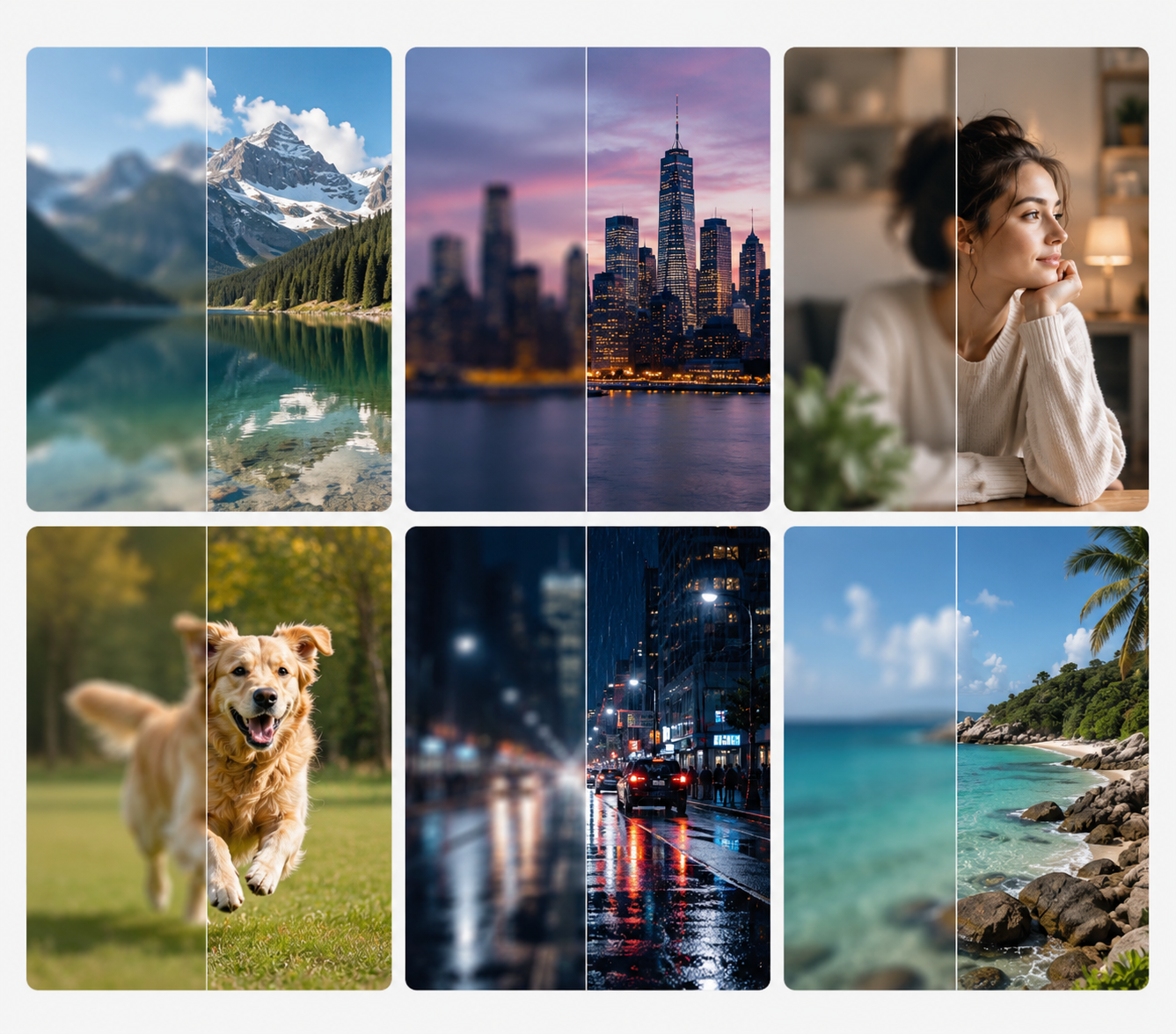
We've all been there: you film a clip on your phone, check it on the small screen, and it looks totally fine. But the second you play it full-screen on a laptop or a 65-inch TV, it turns into a blurry, pixelated mess. Whether it's a grainy home video shot in low light, an old memory recorded years ago, or a clip that got mangled by messaging app compression, soft video ruins good content fast.
Fixing that footage used to require a professional post-production setup and hours of tedious editing. Today, modern AI video enhancers let you sharpen soft edges, remove ugly noise, and upscale resolution in just a few clicks.
In this guide, we break down why video turns blurry in the first place, compare the 6 best tools to make your footage crisp again, and cover what types of blur can actually be fixed.
Why Does a Video Look Blurry?
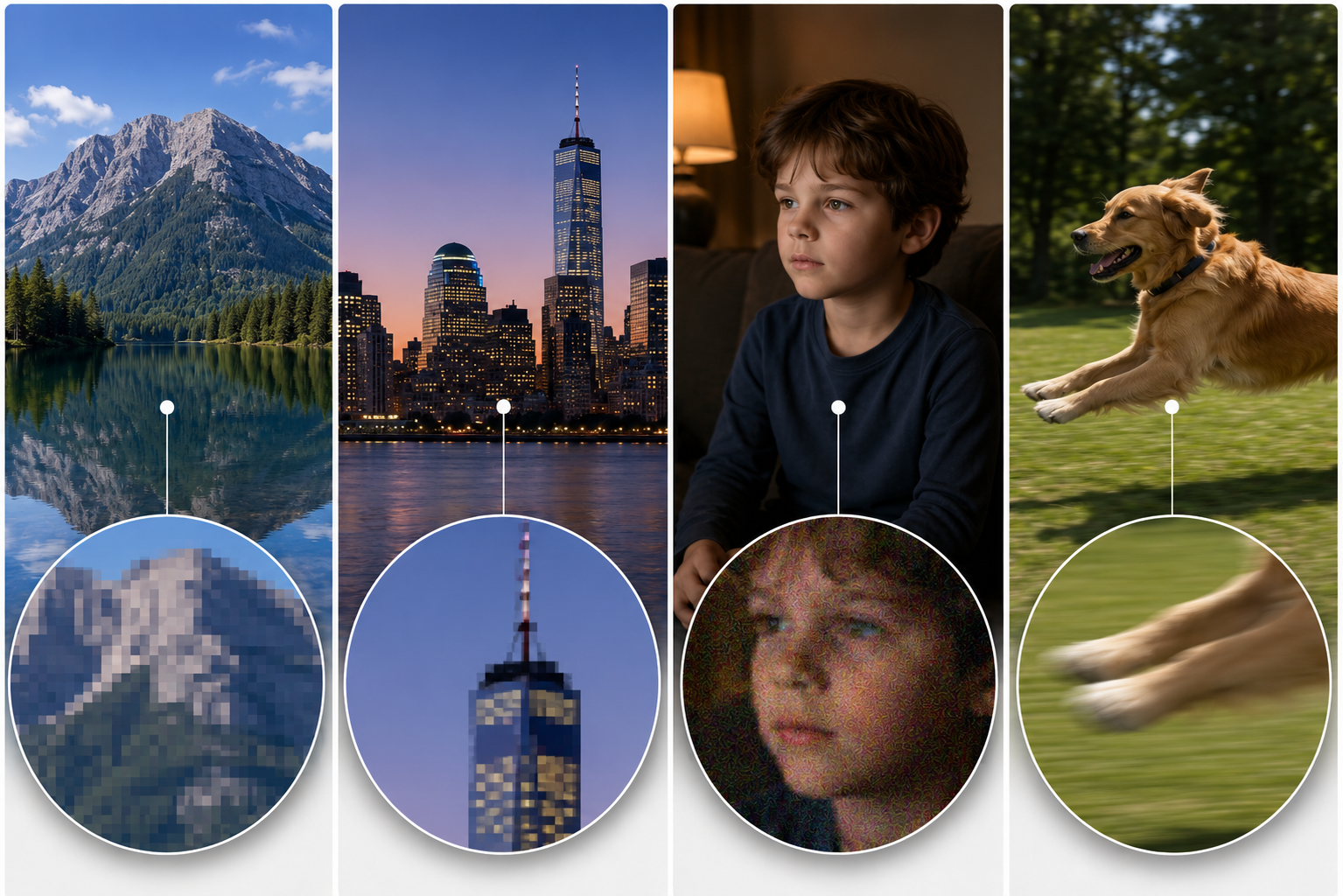
Before picking a tool, figure out why your footage looks bad in the first place. Different causes require totally different fixes:
Low Resolution: You shot or export at 480p or lower. Stretch those few pixels across a 1080p or 4K monitor, and the image goes soft fast. There just isn't enough visual data to fill the screen.
Heavy Compression: Apps crush video to save bandwidth. That compression strips away fine lines and textures, leaving behind blocky artifacts, pixel grids, and gross color banding.
Missed Focus and Low Light: The camera missed the target, or dark rooms forced the phone to jack up its ISO. You get fuzzy edges mixed with digital noise and color speckles hiding real details; learning how to make a dark video brighter can help when underexposure is part of the problem.
Motion Blur: Slow shutter speeds ruin action shots. Fast movement - a running dog, a speeding car, or shaky hands - drags light across the sensor, leaving behind ugly smears.
How We Chose the Best Tools to Make Blurry Videos Clearer
We skipped the random list-building and judged every tool against four strict standards:
Deblurring, Denoising, and Upscaling Quality
Visual output comes first. We checked how well each tool sharpens soft edges, strips out noise, and fixes compression marks. When upscaling 720p footage to 4K, great tools rebuild realistic textures - like hair strands, skin, and text - instead of slapping on a cheap plastic blur.
Processing Speed, Clip Limits, and Batch Support
Rendering video takes massive horsepower. We looked at whether web apps cap your file sizes, if desktop tools tap into GPU acceleration, and whether you can queue up multiple files to save time.
Export Resolution, Formats, and Watermarks
Flexible exports matter. We flagged annoying watermarks on free plans, checked maximum resolution limits (1080p vs. 4K), and made sure tools export to standard formats like MP4, MOV, or ProRes for editing.
Ease of Use, Pricing, and Hardware Requirements
We balanced learning curves against real costs. Are web interfaces dead simple? Do desktop apps require a top-tier graphics card (like an RTX 30 or 40 series GPU) to run without crashing? Is payment subscription, buy-it-once, or pay-as-you-go?
6 Best Tools to Fix Blurry Videos
Before getting into each tool, it helps to see where they differ at a glance. Some are built for deeper AI restoration, while others are better for quick browser-based cleanup or manual editing. The table below shows the main strengths, platforms, and trade-offs of all six options.
Tool | Best For | Platform | AI Enhancement | Main Limitation |
RoboNeo | Fast AI enhancement, upscaling, social & marketing videos | Browser | Yes | Requires file uploads; cloud-only workflow |
Topaz Video AI | Deep restoration, old footage, long videos, batch processing | Windows / macOS | Yes | Steeper learning curve and heavy hardware demands |
Adobe Premiere Pro | Manual sharpening and tweaks within existing edit projects | Windows / macOS | Limited for blur repair | Not a dedicated AI deblurring tool |
CapCut | Short-form social clips, quick AI boosts, streamlined editing | Web / Desktop / Mobile | Yes | Certain AI features and export options locked behind paid tiers |
VEED | Fast browser sharpening, brightness fixes, and light editing | Browser | Partial | Free plan caps exports at 720p with a watermark |
Clideo | Simple video tweaks without installing software | Browser | Limited | Focuses on basic adjustments; free exports include a watermark |
RoboNeo and Topaz Video AI for AI-Powered Video Enhancement
If you need to fix low-res, noisy, or heavily compressed footage, purpose-built tools like RoboNeo and Topaz Video are your best bet.
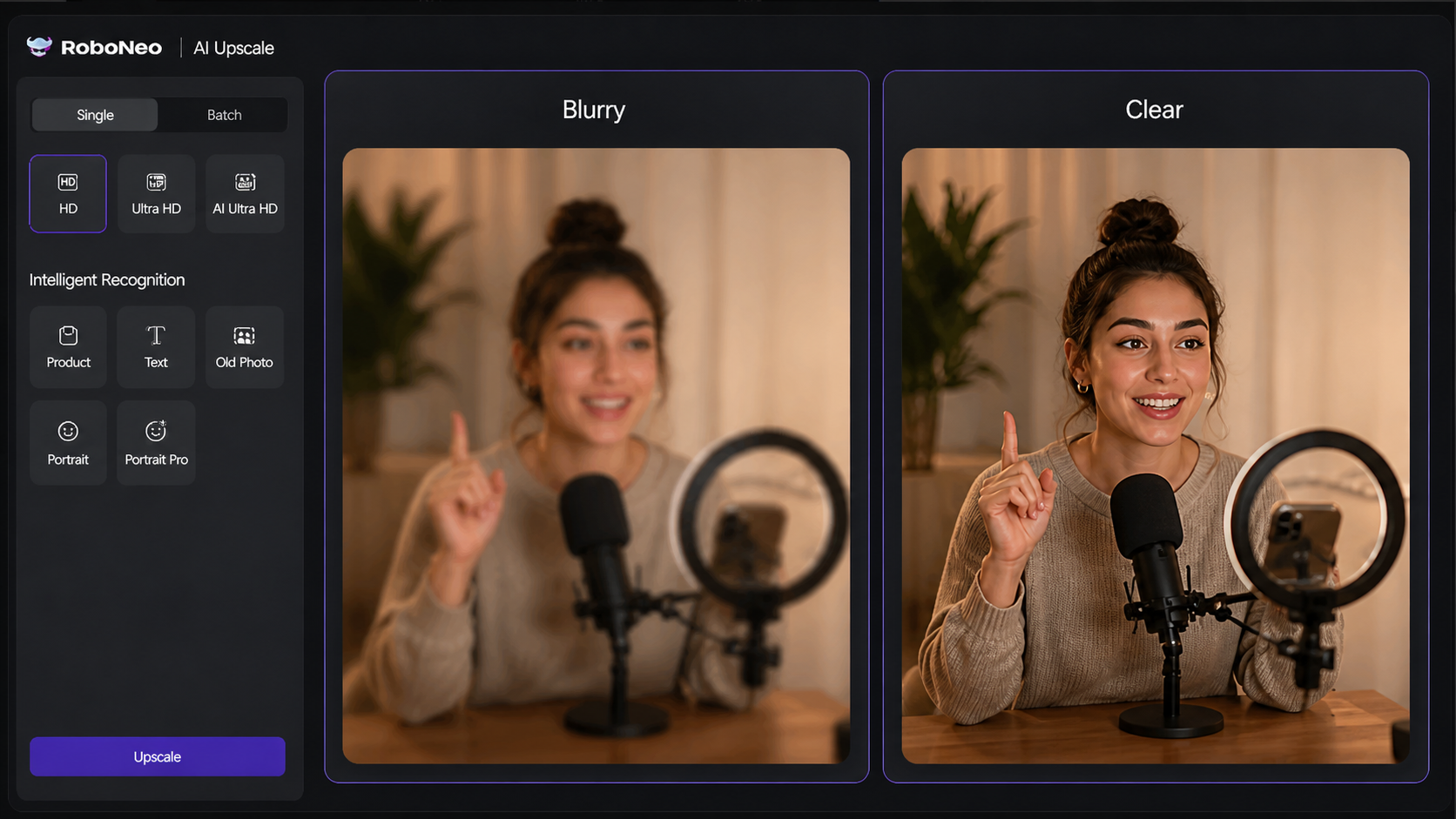
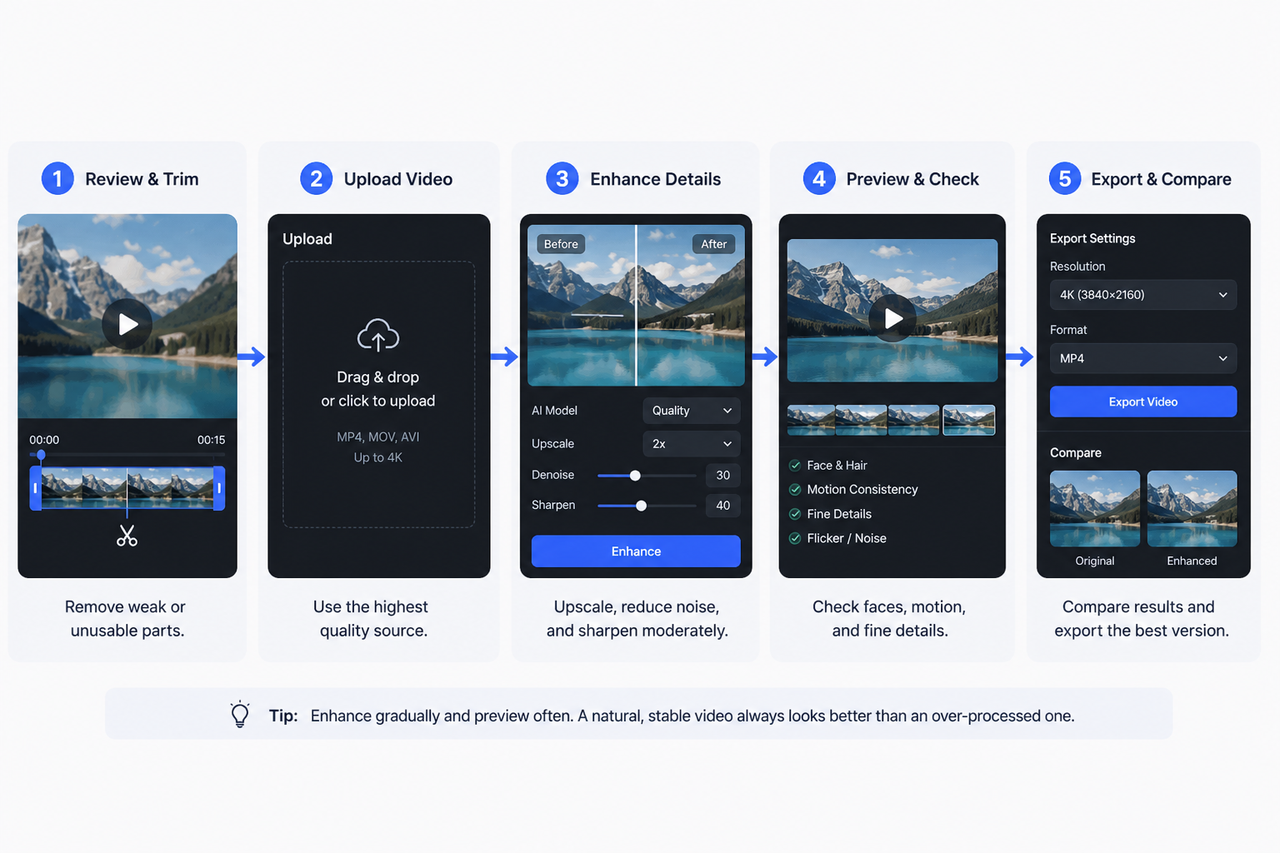
RoboNeo AI Enhancer is perfect if you don't want to mess with downloading bulky desktop software. Its AI Video Enhancer and Video Upscaler run right in your browser - supporting up to 4K - and combine deblurring, noise reduction, and resolution boosts into one quick step.
Say you have an edited product demo shot on a smartphone. The main subject looks a little soft, the text on the box is fuzzy, and there is grain in the shadows, where video denoising can help reduce visible noise before export. Quick clips like this don't need a full-blown restoration project - you just drop in the file, run the enhancer, preview the results, and hit publish.
Topaz Video AI, on the other hand, gives you deep, hands-on control right from your desktop. It packs a full toolkit - enhancement models, noise reduction, motion deblurring, stabilization, and frame interpolation - so you can test different models on the same clip to fix specific flaws. Plus, it handles batch exports and processes everything locally on your machine.
The catch? You have a lot more settings to tweak, and rendering speeds depend heavily on your graphics card. That level of control pays off when restoring old VHS tapes, working through long recordings, or fine-tuning complex projects. But if you're just trying to polish a quick 20-second clip, the workflow can feel like total overkill.
Open RoboNeo AI Video Enhancer
Adobe Premiere Pro and CapCut for Editing and Manual Control
If your footage is already sitting on your editing timeline, you don't always need to jump into a separate app.
Adobe Premiere Pro comes with built-in tools like "Sharpen" and "Unsharp Mask" that bump up edge contrast to clean up mild softness or compression artifacts. Unsharp Mask gives you direct control over Radius and Threshold sliders, letting you dial in the exact look you want.
That said, these filters only work if your shot is slightly soft and just needs a quick touch-up. You can't fix a badly out-of-focus clip simply by cranking up the sharpening slider - pushing it too far just adds ugly noise and harsh halos around your subject.
CapCut takes a much faster, all-in-one approach. Its AI Video Enhancer bundles sharpening, deblurring, denoising, and 4K upscaling right alongside your everyday editing tools. You can trim clips, slap on captions, boost picture quality, and export straight to social media without hopping between programs.
For TikToks, Reels, YouTube Shorts, or UGC, handling cleanup and editing under one roof saves a ton of time; this guide to AI features for enhancing UGC video quality covers the most useful enhancement options. Just keep in mind that CapCut locks certain advanced AI features behind its Pro paywall, and subscription pricing varies depending on your region, device, or active promos.
VEED and Clideo for Quick Online Video Cleanup
Not every blurry video needs heavy AI reconstruction.Sometimes the footage is simply too dark, a little flat, or slightly soft around the edges. In those cases, a browser-based editor such as VEED or Clideo may be all you need - and it can be quicker than running the clip through a full AI restoration workflow.
VEED's Video Enhancer gives you straightforward controls for brightness, exposure, contrast, saturation, and sharpness, all in the browser. It works best when the video is basically usable but needs a little cleanup. Think of a phone clip that looks dull indoors or a product demo that could use slightly crisper edges. Severe out-of-focus blur is a different problem and usually calls for something more specialized.
The free version does come with limits. Free exports are currently capped at 720p and include a VEED watermark; higher-resolution, watermark-free exports require a paid plan.
Clideo takes an even simpler approach. Its Video Enhancer focuses mainly on adjustments such as brightness, contrast, and saturation, with support for common formats including MP4, MOV, and AVI.
That makes it handy for a quick fix when a clip is too dark or looks washed out. It is much less suited to restoring facial detail, correcting heavy blur, or upscaling footage with AI. Free accounts currently have a 500 MB upload limit, and exported videos include a watermark.
What Types of Blur Can and Cannot Be Fixed?
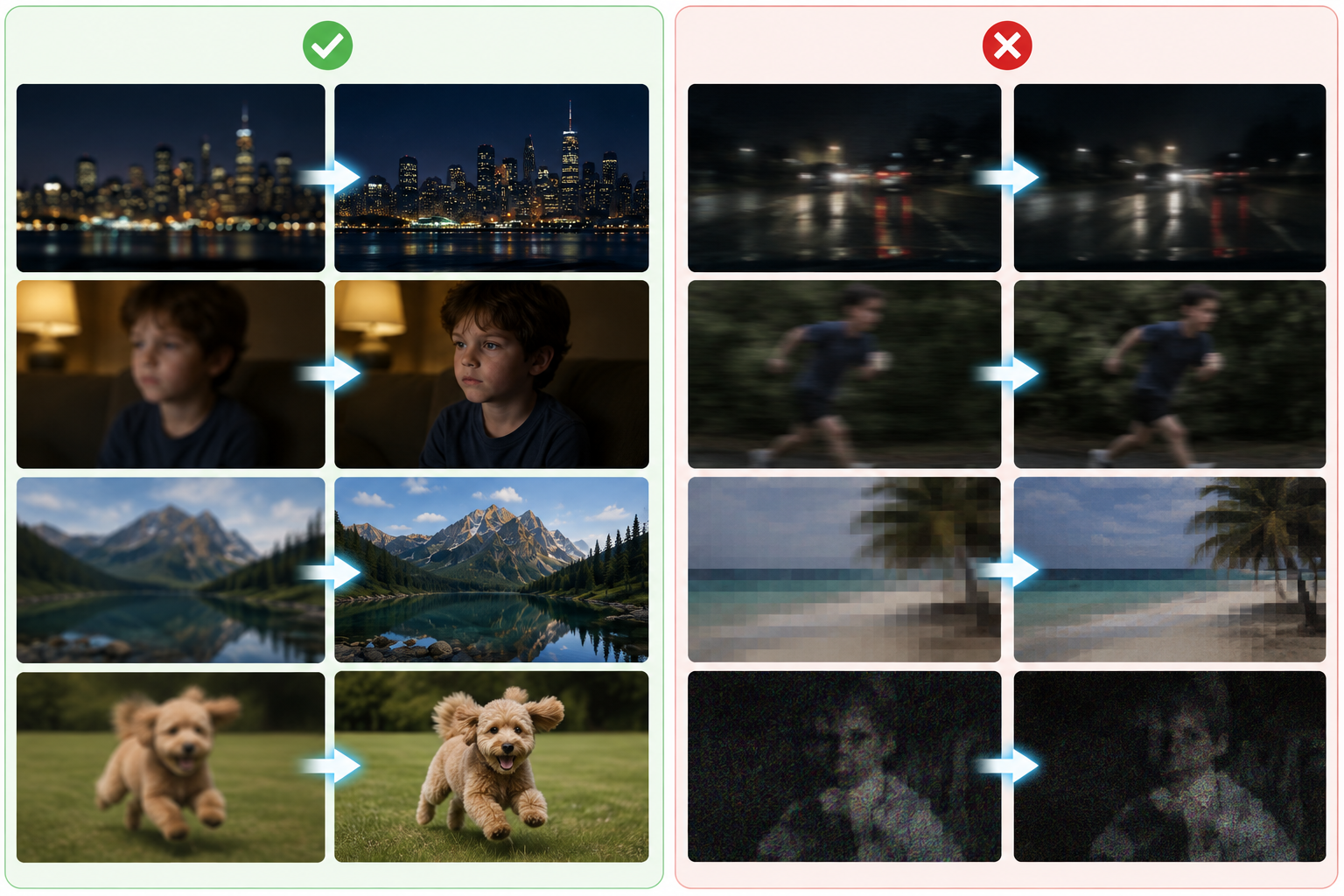
No tool can rescue every kind of blur. Before choosing software, it helps to look at what the source actually contains - and what may already be gone.
Mild Softness and Compression Blur
Mild softness is usually the easiest problem to work with.
A clip may be in focus, for example, but repeated compression can leave faces looking a little mushy and product edges less defined. In that situation, moderate sharpening, noise reduction, an AI Video Enhancer, or upscaling can often make the footage look cleaner without pushing it too far.
Compression blocks can also be reduced to some extent. AI tools may use nearby pixels and neighboring frames to rebuild smoother textures, so those square patches are less distracting during playback.
The main risk is overdoing it. Too much sharpening can create bright halos around hair, shoulders, or text, while skin may start to look hard or overly processed.
Severe Out-of-Focus Blur
Severe focus problems are much harder to fix.
If the camera focused on the background instead of the person, facial features may already be reduced to soft shapes in the original file. At that point, the missing detail is not simply hidden. It was never recorded clearly in the first place.
AI can make an educated guess based on familiar facial patterns, but it cannot confirm that the reconstructed eyes, skin texture, or hair actually matched the real scene.
For footage like this, the goal should be a more watchable image - not a perfectly accurate restoration of the original detail.
Motion Blur
Motion blur sits somewhere in the middle.
A small amount of trailing can sometimes be improved with motion-deblur models, sharpening, and information from nearby frames. Topaz Video, for instance, includes a dedicated Motion Deblur tool along with other enhancement options.
Heavy motion blur is another story. If a hand moved quickly during a long exposure and turned into a wide smear within a single frame, much of the original outline may already be lost.
This is also why a paused screenshot is a poor way to judge an enhancement tool. Play the video. Head turns, running, camera pans, and other moving sections will reveal ghosting, flicker, or unstable edges much faster than a still frame will.
AI-Generated Details
One of the biggest misunderstandings around AI enhancement is assuming that a clearer-looking image must also be more accurate.
Take a product label. If some of the original letter shapes are still visible, AI may clean up the edges and make them easier to read. If the text has already been compressed into a few blurry color patches, however, any new strokes are partly a guess.
Faces work the same way. Cleaner skin texture, sharper hair, or better-defined eyes can improve the overall look, but AI-generated detail should not be treated as reliable evidence for things like identity, license plate numbers, or document text.
For anything important, keep the original file. The enhanced version can be useful for viewing, but the source should remain available for side-by-side comparison.
FAQ
Can Poor-Quality Video Be Improved?
Often, yes. Noise, mild blur, compression damage, and low resolution can usually be improved to some degree. The limit is the source itself. Once detail has been completely lost, no tool can bring it back with guaranteed accuracy.
What's the Difference Between Sharpening and Deblurring?
Sharpening works with detail that is already there. It increases edge contrast, so outlines look crisper.
Deblurring goes further. AI deblurring tries to estimate what the image may have looked like before the blur happened. That can produce a cleaner result, but it also means some of the new texture may be reconstructed rather than truly recovered.
Is There a Free AI Blur Remover Available?
Yes. Some tools offer free access, limited usage, or trial options. RoboNeo and CapCut, for example, currently let users try AI video enhancement features without starting with a full paid workflow. Free limits can change, though. Before processing an important project, check the current resolution limits, usage allowance, and watermark policy.
How Can I Convert Blurry Video to HD?
Start by figuring out why the video looks blurry. If low resolution is the main problem, upscaling to 720p or 1080p may be enough. If the clip also has noise, compression blocks, or soft edges, those issues should be treated separately during enhancement.
Simply exporting at a higher resolution only gives you a larger frame. Whether the video actually looks better depends on the quality of the source and how aggressively the enhancement is applied.
You May Be Interested
6 Best Ai Character Generator in 2026: Tested & Compared
Best AI Video Enhancer in 2026: 8 Tools, Pros and Cons
Best TikTok Script Generator in 2026

How to Choose the Right Free AI Music Video Generator in 2026
How to Enhance Sora AI Video Quality: Step-by-Step Guide