Best Free Tools to Remove Watermark from Video 2026
 RoboNeo TeamJuly 16, 2026
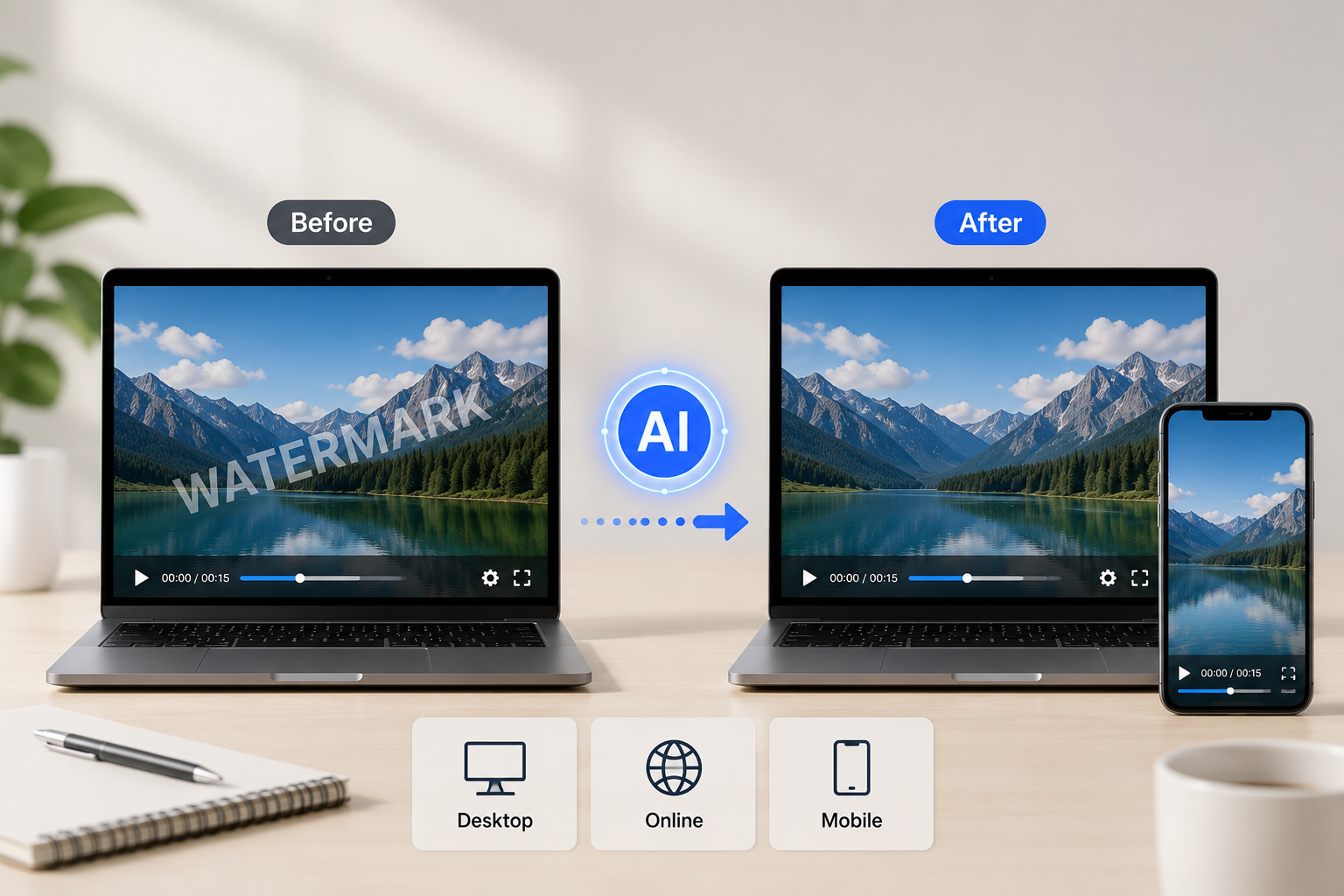 A watermark can make an otherwise useful video difficult to edit, share, or repurpose. You may need to remove one from your own footage, a licensed stock clip, or a video you have permission to modify.
Free watermark removers handle the job in different ways. Some use AI to rebuild the covered area, while others rely on cropping, blurring, masking, or overlays. This guide compares the best free tools to remove a watermark from video in 2026 and explains which option fits each type of project.
What to Look for in a Free Video Watermark Remover
Before picking a tool, compare its removal quality, format support, ease of use, and free-plan limits.
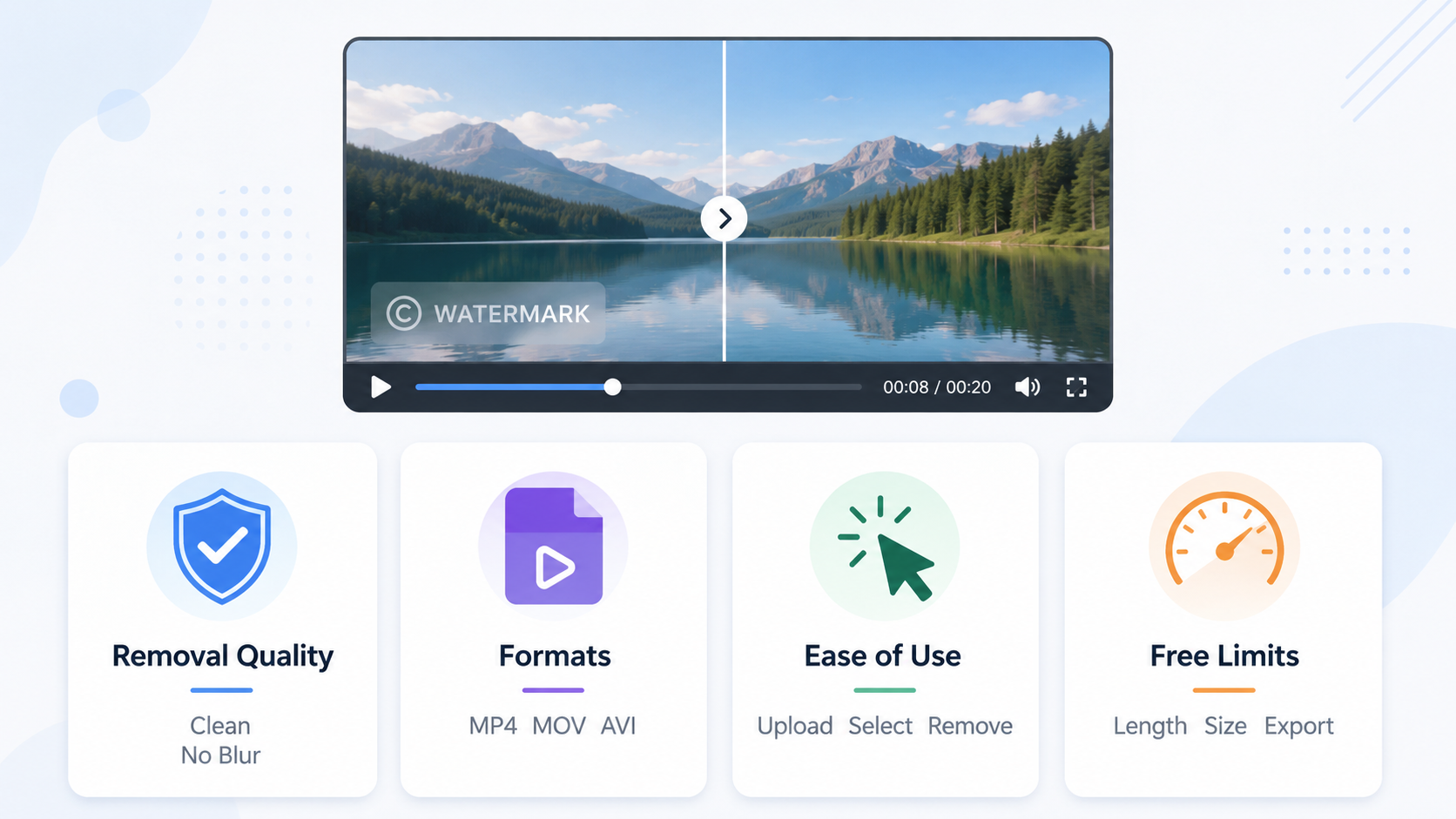
1. Watermark Removal Quality
Go for a tool that removes watermarks without leaving behind blur, distortion, or visible patches. AI-based removal analyzes surrounding pixels and nearby frames to rebuild the covered area, while basic tools may simply blur it.
Tip: If the watermark sits on top of a face, a moving object, or a busy background, test it out with a quick clip first.
2. Supported Video Formats and Resolution
Make sure the tool plays nice with common formats like MP4, MOV, and AVI, and supports the resolution you need. Many free tools let you upload high-res clips but force you to scale down to 720p or squeeze the quality during export. If you want to clean up a whole video for free, watch out for file size and length limits before uploading.
3. Ease of Use and Editing Workflow
Pick a workflow that matches your skills. Online AI tools are usually a breeze—just upload, highlight the watermark, and let the tool do the rest. Desktop editors give you more control but require you to mess around with masking and tracking. Mobile apps are handy for quick social media edits but often struggle with moving watermarks.
4. Free Features and Usage Limits
Keep an eye on limits like file size, length, and resolution. If you’re hunting for an AI watermark remover for a whole video, many free options limit the processing length or reduce the export quality. Similar restrictions apply on credits, resolution, clean exports, and commercial use as well.
Best Free Tools to Clean Up Video Watermarks in 2026
The best choice for you boils down to your device, editing skills, video length, and how tricky the watermark is. The tools below cover everything from smart AI and mobile apps to desktop software, browser tools, and doing it by hand.
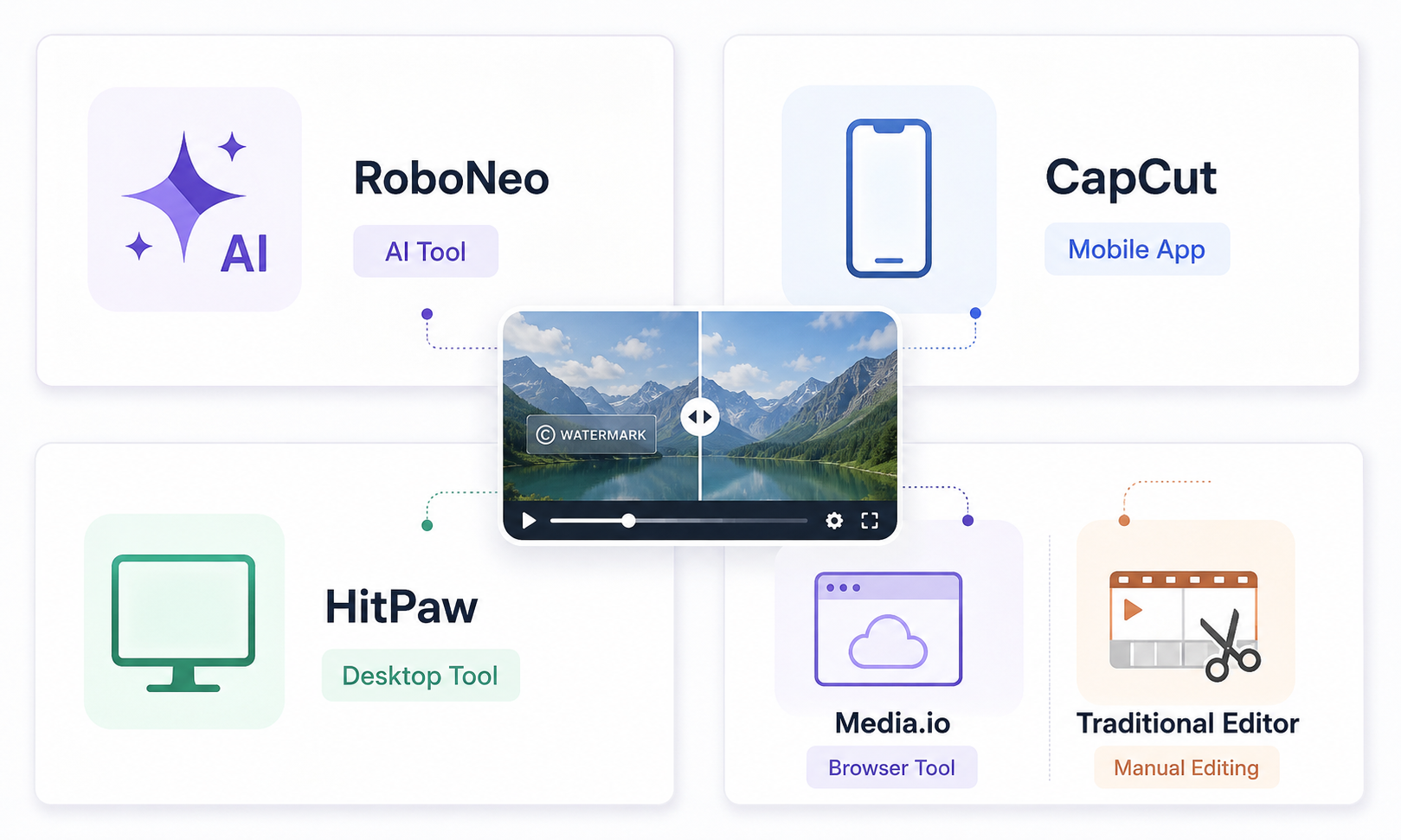
1. RoboNeo AI Watermark Remover – Best AI-Powered Option for Beginners
RoboNeo’s video watermark remover provides an automated way to remove logos, text, and other unwanted marks without editing each frame manually. After you select the affected area, the tool analyzes nearby visual details and rebuilds the background across the video. Key features:
AI-driven watermark removal
Spots and clears out logos, text, and visual marks
Keeps things looking smooth across multiple video frames
Best for:
Beginners who want to just click and go
Social media, ads, and marketing videos
Limitations:
Results depend on how busy the watermark and background are
Free versions or exports might come with limits
RoboNeo is a practical option when cropping would remove important parts of the frame or blurring would leave a visible patch. After cleaning licensed marketing footage, teams can adapt the clip into new campaign versions for different platforms, formats, and audiences.
2. CapCut Watermark Remover – Best for Quick Mobile Editing
CapCut gives mobile creators a few easy ways to deal with watermarks. Depending on where it sits, you can crop it out, blur it, or cover it up with an image, sticker, or graphic. Key features:
Mobile-friendly editing setup
Cropping, blurring, and overlay options
Extra tools for captions, effects, and social edits
Best for:
On-the-go content creators
Quick edits for TikTok, Instagram, and other social apps
Limitations:
Not great at rebuilding busy backgrounds with AI
Tricky watermarks might need some manual tweaking
CapCut works best when the watermark is near the edge or can be covered without blocking important content. Creators who already use the app for captions, templates, and short-form editing can also compare the CapCut AI video generator with other creation workflows before deciding whether to repair or recreate the clip.
3. HitPaw Watermark Remover – Best for Desktop Users
HitPaw brings watermark removal to your desktop. Its manual selection tools give you way more control over what you're cleaning up compared to most basic online tools. Key features:
Desktop watermark removal
Works with tons of video formats
Hands-on tools to pick out the watermark area
Best for:
Windows and Mac users
Longer videos and bigger projects
Limitations:
You have to download and install the software
The free version might cap your export length or quality
HitPaw is great to turn to when a video is too big for a website or when you need to be really precise with what you're cutting out.
4. Media.io Watermark Remover – Best Online Option
Media.io runs right in your browser, so you don’t have to mess with installing any software. All you do is pop your video online, highlight the watermark, and let it do its thing. Key features:
Browser-based setup
No software downloads needed
Easy upload and select process
Best for:
Casual users
Short and simple watermark fixes
Limitations:
Caps on file sizes and free uses
Longer videos can take a while to finish up
Media.io is a super convenient pick for quick fixes, though the free limits might hold you back on large files or everyday projects.
5. Traditional Video Editors – Best for Manual Removal
Traditional editors like DaVinci Resolve and Shotcut can handle watermarks through cropping, blurring, masking, or overlays. If you still have the original design assets, a split layer tool can help separate individual visual elements before you rebuild or re-export the affected section. Key features:
Cropping, blurring, masking, and overlay tools
Total control over individual frames
Everything stays inside your main editing project
Best for:
Simple, still watermarks
Editors who know their way around masks and keyframes
Limitations:
Takes more time and manual effort
Can look a bit messy on highly detailed backgrounds
Traditional editors are perfect when you want total control or want to get the watermark out of the way while doing the rest of your video editing in the same app.
Things to Consider Before Removing a Watermark from Video
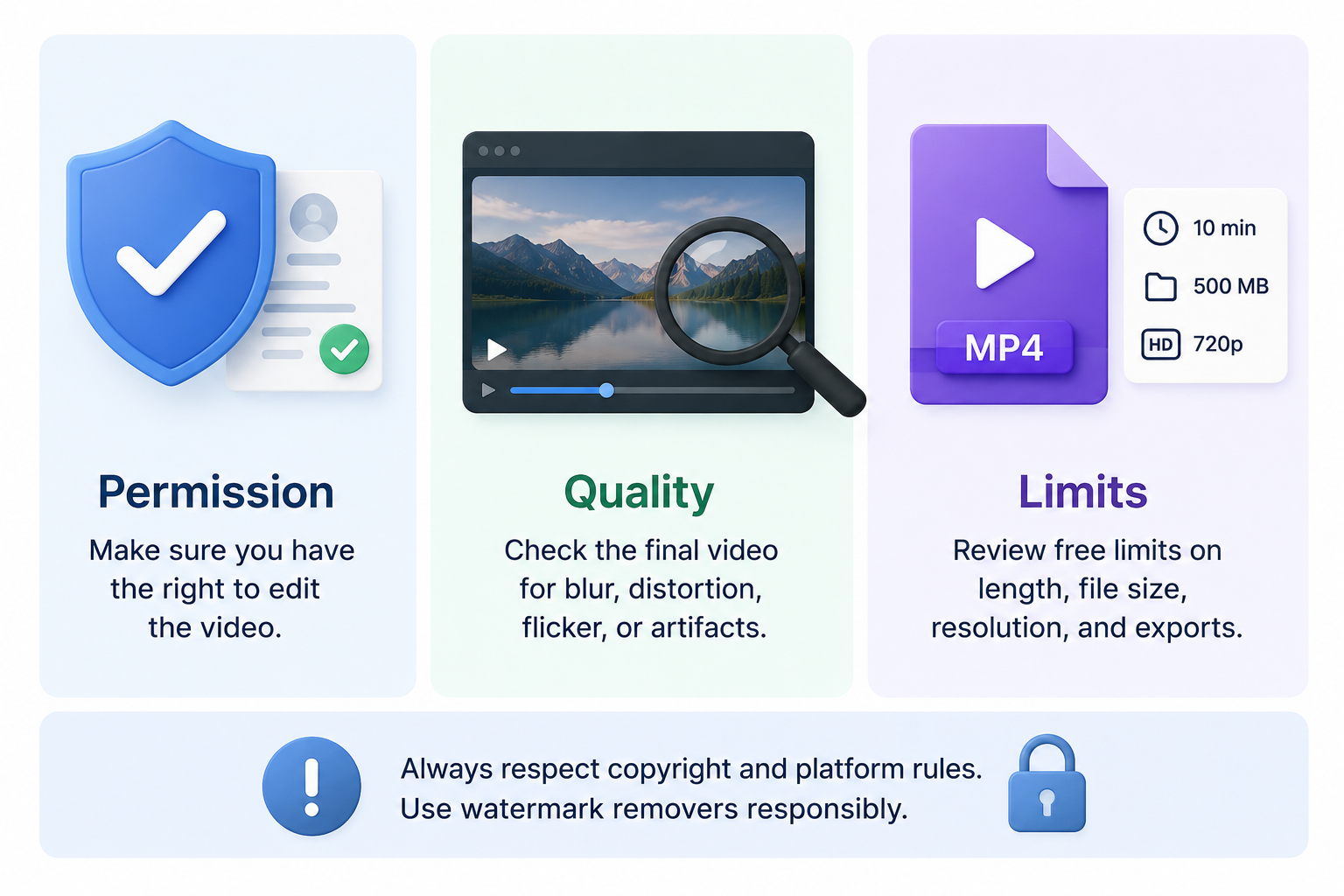
1. Make Sure You Have Permission to Edit the Video
Only take off watermarks from videos you own or have the green light to use, like licensed footage or client assets. Stripping them without permission could break copyright laws, licensing terms, or platform rules.
2. Check the Final Video Quality
Look over the whole exported video to watch out for blur, flickering, warped spots, or weird textures. Moving subjects and busy backgrounds are more likely to leave visible artifacts behind. If the original file was generated rather than filmed, comparing the best AI video generator options can help you identify platforms with better motion consistency and export quality.
3. Watch Out for Free Tool Limits
Keep an eye on restrictions like video length, file size, processing credits, resolution, and export caps. For online tools, also look into how your uploaded files are stored and wiped.
FAQ
Are there watermarks that can't be removed?
Some watermarks cannot be removed cleanly. Large, moving, or semi-transparent marks that cover faces, text, or detailed objects may leave visible artifacts because the tool has limited information for rebuilding the hidden area.
Can AI remove moving watermarks from videos?
AI can remove some moving watermarks by tracking their position across multiple frames. The final result depends on the watermark’s size, speed, transparency, and the complexity of the background behind it.
Does removing a watermark reduce video quality?
Yes. Cropping removes part of the frame, while blurring and compression may reduce clarity. AI removal can preserve more of the original image, but complex areas may still appear slightly soft or distorted.
Is it safe to upload my video to an online watermark remover?
That depends on the platform’s privacy and file-retention policies. Check whether uploaded videos are stored, shared, used for model training, or automatically deleted. A desktop tool may offer better control when editing confidential footage.
Video Watermark Remover


You May Be Interested
6 Best AI Video Generators in 2026

GPT Image 2 is Coming to RoboNeo: A New Era of AI Image Generation
6 Best Ai Character Generator in 2026: Tested & Compared