How to Make Picture Higher Resolution in 2026
 RoboNeo TeamAugust 25, 2026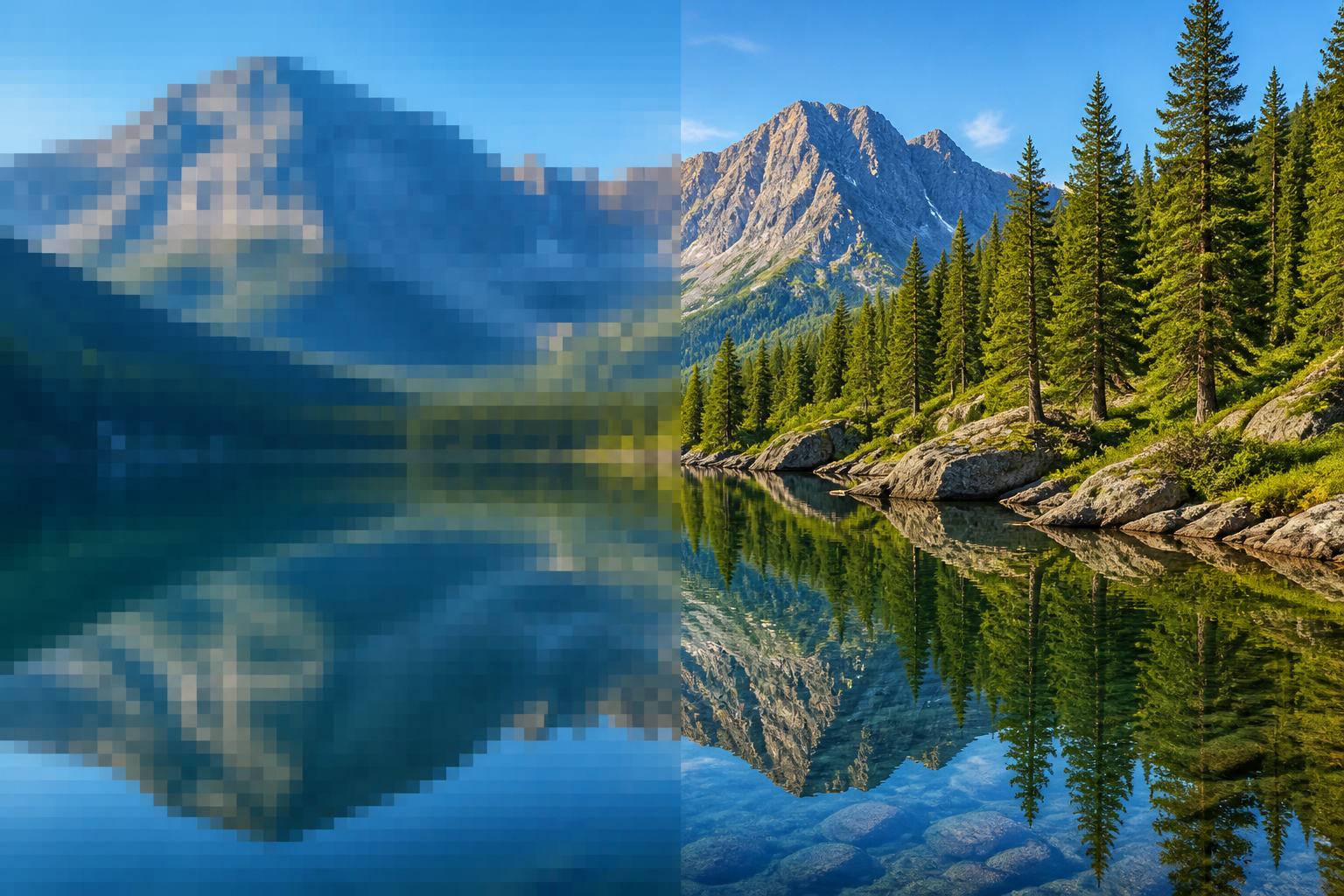
Making a picture higher resolution means increasing its pixel dimensions, such as changing an 800 × 600 px image to 1600 × 1200 px. You can do this with AI upscaling, traditional resampling, or by scanning or photographing the original again.
The right method depends on the source quality and where the picture will be used. This article explains what determines image resolution, compares practical ways to increase it, and shows how to select suitable dimensions for websites, social media, printing, cropping, and large displays. It also covers what upscaling can improve and where its limitations remain.
What Makes a Picture High Resolution?
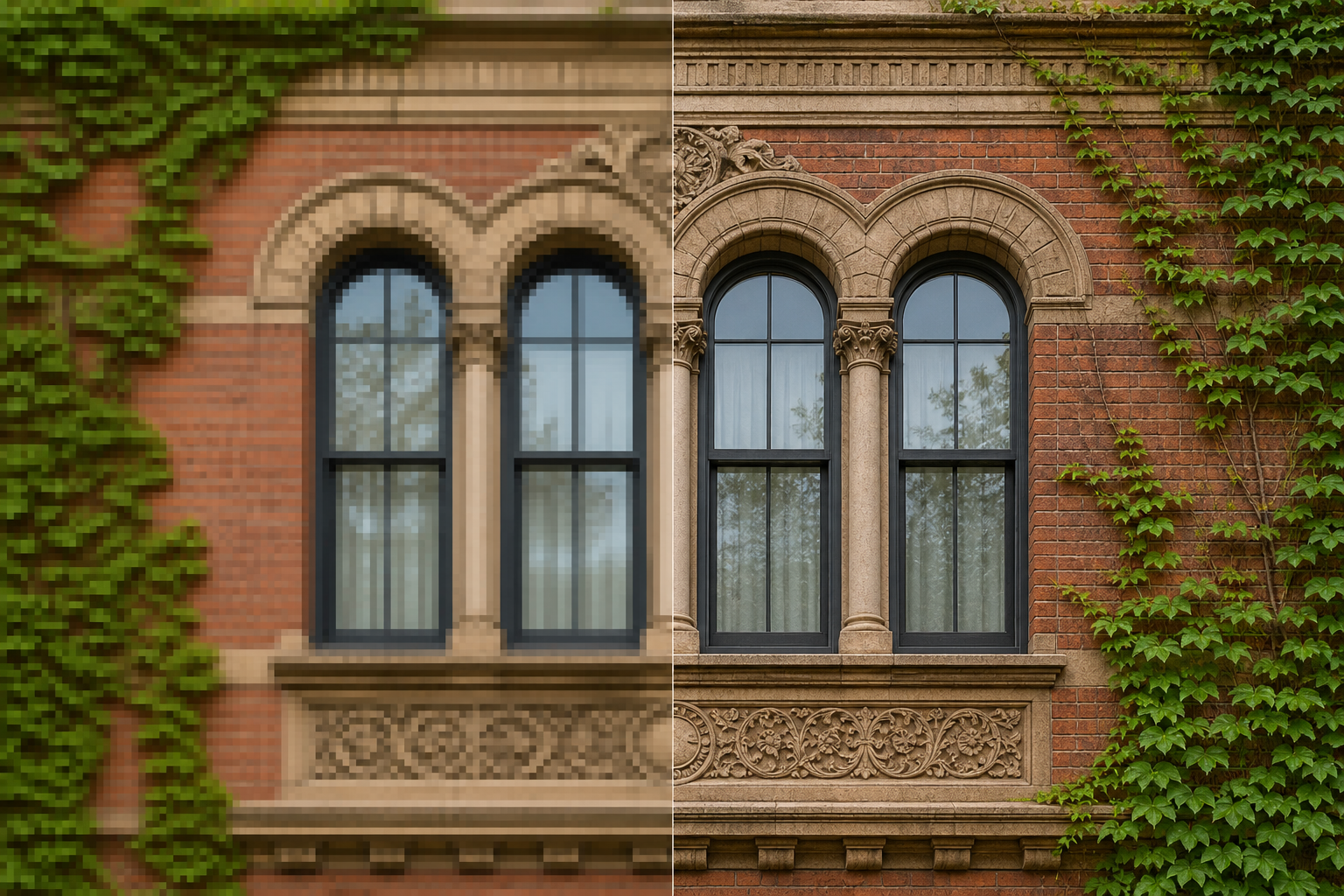
Digital image resolution is mainly determined by pixel dimensions rather than file size or DPI alone. A 4000 × 3000 px picture contains considerably more image information than an 800 × 600 px file, even when both are labeled as 300 DPI.
More pixels usually allow a picture to be displayed, cropped, or printed at a larger size before pixelation becomes noticeable.
Pixel Dimensions Determine Digital Resolution
Width × height represents the actual number of pixels in a picture. A 4000 × 3000 px image contains 12 million pixels, while an 800 × 600 px image contains only 480,000. Because resolution labels can refer to different dimensions, checking the pixel numbers is more reliable, as shown by the formats compared in what is 2K resolution.
The difference becomes obvious when an image is enlarged. A photo downloaded from an old group chat may look clear as a phone thumbnail but appear blocky when used as a laptop wallpaper.
Software can increase the dimensions, but the added pixels were not captured by the camera. Traditional interpolation calculates them from nearby pixels, while AI predicts likely edges and textures from recognizable visual patterns.
PPI and DPI Mainly Affect Printing
Pixel dimensions, PPI, and DPI describe different parts of the output process:
1. Pixel dimensions show how many pixels the image contains.
2. PPI describes how closely those pixels are placed within a printed inch.
3. DPI usually refers to the density of ink dots produced by a printer.
Websites and social platforms mainly use pixel dimensions. Printing requires users to consider the available pixels, physical print size, and target PPI together.
Changing 72 PPI to 300 PPI without enabling resampling does not add detail. It simply assigns the existing pixels to a smaller print area. Anyone learning how to make a resolution of a picture higher should confirm that the width and height in pixels are actually increasing.
Methods for Increasing Picture Resolution
The three main methods differ in convenience, control, and ability to preserve real detail.
| Method | Adds Pixels | Improves Visible Detail | Level of Control | Best For | Main Limitation |
| AI upscaling | Yes | Often | Moderate | Quick enlargement | New details are predicted |
| Traditional resampling | Yes | Limited | High | Exact output dimensions | Large increases may look soft |
| Re-scanning or re-capturing | Yes, from the source | Yes | Varies | Originals that remain available | Requires access to the source |
Upscale the Picture with AI
AI upscaling examines edges, textures, faces, and common visual structures before generating additional pixels. The result often has more natural outlines than a basic stretch. The distinction between interpolation and AI prediction is also explained in what is 4K upscaling, although the same process is applied there to video frames.
A 900 px-wide vacation photo may look pixelated on a digital photo frame. Increasing it to 1800 px with AI can smooth the edges of clothing, buildings, and faces without requiring advanced editing experience.
The basic process is straightforward:
1. Upload the highest-quality version available.
2. Select a suitable level, such as 2x or 4x.
3. Preview faces, lettering, fine lines, and repeated textures.
4. Compare the result with the original and download the larger version.
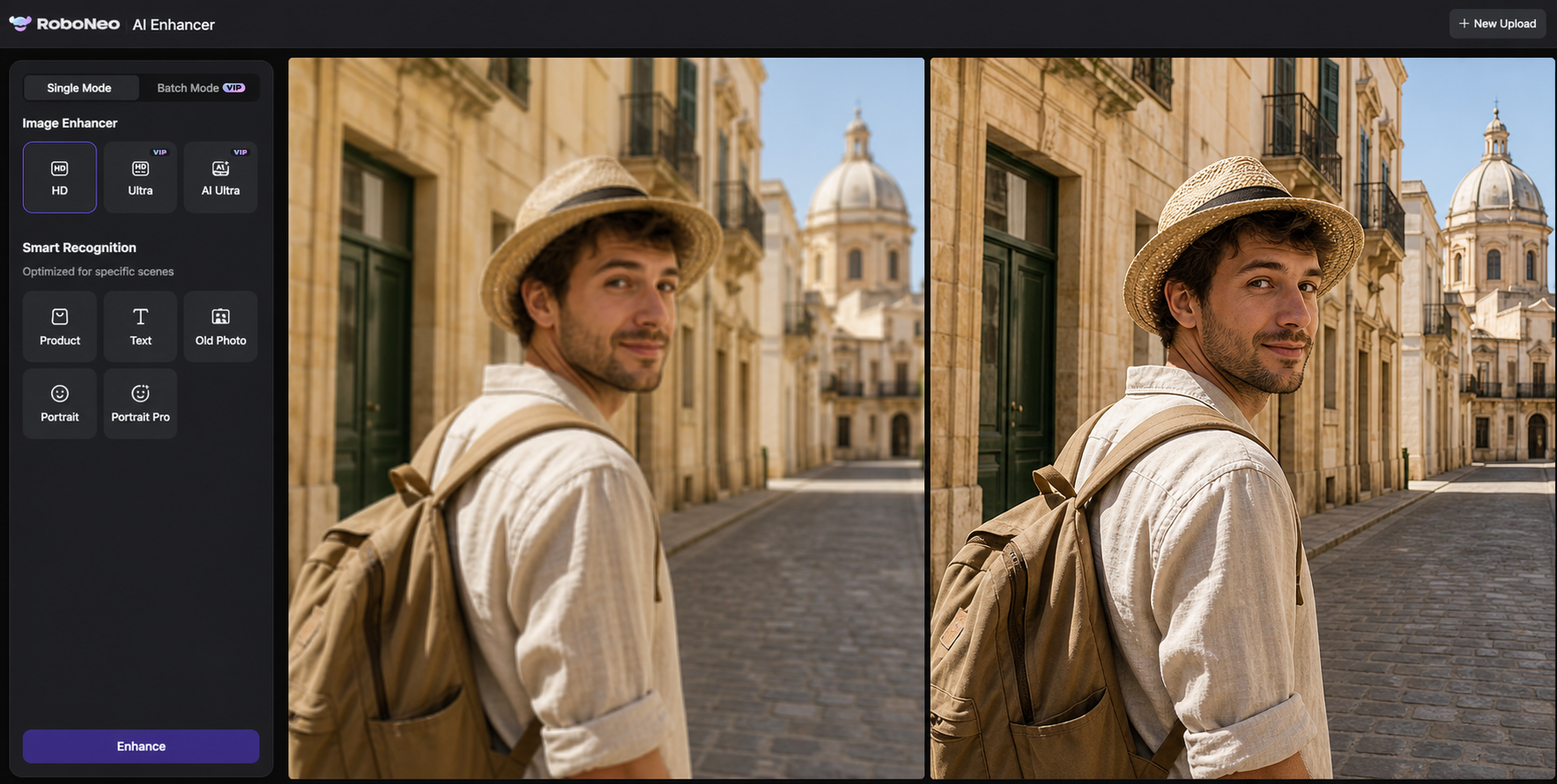
RoboNeo AI Enhancer can increase the image's pixel dimensions while improving mild blur, visible pixelation, and weak detail. It works best when the source still contains clear shapes and recognizable edges. Missing information cannot be restored with complete accuracy.
Choose the lowest level that meets the final requirement. A 2x enlargement is often sufficient for a website banner or medium-sized print. Moving directly to 4x may create artificial hair, distorted lettering, or overly sharp skin texture.
Increase Picture Resolution with RoboNeo
Resample the Picture in a Photo Editor
Photoshop, GIMP, and similar editors provide Image Size or Scale Image controls. These options are useful when the output must match exact dimensions.
Keep the original aspect ratio locked, enable resampling, and enter the required width or height. Bicubic and similar interpolation methods usually provide a reasonable balance between smooth edges and retained detail.
A 1200 × 1200 px product picture can often be increased to 1600 × 1600 px for an online store without a dramatic quality change. When the same image also needs background adjustments, object removal, or other refinements, an AI image editor can complete those changes within the editing workflow.
Larger jumps are less reliable. Increasing a 300 × 300 px profile picture to 3000 × 3000 px may produce soft edges and unnatural textures because too little source information is available.
Re-Scan or Re-Capture the Original
When the original item remains available, capturing it again usually preserves more genuine detail than repeated upscaling. This method applies to paper photographs, negatives, artwork, documents, and physical products.
A wedding photo scanned many years ago at a low setting may exist only as a small digital file. Scanning the paper copy again at 300–600 PPI can capture facial features and fabric texture that never appeared in the first scan. Saving a lightly compressed source file also provides more information for later editing.
The same principle applies to designs. Exporting a logo from its original vector file creates cleaner edges than enlarging a small JPEG taken from a website.
Re-scanning or re-capturing is especially helpful for extremely small, badly focused, or overexposed images. Upscaling cannot reliably reconstruct information that the current file never recorded.
Choosing the Right Resolution for the Final Use
A useful target should be based on the picture's final destination. Choosing the highest available enlargement can increase file size and processing time without creating a visible improvement.
Websites and Social Media
Prepare the picture according to its actual display size. A file that is too small may look blurry, while an unnecessarily large one can slow page loading.
Someone researching how to make resolution higher on picture files for a blog should first check the content area's width. If the page displays pictures at 1200 px, uploading an 8000 px version offers little practical benefit.
Maintain the original aspect ratio during resizing. Stretching a square portrait into a wide banner distorts the subject even if the new file contains more pixels. Cropping or extending the background produces a more natural result.
Printed Photos and Documents
The required dimensions can be estimated with this formula:
Required pixels = Print size in inches × Target PPI
An 8 × 10-inch photograph printed at 300 PPI generally needs about 2400 × 3000 px. A 1200 × 1500 px source could reach that target through a 2x upscale, although focus and compression will still affect the output.
Large posters may use a lower PPI because viewers stand farther away. A wall banner does not require the same pixel density as a photograph examined at arm's length.
Cropping and Large Displays
Cropping removes pixels. Finalize the composition before deciding whether enlargement is required. A 4000 × 3000 px photograph may leave only 900 × 700 px after a tight crop around one person.
For large screens, consider the display resolution, the area occupied by the picture, and viewing distance. The difference between recorded and algorithmically enlarged detail becomes more noticeable on larger displays, as demonstrated in native 4K vs upscaled 4K. A "4K" label alone does not describe the quality of the source.
What Upscaling Can and Cannot Fix
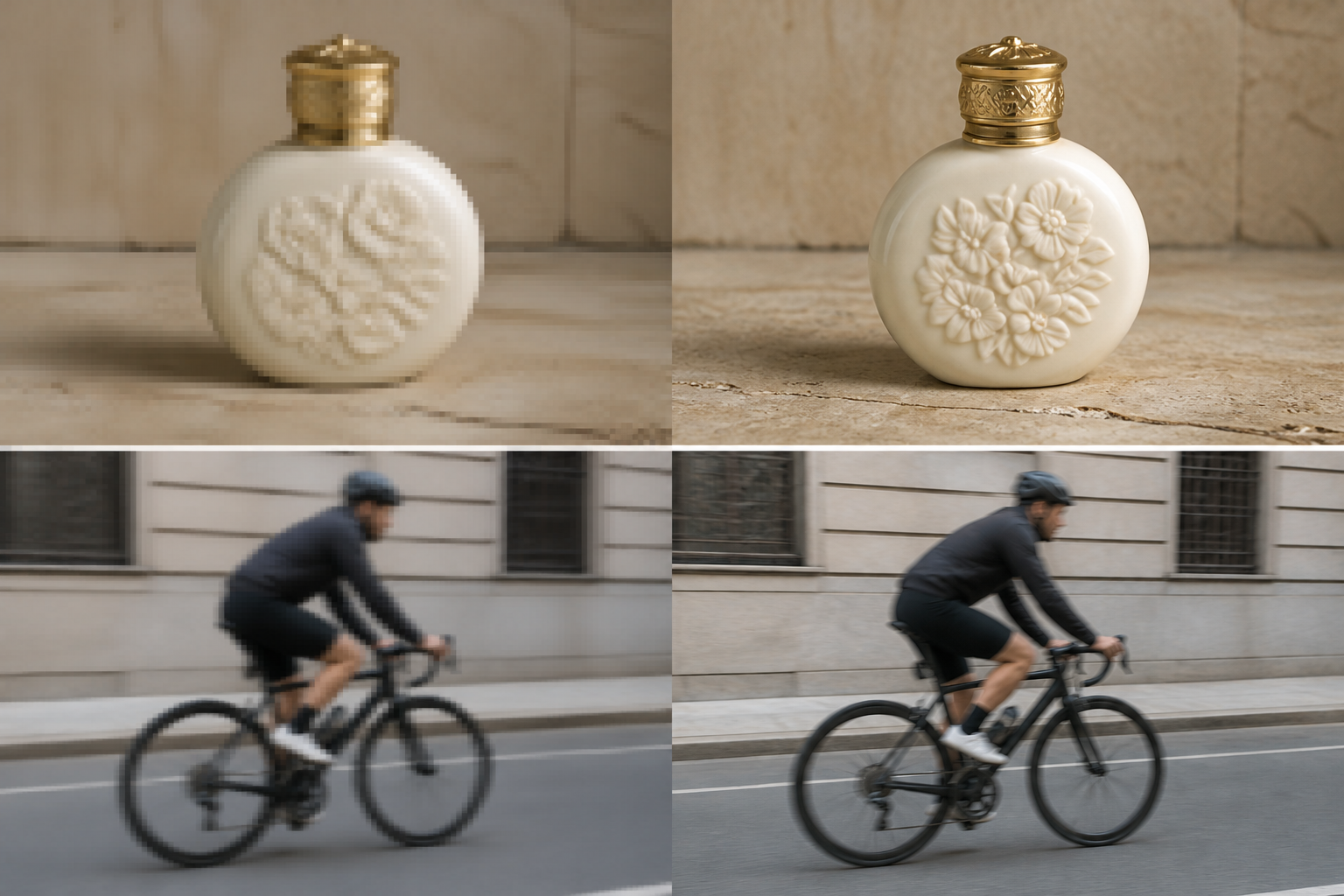
Upscaling works best when low pixel count is the main problem. Its effectiveness changes according to the condition of the original.
| Original Problem | Likely Improvement | Remaining Limitation | Better Alternative |
| Low resolution with clear focus | Smoother edges | Fine detail remains estimated | AI upscaling |
| Mild noise or compression | Cleaner appearance | Some artifacts may remain | Denoising |
| Motion blur or missed focus | Limited improvement | Accurate focus cannot be recovered | Re-capture |
| Tiny faces or unreadable text | May appear sharper | Generated content may be inaccurate | Find the original |
| Severely damaged photo | Limited enlargement benefit | Damage remains visible | Photo restoration |
A small but sharply focused product picture is often a good candidate because its edges are still defined. Mild noise and JPEG compression may also improve, although separate noise reduction can be necessary.
Motion blur and missed focus are more difficult. Adding pixels does not recreate the exact position of a moving subject or recover a focus plane that the camera missed.
Tiny faces and unreadable text require extra caution. AI may generate a convincing eye or letter, but the result is a visual prediction. It should not be used to identify a person, read a license plate, or recover important document information.
Check the final version at 100% zoom. Faces, lettering, straight lines, fine textures, and background edges often reveal artifacts hidden by a smaller preview.
FAQ
Can I increase picture resolution without losing quality?
You can reduce visible quality loss, but completely lossless enlargement is not guaranteed. AI upscaling often looks clearer than basic stretching, although its additional details are predicted rather than newly captured.
Does increasing DPI make a picture higher resolution?
Not necessarily. Changing DPI or PPI without resampling does not alter the pixel dimensions. These settings mainly affect print size and output.
Is 300 DPI always required for printing?
No. A target of 300 PPI is common for photographs viewed closely. Posters and banners seen from farther away can often use a lower pixel density.
Should I upscale an image by 2x or 4x?
Use the lowest enlargement that meets the output requirement. A 2x increase usually keeps the result more natural. Choose 4x when the final dimensions require it and the source contains enough usable detail.
Why does my picture still look blurry after increasing its resolution?
Increasing resolution adds pixels but does not automatically correct missed focus, motion blur, severe compression, or missing detail. Mild problems may also require denoising, sharpening, or deblurring.
You May Be Interested
4K vs 1080p: Should You Upscale 1080p Video to 4K?
6 Best Ai Character Generator in 2026: Tested & Compared

How to Choose the Best AI Text to Video Generator in 2026 (+ Our Top Pick)
Canva Watermark Remover Review: Features and Limits
How to Repair Video Blocking Artifacts: Causes and Fixes