What Is 1440p Resolution? A Complete Guide to QHD
 RoboNeo TeamAugust 14, 2026
Monitors keep getting sharper, which leads plenty of buyers to ask what is 1440p resolution and whether Quad HD actually fits their desk setup. Figuring out specs can be headache-inducing fast. Still, once you wrap your head around pixel density and hardware limits, picking a monitor gets much easier. We'll unpack the exact math behind 1440p, stack it against 1080p and 4K, share hands-on tips for buying, and answer common questions about QHD performance.
What Does 1440p Resolution Mean?

Any tech head asking what resolution is 1440p is looking at a panel built with 2560 horizontal pixels matched against 1440 vertical ones. Standard 16:9 widescreen displays house roughly 3.68 million individual pixels in this layout—almost double what you get on an old-school Full HD monitor. That little "p" at the end? It means progressive scanning, a method where graphics hardware draws every line of pixels at once to keep motion clean and free of screen flicker.
So, how does what is 1440p resolution size translate to your actual desk setup? Think of it as a sweet spot. Basic 1080p barely works modern graphics cards, while 4K destroys frame rates and eats up disk storage fast. Splitting the difference, 1440p delivers pin-sharp visuals while keeping hardware demands light enough that you won't need a mortgage-tier GPU, massive server drive, or ultra-expensive fiber internet package. The source quality still matters, especially when using 4K upscaling to enlarge lower-resolution footage.
1440p vs 1080p vs 4K: What Are the Differences?

Want a quick snapshot of what is the resolution for 1440p next to older 1080p and heavy-duty 4K panels? Here is how they compare side by side:
| Feature | 1080p (Full HD) | 1440p (QHD / Quad HD) | 4K (Ultra HD) |
| Pixel Dimensions | 1920 × 1080 | 2560 × 1440 | 3840 × 2160 |
| Total Pixels | ~2.07 Million | ~3.69 Million | ~8.29 Million |
| Image Sharpness | Standard clarity | High clarity & fine detail | Exceptional ultra-detail |
| File Size | Low (easy storage/stream) | Moderate | High (requires large drive/band) |
| Best Screen Sizes | Up to 24 inches | 27 to 32 inches | 32 inches and larger |
| Typical Uses | Esports, budget rigs, web streaming | Gaming sweet spot, productivity | Professional video, large TVs |
Each tier presents clear trade-offs depending on what you actually do with your computer:
1080p (Full HD): Demands almost nothing from your GPU, pushing sky-high frame rates even on budget PCs. Go larger than 24 inches, though, and text starts looking fuzzy around the edges.
1440p (Quad HD): Hits the visual sweet spot on standard 27-inch desktop screens. You gain tons of workspace without squinting at microscopic menus, though older entry-level graphics cards might sweat in newer games.
4K (Ultra HD): Delivers jaw-dropping clarity for living room TVs and editing suites. The catch? It hammers your GPU, fills hard drives in a hurry, and sometimes shrinks app menus until they are unreadable on smaller desks.
These differences also explain why native 4K and upscaled 4K may not deliver identical detail.
How to Choose Between 1080p, 1440p, and 4K
Don't just buy the highest number on the box. Match the panel to your workspace, budget, and daily tasks instead.
Choose 4K for Maximum Detail
Ultra-high resolution thrives on big screens, workstation setups, and heavy video pipelines. Editors cropping wide camera shots or matching graphics to raw video rely on 4K clips to keep fine textures crisp.
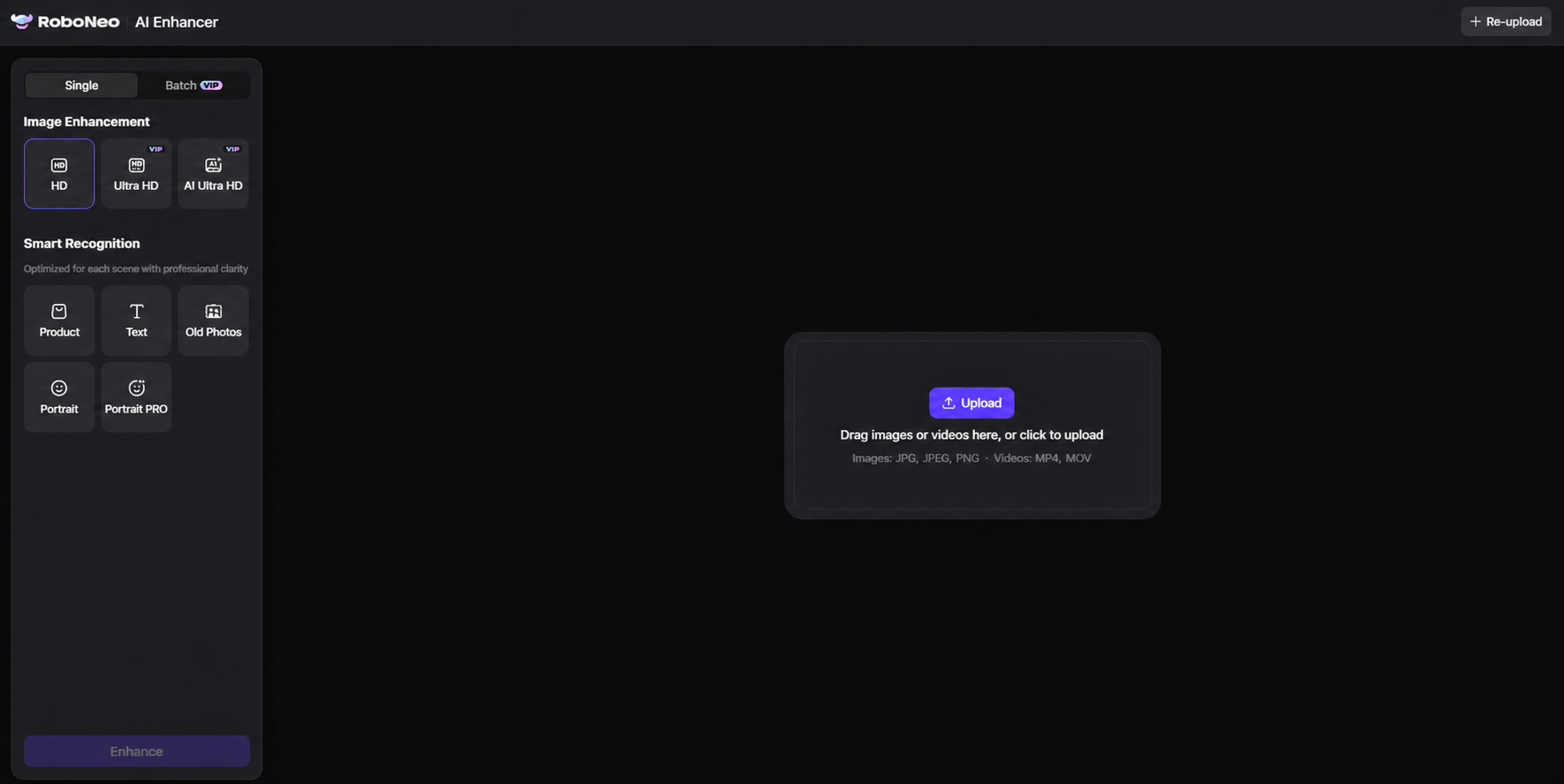
Got rough source footage that needs to land in a 4K timeline? Run those legacy files through the RoboNeo AI Video Enhancer to scrub away ugly digital noise, restore sharp edges, and clean up resolution before hitting export.
Choose 1080p for Lower Hardware and Bandwidth Demands
Competitive gamers, office laptops, small screens, and everyday video calls run best at 1080p. If you play twitch shooters like Counter-Strike 2 or Valorant, raw frame rate trumps extra pixels every single time.
Working with quick daily vlogs or internal company presentations? 1080p keeps render times lightning-fast and stops video uploads from eating through mobile data caps. When a smaller source needs a higher-resolution output, you can upscale video with AI to prepare it for 1080p or 4K.
Choose 1440p for a Balance of Clarity and Performance

Looking for a real visual upgrade without draining your savings for a monster graphics card? 1440p hits the bullseye. Put a 27-inch QHD display on your desk, and you can comfortably snap two full web pages side-by-side alongside your design software—no scaling tricks required.
Gamers exploring wide open worlds get dense grass, sharp texturing, and rich scenery while maintaining smooth 120+ FPS performance on standard mid-tier hardware.
FAQ
Is 1440p noticeably better than 1080p?
You'll spot the difference right away. Swap out an old 27-inch 1080p screen for a 1440p panel, and your pixel count instantly jumps by 78 percent. Rough text edges iron out overnight, fine details pop right out, and you suddenly get enough desktop real estate to pin two browser windows side by side without constantly wrestling with horizontal scrollbars.
Can a 1080p monitor display 1440p video?
Technically, yes, though there’s a catch. Your monitor takes in the higher-res signal, but your graphics card immediately scales the video down to fit the screen’s native 1920 × 1080 glass. That downsampling trick smooths out harsh diagonal lines a bit, sure. Still, no amount of software magic can force a physical 1080p display to pack in pixels it simply doesn't have.
Is 1440p good enough for video editing?
It breezes through post-production work like a champ. Editors rolling with 1080p or native QHD timelines get plenty of digital breathing room for full previews, sprawling audio tracks, and precision color wheels without feeling like everything is squeezed into a tiny corner.
Does YouTube support 1440p uploads?
YouTube takes to native 1440p uploads without breaking a sweat. Putting up footage at a native 2560 × 1440 resolution actually forces YouTube to encode your clip with its premium VP09 or AV1 codecs. That means your viewers end up with a much cleaner stream and far fewer ugly artifacts, even when watching on phone screens.
Does 1440p require more bandwidth than 1080p?
It definitely eats up data much faster. Because every single frame carries millions of extra data points, streaming at this quality puts real stress on your home Wi-Fi. You’ll want a rock-solid internet connection that can keep up with at least 15 to 20 Mbps to keep video playback buttery smooth without frustrating buffering wheels.
You May Be Interested
480p vs 1080p: Which Resolution Should You Choose?

How to Turn Long YouTube Videos into TikToks with an AI Video Clip Generator

Best Prompt for YouTube Script in 2026

6 Best Tools to Fix Blurry Videos in 2026
How to Make a Realistic Avatar in Roboneo: Easy Guide