
How to Remove Logo from Video: Beginner-Friendly Guide
 RoboNeo TeamJuly 16, 2026
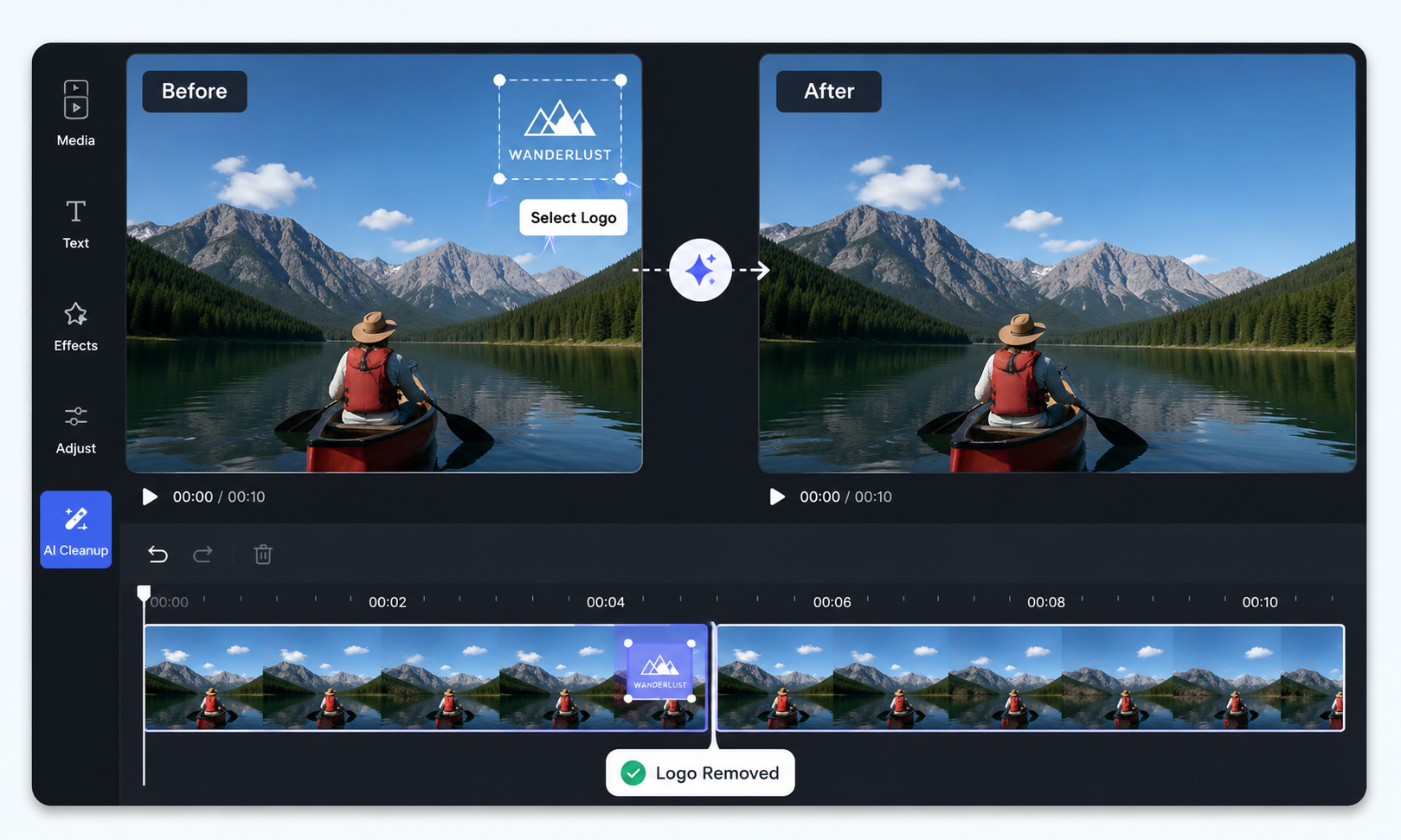 Removing a logo from video footage isn't a one-size-fits-all job. It depends on its position, movement, and the background behind it. A static logo over a simple sky is usually easier to handle than one that moves across people, changing light, or complex textures. This guide explains how to assess your footage, choose the right method, and reduce blur, flicker, and other visible artifacts.
What Tools Can Remove a Logo from Video?
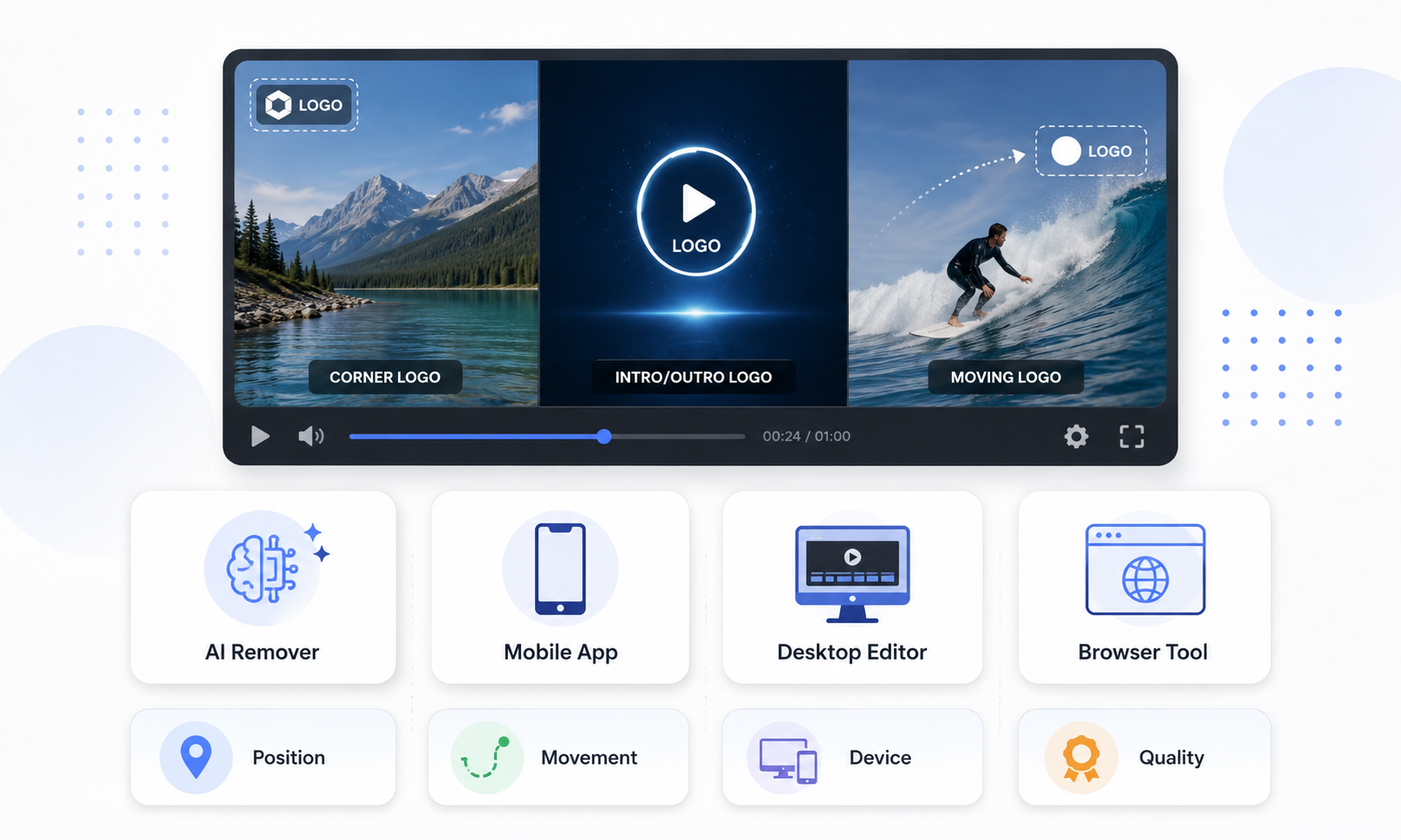
1. Online AI Logo Remover Tools
Online AI tools are usually the easiest way to go for beginners. They scan the area you select and patch up the background using nearby visual details and surrounding frames.- How it works: Pop the video online, highlight the logo, and let the AI clean up the area frame by frame.
- Best for: Still or slow-moving logos on plain or slightly detailed backgrounds.
- Difficulty: Low. You usually just need a browser and a few quick clicks.
- Recommended for: Creators, marketers, or beginners looking for a quick fix. RoboNeo’s browser-based video watermark remover can clear logos and other unwanted overlays without requiring desktop editing software. It currently supports MP4 and MOV files.
2. Desktop Video Editing Software
Desktop programs like Adobe Premiere Pro, DaVinci Resolve, and Final Cut Pro give you a lot more control with features like masking, motion tracking, cloning, and content-aware tools.- How it works: Set up a mask around the logo, track its movement if it moves, and patch over or rebuild the hidden area.
- Best for: Moving logos, busy backgrounds, longer videos, and projects where you need to nail the details.
- Difficulty: Medium to high. You might need to know your way around masks, keyframes, and tracking.
- Recommended for: Pro editors, agencies, and creators who need absolute control over the final look.
3. Mobile Video Editing Apps
Mobile apps can easily hide logos using crops, blurs, stickers, overlays, or basic object-removal features.- How it works: Bring the video into the app, then crop, blur, cover up, or swap out the logo area.
- Best for: Quick social media clips and on-the-go edits.
- Difficulty: Low to medium.
- Recommended for: Social media creators and anyone who just needs a quick fix rather than a flawless, invisible edit.
4. Basic Editing Methods Without AI
You can also hide a logo by cropping the frame, covering it with another graphic, blurring it, or copying a clean part of the background.- How it works: Chop off the edge where the logo is, or slap another visual element right over it.
- Best for: Logos sitting near the edge of the screen, or videos where a visible cover-up is totally fine.
- Difficulty: Low—though manually patching over a moving background takes a bit more work.
- Recommended for: Simple edits where keeping the full frame or making the logo completely disappear isn’t a dealbreaker.
How to Remove Logo from Video for Beginners Step by Step
For most beginners, an online AI tool offers the simplest workflow. You can upload the footage, select the unwanted area, review the result, and export the video without learning professional editing software.Step 1: Prepare the Original Video File
Always make a copy of your video before messing around with it. That way, you have a clean backup to fall back on if the edit doesn't pan out. Also, go with your highest-quality file—grainy footage makes it tough for the AI to patch things up.Step 2: Upload or Import the Video
Open the tool and upload your video. With a browser-based tool like RoboNeo's AI watermark remover, you can drag and drop the file directly instead of dealing with heavy desktop software.Pro Tip: Test out a short 5-to-10-second clip first to check up on the quality before processing the whole thing.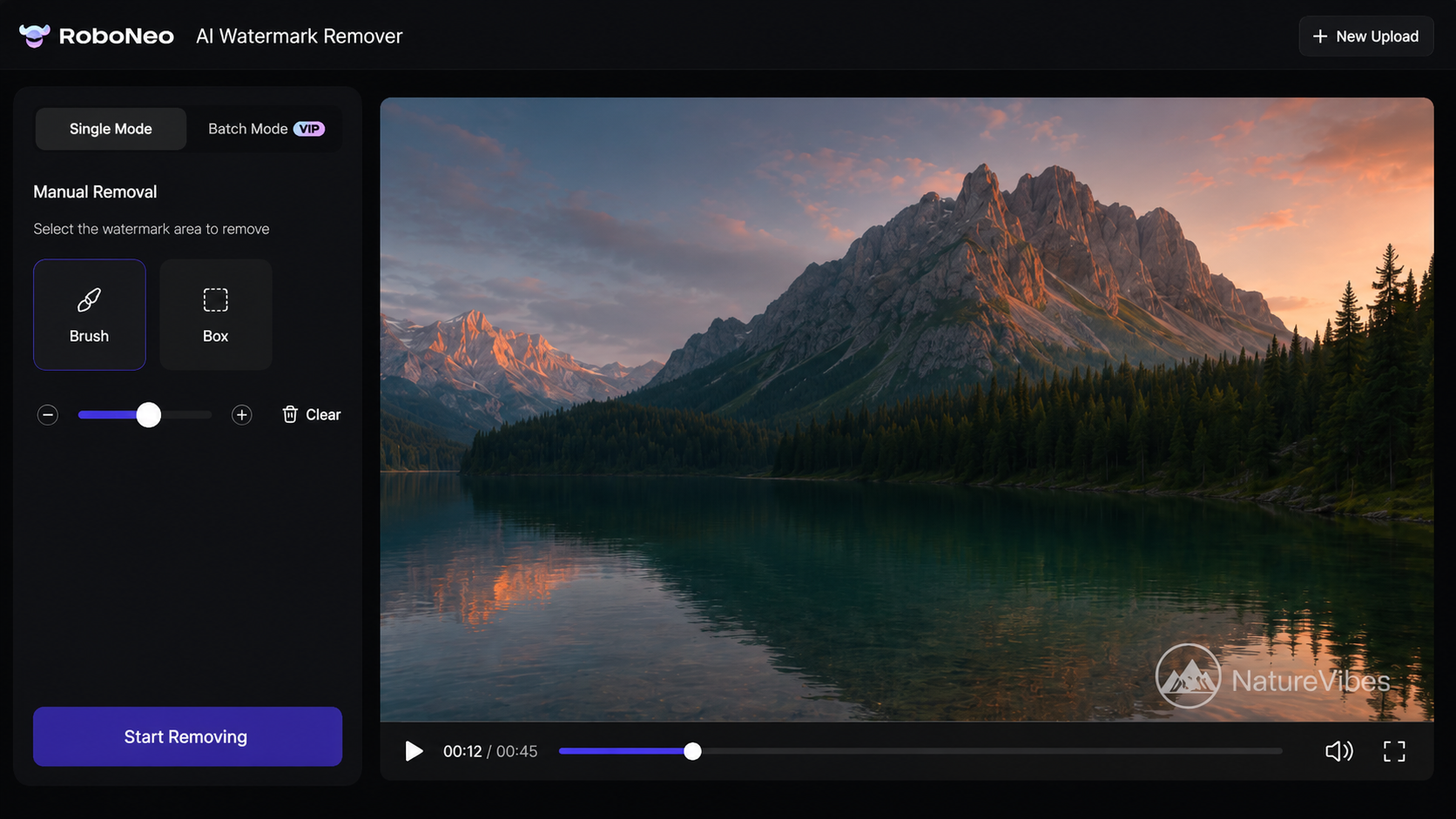 Draw a tight box over the logo to cover its edges and shadows. Play through the clip to make sure the logo doesn't slip out of the frame. If it shifts around, just widen the box or turn on motion tracking.
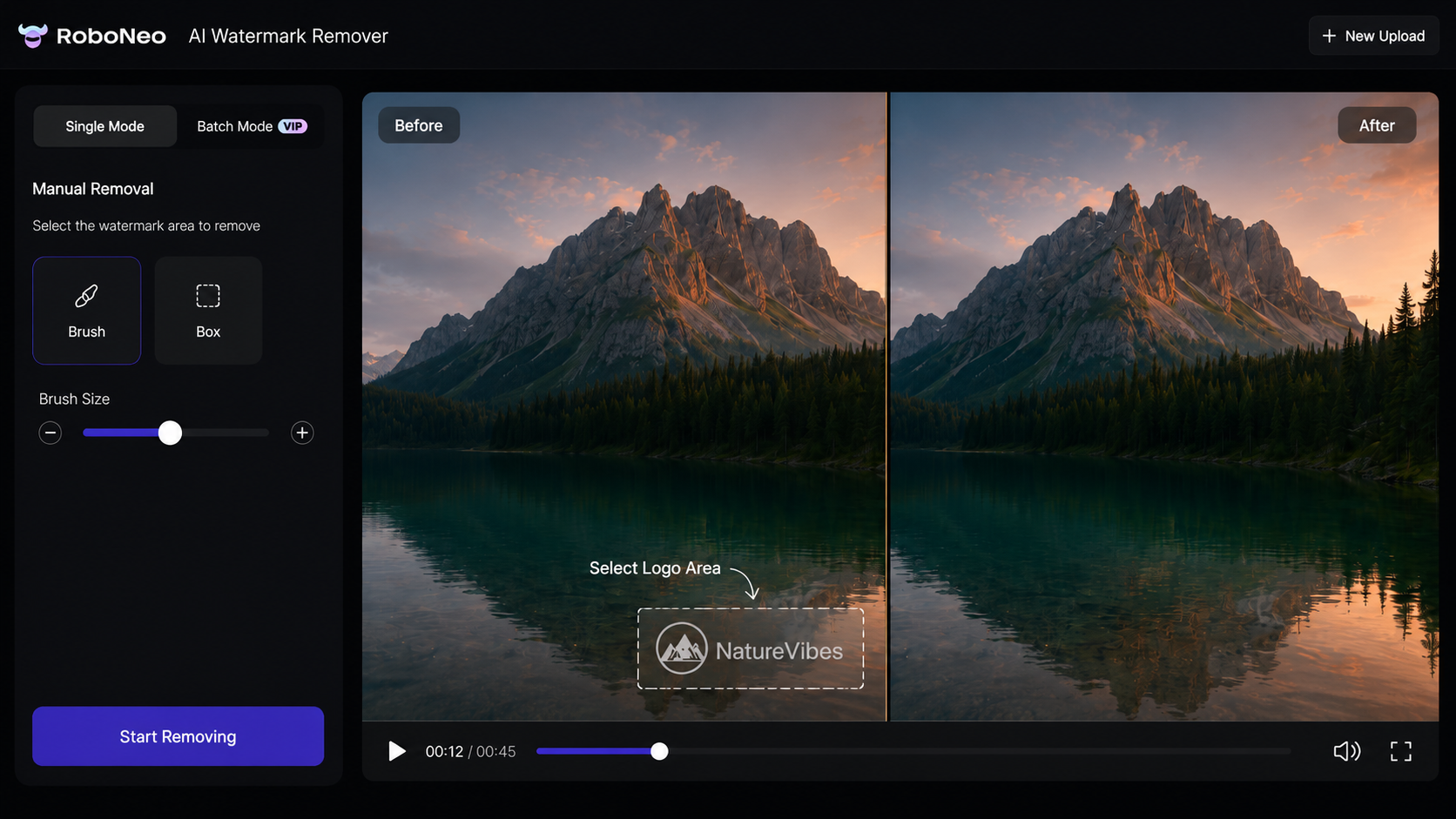 Select how you want the AI to wipe out the logo. For static backgrounds, choose "AI Fill" to blend it in seamlessly. For complex, moving scenes, go with the object removal mode so the AI can track and erase the logo automatically.
Step 3: Mark the Logo Area
Draw a tight box over the logo to cover its edges and shadows. Play through the clip to make sure the logo doesn't slip out of the frame. If it shifts around, just widen the box or turn on motion tracking.Step 4: Choose the Right Removal Method
Select how you want the AI to wipe out the logo. For static backgrounds, choose "AI Fill" to blend it in seamlessly. For complex, moving scenes, go with the object removal mode so the AI can track and erase the logo automatically.Step 5: Preview and Adjust the Result
Before saving, review the preview carefully. If you notice blur, flickering, or visible artifacts, adjust the selection box or removal settings and process the section again.Step 6: Export the Video in High Quality
Once everything looks good, export the video using its original resolution and a suitable bitrate to avoid unnecessary quality loss.Things to Check Before Removing a Logo from Video
Before editing, confirm that you have permission to modify the footage and that the chosen method fits the logo, background, and final use.1. Make Sure You Have Permission to Edit the Video
Only remove a logo from footage you own or have permission to modify. Removing a watermark or brand mark does not give you the right to reuse someone else’s content. For user-generated content, stock footage, or partner videos, confirm that the license or written agreement allows editing and republication, especially for commercial use.2. Check the Background Behind the Logo
Plain walls, skies, floors, and other consistent surfaces are usually easier to reconstruct. Faces, crowds, text, patterned clothing, moving water, and fast camera movement are more difficult. These details can produce visible blur or distortion after removal.3. Check the Final Use of the Video
A small imperfection may be acceptable in an internal presentation or short social media post. Paid ads, product videos, large displays, and high-resolution projects need closer review because editing flaws will be easier to notice.FAQ
Can I remove a logo from a video without cropping?
Yes. AI inpainting, content-aware fill, masking, cloning, and background reconstruction can remove a logo while keeping the original frame size. The result depends on the logo’s movement and the background behind it.How long does it take to remove a logo from a video?
A short clip with a fixed logo may take only a few minutes. Longer videos, moving logos, complex backgrounds, and high-resolution files usually take more time to process and review.Will the removed logo area look natural?
It can look natural when the logo covers a simple or consistent background. Results may be less reliable when it covers faces, text, detailed patterns, or fast-moving objects.Can I remove multiple logos from one video?
Yes. Select multiple areas when the tool supports it, or process each logo separately. Separate processing may work better when the logos move differently.What should I do if the logo cannot be removed cleanly?
Adjust the selection and try processing a shorter section. You can also crop the frame, cover the logo with another graphic, or use desktop software for more precise masking and tracking.You May Be Interested
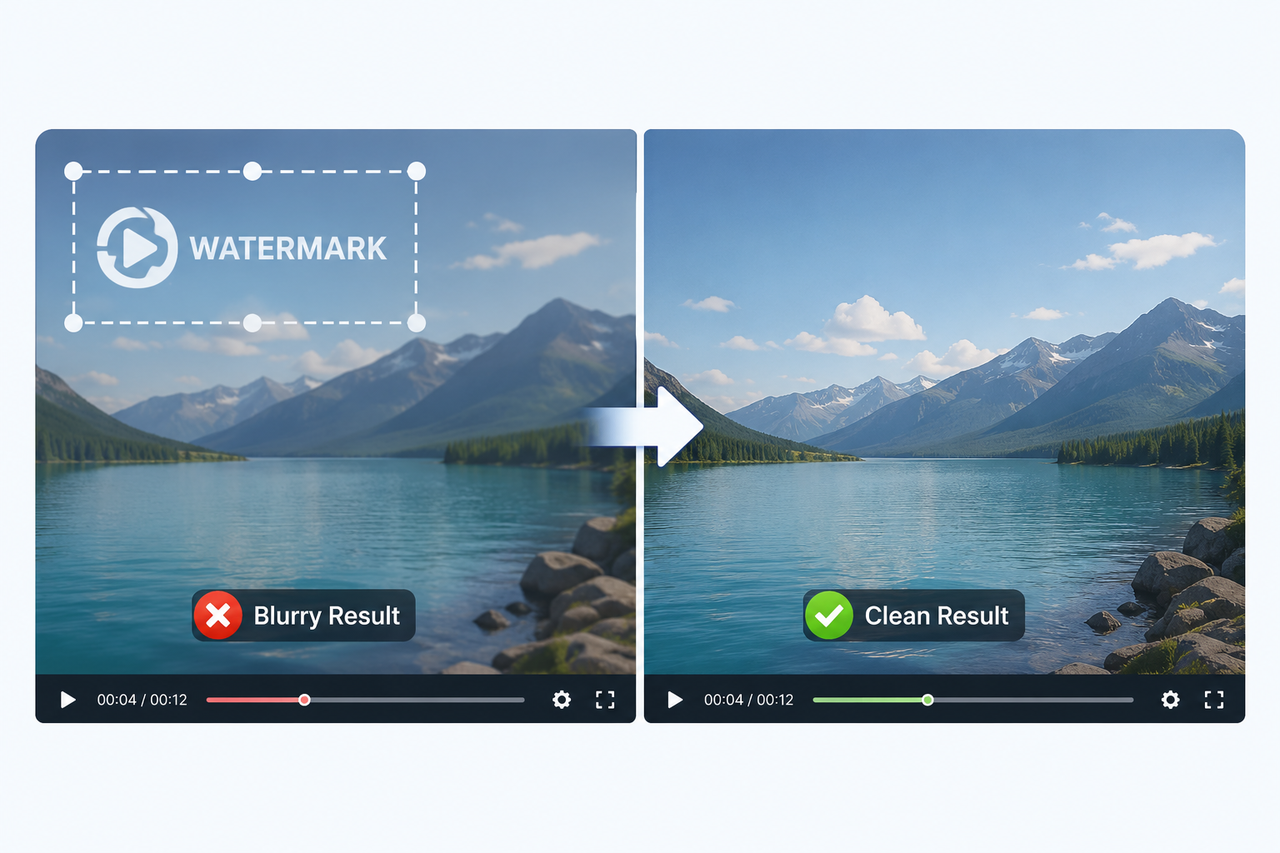
How to Save Video Without Watermarks: 5 Steps and Fixes
Learn how to save video without watermarks in five steps. Fix blurry areas, flickering, moving logos, quality loss, and video processing errors.
How Long Does It Take to Write a Script for Short Drama?
Learn how long it takes to write a script for short drama, what affects writing time, and how to finish your script faster for video production.

How to Use Agent Teams on RoboNeo: From One Prompt to a Full Creative Pipeline
Meet RoboNeo Agent Teams, the AI creative crew that turns one prompt into a full production pipeline. Learn how to set it up and start shipping content faster than ever.
How to Create Anime Character: From Prompt to Art
Learn how to create anime character art with AI prompts, tools, templates, and tips for consistent images, videos, and original characters.
How to Make a Realistic Avatar in Roboneo: Easy Guide
Learn how to make a realistic avatar in RoboNeo with clear prompts, photo-style details, consistency checks, and tips for natural AI avatar results.