Best Free AI Photo Enhancer: Top Tools Compared in 2026
 RoboNeo TeamAugust 25, 2025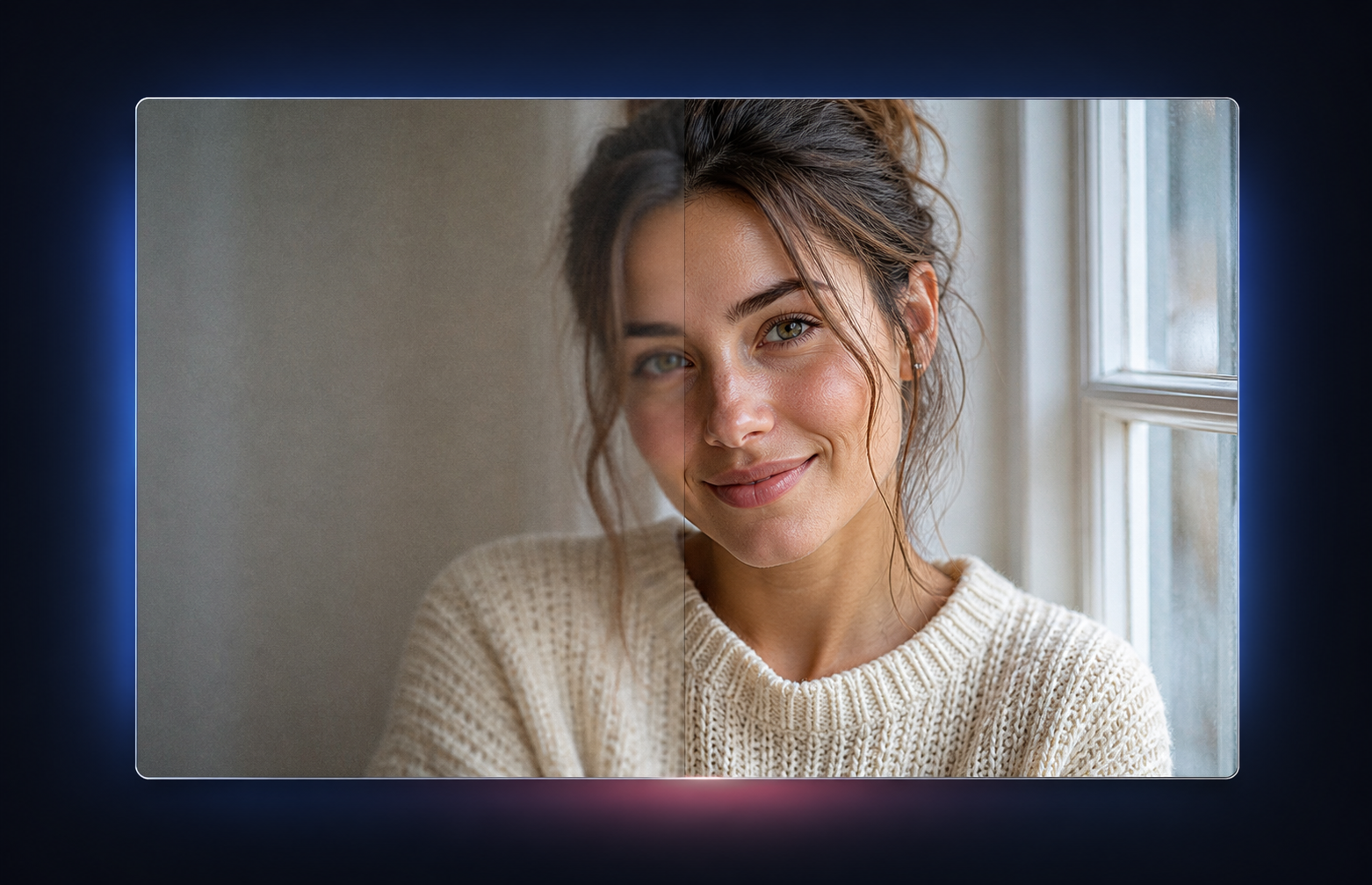
AI photo enhancers can sharpen soft details, reduce visible noise, enlarge small files, and improve faded images with little manual work. This guide compares seven free AI photo enhancement tools worth trying in 2026, focusing on their real-world performance with portraits, old photos, blurry shots, noisy images, and low-resolution files. Each option is assessed by enhancement quality, free usage, export restrictions, ease of use, and suitable image types. The goal is to help you choose a tool that fits your photo rather than relying on a single enhancer for every task.
The Best Free AI Photo Enhancers at a Glance
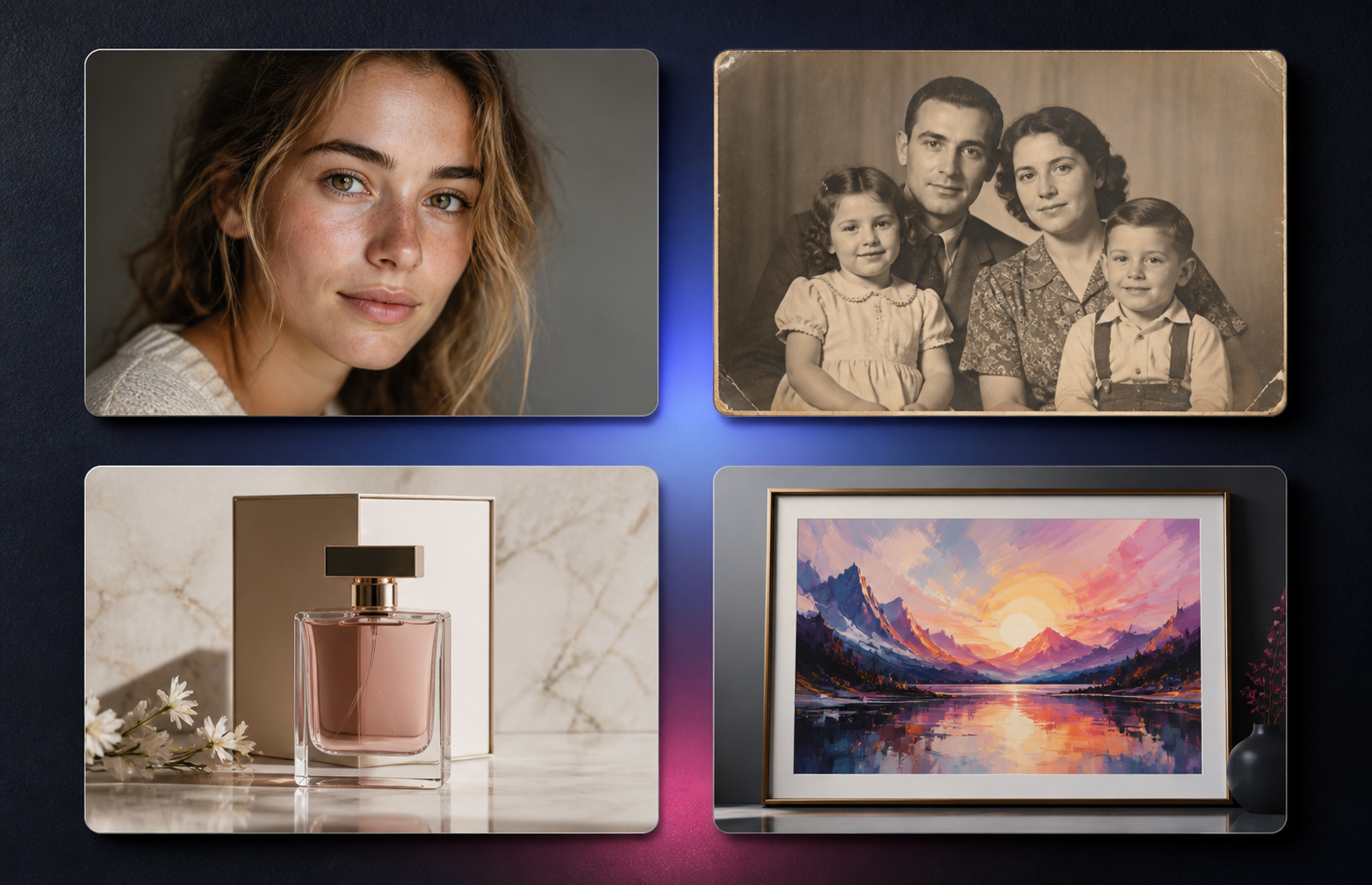
What is the best free AI photo enhancer? For quick browser-based improvement, RoboNeo is a practical starting point, while Upscayl offers the strongest completely free desktop experience. Remini performs particularly well on faces, and Let's Enhance is better suited to large outputs.
No tool produces the best result across every image category. The right choice depends on whether you are repairing a family portrait, preparing an online product listing, or enlarging artwork for print.
| Tool | Best For | Main Features | Free Access | Sign-Up Required | Watermark | Platform | Main Limitation |
| RoboNeo | Quick online enhancement | Sharpening, denoising, detail recovery, upscaling | Limited free credits | Yes | Depends on current export terms | Web | Free credits and file limits may change |
| Upscayl | Free local processing | Multiple AI models, batch upscaling, up to 16x enlargement | Completely free | No | No | Windows, macOS, Linux | Requires installation and compatible hardware |
| Adobe Express | Enhancement plus editing | Auto enhancement, lighting, color, sharpness, design tools | Freemium | Not always for quick tools | No for standard exports | Web, mobile | Some AI features require generative credits |
| Canva | Social and marketing designs | Upscaling, auto-adjustment, templates, resizing | Freemium | Yes | No for free assets and standard exports | Web, desktop, mobile | Some upscaling and design features require Pro |
| Krea | AI art and creative images | Generative enhancement, texture recovery, upscaling | Limited daily free credits | Not always for basic use | Depends on mode | Web, mobile | May reinterpret original details |
| Let's Enhance | Print and large output | Multiple enhancement models, color correction, upscaling | Free trial with 10 credits | Yes | Yes on free exports | Web | Free output is limited to 8 MP |
| Remini | Faces and old portraits | Face enhancement, restoration, denoising | Freemium | Usually yes | May vary by platform | Web, iOS, Android | Ads, usage limits, and aggressive face reconstruction |
Free plans change frequently. Check the live upload and export screen before processing a large group of images.
How We Tested the AI Photo Enhancers
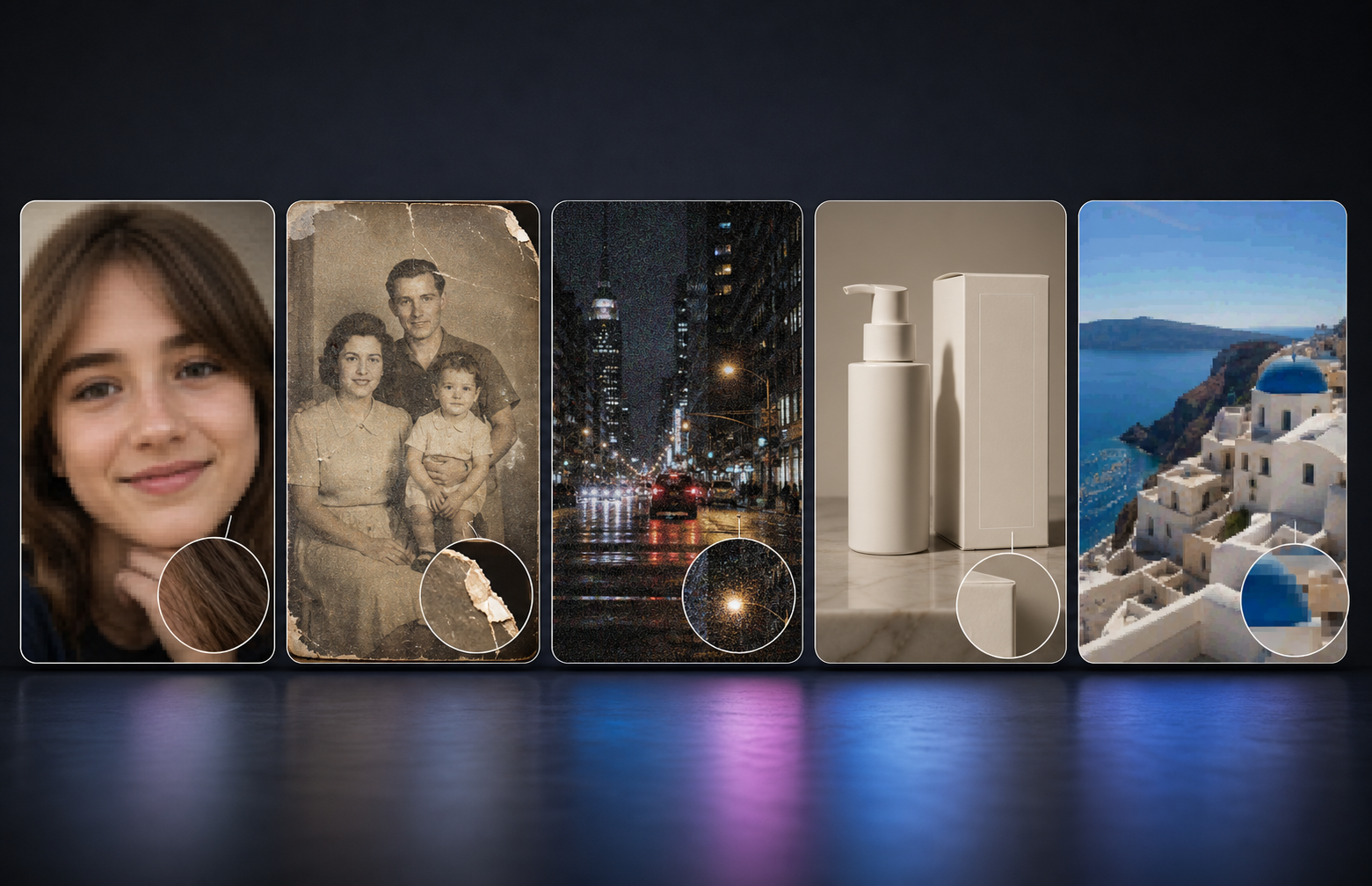
A fair comparison requires more than placing two small previews side by side. Each tool should receive the same source files and use comparable output settings whenever those controls are available.
The test set includes:
1. A low-resolution portrait for checking facial identity, skin, eyes, and hair.
2. A faded, lightly damaged family photo for assessing restoration.
3. A high-ISO night photo for examining noise reduction.
4. A product image with labels, straight edges, and fine text.
5. A compressed social media image with visible artifacts.
Results should be viewed at the same display size and again at 100% magnification. A thumbnail can hide waxy skin, invented eyelashes, broken letters, or repeating textures. Hair, fabric, product edges, background surfaces, and small text reveal far more about enhancement quality. Identifying the cause of softness first also makes it easier to choose an appropriate method for making a photo less blurry.
Detail recovery, noise reduction, blur correction, face accuracy, texture preservation, processing time, ease of use, export quality, and free limits all affect the final ranking. A faster result is not necessarily better if a person's face changes or a product label becomes unreadable.
7 Best Free AI Photo Enhancers Compared
Different tools use models designed for different subjects. An enhancer that gives an AI illustration rich texture may make a real portrait look artificial. Each recommendation below considers the most suitable image type, visible enhancement quality, workflow difficulty, and free-plan restrictions.
Upscayl — Best Completely Free Desktop Option
Upscayl is an open-source desktop application for Windows, macOS, and Linux. Images are processed locally, making it a compelling choice for private family photographs, client materials, and other files users may prefer not to upload.
Several models are available for different source types. A photographic model generally suits camera images, while digital-art settings handle illustrations, game graphics, and line-based artwork more effectively. Low-resolution images can be enlarged substantially, and batch processing avoids spending one credit per file.
Computer performance matters. Compatible graphics hardware and Vulkan support can significantly affect whether processing runs smoothly. Fine grass, hair, and fabric may also become too smooth or develop a painted appearance under an unsuitable model.
Best for: Users who want to process many images for free on a capable Windows, macOS, or Linux computer.
Adobe Express — Best for Enhancement and Manual Editing
Adobe Express combines automatic improvement with familiar controls for brightness, contrast, saturation, sharpness, cropping, and background editing. This flexibility is useful when an automatic result looks close but still needs a small correction.
A dark travel photo might benefit from automatic enhancement, followed by a slight reduction in highlights and a warmer color adjustment. The finished image can then be resized for an Instagram post or presentation without moving to another application.
Adobe's online enhancer accepts JPEG, JPG, PNG, and WebP files under 40MB. Core enhancement and editing tools are available free, although some AI-powered features require generative credits. Its detail reconstruction is more restrained than that of a dedicated restoration tool, so severely blurred faces and damaged photographs remain challenging.
Best for: Users who want to enhance an image and continue with basic editing or an Adobe Express design.
RoboNeo — Best for Quick Online Photo Enhancement
RoboNeo AI Enhancer provides a simple online workflow for people who want clearer photos without learning layers, masks, or complex sharpening controls. Users upload an image, let the AI process it, review the result, and export the enhanced version.
Soft social media photos, slightly blurry portraits, noisy phone shots, and undersized web images are the most suitable inputs. A photo taken in a dim restaurant can gain cleaner shadows and more defined hair without requiring separate denoising and sharpening steps. Moderate enhancement also helps product edges remain clearer.
The streamlined workflow is accessible to users with no editing experience. However, strong enhancement should still be checked around skin, hair, text, and patterned backgrounds. RoboNeo operates with limited free credits, and supported formats, upload sizes, and export conditions may change as the service develops.
Its main advantage is the balance between speed and simplicity. It is less suitable for users who need unlimited batch processing or precise manual restoration controls.
Best for: Users who want to enhance everyday photos, portraits, or social media images quickly online.
Enhance Photos Online with RoboNeo
Canva — Best for Social Media and Marketing Images
Canva makes the most sense when enhancement is one step in a larger design workflow. After improving a photo, users can place it in a YouTube thumbnail, poster, social post, presentation, or product promotion.
Auto-adjust helps balance color and exposure, while the image upscaler can improve an undersized asset before it enters a larger canvas. A small café product photo can be cleaned up and immediately placed into a promotional story template with text and brand colors.
The distinction between free and paid features needs attention. Standard editing and certain enhancement tools are accessible on free accounts, but some upscale options, advanced resizing features, and premium design assets require Canva Pro. Canva is convenient for layout work, yet it offers less control over facial accuracy and old-photo restoration.
Best for: Users who want to enhance photos and create social media or marketing designs on one platform.
Krea — Best for Creative Images and AI Art
Krea favors visually rich enhancement. Its models can add texture, sharpen forms, and enlarge AI-generated artwork, illustrations, concept images, and stylized renders. Free users can process several images per day, although higher-resolution output and advanced models consume limited credits.
This generative approach can turn a soft fantasy landscape into an image with more detailed stone, foliage, and fabric. The same behavior creates risk with documentary photos. A real person's eye shape, jewelry, clothing texture, or background object may be reinterpreted instead of accurately restored. Less generative methods for unblurring an image may be more suitable when the original content must remain recognizable.
Users should keep enhancement strength conservative when identity matters. Krea works best when creative improvement is more important than strict faithfulness to every original pixel.
Best for: Users enhancing AI art, illustrations, concept images, and other creative visual assets.
Let's Enhance — Best for Print and High-Resolution Output
Let's Enhance is designed around enlargement and output preparation. Different processing modes address photographs, digital artwork, color, and detail, making the service useful for product listings, website banners, posters, and printed photographs.
A 900-pixel product image intended for a catalog needs more than enlarged dimensions. Straight packaging edges, surface texture, and color consistency must survive the process. Before selecting an enlargement level, it helps to understand how to make an image high resolution based on its final screen or print size.
New accounts receive 10 free credits. The free tier accepts images up to 24MP or 50MB, limits enhanced output to 8MP, and adds a watermark. Paid plans allow substantially larger exports, so this is a trial rather than an unlimited free service.
Best for: Users testing higher-resolution output for print, e-commerce, banners, or large designs.
Remini — Best for Faces and Old Portraits
Remini specializes in faces. Blurred selfies, compressed profile pictures, and old family portraits often show noticeably clearer eyes, skin, hair, and facial contours after processing. Its dedicated tools also cover old-photo restoration and denoising.
A scanned childhood portrait with a small face may become far easier to recognize. That apparent clarity still requires careful review. Remini may construct eyelashes, teeth, skin texture, or facial contours that look convincing but do not accurately represent the original person. Backgrounds and non-portrait areas can appear overly smooth.
Free access is commonly supported by advertisements and limited processing, while watermarks, daily allowances, and subscription prompts vary by platform and region. Remini is therefore a focused portrait solution rather than the best free AI for enhancing photos of every type.
Best for: Users primarily enhancing selfies, family photographs, and faces in old portraits.
How to Choose the Right AI Photo Enhancer
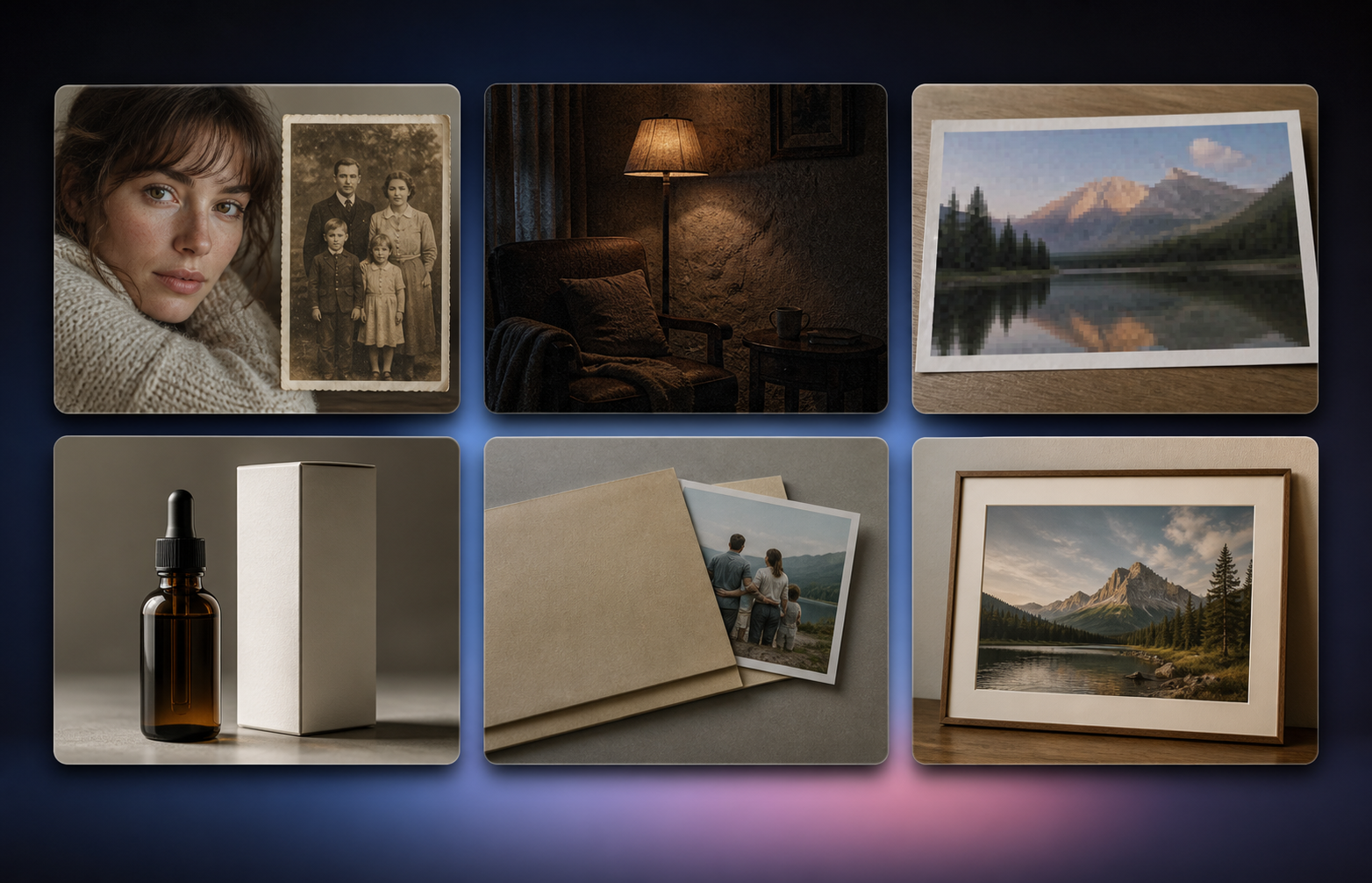
The best AI photo enhancer free of unnecessary complexity should match the problem visible in the source image.
Portraits and old photos: Compare eye shape, hairlines, facial contours, and recognizable features. Smooth skin alone does not indicate an accurate restoration. Photos with fading, scratches, dust, or several types of damage may need a dedicated AI photo restoration tool.
Noisy or low-light photos: Look for reduced grain without losing hair, fabric, wall texture, or distant objects.
Low-resolution images: Select a tool that combines upscaling with detail enhancement instead of merely increasing pixel dimensions.
Product photos and text: Inspect labels, logos, straight lines, and small lettering. Generative models can replace real characters with plausible-looking nonsense.
Private photos: Local processing provides greater control. For online services, review upload, storage, and deletion policies first.
Print images: Calculate the pixels needed for the intended print dimensions and DPI. A “4K” or “8K” label does not automatically make an image suitable for a large print.
For a framed 8 x 10-inch family photo at 300 DPI, the practical target is about 2400 x 3000 pixels. Checking those dimensions is more useful than choosing a tool based on marketing terminology.
FAQ
Can AI really fix a blurry photo?
AI can improve mild focus problems, compression softness, and limited motion blur. It cannot accurately recover information that is completely absent from the source. Severe blur increases the chance that the model will generate incorrect details.
What is the difference between enhancing and upscaling a photo?
Upscaling increases the image's pixel dimensions. Enhancement improves qualities such as clarity, noise, color, edges, and local detail. Many AI tools perform both operations together, but a larger image is not automatically a better-looking image.
Why do AI-enhanced faces sometimes look fake?
Some models remove genuine skin texture during denoising or reconstruct eyes, teeth, hair, and facial contours. High enhancement strength can create plastic-looking skin and change the person's recognizable features.
Can an AI photo enhancer restore unreadable text?
AI may sharpen the edges of slightly blurred text, but it cannot reliably recover characters that are no longer recognizable. Generated lettering can appear convincing while communicating different information from the original.
Should I enhance a photo before or after editing it?
Complete cropping, rotation, and basic exposure correction first. Noise reduction, detail enhancement, and upscaling can follow. Repeated enhancement and multiple compressed exports should be avoided because they accumulate artifacts and reduce natural detail.
You May Be Interested
480p vs. 720p: Which Resolution Should You Choose?
How to Turn Long YouTube Videos into TikToks with an AI Video Clip Generator
Best AI Features for Enhancing UGC Video Quality in 2026
6 Best AI Video Generators in 2026
Best App to Remove Tiktok Watermark in 2026