Runway AI Video Generator Review 2026: Features, Pricing, and Limitations
 RoboNeo TeamAugust 25, 2026
Runway AI video generator is a cloud-based creative platform for generating, modifying, and assembling videos with AI. It combines multiple video models with visual editing, audio creation, and enhancement tools, giving creators control over individual shots and different stages of production.
That flexibility also creates a learning curve. Users need to select a suitable model, manage credits, compare different outputs, and often combine several clips during post-production. This Runway AI review covers its main features, current pricing, practical workflow, strengths, and limitations.
What Is Runway AI Video Generator?

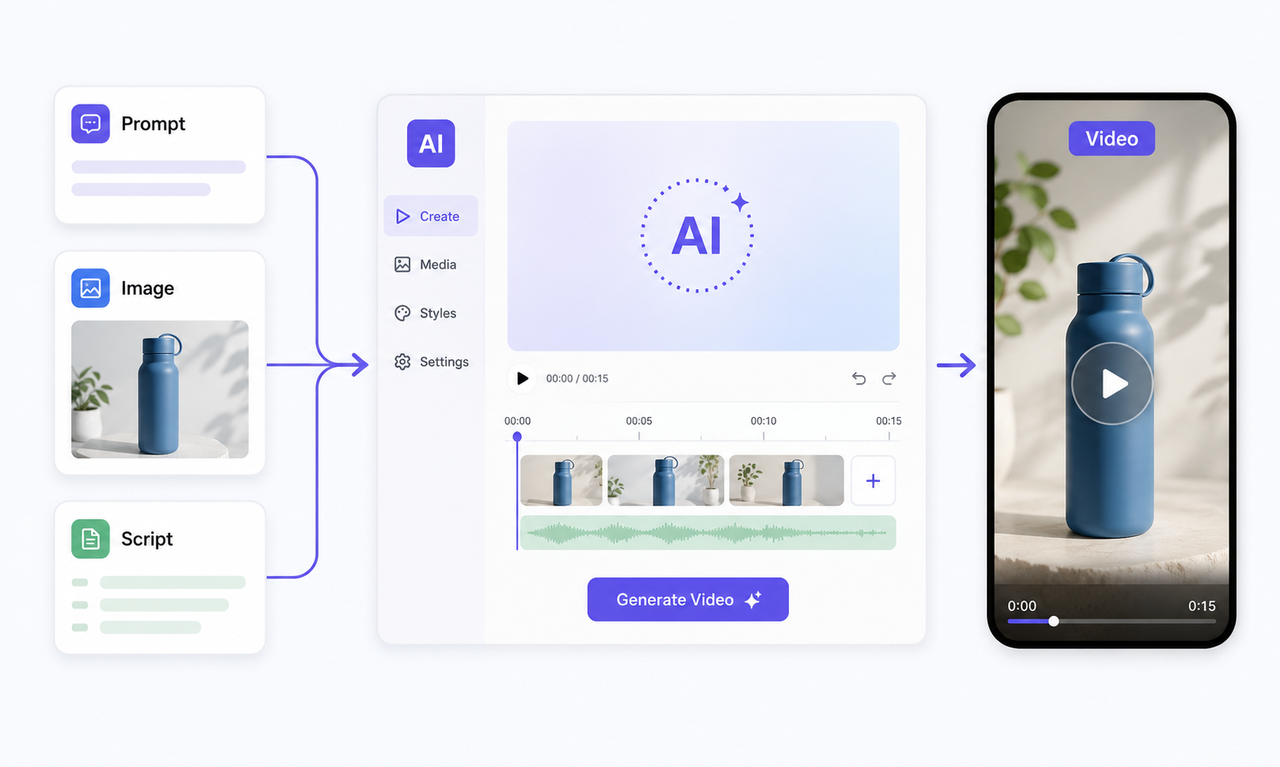
Runway AI video generator supports several ways to create and modify video. Text-to-video produces a new clip from a written scene description, while image-to-video adds movement to a still image and preserves much of its original composition. Video-to-video tools can transform existing footage by changing its style, lighting, background, subjects, or individual objects.
The platform currently includes Runway models and selected third-party options, including Gen-4.5, Aleph 2.0, Seedance 2.5, Kling 3.0, and Veo 3.1. Each model has different strengths, input requirements, supported durations, and credit costs. Gen-4.5 handles text-to-video and image-to-video generation, while Aleph 2.0 focuses more heavily on editing existing footage. Creators comparing these options with other platforms can also examine how the best free AI video generators differ in creative control, output limits, and ideal use cases.
A product designer could upload a still image of a new lamp, animate the camera moving around it, place the product in a modern apartment, and produce several promotional shots without building a physical set.
Key Runway AI Features
Runway combines video generation with editing, audio, and enhancement capabilities. Its main features include:
Text-to-video and image-to-video: Generate short clips from written instructions or animate a prepared reference image.
Video transformation and editing: Restyle footage, adjust lighting, replace backgrounds, remove unwanted elements, or change individual objects.
Video extension: Continue an existing shot forwards or backwards with supported models. Availability and controls vary between models.
Frame and aspect ratio expansion: Generate new visual information around the original frame instead of simply cropping or stretching it.
Video upscaling: Increase generated video from its original resolution to 4K for final delivery.
Text-to-speech and custom voices: Convert written dialogue or narration into spoken audio.
Lip sync and performance capture: Transfer speech, facial expressions, and body movement to a character.
Sound generation: Produce sound effects, ambience, dialogue, and other audio elements for a scene.
These features can be combined within one project. A clothing brand might begin with a photograph of a shoe, turn it into a rotating product shot, change the lighting, generate a short voice-over, and upscale the selected clip for an online advertisement.
Not every model supports the same tools. A project containing product shots, character movement, visual effects, and dialogue may require users to switch between several models.
Runway AI Pricing and Plans
Runway uses credits for image, video, and audio generation. Credit consumption varies according to the model, clip length, output quality, audio settings, and number of results. Video generation usually costs more than creating still images, while repeated attempts, extensions, and final upscaling can increase the overall cost.
As of August 2026, the main plans are structured as follows:
| Plan | Price | Credits | Main Differences |
| Free | $0 | 125 one-time credits | Limited model access, 5GB storage, and watermarked videos |
| Standard | $15 monthly or $12/month billed annually | 625 monthly | Access to all image and video models, 4K upscaling, and no watermarks |
| Pro | $35 monthly or $28/month billed annually | 2,250 monthly | Custom voices, additional audio tools, and 500GB storage |
| Max | $95 monthly or $76/month billed annually | 9,500 monthly | One-month credit rollover, early model access, ProRes and image sequence exports, HDR generation, and unlimited Topaz AI upscaling |
| Enterprise | Custom pricing | Custom credits | SSO, workspace analytics, configurable teamspaces, custom team sizes, and priority support |
The number of finished videos covered by each plan depends on the selected model. Gen-4.5 currently uses 12 credits per second, so a five-second generation costs 60 credits. A Standard subscription could cover about ten five-second Gen-4.5 attempts if all credits were used on that model. Discarded results still consume credits, which means the amount of usable footage will usually be lower.
The Free plan works best for testing the interface and trying a small number of tools. Standard may suit occasional social media content and concept development, while Pro gives regular creators more room for repeated generation. Max is designed for heavier production and provides professional export options.
Runway AI Pros and Cons
Runway provides a broad collection of creative tools, but its flexibility does not remove the common limitations of AI-generated video. Its value depends on how much control, consistency, and generation volume a project requires.
| Pros | Cons |
| Combines multiple video generation and editing tools | Results retain an element of randomness |
| Accepts text, images, audio, and existing video as inputs | Character and object details may change between shots |
| Provides relatively detailed control over individual clips | Complex movement and continuous action can still fail |
| Supports repeated prompt and visual testing | Regeneration, extension, and upscaling can consume many credits |
| Offers different models for different creative tasks | Model access and plan permissions can feel complicated |
| Includes audio, lip sync, and enhancement tools | A complete story usually requires additional planning and editing |
Runway's strongest advantage is its ability to develop a shot through several controlled stages. Its main weakness is predictability. A detailed prompt and suitable reference images can improve consistency, but they cannot guarantee that hands, clothing, props, facial features, or background details will remain unchanged.
Best Use Cases for Runway
Runway works best when a project can be divided into short, clearly defined shots. It is well suited to concept visuals, advertisements, social media clips, music video sequences, product animations, visual effects, and generative changes to existing footage.
A café promoting a seasonal drink could create a close-up of steam rising from a cup, another clip showing leaves moving outside the window, and a final product shot with room for a promotional message. Each scene can be refined separately before the three clips are assembled into a short Reel.
The platform is less straightforward for long narrative videos that require the same actor, clothing, room layout, and props across many scenes. These projects usually need reference assets, repeated generations, continuity checks, and post-production editing. A single prompt is unlikely to produce an entire consistent story.
How to Make an AI Video in Runway
Creating a video in Runway involves choosing an input, selecting a model, writing a clear prompt, and refining the output. Begin with a short test clip to avoid spending too many credits on an unproven idea.
Step 1: Choose the Right Starting Input
Open Runway and select a video generation tool. Choose Text to Video when you only have an idea, Image to Video when you have a prepared image, or a video editing mode when you want to modify existing footage.
For Image to Video, upload a clear image that shows the complete character or product. A reference image-to-video workflow provides more control when the subject's appearance needs to remain recognizable during motion.
Step 2: Select a Suitable Video Model
Choose a model based on the task. Gen-4.5 supports text-to-video and image-to-video generation, while Aleph 2.0 is more suitable for editing existing footage. Seedance 2.5 supports additional reference, editing, keyframe, and extension options.
Next, select the format. Use 16:9 for YouTube and websites, 9:16 for TikTok and Reels, or 1:1 for square social posts. Start with a short clip before generating a longer version.
Step 3: Write a Motion-Focused Prompt
Describe the subject's action, camera movement, environment, and pacing. For Image to Video, focus on what should move instead of repeating what is already visible.
The model slowly turns toward the camera while her hair moves gently in the wind. The camera pushes in slightly. Keep the face and clothing consistent.
Clear physical instructions usually help make realistic AI videos. Avoid asking the subject to perform several unrelated actions within one short clip.
Step 4: Review and Refine the Result
Click Generate, then check the face, hands, clothing, product shape, background, and camera movement. When one element fails, adjust only the related instruction.
If the camera moves too quickly, add "The camera moves slowly and steadily." If the subject changes appearance, add "Keep the subject's face, clothing, colors, and proportions consistent." Generate another version after each focused change.
Step 5: Extend, Upscale, and Export
Extend the video only after the original clip looks correct. Describe what should happen next while asking the model to maintain the same subject, lighting, and camera movement.
Upscale only the selected final clips. A practical AI video upscaling workflow should include checking faces, text, edges, and motion before export. Finally, trim unwanted frames, arrange the clips, add audio, and export in the required aspect ratio
When a Different Video Workflow May Work Better
Runway is suited to creators who want to choose models, test several versions of a shot, and manage generation, modification, and output as separate stages. This modular structure provides detailed control, but it may feel unnecessarily complicated to users who want to develop an entire video through one connected process.
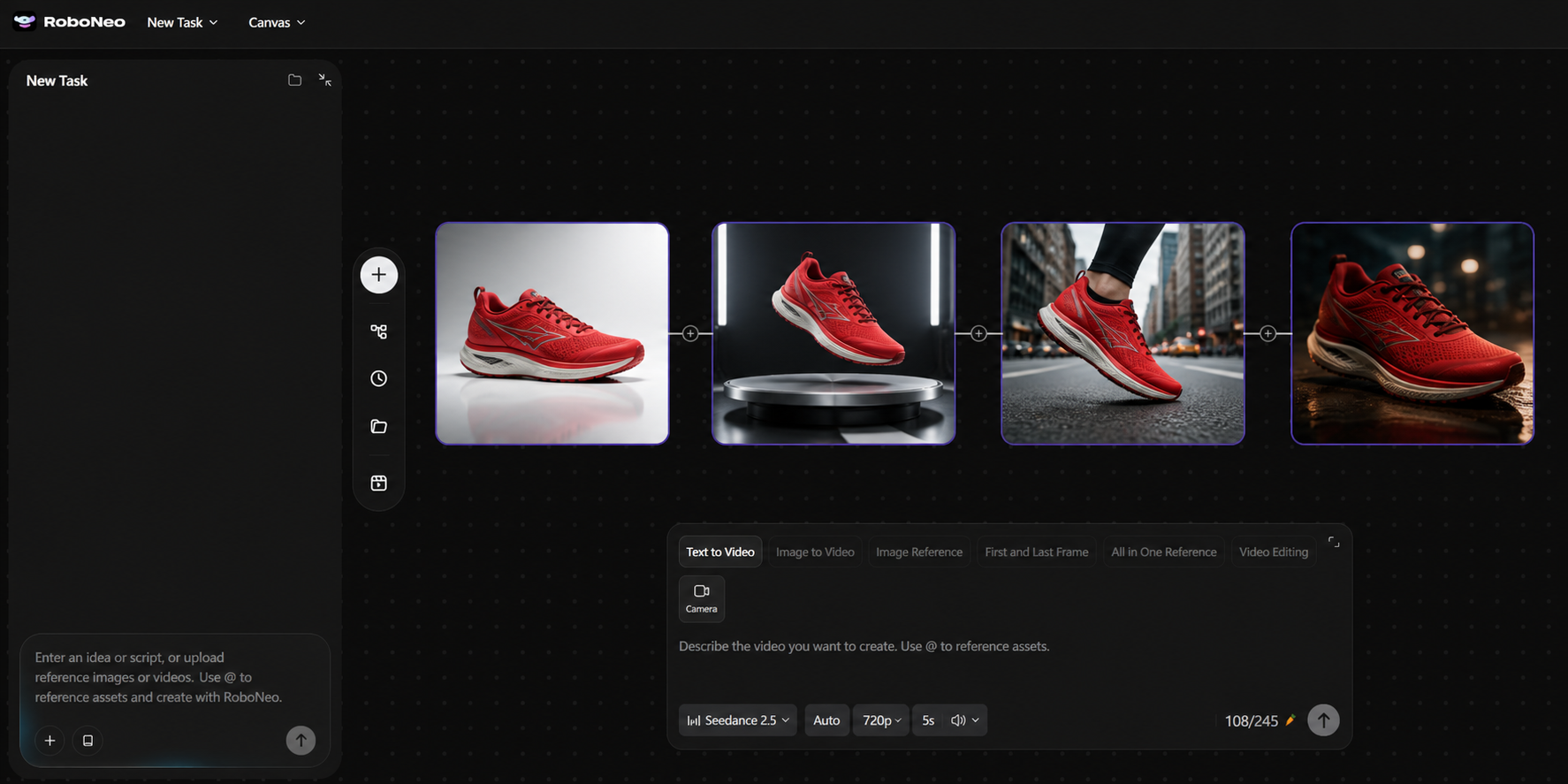
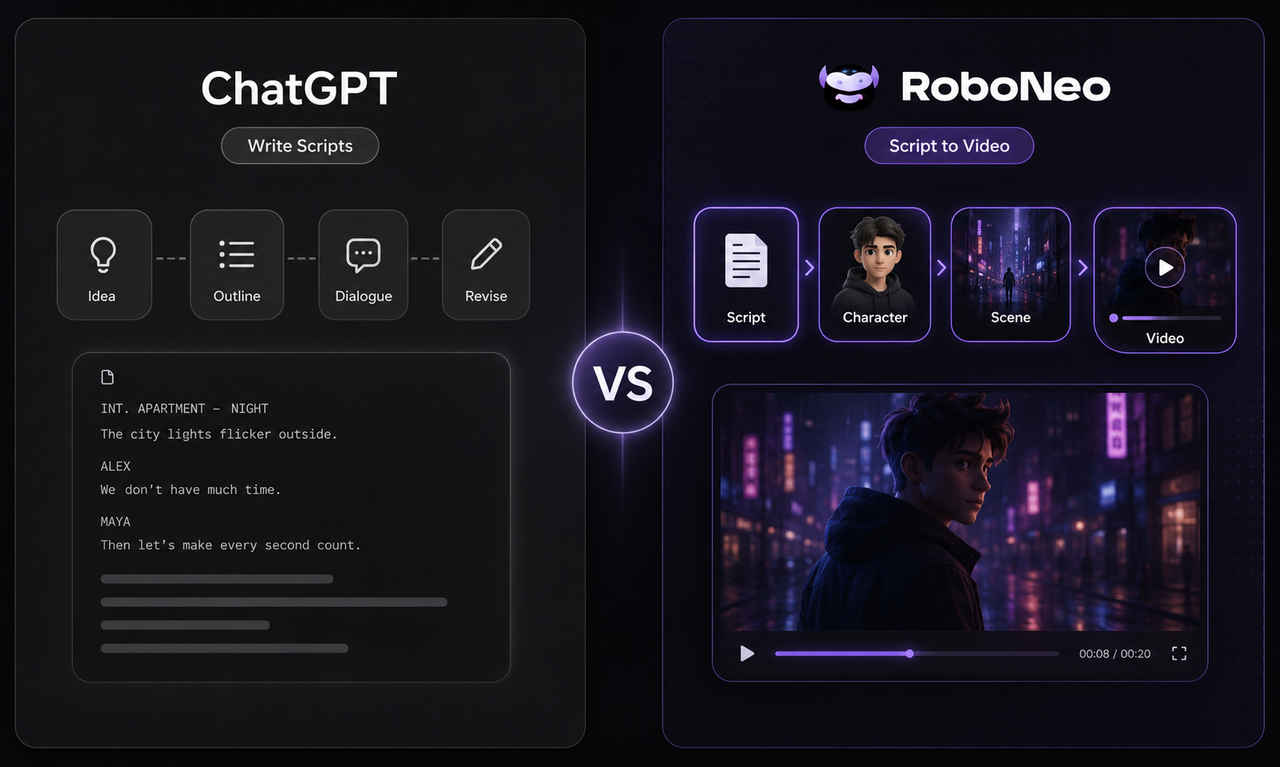
Creators who prefer to use natural language for creative planning, asset generation, scene organization, audio addition, and post-processing can use RoboNeo. A user can begin with a campaign idea or story direction and develop the script, visuals, scenes, and supporting media through a more conversational workflow.
The appropriate choice depends on the project. Runway offers granular experimentation with individual shots, while RoboNeo is more suitable for creators who want different production stages to remain connected.
Try a Simpler Runway Alternative
FAQ
Is Runway AI free to use?
Yes. Runway provides a Free plan with 125 one-time credits and 5GB of asset storage. The credits do not refresh monthly. This plan offers a limited selection of tools and models, and users cannot purchase additional credits without upgrading.
How long can Runway AI videos be?
Video length depends on the selected model and generation mode. Gen-4.5 currently supports clips from 2 to 10 seconds, while other models may offer different fixed or adjustable durations. Longer videos normally require creators to extend a shot or assemble multiple clips on a timeline.
Does Runway put a watermark on videos?
Videos generated through the Free plan include a Runway watermark. Standard, Pro, Max, and Enterprise plans support watermark-free video generation.
Can Runway AI videos be used commercially?
Yes. Runway allows users on both free and paid plans to use their generated content in commercial projects. No Runway credit is required when the content is published. Creators remain responsible for obtaining permission to use copyrighted images, music, trademarks, recognizable people, and other third-party materials.
Why does the same prompt produce different results?
AI video generation includes randomized processing, so identical prompts may produce different movements, compositions, and visual details. Precise motion instructions and suitable reference images can improve control, but they cannot make every result identical. This variation supports creative exploration while making strict continuity more difficult.
You May Be Interested
Best AI Features for Enhancing UGC Video Quality in 2026
6 Best AI Video Generators in 2026
Best Free AI Video Generator: Top Tools to Try
6 Best Tools to Fix Blurry Videos in 2026
ChatGPT Script vs RoboNeo AI Script Generator