How to Make a Highlight Video: A Simple Guide to Better Reels With AI
 RoboNeo TeamSeptember 23, 2026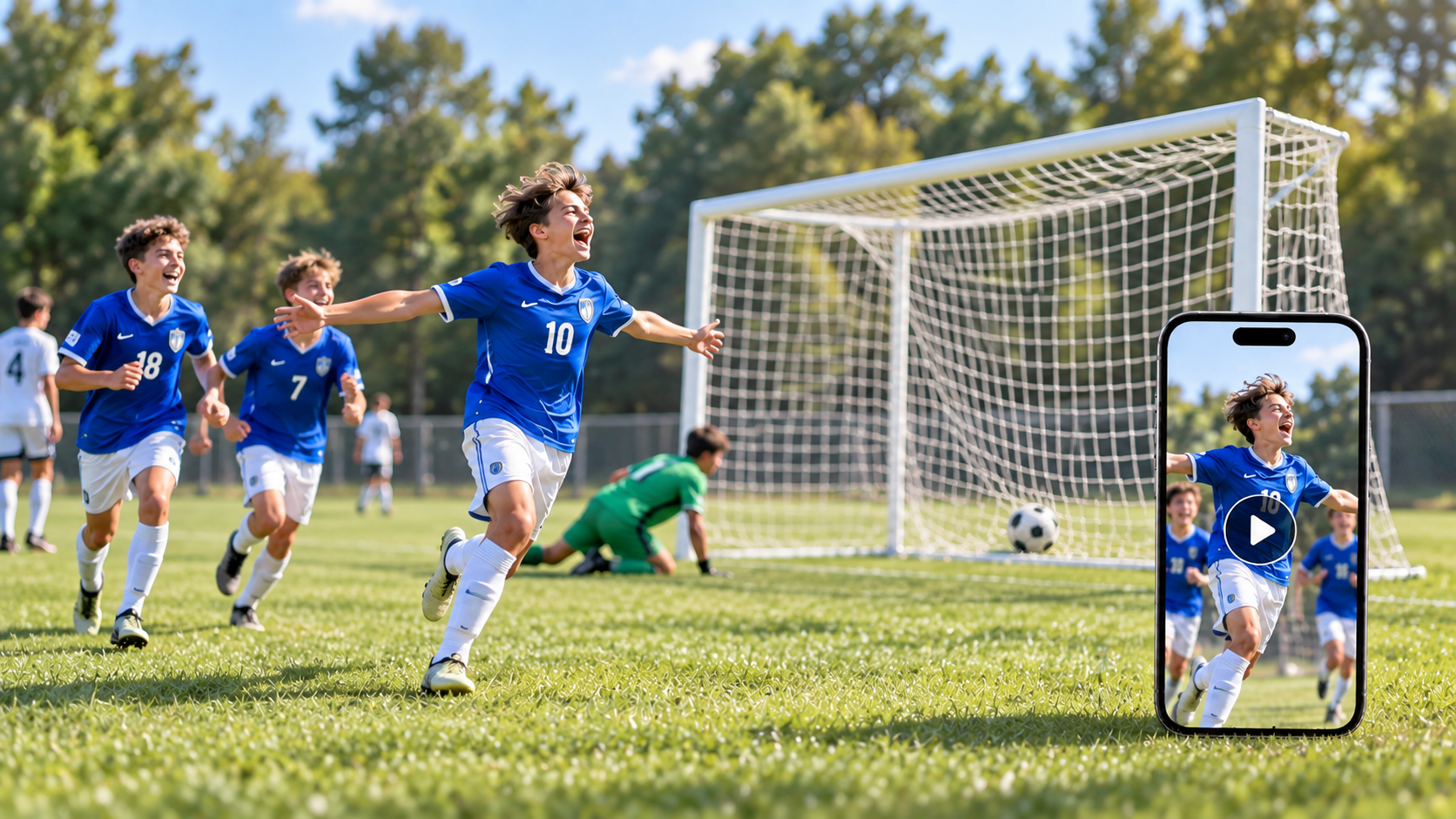
To make a highlight video, gather the footage, choose the moments that best express the subject, and arrange them into a clear sequence. Music, captions, and restrained transitions can strengthen the edit, while AI can supply an opening or supporting shot that was difficult to film. This guide covers preparation, selection, editing, visual fixes, and vertical conversion.
What Makes a Highlight Video Worth Watching?
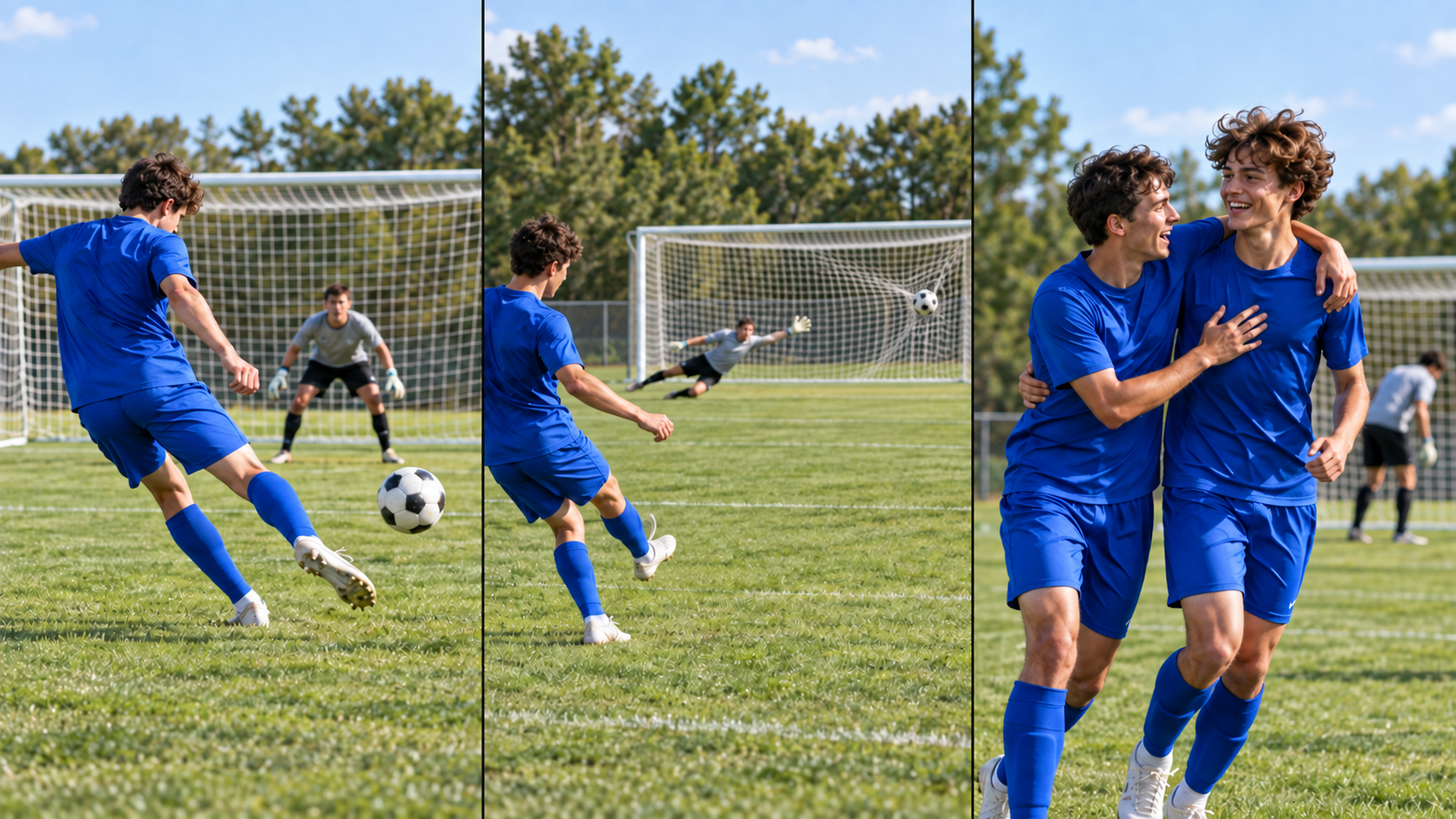
A highlight video is a focused collection of memorable moments, not a summary of everything that happened. The best clip may show a winning move, a nervous pause, a surprised reaction, or the moment a result becomes clear.
Viewers should understand the main attraction quickly, and each later clip should add context, movement, or emotion. A youth soccer reel might open with the winning goal, return to the pass that created it, and end on the team's reaction. The buildup makes the goal meaningful even to someone who missed the game. That connection separates a story from unrelated shots.
What Should You Prepare Before Making a Highlight Video?
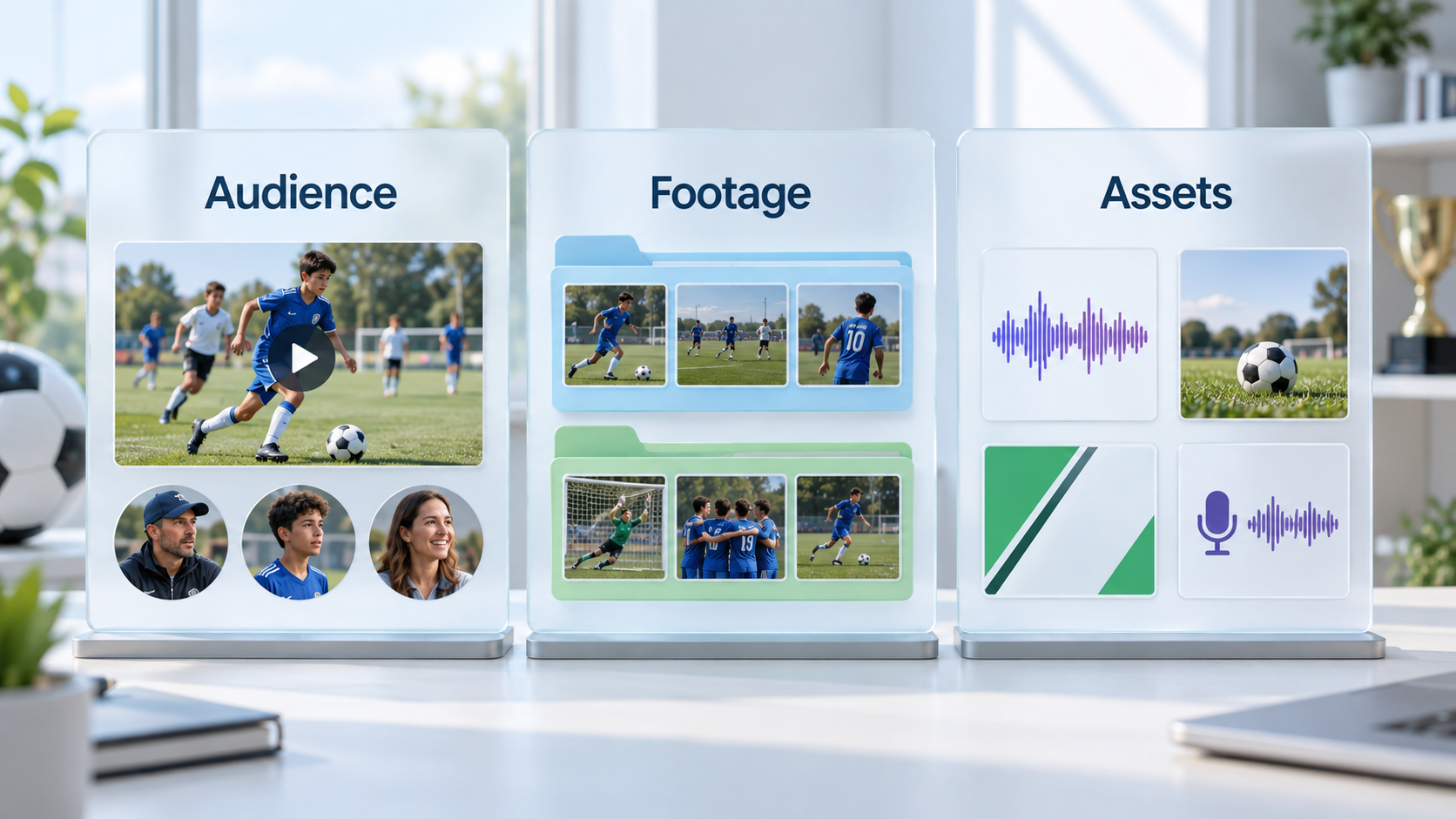
Before opening a timeline, decide who will watch the video, organize the footage, and collect the assets needed to finish the story. These choices make later editing decisions clearer.
Define Your Audience and Purpose
An event recap, travel memory, sports showcase, and family reel serve different viewers. Decide what the audience cares about and should remember. A graduation video for relatives may center on the student, the walk across the stage, and family reactions rather than the entire ceremony. That purpose also guides the length and frame direction.
Organize Your Original Footage
Keep untouched videos, photos, and location audio in a safe folder, then sort working copies by date, event, or scene. Use clear filenames. If you may create missing shots later, save clean source files that work with AI video tools. During the first review, note shaky footage, poor sound, blocked subjects, and promising sections, including their timecodes. Do not trim too early; several seconds around an action or statement may contain necessary context.
Gather Supporting Assets
After sorting the footage, create a folder for supporting material. Confirm names, places, dates, and scores, and collect approved music, logos, and graphics. A still photo can cover an unrecorded moment without being animated. Check usage rights and confirm that the editor supports the required files, frame size, and export quality.
How Do You Make a Highlight Video With AI?
Real footage should carry the story. Build the first version from those clips, then use the rough edit to find gaps where an opening, transition, or explanatory shot would help.
Select the Strongest Moments
Judge every clip against the theme. Actions, reactions, results, and short lines of speech belong when they change the story or explain why a moment matters. The same rule applies when deciding how to make a product video from existing footage: keep the clearest shots of the product in use and the result it delivers. If several cameras captured the same moment, choose the clearest angle. Similar shots slow the reel down.
Build a Rough Sequence
A strong opening gives viewers a reason to continue. Arrange the remaining clips by time, topic, or emotional intensity. Travel footage often works chronologically, while an athlete's reel may group defense, passing, and scoring. Remove setup, waiting, and empty pauses. When two useful shots do not connect, decide whether the viewer needs a location, a passage of time, or a short explanation. Label that gap instead of covering it with a random effect.
Create Supporting Clips With AI
The labeled gaps give each generated shot a purpose. An event recap may need a themed opening, while a travel edit may need a calm bridge between locations. Fictional reels allow imagined scenes, provided they are not presented as real.
A trip video may jump from a coastal road to a hilltop with no connecting footage. A landscape photo can guide a short push-in that eases the change. RoboNeo can start from that image or a written description, depending on the available material. State the subject, action, environment, lighting, camera movement, and frame shape, with one main action per clip. Return the result to the timeline and compare its color, speed, people, buildings, and movement with the surrounding footage. Remove or remake anything inaccurate.
Add Music, Captions, and Transitions
With the visual order settled, add music that matches the mood without replacing useful location sound, and lower it during speech. Captions can provide names, places, scores, or missing context; check their spelling and timing. Keep transitions restrained. When a bridge shot already connects two scenes, another effect usually makes the edit busier rather than smoother.
How Can You Fix Awkward Cuts and Visual Mismatches in Your Highlight Video?
Problems often appear only after footage, music, and captions share the timeline. Start with the edit itself: changing a cut point or shot order may fix a harsh transition without adding material.
Compare color, brightness, texture, and camera speed on both sides of each cut.
Shorten any supporting shot that pulls attention away from the real highlight.
Remove or remake clips with inconsistent people, products, buildings, or text.
Smooth changes between music and location sound instead of allowing sudden volume jumps.
Move captions that cover an important action or continue over the wrong scene.
Watch the revision with sound, then again on mute. One pass tests the mix; the other reveals whether the pictures have a clear rhythm. Export and play the actual file before choosing its title and visibility. Choose a clear frame that shows the main subject, then use AI video cover to refine the crop and text placement.
How Do You Turn a Horizontal Highlight Video Into a Vertical Reel?
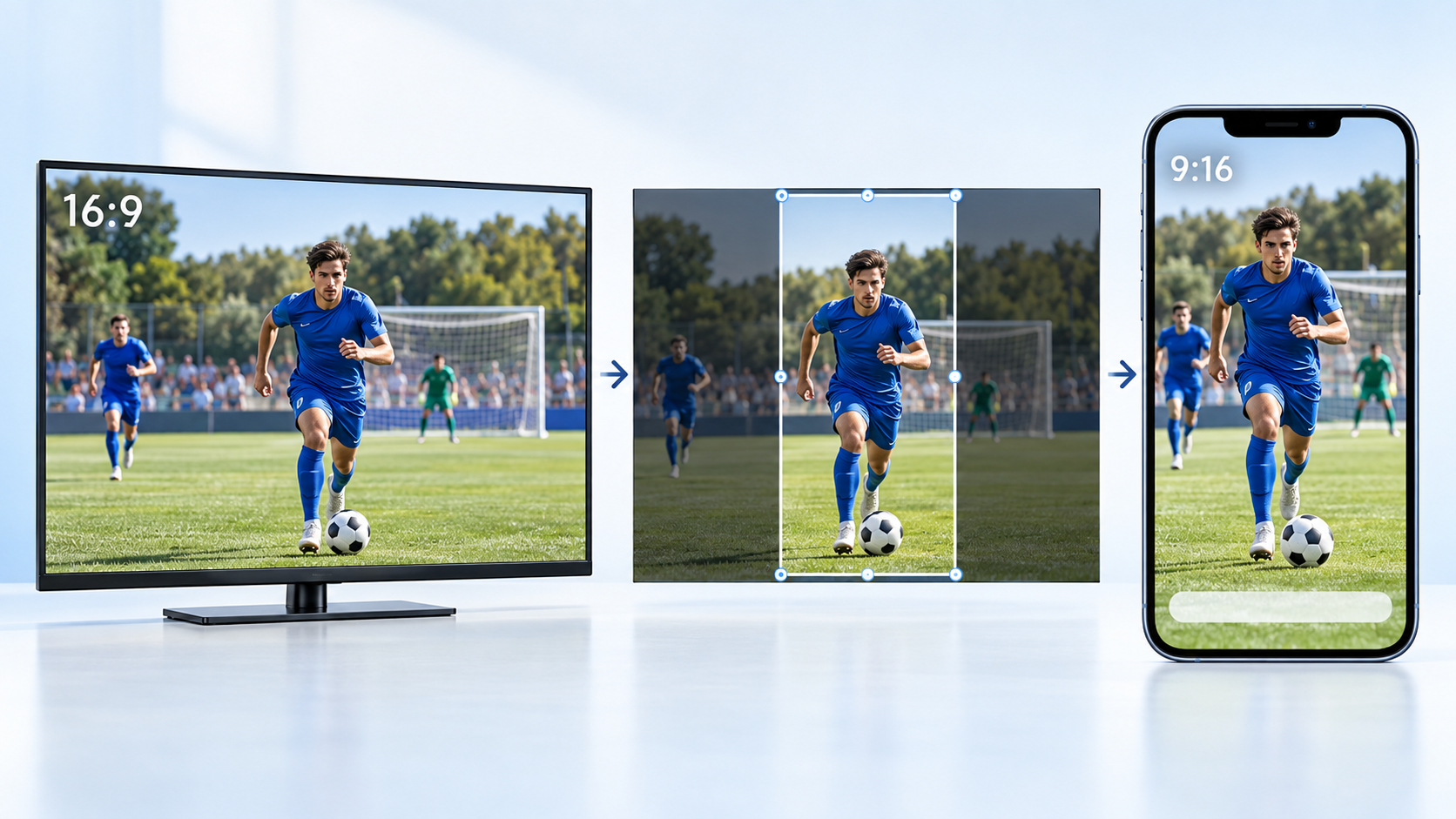
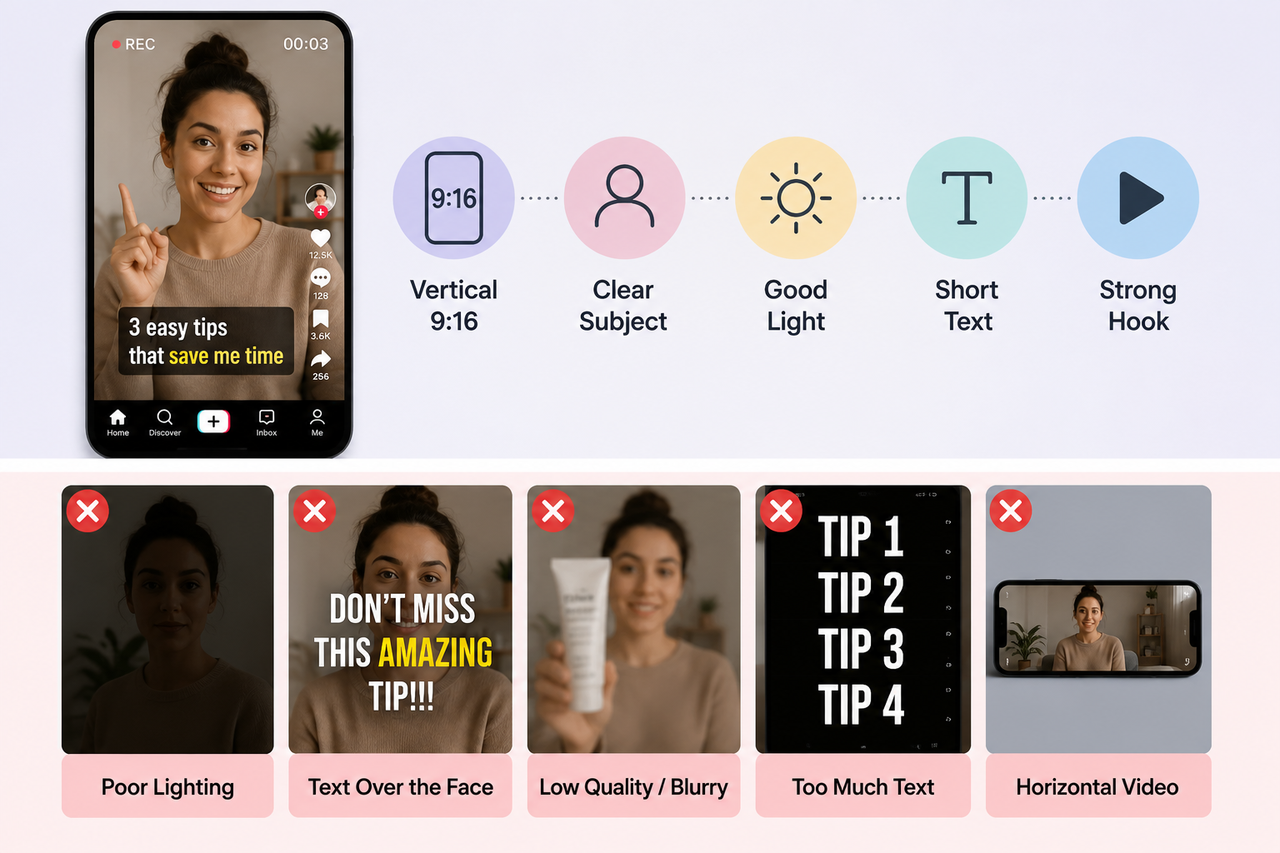
To turn a horizontal highlight video into a vertical reel, duplicate the project, change the copy to 9:16, and reframe every shot around its main subject. Do not stretch the image. If the subject moves outside the crop, adjust the frame manually or follow the movement with keyframes. When a wide shot cannot be cropped without losing important content, keep the full image and place it over a plain or blurred background.
After reframing, check the current Instagram Reel dimensions before placing captions, titles, and logos. Keep them away from the subject and platform controls. Remove shots that no longer work in the narrower frame, then preview the complete reel on a phone. Make sure the subject stays visible, the text is readable, and the movement looks natural before exporting.
FAQ
How long should a highlight video be?
Length depends on the purpose, audience, and material. A social recap is usually shorter than an event summary or sports showcase. Keep a clip only when it adds new information, and follow a client's or platform's stated requirement when one exists.
Can I make a highlight video for free?
Yes. Free editors can trim, arrange, and combine footage, although some AI features require credits or a subscription. Check watermarks, export resolution, licensing, and project limits before starting. A free trial may not support repeated or long-term use.
Can I make a highlight video on my phone?
Yes, especially when the reel is short and uses a limited number of files. Back up the originals and leave enough storage for the project and export. Long recordings, multiple cameras, and precise timing are usually easier to manage on a computer. Always play the exported file before sharing it.
Can I combine photos and videos in a highlight reel?
Yes. Photos can show people, places, or moments that were not captured on video. Keep them connected to the same theme and leave each one visible long enough to understand without slowing the sequence. A strong still image does not need artificial movement.
What's the difference between a highlight reel and Instagram Story Highlights?
A highlight reel is an edited video that can be shared across platforms. Instagram Story Highlights are saved groups of Stories displayed on a profile. They use different creation and publishing workflows. This article explains how to make a highlight video from selected source material.
You May Be Interested

Best AI Tools to Fix Blurry Videos in 2026

How Can I Improve Video Quality? Practical Fixes
How to Make a Dark Video Brighter with AI: 5 Easy Steps
How to Make an AI Dance Video in 2026: Easy Guide
How to Turn Cool Photos Into a Video: The Ultimate Guide