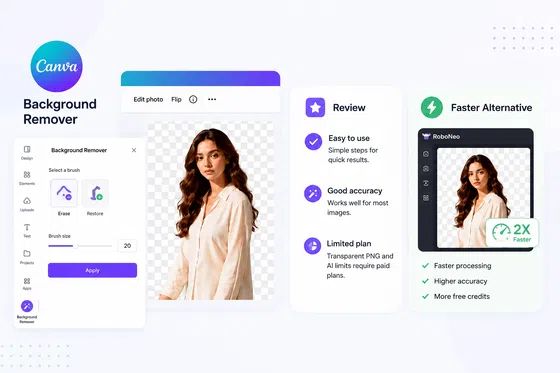
Best AI Tool for Removing Background from Image in 2026
 RoboNeo TeamOctober 21, 2026
AI background removal tools can automatically detect people, products, and other subjects, making it easier to create clean images for ecommerce, social media, and marketing content.
However, different tools vary in subject recognition, edge quality, and editing flexibility. This guide compares 8 AI background removal tools to help you choose the right option for your image editing needs.

What Features Should You Look for in an AI Background Remover?
When choosing an AI tool to remove background from an image, speed is only one factor. Accuracy, edge processing, export options, and workflow compatibility all affect the final result.
Subject Detection Accuracy
Subject detection is one of the key factors behind effective background removal. A reliable tool should identify the main object accurately while keeping important details.
Different image types require different levels of recognition:
Portraits need accurate handling of hair, hands, and clothing details.
Product images need to preserve original shapes and key features.
Images with multiple subjects need to avoid missing important elements.
Fine Detail Preservation and Edge Quality
Complex edges often show the difference between AI background removal tools.
A good tool should handle hair, fur, transparent materials, and product outlines while avoiding rough edges or leftover backgrounds.
Export Quality and Editing Flexibility
The final image should fit your next workflow.
Important factors include:
Image quality after background removal.
Transparent background export.
Additional editing options such as erase, restore, or edge refinement.
If your source image is too small, learn how to make an image high resolution before exporting.
Batch Processing Capability
For users handling many images, batch processing can save time.
This is especially useful for ecommerce sellers managing multiple product images or teams preparing visual content.
How We Compared the Best AI Background Removal Tools?
To compare these AI background removal tools, we focused on factors that affect real-world usage:
Background Removal Accuracy
We considered how well each tool identifies people, products, and other subjects while avoiding missing details or leaving unwanted backgrounds.
Edge Quality and Detail Preservation
We considered how tools handle complex areas such as hair, fur, transparent materials, and detailed product edges.
Output Quality and Workflow
We also looked at image quality, editing options, and whether each tool fits common workflows such as ecommerce, design, and marketing.
What Are the 8 Best AI Background Removal Tools in 2026?
Different AI background removal tools are designed for different workflows. Some are better for quick edits, while others focus on ecommerce images, creative projects, or professional editing.
The following comparison covers 8 popular tools based on their features, use cases, strengths, and limitations.
AI Tool | Key Features | Best For | Pros | Cons |
RoboNeo | AI subject detection, automatic background removal, edge preservation | Portraits, product photos, creative assets | Easy automatic cutouts; supports multiple image types; reduces manual editing | Complex edges may need review; high-precision images may need adjustments |
remove.bg | Automatic background removal, clean image exports | Quick background removal, single images | Beginner-friendly; fast processing; simple editing workflow | Limited manual editing; complex images may need corrections |
Photoroom | AI background removal, batch image processing | Ecommerce photos, product catalogs | Efficient batch processing; ecommerce-focused workflow; reduces repetitive editing | Advanced features may require payment; complex edges need review; limited professional editing control |
Adobe Express | Online background removal, image editing tools | Everyday editing, design assets | No complex installation; simple editing; supports further design | Less effective for complex subjects; limited professional control; less suited to high-precision editing |
Canva | AI background removal, integrated design tools | Social media graphics, posters | Combines removal with design; fewer tool switches; quick content creation | Limited edge refinement; paid advanced features; complex images may need refinement |
Pixelcut | Automatic cutouts, manual edge refinement | Product photos, portraits, mobile editing | Convenient mobile editing; basic edge refinement; quick social and product visuals | Complex images need adjustments; advanced features may have limits; not a professional editing replacement |
Clipdrop | AI background removal, detail recognition | Portraits, complex edges, creative assets | Detail recognition; multiple image types; simple operation | Limited free usage; high-precision work may need adjustments; lacks a full design workflow |
Adobe Photoshop | AI subject selection, masking, detailed edge refinement | Professional photography, complex cutouts | Advanced edge refinement; manual corrections; complete editing workflow; suited to professional projects | Learning curve; complex workflow; less convenient for quick edits; higher software cost |
RoboNeo: Best for Quick Background Removal From Portraits, Products, and Creative Images
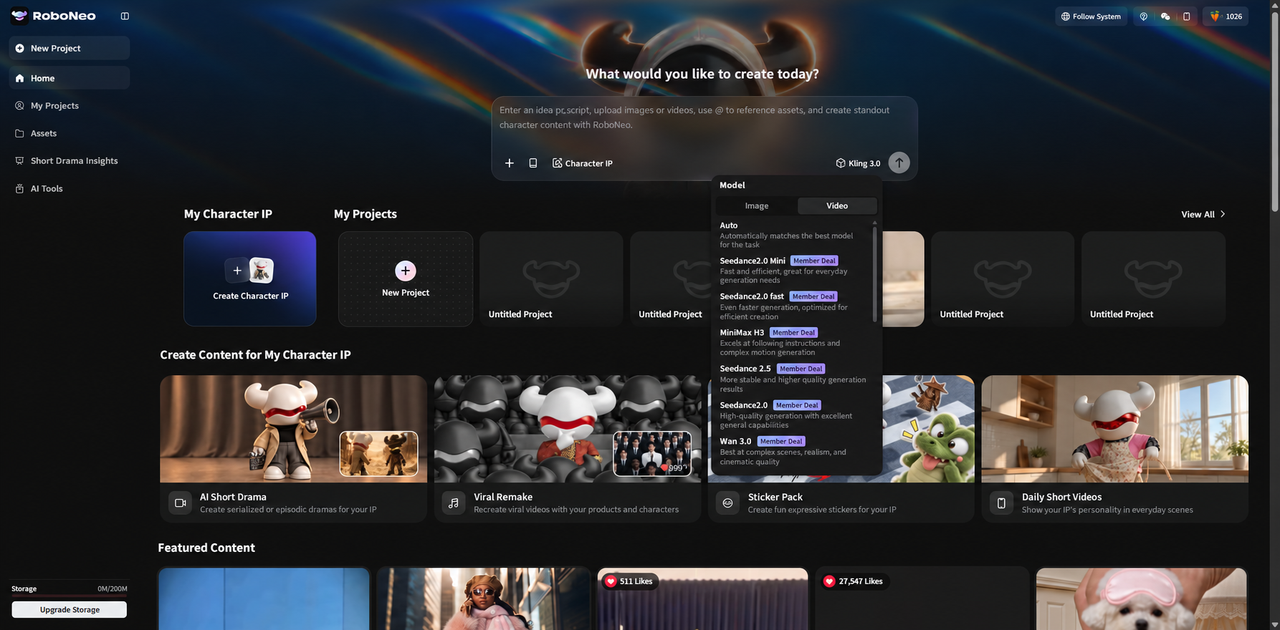
RoboNeo Background Remover is an AI background remover tool for ecommerce, social media, and creative projects. It automatically detects the main subject and reduces the manual work required for selecting areas and refining edges.
For users looking for an AI tool for removing backgrounds from image, RoboNeo offers a simple way to prepare portraits, product photos, and other images for creative use.
Key Features
RoboNeo provides:
AI subject detection for people, products, and creative assets.
Automatic background removal with edge preservation.
Support for different image types and visual workflows.
Best For
RoboNeo works well for:
Ecommerce product images.
Social media content.
Marketing visuals.
Quick image cutout tasks.
For product catalogs and marketing campaigns, RoboNeo also offers an AI product photo editor for preparing consistent product visuals.
Pros
Removes backgrounds without complex manual editing.
Supports multiple image types.
Reduces repetitive cutout work.
Cons
Complex details such as hair and fur may need review.
High-precision images may require additional adjustments.
remove.bg: Best for Fast Automatic Background Removal and Clean Image Exports
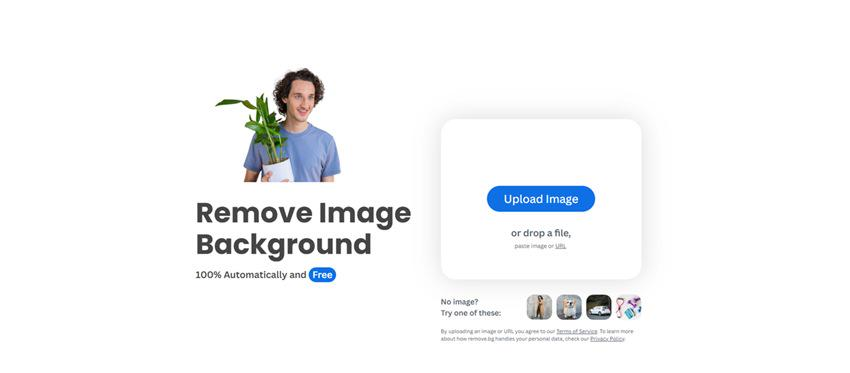 remove.bg offers a straightforward way to remove backgrounds quickly. Upload an image, let AI detect the subject, and download the result.
Key Features
remove.bg provides:
Automatic subject detection.
Background removal with minimal steps.
Clean image exports.
Best For
remove.bg works well for:
Personal photos.
Quick image asset preparation.
Single-image background removal tasks.
Pros
Simple and beginner-friendly.
Fast processing speed.
Easy workflow for basic edits.
Cons
Limited manual editing options.
Complex images may need additional corrections.
Photoroom: Best for E-commerce Product Photos and Batch Background Removal
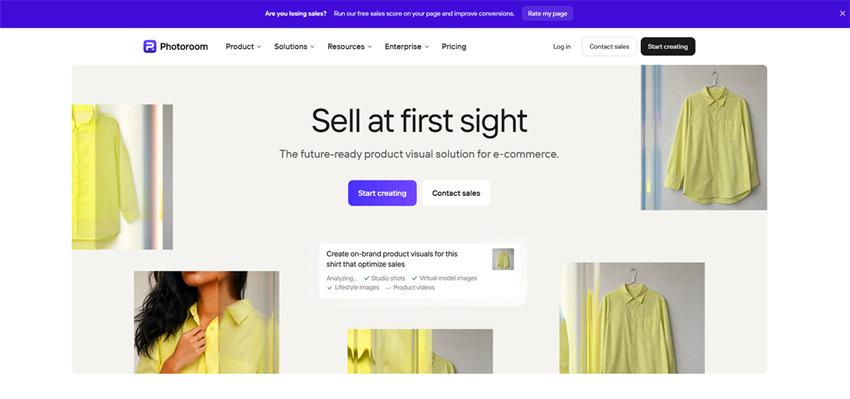 Photoroom helps ecommerce sellers manage product images efficiently. Its batch processing features are particularly useful for stores handling multiple SKUs.
Key Features
Photoroom provides:
AI product subject detection and background removal.
Batch image processing.
Product image editing features.
Best For
Photoroom works well for:
Ecommerce sellers managing product images.
Product photography teams.
Businesses needing consistent product visuals.
Pros
Efficient for batch product image processing.
Fits common ecommerce workflows.
Reduces repetitive background removal work.
Cons
Some advanced features require paid plans.
Complex edges may still need manual review.
Professional editing control is more limited.
Adobe Express: Best for Online Background Removal and Everyday Photo Editing
Adobe Express combines background removal with browser-based design tools, making it convenient for social posts, marketing graphics, and everyday editing.
Key Features
Adobe Express provides:
Online background removal.
Basic image editing tools.
Templates and design features.
Best For
Adobe Express works well for:
Everyday image editing.
Social media content.
Marketing visuals.
Pros
No professional software installation required.
Simple editing workflow.
Supports further design after background removal.
Cons
Less effective for complex subjects.
Professional editing control is more limited.
Not ideal for high-precision commercial images.
Canva: Best for Background Removal in Social Media and Design Projects

Canva lets users remove image backgrounds and immediately use the results in social media posts, posters, presentations, and other design projects.
Key Features
Canva provides:
AI background removal.
Integration with design tools.
Templates and visual editing features.
Best For
Canva works well for:
Social media managers.
Marketing teams.
Creators with limited design experience.
Pros
Combines background removal with design creation.
Reduces the need to switch between tools.
Works well for quick visual content.
Cons
Limited edge refinement compared with professional tools.
Advanced features require paid plans.
Complex images may need additional optimization.
Pixelcut: Best for Mobile Background Removal and Quick Image Editing
 Pixelcut offers AI background removal and basic editing tools for users working with product photos, portraits, and social media images on mobile devices.
Key Features
Pixelcut provides:
AI background removal.
Erase and Restore tools.
Mobile image editing features.
Best For
Pixelcut works well for:
Ecommerce sellers editing images on mobile.
Social media creators.
Users needing quick image adjustments.
Pros
Convenient mobile editing experience.
Includes basic edge refinement tools.
Suitable for quick product and social media images.
Cons
Complex images may still require manual adjustments.
Advanced features may have usage limitations.
Not designed as a replacement for professional editing software.
Clipdrop: Best for Portraits, Product Photos, and Complex Image Details
 Clipdrop combines background removal with other AI image editing features. It is useful for portraits, product photos, and images containing detailed outlines.
Key Features
Clipdrop provides:
AI subject detection.
Automatic background removal.
Additional AI image editing features.
Best For
Clipdrop works well for:
Portrait image editing.
Product image improvement.
Creative visual content.
Pros
Good recognition for detailed areas.
Supports different image types.
Simple operation.
Cons
Free usage may be limited.
High-precision projects may need extra adjustments.
Does not provide a complete design workflow.
Adobe Photoshop: Best for Professional Photo Editing and Complex Background Removal
Adobe Photoshop combines AI subject selection with advanced editing tools. Its manual refinement options make it suitable for photographers and designers handling complex commercial images.
Key Features
Photoshop provides:
AI Select Subject for subject detection.
Remove Background and Select and Mask tools.
Detailed edge refinement.
Full image editing capabilities.
Best For
Photoshop works well for:
Professional photographers.
Graphic designers.
Commercial image teams.
Users needing precise editing control.
Pros
Provides advanced edge refinement.
Allows manual correction of complex areas.
Supports complete image editing workflows.
Suitable for professional projects.
Cons
Requires more time to learn.
Workflow is more complex than automated tools.
Not ideal for users who only need quick background removal.
Software cost is higher.
Which AI Background Removal Tool Should You Choose?
The best background remover depends on your image type, processing volume, and how you plan to use the final images.
Need | Recommended Tools |
Quick background removal for portraits, products, or everyday images | RoboNeo, remove.bg |
Batch processing for ecommerce product images | Photoroom |
Background removal combined with design creation | Canva, Adobe Express |
Mobile image editing | Pixelcut |
Complex images and professional editing | Adobe Photoshop |
Detailed subjects and creative image processing | Clipdrop |
When choosing an AI background remover, consider:
The type of images you usually process.
Whether you need batch processing.
Whether you need additional editing features.
How much control you want over the final result.
How to Remove an Image Background With RoboNeo AI
Using an AI background remover is not only about removing the background automatically. Image quality, subject clarity, and the original composition can also affect the final result.
The following steps show how to remove an image background with RoboNeo AI.
Try RoboNeo Background Remover
Step 1: Upload a Portrait, Product Photo, or Other Image
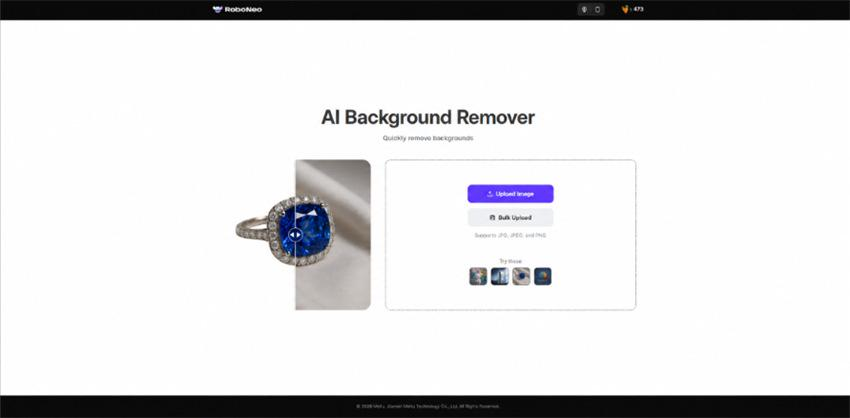
Start by selecting an image and uploading it to RoboNeo AI Background Remover.
For better results, choose images with:
A clear main subject.
High enough resolution.
Visible separation between the subject and background.
Common use cases include:
Portraits for profile images, social media, or design projects.
Product photos for ecommerce listings and marketing materials.
Creative images for further visual editing.
If your original photo looks blurry, check how to unblur an image before uploading it.
Step 2: Let AI Automatically Detect the Subject and Remove the Background
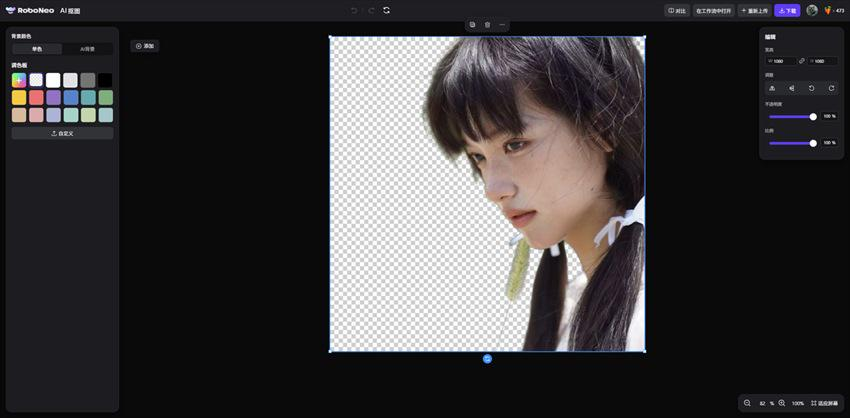 After uploading the image, RoboNeo automatically identifies the main subject and separates it from the original background.
Before using the final image, check:
Whether the subject is fully preserved.
Whether edges look natural.
Whether any background areas remain.
For images with complex details such as hair, fur, product edges, or multiple subjects, review these areas carefully.
Step 3: Check the Cutout Edges and Download Your Image
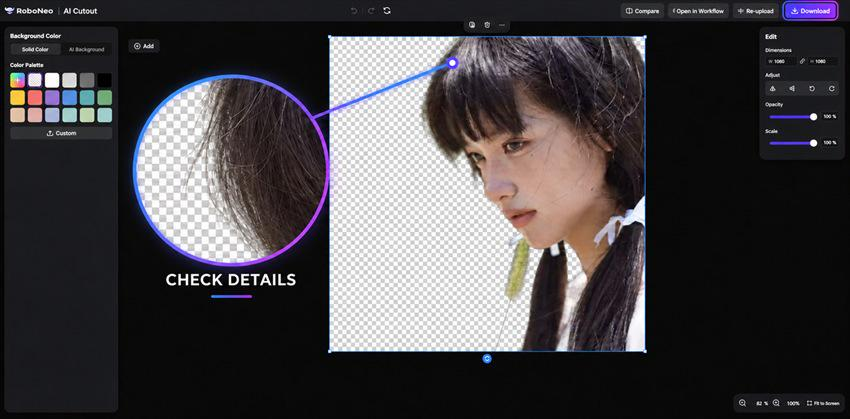 After background removal, review the final result before using it in your next project.
Check:
Hair and clothing edges.
Product outlines.
Remaining background elements.
Overall image quality.
Once the result meets your needs, use the image for ecommerce pages and social media content, or change the photo background for a different design.
FAQ
Are there any AI background removers that don't require registration or software installation?
Yes. Some online AI background removal tools work directly in a browser without software installation. However, available features and free usage limits vary by tool.
Can AI background removers keep multiple subjects in the same image?
Yes, but results depend on the tool’s subject detection ability. Complex images with multiple people or products should be reviewed after processing.
Why do different AI background removers produce different results from the same photo?
Different tools use different AI models and edge-processing methods, which can affect results around hair, fur, and complex outlines.
Is it safe to upload personal photos or commercial product images to AI background removal tools?
It depends on the tool’s data handling and privacy policies. Check how images are stored and processed before uploading personal or commercial materials.
Should you switch tools or manually refine the edges when AI background removal doesn't work well?
For small edge issues, editing tools can help refine the result. If subject detection is inaccurate, switching to a more suitable tool may be a better option.
You May Be Interested

How Can I Make an Image High Resolution? Easy Methods
Meta AI Image to Video vs RoboNeo: In-Depth Comparison
How to Unblur an Image Online Free in 2026?
GPT Image 2: Features, Release, and AI Image Generation
3 Best Background Noise Removal Apps for 2026