How Can I Improve Video Quality? A Practical Guide to Better Results
 RoboNeo TeamAugust 18, 2026
Poor video quality does not come from a single problem. A clip may look soft because the camera missed focus, grainy because the room was too dark, or blocky because it was compressed during sharing. Each issue requires a different solution.
If you are wondering how to improve video quality, begin by identifying what went wrong. This guide explains how to capture cleaner footage, correct common problems in post-production, use AI enhancement appropriately, and recognize damage that cannot be fully repaired. Better recording conditions preserve more visual information, while careful editing can improve many remaining flaws.
Start by Identifying What Makes the Video Look Bad
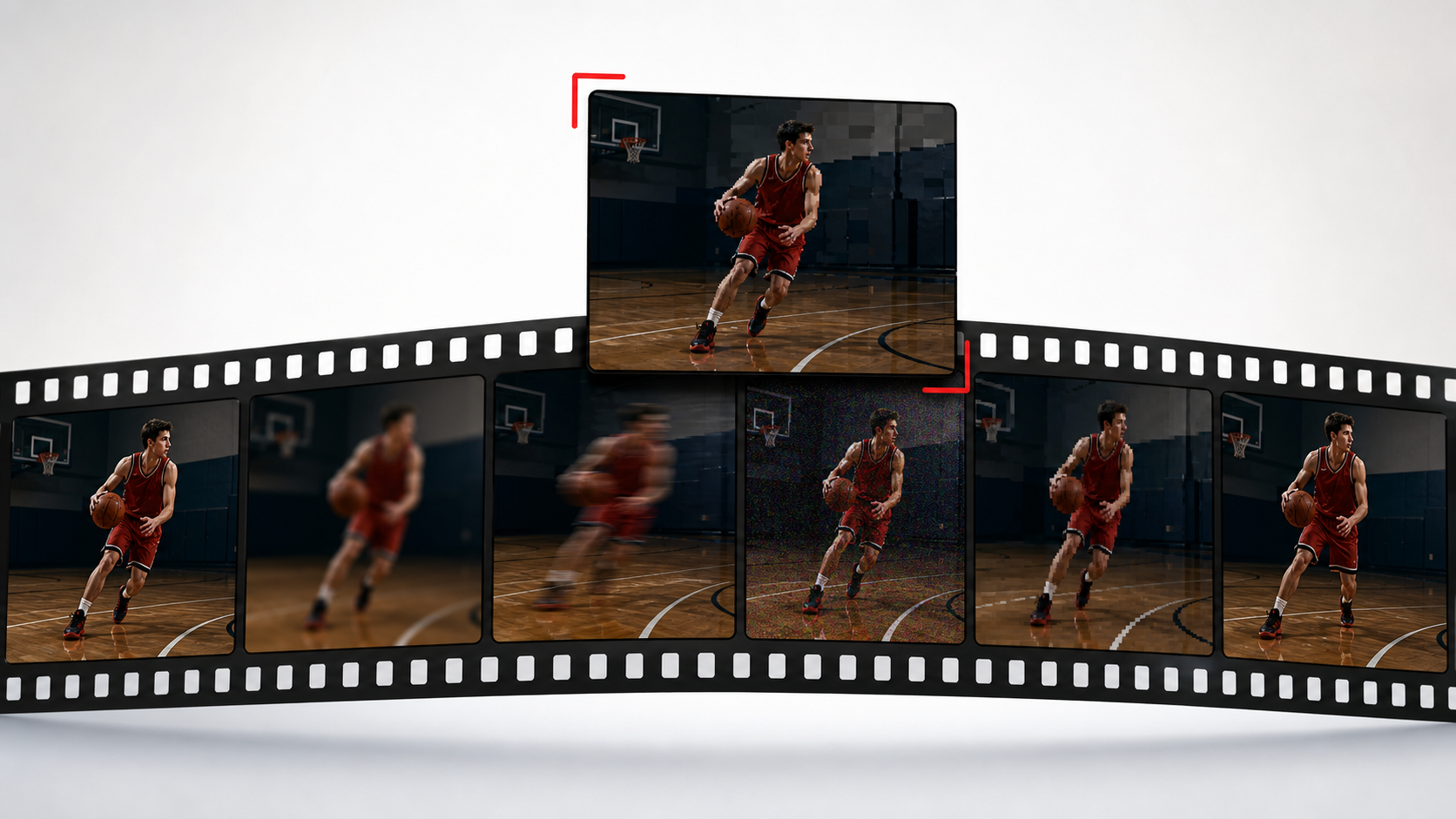
Before adjusting settings or applying filters, watch the footage at its original size. Pause on several frames and determine whether the problem affects the entire clip or only certain scenes.
Blur, Low Resolution, and Missed Focus
Blur has several possible causes. Missed focus creates soft subjects even when the camera remains still, while motion blur appears when the subject or camera moves during a long exposure. A parent filming a child running indoors may see a clear background but a blurred face and hands.
Low resolution is different. A 480p clip contains fewer pixels than a 1080p or 4K recording, so fine details disappear when the image is enlarged. Pixelated edges, unreadable text, and blocky faces often indicate insufficient resolution rather than poor focus. An AI video upscaling tool can enlarge this type of footage while refining edges, although the source still limits how much genuine detail can be recovered.
Inspecting individual frames helps separate these issues:
Consistent softness around the subject often points to missed focus.
Streaks following moving objects indicate motion blur.
Visible square pixels suggest low resolution or heavy compression.
Sharp details that appear only when motion stops may result from a slow shutter speed.
Noise, Poor Lighting, and Washed-Out Color
Digital noise usually appears as moving grain or colored speckles in dark areas. It becomes more noticeable when a camera raises its ISO to compensate for limited light. A birthday video recorded in a dim restaurant may therefore show noisy shadows even though the people remain visible.
Lighting can create problems at the opposite extreme as well. Bright windows may turn faces into silhouettes, while direct midday sunlight can remove detail from skin and white clothing. Once an area becomes completely black or white, color correction has little information available to recover.
Washed-out color may come from incorrect exposure, unsuitable camera settings, or a flat recording profile that has not yet been graded. An inaccurate white balance can also make indoor footage look orange or give an outdoor winter scene an unnatural blue cast.
Compression Artifacts, Shaky Footage, and Choppy Motion
Compression removes image data to reduce file size. Excessive compression creates blocky backgrounds, smeared movement, and banding in skies or walls. These visible defects are commonly known as video blocking artifacts, and they often appear when a high-quality original is repeatedly exported or sent through a messaging app.
Shaky footage usually comes from handheld movement, walking, or an unstable surface. Choppy motion has another cause: a low, inconsistent, or incorrectly converted frame rate. A 24 fps clip placed on a 30 fps timeline without proper handling may display uneven movement even when every frame is sharp.
Improve Quality Before and During Recording
The strongest improvement begins before the record button is pressed. Post-production can refine captured information, but it cannot fully rebuild detail that never reached the camera sensor.
Good lighting makes the greatest difference. Positioning a speaker near a window can produce cleaner footage than raising brightness later, provided direct backlighting is avoided. At night, a soft lamp placed in front of the subject is more useful than a bright ceiling light behind them.
Focus and exposure also deserve attention. Tap the main subject on a phone screen and lock focus when the camera allows it. Check bright areas before recording; slightly dark shadows are usually easier to correct than completely overexposed highlights.
A few additional choices help preserve quality:
Record at the native resolution rather than enlarging the video inside the camera app.
Match the frame rate to the scene. Standard conversations may work well at 24 or 30 fps, while sports and fast movement benefit from 50 or 60 fps.
Use a tripod, gimbal, or stable surface when possible.
Clean the lens before filming, especially on a phone carried in a pocket.
Record in a quiet room and move the microphone closer to the speaker.
When traffic, air conditioning, or wind cannot be avoided, these background noise removal options can help clean up dialogue after recording. Still, clear audio captured close to the speaker usually sounds more natural than heavily processed sound.
Storage space matters too. A device with little free capacity may restrict recording options or interrupt a long take. Whenever possible, keep the original file instead of editing a copy downloaded from social media.
Fix Common Video Problems in Post-Production
The question how can I improve the quality of a video often leads to post-production, but editing works best when each adjustment targets a specific defect. Applying maximum sharpening, saturation, and noise reduction to every clip often produces an artificial result.
Correct Exposure, White Balance, and Color
Begin with exposure before changing color intensity. Lift shadows gradually, reduce highlights if detail remains, and adjust contrast so that the image does not look flat. A slightly dark interview can often be corrected, but a white shirt with no visible folds is unlikely to regain realistic texture.
White balance should make neutral objects appear neutral. Once the temperature and tint look natural, modest changes to saturation and individual colors can improve the overall image. Skin tones provide a useful reference because unnatural orange, pink, or green faces are immediately noticeable.
Reduce Noise and Stabilize Motion
Noise reduction analyzes variations between pixels or frames and smooths unwanted grain. Strong settings may also remove hair, fabric texture, and facial detail, so the cleanest-looking frame is not always the most convincing one.
Stabilization can reduce small shakes by tracking motion and cropping the frame. Footage recorded while walking may become easier to watch, although strong stabilization can create warped edges or an unnatural floating effect. Larger camera movements often require selective cuts instead of one aggressive correction.
Sharpen Carefully and Correct Export Artifacts
Sharpening increases contrast along edges; it does not recover true focus. A small amount can improve slightly soft footage, while excessive sharpening creates glowing outlines, rough skin, and flickering texture.
Export settings should match the source and delivery platform. Keep the original frame rate unless there is a specific reason to convert it, and choose a suitable video bitrate to preserve movement without creating an unnecessarily large file. Re-exporting the same compressed file several times gradually reduces quality. When improving the quality of a video, work from the original recording and create the final delivery copy only after editing is complete.
Use AI to Enhance Low-Quality Video

AI enhancement combines several processes that conventional editing tools usually handle separately. Each process addresses a different weakness:
Enhancement improves overall clarity, contrast, and visible detail.
Denoising reduces grain and colored speckles.
Deblurring attempts to strengthen soft edges.
Super-resolution enlarges the frame while estimating additional texture.
This distinction is useful when deciding how can I improve a video quality without applying unnecessary processing. A clean 720p clip may need only upscaling, while dark phone footage might require noise reduction and exposure correction before additional sharpness is considered.
For footage affected by low resolution, noise, and blur at the same time, RoboNeo AI Video Enhancer can combine clarity improvement, denoising, and upscaling in one workflow. This reduces the need to move through several separate tools and settings.
AI results still require inspection. Reconstructed textures are predictions rather than recovered camera data. Strong processing may make skin look waxy, invent patterns in clothing, exaggerate edges, or distort a face during movement. Compare the enhanced version with the original at full size and reduce the effect if details begin to look unnatural.
Know Which Video Problems Cannot Be Fully Repaired
Some defects can be softened but not reversed. Severe missed focus leaves too little edge information for reliable reconstruction. Completely overexposed highlights contain no usable color, while deep black areas may hold only noise.
Heavy motion blur presents a similar limit. AI may strengthen the outline of a moving car, but it cannot reliably recover a license plate that was smeared across several pixels. Missing frames may be interpolated to make motion smoother, yet the inserted images remain estimates of what happened between the recorded moments.
Extreme compression is also difficult to undo. Once faces, text, or fine textures have been reduced to large blocks, enhancement may create a cleaner image without restoring the original detail. Realistic improvement should therefore aim for footage that is clearer and more comfortable to watch, not a perfect recreation of information that was never captured.
FAQ
How can I improve video quality on a phone?
Clean the lens, record in good light, select the highest practical resolution, lock focus and exposure, and keep the phone stable. Edit the original file rather than a copy downloaded from a messaging or social media platform.
Can old or pixelated videos be restored to HD or 4K?
They can be enlarged and visually improved through denoising, sharpening, and AI upscaling. The output may look cleaner on a modern screen, but it will not contain the same authentic detail as footage originally recorded in HD or 4K.
Should I enhance a video before or after editing?
Basic cleanup and stabilization can be applied before detailed editing. Complete major cuts first when enhancement is slow or costly, then process only the footage used in the final project. Color grading and final sharpening usually come later.
How can I send a video without losing quality?
Share the original file through cloud storage, a file-transfer service, or an app’s document attachment option. Standard chat and social media uploads often recompress videos automatically.
Are online video enhancers safe for private footage?
Safety depends on the provider’s storage, deletion, access, and privacy policies. Before uploading sensitive footage, check how long files remain on the server, whether they are used for training, and whether manual deletion is available.
You May Be Interested

480p vs. 720p: Which Resolution Should You Choose?
6 Best Ai Character Generator in 2026: Tested & Compared

How to Choose the Best AI Text to Video Generator in 2026 (+ Our Top Pick)
3 Best Background Noise Removal Apps for 2026

Best Free AI Video Generator: Top Tools to Try