PicWish Watermark Remover Review: Features, Pros, and Cons
 RoboNeo TeamAugust 18, 2026
Removing a watermark is relatively easy when it stays in one corner against a plain background. Once it covers hair, product edges, patterned clothing, or moving scenery, the task becomes far less predictable.
PicWish Watermark Remover uses AI to detect unwanted text and logos, erase the selected area, and generate replacement pixels based on the surrounding image. This review covers its main features, real-world performance, limitations, and how it compares with RoboNeo for more demanding video projects.
What Is PicWish Watermark Remover?
PicWish Watermark Remover is an AI-powered editing tool for removing logos, text, date stamps, and other unwanted elements from images. Its automatic mode can detect text watermarks, while manual selection tools let users mark a specific area for removal.
The software does not uncover the original pixels hidden beneath a watermark. Instead, it studies nearby colors, textures, and shapes, then generates replacement content intended to blend into the surrounding area. Results therefore depend heavily on what lies behind the watermark.
Key Features of PicWish Watermark Remover
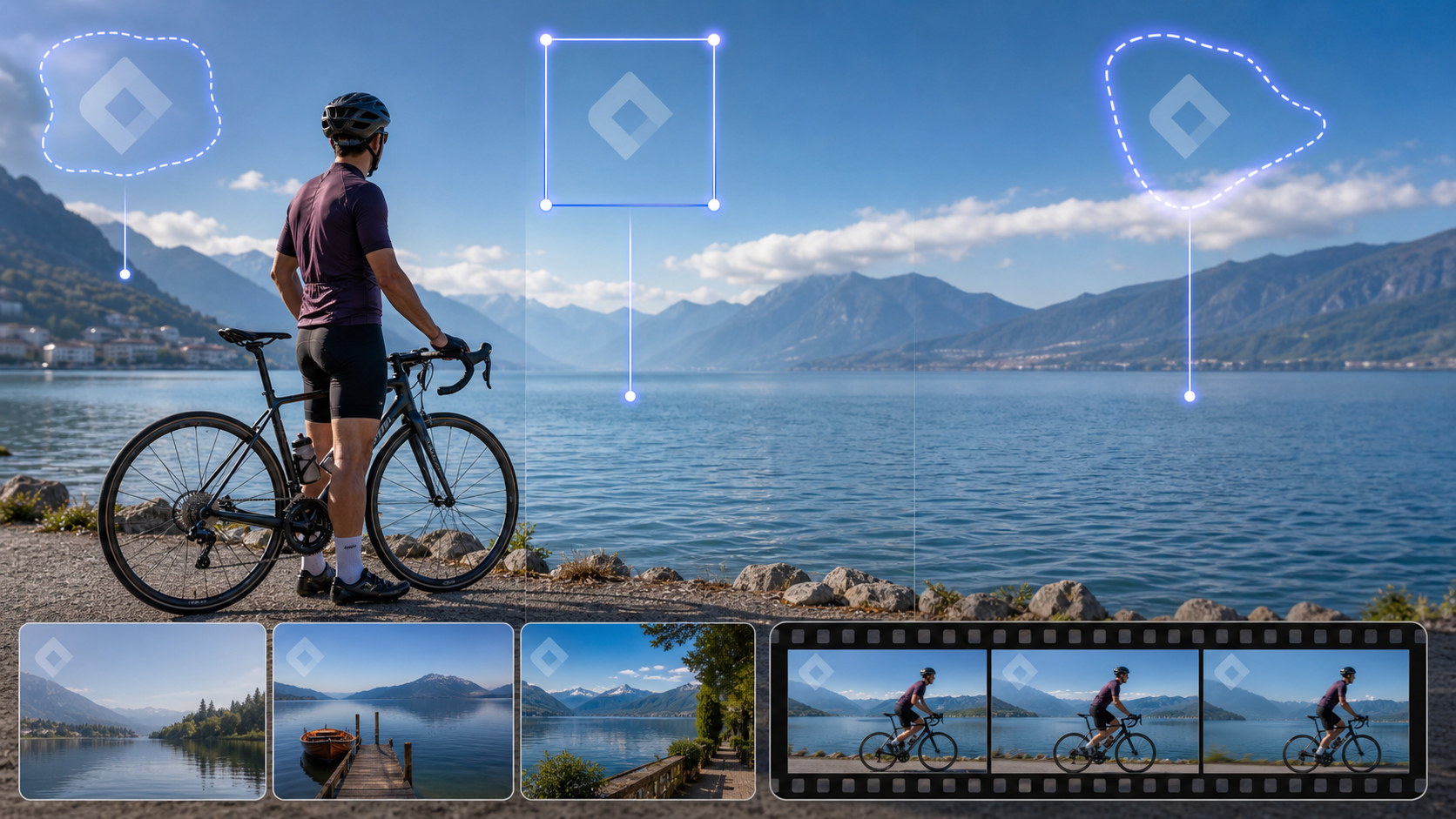
Several features make PicWish accessible to people without professional editing experience:
Automatic recognition of text watermarks and overlays
Manual brush, rectangle, and lasso selection tools
AI-generated background filling
Batch processing for up to 50 images
Web, desktop, Android, and iOS access for image editing
Video watermark selection through the desktop application
Batch processing is particularly useful for repetitive image work. An online seller replacing an outdated corner label across 30 product photos can mark the same position once and apply that selection to the entire group.
Video removal works somewhat differently. Users define the affected area and, where available, specify when the watermark appears. This is more practical for a stationary logo than for one that moves repeatedly across the frame.
Pros and Cons of PicWish Watermark Remover
The main advantage is simplicity. Uploading a photo, selecting a watermark, and running the removal process requires little technical knowledge. The automated workflow is designed to handle straightforward edits quickly, although processing time may vary. Common formats such as JPG, JPEG, PNG, BMP, WEBP, HEIC, and JFIF are supported for image removal.
PicWish also offers automatic and manual controls. Automatic detection saves time on clear text overlays, while manual selection helps when the software misses a logo or removes too much of the surrounding image.
Its limitations become more noticeable on difficult material. PicWish currently offers three free image uses, while non-HD downloads are limited under the free plan. Additional processing and HD exports may require credits or a paid plan. Video watermark removal generally relies on the installed application rather than the main online image workflow. Fine adjustments are also limited compared with a full video editor.
Complex scenes can produce visible defects. A logo covering a person’s hair may be replaced with a soft patch, while removal over moving water can create repeated textures. In video, inconsistent reconstruction from one frame to the next may appear as flickering or a faint residual mark.
Common Use Cases for PicWish
PicWish is best suited to authorized content with small, clearly defined watermarks. Someone updating an owned product catalog could remove an obsolete promotional badge before adding new branding. A scanned family photo with an unwanted date stamp is another manageable task, particularly when the stamp sits over a wall or open sky. Similar image-based cleanup can also be completed with an AI watermark remover.
Other suitable uses include cleaning fixed corner logos from approved marketing assets and removing a stationary watermark from a short video. PicWish should not, however, be treated as a professional restoration system for every type of footage. Large overlays, changing backgrounds, and watermarks that cross important subjects require more advanced reconstruction.
How to Remove a Watermark With PicWish
The basic process is straightforward, although reviewing the repaired area matters just as much as removing the mark itself.
Remove a Watermark From an Image
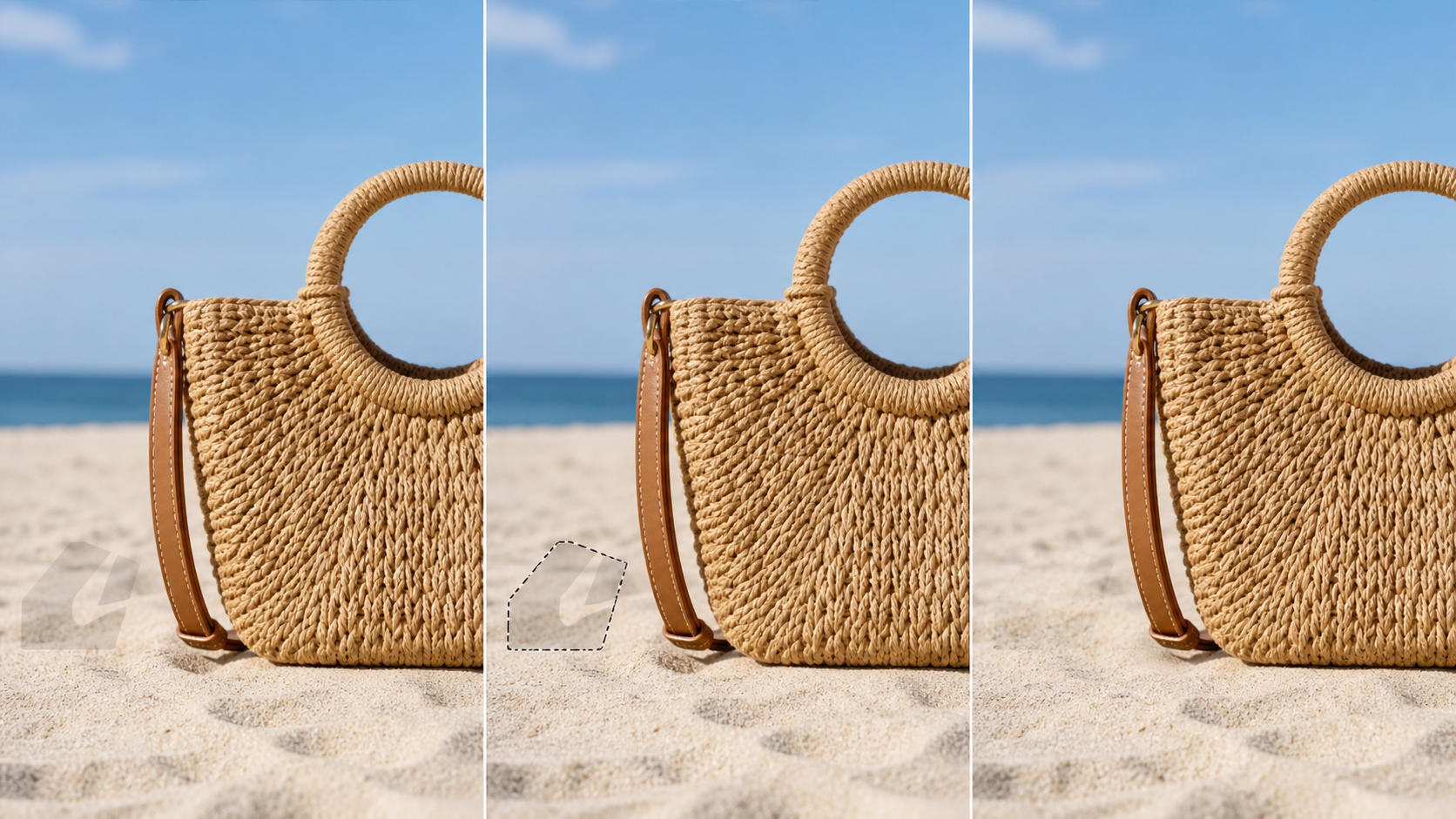
Open the watermark removal tool and upload the image. PicWish can automatically identify text, or you can select the watermark manually with a brush, rectangle, or lasso.
After marking the complete watermark, run the removal process and compare the edited version with the original. Pay close attention to lettering, facial outlines, product edges, and patterned surfaces. A repaired section may look acceptable at normal size but reveal duplicated textures or blurred boundaries when enlarged.
Once the result looks natural, download the image in the available quality. If the fill appears uneven, undo the edit and use a tighter selection instead of covering a large surrounding area.
Remove a Watermark From a Video
Users searching for how to remove video watermark in PicWish will usually need its desktop video tool. Open the application, choose the video watermark removal feature, and upload the source clip. Next, create a selection box around the logo or text.
When the watermark appears only during part of the clip, set the relevant time range rather than applying removal to every frame. A fixed television station logo that remains visible throughout a 20-second recording can use one selection across the complete video. If the logo changes position, separate selections or additional processing may be necessary.
Start the removal, wait for the video to process, and save the edited file only after checking the preview.
Preview and Check the Edited Result

A single paused frame cannot reveal every problem. Play the complete video and watch what happens when a person, vehicle, or textured object passes behind the removed watermark.
Look for:
Sudden blur around the repaired area
Textures that jump between frames
Faint outlines or residual shadows
Smearing along moving objects
Brightness changes or flickering
The type of video watermark, along with its size, opacity, movement, background complexity, and source resolution, affects the final result. A small white logo over a static blue wall gives the AI more consistent visual information than translucent text crossing a low-resolution crowd scene.
How Well Does PicWish Remove Different Watermarks?
Performance varies considerably because each watermark hides a different amount and type of visual information.
Static Logos and Text on Simple Backgrounds
Small corner logos, camera date stamps, and text placed over solid colors are generally the easiest targets. Nearby areas provide stable colors and textures that the AI can extend into the selected space.
A date stamp on the lower edge of a beach photo may disappear cleanly when it covers only sand. The same date over a person’s patterned swimsuit would be harder to reconstruct because the missing design cannot be inferred as reliably.
Watermarks Over Detailed or Moving Backgrounds
Hair, faces, fabric patterns, lettering, and product outlines leave less room for error. PicWish may remove the visible watermark but replace it with softened details, repeated patterns, or broken edges.
These flaws are especially noticeable in e-commerce photos. When a logo crosses the rim of a watch or the edge of a handbag, an inaccurate fill can subtly change the product’s shape. Manual reselection may improve the result, but it cannot guarantee recovery of the concealed detail.
Movement adds another problem. The repaired area must change naturally with every frame. If a cyclist passes behind a fixed logo, the system needs to reconstruct different sections of the rider, bicycle, and background over time.
Moving and Full-Screen Watermarks
Floating logos, scrolling usernames, large translucent overlays, and repeated tiled watermarks present the greatest challenge. They cover more information and may require continuous tracking across the screen.
Even after the visible text disappears, full-screen removal can leave widespread softness or inconsistent textures. A moving logo may also produce a trail if the selection fails to follow its complete path. Choosing an appropriate method to remove a moving logo from video becomes more important in these cases because simple frame-by-frame filling may not maintain consistent results.
RoboNeo as an Alternative to PicWish
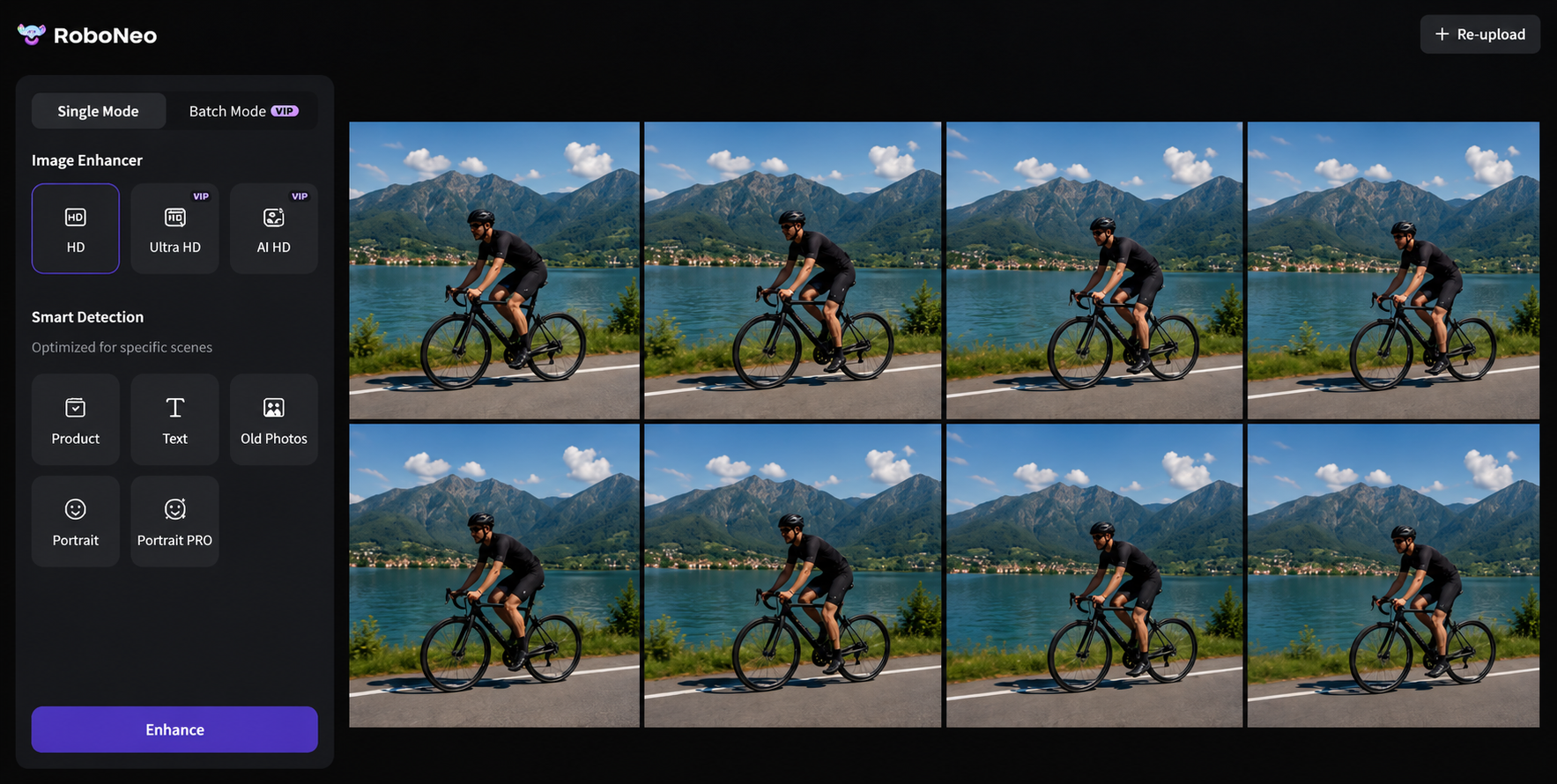
When a logo moves or the background changes continuously, the job is no longer limited to filling one fixed area. The software must preserve visual consistency across adjacent frames.
RoboNeo Watermark Remover is designed around this type of video workflow. It analyzes surrounding texture, motion, lighting, and nearby frames to rebuild the covered region. Both fixed and moving watermarks are supported, and the original frame can remain intact without cropping or placing an obvious blur over the logo.
| Feature | PicWish | RoboNeo |
| Online or Desktop Workflow | Online image tool; desktop app commonly used for video | Online AI workflow |
| Static Watermarks | Well suited to small logos and text | Supports fixed logos and overlays |
| Moving Watermarks | More limited on changing positions and backgrounds | Designed to track and remove moving marks |
| Batch Processing | Supports batches of up to 50 images | Focuses more on AI-assisted video processing |
| Ease of Use | Simple automatic and manual selection | Guided workflow with automated reconstruction |
| Main Limitations | May blur details or flicker in complex video | Results still depend on source quality and hidden detail |
| Best Use Cases | Images, date stamps, fixed logos, occasional video edits | Moving logos, subject overlap, and complex video backgrounds |
PicWish makes sense for simple image watermarks, stationary corner logos, and occasional video cleanup. Its batch image tools also suit sellers or content teams working through many similar photos.
RoboNeo is better aligned with an online workflow and videos where a watermark moves, crosses a subject, or appears over changing scenery. Neither tool can promise a perfect restoration: both generate a plausible replacement rather than recover the exact visual data that the watermark concealed.
FAQ
Is PicWish Watermark Remover free to use?
PicWish currently offers three free image uses. Non-HD downloads are limited under the free plan, while additional processing and HD exports may require credits or a paid subscription. Limits can change, so check the current plan before processing a large batch.
Does PicWish lower image or video quality?
The tool aims to preserve the original quality, but the reconstructed area may look softer than the surrounding content. Video can also show flickering or smearing when the watermark overlaps motion or detailed textures.
What image and video formats does PicWish support?
The online image remover lists JPG, JPEG, PNG, BMP, WEBP, HEIC, and JFIF support. Video compatibility may vary by application version and operating system, so confirm the accepted format inside the desktop tool before starting a large project.
Does PicWish add its own watermark to exported files?
PicWish states that files exported through its PDF watermark remover do not receive a trial watermark. Its public documentation does not provide the same clear guarantee for every image and video export option, so check the preview and current plan conditions before downloading.
Is removing a watermark legal?
It depends on ownership, permission, licensing terms, and local law. Removing marks from your own files or content you are authorized to edit is generally the safest use. Do not remove ownership information to reuse or distribute another creator’s work without permission.
You May Be Interested
4K vs 1080p: Should You Upscale 1080p Video to 4K?
6 Best Ai Character Generator in 2026: Tested & Compared
Best AI Video Enhancer in 2026: 8 Tools, Pros and Cons
5 Best Free Tools to Remove Watermark from Video in 2026 | RoboNeo

Best YouTube Script Generator: From Script Writing to Video Creation