
Frames to Video: How to Turn Image Frames Into Smooth Video
 RoboNeo TeamMay 20, 2026
Introduction
You spent an hour generating the perfect image sequence. Consistent character, clean backgrounds, exactly the aesthetic you wanted. You drop the frames into a video tool, hit export, and what comes out looks like a PowerPoint from 2009. The frames flicker. The subject jumps position between cuts. The lighting shifts randomly. Nothing flows.
This is one of the most common frustrations for creators working with AI-generated image sequences in 2026, and almost nobody talks about why it actually happens or what specifically fixes it. We ran into this problem repeatedly when building video workflows around AI-generated content. After testing dozens of sequences across different generation tools and conversion methods, we identified five root causes that account for almost every choppy output we have ever seen. More importantly, we found fixes for each one that actually work.
Why AI Image Sequences Are Harder Than Regular Photos
Before fixing choppy AI videos, it helps to understand the real cause. Unlike real-world footage, AI-generated frames are created independently each time, even with the same prompt and settings.
Small inconsistencies in lighting, facial features, textures, or object positions naturally appear between frames. Individually they look fine, but once played back at video speed, those tiny differences become visible flicker and unstable motion. That is why most smoothness problems are not caused by the video converter itself, but by inconsistencies introduced during image generation.
The Causes of Choppy AI Video (And How to Fix Each One)
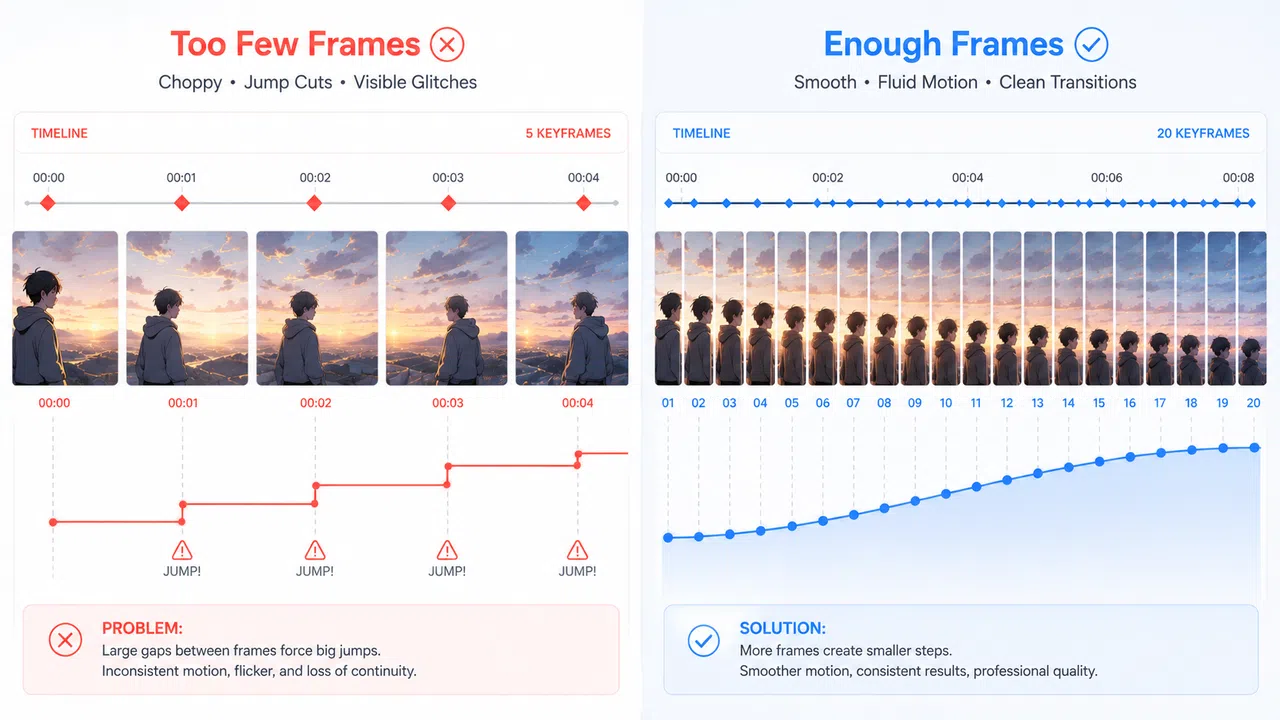
Cause 1: Too Few Frames Covering Too Much Motion
The most common cause of choppy output is asking the AI to bridge too large a visual gap between frames. If frame 1 shows a character with their arm at their side and frame 3 shows the arm fully raised, any tool converting those frames into video has to invent the middle position. The further apart the visual states of adjacent frames, the harder that interpolation becomes, and the more unnatural the result looks.
The fix: Generate more frames covering smaller increments of motion. For a 10-second video at 24 fps, you need 240 frames. Most creators generating AI sequences think in terms of 10 to 20 images, which is nowhere near enough for smooth motion at standard playback speed.
Cause 2: Inconsistent Subject Position Across Frames
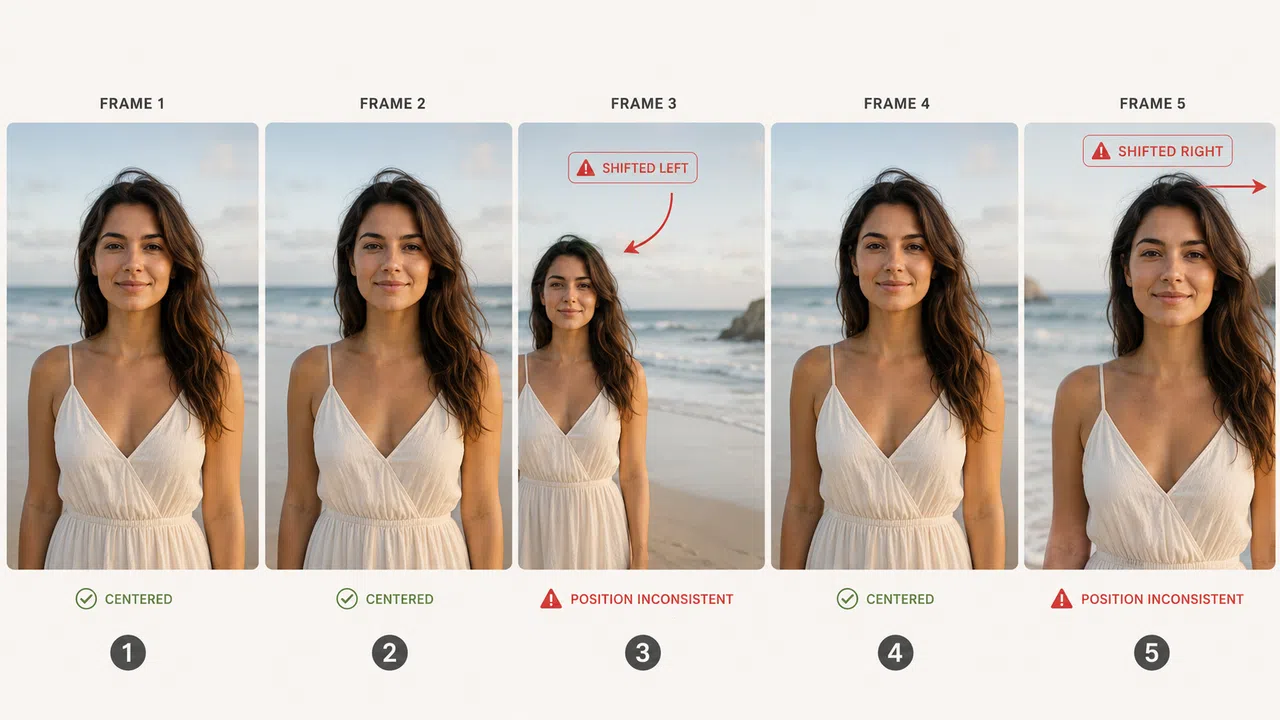
This one is subtle but devastating.When a character or subject shifts position significantly between frames, even by a small amount, the eye catches it immediately during playback. AI generators are notorious for this.
The fix: Use a reference image to anchor subject position across your sequence. RoboNeo's Reference Image to Video feature locks in the visual DNA of your source image, including the subject's position, proportions, and spatial relationship to the background, and maintains that consistency across every generated frame.
Cause 3: Color Temperature and Exposure Drift
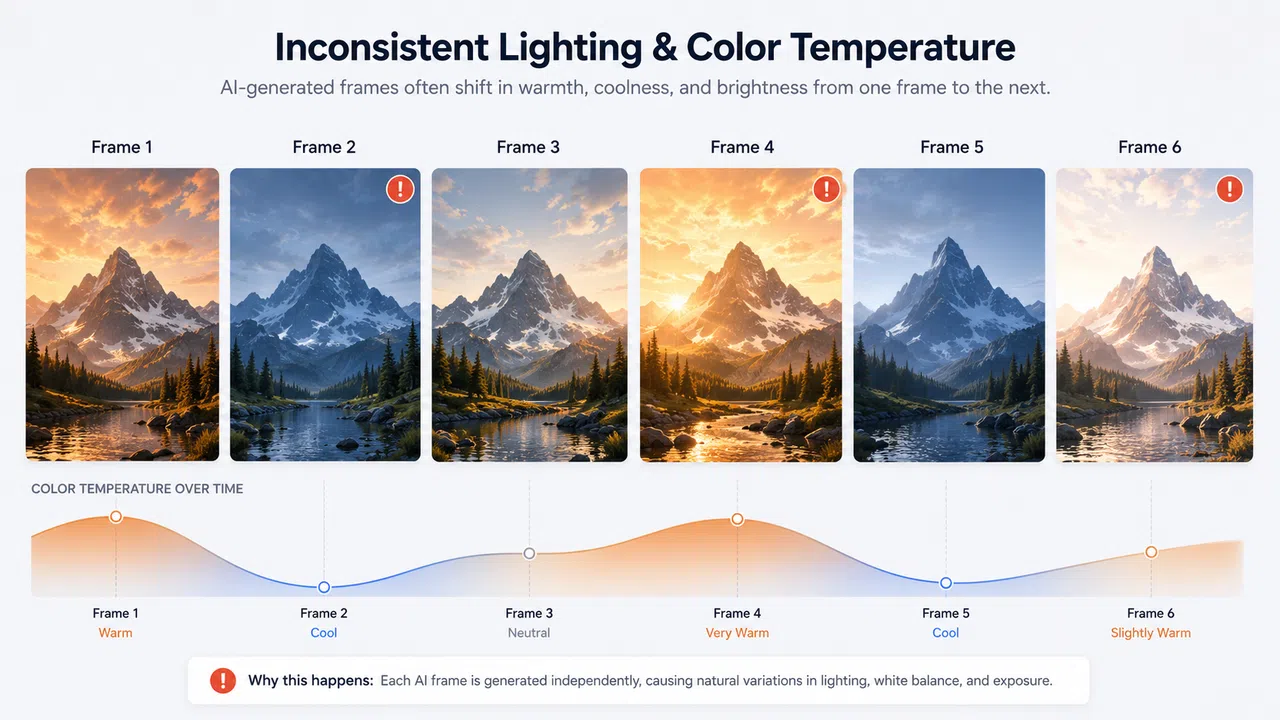
When AI generators produce a sequence of images, the color temperature, exposure level, and contrast can shift between frames even with identical prompts and settings. On a single image, this is invisible. Across a sequence playing at 24 fps, it creates a flickering effect that looks like a broken projector.
The fix: Generate your entire sequence in a single batch where possible, using identical prompts and settings. Before converting to video, run your frames through RoboNeo's AI editing tools to normalize color temperature and exposure across the sequence. Use the prompt-based editing to apply a consistent color grade to all frames before assembly. This takes about two minutes and eliminates flicker almost entirely.
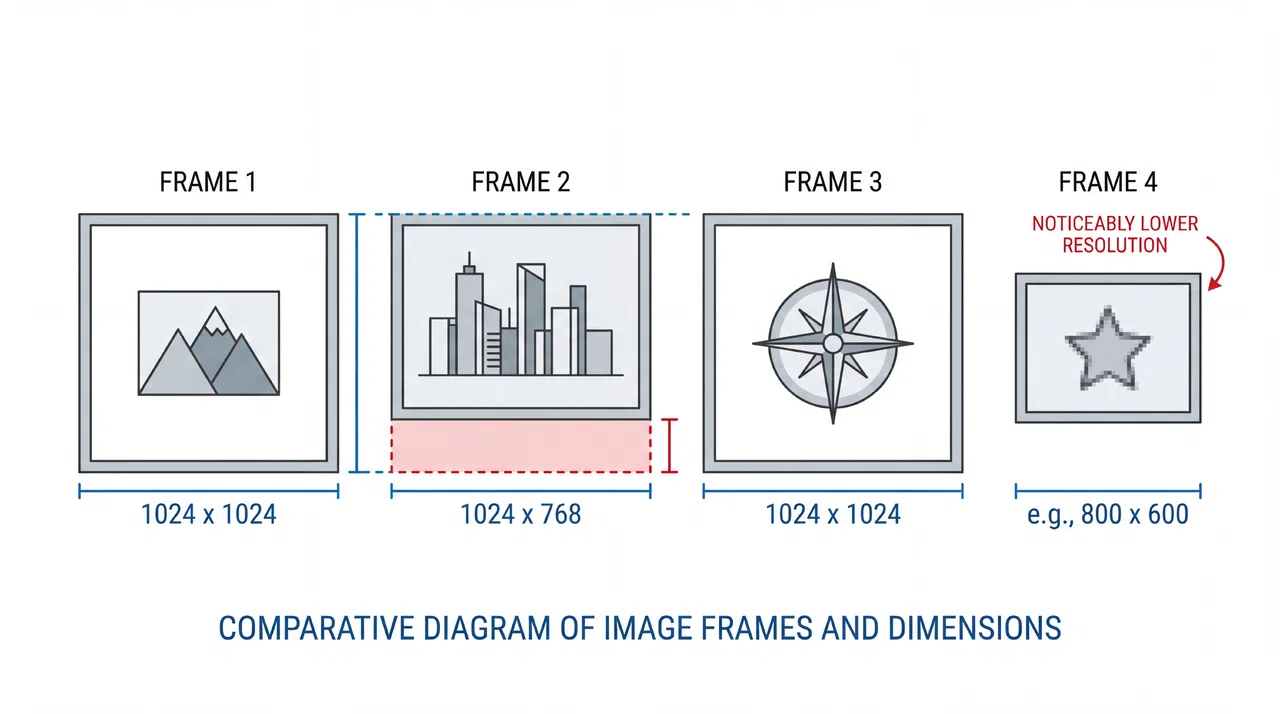
Cause 4: Aspect Ratio and Resolution Inconsistency
This one is straightforward but easy to overlook, especially when sourcing frames from multiple generation sessions or different tools. Resolution inconsistencies are similar. A sequence where some frames were generated at higher resolution than others will show visible quality differences between those frames during playback.
The fix: Before uploading any sequence, verify that every frame shares the same aspect ratio and resolution. This takes 30 seconds in any basic file browser by checking image dimensions.
RoboNeo Real Use Cases


The Workflow That Fixed It For Us
1: Generate in a single batch.
Use identical prompts and settings across all frames. If the sequence requires different lighting or positions, plan those variations before generating rather than adjusting mid-batch.
2: Use reference image consistency.
Either generate each frame from the previous one using image-to-image, or use RoboNeo's Reference Image to Video to anchor subject position and visual style across the full sequence.
3: Check dimensions before uploading.
Verify every frame shares the same aspect ratio and resolution.
4: Normalize color across the sequence.
Run all frames through RoboNeo's AI editing to apply consistent color temperature and exposure before conversion.
5: Use Start-to-End Frame for complex motion.
For any motion arc that requires more frames than you want to generate manually, upload the first and last frame and let RoboNeo generate the intermediate states.
6: Set Temporal Control to match the energy of the content.
Slow and emotional for cinematic sequences, high-energy for social media ad content. This controls pacing without manual keyframing.
FAQ
Why do my AI image sequences always look choppy when I convert them to video?
How many AI-generated frames do we need for smooth video?
At 24 fps, a 10-second video requires 240 frames. Most creators generate far fewer than this, which forces the conversion tool to interpolate over large visual gaps and produces choppy output. If generating that many frames is not practical, use RoboNeo's Start-to-End Frame feature to generate the intermediate frames automatically from your first and last frame.
Does the AI image generator we use affect output quality?
Yes. Generators that support image-to-image workflows produce more consistent sequences than those that generate each frame entirely from text. Generators with stronger style-locking features maintain more consistent color science and subject positioning across a batch. That said, the preparation workflow above compensates significantly for generator inconsistency. We have produced smooth video from sequences generated in tools with relatively weak consistency controls by following the normalization steps before conversion.
What is the best frame rate for AI-generated image sequences?
24 fps for cinematic content, 30 fps for social media platforms. Higher frame rates require more source frames to maintain smooth motion and are generally unnecessary for AI-generated sequences unless the content involves very fast motion.