
AI Video Enhancer: Upscale, Denoise & Sharpen
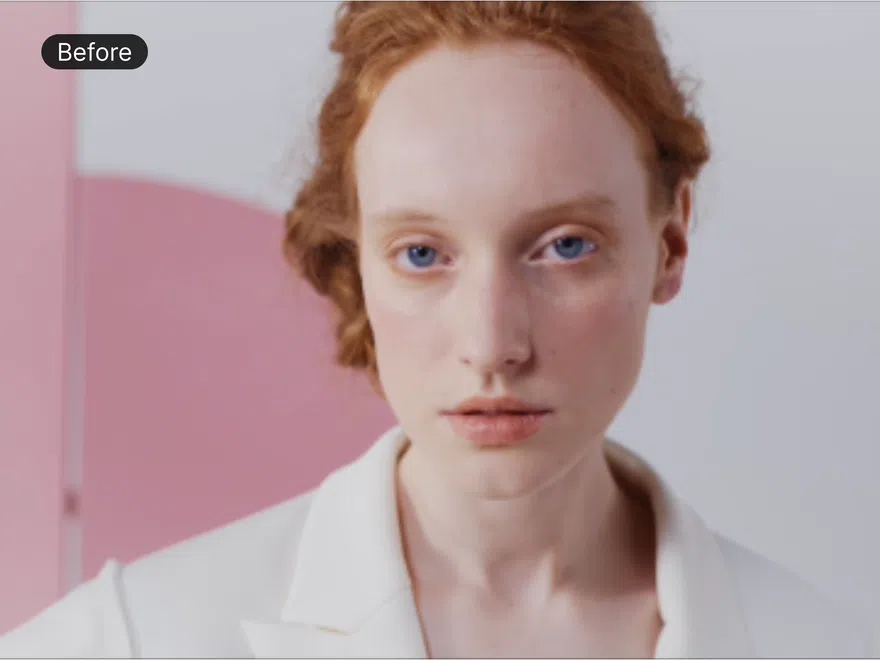
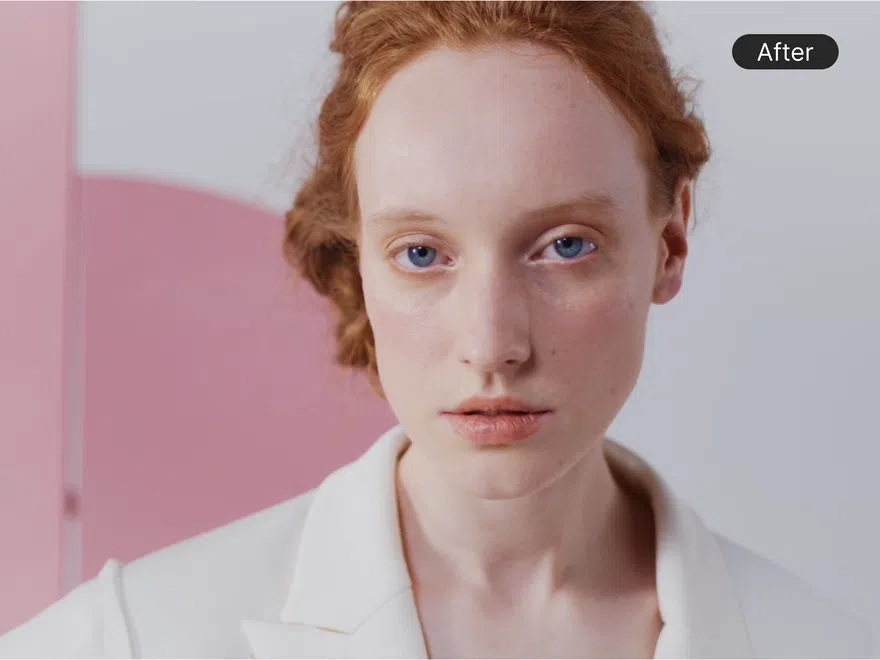
How to Enhance Video Quality with RoboNeo
Upload Your Video
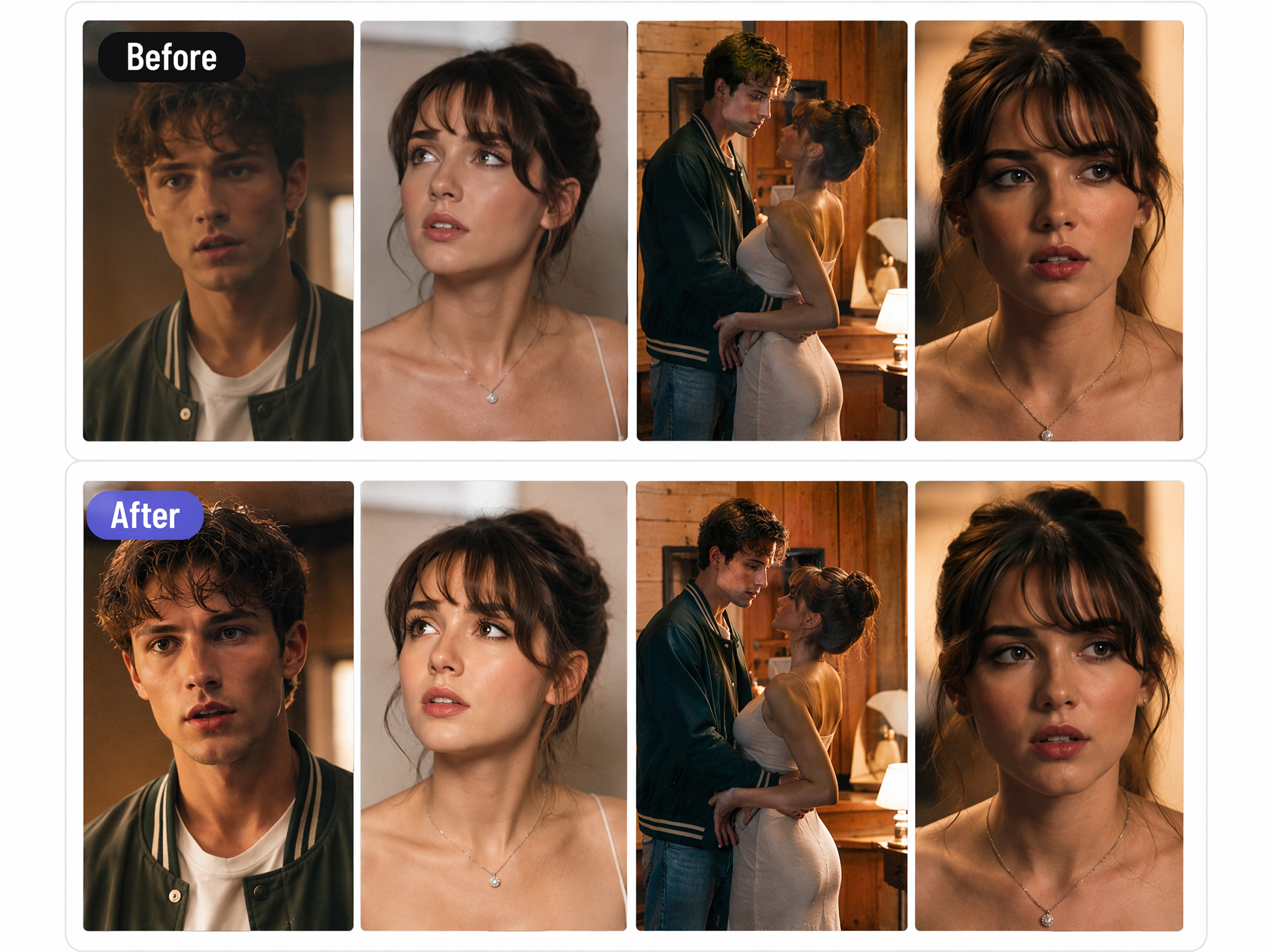
Upload the blurry, noisy, or low-resolution video to RoboNeo Video Enhancer tool.
Describe the Enhancement
Enter a prompt asking RoboNeo to sharpen details, improve resolution, or enhance overall video clarity.
Generate the Enhanced Video
Submit your request and let the video enhancer analyze the footage and apply the selected improvements.
Preview and Download
Preview the enhanced video, check the clarity and motion, and download the finished clip when you are satisfied.
Why RoboNeo Makes Video Enhancement Easier
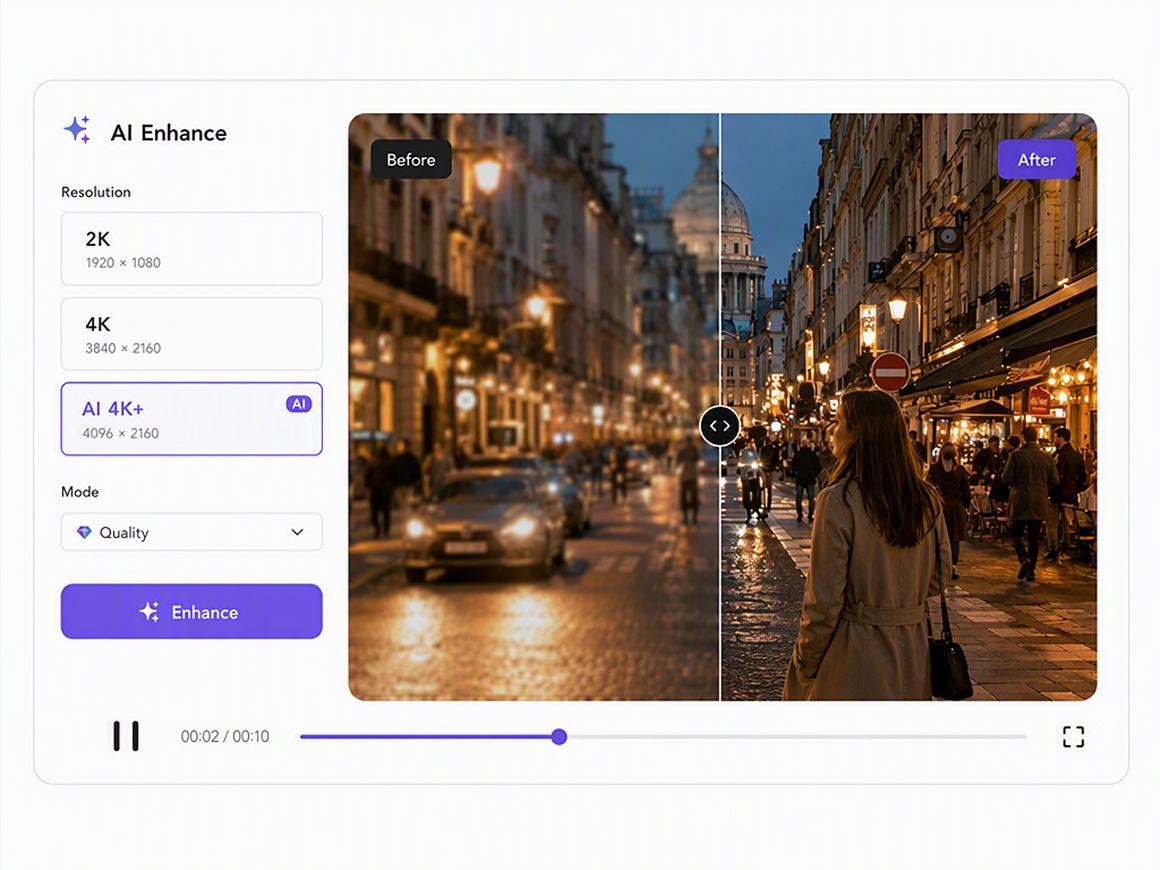
Upscale Video to 2K, 4K, or Higher
Choose the output level that fits your clip: 2K, 4K, or AI 4K+ for an extra push. RoboNeo’s video enhancer rebuilds clearer detail as it upscales, so soft or low-res footage looks sharper on larger screens.
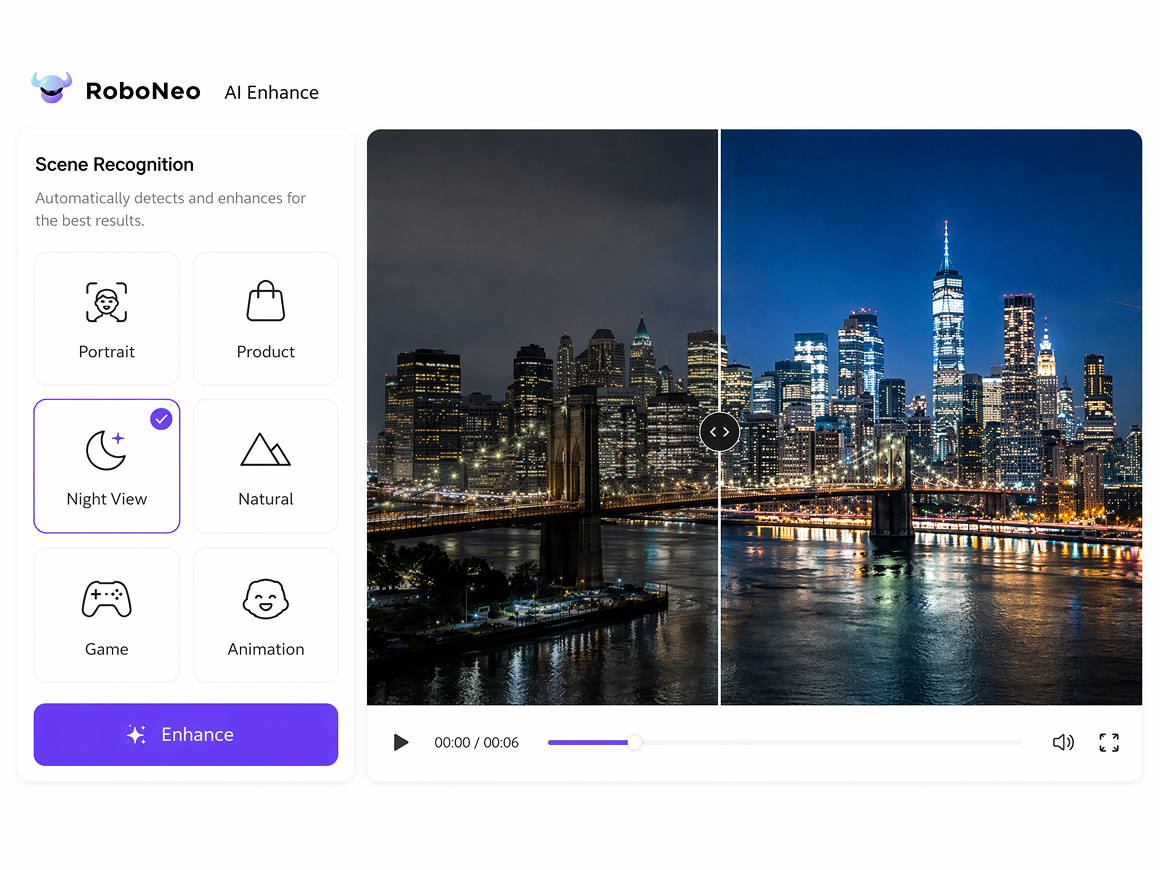
Auto-Detect for Customized Clarity
Turn on Auto-Detect and let RoboNeo match the enhancement to the scene: Portrait, Product, Night View, Natural, Game, or Animation. Scenario. Optimized processing helps each clip get the right kind of clarity, not one generic pass.
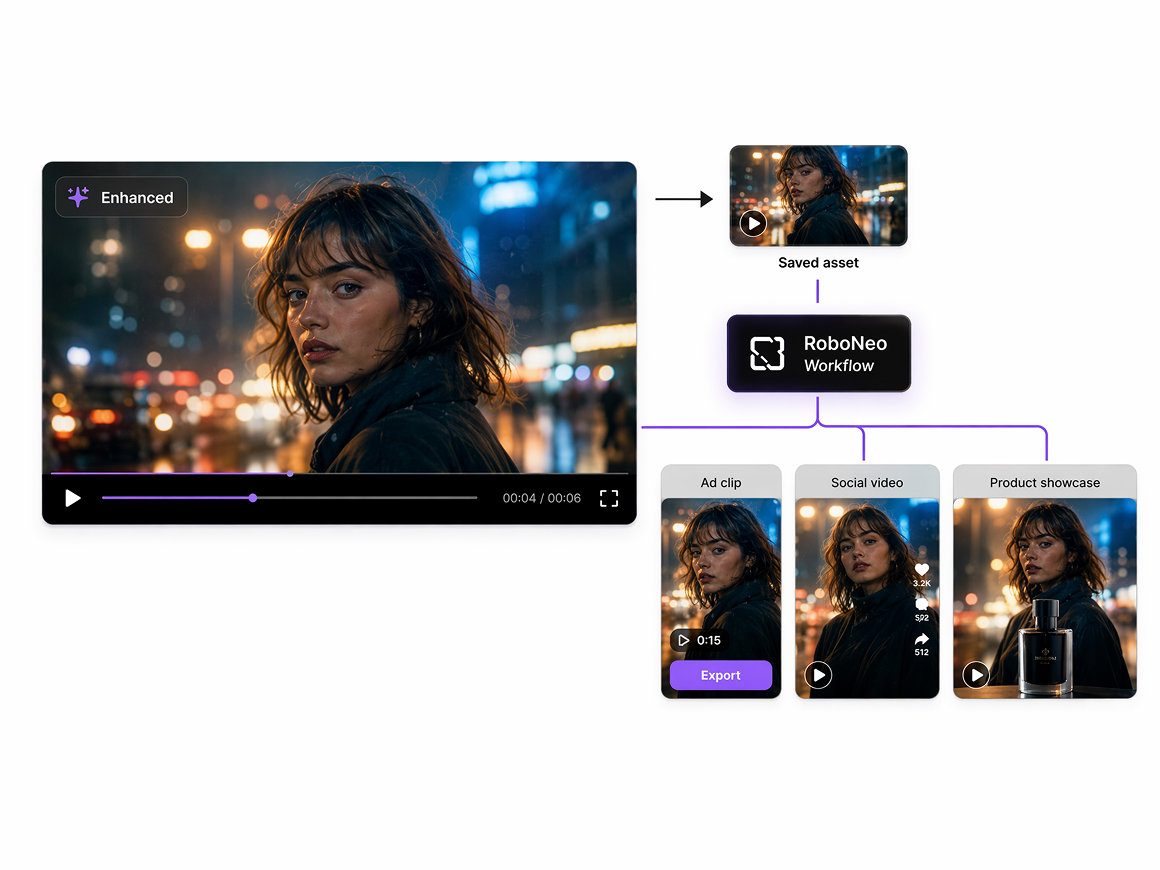
Upload Straight Into Your Workflow as Assets
Send the enhanced video into your RoboNeo workflow and keep it as a reusable asset. You can pull it back for the next edit, campaign cut, or republish round without re-uploading or rebuilding the file from scratch.
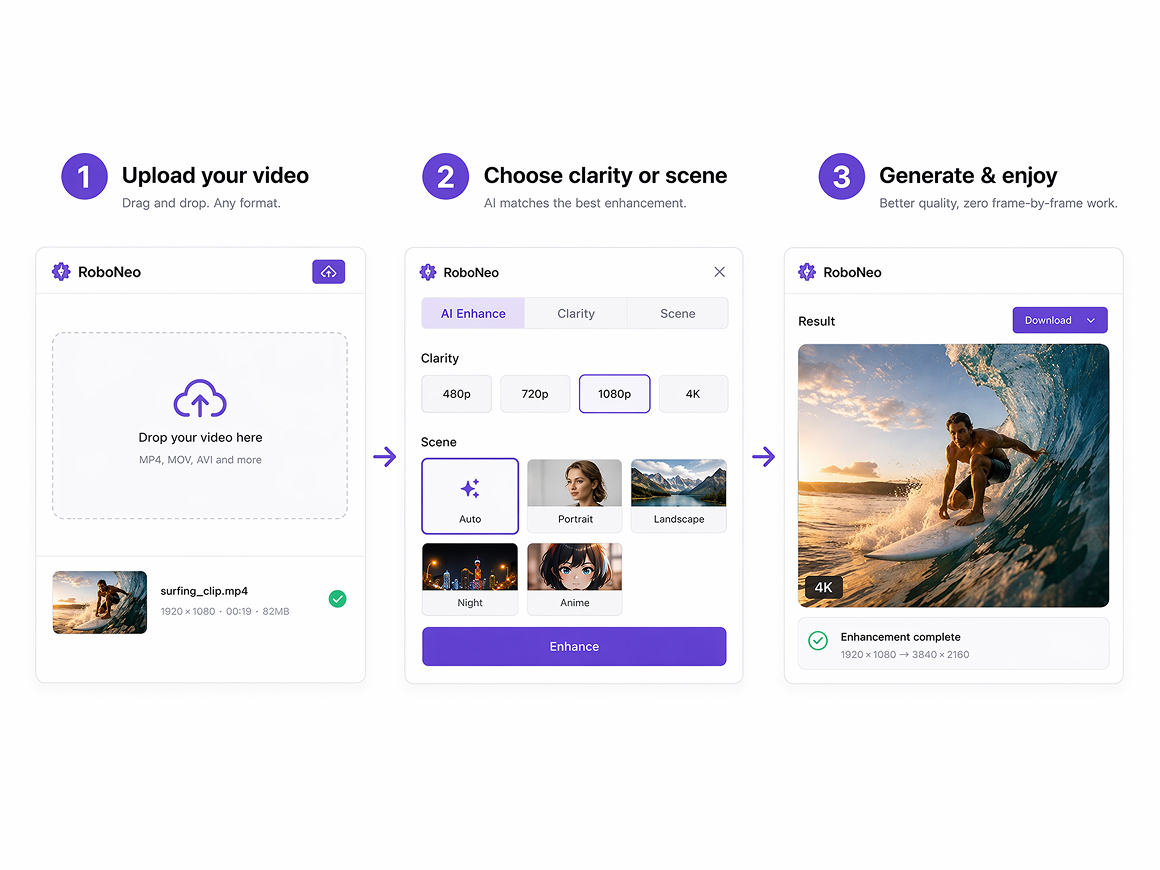
Get Cleaner Footage Without Timeline Editing
Skip scrubbing frame by frame in a traditional editor. Pick your resolution, apply Auto-Detect or a scenario preset, and generate clearer, sharper video ready for social posts, ads, product pages, and presentations.
Built for Everyday Video Enhancement Workflows
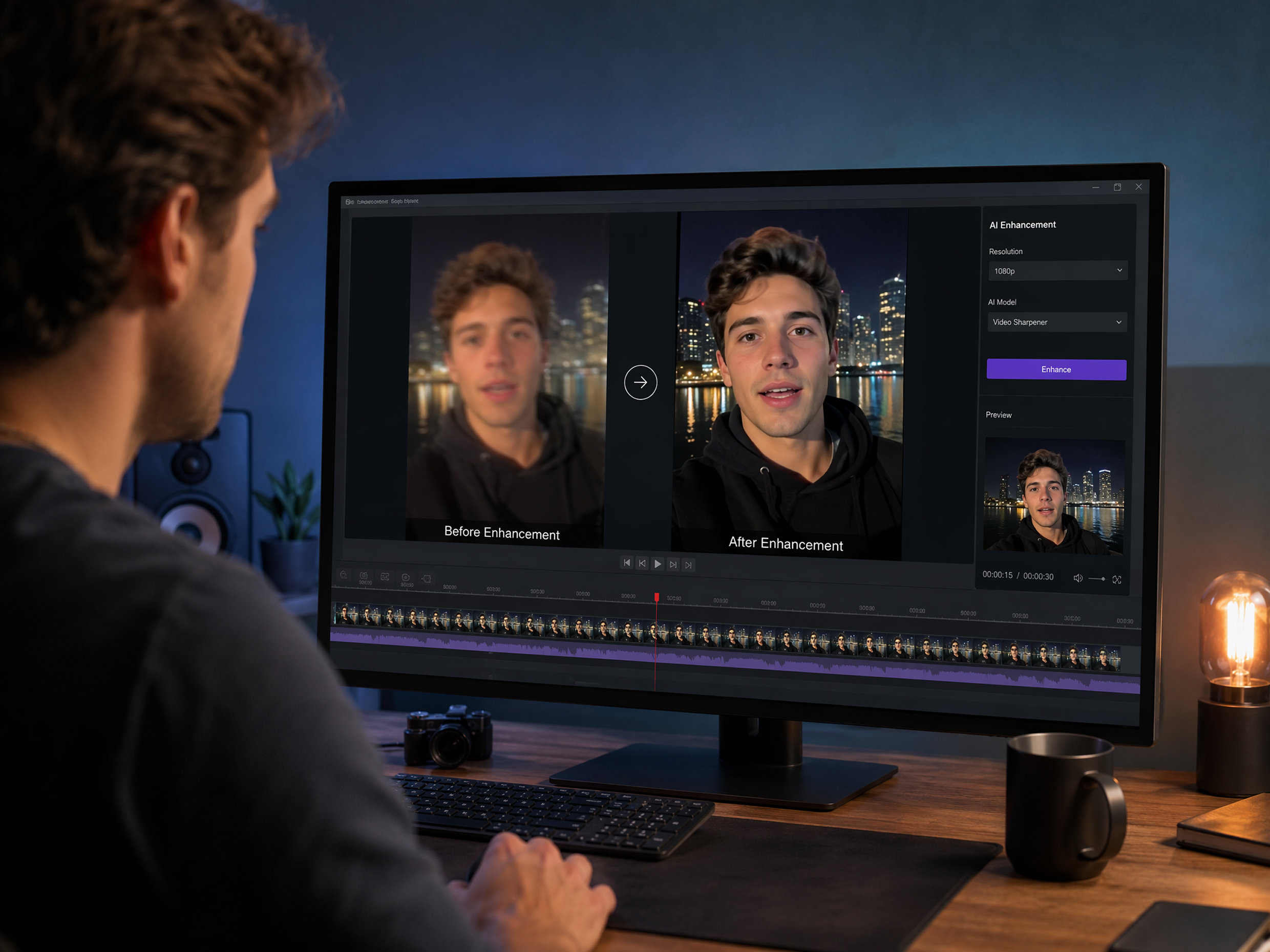
Social Media Creators
Clean up phone videos, AI-generated clips, and low-light footage before posting to TikTok, Instagram, or YouTube. Creators can get sharper, cleaner videos that look better after platform compression and are easier to reuse across short-form posts, ads, and other channels.

FAQ
Can AI improve video quality for free?
How can I enhance a video to 4K?
Upload the video, choose 2K, 4K, or AI 4K+, and run the enhancement. A clear source usually gives better results, while very compressed or blurry footage may still look soft after upscaling.
Can I enhance a blurry video?
You can often improve mild blur, softness, and low-resolution footage. Strong motion blur or badly missed focus is harder to fix because the original detail may be missing.
Can AI fix poor video quality?
It can improve noise, softness, compression artifacts, and low resolution. The result depends on how damaged the original file is, so heavily compressed footage may only improve to a certain point.
Can AI upscale video resolution?
AI upscaling increases the output resolution and can make the video look cleaner on larger screens. It works best when the original clip still has enough visible detail.
Can AI sharpen a video?
AI sharpening can make edges, faces, and product details look clearer. It is best to preview the result, since too much sharpening can make the video look rough or unnatural.
Enhance Video Quality Before You Publish
Use RoboNeo’s AI video enhancer to sharpen details, reduce visible noise, and create clearer footage for social media, ads, product pages, and presentations. Upload your video and improve its quality in one simple workflow.
What Users Say About RoboNeo Video Enhancer
Some of my phone videos looked soft and grainy after uploading them to social platforms. RoboNeo helped clean up the footage and bring back enough detail to make the clips look noticeably better without requiring a full re-edit.
We had several older product videos that were too low-resolution for our updated listings. The video enhancer made the footage clearer and easier to reuse, which saved our team from scheduling another product shoot.
Marcus T.
I needed to improve a compressed campaign video before resizing it for social ads. RoboNeo gave me a cleaner version quickly, and the prompt-based workflow felt much more straightforward than adjusting multiple settings in a traditional editor.