Unified Cinematic Video Prompt: AI Video Prompt Guide
 RoboNeo TeamOctober 28, 2026
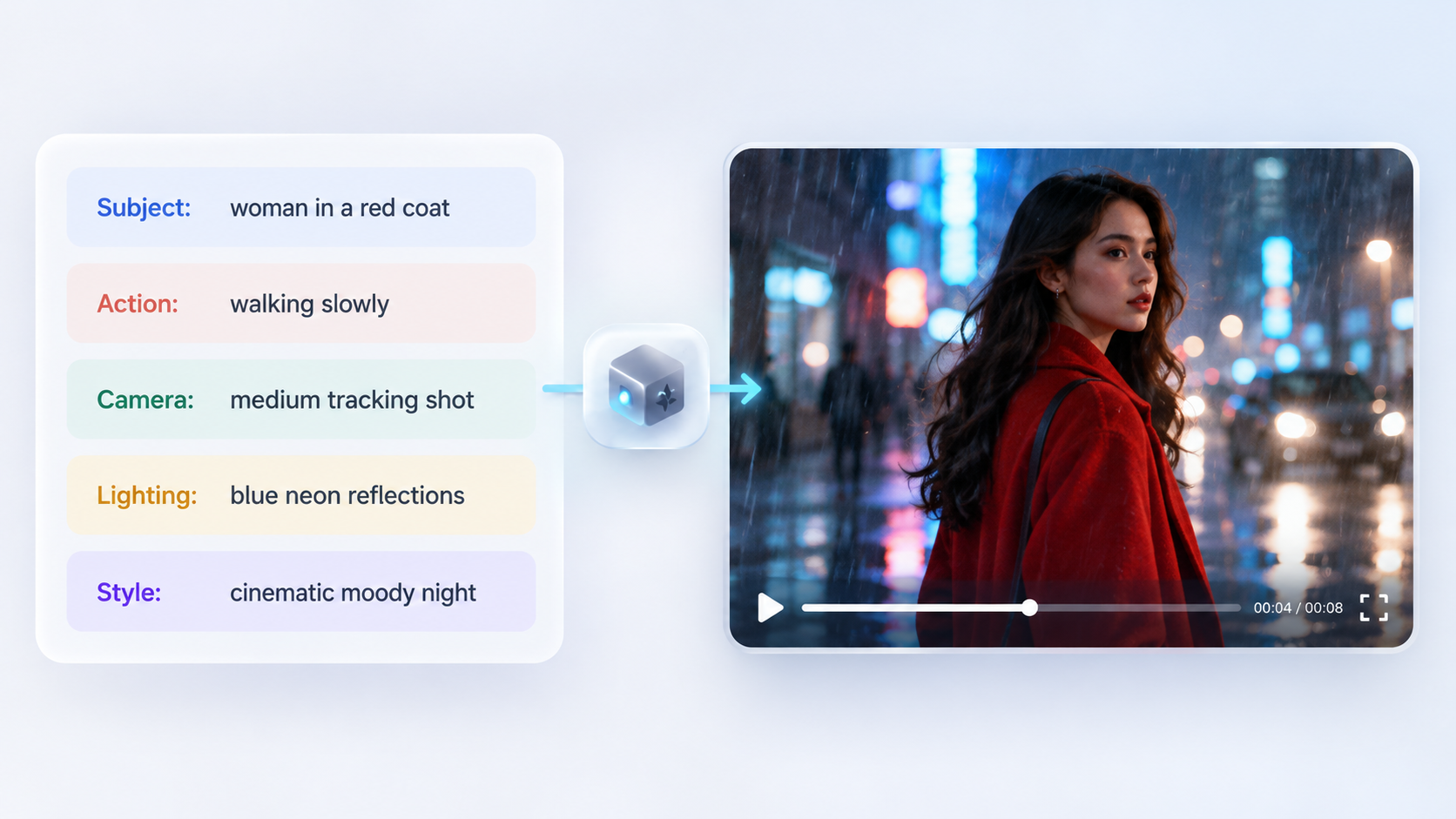
A unified cinematic video prompt combines the subject, action, setting, camera movement, lighting, and visual style into one clear instruction for AI video generation. A practical structure is Subject + Action + Setting + Camera + Lighting + Mood, with consistency details added when needed.
This guide explains how to build cinematic video prompts using this structure, adapt them to different scenes, and generate videos with RoboNeo. It also covers common prompting mistakes and ways to refine the results.
What Is a Unified Cinematic Video Prompt?
A unified cinematic video prompt is a way to organize visual and filming instructions into one coherent description. It gives an AI video model more context about the intended shot without requiring a fixed prompt syntax.
How Is a Unified Cinematic Video Prompt Different From a Regular AI Video Prompt?
A basic prompt describes the subject and action. A unified prompt adds camera direction, lighting, and atmosphere.
| Prompt Type | Example |
| Basic Video Prompt | A woman walking down a street at night. |
| Unified Cinematic Video Prompt | A woman in a red coat walks down a rain-soaked city street at night. A medium tracking shot follows her, with neon reflections, soft backlighting, and a moody blue color palette. |
The second version provides more specific creative direction, although actual results still depend on the AI video model.
How Can a Unified Cinematic Video Prompt Improve AI Video Results?
A unified cinematic video prompt brings the subject, action, camera direction, lighting, and visual style into one coherent instruction. This can improve AI video results in three ways, depending on the scene you're creating.
For an action sequence, combining a character's movement with a specific camera direction helps the AI interpret how the shot should unfold. For example, describing a runner moving through a narrow alley while the camera tracks from behind provides clearer direction for framing and motion than simply requesting a cinematic chase scene.
For a product advertisement, camera angles and lighting need to complement each other. A prompt describing a watch on a stone pedestal, with a slow orbiting camera and soft studio lighting, can guide the AI to reveal the product's details while maintaining a consistent visual atmosphere.
For a multi-shot story, repeating the same character descriptions, clothing, and lighting style across unified prompts can help maintain visual continuity. A detective appearing in several scenes, for instance, should retain recognizable features even as the camera angle and setting change. These instructions may reduce inconsistencies, although results still depend on the AI video model.
How to Write an Effective Unified Cinematic Video Prompt
When writing prompts for generating movie-quality AI videos, camera movement, lighting, and visual details are just as important as the scene itself. The following steps use a rainy city street scene to show how these elements work together.
Define the Subject, Action, and Scene
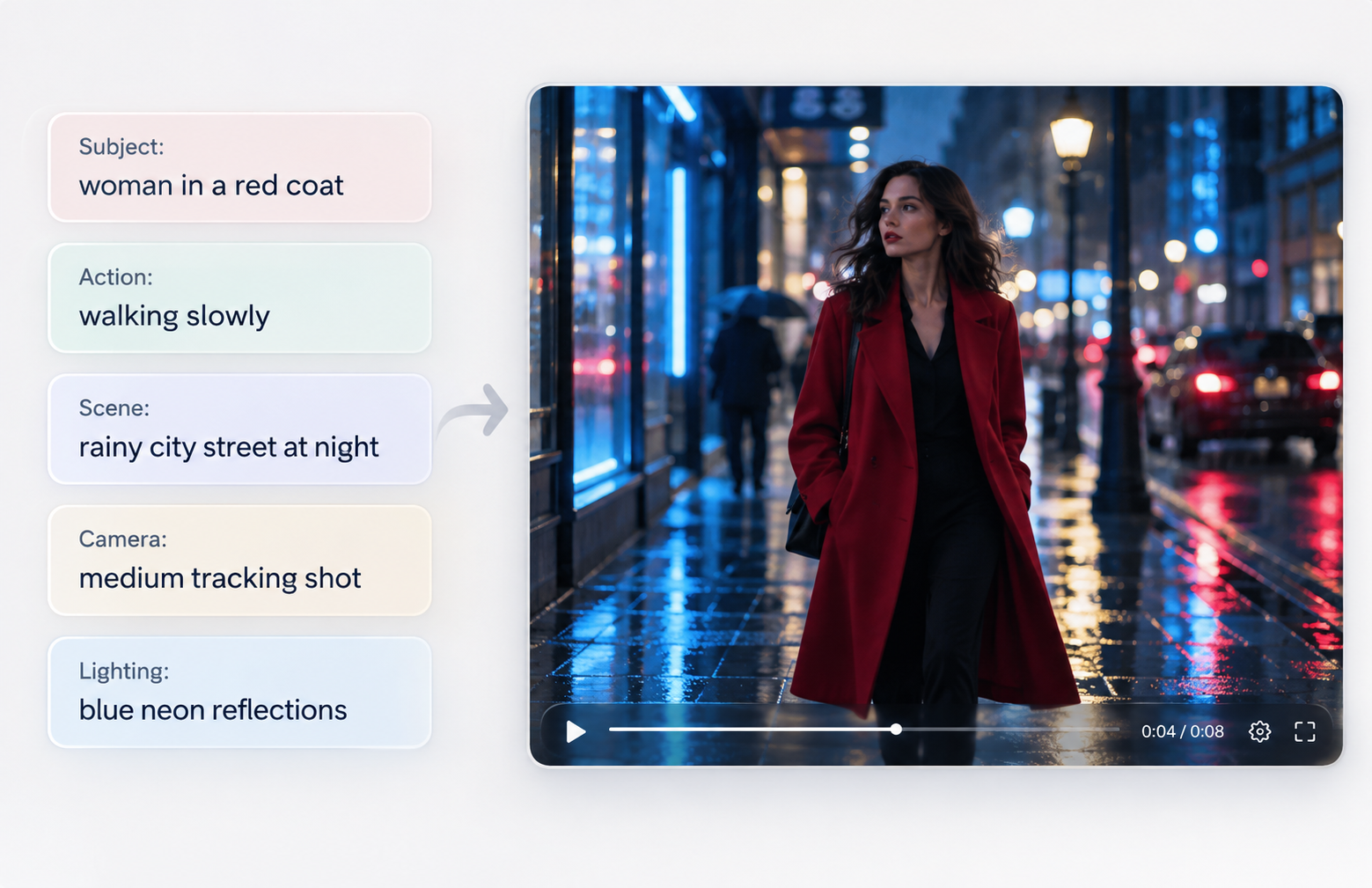
Start with the subject, its main action, and the setting. Specific visual details give the model something concrete to work with.
Starting Prompt: "A woman wearing a red coat walks slowly along a wet city sidewalk at night, passing illuminated storefronts."
Her clothing identifies the subject, walking establishes the action, and the nighttime street provides context. Unrelated characters or activities aren't necessary for this shot.
Use Shot Types, Camera Angles, and Camera Movements
Camera instructions shape the viewer's perspective. Different techniques serve different storytelling purposes.
| Camera Term | Main Effect |
| Wide Shot / Medium Shot | Shows the environment or balances subject and setting |
| Close-Up / Extreme Close-Up | Highlights expressions or small details |
| Eye-Level / Low Angle | Creates a natural or more dramatic perspective |
| High Angle / Over-the-Shoulder | Looks downward or frames a subject from behind |
| Dolly In / Tracking Shot | Moves closer to or follows the subject |
| Pan / Tilt / Orbit | Rotates horizontally, vertically, or around the subject |
| Static Shot | Keeps the camera stationary |
For the street scene, a medium tracking shot follows the woman while keeping the storefronts visible. One primary camera movement is generally sufficient for a short clip.
Create Cinematic Effects With Lighting, Color, and Depth of Field
Lighting and color influence how a scene feels. Golden-hour sunlight creates warmth, while low-key lighting and cool blue tones may suit a suspenseful scene. Soft window light works well for indoor portraits and product photography.
Depth of field controls background clarity. Shallow depth of field produces a softer background with possible bokeh, whereas deep focus keeps more details sharp.
For the rainy street, blue neon reflections and soft backlighting create atmosphere without obscuring the character.
Describe Motion, Environmental Details, and Visual Consistency
Subject movement differs from camera movement. The woman walks at a natural pace while the camera tracks alongside her.
Rainfall, shifting reflections, and a light breeze can add environmental motion. Descriptions such as slow motion or subtle movement further clarify the pace.
Consistent clothing and hairstyles help maintain a recognizable character. When creating videos from images, the prompt can focus on movement rather than repeating static appearance details.
Combine All Elements Into One Unified Cinematic Video Prompt
The instructions can now be combined using a flexible formula:
Subject + Action + Setting + Shot Type + Camera Movement + Lighting + Color & Mood + Consistency Requirements
Complete Prompt:
"A woman with shoulder-length dark hair and a red coat walks slowly along a rain-soaked city street at night. A medium tracking shot follows her from the side. Blue neon signs reflect across the pavement, with soft backlighting and a mysterious atmosphere. Her appearance remains consistent throughout the shot."
This version clarifies the action, filming approach, and visual atmosphere. The formula isn't mandatory; simpler scenes may need fewer details.
Unified Cinematic Video Prompt Formulas for Different Scenarios
Different projects require different creative priorities. These formulas can be adapted for storytelling, advertising, travel footage, and other applications.
| Scenario | Unified Cinematic Video Prompt Formula | Key Focus |
| Character & Emotional Scenes | Character + Emotion + Action + Camera + Lighting + Mood | Expressions |
| Product Ads & Commercial Videos | Product + Setting + Camera + Lighting + Material Details | Product appearance |
| Nature & Travel Videos | Landscape + Time + Weather + Camera + Atmosphere | Natural movement |
| Action & Sci-Fi Scenes | Character + Action + Environment + Camera + Effects | Action continuity |
| Image-to-Video Cinematic Prompts | Reference Image + Motion + Camera + Consistency | Original appearance |
| Multi-Shot Cinematic Stories | Character + Style + Individual Shot Directions | Scene continuity |
1. Character and Emotional Scenes
Subtle expressions and gradual camera movement help communicate emotion.
Prompt: "A woman reads an old letter beside a cafe window. Her expression shifts from curiosity to sadness as the camera slowly moves closer. Soft afternoon light creates a reflective mood."
2. Product Ads and Commercial Videos
Camera angles and lighting can emphasize a product's materials and design. These details also matter when creating a product video that showcases its appearance.
Prompt: "A black stainless steel watch rests on a stone pedestal. The camera slowly orbits the watch, revealing its polished edges and textured dial under soft studio lighting."
3. Nature and Travel Videos
Landscape footage benefits from environmental movement and natural light.
Prompt: "An aerial shot of a mountain valley at sunrise. The camera glides above pine trees as morning mist drifts between the hills. Warm sunlight gradually illuminates the landscape."
4. Action and Sci-Fi Scenes
A single clear action gives a short sequence a stronger focus.
Prompt: "An astronaut runs through a futuristic spacecraft corridor as red warning lights flash. A tracking camera follows from behind, with cool blue lighting reflecting off metallic walls."
5. Image-to-Video Cinematic Prompts
Reference images can establish the subject's appearance while the prompt introduces motion.
Prompt: "Using the reference image, the golden retriever gently turns its head toward the camera. A light breeze moves the surrounding grass. Keep the dog's appearance and original composition unchanged."
6. Multi-Shot Cinematic Stories
Related shots should share recognizable characters and visual styles.
Shot 1: "A detective in a brown trench coat enters an empty train station at night. A wide shot reveals the platform under muted blue-gray lighting."
Shot 2: "The same detective pauses after hearing a distant sound. A close-up captures his cautious expression. Maintain the same clothing, hairstyle, and lighting style."
For longer stories, separate clips and consistent reference images may offer more reliable control than one complicated prompt.
How to Generate Cinematic AI Videos With RoboNeo
The rainy street prompt can be turned into a video using RoboNeo. The process involves preparing the scene, selecting generation settings, and refining the output.
Step 1: Choose a Video Generation Method and Enter Your Cinematic Prompt
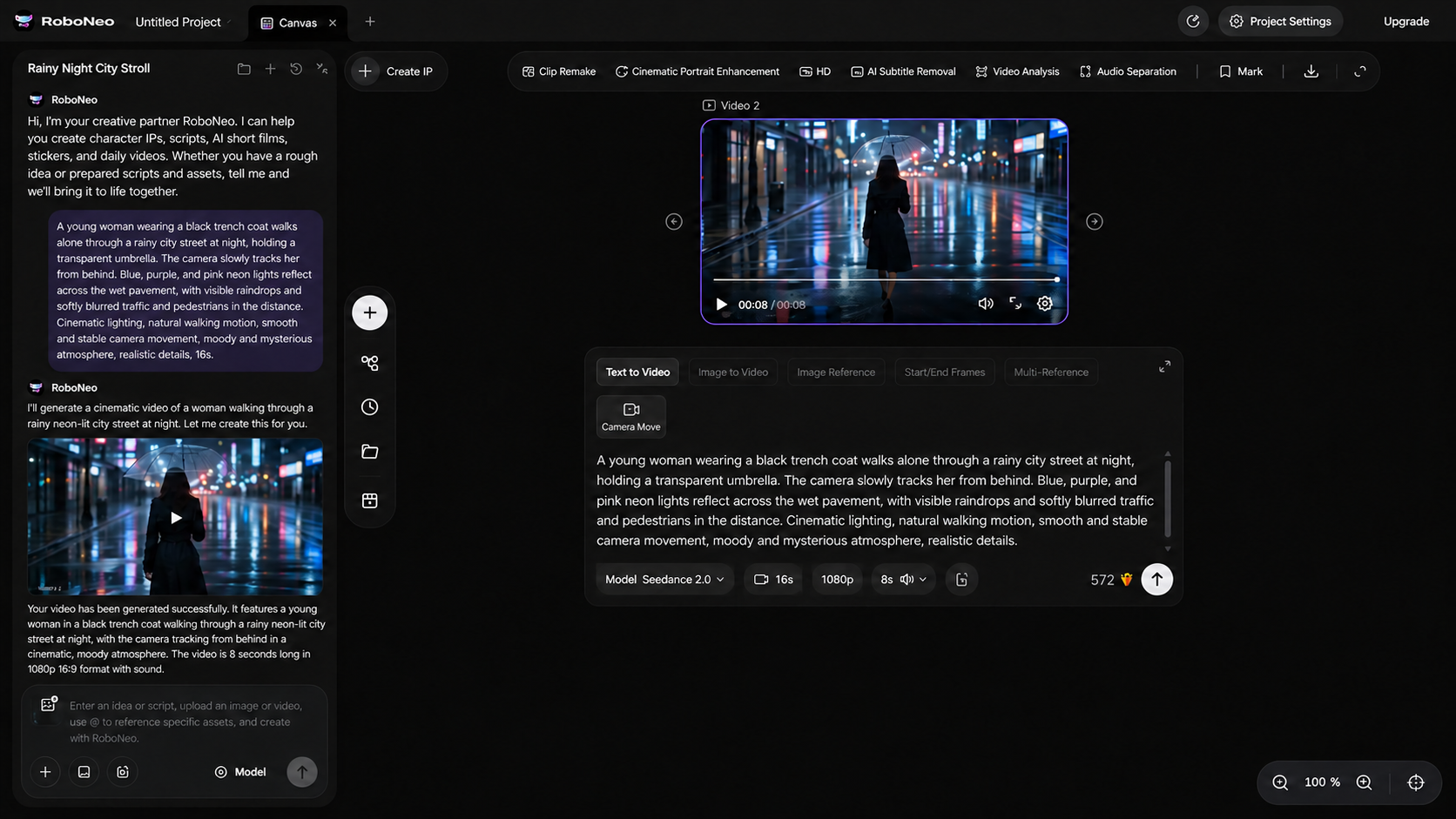
Open RoboNeo and add a Video Node to the project canvas. Choose Text-to-Video for a scene created from text, or Image-to-Video when working with an existing picture.
Enter the completed rainy street prompt, including the woman's movement, tracking shot, neon lighting, and nighttime atmosphere.
Step 2: Add Reference Images and Adjust Video Generation Settings
A reference image can help preserve the woman's appearance in a supported image-based workflow.
Next, select an available AI video model and choose the appropriate aspect ratio. A 16:9 format suits widescreen videos, while 9:16 works for vertical social media content.
Video duration, resolution, and audio options vary depending on the selected model.
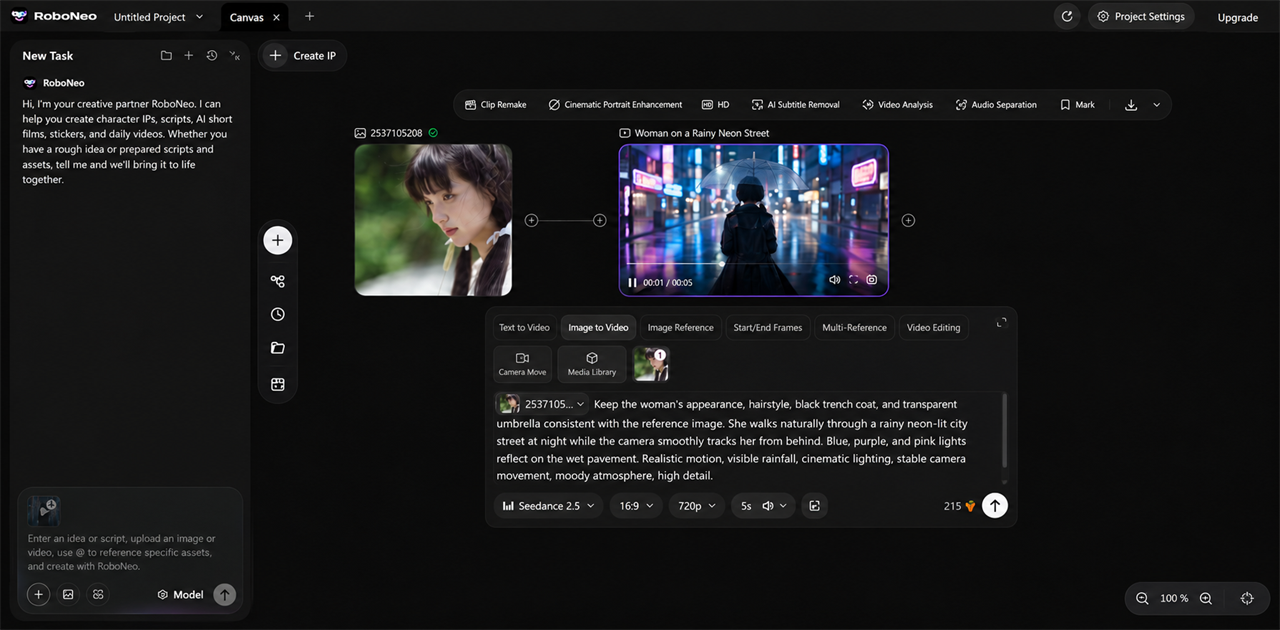
Step 3: Generate Your Video and Refine the Prompt Based on the Results
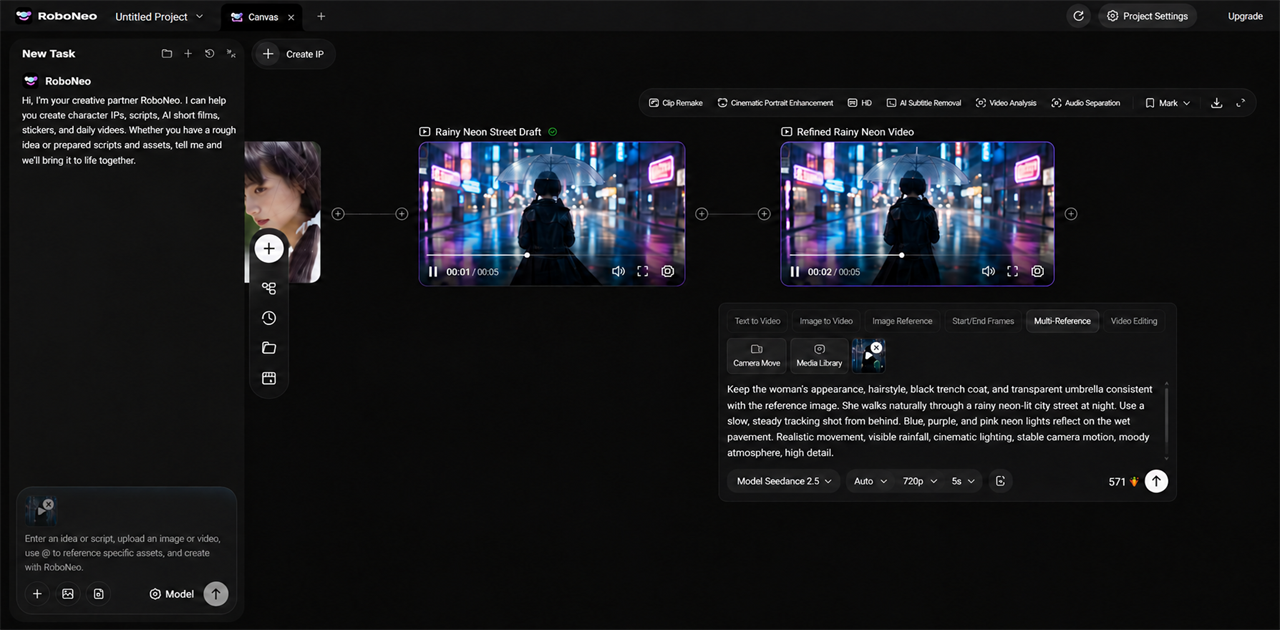
Generate the video and check the character's movement, camera tracking, and lighting.
If the camera moves too quickly, replace the instruction with "a slow, steady tracking shot." An inconsistent character appearance may require a clearer reference image.
Compare the revised version with the original, then export the preferred result.
What Common Mistakes Should You Avoid When Writing Cinematic AI Video Prompts?
Clear prompts can still fail when instructions conflict or demand too much from a short clip. These are among the common limitations of AI video generation. The following adjustments address problems that clearer prompts may help reduce.
Using Conflicting Camera Movement Instructions in One Prompt
Combining static shots, fast orbits, and sudden camera movements can produce unpredictable framing.
Before: "A static shot with a fast orbit and sudden dolly-in."
After: "A slow dolly-in toward the subject."
Multiple camera movements are easier to manage as separate shots.
Overusing Keywords Like Cinematic, 4K, and 8K Without Specific Details
Terms such as "cinematic" or "8K" don't replace meaningful visual instructions.
Before: "A cinematic 8K video of a chef cooking."
After: "A close-up of a chef slicing vegetables under warm kitchen lighting, with a shallow depth of field."
Actual resolution depends on the model and export settings.
Including Too Many Actions and Scene Changes in a Single Short Clip
A short AI-generated clip may struggle to show several consecutive actions clearly. For example, asking a character to run into a building, enter a car, and drive away can result in abrupt transitions or missing movements. Focus each prompt on one main action and generate separate clips for the remaining scenes.
Changing Too Many Prompt Settings Without Identifying the Problem
Changing the camera angle, lighting, and subject movement at the same time makes it difficult to identify what caused an unwanted result. If a tracking shot looks unstable, adjust the camera instruction first while keeping the other scene details unchanged. This makes it easier to compare versions and identify useful improvements.
FAQ
Do unified cinematic video prompts have to be written in English?
Many AI video models support prompts in multiple languages, although their interpretation of camera terminology may vary. English can be useful for specific filming instructions, but the clarity of the prompt matters more than the language alone.
Why does the same cinematic prompt produce different results across AI models?
Models differ in camera control, motion generation, and reference-image support. Identical prompts can therefore produce different compositions and actions.
Can negative prompts help reduce errors in AI-generated videos?
Negative prompts can help identify unwanted elements, such as distorted hands or unexpected camera movements, when the selected model supports them. For models without this option, more precise positive instructions may help guide the result.
Can one prompt control camera movement, character dialogue, and sound effects?
Some models support combined audio and video generation. Others only produce visuals, requiring dialogue, voiceovers, and sound effects to be added separately.
You May Be Interested
How to Prompt Veo 3: Write Better Video Prompts
Best Prompt for YouTube Script in 2026
Image to Video Girl Dancing Prompts: 20 AI Prompt Ideas
Movie-Quality AI Video Prompts: Complete Guide
Micro Expression Prompt: How to Create Realistic AI Facial Expressions