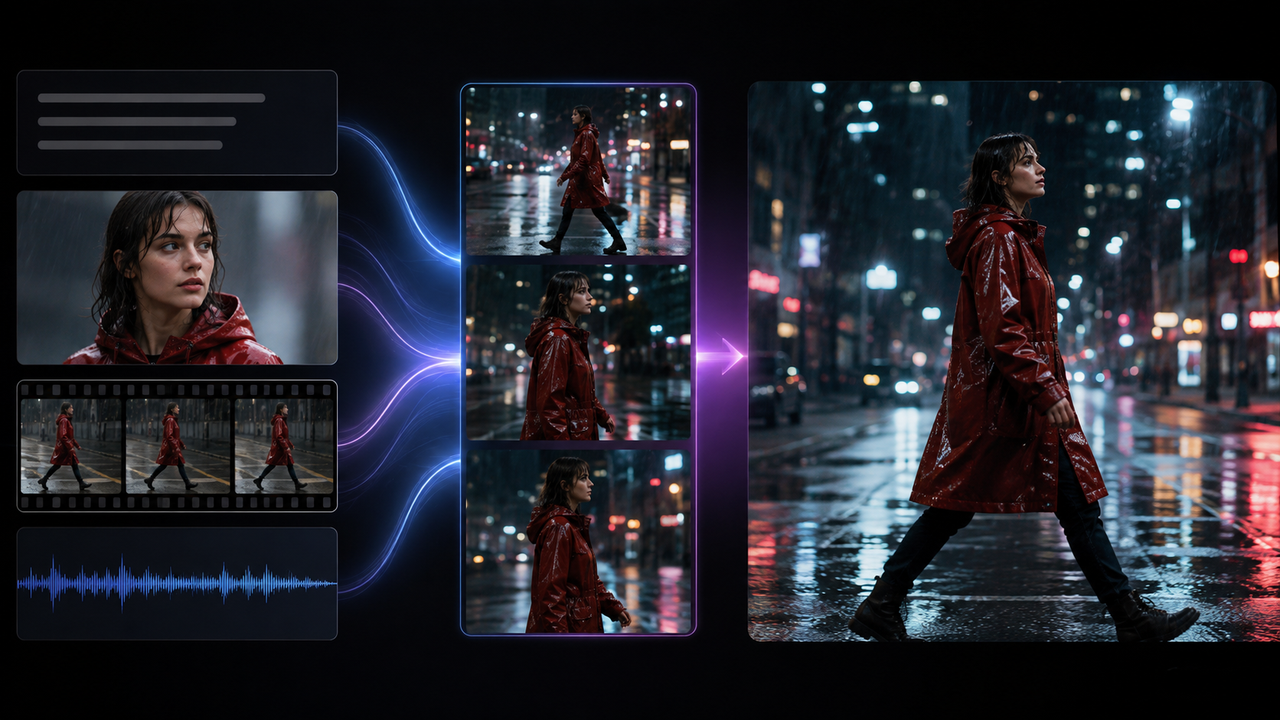
How to Veo 3 Prompt: Tips and Examples for Better AI Videos
 RoboNeo TeamOctober 22, 2026
Veo 3 can turn text instructions into video clips with visuals, movement, camera work, and sound. The challenge is giving the model enough direction without making the prompt crowded or contradictory. This guide explains how to write effective Veo 3 prompts, with practical examples for product demos, character dialogue, action scenes, and atmospheric videos. It also covers common generation problems and ways to refine a prompt when the first result misses the target.
Why Use Detailed Veo 3 Prompts?
A detailed prompt helps Veo 3 understand what should happen instead of leaving important decisions to the model.
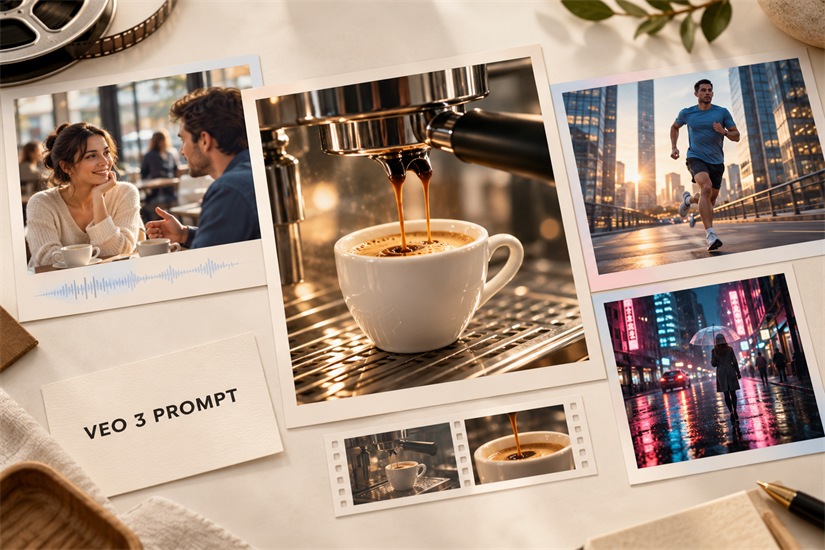
A Veo 3 prompt can describe the subject, action, setting, camera, lighting, dialogue, and sound. "A cinematic coffee commercial" leaves many details open, while "a silver coffee machine pours coffee into a white cup as the camera slowly moves closer" gives the model a specific event to render.
The goal is not to make every prompt as long as possible. Details should support the current shot. A character's backstory, repeated adjectives, or unrelated visual requirements can be removed when they do not affect what the viewer needs to see.
Prompts guide generation but do not replace technical settings. Duration, aspect ratio, resolution, and other output options still need to be selected separately on the platform.
How to Write Veo 3 Prompts
A practical prompt usually combines the subject, action, scene, camera, and audio in a clear sequence. The same principles can also be applied when working with an AI video generator that turns written descriptions and visual references into video.
Describe the Subject in Action
Start with the main person, animal, or object and describe what it is doing. "A woman in a red jacket waits at a train station" identifies the subject, while "a woman in a red jacket checks the departure board, pauses, and turns toward the platform" gives the model a visible sequence.
Keep details that affect recognition, such as clothing, product color, or the number of people. Physical behavior is also more useful than abstract emotions. Someone who feels nervous might check their phone, glance at the door, and take a breath.
A clear start and end state can make movement easier to follow. A dog running from a backyard gate toward its owner has an obvious direction and destination. For a short clip, one main event is usually more reliable than several unrelated actions.
Set the Scene and Style
The setting gives the action a clear visual context.
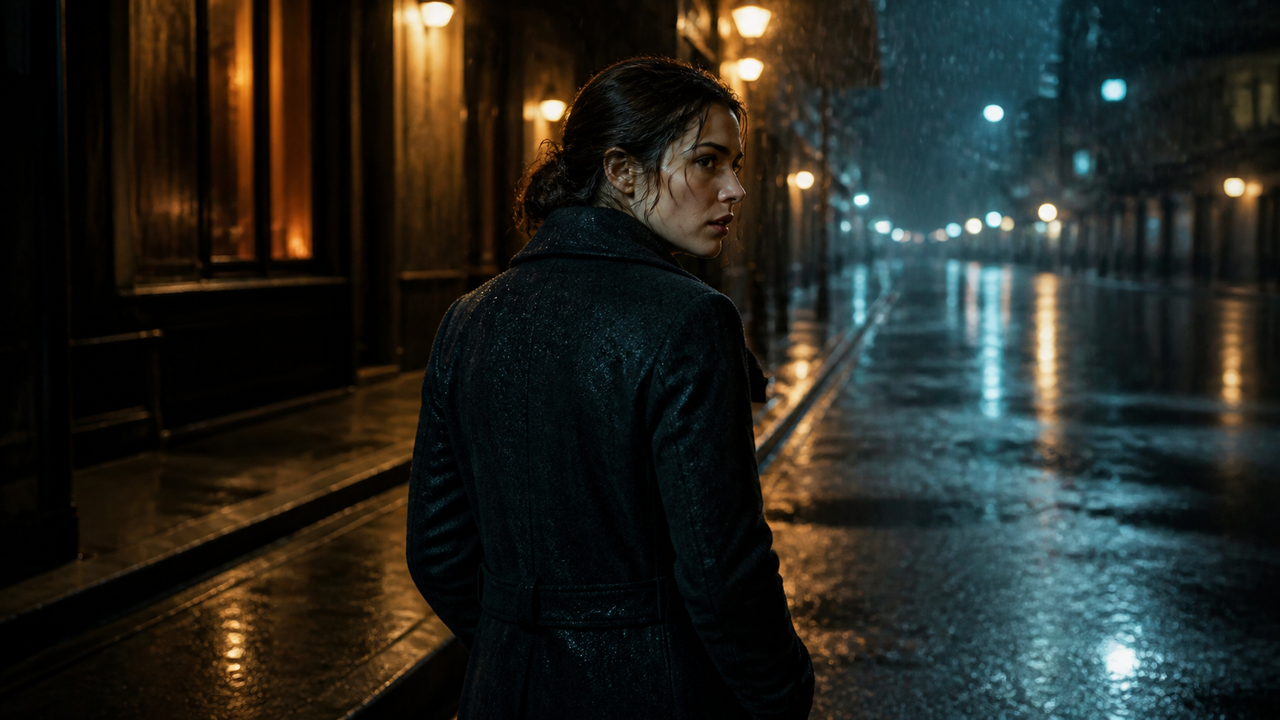
Include the location, time, and environmental details that matter. A rainy downtown street at night can feature wet pavement, neon signs, passing headlights, and falling rain. These details communicate the scene more effectively than simply asking for a "cinematic" look.
Style and lighting should be equally specific. "Realistic product photography with soft window light from the left" gives clearer direction than "high-end visual quality." Avoid combining styles that conflict with each other.
When an image is used as the starting frame, the image already provides much of the subject's appearance and composition. The prompt can focus on movement, camera behavior, and environmental changes rather than describing the entire image again.
Words in a prompt also cannot change every technical setting. A request for a vertical or high-resolution video should be matched with the appropriate platform settings.
Direct the Camera
Camera direction should reflect what the viewer needs to notice, which is especially important when creating prompts for Veo 3 with specific framing or movement.
A close-up can preserve a facial expression or product detail, while a medium shot can show both the subject and its surroundings. Keep subject movement separate from camera movement.
A runner can move from left to right while a side-tracking camera follows them. A coffee machine demo might use a slow push-in as coffee flows into a cup. A fixed camera can be preferable when the subject already has a complicated action.
If a particular product feature or facial expression matters, state that it should remain clearly visible near the end of the shot.
Add Dialogue and Sound
Audio instructions should clearly distinguish dialogue, environmental sound, and action effects.
A store employee can face a customer and say, "This model is ready to use in under a minute," while the customer listens. The speaker, position, and reaction all support the same interaction. The same principle used when writing dialogue applies here: the spoken line should work with the character's actions and the surrounding visuals.
Short clips are not a good place for a long advertising script. Good Veo 3 prompting also means keeping the amount of dialogue realistic for the clip length. If too many words are packed into a few seconds, the generated speech may become rushed or incomplete. Environmental sounds should also match the setting. A kitchen might include running water, an appliance hum, and a cup being placed on the counter.
How to Choose the Right Prompt for Your Video
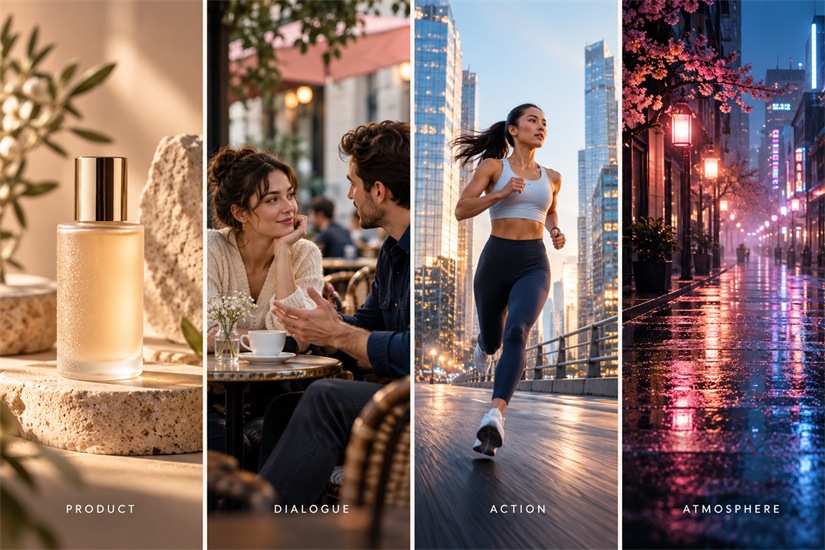 The focus of a prompt changes with the type of video you are creating.
| Video Type | Prompt Focus | What to Check |
| Product Demos | Product, operation, camera framing | Product details and visible changes |
| Character Dialogue | Speaker, dialogue, reaction | Speaker identity and timing |
| Action Scenes | Movement, direction, camera | Continuous and believable action |
| Atmospheric Scenes | Lighting, environment, sound | Mood and consistency |
For Product Demos
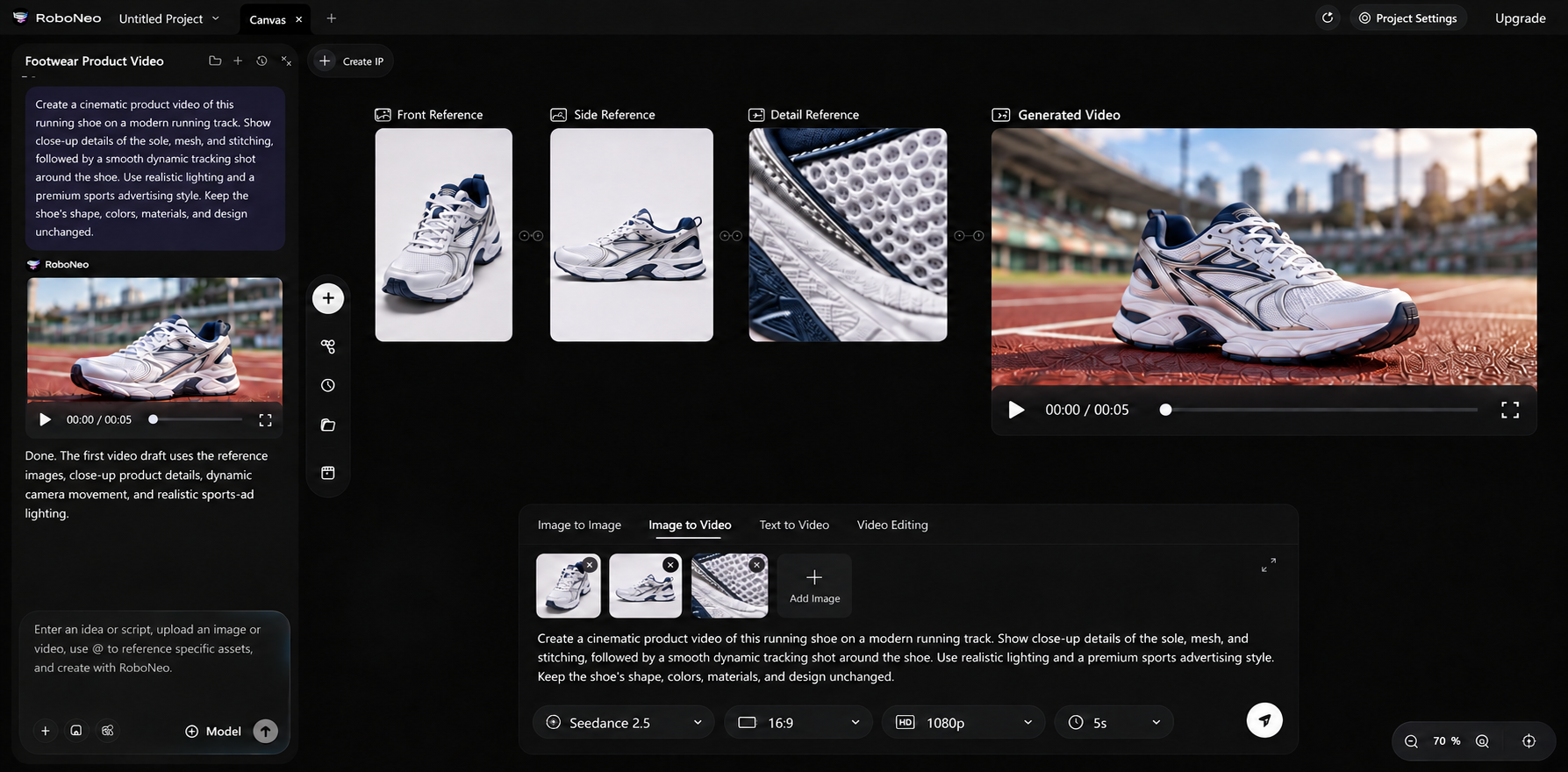
Each product shot should have one clear purpose: showing the appearance, demonstrating an operation, or highlighting a specific feature.
A coffee machine can remain centered while coffee flows from the spout into a white cup. The camera slowly moves closer, keeping the machine, cup, and changing liquid level visible. There is no need to fit every product benefit into the same clip. This focused approach also works when planning a product video, where each shot should support a specific message.
A product photo can provide the visual reference while the prompt describes the action and camera movement. RoboNeo can be used to combine product images with shot descriptions in an AI video workflow.
After generation, check the product's structure, color, and operation. The model may invent a button function or change a physical detail. Product names, prices, and exact marketing copy are better added during editing when accuracy matters.
For Character Dialogue
Dialogue scenes need a clear relationship between the speaker, listener, and action.
A cashier can stand behind a counter while a customer faces them. The cashier delivers the line, and the customer reacts. Consistent descriptions such as "the cashier in a blue shirt" can also help distinguish people in a multi-character scene.
Long conversations are often easier to manage as separate shots. One clip can focus on the person speaking, followed by a reaction shot from the other character. This keeps the dialogue easier to manage without forcing an entire conversation into one short generation.
For Action Scenes
Action prompts should establish the movement route before adding complex camera work.
A runner can enter from the left, pass a storefront, and stop near a street corner. A side-tracking camera follows the movement while the background shifts naturally. This creates a sense of speed without relying on repeated words such as "fast" or "intense."
Complicated interactions, such as two people grabbing the same object while changing direction, may be more reliable when simplified or split into separate shots.
For Atmospheric Scenes
Atmospheric scenes rely on space, lighting, sound, and gradual movement rather than a complex storyline.
A rainy street can focus on reflections across wet pavement, neon storefronts, falling rain, and distant traffic. The camera may stay still while headlights pass through the background, or move slowly along the street.
When the environment already establishes the mood, dialogue is unnecessary. A few continuous changes can make the scene feel alive without adding extra events.
Before generating, confirm the model version, input method, clip duration, aspect ratio, generation credits, and export requirements. A test clip can reveal problems before you build the rest of the sequence.
How to Improve Your Veo 3 Videos After Generation
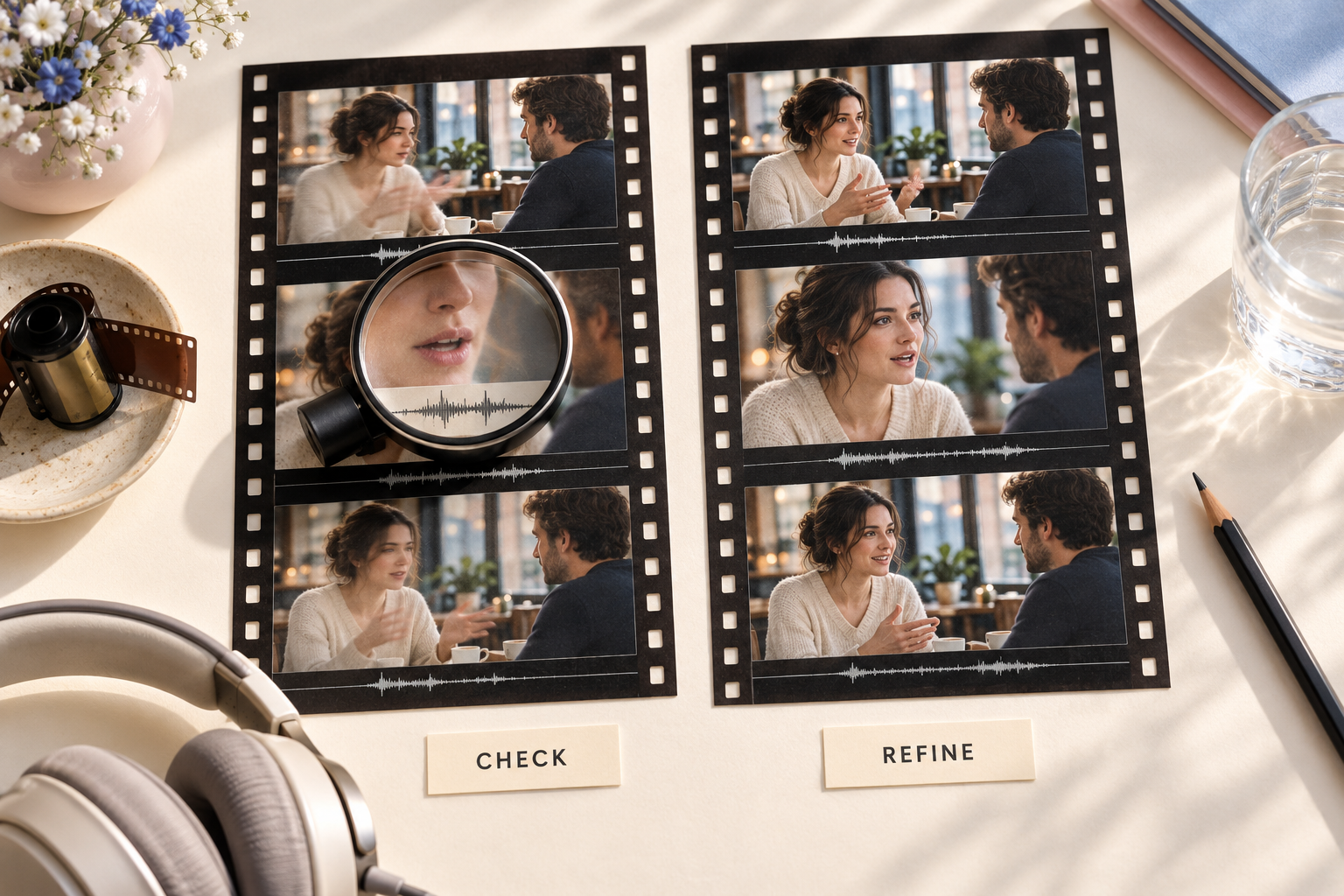
The first generation can reveal which part of the prompt needs adjustment. AI video can still struggle with motion, consistency, lip sync, audio, text, and other fine details, so reviewing the output is an important part of the process. These issues are part of the wider limitations of AI video generation.
Instead of treating an unsuccessful result as a general failure, identify the specific issue and change one major variable at a time. This approach is also useful when refining an AI prompt for Veo 3, as changing one element at a time makes it easier to see what actually improved the result.
Correct Actions and Camera Moves
Check the actor, direction, and order of events when the wrong action occurs. If a person picks up the wrong object, make both the person and object explicit.
An action that never finishes may need fewer secondary events or a shorter sequence. Unwanted camera movement can also come from conflicting instructions. "Fixed camera," "tracking shot," and "push-in" should not compete within the same short clip.
If objects deform or pass through one another, adding more description may not solve the problem. A simpler action or different camera angle may work better.
Keep Characters and Products Consistent
First determine whether the appearance is wrong from the first frame or changes during movement.
For an incorrect starting appearance, check the reference image and remove conflicts between the image and written description. Across multiple clips, keep character names, clothing details, and product characteristics consistent.
Large turns, long periods of obstruction, and complicated movements can increase visual changes. Reference images provide useful constraints, but they cannot guarantee perfect consistency. Important logos or product structures may still require another generation.
Fix Dialogue and Sound
If the wrong character speaks, clarify who delivers each line. A complicated exchange that repeatedly fails may work better as separate speaking and reaction shots.
When dialogue is cut off or rushed, shorten the line before adding more instructions. Missing audio should also prompt a check of the selected model and generation mode, since audio support can depend on the setup.
If the video is usable but the background music or ambient sound is wrong, replacing the audio during editing may be easier than regenerating the clip. Clear lip-sync problems may require another generation or a dedicated lip-sync workflow.
FAQ
How long should a Veo 3 prompt be?
There is no fixed ideal length. A simple shot may need a few clear sentences, while dialogue, camera movement, and several visual requirements may require more detail. Clarity matters more than reaching a specific word count.
Do I need to write prompts in JSON?
No. Natural language works well for Veo 3 prompts. JSON can organize subjects, scenes, camera directions, and sounds, but the format itself does not guarantee better results.
Can I use negative prompts with Veo 3?
Some Veo interfaces or APIs may support negative prompts, but availability depends on the platform. Negative prompts can identify elements to exclude, while the main prompt describes the desired result. They cannot guarantee that every unwanted element will disappear.
Why does the same prompt produce different videos?
Video generation has an element of randomness, so the same prompt may produce different movements, compositions, or sounds. Model versions, reference images, and generation settings can also affect the result. Keep other variables consistent when comparing prompts.
Can I reuse Veo 3 prompts with Veo 3.1?
Yes. Existing prompts can be a useful starting point because the subject, action, scene, camera, and sound descriptions may still apply. However, different versions can interpret the same instructions differently. Test an important shot first and confirm the model version and input settings before reusing an entire prompt set.
How to Veo 3 Prompt: Tips and Examples for Better AI Videos
Micro Expression Prompt: How to Create Realistic AI Facial Expressions
Beneficial Practices for Training AI Models With Prompts
Image to Video Girl Dancing Prompts: 20 AI Prompt Ideas
Movie-Quality AI Video Prompts: Complete Guide
What to Tell AI to Humanize Text: Prompts That Work