How to Make Sora AI Videos: From Prompt to Final Cut
 RoboNeo TeamOctober 22, 20026
Sora can turn written descriptions into video clips, making it possible to create scenes without a camera crew or filming location. A small business could produce a product promotion, while a content creator might bring an imaginary world to life. But generating attractive clips is only part of creating a finished video.
Learning how to make a Sora AI video involves planning individual shots, writing clear prompts, generating footage, and editing the clips into a complete story. This guide covers the process from preparation to final export, along with ways to fix results that don't match your plan.
What Should You Prepare Before Making a Sora Video?
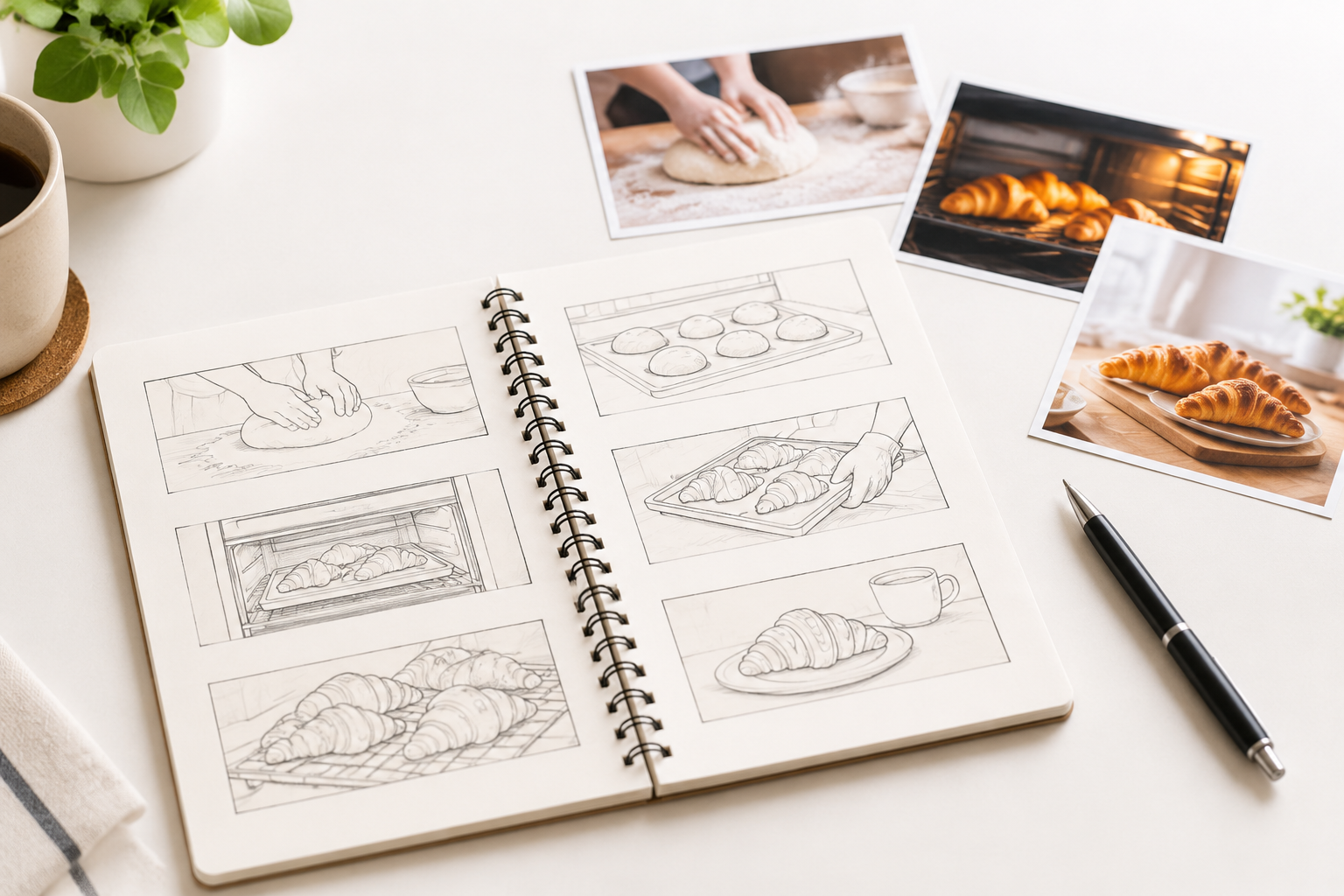
A clear shot list and focused prompts make video generation easier to manage. Before getting started, decide what the video should show and how its scenes will connect.
Define the Video and Plan Its Shots
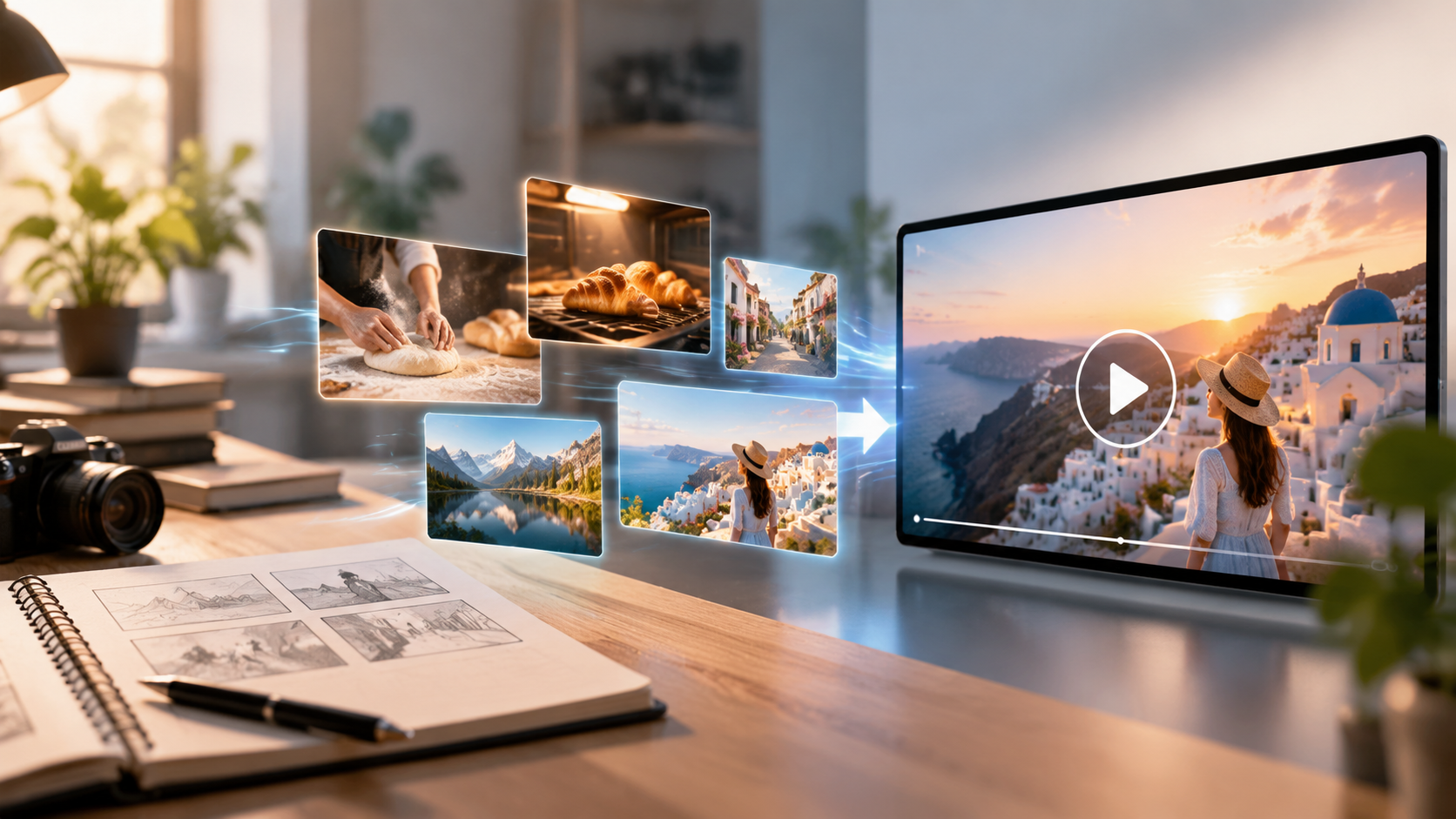
A bakery promoting fresh croissants might need only three shots: preparing the dough, removing pastries from the oven, and displaying the finished products. Each scene contributes to the story without unnecessary footage.
The publishing platform also affects framing. Vertical videos for TikTok or Instagram Reels require a different composition from widescreen YouTube videos, so it's worth deciding on the format early.
Write One Prompt for Each Shot
When using AI to convert text to video online, a clear prompt helps guide the subject, setting, action, and visual style. Camera movement and sound can provide additional direction.
Sample Sora Prompt:
"A baker wearing a white apron places fresh dough on a wooden counter in a small bakery. Warm morning sunlight fills the room as the camera slowly moves closer. The baker folds the dough and places it on a tray. Soft kitchen ambience, realistic style, vertical 9:16 composition."
The description establishes the subject, action, camera movement, and sound. Dialogue should identify the speaker and exact words, while recurring characters and settings benefit from consistent descriptions across shots.
Avoid Complex Reference Instructions
Too many characters, actions, or conflicting references can make results unpredictable. Detailed hand movements and interactions between objects may also be difficult to reproduce accurately.
Reference images, videos, and audio should support the same creative direction. Complicated sequences are usually easier to manage as separate shots.
How Do You Create Your Sora Video?
Once your shot list and prompts are ready, learning how to make videos with Sora AI becomes a matter of generating each shot and bringing the clips together. The following workflow uses RoboNeo as an example, although available models and features depend on your account.
Step 1: Select a Model
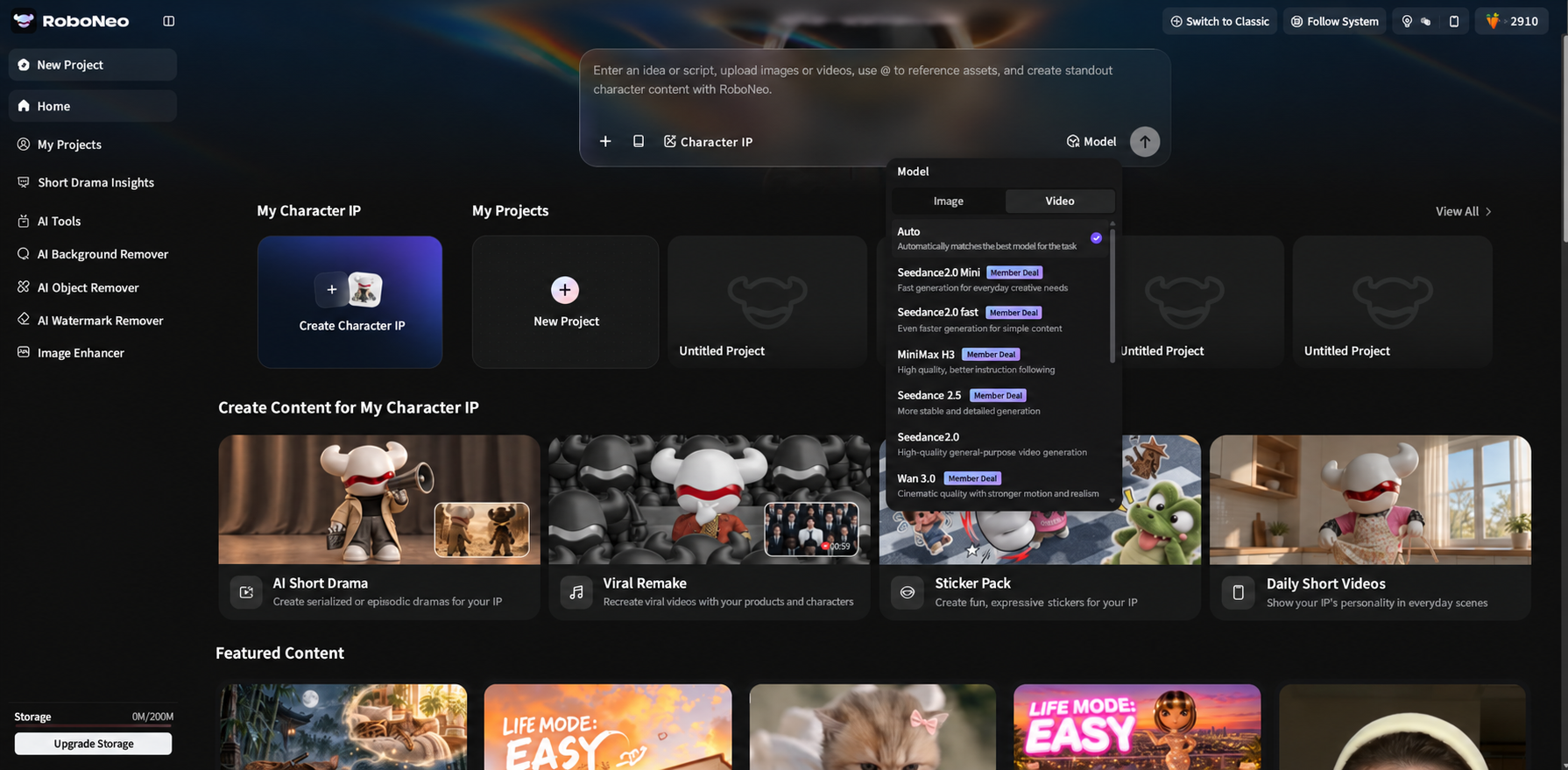
The process begins with choosing a video model that supports your project.
On RoboNeo, open the video creation workspace and review the models available to your account. If you want to make videos on Sora AI, confirm that the intended Sora version is accessible before continuing.
Three settings deserve attention:
Input options: Whether the model accepts text prompts, reference images, or both.
Video settings: Available clip durations, aspect ratios, and resolutions.
Credits and exports: Generation costs and supported export options.
For the bakery promotion, a vertical format would suit an Instagram Reel. Each clip also needs enough time to show its planned action.
Model availability may change, so the current workspace should take priority over older tutorials.
Step 2: Add Prompts and References
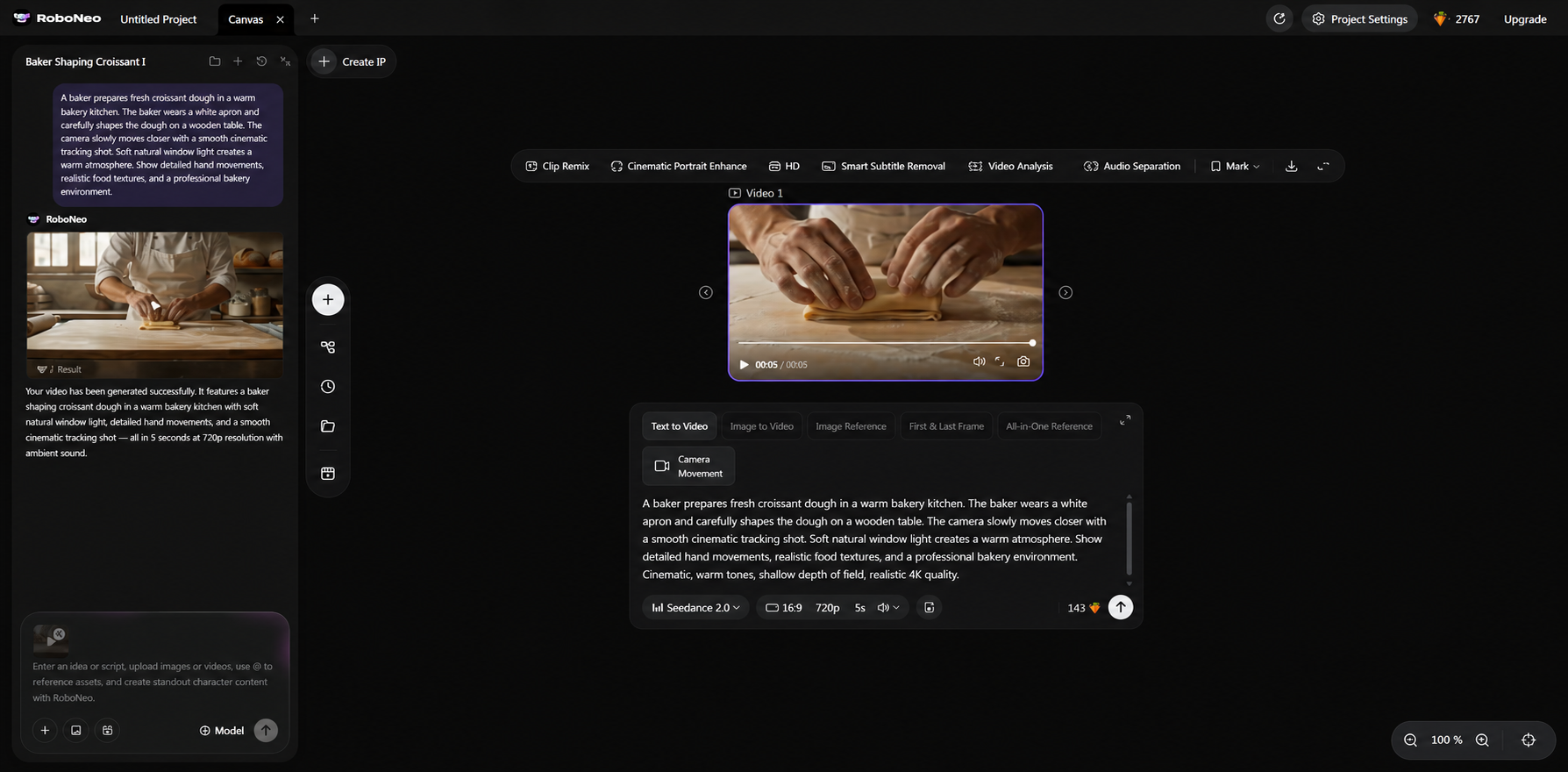
Once you've selected a model, the next task is entering the inputs for your first shot.
The bakery video has three planned scenes: preparing dough, removing croissants from the oven, and displaying the finished pastries. Each scene should be generated separately rather than combining the entire sequence into one prompt.
The opening shot can use the dough preparation prompt written earlier. The remaining scenes need their own descriptions, with camera movements and actions suited to each moment.
Reference images may provide additional visual guidance when the model supports them. Some of the best image-to-video AI generators use source images to establish a subject's appearance before introducing motion.
A photograph of the bakery interior could help guide the setting, while repeating the baker's white apron and other identifying details may improve continuity. Any uploaded materials should be ones you have permission to use.
With the first prompt and references ready, you can begin generating footage.
Step 3: Generate and Refine Clips
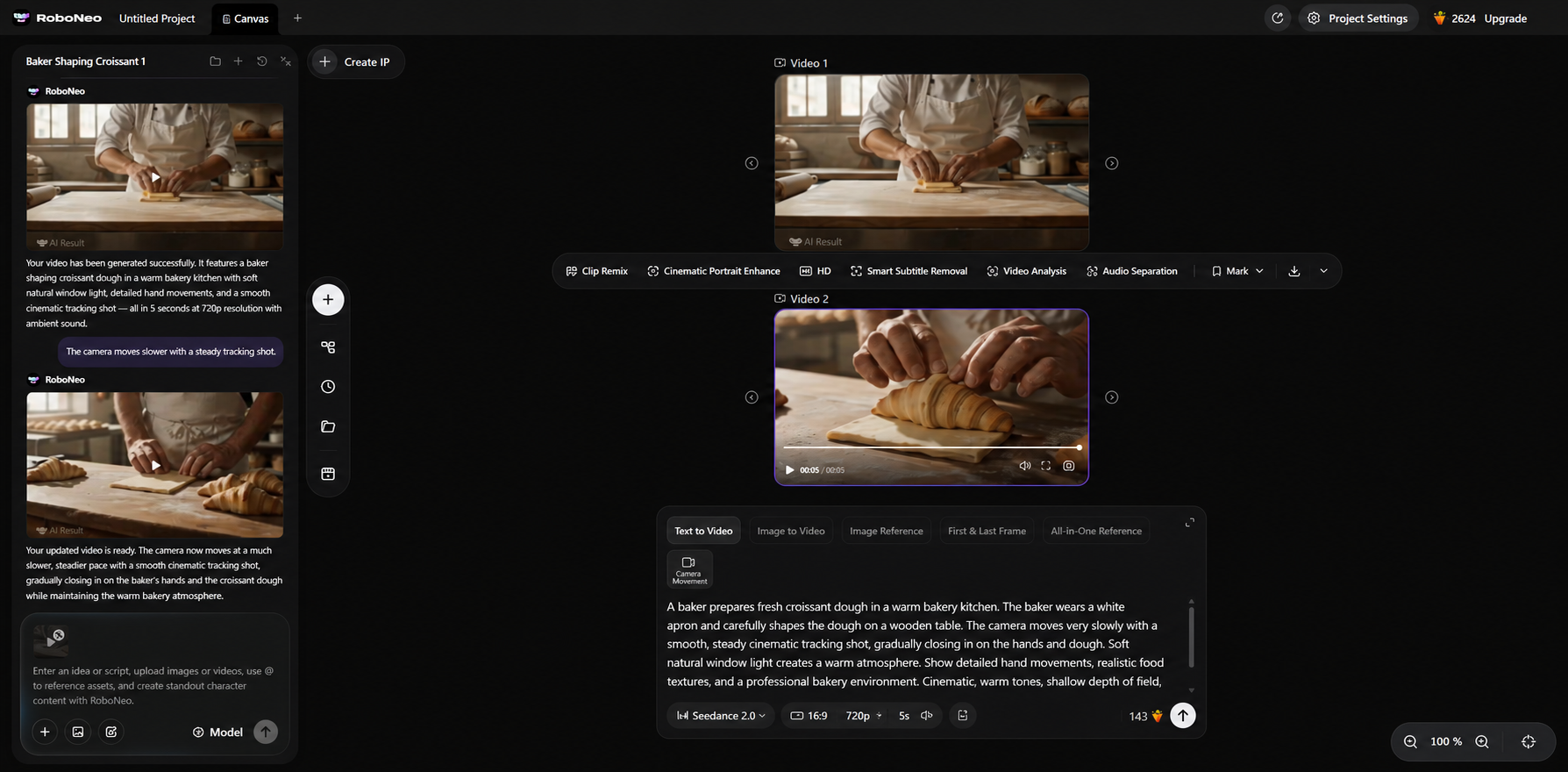
The first generation helps determine whether the model understands your instructions before you create the remaining scenes.
Choose the planned aspect ratio and a duration that gives the baker enough time to fold the dough. After generating the clip, check whether the action, framing, and sound match your expectations.
The baker might look right, but the camera could move too quickly to capture the folding process. A slower camera movement would be a more useful adjustment than rewriting the entire prompt.
Once the opening shot is satisfactory, generate the oven and display scenes using their prepared prompts. Each clip should have a clear ending that can connect naturally with the next shot.
Saving the selected footage in order keeps the project organized:
Shot_01_Dough_Preparation
Shot_02_Croissants_Oven
Shot_03_Pastry_Display
These three clips now provide the material needed to assemble the video.
Step 4: Edit the Video
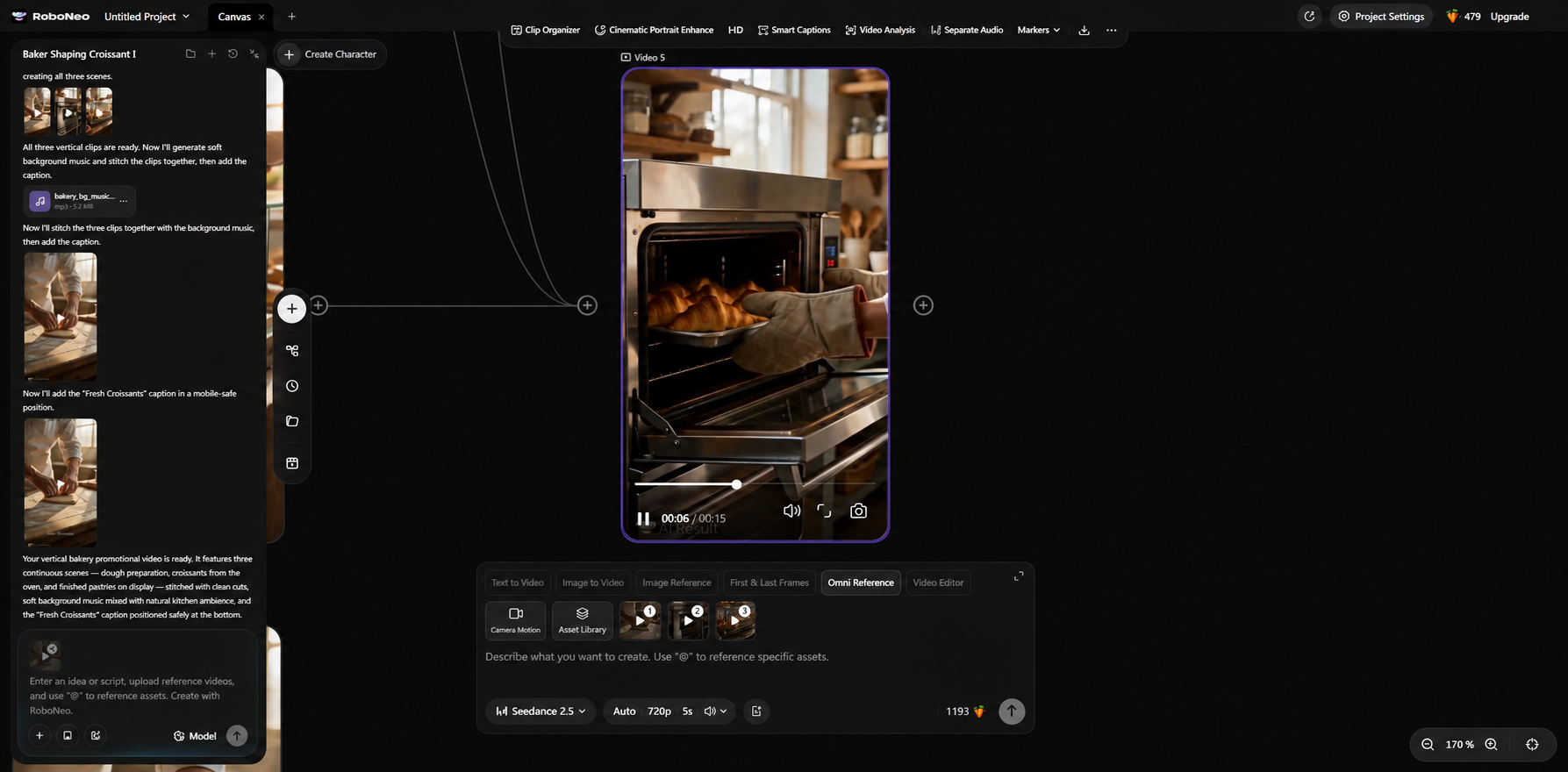
With the footage generated, editing turns the separate bakery scenes into a continuous story.
In a video editor, arrange the clips according to the original shot list. The dough preparation appears first, followed by the croissants leaving the oven and the finished pastries on display.
Unnecessary pauses, repeated movements, and awkward endings can be trimmed. The first shot should finish its main action before the video moves to the oven scene, allowing viewers to follow the baking process.
Simple cuts often work better than elaborate transitions when the scenes already connect logically. A missing movement may require a brief connecting shot, but there's no need to add effects to every transition.
Sound can be adjusted once the visual sequence is in place. Natural kitchen sounds may work alongside light background music, while a short voiceover could introduce the bakery's new pastries. Music should remain quiet enough for spoken words to be understood.
Captions and text overlays come next. The bakery's name and featured product can appear briefly without covering important visual details. For mobile viewing, short lines and readable text placement are especially important.
The result should now have a recognizable opening, main action, and ending.
Step 5: Review and Export
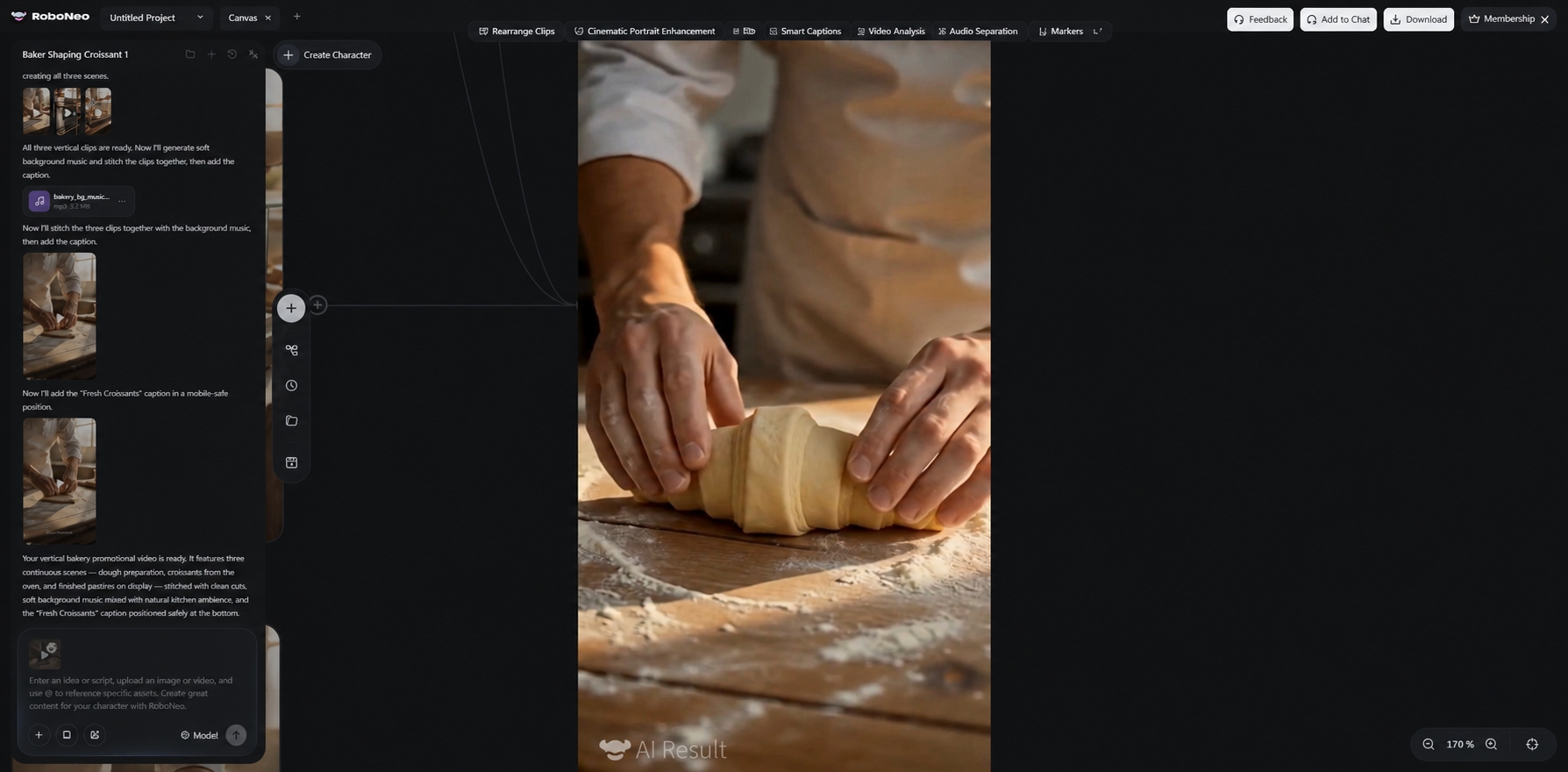
The completed video needs one final viewing before publication.
Watch the bakery promotion from beginning to end. The preparation, baking, and finished display should follow a clear sequence, with no unexpected changes in the baker's appearance or the bakery setting.
Audio and captions deserve a final check as well. Dialogue should match the visuals, while text placed too close to the edge of a vertical video may become difficult to read on a phone.
The export format, aspect ratio, and resolution should match the destination platform's requirements. Once everything looks right, export the finished video.
Keeping the original clips and editable project files allows you to replace individual scenes or create another version without starting over.
How Do You Fix a Sora Video That Doesn't Match Your Plan?
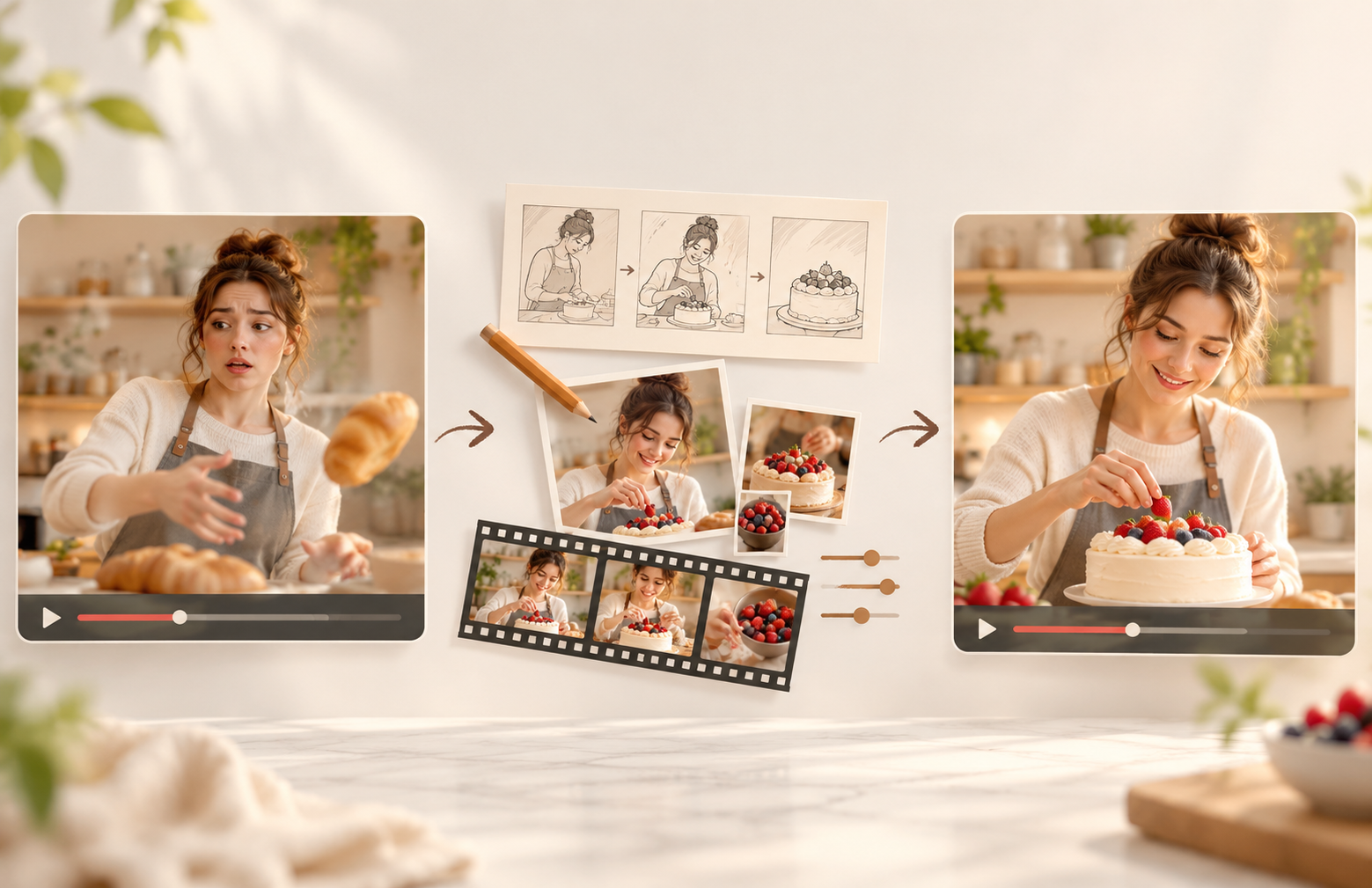
Even detailed prompts can produce unexpected results. The most useful correction depends on whether the problem involves an action, visual consistency, or editing.
Correct an Action That Came Out Wrong
A generated clip may show the wrong movement or action sequence. The baker might place dough directly into the oven instead of folding it first.
The revised prompt could specify: "The baker folds the dough twice, places it on a tray, and then moves the tray toward the oven."
Only the incorrect action needs adjustment. When several movements are difficult to generate together, splitting them into shorter shots may improve control.
Match Characters and Products Across Shots
The same subject can look different between generations. Clothing, facial features, product colors, and packaging may change unexpectedly.
These are among the common limitations of AI video generation. Reusing the original reference image and key appearance descriptions may help maintain consistency.
When logos, packaging text, or product details must be exact, real photographs or footage are often more reliable.
Smooth Out the Edit and Audio
Sometimes the footage is usable, but the transition between clips feels unnatural. An action might jump forward, or background sounds may stop abruptly.
Adjusting the end of one clip and the beginning of the next can improve the connection. Missing movements may require a short additional shot.
Dialogue, sound effects, and background audio should remain synchronized, without sudden volume changes. After making changes, replay the affected section with its neighboring clips to check the flow.
FAQ
Can one Sora prompt create a complete video?
A single prompt may generate a complete short clip, but it may not be enough for a finished video with multiple scenes. Generating shots separately and editing them together offers better control over character consistency, storytelling, and pacing. Available video lengths and features depend on the platform and model you're using.
Why does the same prompt produce different clips?
AI video generation involves variation, so identical prompts can produce different actions, camera angles, and compositions. Saving prompts, reference images, and settings makes results easier to compare. Changing one major instruction at a time also helps identify what improves the result.
Can I use a real person’s photo in a Sora video?
You should obtain the person's consent and check the platform's current rules for real-person images. Permission to use a photo doesn't automatically allow fictional actions, statements, or endorsements involving that person. Before publishing, make sure the video won't mislead viewers into believing something happened when it didn't.
Can I use Sora-generated videos commercially?
Commercial use depends on the platform's terms, your account plan, the materials used, and how the video will be published. Rights to people's likenesses, reference images, music, trademarks, and other third-party content need separate consideration. Even when commercial use is permitted, the finished video may still raise rights or accuracy concerns.
What if Sora 2 is not available in my account?
Check your workspace's current model list and account permissions rather than relying on outdated tutorials. A model appearing on a product page doesn't guarantee access for every account. If you use another model, identify it accurately in your article or video description instead of calling the result Sora-generated.
You May Be Interested
How to Make a TikTok Video in 2026: Easy Guide
Make Videos from Photos Online: A Complete 2026 Guide
Movie Ideas to Make at Home: 15 Easy Beginner Films
How to Make an AI Dance Video in 2026: Easy Guide
How to Make a Video Out of Images: 2 Simple Methods