Best Image to Video AI: Top Generators for 2026
 RoboNeo TeamSeptember 14, 2026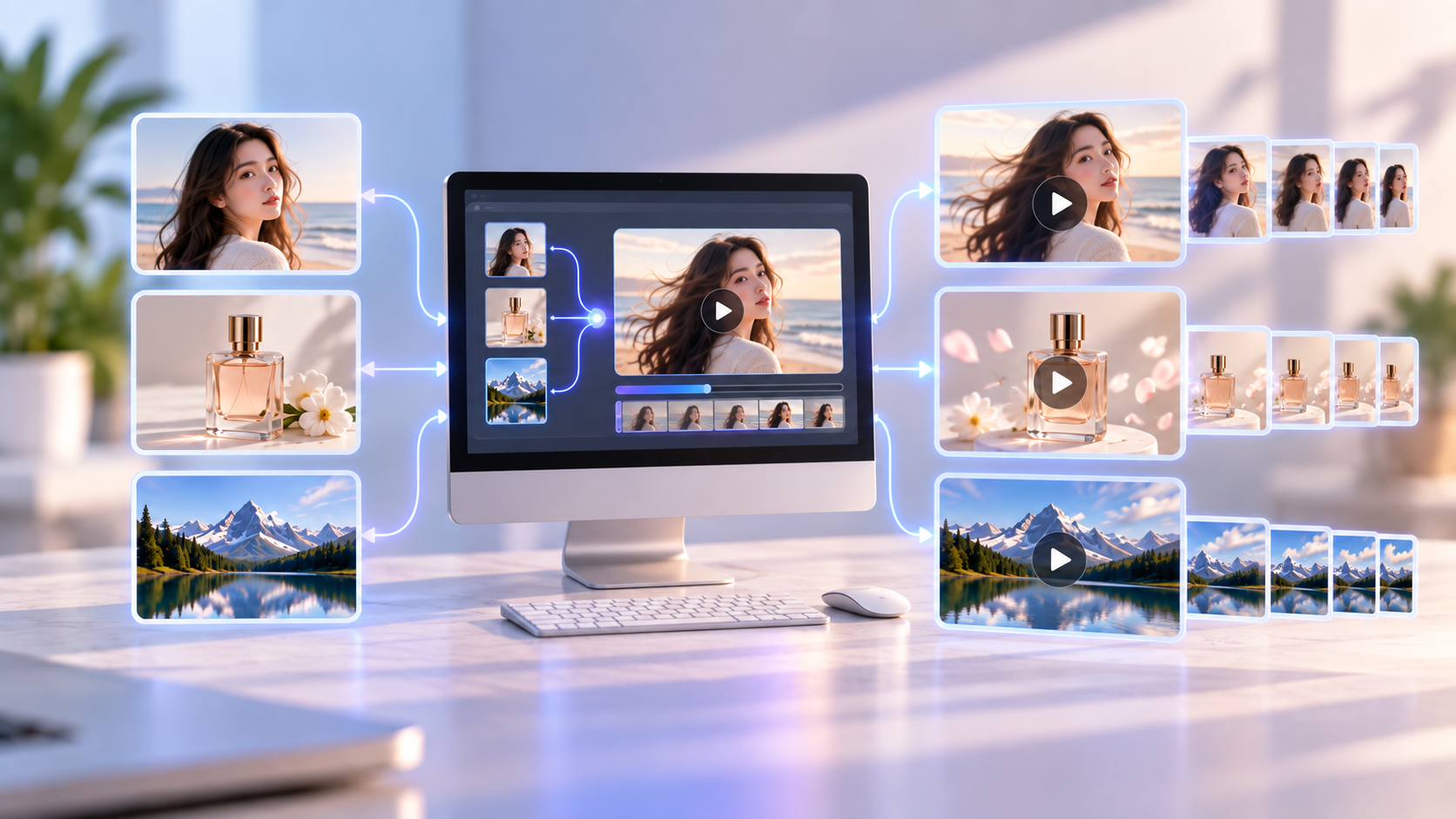
The best image to video AI tools can turn photos, illustrations, product shots, and AI images into short moving clips. Starting with an image gives you more control over the subject and visual style than generating everything from text alone.
This guide compares seven image-to-video generators, explains how to prepare source images, and shares practical ways to create more natural motion.
Why Use Image-to-Video AI?
Starting with an existing image gives the model a clear visual reference before any motion is generated. This can make image-to-video especially useful when a character, product, or composition already needs to look a certain way.
More Control from the First Frame
A source image already defines the subject, colors, composition, and general visual style. The prompt can then focus mainly on what should happen next instead of describing the entire scene.
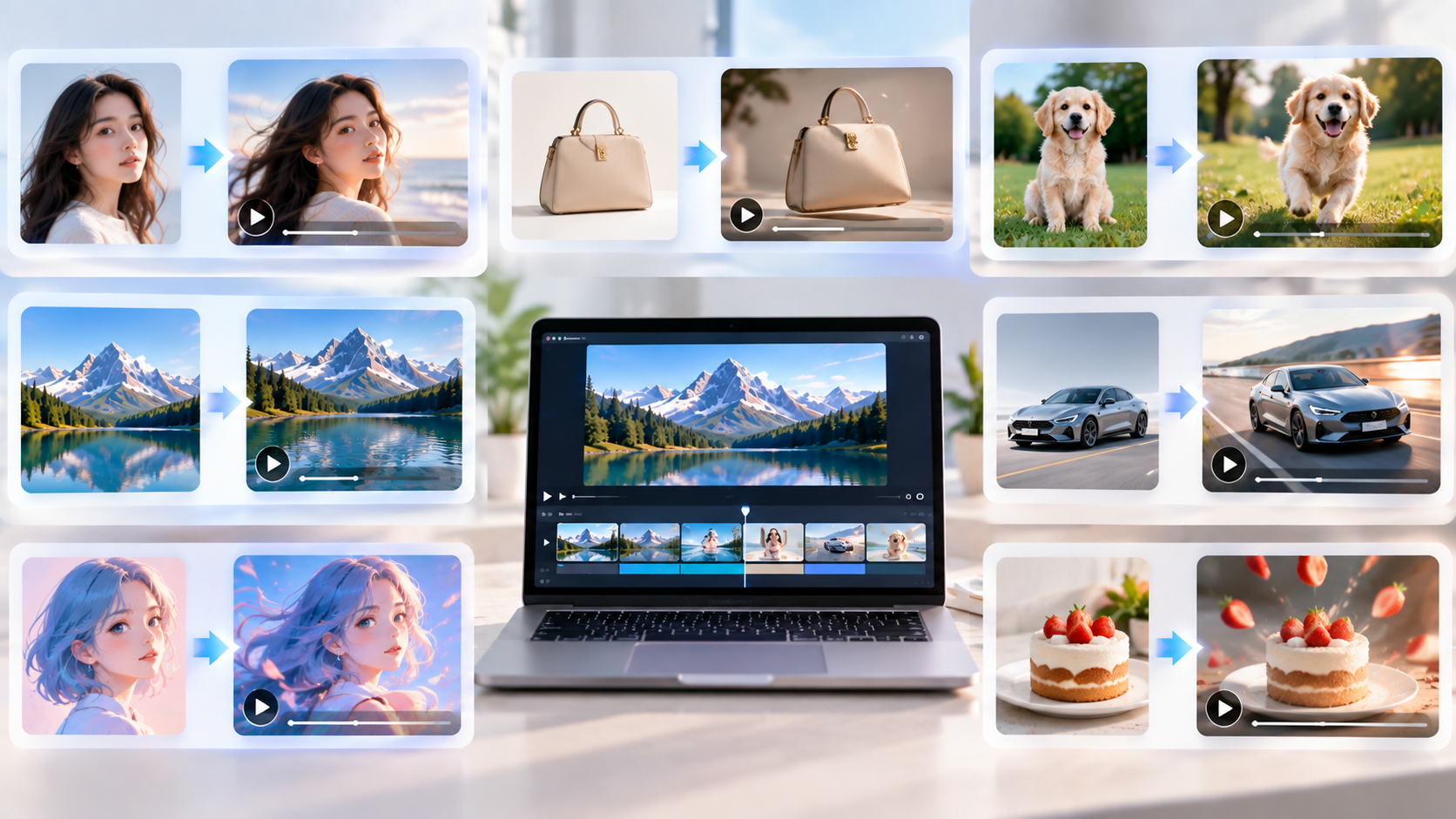
A finished character illustration could become a short clip with a subtle head turn and moving hair. A product photo could gain a slow camera push and changing reflections without rebuilding the product from text.
Reference images improve control, although they cannot guarantee that every visual detail will remain unchanged.
A More Consistent Look
Using the same character or product references across several generations can reduce visual differences between clips. Clothing, hairstyles, brand colors, and scene design can all be established before animation begins.
For projects that depend heavily on the same visual identity, reference image-to-video can use an existing image to guide the appearance and style of generated footage.
Important faces, packaging, and product details should still be checked in every generated shot. Logos, labels, and text that must remain exact are usually better added during editing.
More Ways to Use Existing Images
Existing content can be reused instead of created from scratch. Product photos can become short showcases, portraits can gain subtle expressions, and landscape artwork can be animated with moving clouds or water. Creators can also turn photos into a video when they already have suitable still images for a project.
The amount of motion should match the source image. A close portrait is better suited to blinking and slight head movement, while a wider scene provides more space for character movement or camera motion.
Best Image-to-Video AI Generators for 2026
The best AI image to video generator depends on the type of clip you want to create. Some tools emphasize realistic movement, while others provide more camera control, visual effects, or creative flexibility.
| Generator | Best For | Output Quality | Free Plan | Main Limitation |
| RoboNeo | Short video creation | High | Limited access may vary | Model settings and credit use vary |
| Kling AI | Realistic subject motion | High | Limited | Complex interactions may distort |
| Runway | Detailed motion control | High | Limited | Advanced models use more credits |
| Adobe Firefly | Brand and commercial work | High | Limited credits | Access varies by model and plan |
| Higgsfield | Dynamic camera movement | High | Limited | Strong motion can distort scenes |
| Pika | Creative short effects | Good to high | Limited | Effects may change source details |
| Luma AI | Cinematic motion | High | Limited | Complex movement can reduce consistency |
RoboNeo — Best for Creating Short Videos
RoboNeo is suited to creators turning product photos, characters, scenes, or AI images into short videos.
Users can upload an image and describe subject movement, environmental changes, or camera motion with a short prompt. Different AI video models are available, so the same image can be tested across multiple models to find a suitable result.
A creator making a social ad could generate several short product shots separately and combine the strongest clips afterward. Current model availability, video length, output settings, and credit costs should be checked before starting.
Kling AI — Best for Realistic Subject Motion
Kling AI works well for realistic movement involving people, animals, products, and everyday environments.
The image establishes the starting scene, while the prompt describes what moves and how quickly. A person standing beside a bicycle could begin walking it forward while the camera follows slowly.
Hands, object interaction, and scenes with several people remain more difficult, particularly when movements become complex.
Runway — Best for Detailed Motion Control
Runway is useful when the movement and camera direction need more careful control. Its image-to-video models allow the starting frame to define the visual composition while the prompt focuses on how the shot develops.
A car image could remain visually consistent while the camera tracks alongside it and reflections move across the bodywork. Runway also includes additional video tools for continuing to refine generated footage.
Access, credit requirements, and available settings vary between models.
Adobe Firefly — Best for Brand and Commercial Projects
Adobe Firefly fits well into projects that already use Creative Cloud. A first-frame image can guide the shot, while supported controls can influence zooming, panning, framing, and other camera movement.
This makes it practical for product concepts, advertising visuals, and supporting footage. Adobe states that its own Firefly models are trained on licensed and public-domain content, although users still need the appropriate rights for uploaded images.
Firefly also includes third-party video models, so their terms should be checked separately.
Higgsfield — Best for Dynamic Camera Movement
Higgsfield focuses heavily on expressive camera motion. It works particularly well for fashion clips, ads, music content, and short social videos that need a stronger visual style.
A static fashion portrait can become a slow orbiting shot or dramatic push-in without manually animating a camera.
Strong movement can also introduce stretching or changes around the subject and background, so simpler compositions usually provide more predictable results.
Pika — Best for Short Creative Effects
Pika is a practical choice for quick visual experiments, transformations, and effect-driven clips.
A reaction image could become an animated meme, while a simple product visual might be turned into a more stylized social clip. Its creative tools make it easy to test several ideas without building a complicated setup.
More dramatic effects can change faces, product shapes, and background details. Free access may also limit certain models, resolutions, or features.
Luma AI — Best for Cinematic Motion
Luma AI's Ray models are designed for cinematic camera movement and visually rich scene changes.
A static city street can gain a gradual forward camera move, shifting reflections, moving traffic, and subtle lighting changes. Frame-based controls can also help guide how a scene develops.
It works well for concept footage, environments, advertising, and game visuals, although large character movements may still alter important details.
Best Source Images for AI Video
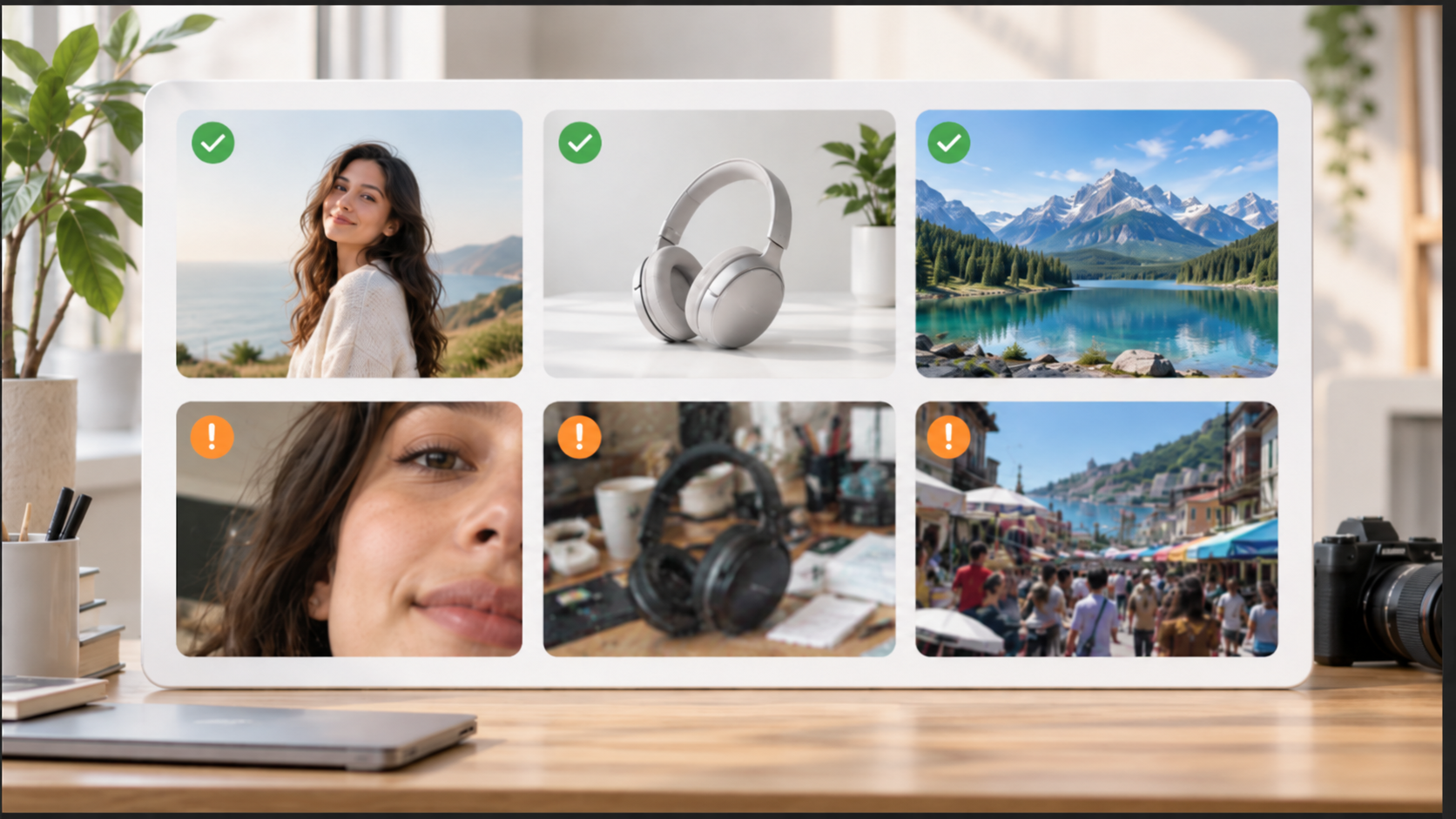
Even the best image to video AI generator performs better when the starting image is easy to interpret. Image quality, framing, and available space all affect how naturally a model can create movement.
A Clear Main Subject
The main person, product, animal, or object should be easy to identify. Heavy obstruction and crowded backgrounds can make motion relationships harder for the model to predict.
Faces, hands, and body parts involved in the planned movement should also be clearly visible whenever possible.
Enough Room for Movement
The composition should leave space for the action you want. A walking character needs room in the direction of travel, while a large camera move requires more surrounding background.
Close-ups are usually better for eye movement, expressions, and small head turns. Wider shots give the model more room for full-body action and environmental changes.
Consistent Lighting and Sharp Details
Blurred edges, compression artifacts, distorted hands, and incorrect product details can become more noticeable after animation.
A clean source image with clear lighting gives the model a stronger foundation. Preparing strong source material is also useful when you make AI videos, since image quality can influence how well the generated motion holds together.
If the image already contains obvious errors, correcting them before video generation is usually more effective.
The Right Aspect Ratio
The source image should be close to the final video format. TikTok, Instagram Reels, and YouTube Shorts usually favor vertical framing, while standard YouTube videos, website banners, and presentations commonly use landscape formats.
Preparing the composition before generation reduces the risk of important subjects being removed during cropping.
Tips for More Natural Image-to-Video Motion
Natural-looking results often come from controlled movement rather than asking every part of the image to change at once. The scene should feel like the next moment of the original image.
Give the Scene a Natural Next Moment
Movement should match the subject's existing pose and position. Someone already looking through a window could blink and slowly turn their head. A bottle sitting on a table could remain in place while the camera pushes closer and light moves across its surface.
Large, sudden actions require the model to invent much more information, which increases the chance of distortion.
Add Life to the Background
Background motion can make a shot feel active without changing the main subject too much. Leaves can move gently, water can ripple, or curtains can shift slightly with the air.
Keeping these changes subtle is usually more effective than making every object move at the same time.
Keep Faces and Products Subtle
Portraits generally handle blinking, breathing, small expressions, and slow head movement better than extreme facial changes.
Product images benefit from controlled camera moves, subtle rotation, and lighting changes. Fine text, logos, and packaging details can be particularly difficult to preserve, which is one of the common limitations of AI video generation.
When accuracy matters, these details can be restored during editing rather than relying entirely on the generated clip.
Build Longer Videos One Shot at a Time
A single image usually works best for one short, clearly defined shot. Longer videos can be divided into several scenes, with a separate source image prepared for each one.
A travel video might use a city establishing shot, a food close-up, a walking scene, and a final skyline clip. Generating those shots individually gives you more control over quality and makes weak clips easier to replace.
FAQ
Can AI turn one photo into a video?
Yes. Image-to-video models can add subject movement, environmental changes, or camera motion to a single photo.
They work with portraits, products, animals, landscapes, illustrations, and AI-generated images. One image is generally best suited to a short shot rather than an entire multi-scene video.
Why does my image change when I animate it?
The model must predict visual information that is not shown in the original image. Turning a person's head or moving the camera exposes new angles and background areas that need to be generated.
Larger movements usually create more opportunities for faces, hands, textures, and product details to change.
Can image-to-video AI make a person talk?
Some tools can generate facial and lip movement from text or audio, but standard image-to-video models may not match dialogue precisely.
Projects that require accurate speech are better suited to dedicated lip-sync or talking-avatar features. Appropriate permission is also needed when using a real person's image or voice.
How long should an AI-generated video clip be?
A clip should generally be only long enough to complete its main action. Shorter generations are often easier to keep visually stable.
Longer stories can be divided into multiple shots and edited together afterward.
Can I use AI-generated image videos commercially?
Commercial rights depend on the platform, model, account plan, and source materials. Users also need the appropriate rights to any people, trademarks, photography, artwork, or other protected material in the starting image.
When comparing the best free image to video AI tools, check commercial-use terms, watermarks, credit limits, and export restrictions rather than comparing output quality alone.
You May Be Interested
How to Create Stunning Visuals with the Best AI Music Video Generator
6 Best AI Video Generators in 2026
Best Free AI Video Generator: Top Tools to Try
Best Setup for AI Video Generation: Benefits, Setup & Tips
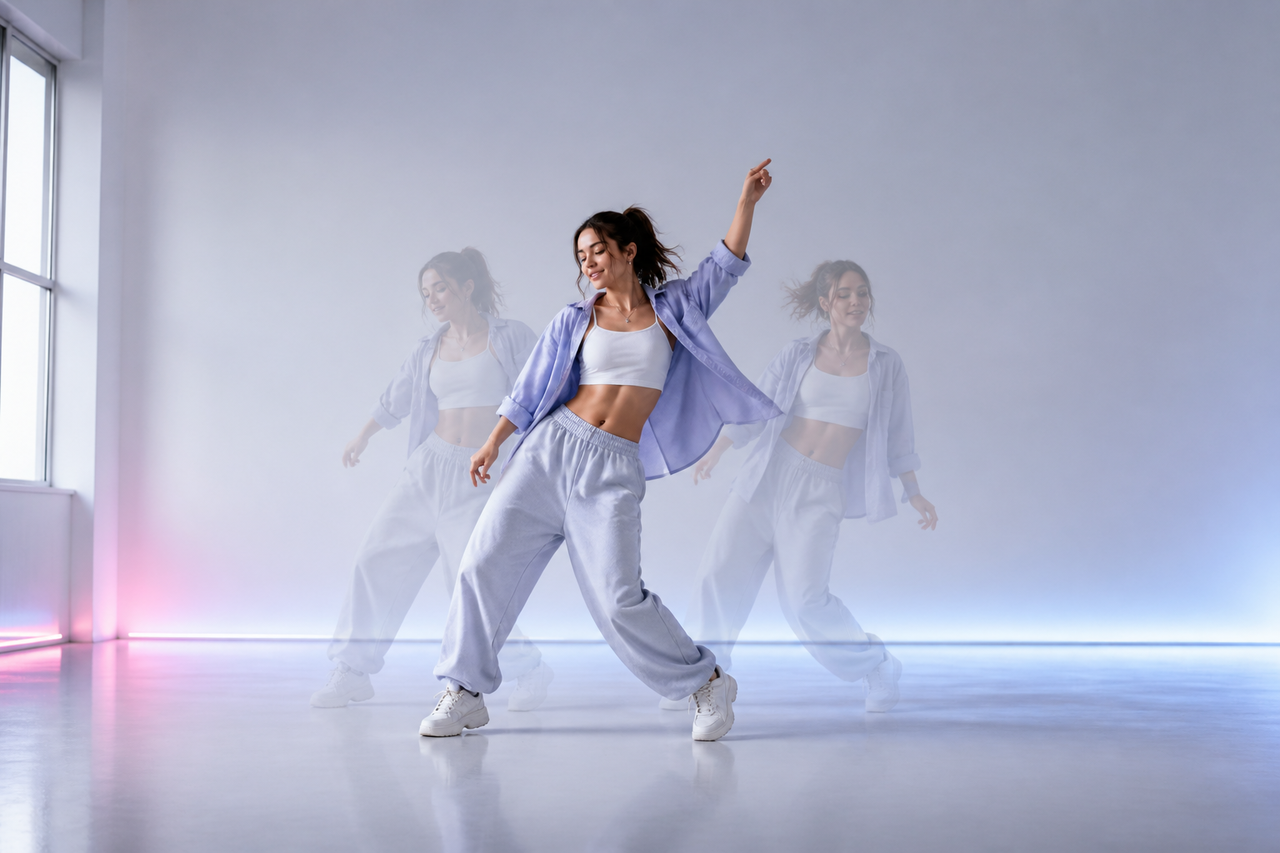
Best Image to Video Girl Dancing Prompts in 2026