Does Grok AI Generate Videos: Steps, Limits, and Cost in 2026
 RoboNeo TeamOctober 29, 2026
Grok AI does video generation. You get text-to-video, image-to-video, and a few other standard modes. Just remember that actual features, generation limits, and pricing depend on your account type and current rules. We’re going to look at how to generate videos with Grok AI, along with the modes, limits, and costs. It makes picking the right creative setup way easier.
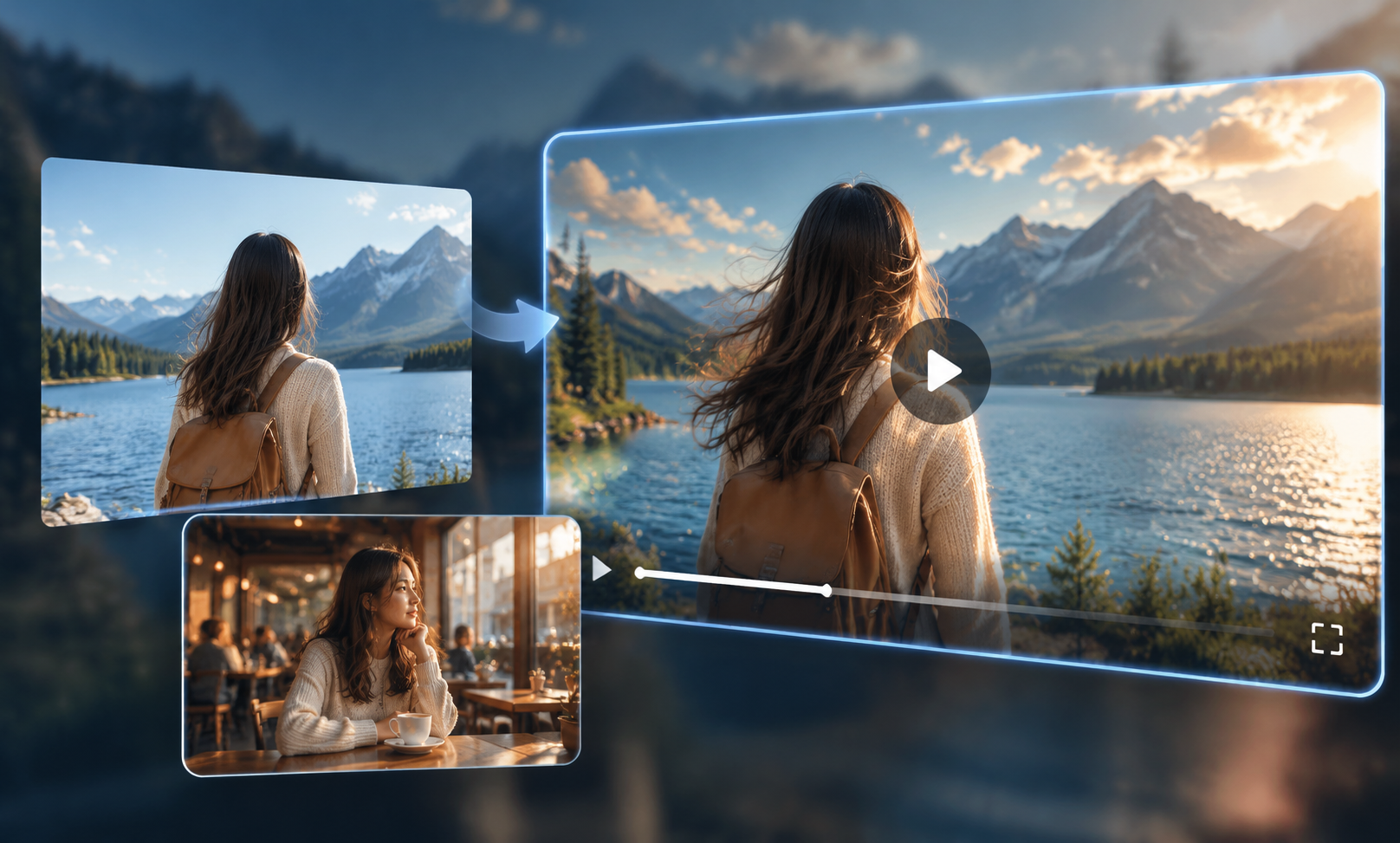
How Does Grok Generate Videos?
Here is a breakdown of the exact steps for using Grok AI, based on the two most popular creator modes: text-to-video and image-to-video.
Text-to-Video
Grok AI can generate videos from text prompts using Grok Imagine. Simply describe your subject, setting, action, and visual style to create your first clip. For more guidance on writing effective prompts, explore this text-to-video creation guide.
Step 1: Open Grok Imagine Make your way to the official Grok website and get logged in. After that, just open the Imagine video creation tool to get started.
Step 2: Enter Your Video Prompt Go to the prompt input box and describe your video's main subject, what it's doing, the scene, how the camera moves, and the visual style you're going for. The more specific you get with your description, the easier it is to get a picture that matches what you want.
Step 3: Generate the Video Go ahead and submit your prompt, then wait for Grok to work its magic. Do keep in mind that things like how long it takes to generate and the final resolution can change based on your account and the version of the interface.
Step 4: Preview and Adjust the Video Look over the generated video's visuals, actions, and camera effects. If things don't look the way you expected, just keep typing in commands. You can tweak the speed of the character's movements, change how the camera moves, or adjust the lighting, and then generate it again.
Image-to-Video
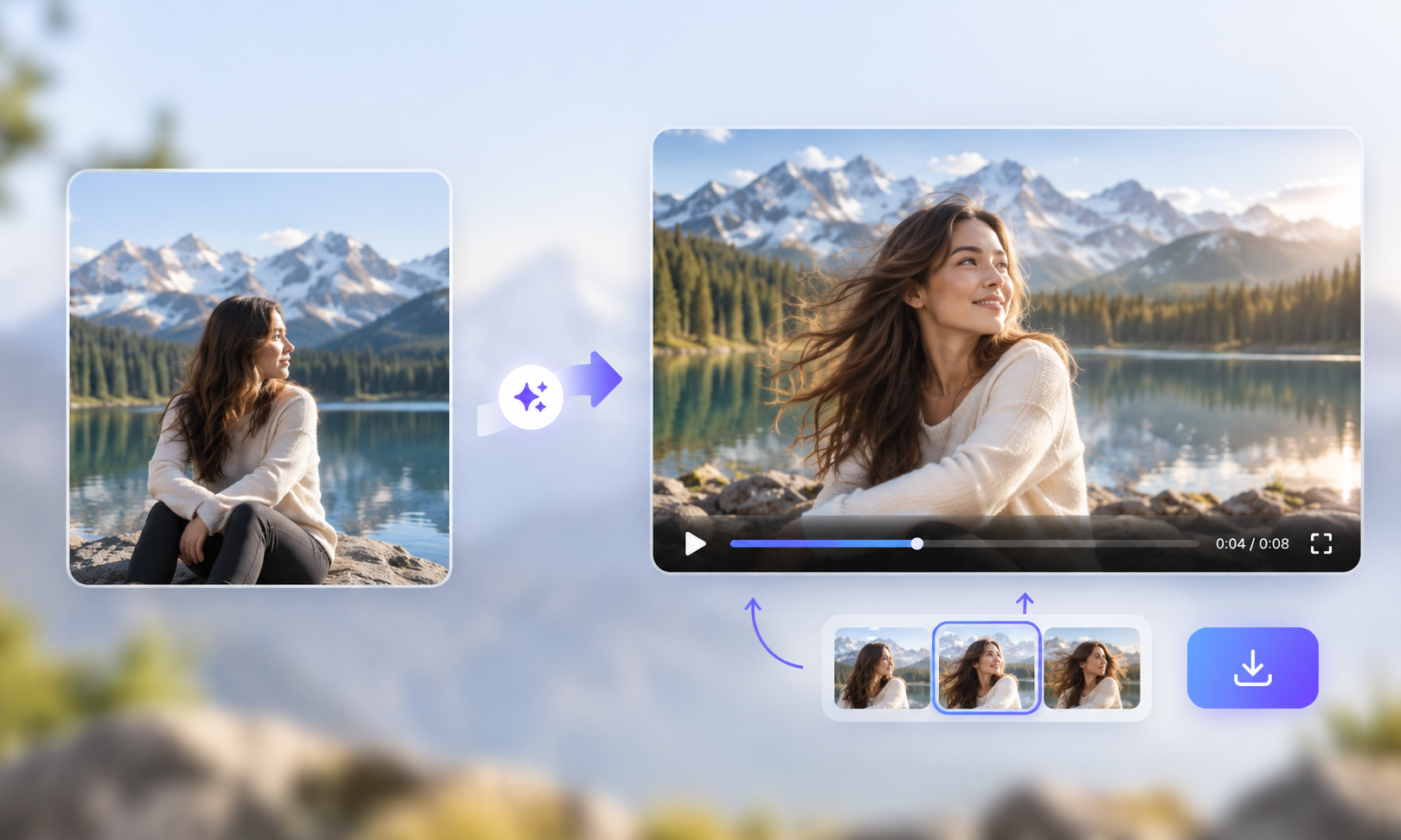
Grok Imagine also supports image-to-video generation. Upload a reference image of a character, product, or scene, then describe the movement you want to create. If you're comparing different approaches, this guide to image-to-video generators explains their strengths and limitations.
Step 1: Open Grok Imagine
Make your way to the official Grok website and get logged in. After that, just open the Imagine video creation tool to get started.
Step 2: Upload an Image and Enter Your Prompt
Go ahead and choose the image upload option to add the static picture you want to bring to life. Next, enter your prompt and write out exactly how you want the subject to move, what kind of camera movements you want, or if there are any scene changes or sound effects needed. As an example, you can ask the person in your reference photo to turn their head and smile, while having the camera slowly push in.
Step 3: Generate the Video
Go ahead and submit your image and prompt, then wait for Grok Imagine to work its magic and generate the video.
Step 4: Preview and Save the Video
Look over the subject's movements, the sound effects, and how smooth the video flows. If it doesn't turn out the way you expected, just adjust your prompt and try generating it again. Once you get a result you love, save the video.
Does Grok AI Generate Videos For Free?
As of October 2026, the official Grok pricing page still leaves things a bit vague about whether free users can generate videos. Right now, AI image and video tools are only explicitly listed as a perk for Premium tiers and above. So, we honestly can't confirm yet if free accounts get access to Grok AI video generation. Here is a breakdown of their official table for reference:
| Plan | Subscription Price (USD) | Usage Allowance | Video Generation Availability |
| Free | $0/month | Limited AI usage | Not explicitly confirmed in official plan details |
| Plus | $8/month | Shared AI usage pool | Not explicitly confirmed in official plan details |
| Premium | $30/month | 4× the usage allowance of Plus | Yes — explicitly included |
| Super | $100/month | 15× the usage allowance of Plus | Yes — includes Premium benefits |
| Ultra | $200/month | 50× the usage allowance of Plus | Yes — includes higher-tier benefits |
| Imagine API | Pay-as-you-go | Billed per second of generated video | Yes — paid video generation via API |
How to Make Better Videos With Grok
If your generated video falls flat, try these quick tips. They should help level up the overall quality.
1. Write Specific Prompts
Specific prompts help Grok Imagine produce results closer to your expectations. Describe the subject, setting, action, camera movement, and visual style rather than relying on a short description. These details also matter when comparing different AI video generation models, as each model interprets instructions differently.
Look at the difference here. Just typing "two people fighting" won't get you far. Go with something richer: "Two guys with similar builds are trading blows in a ring, carefully probing for openings while staying on defense. The whole scene has a cold, tense cinematic feel."
2. Describe Camera Movements
For action scenes, you need to clearly define the camera work in your prompt. Describe the motion—like pushing in, pulling back, panning, or following the subject. This gives you much better control over the dynamic feel of the final shot.
Take this for instance. Writing "a jet flying in the clouds" is too plain. Go with: "A fighter jet navigates through dense clouds. The camera smoothly follows from the side, keeping the plane dead center. Air currents and shifting fog swirl around the aircraft."
3. Keep Actions Simple and Consistent
Since Grok has a strict limit on video length, avoid stuffing your prompt with overly complex actions. Overloading the scene will break the flow and make the final video look choppy.
4. Use High-Quality Reference Images
Stick to clear pictures for image-to-video. Make sure the subject stands out. Blurry pics mean the AI misses details and gives you bad results.
5. Specify Lighting and Audio
Describe the lighting and shadows. Add the background music, sound effects, or dialogue you need. It makes the final video better and saves editing time.
6. Refine Prompts Based on Results
Check the video for weird details or bad motion. Tweak the prompt and generate it again to make it right.
What Are the Limitations of Grok Video Generation?
Even though Grok can turn text or images into video, it still has its limits—especially when it comes to clip length, usage quotas, and how fast it generates. Getting a handle on these bottlenecks helps you figure out if Grok is the right fit for your project.
Short Video Workflow: According to Grok's video API documentation, generated clips can last up to 15 seconds. For longer projects, create individual shots and combine them during editing. This guide to creating animated videos explains how to choose a suitable workflow for different types of video projects.
Limited Control Over Complex Scenes: When your prompt involves multiple people interacting—like two people handing over a product or an intense fight scene—the output can still glitch out. Actions might warp or objects might teleport. Grok Imagine Video 1.5 improved motion and physics, but the official success rate for these complex scenes hasn't been published.
Maintaining Consistency Across Multiple Clips: For continuous mini-dramas or product videos, Grok still struggles with character and detail consistency. You'll mostly see issues with facial consistency, clothing details, and tiny text or logos on products.
Usage and Generation Limits: Your video generation access and quotas depend on your plan and account. Based on user reports, Plus (around $8/month) lets you generate roughly 3 videos a day, while Premium (around $30/month) gets you about 10. Just remember that actual output depends on clip length and resolution. Also, failed or blocked generations still eat up your daily quota.
Generation Speed: Speed varies based on duration, resolution, and the specific model you use. But during peak server times, you might get stuck waiting in a queue. If you have to constantly tweak your prompt and regenerate, the whole process can get painfully slow.
Grok Video Generation Alternative: RoboNeo
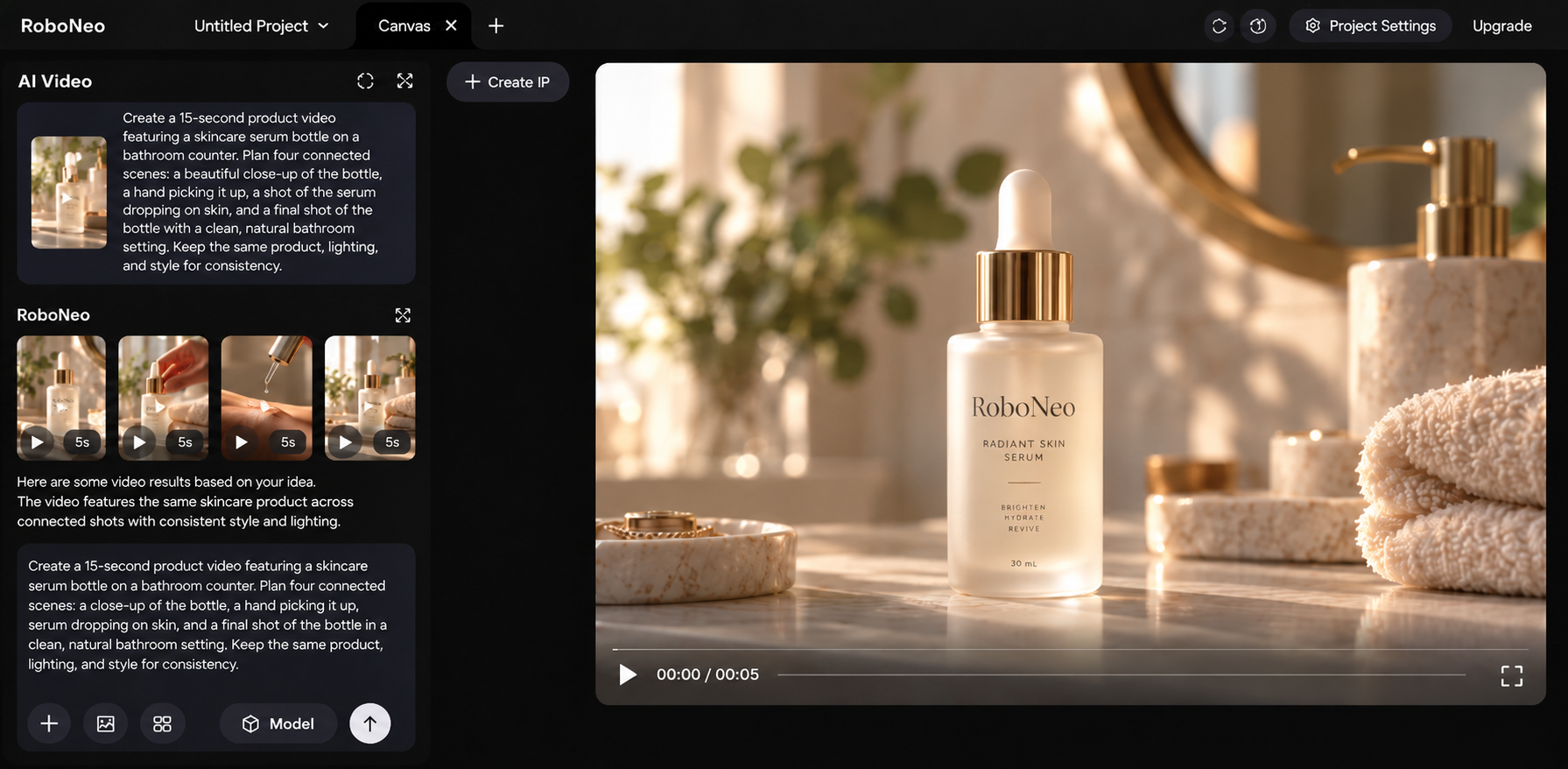
If Grok’s generation limits or quotas don't meet your needs, try RoboNeo. It integrates multiple mainstream AI video models and supports various generation modes, letting you select the best fit for character consistency, motion control, duration, and audio-visual sync. This means no more constantly switching between different AI tools.
Unified Workspace: Manage prompts, reference materials, and outputs in one place with independent projects, asset management, canvas, and Workflow features. A refined workflow is especially handy for repetitive tasks like continuous mini-dramas or product videos.
Versatile Creative Scenarios: From UGC marketing videos and TikTok clips to YouTube Shorts, product showcases, and mini-dramas, you can choose the right model and mode for the content. It also provides Agent Teams—featuring roles like screenwriters and directors—to, to massively boost efficiency and lower the difficulty of video creation.
Select Model Discounts: Certain models offer exclusive discounts to help reduce video generation costs. Check the platform's current page for applicable models and specific discount rules.
How to Generate Videos With RoboNeo
Here is a quick look at the steps to get started with RoboNeo:
Step 1: Create a Project and Open the Canvas Head into RoboNeo, spin up a new project, and add a video node to get your workflow started.
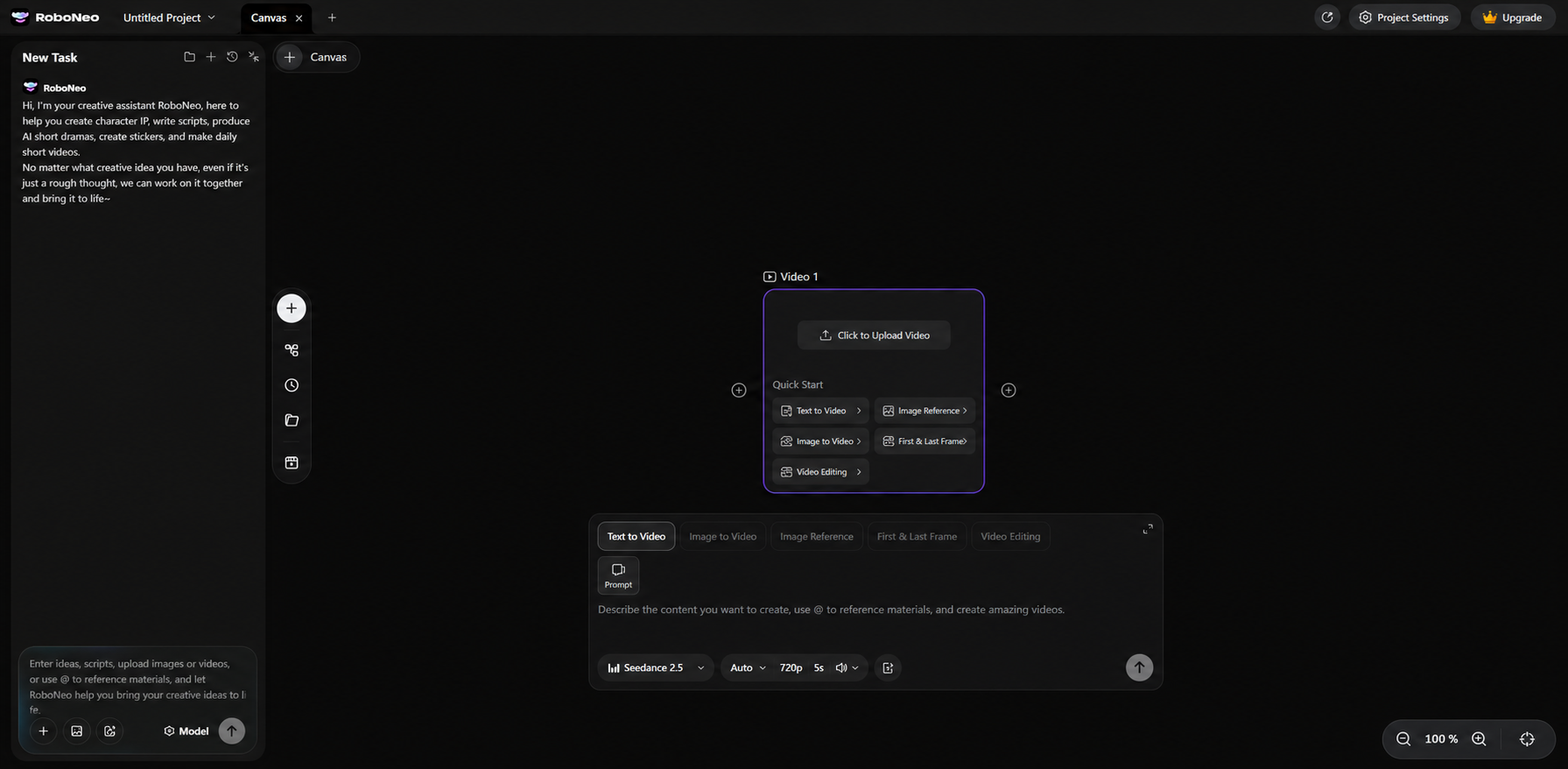
Step 2: Choose Your Generation Mode and Model Pick text-to-video, image-to-video, or whatever mode fits your needs. Then, select the best video model for the job.
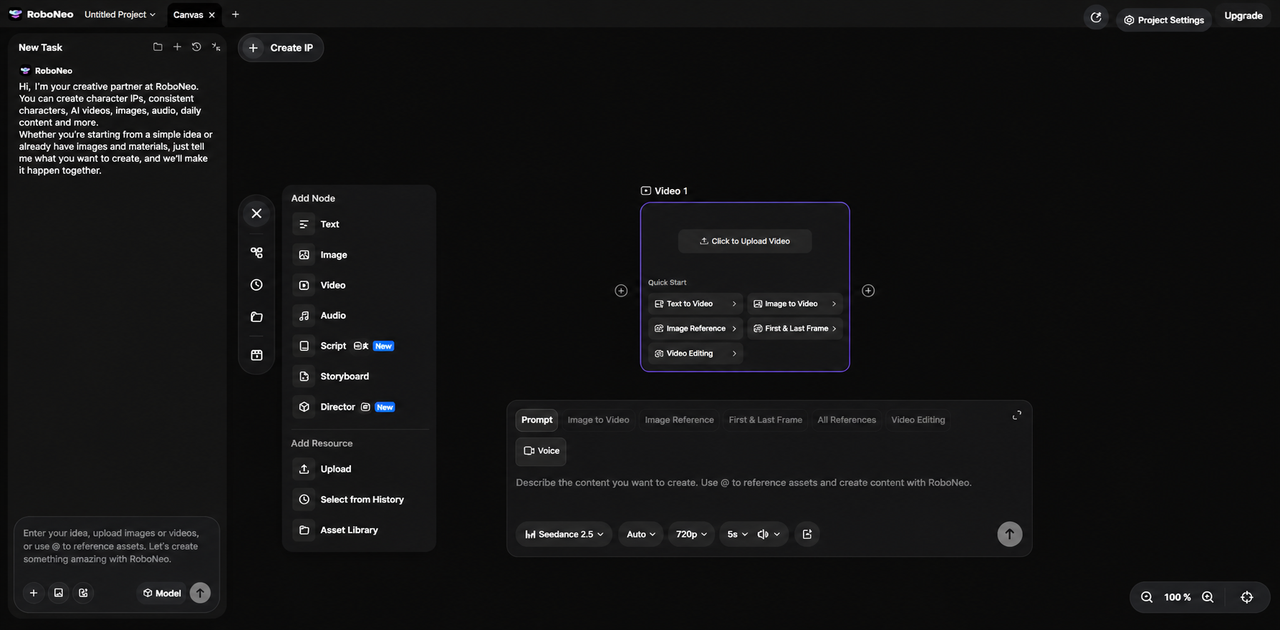
Step 3: Enter Your Prompt and Add References Describe the subject, action, and scene. If you need tighter control over the output, go ahead and upload reference images or other supported assets.
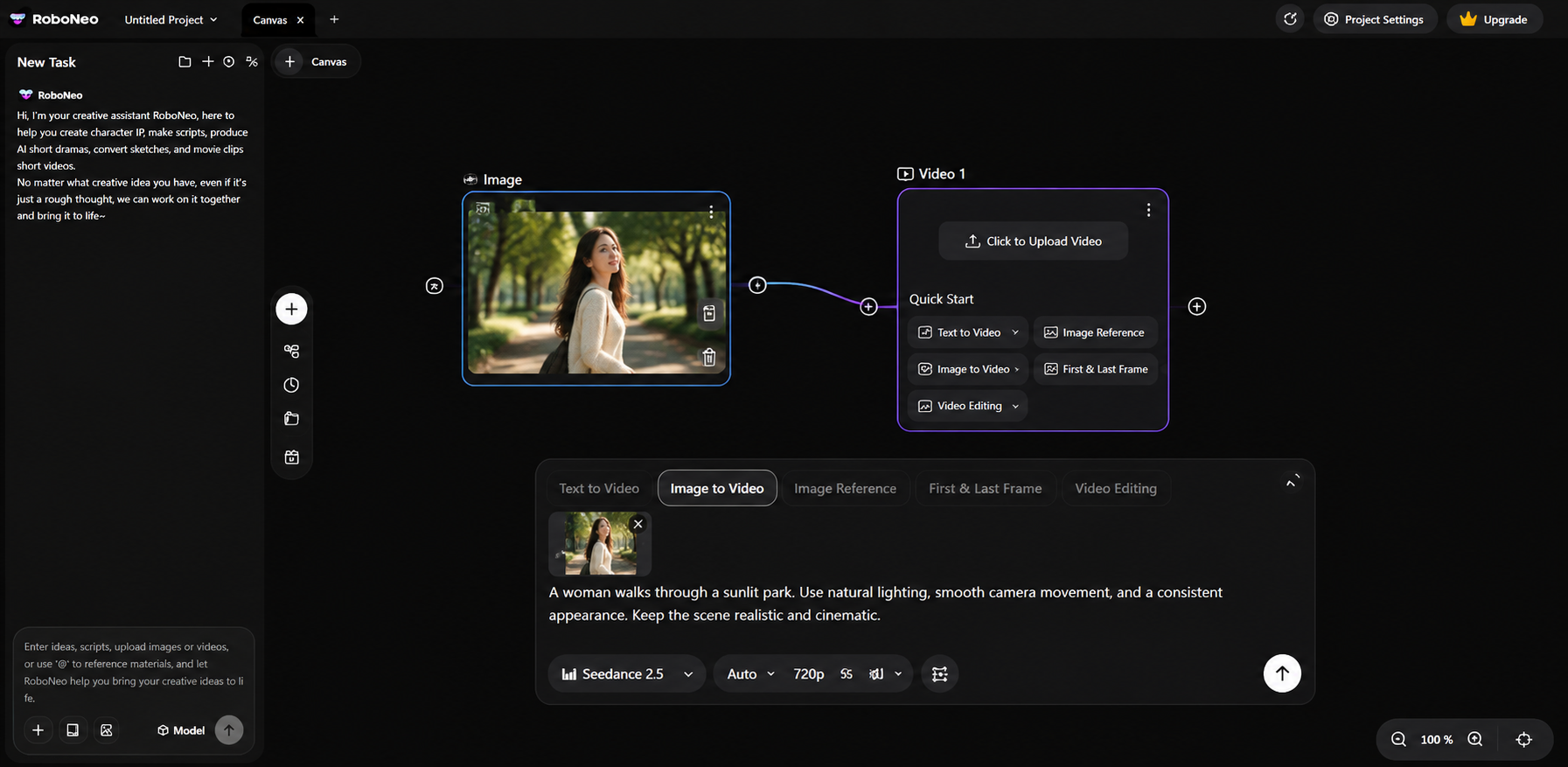
Step 4: Set Video Parameters and Generate Tweak the aspect ratio, resolution, duration, and audio settings based on your chosen model. Once dialed in, hit generate and preview the result.
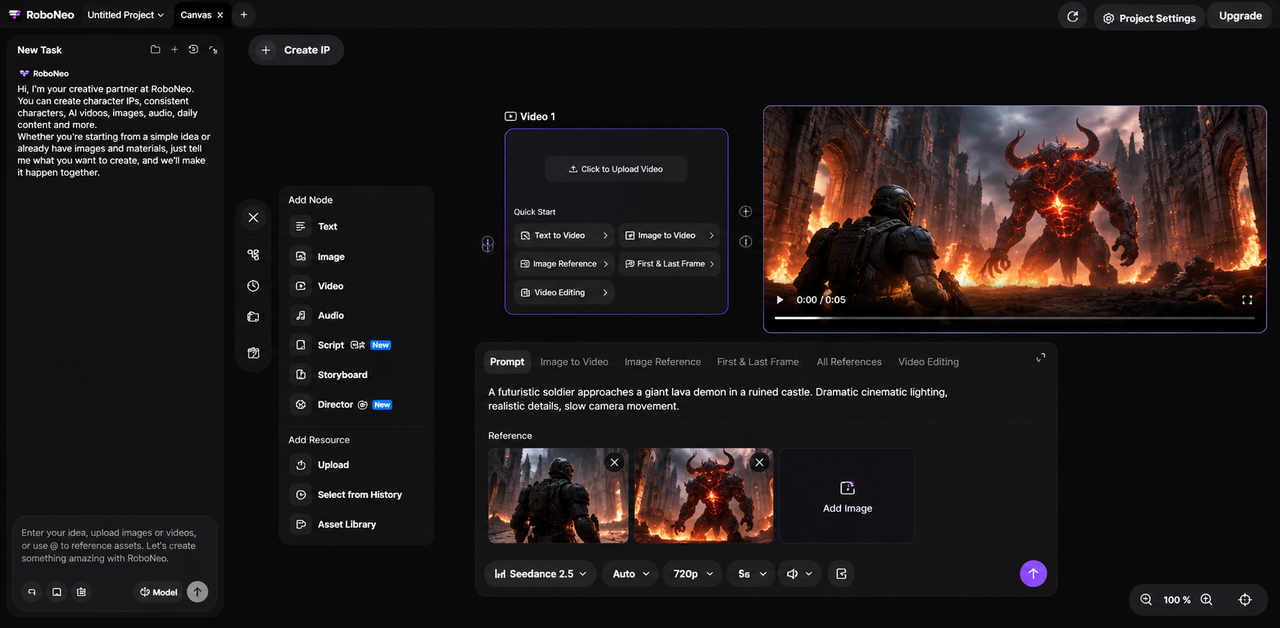
Step 5: Refine and Save Your Video If it's not quite right, adjust your prompt, assets, or parameters and run it again. Once you're happy, download the final cut.
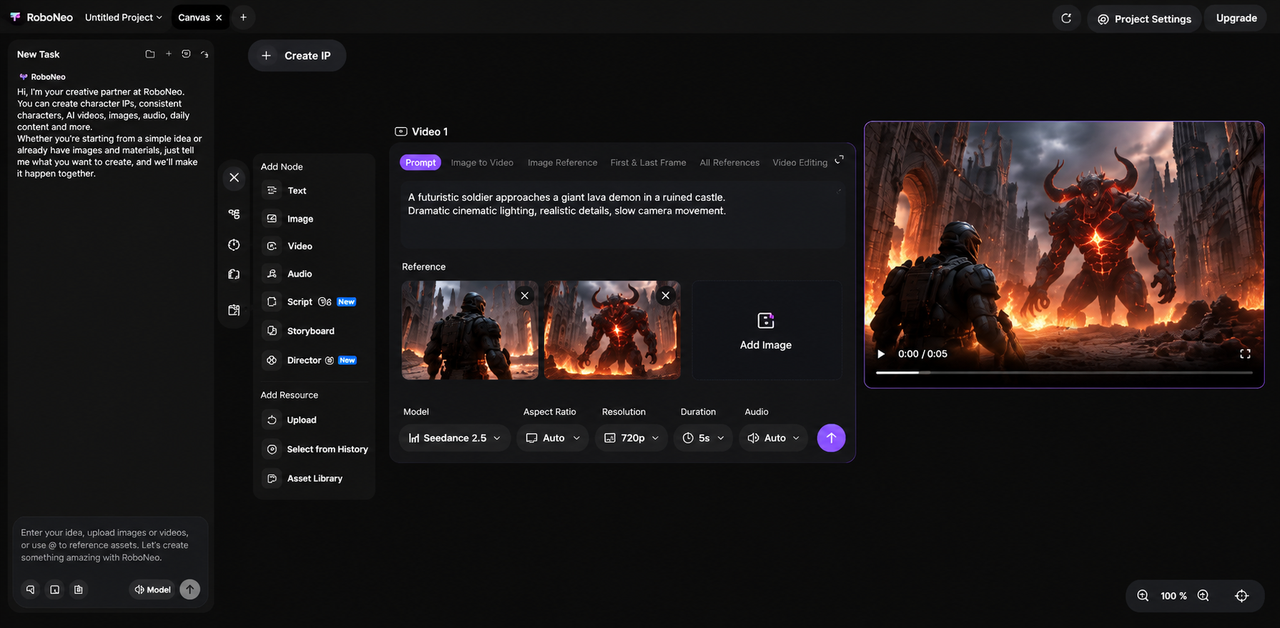
For a deeper dive into the workflow, check out our detailed guides or watch the RoboNeo video tutorial.
Want to explore different video models and creative styles. Head over to the RoboNeo website to see everything it can do.
FAQ
Can Grok keep the same character consistent across multiple videos?
Grok can maintain similar character appearances across clips, but perfect consistency isn't guaranteed. Reusing the same reference images and keeping descriptions of facial features, clothing, and hairstyles consistent can help reduce visual differences.
Are there any alternatives to Grok?
Yes. RoboNeo is an alternative to Grok for AI video generation. It brings multiple video models into one platform and supports text-to-video, image-to-video, and reference-based generation workflows.
Do Grok videos have a watermark?
Yes. Grok Imagine adds a watermark to generated videos to identify AI-created content. According to its official FAQ, there is no built-in option to remove it, and removing or obscuring the watermark is prohibited.
Can you use Grok-generated videos for commercial purposes?
Yes. Grok's consumer FAQ permits commercial use of generated outputs. However, you must have the necessary rights to any uploaded images or other materials and follow applicable terms, attribution guidelines, and AI disclosure requirements.
You May Be Interested
AI Video Generator Online: How to Create Videos Fast
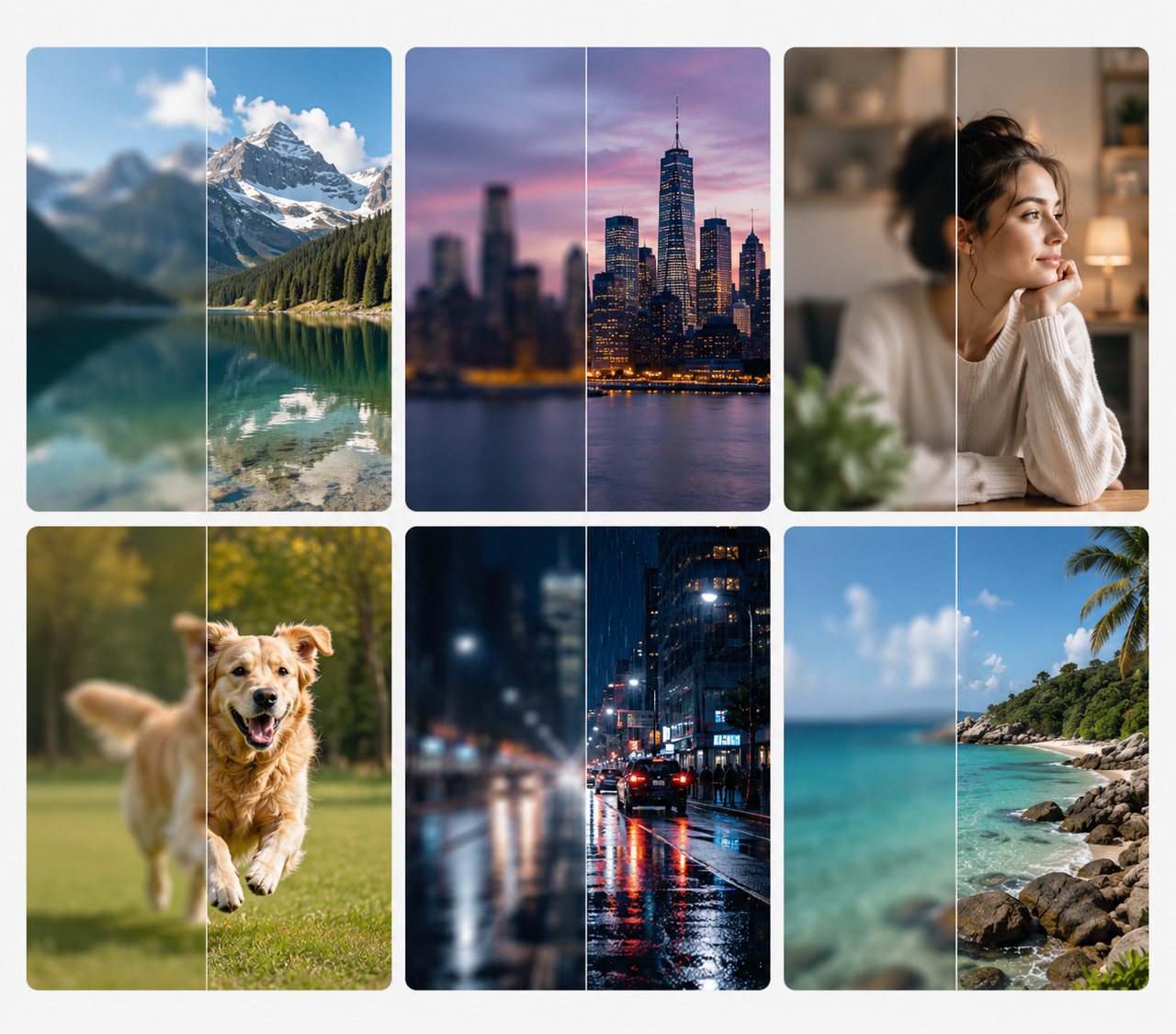
6 Best Tools to Fix Blurry Videos in 2026
How to Make Realistic AI Videos: Tips and Mistakes
How to Upload High Quality Videos to TikTok: Easy Guide
How to Download YouTube Videos and Remove Watermarks