How to Make Realistic AI Videos: Best Practices and Common Mistakes
 RoboNeo TeamAugust 22, 2026
What Makes an AI Video Look Real?
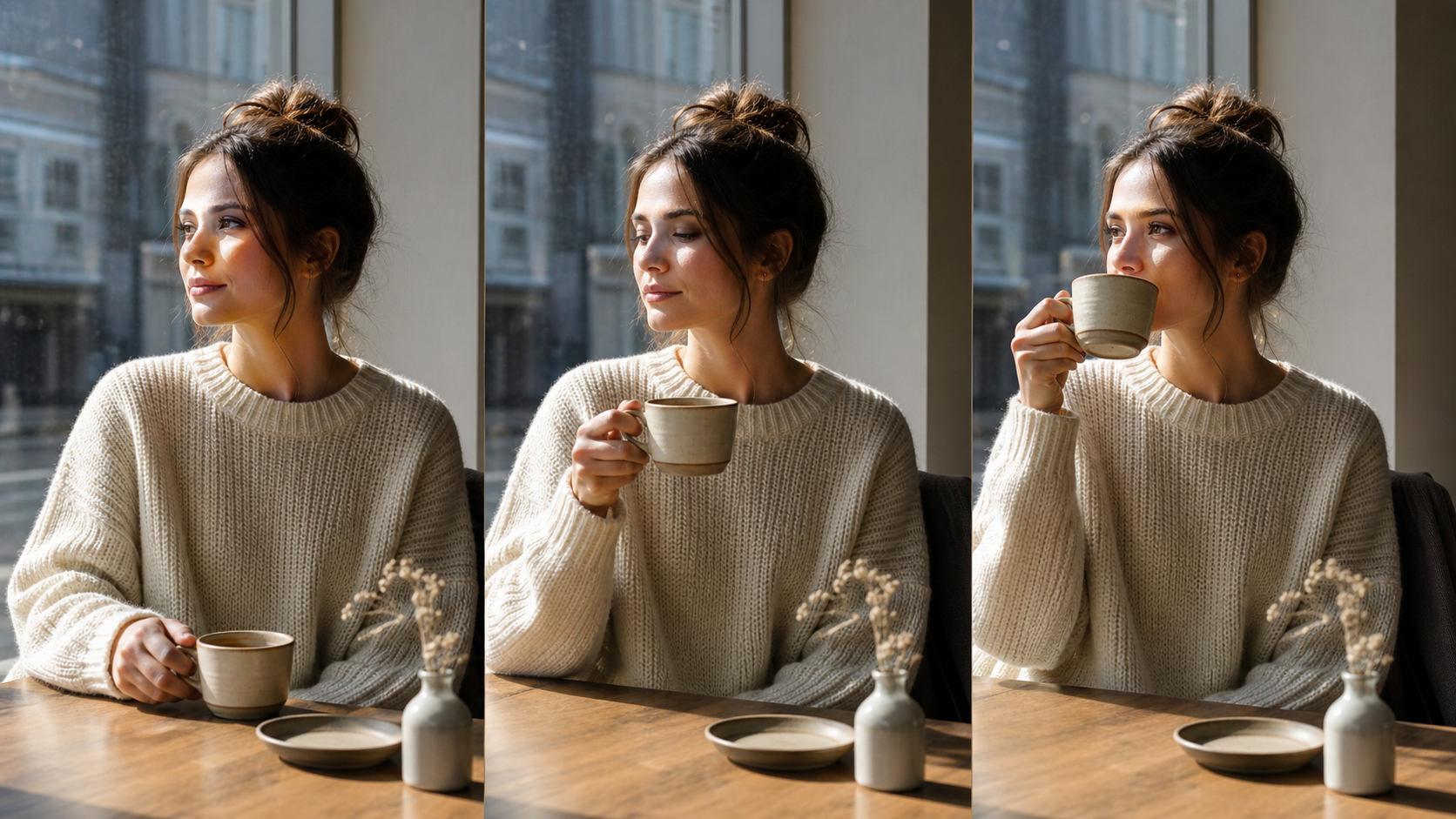
Nobody pauses a video to count pixels. What catches the eye is the small stuff. A coffee cup that leaves no shadow on the table. Hair drifting behind a head turn instead of moving with it. Footsteps that don't line up with their own sound. Any one of these slips breaks the spell.
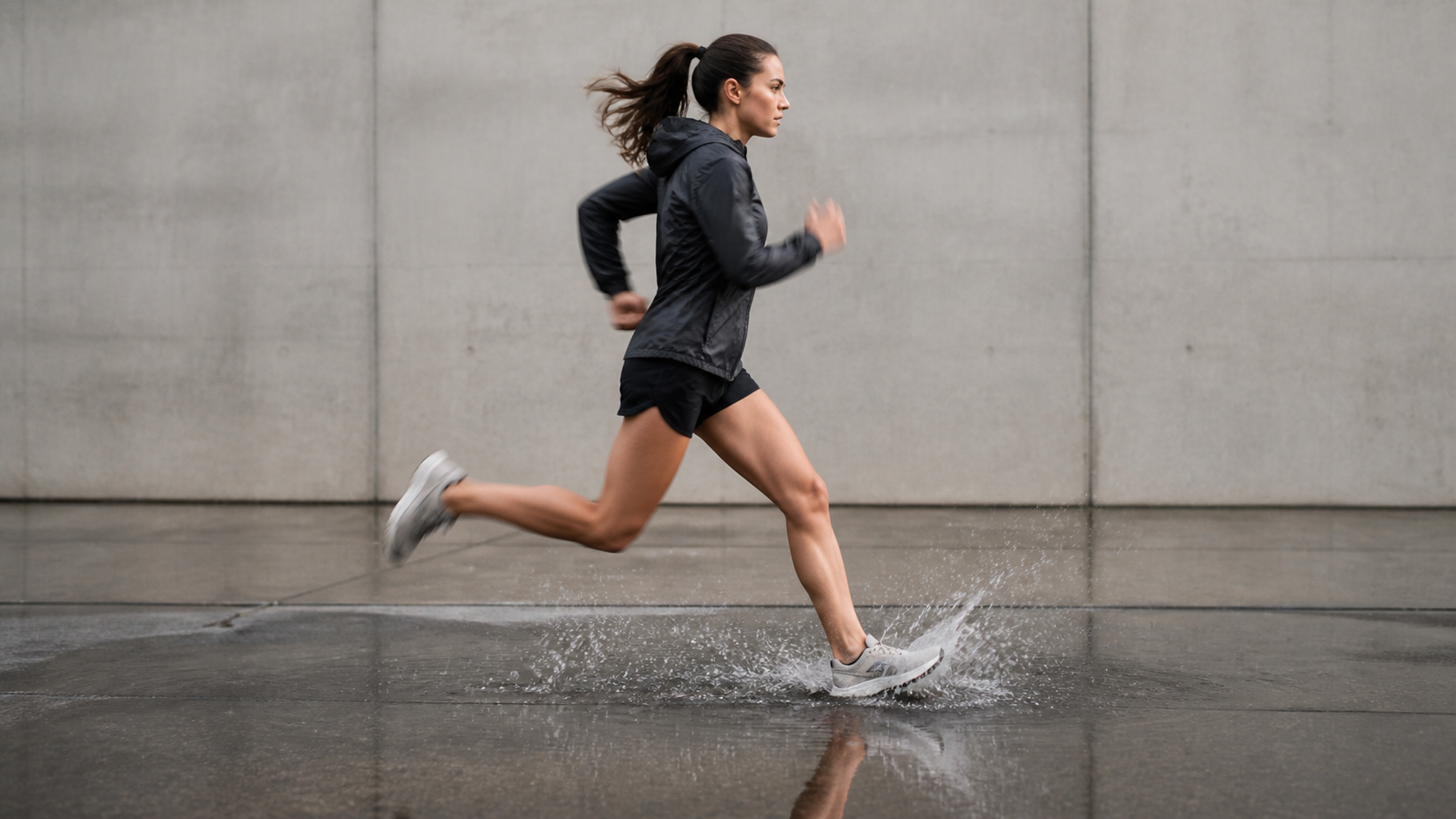
What makes generated footage read as real? A few things work together. Character consistency locks a person's jawline, hairstyle, clothing folds, and build across frames and cuts. Motion carries weight: a runner's arms don't swing at the pace of someone reaching for a glass. Physics has to hold up too. Water splashes outward on impact. Fabric drapes. A hand wrapping a doorknob conforms to its shape. Then there's texture and light. Skin pores, metal reflections, concrete grain should look organic, and shadows need to fall where the light source points them. Camera and audio finish the job. Handheld shots drift a little. Tripod shots stay put. Ambient sound shifts character when the scene moves from an open street into a hallway.
How to Create Realistic AI Videos Step by Step
If you're learning how to create realistic AI videos, the process works best as a sequence of deliberate decisions rather than a single prompt-and-pray attempt.
Step 1: Define the Scene and Visual Direction
Before typing anything into an AI video generator, nail down the basics. Where does this clip live—Instagram Reels, a YouTube ad, a product landing page? That decision alone sets your aspect ratio, duration, and pacing expectations. A 9:16 vertical story clip for TikTok demands tighter framing and faster hooks than a 16:9 cinematic scene.
Break your concept into individual shots, each containing one primary action. A thirty-second brand spot might split into five or six clips: an establishing wide shot of a storefront, a medium close-up of a hand picking up a product, a reaction shot of a customer's face. Planning these in advance prevents continuity errors—like a character wearing a blue jacket in one cut and a gray one in the next.
Step 2: Choose the Right Input for the Scene
Not every shot benefits from the same starting point. A text prompt works well when you're exploring a mood or environment you haven't visualized yet. Reference image to video gives the model a stronger visual anchor—useful if the character's face or a product's exact color needs to be carried through multiple shots. Existing video clips serve as motion references when the action matters more than the setting. The choice isn't binary; combining a reference image with a text description of movement often yields the most controlled output.
Step 3: Write a Focused AI Video Prompt
Learning how to make good AI videos starts with a focused prompt: state what's in the frame, what's happening, and what the camera is doing. Front-load the subject and action, then layer in environment, lighting, and lens details.
Here's a structure that works reliably: "A woman slowly turns toward the window, soft morning light falling across her face, subtle breathing and natural eye movement, static medium close-up, realistic skin texture." That single sentence covers subject, motion, light direction, micro-behavior, camera position, and surface quality—without contradicting itself.
When working from a reference image, the prompt should emphasize motion and camera rather than re-describing the character's appearance. The model already "sees" the face and outfit; repeating those details can introduce conflicts that degrade consistency.
Step 4: Select a Model and Generate the First Draft
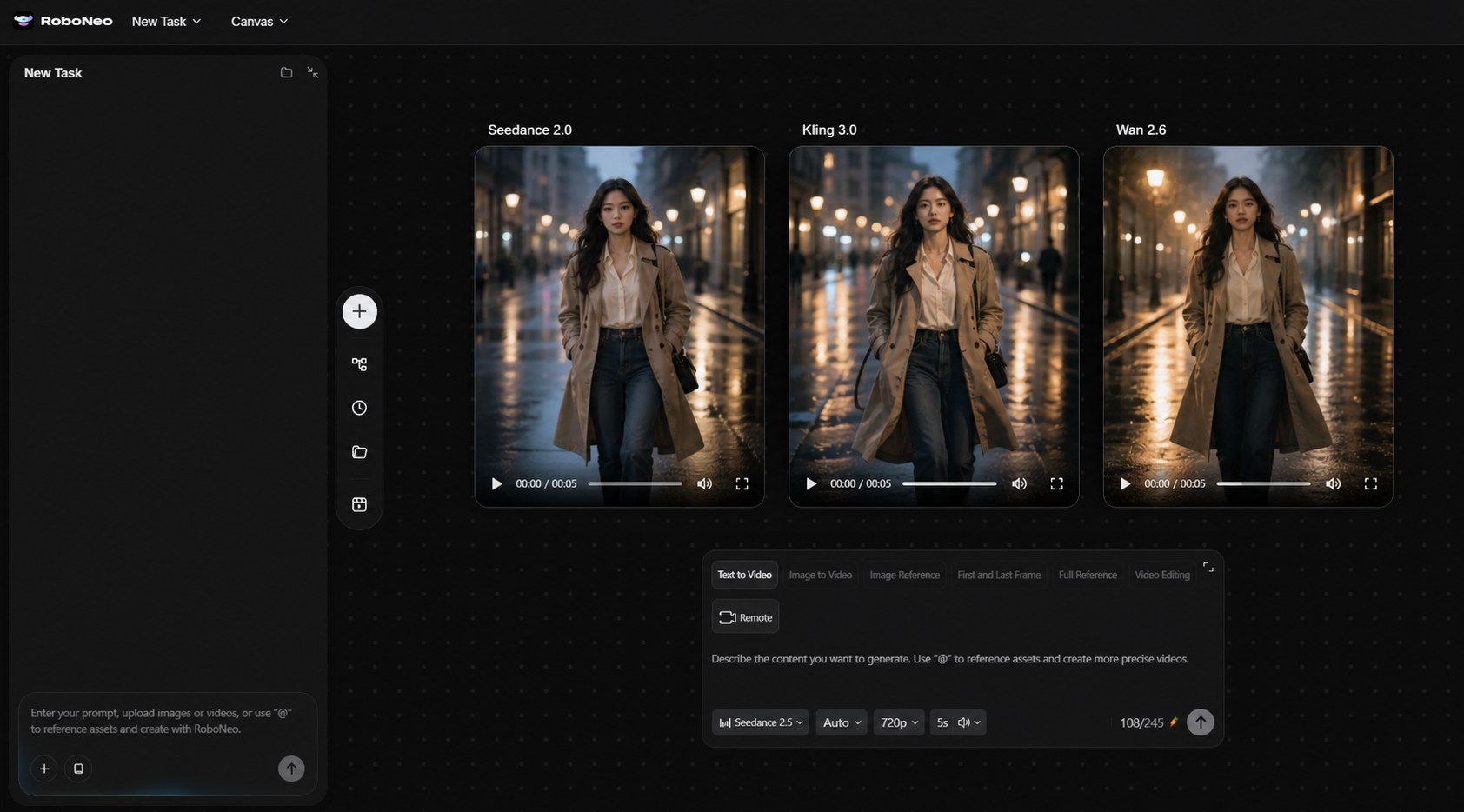
Different generation models excel in different areas. Some handle human faces and subtle expressions well; others prioritize dynamic camera movement or cinematic color grading. On RoboNeo, you can input your creative direction or upload reference materials, then pick from models like Seedance 2.0, Kling 3.0, or Wan 2.6 depending on whether your shot prioritizes character stability, motion realism, or stylistic atmosphere. Generating a first draft is a diagnostic step—not a final delivery.
Step 5: Review the Generated Video and Refine It
Watch the full clip at least twice before making changes. The first pass catches common AI video generation issues: a melting hand, a disappearing earring, or a shadow pointing the wrong way. The second pass reveals subtler problems—unnatural stillness in the background, a blink rate that feels robotic, or a camera drift that doesn't match the stated shot type. Adjust the prompt language, swap the reference image, or try a different model based on what you find.
Best Practices for More Lifelike AI Videos
A few practical choices can make the difference between a video that feels believable and one that immediately looks generated.
Direct Subtle Human Behavior
To make realistic AI videos, focus less on adding more effects and more on getting movement, continuity, lighting, and small human behavior right.
The most convincing AI-generated people aren't doing much. A slight weight shift from one foot to the other, a slow inhale, or a gaze that drifts before refocusing—these subtle facial expressions and behaviors help a character feel alive. Large, dramatic gestures are harder for models to render without distortion, and they're also less common in everyday human interaction. A talking-head testimonial gains credibility from a small nod and a natural pause between sentences, not from exaggerated hand waving.
Maintain Continuity Across Multiple Shots
Lock down a character description and reuse it verbatim across every prompt in the same project. Note the time of day, weather, light direction, and prop placement. If a desk lamp sits on the left in shot one, it should remain on the left in shot four—even if the angle changes. When cutting between a wide and a close-up, the character's body orientation at the end of one clip must match the beginning of the next. Continuity errors are the fastest way to remind a viewer they're watching something generated.
Balance Visual Quality With Natural Detail
Real footage contains imperfections. Skin has pores and occasional unevenness. Fabrics catch light differently depending on weave direction. Slightly out-of-focus backgrounds and gentle motion blur on fast-moving limbs signal an actual lens was involved. Over-smoothed faces, razor-sharp edges on every object, and perfectly noiseless shadows all push footage toward an uncanny, plasticky look. Leave room for organic texture.
Common Mistakes That Make AI Videos Look Fake
AI videos usually look fake when the model is asked to do too much or when physical and visual consistency is overlooked. The table below shows the most common problems and practical fixes.
Common Mistake | Why It Looks Fake | How to Fix It |
Multiple complex actions in one prompt | The model loses coherence trying to handle simultaneous movements, causing limbs to merge or objects to vanish | Limit each clip to one primary action and one camera move |
Ignoring light direction | Shadows fall in conflicting directions, breaking spatial logic | Specify a single, consistent light source in the prompt |
Over-describing character appearance with a reference image | Conflicting visual data produces inconsistent facial features between frames | Let the image define the look; use the prompt for motion and environment only |
Requesting extremely long clips | Character drift, background warping, and physics errors accumulate over time | Generate short segments and edit them together |
Removing all grain and imperfection in post | The footage looks too clean to be real, triggering viewer suspicion | Preserve natural texture, mild noise, and subtle lens effects |
Fast hand movements or multi-finger gestures | Fingers merge, multiply, or bend unnaturally | Slow the action down or frame hands partially out of shot |
FAQ
Is image-to-video more realistic than text-to-video?
Image-to-video tends to lock down a character's appearance and scene composition from the start, which helps maintain consistency—especially for product shots or branded content where exact visuals matter. Text-to-video offers more creative freedom when you're still exploring direction. The final realism depends on input quality, action complexity, and model selection, not the input type alone.
How long should each AI-generated clip be?
Shorter clips hold together better. A two-to-four-second segment with a single action is far easier for current models to render without drift or distortion. You can always cut multiple stable clips into a longer sequence during editing, which gives you more control than asking a model to sustain coherence over fifteen unbroken seconds.
Why do AI-generated hands and faces become distorted?
Hands involve many small, overlapping joints moving independently—a challenge even for advanced models. Rapid gestures, fingers interlocking, or hands partially hidden behind objects all increase the chance of structural breakdown. Keeping hand movements slow, framing them clearly, and avoiding complex multi-finger poses reduces distortion significantly.
How many versions of each shot should I generate?
There's no universal number. A straightforward static shot might need two or three variations before one hits your standard. A complex action scene with specific character positioning could require ten or more. Set clear criteria—character accuracy, motion stability, lighting match—and stop once a version meets them all. Chasing perfection past that point usually burns credits without visible improvement.
Can I use realistic AI videos for commercial projects?
Commercial rights depend entirely on the platform's terms of service and your subscription tier. Before publishing ad content or branded material, verify that your plan covers commercial use. Also confirm that any reference images, music tracks, logos, or likeness references you fed into the model are properly licensed on your end—the generation platform's license doesn't override third-party intellectual property rights.
You May Be Interested
4K vs 1080p: Should You Upscale 1080p Video to 4K?
How to Use an AI Video Generator Online to Create Viral Content
Best AI Video Enhancer in 2026: 8 Tools, Pros and Cons
Best AI Features for Enhancing UGC Video Quality in 2026
Best AI Tools to Fix Blurry Videos in 2026